AV sys SKODA YETI 2013 1.G / 5L Amundsen Navigation System Manual
[x] Cancel search | Manufacturer: SKODA, Model Year: 2013, Model line: YETI, Model: SKODA YETI 2013 1.G / 5LPages: 30, PDF Size: 2.46 MB
Page 1 of 30
www.skoda-auto.com
Amundsen+
Navigacní systém anglicky 11.2013
S00.5615.06.20
3T0 012 720 CE
SIMPLY CLEVER
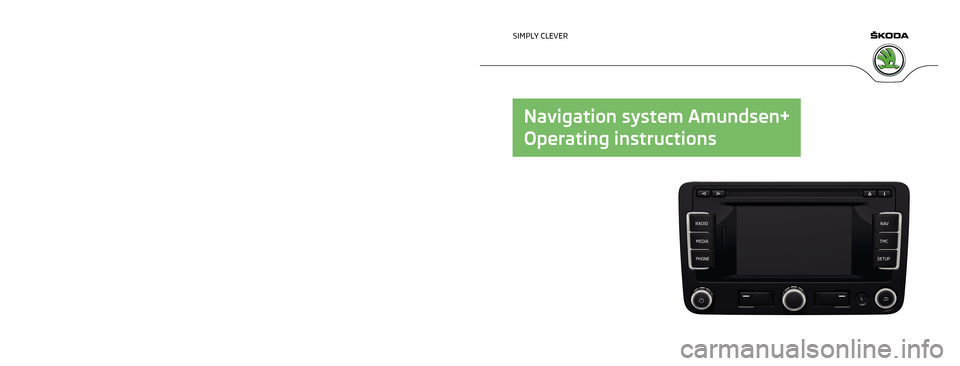
Navigation system Amundsen+
Operating instructions
Page 2 of 30
Structure of this Owner's Manual
(explanations)
This Owner's Manual has been systematically designed to make it easy for you to
search for and obtain the information you require.
Chapters, table of contents and subject index
The text of the Owner's manual is divided into relatively short sections which are
combined into easy-to-read chapters. The chapter you are reading at any particular
moment is always specified on the bottom right of the page.
The Table of contents is arranged according to the chapters and the detailed Sub-
ject index at the end of the Owner's Manual helps you to rapidly find the informa-
tion you are looking for.
Direction indications
All direction indications such as “left”, “right”, “front”, “rear” relate to the direction of
travel of the vehicle.
Units of measurement
All values are expressed in metric units.
Explanation of symbolsDenotes the end of a section.Denotes the continuation of a section on the next page.Indicates situations where the vehicle must be stopped as soon as possi-
ble.®Denotes a registered trademark.
Examples of the information listed in the Owner's Manual Press the button SETUP
→ Sound.
This information indicates that you must first press the SETUP
button and then se-
lect and confirm the Sound menu.
The “ →” symbol indicates the next step.
Example of the menu, the available menus, menu items or functions.
■ xyz - the first menu level
■ xyz - the second menu level
■ xyz - the second menu level
■ xyz - the first menu level
Notes
WARNINGThe most important notes are marked with the heading WARNING. These
WARNING notes draw your attention to a serious risk of accident or injury .CAUTIONA Caution note draws your attention to the possibility of damage to your vehicle
(e.g. damage to gearbox), or points out general risks of an accident.
Note
A normal Note draws your attention to important information about the operation
of your vehicle.
Page 3 of 30
Table of Contents
General information
Operating instructions
2
Important information
2
Basic settings
System and sound settings
7
RADIO mode
Main menu RADIO
8
Settings in RADIO mode
8
Digital radio reception DAB
9
Traffic Program TP
9
MEDIA mode
Main menu MEDIA
10
Settings in MEDIA mode
10
Playback options
10
Introductory information about the CD mode
11
SD memory card
11
External sources
12
Requirements for media sources and audio files
13PHONE mode
Pairing mobile phone or Bluetooth ®
device with
device14
Main menu TELEPHONE
14
Telephone calls and functions during a call
15
Settings in PHONE mode
16
NAV mode (Navigation)
Introductory information
17
Navigation data and the SD memory card
17
Main menu Navigation
18
Settings in the (NAV) Navigation mode
19
Destinations
19
Route guidance
21
TMC mode
Displaying TMC traffic reports
23
TP traffic program and TMC traffic reports
settings
23
Display of optical park assist
Display of visual parking system (OPS)
24
Rearview camera display
24
Index
1Table of Contents
Page 4 of 30
General information
Operating instructions
Please read this Amundsen+ navigation system (from here on referred to only as device) Owner's Manual carefully, because operation in accordance with these instructions is a prerequisite for proper use of the unit.
These operating instructions describe all possible equipment variants without
identifying them as special equipment, model variants or market-dependent
equipment.
Consequently, this vehicle does not need to contain all of the equipment compo-
nents described in these operating instructions.
The level of equipment of your vehicle refers to your purchase contract of the ve- hicle. More information is available from the ŠKODA Partner 1)
where you bought
the vehicle.
Please note that these instructions are meant only as an addendum to the infor-
mation presented in the Vehicle Manual for your vehicle. Therefore, they can be
used only in conjunction with the latest manual for this vehicle. For a detailed de-
scription of some functions listed in these instructions, see the Vehicle Manual.
If you have any questions about your unit, please contact a ŠKODA Partner. The illustrations can differ in minor details from your device; they are only inten-
ded for general information.
Important information
Safety information
The device should only be used when traffic conditions permit safe use.
WARNING■ Concentrate fully at all times on your driving! As the driver you are fully re-
sponsible for the operation of your vehicle.■
Only use the device so that you are in full control of your vehicle in every
traffic situation – there is the risk of accidents!
■
Adjust the volume to ensure that acoustic signals from outside the vehicle,
e.g. sirens from vehicles to give way to, such as the police, ambulance and fire
brigade, can be heard at all times.
■
High volumes can cause hearing damage.
Screen cleaning
CAUTION
■ Do not use solvents such as benzine or turpentine, which may damage the
screen surface.■
Treat the screen with care, as finger pressure or contact with sharp objects may
cause dents and scratches on the surface.
Note
The screen can be cleaned with a soft cloth and alcohol if necessary.
Signal receipt
Car parks, tunnels, tall buildings or mountains can disrupt the radio and GPS sig-
nal even causing it to fail completely.
Anti-theft protection
The anti-theft coding of your device prevents operation of the system after a voltage interruption, e.g. during a vehicle repair or following theft. After discon-
necting the battery, disconnecting the radio navigation system from the on-board voltage of the vehicle or after a fuse failure, the code must be entered before the
1)
Explanation of terms
» Owner's Manual , chapter Foreword .
2General information
Page 5 of 30
system can be used again. The code number can only be retrieved “online” via theŠKODA system, as this guarantees even more effective anti-theft protection. Visita specialist garage 1)
if necessary.
Enter code
If a keypad appears after switching on with the command to enter the code, the unit must be unlocked by entering the correct four-digit code.›
Enter the four-digit code using the function keys 0 to 9. The digit is accepted
in the entry line.
After a four-digit order has been entered, the group of digits will turn grey (inac- tive) and no further digits can be accepted in the entry line.
›
To delete the digits in the entry line from right to left, press the function key Delete.
›
When the correct code is displayed in the entry line, press the function key OK.
Incorrect code number
If an incorrect code is confirmed after entry of the code, the procedure can be re- peated twice. The number of attempts is shown in the bottom screen line.
If the code is entered incorrectly for the third time, the unit will be blocked for ap-
prox. one hour. It is not possible to enter the safety code again until after one
hour, while the unit and the ignition were switched on.
If three invalid attempts are then made again, the radio navigation system will be
blocked again for an hour.
Note
The code is normally saved in the instrument cluster memory. This ensures that
the device is automatically decoded (convenience decoding). Manual input of the
code is normally not necessary.
Screen display
The screen of the unit displays information such as information from the Clima-
tronic, the vehicle distance to an obstacle if the “parking aid” has been activated, etc.
Personalisation
Your vehicle can be equipped with up to four keys. Individual settings of the de-
vice are always assigned to the key currently in use. Up to 4 different setting var-
iants can be stored for the device. When using the key for the first time, the fac- tory setting for the device is valid.1)
Explanation of terms » Owner's Manual , chapter Foreword .
3General information
Page 6 of 30
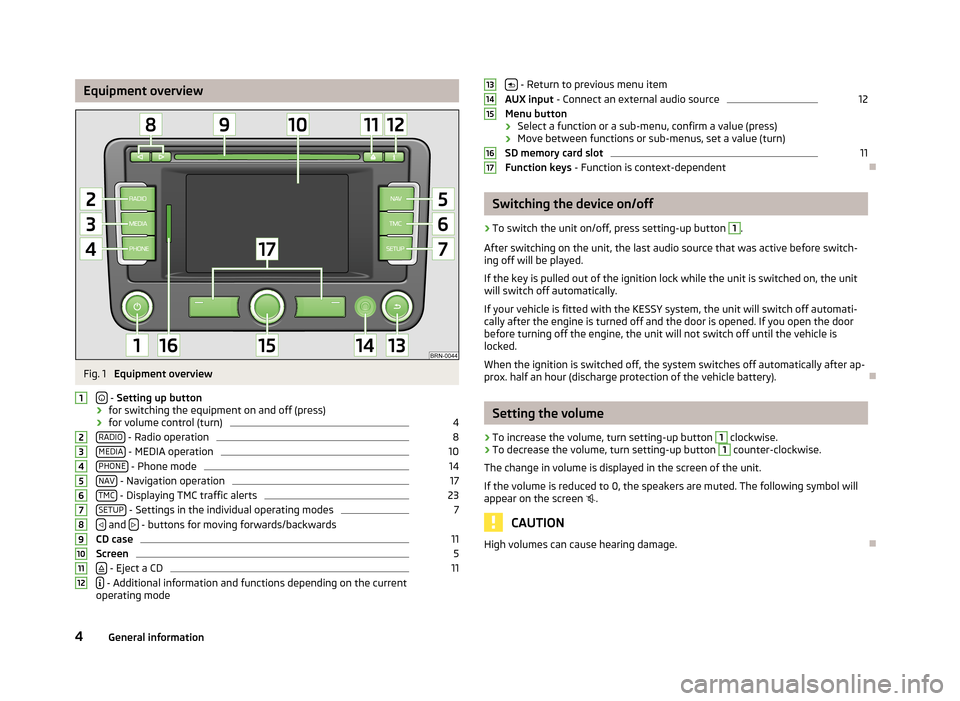
Equipment overviewFig. 1
Equipment overview
- Setting up button
› for switching the equipment on and off (press)
› for volume control (turn)
4
RADIO - Radio operation
8
MEDIA - MEDIA operation
10
PHONE - Phone mode
14
NAV - Navigation operation
17
TMC - Displaying TMC traffic alerts
23
SETUP - Settings in the individual operating modes
7
and
- buttons for moving forwards/backwards
CD case
11
Screen
5
- Eject a CD
11
- Additional information and functions depending on the current
operating mode
123456789101112 - Return to previous menu item
AUX input - Connect an external audio source12
Menu button
› Select a function or a sub-menu, confirm a value (press)
› Move between functions or sub-menus, set a value (turn)
SD memory card slot
11
Function keys - Function is context-dependent
Switching the device on/off
›
To switch the unit on/off, press setting-up button
1
.
After switching on the unit, the last audio source that was active before switch-
ing off will be played.
If the key is pulled out of the ignition lock while the unit is switched on, the unit
will switch off automatically.
If your vehicle is fitted with the KESSY system, the unit will switch off automati-
cally after the engine is turned off and the door is opened. If you open the door
before turning off the engine, the unit will not switch off until the vehicle is
locked.
When the ignition is switched off, the system switches off automatically after ap-
prox. half an hour (discharge protection of the vehicle battery).
Setting the volume
›
To increase the volume, turn setting-up button
1
clockwise.
›
To decrease the volume, turn setting-up button
1
counter-clockwise.
The change in volume is displayed in the screen of the unit.
If the volume is reduced to 0, the speakers are muted. The following symbol will appear on the screen
.
CAUTION
High volumes can cause hearing damage.13141516174General information
Page 9 of 30
Basic settings
System and sound settings
System settings
Press the button SETUP
→ System.
■ Language
- Menu language for the displays and the language messages
■ Adaptive - auto-detection of menu language, depending on the setting in the
information display
■ or direct selection of the required language from the list
■ Keypad layout
- Keypad layout for text entry
■ ABC - keys arranged alphabetically
■ QWERTY - QWERTY keypad layout
■ Air con. displays - adjust the display duration for the Climatronic control
■ Screen - screen setting
■ Brightness - adjust the screen brightness
■ Day/night - changes between day and night design. Automatic display depends
on switching the low beam on or off.
■ Confirmation tone
- activates/deactivates confirmation tone when a function
key is pressed
■ Factory settings
- restores unit to factory settings
■ Remove SD card - removed the SD memory card safely
■ Clock display - switches time display on/off when the device is switched off
Sound settings
Press the button SETUP
→ Sound.
■ Volume
- Volume settings
■ Max. switch-on volume - setting the volume when turning on
■ Traffic program (TP) - setting the volume for the Traffic program (TP)
■ Navigation volume - Setting the volume of the navigation announcements
■ PDW vol. reductn. - Setting the reduction of the volume when the park distance
control is active
■ SDVA
- Speed-dependent volume adaptation
■ Treble - Treble setting
■ Mid-range - Mid-range setting
■ Bass - Bass setting
■ Balance - Setting of the balance between the left and right side
■ Fader - Setting the balance between the front and the rear
■ EQ settings - Setting the equalizer (linear, voice, rock, classical, dance)
■ Surround - Setting of the surround tone.
7Basic settings
Page 10 of 30
RADIO mode
Main menu RADIO
Press the button RADIO
.
Repeated pressing of the button RADIO
- change frequency band.
Function keys Extras
■
Extras - opens a list of additional functions
■ Presets - activates/deactivates the display of station presets 1 to 24■
Manual - manual station search by turning the menu knob
15
■ Scan - Auto-plays all stations in the current frequency band, each for around
five seconds.
■ TP
- switches traffic programme on/off » page 9, Traffic Program TP
Function key Band
■
Band - opens the list of frequency bands
■ DAB/List -opens the list of DAB stations » page 9, Digital radio reception
DAB
■ Update
- Update list of DAB stations
■ Store - stores the current station to the selected memory button
■ FM/List - opens the list of all FM stations currently in range
■ Store - stores the current station to the selected memory button
■ AM - switches to the AM band; a list of stations not available
Function keys 1
to 24Direct selection of the stored station.
Keep 1
to 24 pressed until a signal sounds - stores the current station to the se-
lected memory button.
Changing the station
or - depending on the setting of the “arrow keys” - changes the saved sta-
tion or all stations currently within range in this area
RDS display setting
Press the button
- switches on/off the Radio Data Service RDS.
RDS (“Radio Data System”) serves to transmit program identification and addi-
tional services therefore also enabling automatic tracking of stations.
Settings in RADIO mode
Press the button RADIO
→ SETUP.
■ Traffic program (TP)
- switches traffic program on/off
■ Arrow keys - Sets the station selection function in RADIO mode using the arrow
keys
8
■ Station list - Switches all stations currently in range for the selected frequency
band
■ Presets
- switches to the stored stations (the following symbol appears in the
display )
■ RDS Regional
- automatic station tracking with RDS on/off
■ Adaptive - auto-selects station with the best reception at the moment
■ Fixed - the selected regional station remains set for as long as possible
■ DAB settings - DAB radio settings
■ DAB announcement - switches on/off DAB announcements
■ DAB station tracking - switches on/off DAB station tracking
■ Auto. DAB-FM switching - switches on/off auto-switching from DAB to the FM fre-
quency band if the DAB signal is lost
■ Delete presets
- deletes the preset stations
■ Single - deletes a single station
■ All - deletes all stored stations
■ Alternative frequency (AF) - activates/deactivates the search for alternative fre-
quencies of the station currently being listened to
Note
■ RDS (Radio Data System) is used to transmit programme IDs and additional
services, thus enabling automatic station tracking, for example. In the event of
sufficiently satisfactory reception, the suitable RDS radio stations will display the
station name instead of the station frequency.■
TMC (Traffic Message Channel) is a digital radio data service for continuous
transmission of traffic information.
■
DAB (Digital Audio Broadcasting) is the digital transmission of radio pro-
grammes based on the DAB, DAB+ or DMB standards » page 9, Digital radio re-
ception DAB .
8RADIO mode
Page 13 of 30
Introductory information about the CD mode
Insert CD›
Insert a CD, with the labelled side facing up, into the CD slot
9
until it is auto-
matically drawn in. The play function will start automatically.
Removing the CD
›
Press the button – die CD is ejected.
If the ejected CD is not taken out within 10 seconds, it will be retracted again for safety reasons.
CD not legible
If a CD is inserted which cannot be read by the unit, a pop-up window is displayed with a note. Press the function key OK
, the CD is moved to the removal position.
WARNINGThe CD player is a laser product. On the manufacturing date, this device was
classified as a class 1 laser product in accordance with the national/interna-
tional standards DIN EN 60825-1: 2008-05 and DHHS Rules 21 CFR,
subchapter J The laser used in this class 1 laser product is so weak that there
is no risk of danger when operated correctly. This product is designed such
that the laser is restricted to the inside of the unit. However, the installed la-
ser could be classified in a higher class were the housing to be removed. For
this reason, never remove the housing from the unit.
CAUTION
■ Only audio-CDs (CD-A) and MP3-CDs can be played in the internal drive. Never
place DVDs into the internal drive – irreparable damage may result.■
Never insert CDs with the designation “Do not insert in drives without a drawer”
or Eco Disc into the internal drive.
■
After pressing the button there is a time delay of a few seconds before the
CD is ejected. During this time the lock in front of the CD slot is open.
■
Be sure to wait until the CD has been fully ejected before you try to insert a new
CD. Otherwise you can damage the drive inside the unit.
■
A dirty, mechanically damaged, unreadable or incorrectly inserted CD can cause
playback problems. For this reason, the disc may not be playable or may cause the
CD to jump. Check the CD and insert it properly into the unit. Should the problem
persist, try using another CD and visit a specialist garage if necessary.
■
If the inside temperature of the unit is too high, no CDs will be accepted. The
unit switches into the last active operating mode.
■ Never use liquids such as petrol, paint thinner or record cleaner to clean the sur-
face of the CD - this may cause damage.■
Never expose the CD to direct sun light!
■
Only write on the CD with appropriate writing tools.
■
Do not affix anything to the CD!
Note
■ Uneven road surfaces and strong vibrations may cause the CD to jump.■In cold weather or after rain showers, moisture (condensate) may deposit in the
unit. This can effect the CD jump or impair the play function. In that case, wait un-
til the moisture has dissipated.■
Should a CD be dirty, never clean it in a circular motion, but instead work from
the inside out. Use a soft, lint-free cloth. For heavy stains, we recommend that
you clean the CD with a commercially available CD cleaner and allow it to dry.
■
It is possible that CDs protected by copyright and home-made CD-R and CD-RW
will not be played back at all or only in certain circumstances.
■
Please also note the additional information for MP3 mode.
■
The national copyright laws that apply in your country must be observed.
■
The CD player does not contain parts that need to be serviced or repaired. In the
case of a defective CD player, please visit a specialist garage.
■
If the ejected CD is not taken out, it will be retracted again for safety reasons.
■
If a TP station was set before changing to CD mode, CD playback will be inter-
rupted during the traffic news and the device switches to radio mode. Once the
traffic news has ended, CD playback will resume.
SD memory card
Inserting an SD memory card
›
Insert the SD memory card into the memory card slot
16
with the slanted edge
to the front right until it “locks into place”. The play function will start automati-
cally.
Removing an SD memory card
›
In the “System and sound settings” menu, choose the menu point “Remove SD
card” » page 7 , System and sound settings .
›
Press on the inserted SD memory card. The SD memory card “jumps” into the
eject position.
11MEDIA mode
Page 15 of 30
WARNING (Continued)■Never hold external sources in your hand or on your knees while driving.
These could be thrown into the passenger compartment during sudden driv-
ing manoeuvres, injuring the occupants.■
Always route the connection cable of the external source so that it does not
restrict you when driving.
CAUTION
The AUX input must only be used for audio sources!Note■ See the owner's manual of the specific manufacturer for instructions on operat-
ing the external source.■
The external audio source, connected via AUX, can only be used if no other unit
is connected via MDI at the same time.
■
If an external audio source, which is equipped with an adapter for external pow-
er supply, is connected via AUX-IN, the audio signal may be interrupted. This de-
pends on the quality of the adapter which is used.
Requirements for media sources and audio files
Media sourcePlayback prerequisites Audio-CDs (max. 80 min) with a diameter of 12 cm.CD digital audio specification CD-ROM, CD-R, CD-RW with a diameter of 12 cm up to a max. of 700 MB (Mega-
bytes) in the file system ISO 9660 Level 1 and 2, Joliet or UDF 1.02, 1.5, 2.01, 2.5
SD and MMC memory cards 32 mm x 24 mm x 2.1 mm or 1.4 mm with the FAT12,
FAT16 and FAT32 file system up to a max. 2 GB (Gigabytes) and SDHC memory cards
up to a max. of 32 GB.– MP3 files (.mp3) with bit rates of 48 to 320 kbps or a variable bit rate. – WMA files (.wma) up to 9.2 or to 10.0 mono/stereo without copy protection.– Audio files in the OGG-Vorbis and MPEG4 AAC formats.
– Playlists in the PLS, B4S, ASX and WPL formats. – File names and paths no longer than 256 characters.– Folder structures with a maximum of eight levels.
– Max. 256 folders and max. 512 files on audio data CDs .
– Max. 2,048 folders and max. 15,000 files, max. 6,000 files per folder, on SD mem- ory cards. Playing audio files via Bluetooth ®
a)
.– The mobile phone/external audio source must support the A2DP-Bluetooth ®
pro-
file.AUX External audio sourceAudio output via 3.5 mm jack is possible.MDI external data mediaCompatible with MEDIA-IN interfacea)
Bluetooth ®
is a registered trademark of Bluetooth SIG, Inc.
13MEDIA mode