clock setting SKODA YETI 2014 1.G / 5L Bolero Car Radio Manual
[x] Cancel search | Manufacturer: SKODA, Model Year: 2014, Model line: YETI, Model: SKODA YETI 2014 1.G / 5LPages: 64, PDF Size: 5.42 MB
Page 22 of 64
Keyboard settings19Additional keypad language settings20
Voice control settings
20
Data transmission of mobile devices
20
Safe removal of the audio source
20
Restore factory settings
20
Bluetooth®
settings
20
System Information
21
First and foremost, pay attention to the safety instructions » page 7 , Impor-
tant notes .
This chapter covers the device settings.
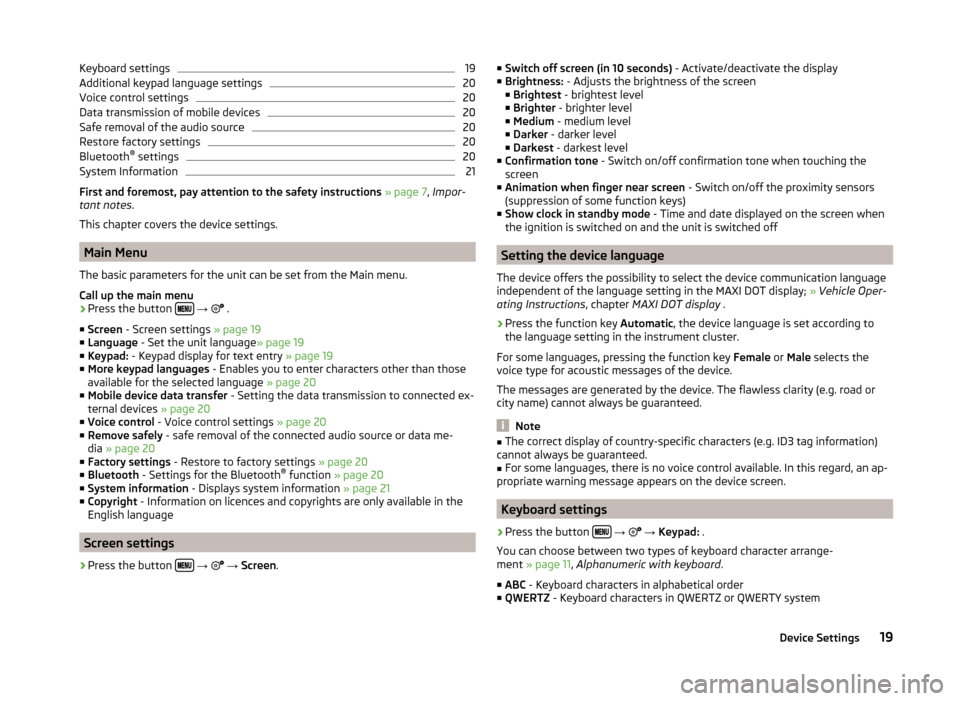
Main Menu
The basic parameters for the unit can be set from the Main menu.
Call up the main menu
›
Press the button
→
.
■ Screen - Screen settings » page 19
■ Language - Set the unit language » page 19
■ Keypad: - Keypad display for text entry » page 19
■ More keypad languages - Enables you to enter characters other than those
available for the selected language » page 20
■ Mobile device data transfer - Setting the data transmission to connected ex-
ternal devices » page 20
■ Voice control - Voice control settings » page 20
■ Remove safely - safe removal of the connected audio source or data me-
dia » page 20
■ Factory settings - Restore to factory settings » page 20
■ Bluetooth - Settings for the Bluetooth ®
function » page 20
■ System information - Displays system information » page 21
■ Copyright - Information on licences and copyrights are only available in the
English language
Screen settings
›
Press the button
→
→ Screen .
■
Switch off screen (in 10 seconds) - Activate/deactivate the display
■ Brightness: - Adjusts the brightness of the screen
■ Brightest - brightest level
■ Brighter - brighter level
■ Medium - medium level
■ Darker - darker level
■ Darkest - darkest level
■ Confirmation tone - Switch on/off confirmation tone when touching the
screen
■ Animation when finger near screen - Switch on/off the proximity sensors
(suppression of some function keys)
■ Show clock in standby mode - Time and date displayed on the screen when
the ignition is switched on and the unit is switched off
Setting the device language
The device offers the possibility to select the device communication language
independent of the language setting in the MAXI DOT display; » Vehicle Oper-
ating Instructions , chapter MAXI DOT display .
›
Press the function key Automatic, the device language is set according to
the language setting in the instrument cluster.
For some languages, pressing the function key Female or Male selects the
voice type for acoustic messages of the device.
The messages are generated by the device. The flawless clarity (e.g. road or
city name) cannot always be guaranteed.
Note
■ The correct display of country-specific characters (e.g. ID3 tag information)
cannot always be guaranteed.■
For some languages, there is no voice control available. In this regard, an ap-
propriate warning message appears on the device screen.
Keyboard settings
›
Press the button
→
→ Keypad: .
You can choose between two types of keyboard character arrange-
ment » page 11 , Alphanumeric with keyboard .
■ ABC - Keyboard characters in alphabetical order
■ QWERTZ - Keyboard characters in QWERTZ or QWERTY system
19Device Settings
Page 39 of 64
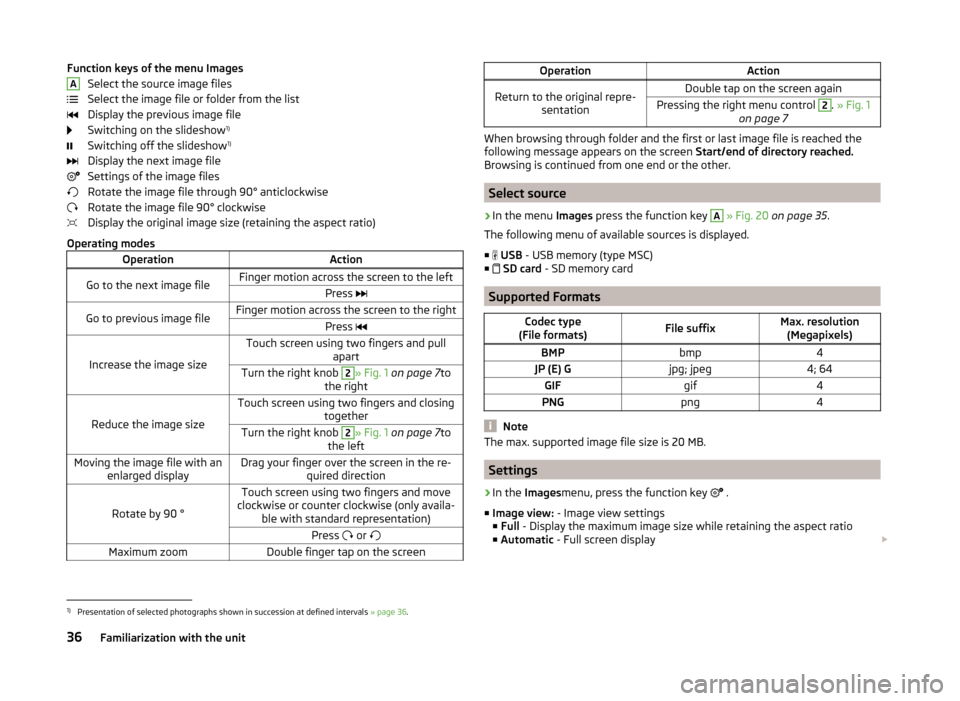
Function keys of the menu ImagesSelect the source image files
Select the image file or folder from the list
Display the previous image file
Switching on the slideshow 1)
Switching off the slideshow 1)
Display the next image file
Settings of the image files
Rotate the image file through 90° anticlockwise
Rotate the image file 90° clockwise
Display the original image size (retaining the aspect ratio)
Operating modesOperationActionGo to the next image fileFinger motion across the screen to the leftPress Go to previous image fileFinger motion across the screen to the rightPress
Increase the image size
Touch screen using two fingers and pull
apartTurn the right knob 2» Fig. 1 on page 7 to
the right
Reduce the image size
Touch screen using two fingers and closing togetherTurn the right knob 2» Fig. 1 on page 7 to
the leftMoving the image file with an enlarged displayDrag your finger over the screen in the re- quired direction
Rotate by 90 °
Touch screen using two fingers and move
clockwise or counter clockwise (only availa- ble with standard representation)Press or Maximum zoomDouble finger tap on the screenAOperationActionReturn to the original repre-
sentationDouble tap on the screen againPressing the right menu control 2. » Fig. 1
on page 7
When browsing through folder and the first or last image file is reached the
following message appears on the screen Start/end of directory reached.
Browsing is continued from one end or the other.
Select source
›
In the menu Images press the function key
A
» Fig. 20 on page 35 .
The following menu of available sources is displayed. ■
USB - USB memory (type MSC)
■
SD card - SD memory card
Supported Formats
Codec type
(File formats)File suffixMax. resolution (Megapixels)BMPbmp4JP (E) Gjpg; jpeg4; 64GIFgif4PNGpng4
Note
The max. supported image file size is 20 MB.
Settings
›
In the Images menu, press the function key
.
■ Image view: - Image view settings
■ Full - Display the maximum image size while retaining the aspect ratio
■ Automatic - Full screen display
1)
Presentation of selected photographs shown in succession at defined intervals
» page 36.
36Familiarization with the unit