USB SUBARU BRZ 2016 1.G Navigation Manual
[x] Cancel search | Manufacturer: SUBARU, Model Year: 2016, Model line: BRZ, Model: SUBARU BRZ 2016 1.GPages: 336, PDF Size: 10.83 MB
Page 283 of 336
Other 281
Other Operations
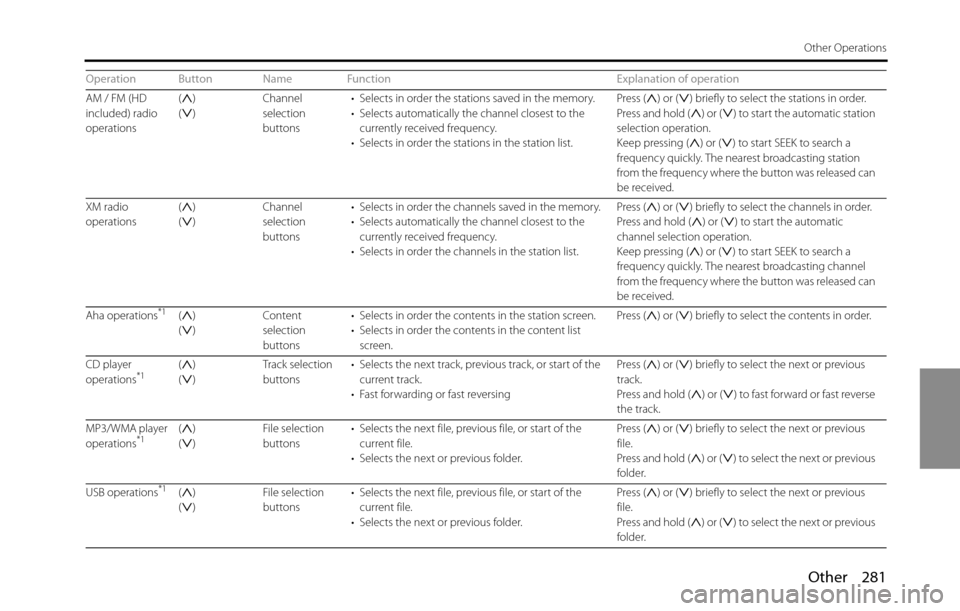
AM / FM (HD
included) radio
operations()
()Channel
selection
buttons• Selects in order the stations saved in the memory.
• Selects automatically the channel closest to the
currently received frequency.
• Selects in order the stations in the station list. Press ( ) or ( ) briefly to select the stations in order.
Press and hold ( ) or ( ) to start the automatic station
selection operation.
Keep pressing ( ) or ( ) to start SEEK to search a
frequency quickly. The nearest broadcasting station
from the frequency where the button was released can
be received.
XM radio
operations()
()Channel
selection
buttons• Selects in order the channels saved in the memory.
• Selects automatically the channel closest to the
currently received frequency.
• Selects in order the channels in the station list.Press ( ) or ( ) briefly to select the channels in order.
Press and hold ( ) or ( ) to start the automatic
channel selection operation.
Keep pressing ( ) or ( ) to start SEEK to search a
frequency quickly. The nearest broadcasting channel
from the frequency where the button was released can
be received.
Aha operations
*1()
()Content
selection
buttons• Selects in order the contents in the station screen.
• Selects in order the contents in the content list
screen.Press ( ) or ( ) briefly to select the contents in order.
CD player
operations
*1()
()Track selection
buttons• Selects the next track, previous track, or start of the
current track.
• Fast forwarding or fast reversingPress ( ) or ( ) briefly to select the next or previous
track.
Press and hold ( ) or ( ) to fast forward or fast reverse
the track.
MP3/WMA player
operations
*1()
()File selection
buttons• Selects the next file, previous file, or start of the
current file.
• Selects the next or previous folder.Press ( ) or ( ) briefly to select the next or previous
file.
Press and hold ( ) or ( ) to select the next or previous
folder.
USB operations
*1()
()File selection
buttons• Selects the next file, previous file, or start of the
current file.
• Selects the next or previous folder.Press ( ) or ( ) briefly to select the next or previous
file.
Press and hold ( ) or ( ) to select the next or previous
folder. Operation Button Name Function Explanation of operation
Page 287 of 336
Other 285
Other Operations
• When the button is pressed while guidance voice,
talkback voice or help voice is being played, you can skip the
voice guidance.
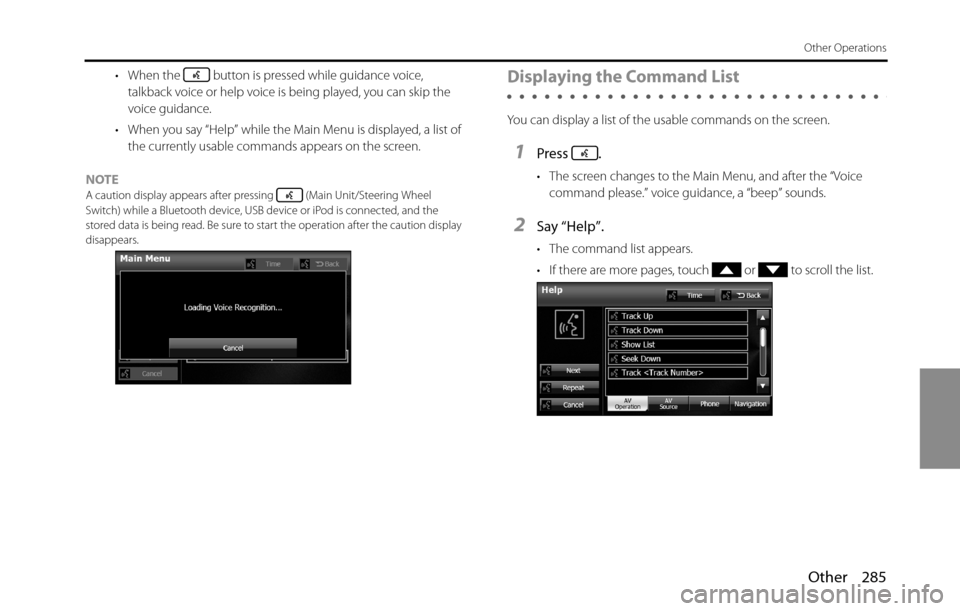
• When you say “Help” while the Main Menu is displayed, a list of
the currently usable commands appears on the screen.
NOTE
A caution display appears after pressing (Main Unit/Steering Wheel
Switch) while a Bluetooth device, USB device or iPod is connected, and the
stored data is being read. Be sure to start the operation after the caution display
disappears.
Displaying the Command List
You can display a list of the usable commands on the screen.
1Press .
• The screen changes to the Main Menu, and after the “Voice
command please.” voice guidance, a “beep” sounds.
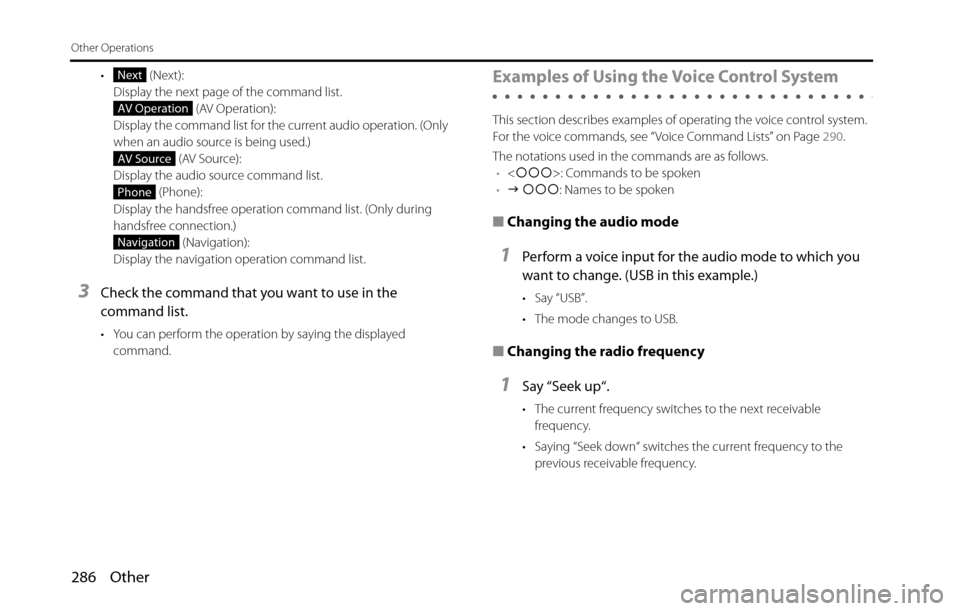
2Say “Help”.
• The command list appears.
• If there are more pages, touch or to scroll the list.
Page 288 of 336
286 Other
Other Operations
• (Next):
Display the next page of the command list.
(AV Operation):
Display the command list for the current audio operation. (Only
when an audio source is being used.)
(AV Source):
Display the audio source command list.
(Phone):
Display the handsfree operation command list. (Only during
handsfree connection.)
(Navigation):
Display the navigation operation command list.
3Check the command that you want to use in the
command list.
• You can perform the operation by saying the displayed
command.
Examples of Using the Voice Control System
This section describes examples of operating the voice control system.
For the voice commands, see “Voice Command Lists” on Page 290.
The notations used in the commands are as follows.
•
•J ccc: Names to be spoken
■Changing the audio mode
1Perform a voice input for the audio mode to which you
want to change. (USB in this example.)
•Say “USB”.
• The mode changes to USB.
■Changing the radio frequency
1Say “Seek up“.
• The current frequency switches to the next receivable
frequency.
• Saying “Seek down“ switches the current frequency to the
previous receivable frequency.
Next
AV Operation
AV Source
Phone
Navigation
Page 290 of 336
288 Other
Other Operations
■Specifying a folder
(Switching USB folders)
1Say “Folder”.
• After you hear “Folder” spoken back to you, the current mode
changes to the folder specification mode.
( The screen also changes.)
2After the voice guidance, say the name of the folder that
you want to play.
• Starting from the first track of the specified folder, all tracks in
the folder will be switched from one to the next after your voice
command.
* iPod mode allows you to specify the desired music track from artist,
genre or playlist.
* A maximum of 1000 music tracks can be specified (when specifying
from genre or playlist, a maximum of 100).
■ Making a call with the phone book
1Say “Phone”.
• After you hear “Handsfree” spoken back to you, the current
mode changes to the handsfree menu mode.
( The screen also changes.)
2After the voice guidance, say “Call
• If there are multiple candidates, follow the voice guidance and
say a list number.
• If there are multiple telephone numbers, follow the voice
guidance and say a location.
• Under the following conditions, some of registered names and
telephone numbers will be deleted from the multiple
candidates.
- When multiple registered names of completely identical characters
are found, the first name to be found will be the candidate.
- When there are multiple identical locations registered in one phone
book, the first location to be found will be the candidate.
3After notifying the name of the person you want to call
by the voice guidance, if you hear the name of the right
person spoken back to you, say “Yes”.
• A call is made to the selected person's telephone number.
• If the name of the selected person is wrong, say “No”.
Page 292 of 336
290 Other
Other Operations
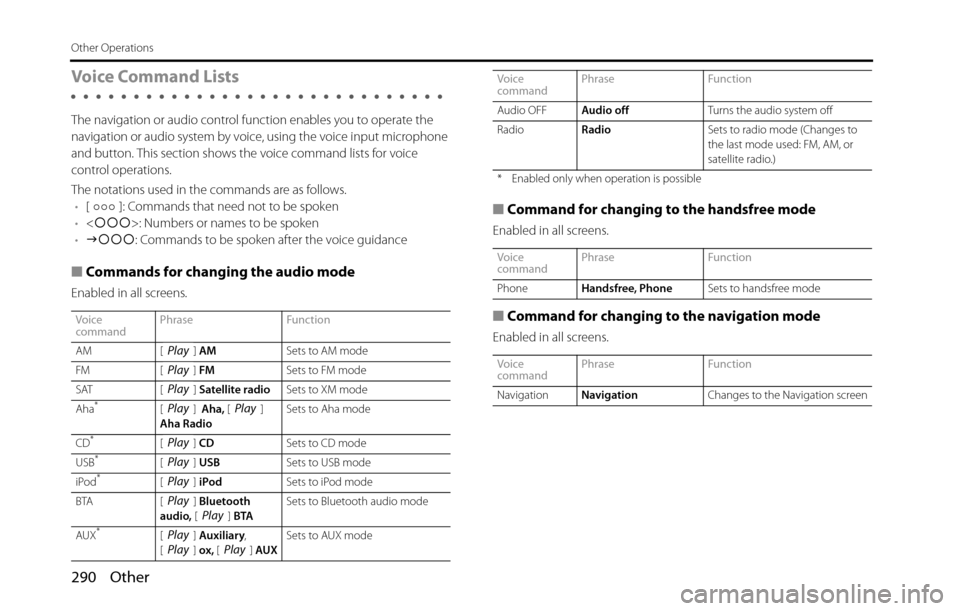
Voice Command Lists
The navigation or audio control function enables you to operate the
navigation or audio system by voice, using the voice input microphone
and button. This section shows the voice command lists for voice
control operations.
The notations used in the commands are as follows.
•[ ]: Commands that need not to be spoken
•
•Jccc: Commands to be spoken after the voice guidance
■Commands for changing the audio mode
Enabled in all screens.
■Command for changing to the handsfree mode
Enabled in all screens.
■Command for changing to the navigation mode
Enabled in all screens.
Voice
commandPhrase Function
AM [ ] AMSets to AM mode
FM [ ] FMSets to FM mode
SAT [ ] Satellite radioSets to XM mode
Aha
*[] Aha, []
Aha RadioSets to Aha mode
CD
*[] CDSets to CD mode
USB*[] USBSets to USB mode
iPod*[] iPodSets to iPod mode
BTA [ ] Bluetooth
audio, [] BTASets to Bluetooth audio mode
AUX
*[] Auxiliary,
[] ox, [] AUXSets to AUX mode
Play
Play
Play
PlayPlay
Play
Play
Play
PlayPlay
PlayPlayPlay
Audio OFFAudio offTurns the audio system off
RadioRadioSets to radio mode (Changes to
the last mode used: FM, AM, or
satellite radio.)
* Enabled only when operation is possible
Voice
commandPhrase Function
PhoneHandsfree, PhoneSets to handsfree mode
Voice
commandPhrase Function
NavigationNavigationChanges to the Navigation screen Voice
commandPhrase Function
Page 295 of 336
Other 293
Other Operations
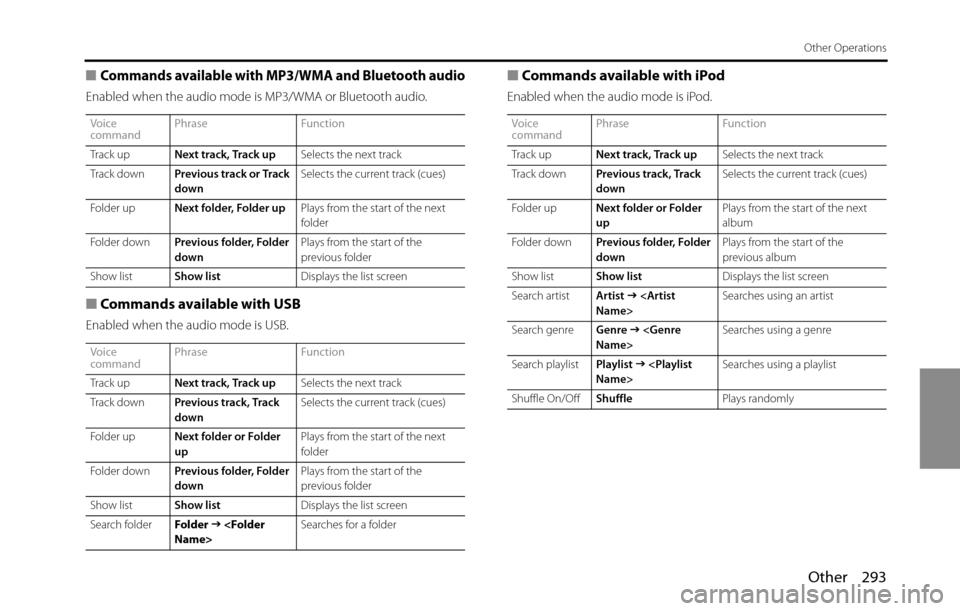
■Commands available with MP3/WMA and Bluetooth audio
Enabled when the audio mode is MP3/WMA or Bluetooth audio.
■Commands available with USB
Enabled when the audio mode is USB.
■Commands available with iPod
Enabled when the audio mode is iPod.
Voice
commandPhrase Function
Track upNext track, Track upSelects the next track
Track downPrevious track or Track
downSelects the current track (cues)
Folder upNext folder, Folder upPlays from the start of the next
folder
Folder downPrevious folder, Folder
downPlays from the start of the
previous folder
Show listShow listDisplays the list screen
Voice
commandPhrase Function
Track upNext track, Track upSelects the next track
Track downPrevious track, Track
downSelects the current track (cues)
Folder upNext folder or Folder
upPlays from the start of the next
folder
Folder downPrevious folder, Folder
downPlays from the start of the
previous folder
Show listShow listDisplays the list screen
Search folderFolder
J
Voice
commandPhrase Function
Track upNext track, Track upSelects the next track
Track downPrevious track, Track
downSelects the current track (cues)
Folder upNext folder or Folder
upPlays from the start of the next
album
Folder downPrevious folder, Folder
downPlays from the start of the
previous album
Show listShow listDisplays the list screen
Search artistArtist
J
Search genreGenre
J
Search playlistPlaylist
J
Shuffle On/OffShufflePlays randomly
Page 321 of 336
Other 319
Reference
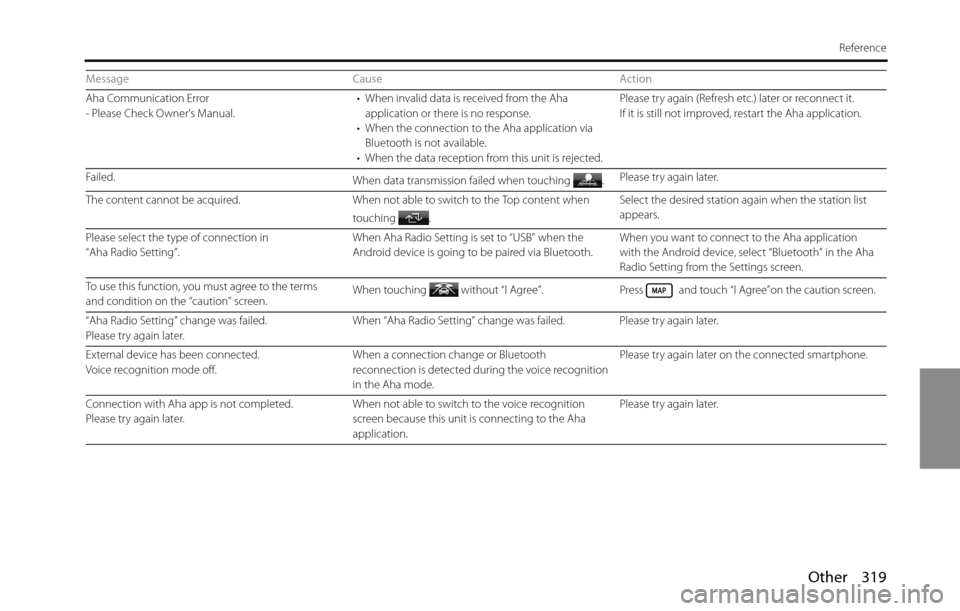
Aha Communication Error
- Please Check Owner's Manual.• When invalid data is received from the Aha
application or there is no response.
• When the connection to the Aha application via
Bluetooth is not available.
• When the data reception from this unit is rejected.Please try again (Refresh etc.) later or reconnect it.
If it is still not improved, restart the Aha application.
Failed.
When data transmission failed when touching .Please try again later.
The content cannot be acquired. When not able to switch to the Top content when
touching .Select the desired station again when the station list
appears.
Please select the type of connection in
“Aha Radio Setting”.When Aha Radio Setting is set to “USB” when the
Android device is going to be paired via Bluetooth.When you want to connect to the Aha application
with the Android device, select “Bluetooth” in the Aha
Radio Setting from the Settings screen.
To use this function, you must agree to the terms
and condition on the “caution” screen.When touching without “I Agree”. Press and touch “I Agree”on the caution screen.
“Aha Radio Setting” change was failed.
Please try again later.When “Aha Radio Setting” change was failed. Please try again later.
External device has been connected.
Voice recognition mode off.When a connection change or Bluetooth
reconnection is detected during the voice recognition
in the Aha mode.Please try again later on the connected smartphone.
Connection with Aha app is not completed.
Please try again later.When not able to switch to the voice recognition
screen because this unit is connecting to the Aha
application.Please try again later. Message Cause Action
Page 323 of 336
Other 321
Reference
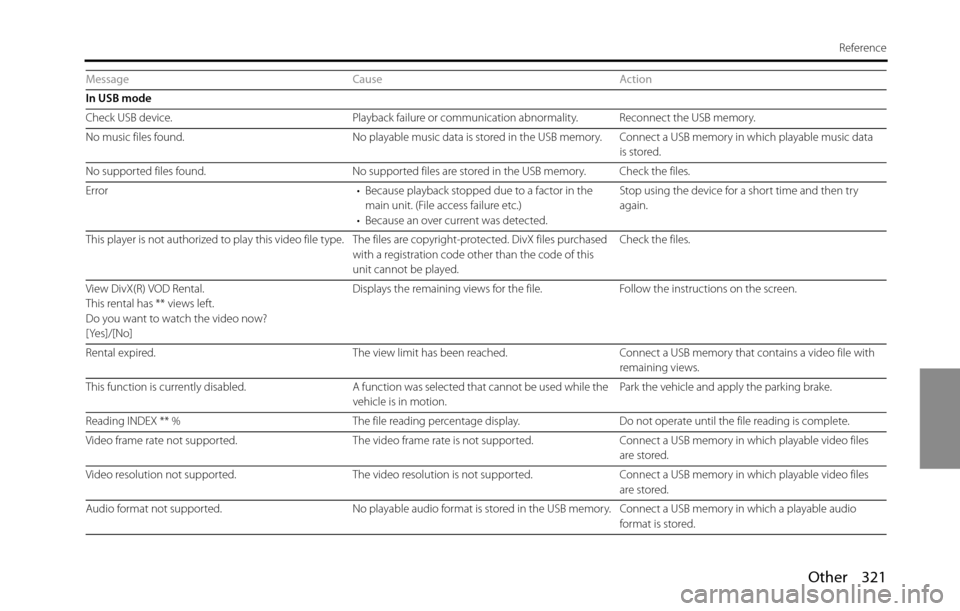
In USB mode
Check USB device. Playback failure or communication abnormality. Reconnect the USB memory.
No music files found. No playable music data is stored in the USB memory. Connect a USB memory in which playable music data
is stored.
No supported files found. No supported files are stored in the USB memory. Check the files.
Error • Because playback stopped due to a factor in the
main unit. (File access failure etc.)
• Because an over current was detected.Stop using the device for a short time and then try
again.
This player is not authorized to play this video file type. The files are copyright-protected. DivX files purchased
with a registration code other than the code of this
unit cannot be played.Check the files.
View DivX(R) VOD Rental.
This rental has ** views left.
Do you want to watch the video now?
[Yes]/[No]Displays the remaining views for the file. Follow the instructions on the screen.
Rental expired. The view limit has been reached. Connect a USB memory that contains a video file with
remaining views.
This function is currently disabled. A function was selected that cannot be used while the
vehicle is in motion.Park the vehicle and apply the parking brake.
Reading INDEX ** % The file reading percentage display. Do not operate until the file reading is complete.
Video frame rate not supported. The video frame rate is not supported. Connect a USB memory in which playable video files
are stored.
Video resolution not supported. The video resolution is not supported. Connect a USB memory in which playable video files
are stored.
Audio format not supported. No playable audio format is stored in the USB memory. Connect a USB memory in which a playable audio
format is stored. Message Cause Action
Page 324 of 336
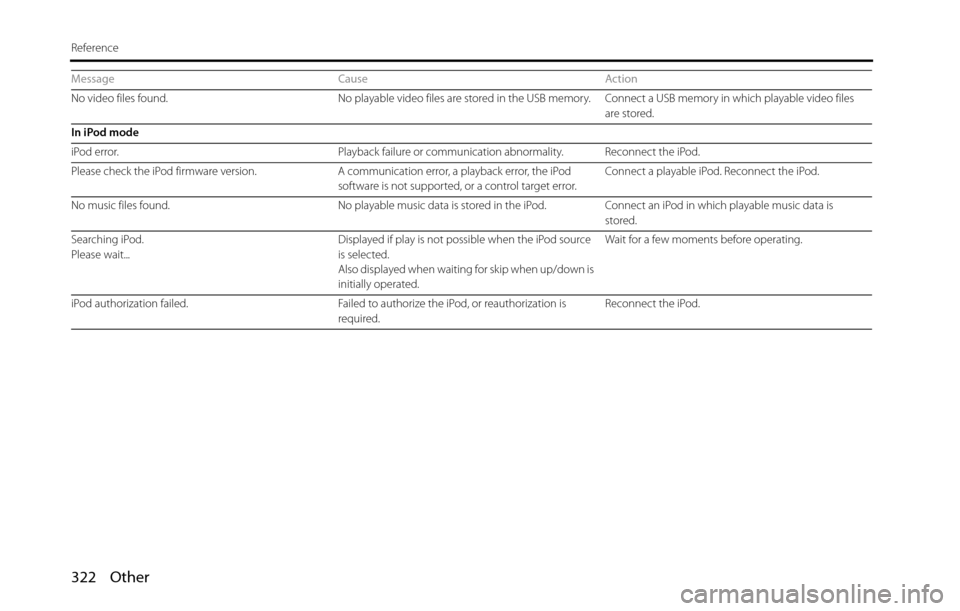
322 Other
Reference
No video files found. No playable video files are stored in the USB memory. Connect a USB memory in which playable video files
are stored.
In iPod mode
iPod error. Playback failure or communication abnormality. Reconnect the iPod.
Please check the iPod firmware version. A communication error, a playback error, the iPod
software is not supported, or a control target error.Connect a playable iPod. Reconnect the iPod.
No music files found. No playable music data is stored in the iPod. Connect an iPod in which playable music data is
stored.
Searching iPod.
Please wait... Displayed if play is not possible when the iPod source
is selected.
Also displayed when waiting for skip when up/down is
initially operated.Wait for a few moments before operating.
iPod authorization failed. Failed to authorize the iPod, or reauthorization is
required.Reconnect the iPod. Message Cause Action
Page 327 of 336
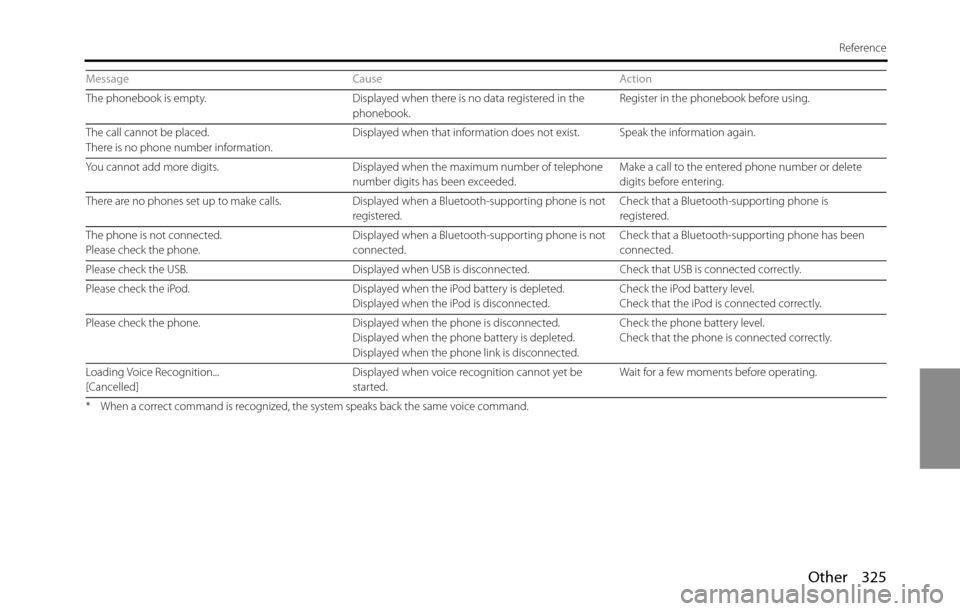
Other 325
Reference
The phonebook is empty. Displayed when there is no data registered in the
phonebook.Register in the phonebook before using.
The call cannot be placed.
There is no phone number information.Displayed when that information does not exist. Speak the information again.
You cannot add more digits. Displayed when the maximum number of telephone
number digits has been exceeded.Make a call to the entered phone number or delete
digits before entering.
There are no phones set up to make calls. Displayed when a Bluetooth-supporting phone is not
registered.Check that a Bluetooth-supporting phone is
registered.
The phone is not connected.
Please check the phone.Displayed when a Bluetooth-supporting phone is not
connected.Check that a Bluetooth-supporting phone has been
connected.
Please check the USB. Displayed when USB is disconnected. Check that USB is connected correctly.
Please check the iPod. Displayed when the iPod battery is depleted.
Displayed when the iPod is disconnected.Check the iPod battery level.
Check that the iPod is connected correctly.
Please check the phone. Displayed when the phone is disconnected.
Displayed when the phone battery is depleted.
Displayed when the phone link is disconnected.Check the phone battery level.
Check that the phone is connected correctly.
Loading Voice Recognition...
[Cancelled]Displayed when voice recognition cannot yet be
started.Wait for a few moments before operating.
* When a correct command is recognized, the system speaks back the same voice command.
Message Cause Action