reset SUBARU CROSSTREK 2017 1.G Owner's Manual
[x] Cancel search | Manufacturer: SUBARU, Model Year: 2017, Model line: CROSSTREK, Model: SUBARU CROSSTREK 2017 1.GPages: 572, PDF Size: 41.52 MB
Page 289 of 572
!Troubleshooting guide
Experience Cause Action
Mismatch of time alignment - a user may hear
a short period of programming replayed or an
echo, stutter or skip.The radio stations analog and digital volume is
not properly aligned or the station is in ballgame
mode.None, radio broadcast issue. A user can contact
the radio station.
Sound fades, blending in and out.Radio is shifting between analog and digital
audio.Reception issue. May clear-up as the vehicle
continues to be driven. Turning the indicator of the
HD Radio
TMoff will change the radio mode to
analog audio.
Audio mute condition when an HD2/HD3
multicast channel had been playing.The radio does not have access to digital
signals at the moment.This is normal behavior, wait until the digital signal
returns. If out of the coverage area, seek a new
station.
Audio mute delay when selecting an HD2/
HD3 multicast channel preset.The digital multicast content is not available until
HD Radio
TMbroadcast can be decoded and
make the audio available. This takes up to 7
seconds.This is normal behavior, wait for the audio to
become available.
Text information does not match the present
song audio.Data service issue by the radio broadcaster.Broadcaster should be notified. Complete the form;
www.ibiquity.com/automotive/report_radio
_station_experiences.
No text information shown for the present
selected frequency.Data service issue by the radio broadcaster.Broadcaster should be notified. Complete the form;
www.ibiquity.com/automotive/report_radio
_station_experiences.
The“Acquiring”caution message appears
when the system attempts to acquire digital
transmission.When acquiring digital data while receiving a
digital broadcast and SPS station..When the reception in digital of the SPS station
is confirmed.
.When the system determined that the SPS
station could not be received.
.When the SPS broadcast is ended (stopped) by
the radio station while receiving SPS.Audio/Audio set
–CONTINUED–
5-35
Page 291 of 572
&SiriusXM Satellite Radio (if
equipped)
!SiriusXM Data Service
Data service information, which is com-
prised of traffic information and weather
information, can be received via the
SiriusXM Radio.
To receive the data service information in
the vehicle, a subscription to the SiriusXM
Satellite Radio service is necessary.
Content set to use the SiriusXM data
service is reset when personal information
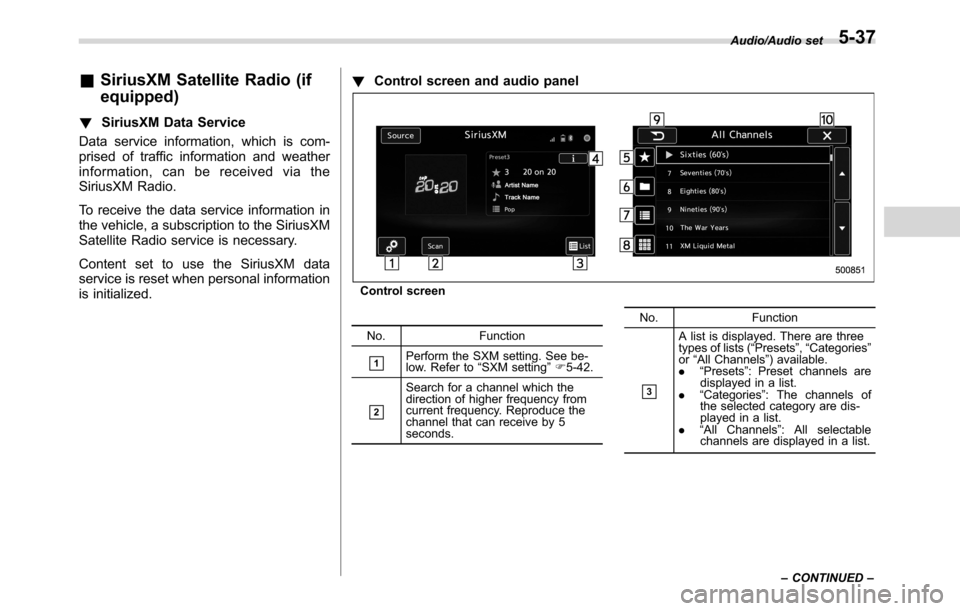
is initialized.!Control screen and audio panel
Control screen
No. Function
&1Perform the SXM setting. See be-
low. Refer to“SXM setting”F5-42.
&2
Search for a channel which the
direction of higher frequency from
current frequency. Reproduce the
channel that can receive by 5
seconds.No. Function&3
A list is displayed. There are three
types of lists (“Presets”,“Categories”
or“All Channels”) available.
.“Presets”: Preset channels are
displayed in a list.
.“Categories”: The channels of
the selected category are dis-
played in a list.
.“All Channels”: All selectable
channels are displayed in a list.Audio/Audio set
–CONTINUED–
5-37
Page 292 of 572
Audio/Audio set
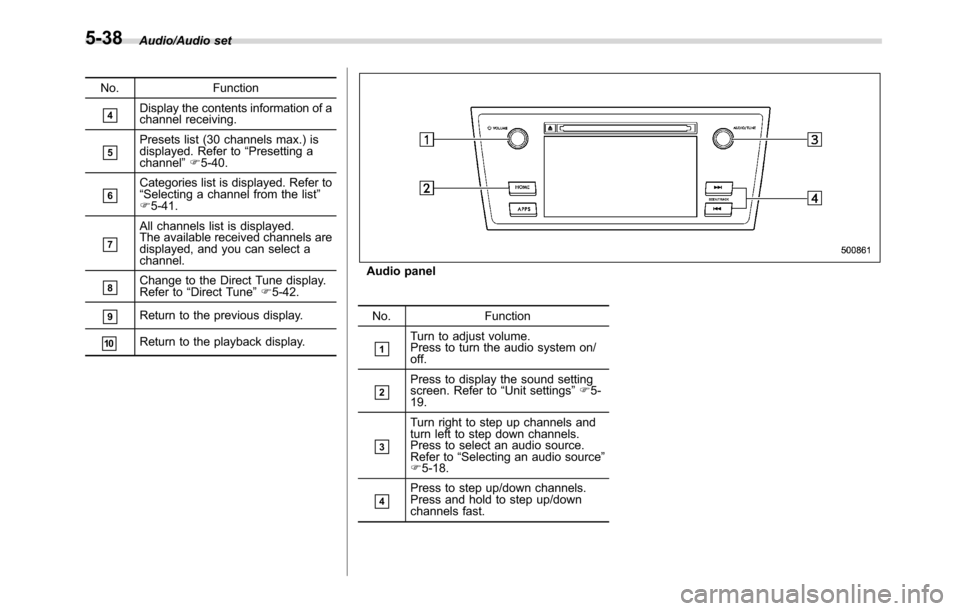
No. Function
&4Display the contents information of a
channel receiving.
&5Presets list (30 channels max.) is
displayed. Refer to“Presetting a
channel”F5-40.
&6Categories list is displayed. Refer to
“Selecting a channel from the list”
F5-41.
&7
All channels list is displayed.
The available received channels are
displayed, and you can select a
channel.
&8Change to the Direct Tune display.
Refer to“Direct Tune”F5-42.
&9Return to the previous display.
&10Return to the playback display.
Audio panel
No. Function
&1Turn to adjust volume.
Press to turn the audio system on/
off.
&2Press to display the sound setting
screen. Refer to“Unit settings”F5-
19.
&3
Turn right to step up channels and
turn left to step down channels.
Press to select an audio source.
Refer to“Selecting an audio source”
F5-18.
&4Press to step up/down channels.
Press and hold to step up/down
channels fast.
5-38
Page 294 of 572
Audio/Audio set
NOTE
.SiriusXM Satellite Services—De-
scriptions
–Only SiriusXM Satellite Radio
®
brings you more of what you love,
all in one place. Get over 175
channels, including commercial-
free music, plus the best sports,
news, talk, comedy and entertain-
ment. Welcome to the world of
satellite radio. More information
about SiriusXM Satellite Radio is
available online at
www.siriusxm.com (U.S.) and
www.siriusxm.ca (Canada).
.SiriusXM Satellite Services—Sub-
scription Instructions
–For SiriusXM Services requiring
a subscription (such as SiriusXM
Satellite Radio, and some Infotain-
ment & data services), the following
paragraph shall be included.
Required SiriusXM Satellite Radio
and some Infotainment & data ser-
vices monthly subscriptions sold
separately after trial period. Sub-
scription fee is consumer only. All
fees and programming subject to
change. Subscriptions are subject
to the Customer Agreement avail-
able at www.siriusxm.com (U.S.) or
www.siriusxm.ca (Canada). Sirius,XM and all related marks and logos
are trademarks of Sirius XM Radio
Inc. All other marks, channel names
and logos are the property of their
respective owners.
For more information, program
schedules, and to subscribe or
extend subscription after compli-
mentary trial period; more informa-
tion is available at:
.U.S. customers:
Visit www.siriusxm.com or call
1-866-635-2349
.Canadian customers:
Visit www.siriusxm.ca or call
1-877-209-0079
.SiriusXM Satellite Radio is solely
responsible for the quality, availability
and content of the satellite radio ser-
vices provided, which are subject to
the terms and conditions of the
SiriusXM Satellite Radio customer ser-
vice agreement.
.Customers should have their radio
ID ready; the radio ID can be found by
tuning to“Ch 000”on the radio. For
details, see“DISPLAYING THE RADIO
ID”below.
.All fees and programming are the
responsibility of SiriusXM Satellite
Radio and are subject to change.!How to change the source
Select the“Sirius XM”key on the source
select screen. Refer to“Selecting an audio
source”F5-18.
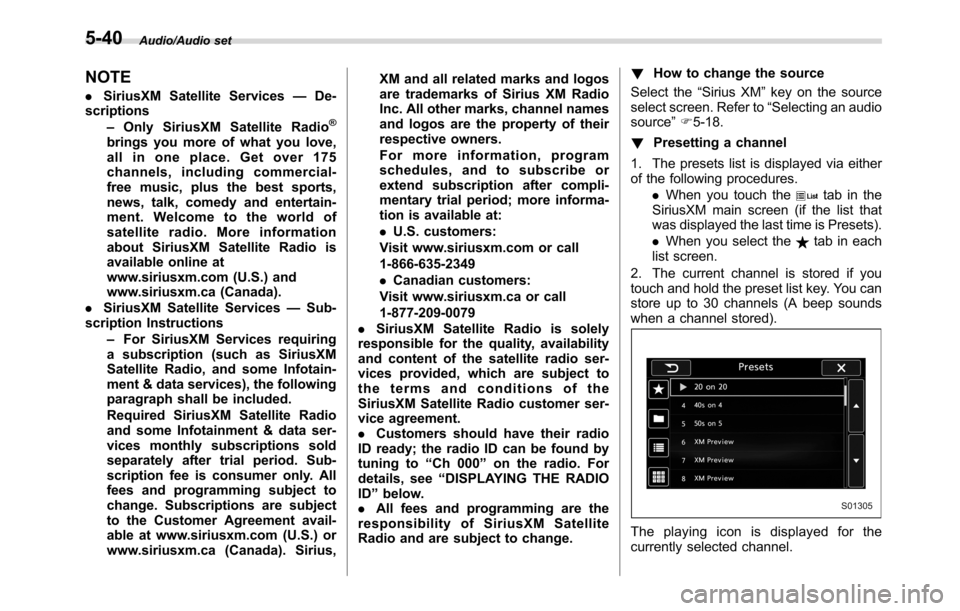
!Presetting a channel
1. The presets list is displayed via either
of the following procedures.
.When you touch the
tab in the
SiriusXM main screen (if the list that
was displayed the last time is Presets).
.When you select the
tab in each
list screen.
2. The current channel is stored if you
touch and hold the preset list key. You can
store up to 30 channels (A beep sounds
when a channel stored).
The playing icon is displayed for the
currently selected channel.
5-40
Page 298 of 572
Audio/Audio set
!Control screen and panel
Control screen (main screen and station screen)
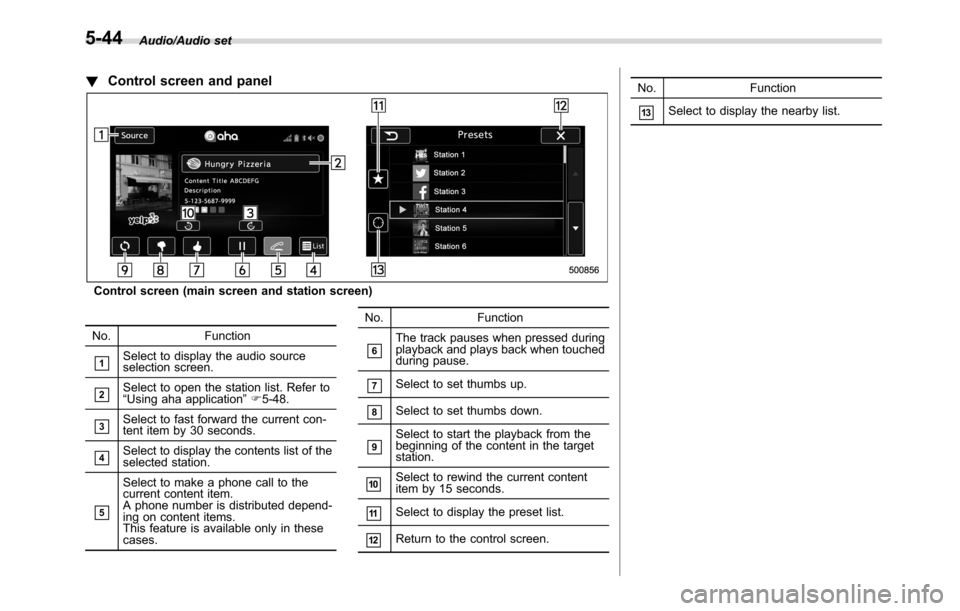
No. Function
&1Select to display the audio source
selection screen.
&2Select to open the station list. Refer to
“Using aha application”F5-48.
&3Select to fast forward the current con-
tent item by 30 seconds.
&4Select to display the contents list of the
selected station.
&5
Select to make a phone call to the
current content item.
A phone number is distributed depend-
ing on content items.
This feature is available only in these
cases.No. Function
&6The track pauses when pressed during
playback and plays back when touched
during pause.
&7Select to set thumbs up.
&8Select to set thumbs down.
&9Select to start the playback from the
beginning of the content in the target
station.
&10Select to rewind the current content
item by 15 seconds.
&11Select to display the preset list.
&12Return to the control screen.No. Function
&13Select to display the nearby list.
5-44
Page 300 of 572
Audio/Audio set
–Outside wireless communication
range, such as some countryside
areas
–Where the wireless communica-
tion network is congested, or where
communications are restricted
.Depending on the circumstances
and environment, the signal may be
weak or not be received. In such cases,
an error may occur.
.Top 35 entries in the preset station
list on the smartphone are displayed.
When there are more than 35 entries in
the preset station list, change the order
of the entries in the list on the smart-
phone. You can change the priority of
your preset stations within the aha
application (after disconnected from
this system) to modify the station list
shown on the screen. Please see your
smartphone aha application“Edit Pre-
sets (in Main menu)”to modify this list.
.For operating the smartphone, see
the instruction manual that comes with
it.
.If there are multiple music files
stored on your iPhone or iPod touch,
it may take some time until playback
starts.
.Playback may be intermittent when
you switch to streaming Bluetooth
audio from aha on your smartphonedevice.
.When connecting the device via
Bluetooth, the communication speed
may become slower than via USB.
!Before using aha application
In order to use the aha application on this
system, the application must be installed
on the smartphone.
!Settings required to use aha
application
.Search and download the aha applica-
tion from your smartphone app store.
–iPhone and iPod touch: Apple App
Store via iTunes
–Android device: Google Play Store
.Create an account and login to the aha
application on the smartphone.
NOTE
Please use the latest version of the aha
application.
!About app-based connected con-
tent
Requirements for using the connected
content services of the aha application
on this system.
.Latest version of the system is compa-
tible with connected content application(s)
for the smartphone, available from aha,downloaded to your smartphone.
.A current account with a wireless
content service provider.
.A smartphone data plan: If the data
plan for your smartphone does not provide
for unlimited data usage, additional
charges from your carrier may apply for
accessing app-based connected content
via 3G, 4G, Wi-Fi or 4G LTE wireless
networks.
.Connection to the internet via 3G, 4G,
Wi-Fi or 4G LTE networks.
NOTE
.Changes to product specifications
may result in differences between the
content of the manual and features of
the product.
.Be careful not to exceed the data
usage limits for your smartphone.
Doing so will result in additional data
usage charges from your phone car-
rier.
.Access to app-based connected
content will depend on the availability
of wireless cell and/or Wi-Fi network
coverage for the purpose of allowing
your smartphone to connect to the
internet.
.Service availability may be geogra-
phically limited by region. Consult the
wireless connected content service
5-46
Page 317 of 572
.+/−switch
Mode Operation Function
Except list screenPress Volume up/down
Press and hold Volume up/down continuously
List screen Press Move cursor up/down
Pandora main screen (if equipped) Press and hold“+”switch is thumb up/“−”switch is thumb down
./switch
Mode Operation Function
AM/FM Radio, SiriusXM (if equipped)Press Preset channel up/down
Press and holdSeek up/down continuously while the switch is
being pressed
ahaPress Content up/down
Press and holdReverse the current content item for 15 sec-
onds/Fast forward the current content item for
30 seconds
Audio CD, MP3/WMA/AAC disc, USB, iPod,
BT audioPress Select a track/file
Press and hold Fast forward/rewind
Pandora (if equipped) Press and hold Thumbs up
List screen PressMove cursor left/rightAudio/Steering switches for audio
–CONTINUED–
5-63
Page 339 of 572
!Commands for hands-free phone
Voice command Function
Dial Number?<0-9,
+, *, #>?Change
number, DialPlaces a call to the
said phone number
Dial <0-9, +, *, #>?
Change number, Dial
Contacts, Phonebook
?
?DialMake a call by using
the phonebook
Call
<1-5>?Dial
Call History?In-
coming call, Outgoing
call?Next (page),
Previous (page)?
<1-5>?DialMake a call by using
the call history
Incoming CallsDisplay the call his-
tory screen
Outgoing CallsDisplay the call his-
tory screen
RedialPlaces a call to the
phone number of the
latest outgoing call
CallbackPlaces a call to the
phone number of the
latest incoming call
Select Phone?
<1-5>Display the phone
select screen
Phone MenuDisplay the hands
free top screen
!Commands for Pandora
Voice command Function
Like Mark“Like”flag
Dislike Mark“Dislike”flag
Skip, NextSkip to the next song
!Commands for aha
Voice command Function
Thumbs Up, Heart,
LikeMark“Like”flag
Thumbs Down, Ban,
DislikeMark“Dislike”flag
Refresh, updateRefresh the selected
station to get the lat-
est information
Content UpPlayback next Con-
tent
Content DownPlayback previous
Content
!Commands for AM/FM control
Voice command Function
Seek UpTunes in the higher
frequency direction
Seek DownTunes in the lower
frequency direction
ScanSwitch to the scan
mode
Tune to
quency to switch to a
specific radio station
Preset
channel to switch to
specific radio station
Ta giTunes Tagging for
HD Radio Audio/Voice command system
–CONTINUED–
5-85
Page 340 of 572
Audio/Voice command system
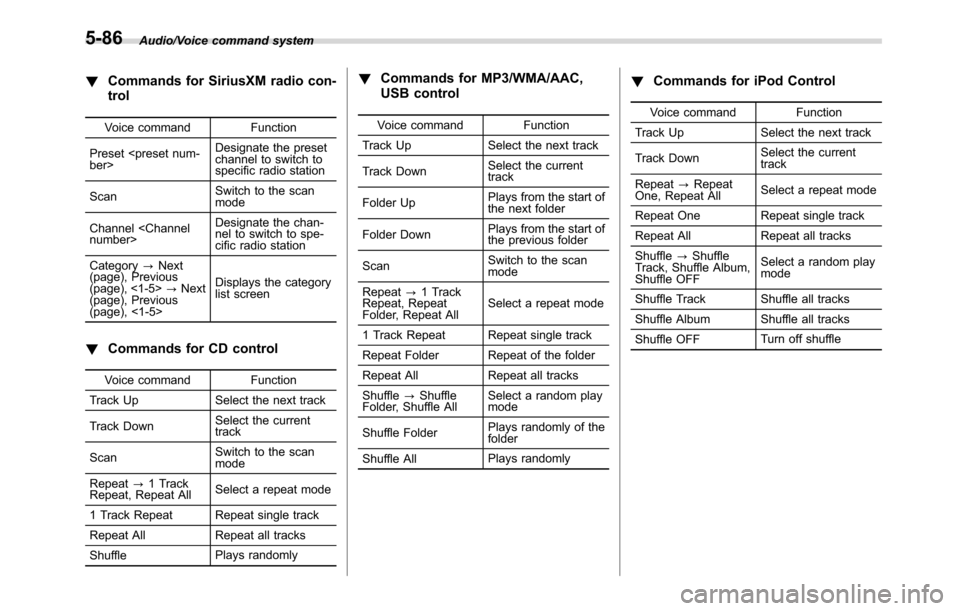
!Commands for SiriusXM radio con-
trol
Voice command Function
Preset
channel to switch to
specific radio station
ScanSwitch to the scan
mode
Channel
nel to switch to spe-
cific radio station
Category?Next
(page), Previous
(page), <1-5>?Next
(page), Previous
(page), <1-5>Displays the category
list screen
!Commands for CD control
Voice command Function
Track Up Select the next track
Track DownSelect the current
track
ScanSwitch to the scan
mode
Repeat?1 Track
Repeat, Repeat AllSelect a repeat mode
1 Track Repeat Repeat single track
Repeat All Repeat all tracks
ShufflePlays randomly
!Commands for MP3/WMA/AAC,
USB control
Voice command Function
Track Up Select the next track
Track DownSelect the current
track
Folder UpPlays from the start of
the next folder
Folder DownPlays from the start of
the previous folder
ScanSwitch to the scan
mode
Repeat?1 Track
Repeat, Repeat
Folder, Repeat AllSelect a repeat mode
1 Track Repeat Repeat single track
Repeat Folder Repeat of the folder
Repeat All Repeat all tracks
Shuffle?Shuffle
Folder, Shuffle AllSelect a random play
mode
Shuffle FolderPlays randomly of the
folder
Shuffle AllPlays randomly
!Commands for iPod Control
Voice command Function
Track Up Select the next track
Track DownSelect the current
track
Repeat?Repeat
One, Repeat AllSelect a repeat mode
Repeat One Repeat single track
Repeat All Repeat all tracks
Shuffle?Shuffle
Track, Shuffle Album,
Shuffle OFFSelect a random play
mode
Shuffle Track Shuffle all tracks
Shuffle Album Shuffle all tracks
Shuffle OFFTurn off shuffle
5-86
Page 375 of 572
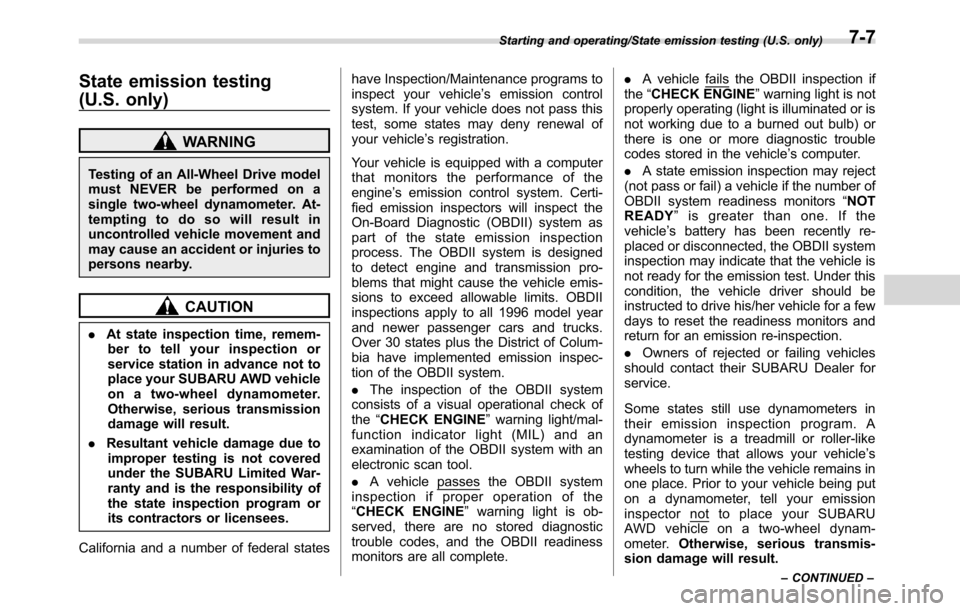
State emission testing
(U.S. only)
WARNING
Testing of an All-Wheel Drive model
must NEVER be performed on a
single two-wheel dynamometer. At-
tempting to do so will result in
uncontrolled vehicle movement and
may cause an accident or injuries to
persons nearby.
CAUTION
.At state inspection time, remem-
ber to tell your inspection or
service station in advance not to
place your SUBARU AWD vehicle
on a two-wheel dynamometer.
Otherwise, serious transmission
damage will result.
.Resultant vehicle damage due to
improper testing is not covered
under the SUBARU Limited War-
ranty and is the responsibility of
the state inspection program or
its contractors or licensees.
California and a number of federal stateshave Inspection/Maintenance programs to
inspect your vehicle’s emission control
system. If your vehicle does not pass this
test, some states may deny renewal of
your vehicle’s registration.
Your vehicle is equipped with a computer
that monitors the performance of the
engine’s emission control system. Certi-
fied emission inspectors will inspect the
On-Board Diagnostic (OBDII) system as
part of the state emission inspection
process. The OBDII system is designed
to detect engine and transmission pro-
blems that might cause the vehicle emis-
sions to exceed allowable limits. OBDII
inspections apply to all 1996 model year
and newer passenger cars and trucks.
Over 30 states plus the District of Colum-
bia have implemented emission inspec-
tion of the OBDII system.
.The inspection of the OBDII system
consists of a visual operational check of
the“CHECK ENGINE”warning light/mal-
function indicator light (MIL) and an
examination of the OBDII system with an
electronic scan tool.
.A vehicle
passes the OBDII system
inspection if proper operation of the
“CHECK ENGINE”warning light is ob-
served, there are no stored diagnostic
trouble codes, and the OBDII readiness
monitors are all complete..A vehicle
fails the OBDII inspection if
the“CHECK ENGINE”warning light is not
properly operating (light is illuminated or is
not working due to a burned out bulb) or
there is one or more diagnostic trouble
codes stored in the vehicle’s computer.
.A state emission inspection may reject
(not pass or fail) a vehicle if the number of
OBDII system readiness monitors“NOT
READY”is greater than one. If the
vehicle’s battery has been recently re-
placed or disconnected, the OBDII system
inspection may indicate that the vehicle is
not ready for the emission test. Under this
condition, the vehicle driver should be
instructed to drive his/her vehicle for a few
days to reset the readiness monitors and
return for an emission re-inspection.
.Owners of rejected or failing vehicles
should contact their SUBARU Dealer for
service.
Some states still use dynamometers in
their emission inspection program. A
dynamometer is a treadmill or roller-like
testing device that allows your vehicle’s
wheels to turn while the vehicle remains in
one place. Prior to your vehicle being put
on a dynamometer, tell your emission
inspector
not to place your SUBARU
AWD vehicle on a two-wheel dynam-
ometer.Otherwise, serious transmis-
sion damage will result.
Starting and operating/State emission testing (U.S. only)
–CONTINUED–7-7