display SUBARU FORESTER 2010 SH / 3.G Owner's Manual
[x] Cancel search | Manufacturer: SUBARU, Model Year: 2010, Model line: FORESTER, Model: SUBARU FORESTER 2010 SH / 3.GPages: 402, PDF Size: 14.36 MB
Page 186 of 402
!Skip channel selection
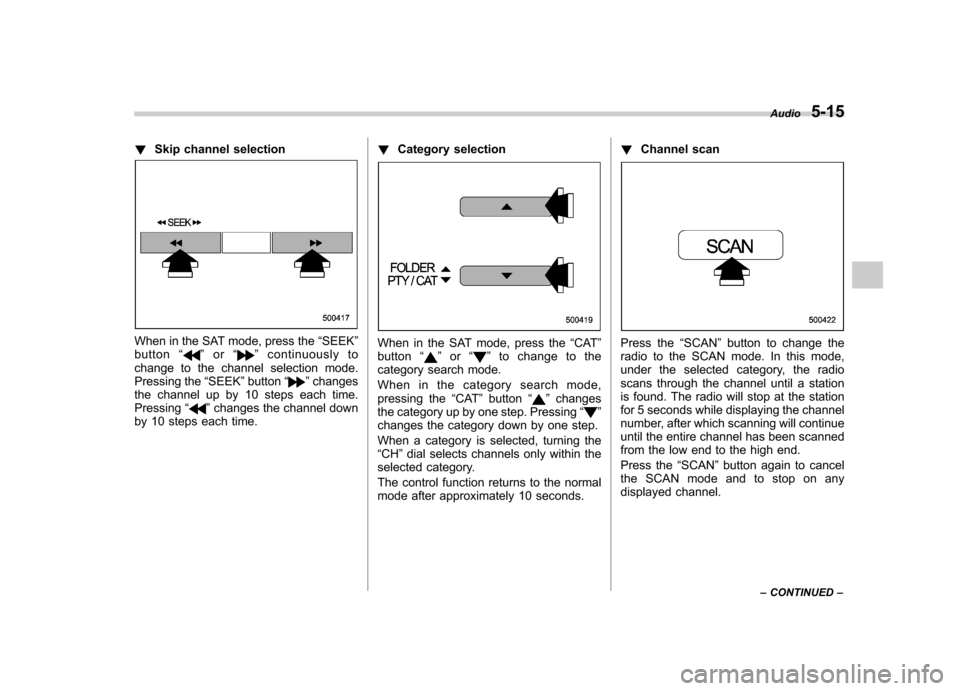
When in the SAT mode, press the “SEEK ”
button “”or “”continuously to
change to the channel selection mode.
Pressing the “SEEK ”button “
”changes
the channel up by 10 steps each time. Pressing “
”changes the channel down
by 10 steps each time. !
Category selection
When in the SAT mode, press the “CAT ”
button “”or “”to change to the
category search mode.
When in the category search mode,
pressing the “CAT ”button “
”changes
the category up by one step. Pressing “”
changes the category down by one step.
When a category is selected, turning the “ CH ”dial selects channels only within the
selected category.
The control function returns to the normal
mode after approximately 10 seconds. !
Channel scan
Press the “SCAN ”button to change the
radio to the SCAN mode. In this mode,
under the selected category, the radio
scans through the channel until a station
is found. The radio will stop at the station
for 5 seconds while displaying the channel
number, after which scanning will continue
until the entire channel has been scanned
from the low end to the high end.
Press the “SCAN ”button again to cancel
the SCAN mode and to stop on any
displayed channel. Audio
5-15
– CONTINUED –
Page 187 of 402

5-16Audio
& Channel preset
! How to preset channels
1. Press the “SAT ”button to select SAT1,
SAT2 and SAT3 reception.
2. Select the desired channel.
3. Press one of the preset buttons for
more than 1.5 seconds to store the
channel. If the button is pressed for less
than 1.5 seconds, the preceding selection
will remain in memory. NOTE
If the connection between the radio and
battery is broken for any reason such
as vehicle maintenance or radio re-
moval, all channels stored in the preset
buttons are cleared. If this occurs, it is
necessary to reset the preset buttons. !
Selecting preset channels
Presetting a channel with a preset button
allows you to select that channel in a
single operation. Up to six SAT1, SAT2
and SAT3 channels each may be preset. &
Display selectionPress the “TEXT ”button while receiving
the satellite radio to change the display as follows.
Page 188 of 402

CD player operation NOTE .Make sure to always insert a disc
with the label side up. If a disc is
inserted with the label side down, the
player displays “CHECK DISC ”. Refer
to “When the following messages are
displayed ”F 5-25.
. If a disc is inserted during a radio
broadcast, the disc will interrupt thebroadcast.. After the last song finishes, the disc
will automatically return to track 1 (the
first track on the disc) and will auto-
matically play back. . The player is designed to be able to
play music CD-Rs and music CD-RWs,
but it may not be able to play certainones.. CDs (i.e., 8 cm/3 inch CDs) are not
supported, and if inserted, they will be
immediately ejected.. A file (track) that is protected by a
WMA copyright cannot be played, and
the player will skip to the next file(track). &
How to insert a CD (type A)
Hold a disc with a finger in the center hole
while gripping the edge of the disc, then
insert it in to the slot (with the label side
up) and the player will automatically pull
the disc into position. NOTE
DO NOT INSERT TWO DISCS INTO THE
DISC INSERTION SLOT AT THE SAMETIME. & How to insert a CD(s) (type B)
1. Briefly press the “LOAD ”button. If the
magazine in the player has an idle
position where you can insert a disc, the
disc number indicator associated with the
idle position will blink. If no indicator blinks, it means that there is
no idle position in the magazine.
2. When the
“LOAD ”indicator illumi-
nates, insert the disc. Once you have
inserted the disc, the “LOAD ”indicator will
turn off. The disc will then be automatically
drawn in, and the player will begin to play
back the first track of the disc. . To insert more discs in succession,
repeat Steps 1 and 2. The magazine will
be loaded with discs in the ascending
order of position number.
If you do not insert any disc in 15 seconds
after you have pressed the “LOAD ”button,
the player will begin to play back the first
track of the last disc you have inserted. . The disc indicator steadily lights up if a
disc is already inserted in the correspond-
ing position of the magazine. . While the player is in the loading mode,
if you press “FM/AM ”, “SAT ”or “AUX ”
button, the player will enter the standby
mode. Press the “CD ”button to start
playback. Audio
5-17
– CONTINUED –
Page 190 of 402

start playback of the discs, beginning with
the one inserted first.
If you fail to insert any disc during each 15
seconds interval, the full disc loading
mode will be canceled, and the player will
start playback of the disc inserted first. &How to play back a CD
! When there is no CD inserted
Properly insert a CD. Refer to “How to
insert a CD (type A) ”F 5-17 / “How to
insert a CD(s) (type B) ”F 5-17.
When a CD is loaded, the player will start
playback of the CD, beginning with the
first track. ! When CD is in the player (type A)
When the “CD ”button is pressed, the
player will start playback. !
When there are CDs loaded (type B)
Press a desired one of the disc select
buttons the disc number indicator of which
steadily lights up. The player will then start
playback of the selected CD, beginning
with the first track.
If a disc that the player cannot read has
been loaded, the player will display themessage “CHECK DISC ”. &
To select a track from its beginning
! Forward direction
Turn the “TRACK ”dial clockwise to skip to
the beginning of the next track/file (track).
Each time the dial is turned, the indicated
track/file (track) number will increase.
NOTE
In an MP3 or WMA folder, skipping past
the last track/file (track) will take you
back to the first track/file (track) in the
folder. Audio
5-19
– CONTINUED –
Page 193 of 402

5-22Audio
format CD is playing. . The “F-RDM ”indication refers to the
random playback in the folder. It ran-
domly repeats the tracks in the folder. It
is possible to select the function when
an MP3/WMA format track is playing.. The “D-RDM ”indication refers to the
random playback of a disc. It randomly
repeats the tracks in the CD. It is
possible to select the function when
an MP3/WMA format track is playing.
To cancel the random playback mode,
press the “RPT ”button again and select
CANCEL. The “RDM ”indication will turn off, and the
normal playback mode will be resumed. NOTE
Random playback will be cancelled if
you perform any of the following steps. . Press the “RPT ”button and select
CANCEL . Press the “
”button
. Press the disc select button
. Press the “SCAN ”button
. Press the “LOAD ”button when
there is free space in the CD magazine &
Scan
The scan mode lets you listen to the first
10 seconds of each track/file in succes-
sion. Press the “SCAN ”button to start
scanning upward beginning with the track/
file(s) following the currently selected one.
After all track/file(s) in the disk/folder have
been scanned, normal playback will be
resumed. To cancel the scan mode, pressthe “SCAN ”button again.
NOTE
The scan mode will be cancelled if you
perform any of the following steps. . Press the “RPT ”button
. Turn the “TRACK ”dial
. Press the “
”or “”side of the
“ FOLDER ”button
. Press the “
”button .
Press the disc select button
. Select the radio or AUX mode
. Press the “LOAD ”button when
there is free space in the CD magazine . Turn off the power of the audio
equipment. Turntheignitionswitchtothe
“ LOCK ”position
& Display selection
If you press the “TEXT ”button during
playback, the indication will change to the
next one in the following sequence.
Page 194 of 402
For CD-DA:
For MP3/WMA:
!Page (track/folder title) scroll
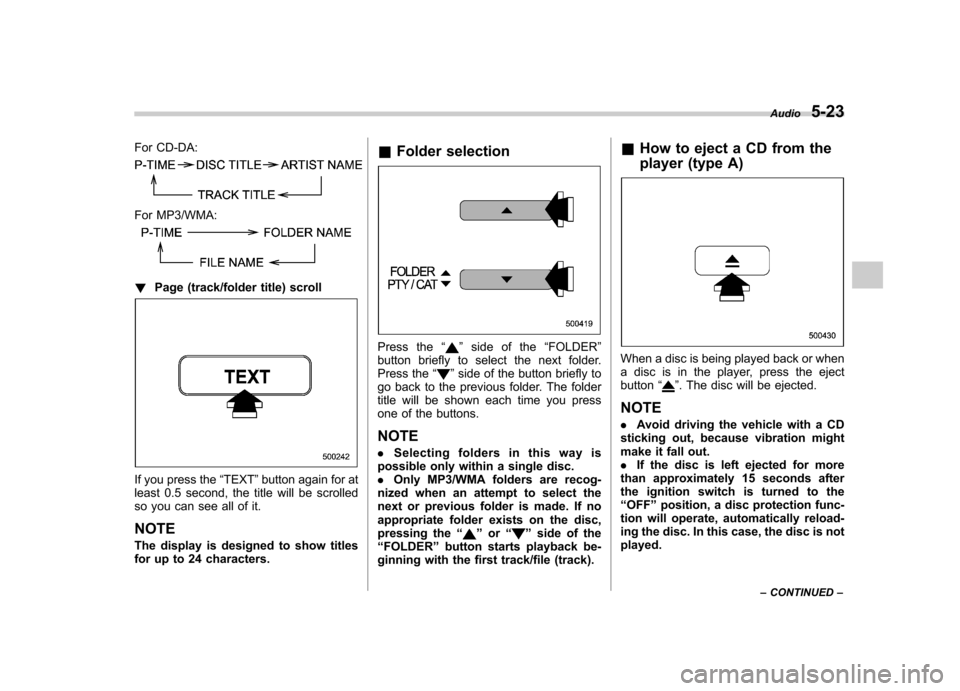
If you press the “TEXT ”button again for at
least 0.5 second, the title will be scrolled
so you can see all of it. NOTE
The display is designed to show titles
for up to 24 characters. &
Folder selection
Press the “”side of the “FOLDER ”
button briefly to select the next folder.
Press the “
”side of the button briefly to
go back to the previous folder. The folder
title will be shown each time you press
one of the buttons.
NOTE . Selecting folders in this way is
possible only within a single disc. . Only MP3/WMA folders are recog-
nized when an attempt to select the
next or previous folder is made. If no
appropriate folder exists on the disc,
pressing the “
”or “”side of the
“ FOLDER ”button starts playback be-
ginning with the first track/file (track). &
How to eject a CD from the
player (type A)
When a disc is being played back or when
a disc is in the player, press the ejectbutton “
”. The disc will be ejected.
NOTE . Avoid driving the vehicle with a CD
sticking out, because vibration might
make it fall out.. If the disc is left ejected for more
than approximately 15 seconds after
the ignition switch is turned to the“ OFF ”position, a disc protection func-
tion will operate, automatically reload-
ing the disc. In this case, the disc is not played. Audio
5-23
– CONTINUED –
Page 196 of 402
the player is in all disc ejection mode,
the mode will be cancelled following
ejection of the disc that is currently
being ejected..If you press the “CD ”button or
“ LOAD ”button while the player is in
all disc ejection mode, the player will
draw in the discs that have been
ejected and play them. & When the following mes-
sages are displayed
If one of the following messages is
displayed while operating the CD player,
determine the cause based on the follow-
ing information. If you cannot clear those
messages, please contact your SUBARU
dealer. ! When “PUSH EJECT ”is displayed
Press the eject button to unload the disc.
Check the disc for damage or deforma-
tion, and also check that the correct disc is
inserted. Do not try to unload the disc
forcibly. Single CDs (i.e., 8 cm/3 inch CDs)
are not supported, and if inserted, they will
be immediately ejected and this message
will be displayed. If the disc cannot be
unloaded or this message remains dis-
played, please contact your SUBARU
dealer. !
When “CHECK DISC ”is displayed
Press the eject button to unload the discs.
Check that the disc is not damaged or
scratched, and also check that the disc is
inserted correctly. This message may
appear when using some CD-RW discs.
Check that the disc type (i.e., 8 cm/3 inch
CDs are not supported) and data format
are correct. This player can only play MP3
and WMA data formats. If the disc cannot
be unloaded or this message remains
displayed, please contact your SUBARU
dealer. Auxiliary input jack (if
equipped)
By connecting a commercial audio pro-
duct to the vehicle, such as a portable
audio player, you can hear its sound via
the vehicle
’s speakers.
An auxiliary (AUX) input jack is present in
the center console. A stereo mini pin plug
(3.5ø) can be inserted in this jack. The
connection cable is available at electrical
appliance or similar stores.
To use the AUX input jack:
1. Connect a portable audio player to the
AUX input jack. Audio
5-25
– CONTINUED –
Page 199 of 402
5-28Audio
Audio control buttons (if equipped)
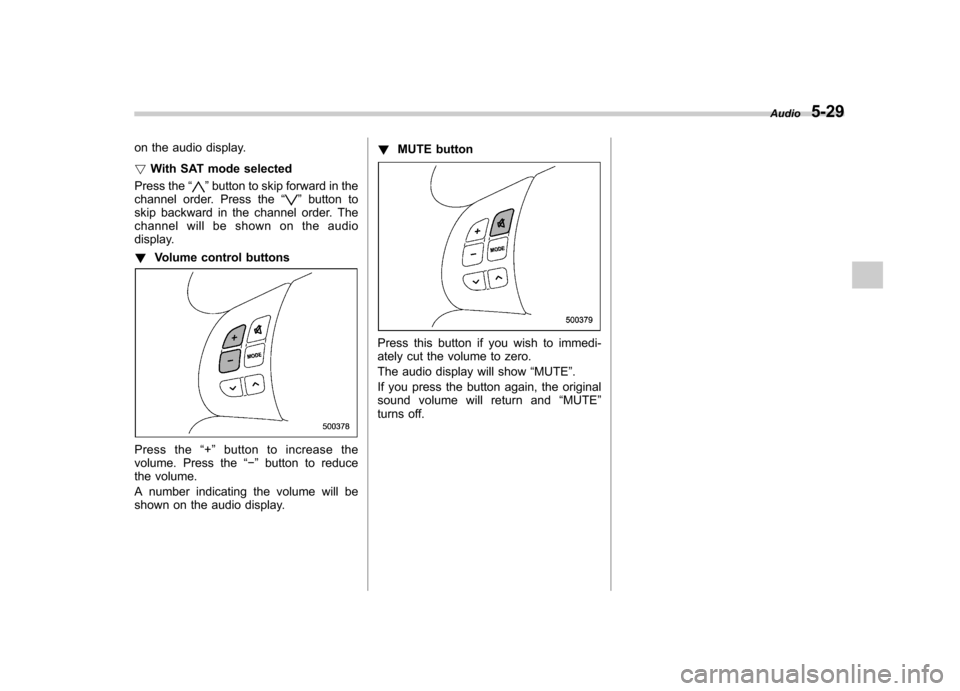
These buttons are located on the steering
wheel. They allow the driver to control
audio functions without taking his/her
hands off the steering wheel. &MODE button
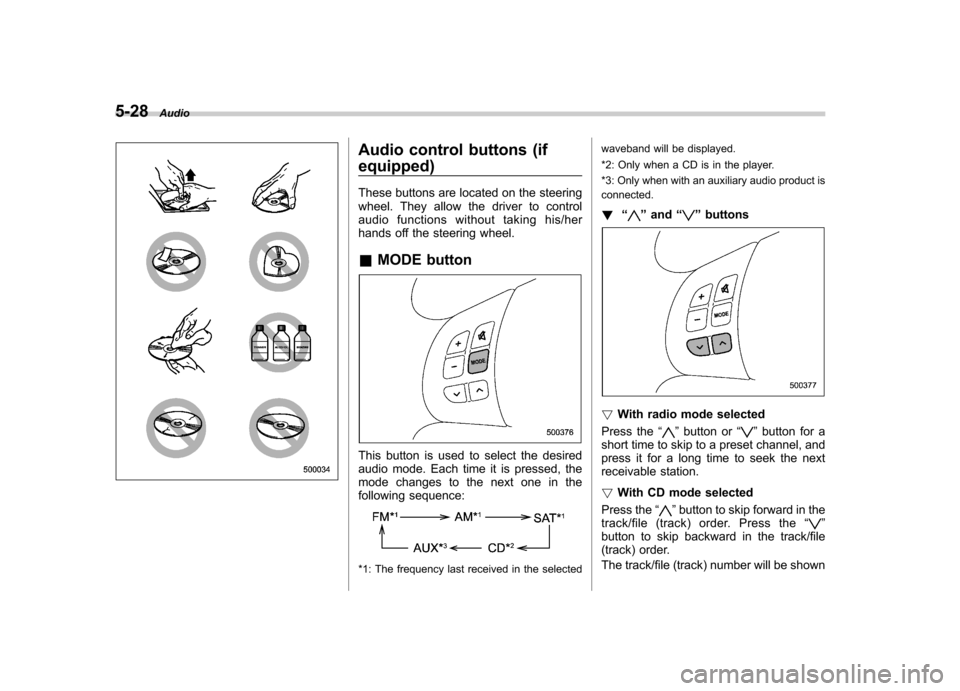
This button is used to select the desired
audio mode. Each time it is pressed, the
mode changes to the next one in the
following sequence:
*1: The frequency last received in the selected waveband will be displayed.
*2: Only when a CD is in the player.
*3: Only when with an auxiliary audio product is connected.
! “
”and “”buttons
! With radio mode selected
Press the “
”button or “”button for a
short time to skip to a preset channel, and
press it for a long time to seek the next
receivable station. ! With CD mode selected
Press the “
”button to skip forward in the
track/file (track) order. Press the “”
button to skip backward in the track/file
(track) order.
The track/file (track) number will be shown
Page 200 of 402
on the audio display. !With SAT mode selected
Press the “
”button to skip forward in the
channel order. Press the “”button to
skip backward in the channel order. The
channel will be shown on the audio
display. ! Volume control buttons
Press the “+ ” button to increase the
volume. Press the “ ” button to reduce
the volume.
A number indicating the volume will be
shown on the audio display. !
MUTE button
Press this button if you wish to immedi-
ately cut the volume to zero.
The audio display will show “MUTE ”.
If you press the button again, the original
sound volume will return and “MUTE ”
turns off. Audio
5-29
Page 316 of 402
&Recommended grade and viscosity
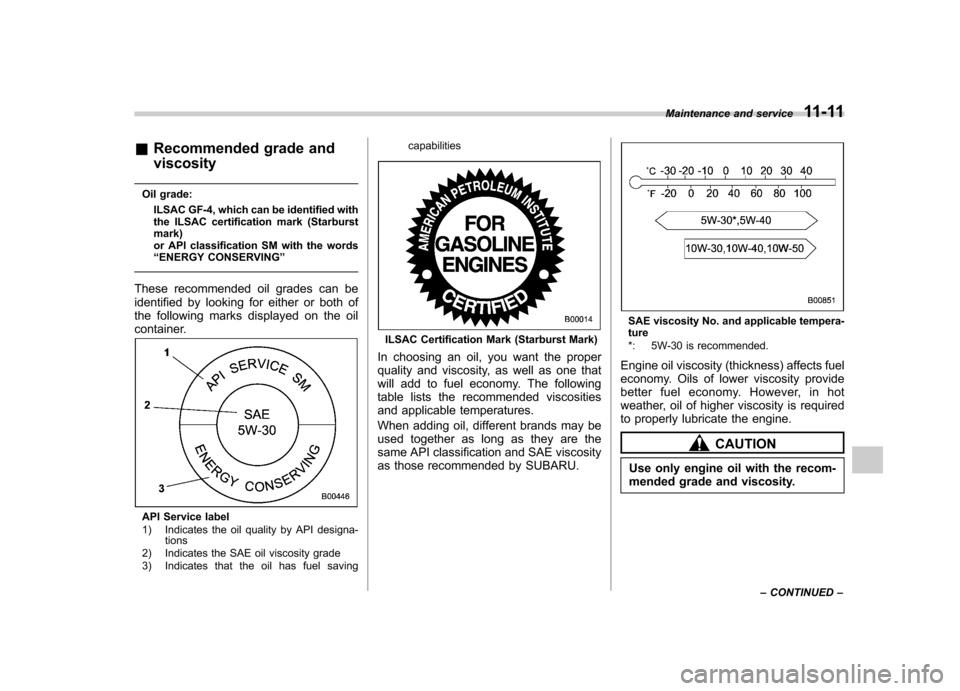
Oil grade: ILSAC GF-4, which can be identified with
the ILSAC certification mark (Starburst mark)
or API classification SM with the words“ENERGY CONSERVING ”
These recommended oil grades can be
identified by looking for either or both of
the following marks displayed on the oil
container.
API Service label
1) Indicates the oil quality by API designa- tions
2) Indicates the SAE oil viscosity grade
3) Indicates that the oil has fuel saving capabilities
ILSAC Certification Mark (Starburst Mark)
In choosing an oil, you want the proper
quality and viscosity, as well as one that
will add to fuel economy. The following
table lists the recommended viscosities
and applicable temperatures.
When adding oil, different brands may be
used together as long as they are the
same API classification and SAE viscosity
as those recommended by SUBARU.
SAE viscosity No. and applicable tempera- ture
*: 5W-30 is recommended.
Engine oil viscosity (thickness) affects fuel
economy. Oils of lower viscosity provide
better fuel economy. However, in hot
weather, oil of higher viscosity is required
to properly lubricate the engine.
CAUTION
Use only engine oil with the recom-
mended grade and viscosity. Maintenance and service
11-11
– CONTINUED –