reset SUBARU FORESTER 2011 SH / 3.G User Guide
[x] Cancel search | Manufacturer: SUBARU, Model Year: 2011, Model line: FORESTER, Model: SUBARU FORESTER 2011 SH / 3.GPages: 446, PDF Size: 15.93 MB
Page 200 of 446

When in the category search mode, press
the following button to change the cate-
gory up or down.
Type A and B audio:Category up by one step
Category down by
one step
Type C audio:
Category up by one step
Category down by
one step
When a category is selected, turning the “ TUNE/TRACK/CH ”dial selects channels
only within the selected category.
The control function returns to the normal
mode after approximately 10 seconds. ! Type D audio
When in the SAT mode, press the
button to change the category search mode. When in the category search mode, press
the following button to change the cate-
gory up or down.
Category up by one step
Category down by
one step
When a category is selected, turning the “ TUNE/TRACK/CH ”dial selects channels
only within the selected category. The
control function returns to the normal
mode after approximately 10 seconds. ! Channel scan
Type A and B audio
Type C audio
Type D audio
Press the “SCAN ”button briefly (type A, B
and C audio)/for more than 1.5 seconds
(type D audio) to change the radio to the
SCAN mode. In this mode, under the
selected category, the radio scans through
the channel until a station is found. The radio will stop at the station for 5 seconds
while displaying the channel number, after
which scanning will continue until the
entire channel has been scanned from
the low end to the high end.
Press the
“SCAN ”button briefly (type A, B
and C audio)/for more than 1.5 seconds
(type D audio) again to cancel the SCAN
mode and to stop on any displayedchannel. & Channel preset
! How to preset channels
1. Press the “SAT ”button to select SAT1,
SAT2 or SAT3 reception.
2. Select the desired channel.
3. Press one of the preset buttons (from
to) for more than 1.5 seconds
to store the channel. If the button is
pressed for less than 1.5 seconds, the
preceding selection will remain in memory. NOTE . Up to six SAT1, SAT2 and SAT3
channels each may be preset. . If the connection between the radio
and battery is broken for any reason
such as vehicle maintenance or radio
removal, all channels stored in the
preset buttons are cleared. If this Audio
5-21
– CONTINUED –
Page 201 of 446

5-22Audio
occurs, it is necessary to reset the
preset buttons. !Selecting preset channels
1. Press the “SAT ”button to select SAT1,
SAT2 or SAT3 reception.
2. Press the preferred preset button
briefly. ! Displaying and selecting preset
stations (type D audio)
1. Press the
button for 1.5 seconds
or longer during satellite radio reception to
display the radio screen.
2. Operate the “TUNE/TRACK/CH ”dial
to select the stations.
& Display selection (type A, B
and C audio)
Type A and B audio
Type C audio
Press the “TEXT ”button while receiving
the satellite radio to change the display as follows.
CD player operation NOTE . Make sure to always insert a disc
with the label side up. If a disc is
inserted with the label side down, the
player displays “CHECK DISC ”. Refer
to “When the following messages are
displayed ”F 5-29.
. If a disc is inserted during a radio
broadcast, the disc will interrupt thebroadcast.. After the last song finishes, the disc
will automatically return to track 1 (the
first track on the disc) and will auto-
matically play back. . The player is designed to be able to
play music CD-Rs and music CD-RWs,
but it may not be able to play certainones.. CDs (i.e., 8 cm/3 inch CDs) are not
supported, and if inserted, they will be
immediately ejected.. CDs that can be played back are
accompanied by the following restric-tions.
–Maximum number of folders: 255
– Maximum number of files in a
folder: 255
Page 213 of 446
5-34Audio
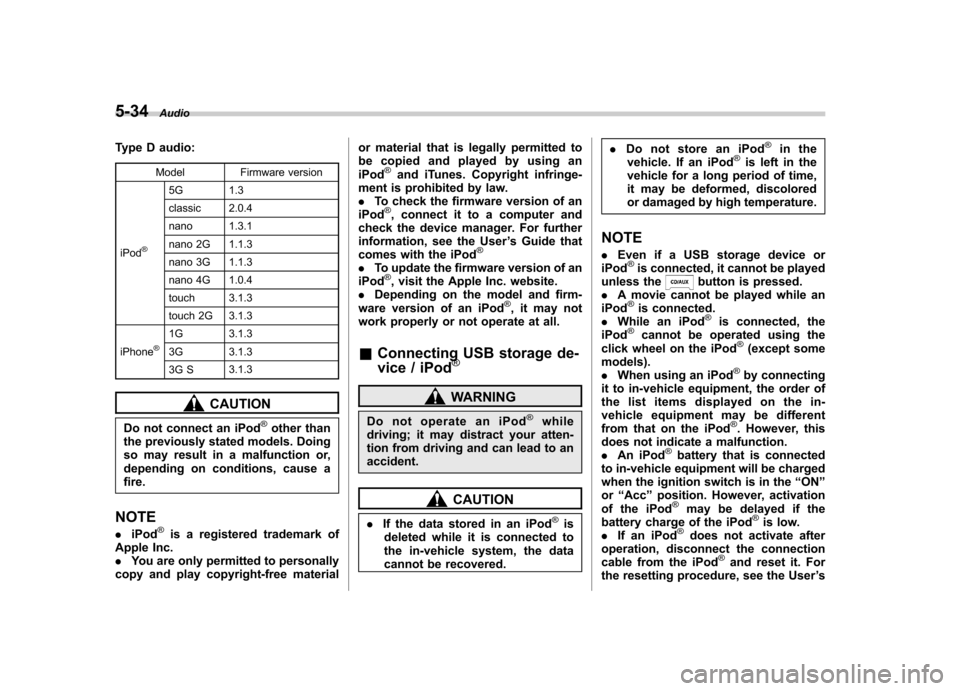
Type D audio:
Model Firmware version
iPod
®
5G 1.3
classic 2.0.4
nano 1.3.1
nano 2G 1.1.3
nano 3G 1.1.3
nano 4G 1.0.4
touch 3.1.3
touch 2G 3.1.3
iPhone
®1G 3.1.3
3G 3.1.3
3G S 3.1.3
CAUTION
Do not connect an iPod
®other than
the previously stated models. Doing
so may result in a malfunction or,
depending on conditions, cause afire.
NOTE . iPod
®is a registered trademark of
Apple Inc. . You are only permitted to personally
copy and play copyright-free material or material that is legally permitted to
be copied and played by using aniPod
®and iTunes. Copyright infringe-
ment is prohibited by law.. To check the firmware version of an
iPod
®, connect it to a computer and
check the device manager. For further
information, see the User ’s Guide that
comes with the iPod
®
. To update the firmware version of an
iPod®, visit the Apple Inc. website.
. Depending on the model and firm-
ware version of an iPod
®, it may not
work properly or not operate at all. & Connecting USB storage de-
vice / iPod
®
WARNING
Do not operate an iPod
®while
driving; it may distract your atten-
tion from driving and can lead to anaccident.
CAUTION
. If the data stored in an iPod
®is
deleted while it is connected to
the in-vehicle system, the data
cannot be recovered. .
Do not store an iPod
®in the
vehicle. If an iPod®is left in the
vehicle for a long period of time,
it may be deformed, discolored
or damaged by high temperature.
NOTE . Even if a USB storage device or
iPod
®is connected, it cannot be played
unless thebutton is pressed.
. A movie cannot be played while an
iPod
®is connected.
. While an iPod®is connected, the
iPod®cannot be operated using the
click wheel on the iPod®(except some
models). . When using an iPod
®by connecting
it to in-vehicle equipment, the order of
the list items displayed on the in-
vehicle equipment may be different
from that on the iPod
®. However, this
does not indicate a malfunction.. An iPod
®battery that is connected
to in-vehicle equipment will be charged
when the ignition switch is in the “ON ”
or “Acc ”position. However, activation
of the iPod
®may be delayed if the
battery charge of the iPod®is low.
. If an iPod®does not activate after
operation, disconnect the connection
cable from the iPod
®and reset it. For
the resetting procedure, see the User ’s
Page 219 of 446
5-40Audio
! With radio mode selected
Press the “
”button or “”button briefly.
The radio will seek the next preset station
and stop on it.
Press the “
”button or “”button
continuously. The radio will seek the next
receivable station and stop on it.
That station ’s frequency will be shown on
the audio display. ! With CD mode selected
Press the “
”button to skip forward in the
track/file order. Press the “”button to
skip backward in the track/file order. The
track/file number will be shown on the
audio display.
When the MP3/WMA/AAC format track is
playing, press the “
”button continuously
to select the next folder. Press the “”
button continuously to go back to the
previous folder. ! With USB/iPod
®mode selected
Press the “
”button to skip forward in the
track/file order. Press the “”button to
skip backward in the track/file order. The
track/file number will be shown on the
audio display. ! With SAT mode selected
Press the “
”button to skip forward in the
channel order. Press the “”button to skip backward in the channel order.
The channel will be shown on the audio
display.
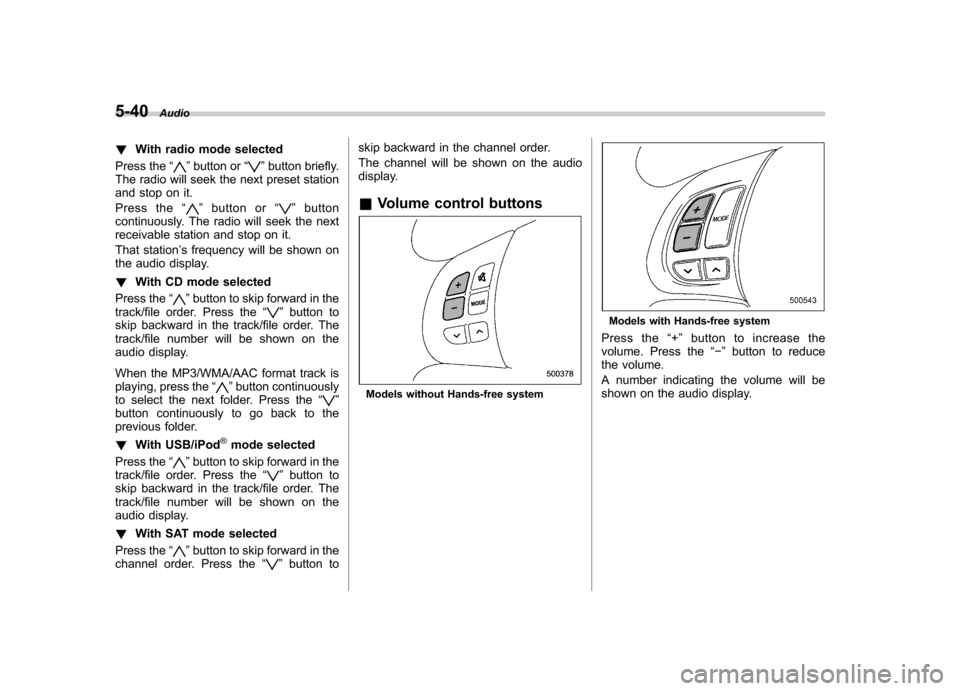
& Volume control buttons
Models without Hands-free system
Models with Hands-free system
Press the “+ ” button to increase the
volume. Press the “ ” button to reduce
the volume.
A number indicating the volume will be
shown on the audio display.
Page 230 of 446

“GO BACK ”(type C audio)/ “BS ”(type
D audio) is chosen using the “TUNE/
TRACK/CH ”dial, the character that was
input last is deleted. ! Registering from call history
1. Select the “CALL HISTORY ”menu.
2. Select “OUTGOING ”or “INCOMING ”
by operating the “TUNE/TRACK/CH ”dial.
3. Select the phone number by operating the “TUNE/TRACK/CH ”dial.
4. Select the “RECORD NAME ”menu by
operating the “TUNE/TRACK/CH ”dial or
press the talk switch
.
5. Say the name (voice tag) to be registered.
6. Select the “CONFIRM ”menu. Then
“ STORED ”is displayed and the mode
changes to the registering speed dial
mode. Refer to “Registering speed dial ”
F 5-51.
! Registering from redial
1. Select the “REDIAL ”menu.
2. Select the phone number by operatingthe “TUNE/TRACK/CH ”dial.
3. Select the “STORE ”menu.
4. Select the “CONFIRM ”menu.
5. Select the “RECORD NAME ”menu by
operating the “TUNE/TRACK/CH ”dial or
press the talk switch
. 6. Say the name (voice tag) to be registered.
7. Select the
“CONFIRM ”menu. Then
“ STORED ”is displayed and the mode
changes to the registering speed dial
mode. Refer to “Registering speed dial ”
F 5-51.
! Registering from call back
1. Select the “CALL BACK ”menu.
2. Select the phone number by operatingthe “TUNE/TRACK/CH ”dial.
3. Select the “STORE ”menu.
4. Select the “CONFIRM ”menu.
5. Select the “RECORD NAME ”menu by
operating the “TUNE/TRACK/CH ”dial or
press the talk switch
.
6. Say the name (voice tag) to be registered.
7. Select the “CONFIRM ”menu. Then
“ STORED ”is displayed and the mode
changes to the registering speed dial
mode. Refer to “Registering speed dial ”
F 5-51.
! Registering speed dial
1. After registering phonebook data, se-
lect the “SPEED DIAL ”menu.
2. Press the preset button (from
to) in which you want to register the phone number.
NOTE
If the number to be used is already
registered in speed dial, “OVER-
WRITE? ”will be displayed.
! List names function
The voice tags registered in the phone-
book are spoken by using the list names
function. To use the list names function,
perform the following procedure.
1. Select the “LIST NAMES ”menu.
2. Choose the registered data by press-
ing the talk switch
or by operating the
“ TUNE/TRACK/CH ”dial. Then “SE-
LECTED ”is displayed. You can choose
the following menus. . “DIAL ”to make a phone call
. “CHANGE NAME ”to change the name
(voice tag) . “SET SPD DIAL ”/“ SET SPEED DIAL ”
to set the speed dial. “DELETE ENTRY ”to delete the name
(voice tag) from the phonebook. “GO BACK ”to go back to the menu
mode
NOTE . After “LIST NAMES ”is selected, ifAudio
5-51
– CONTINUED –
Page 231 of 446

5-52Audio
the OFF hook switch
is pushed, the
selected number is called. . After “LIST NAMES ”is selected, if
no operation is performed, the mem-
ories are displayed and voice tags are
spoken. After all memories/voice tags
are displayed/spoken, “END OF LIST ”
is displayed and the mode changes tothe “PHONE BOOK ”menu mode.
! Changing voice tag
1. Select the “CHANGE NAME ”menu.
2. Select the phone number by operating the “TUNE/TRACK/CH ”dial/by pressing
the talk switch
and saying the voice
tag.
3. Select the “CONFIRM ”menu (only
after saying the voice tag). Then the
selected phone number/name is dis-played.
4. Press the talk switch
.
5. Say the new voice tag.
6. Select the “CONFIRM ”menu. Then
“ CHANGED ”is displayed.
! Set speed dial
1. Select the “SET SPD DIAL ”/“ SET
SPEED DIAL ”menu.
2. Select the phone number by operating the “TUNE/TRACK/CH ”dial/by pressing
the talk switch
and saying the voice tag.
3. Select the
“CONFIRM ”menu (only
after saying the voice tag).
4. Press the preset button (from
to) in which you want to register the
phone number. ! Deleting the phonebook data
1. Select the “DELETE ENTRY ”menu.
2. Select the phone number by perform-
ing either of the following procedures. –Operate the “TUNE/TRACK/CH ”
dial – Press the talk switch
and say
the voice tag
3. Select the “CONFIRM ”menu. Then
“ DELETED ”is displayed and the selected
phonebook data is deleted. ! Deleting the speed dial
1. Select the “DEL SPD DIAL ”/“ DELETE
SPEED DIAL ”menu.
2. Press the preset button (from
to) in which you want to delete the
speed dial.
3. Select the “CONFIRM ”menu. Then
“ DELETED ”is displayed and the selected
speed dial is deleted. !
Deleting the redial data
1. Select the “REDIAL ”menu.
2. Select the phone number by operating the “TUNE/TRACK/CH ”dial.
3. Select the “DELETE ”menu.
4. Select the “CONFIRM ”menu. Then
“ DELETED ”is displayed and the selected
redial data is deleted. ! Deleting the callback data
1. Select the “CALLBACK ”menu.
2. Select the phone number by operating the “TUNE/TRACK/CH ”dial.
3. Select the “DELETE ”menu.
4. Select the “CONFIRM ”menu. Then
“ DELETED ”is displayed and the selected
callback data is deleted. ! Making a phone call
! Making a phone call by saying name
1. Select the top menu (phone menu).
2. Press the talk switch.
3. Say “DIAL BY NAME ”.
4. Press the talk switch
again.
5. Say the desired name (voice tag) to be called.
6. Select the “DIAL ”menu.
Page 232 of 446
!Making a phone call by saying number
1. Select the top menu (phone menu).
2. Press the talk switch
.
3. Say “DIAL BY NUMBER ”.
4. Press the talk switch
again.
5. Say the desired phone number to be called.
6. Select the “DIAL ”menu.
! Making a phone call from speed dial
It is possible to select a phone number
from speed dial registered with the in-
vehicle equipment to make a phone call.
1. Select the top menu (phone menu).
2. Press the preset button (from
to) in which the desired number is
registered.
3. Press the OFF hook switch
.
NOTE
When a preset button for which num-
bers are not registered is pressed, an
error message is indicated on the audioscreen. ! Redial
1. Select the “REDIAL ”menu.
2. Press the OFF hook switch
. 3. Select the desired number by turning the
“TUNE/TRACK/CH ”dial.
4. Perform either of the following proce-dures. –Press the OFF hook switch
.
– Press the “TUNE/TRACK/CH ”dial,
then select the “DIAL ”menu.
! Callback
1. Select the “CALL BACK ”menu.
2. Press the OFF hook switch
.
3. Select the desired number by turning the “TUNE/TRACK/CH ”dial.
4. Perform either of the following proce-dures. –Press the OFF hook switch
.
– Press the “TUNE/TRACK/CH ”dial,
then select the “DIAL ”menu.
! Making a phone call from list name
It is possible to select a phone number
from the list name registered with the in-
vehicle equipment to make a phone call.
For details, refer to “List names function ”
F 5-51.
! Top redial
1. Select the top menu (phone menu).
2. Press the OFF hook switch
and
load the outgoing call history.
3. Select the “DIAL ”menu. !
Taking a phone call and declining
an incoming call
To take a phone call: Press the OFF
hook switch
.
To put an incoming call on hold: Press
the ON hook switch
briefly.
To decline an incoming call: Press the
ON hook switch
for more than 1.5
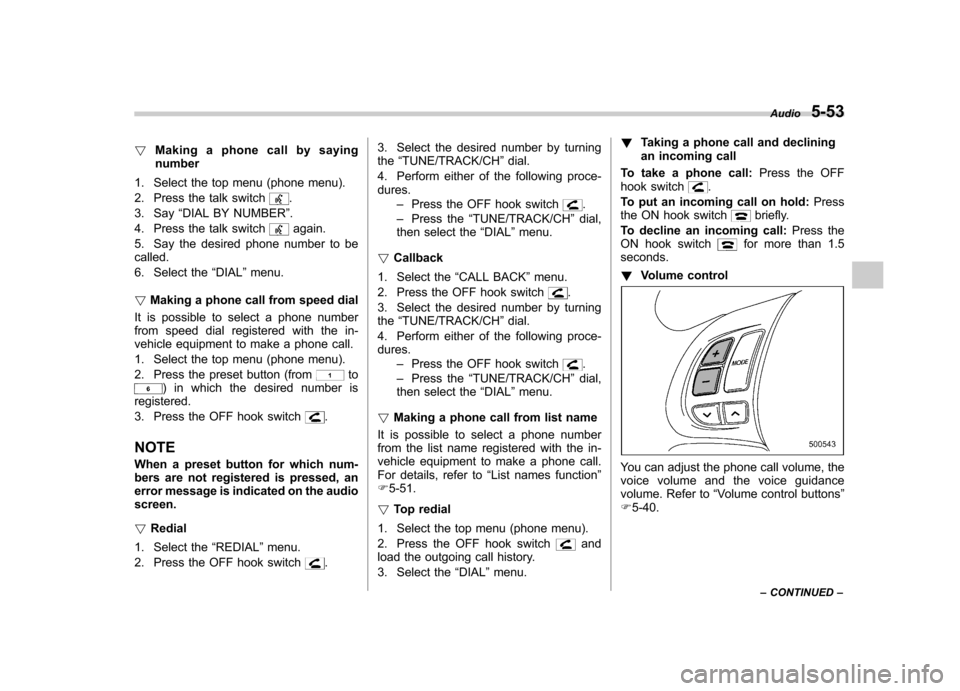
seconds. ! Volume control
You can adjust the phone call volume, the
voice volume and the voice guidance
volume. Refer to “Volume control buttons ”
F 5-40. Audio
5-53
– CONTINUED –
Page 288 of 446
dealer as soon as possible for tire
and sensor replacement and/or sys-
tem resetting.
Do not inject any tire liquid or
aerosol tire sealant into the tires,
as this may cause a malfunction of
the tire pressure sensors. If the light
illuminates steadily after blinking for
approximately 1 minute, promptly
contact a SUBARU dealer to have
the system inspected.
CAUTION
. Do not place metal film or any
metal parts in the cargo room.
This may cause poor reception of
the signals from the tire pressure
sensors, and the tire pressure
monitoring system will not func-
tion properly.
. FCC WARNING
Changes or modifications not
expressly approved by the party
responsible for compliance
could void the user ’s authority
to operate the equipment. NOTE
This device complies with Part 15 of
the FCC Rules and RSS-Gen of IC
Rules. Operation is subject to the
following two conditions: (1) this de-
vice may not cause harmful interfer-
ence, and (2) this device must accept
any interference received, including
interference that may cause undesiredoperation.
Parking your vehicle &
Parking brake
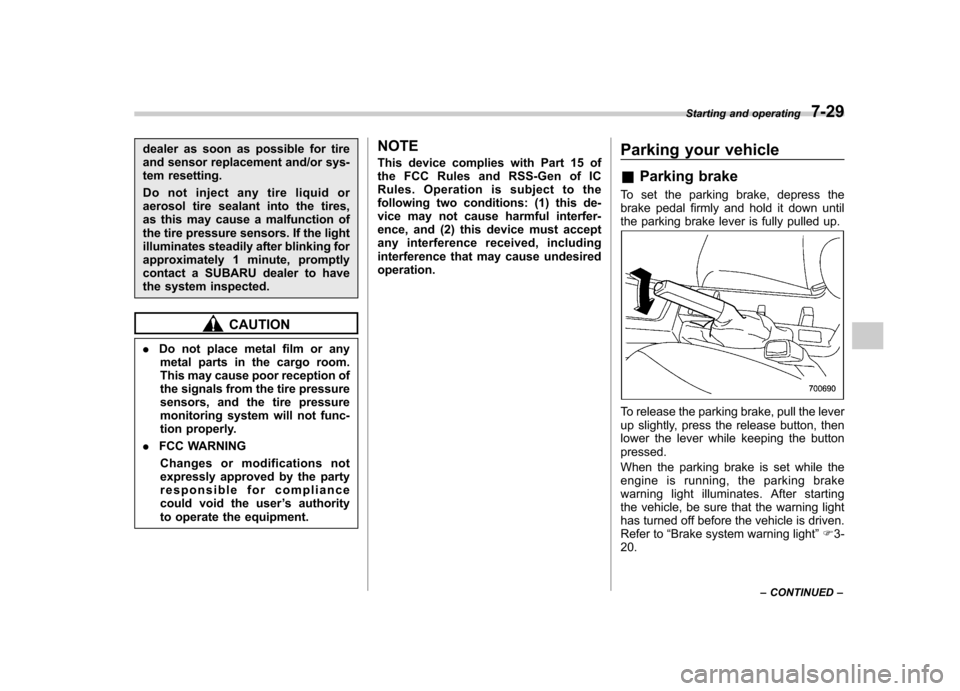
To set the parking brake, depress the
brake pedal firmly and hold it down until
the parking brake lever is fully pulled up.
To release the parking brake, pull the lever
up slightly, press the release button, then
lower the lever while keeping the button pressed.
When the parking brake is set while the
engine is running, the parking brake
warning light illuminates. After starting
the vehicle, be sure that the warning light
has turned off before the vehicle is driven.
Refer to “Brake system warning light ”F 3-
20. Starting and operating
7-29
– CONTINUED –
Page 323 of 446
9-2In case of emergency
If you park your vehicle in
case of an emergency
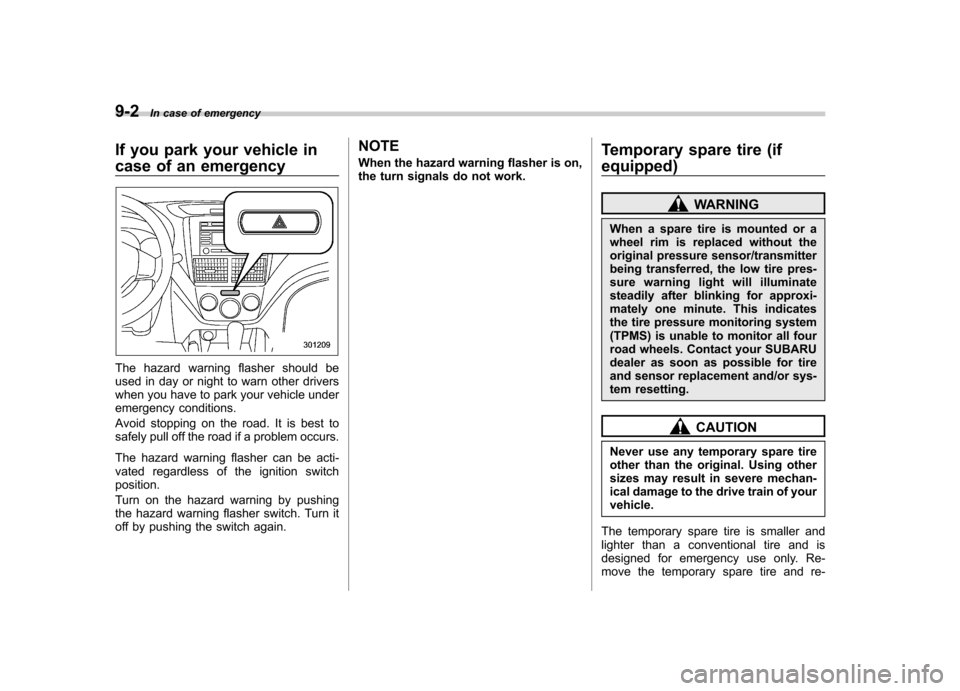
The hazard warning flasher should be
used in day or night to warn other drivers
when you have to park your vehicle under
emergency conditions.
Avoid stopping on the road. It is best to
safely pull off the road if a problem occurs.
The hazard warning flasher can be acti-
vated regardless of the ignition switchposition.
Turn on the hazard warning by pushing
the hazard warning flasher switch. Turn it
off by pushing the switch again. NOTE
When the hazard warning flasher is on,
the turn signals do not work.
Temporary spare tire (if
equipped)
WARNING
When a spare tire is mounted or a
wheel rim is replaced without the
original pressure sensor/transmitter
being transferred, the low tire pres-
sure warning light will illuminate
steadily after blinking for approxi-
mately one minute. This indicates
the tire pressure monitoring system
(TPMS) is unable to monitor all four
road wheels. Contact your SUBARU
dealer as soon as possible for tire
and sensor replacement and/or sys-
tem resetting.
CAUTION
Never use any temporary spare tire
other than the original. Using other
sizes may result in severe mechan-
ical damage to the drive train of yourvehicle.
The temporary spare tire is smaller and
lighter than a conventional tire and is
designed for emergency use only. Re-
move the temporary spare tire and re-
Page 331 of 446
9-10In case of emergency
it with a spare tire as soon as possible.
When a spare tire is mounted or a
wheel rim is replaced without the
original pressure sensor/transmitter
being transferred, the low tire pres-
sure warning light will illuminate
steadily after blinking for approxi-
mately one minute. This indicates
the TPMS is unable to monitor all
four road wheels. Contact your
SUBARU dealer as soon as possible
for tire and sensor replacement and/
or system resetting.
Do not inject any tire liquid or
aerosol tire sealant into the tires,
as this may cause a malfunction of
the tire pressure sensors.
If the light illuminates steadily after
blinking for approximately one min-
ute, promptly contact a SUBARU
dealer to have the system inspected. Jump starting
WARNING
. Battery fluid is SULFURIC ACID.
Do not let it come in contact with
the eyes, skin, clothing or thevehicle.
If battery fluid gets on you,
thoroughly flush the exposed
area with water immediately. Get
medical help if the fluid has
entered your eyes.
If battery fluid is accidentally
swallowed, immediately drink a
large amount of milk or water,
and obtain immediate medicalhelp.
Keep everyone including chil-
dren away from the battery.
. The gas generated by a battery
explodes if a flame or spark is
brought near it. Do not smoke or
light a match while jump starting.
. Never attempt jump starting if the
discharged battery is frozen. It
could cause the battery to burst
or explode.
. Whenever working on or around
a battery, always wear suitable eye protectors, and remove metal
objects such as rings, bands or
other metal jewelry.
. Be sure the jumper cables and
clamps on them do not have
loose or missing insulation.
Do not jump start unless cables
in suitable condition are avail-able.
. A running engine can be danger-
ous. Keep your fingers, hands,
clothing, hair and tools away
from the cooling fan, belts and
any other moving engine parts.
Removing rings, watches and
ties is advisable.
. Jump starting is dangerous if it
done incorrectly. If you are un-
sure about the proper procedure
for jump starting, consult a com-
petent mechanic.
When your vehicle does not start due to a
run down (discharged) battery, the vehicle
may be jump started by connecting your
battery to another battery (called the
booster battery) with jumper cables.