warning SUBARU FORESTER 2017 SJ / 4.G Owners Manual
[x] Cancel search | Manufacturer: SUBARU, Model Year: 2017, Model line: FORESTER, Model: SUBARU FORESTER 2017 SJ / 4.GPages: 634, PDF Size: 11.77 MB
Page 325 of 634
Audio/Audio set
!How to subscribe to SiriusXM Sa-
tellite Radio
To listen to a satellite radio broadcast in
the vehicle, a subscription to the SiriusXM
Satellite Radio service is necessary.
A SiriusXM Satellite Radio is a tuner
designed exclusively to receive broad-
casts provided under a separate subscrip-
tion.
!How to subscribe
It is necessary to enter into a separate
service agreement with SiriusXM Satellite
Radio in order to receive satellite broad-
cast programming in the vehicle. Addi-
tional activation and service subscription
fees apply that are not included in the
purchase price of the vehicle and digital
satellite tuner.
For complete information on subscription
rates and terms, or to subscribe to
SiriusXM Satellite Radio:
. U.S. customers:
Refer to www.siriusxm.com or call
1-866-635-2349
. Canadian customers:
Refer to www.siriusxm.ca or call
1-877-209-0079WARNING
. SiriusXM Satellite Radio Services
— Legal Disclaimers and Warn-
ings
– Fees and Taxes —Subscrip-
tion fee, taxes, one time acti-
vation fee, and other fees may
apply. Subscription fee is con-
sumer only. All fees and pro-
gramming subject to change.
Subscriptions subject to Cus-
tomer Agreement available at
www.siriusxm.com (U.S.) or
www.siriusxm.ca (Canada).
SiriusXM U.S. satellite and
data services are available
only in the contiguous USA
and DC. SiriusXM satellite
service is also available in
Canada: see
www.siriusxm.ca.
Explicit Language Notice —
Channels with frequent expli-
cit language are indicated
with an “XL”preceding the
channel name. Channel block-
ing is available for SiriusXM
Satellite Radio receivers by
notifying SiriusXM at: .
U.S. customers:
Visit www.siriusxm.com or call
1-866-635-2349
. Canadian customers:
Visit www.siriusxm.ca or call
1-877-209-0079
CAUTION
. It is prohibited to copy, decom-
pile, disassemble, reverse engi-
neer, hack, manipulate or other-
wise make available any technol-
ogy or software incorporated in
receivers compatible with the
SiriusXM Satellite Radio System
or that support the XM website,
the Online Service or any of its
content. Furthermore, the
AMBE
®voice compression soft-
ware included in this product is
protected by intellectual property
rights including patent rights,
copyrights, and trade secrets of
Digital Voice Systems, Inc.
. Note: this applies to SiriusXM
Satellite Radio receivers only
and not XM Ready devices.
5-38
Page 330 of 634
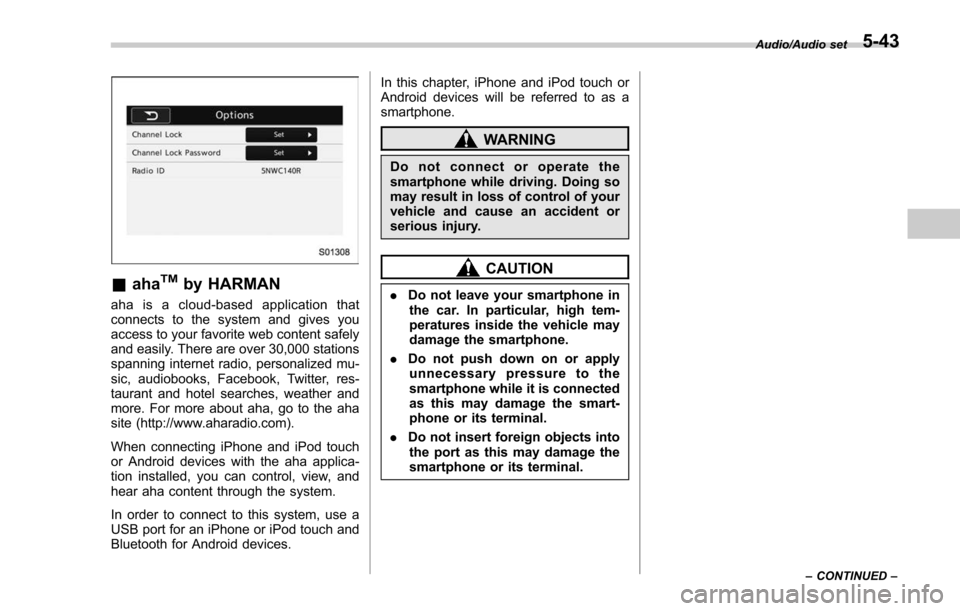
&ahaTMby HARMAN
aha is a cloud-based application that
connects to the system and gives you
access to your favorite web content safely
and easily. There are over 30,000 stations
spanning internet radio, personalized mu-
sic, audiobooks, Facebook, Twitter, res-
taurant and hotel searches, weather and
more. For more about aha, go to the aha
site (http://www.aharadio.com).
When connecting iPhone and iPod touch
or Android devices with the aha applica-
tion installed, you can control, view, and
hear aha content through the system.
In order to connect to this system, use a
USB port for an iPhone or iPod touch and
Bluetooth for Android devices. In this chapter, iPhone and iPod touch or
Android devices will be referred to as a
smartphone.
WARNING
Do not connect or operate the
smartphone while driving. Doing so
may result in loss of control of your
vehicle and cause an accident or
serious injury.
CAUTION
.
Do not leave your smartphone in
the car. In particular, high tem-
peratures inside the vehicle may
damage the smartphone.
. Do not push down on or apply
unnecessary pressure to the
smartphone while it is connected
as this may damage the smart-
phone or its terminal.
. Do not insert foreign objects into
the port as this may damage the
smartphone or its terminal.
Audio/Audio set
–CONTINUED –5-43
Page 336 of 634
&Pandora®(if equipped)
Pandora is an application for a smart-
phone. This can automatically select and
play recommended tracks.
By rating the track currently playing, tracks
that better match your preference will be
recommended.
In order to connect to this system, use a
USB port for an iPhone or iPod touch and
Bluetooth for Android devices.
Depending on differences between mod-
els or software version etc., some models
might be incompatible with this system.
This function is not available if the
Pandora application has not been in-
stalled on the smartphone.
WARNING
Do not operate the player ’s controls
or connect the smartphone while
driving. Doing so may result in loss
of control of your vehicle and cause
an accident or serious injury.
CAUTION
. Do not leave your smartphone in
the car. In particular, high tem-
peratures inside the vehicle may
damage the smartphone.
. Do not push down on or apply
unnecessary pressure to the
smartphone while it is connected
as this may damage the smart-
phone or its terminal.
. Do not insert foreign objects into
the port as this may damage the
smartphone or its terminal.
NOTE
Follow the specific operation proce-
dures for the smartphone application.
Audio/Audio set
–CONTINUED –5-49
Page 341 of 634
Audio/Audio set
&USB memory
Audio files on the USB memory can be
played.
WARNING
Do not operate the player ’s controls
or connect the USB memory while
driving. Doing so may result in
losing control of your vehicle and
cause an accident or serious injury.
CAUTION
. Do not leave your USB memory
in the car. In particular, high
temperatures inside the vehicle
may damage the USB memory.
. Do not push down on or apply
unnecessary pressure to the
USB memory while it is con-
nected as this may damage the
USB memory or its terminal.
. Do not insert foreign objects into
the port as this may damage the
USB memory or its terminal. !
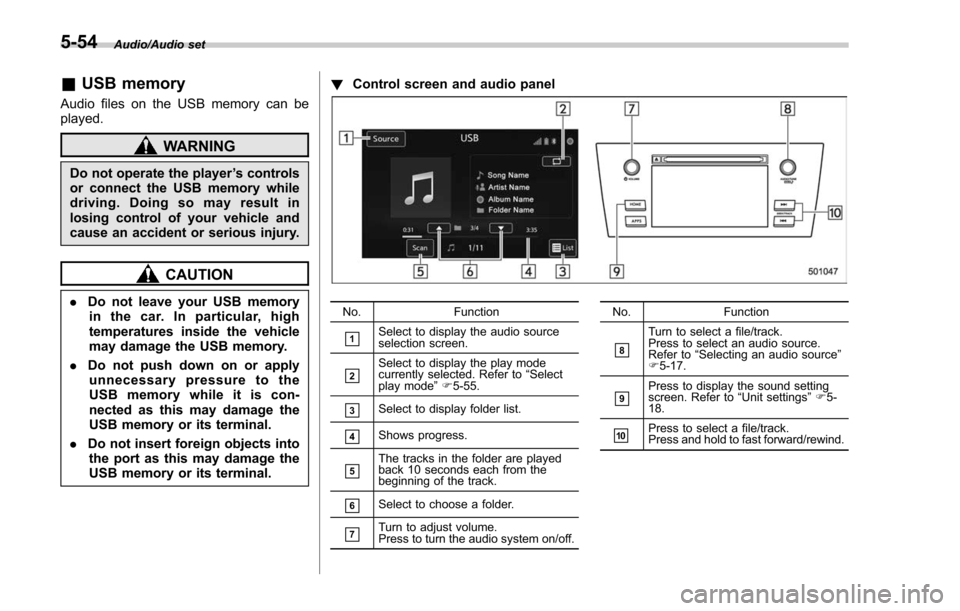
Control screen and audio panelNo. Function
&1Select to display the audio source
selection screen.
&2Select to display the play mode
currently selected. Refer to “Select
play mode ”F 5-55.
&3Select to display folder list.
&4Shows progress.
&5The tracks in the folder are played
back 10 seconds each from the
beginning of the track.
&6Select to choose a folder.
&7Turn to adjust volume.
Press to turn the audio system on/off. No.
Function
&8
Turn to select a file/track.
Press to select an audio source.
Refer to“Selecting an audio source ”
F 5-17.
&9Press to display the sound setting
screen. Refer to “Unit settings ”F 5-
18.
&10Press to select a file/track.
Press and hold to fast forward/rewind.
5-54
Page 342 of 634
!Connecting a USB device
You can connect a USB device to the
vehicle USB port. Refer to “Connecting
and disconnecting a USB memory/porta-
ble device ”F 5-16.
! How to change the source
The USB Audio playback screen can be
reached by the following methods:
. Connect a USB memory. Refer to
“ Connecting and disconnecting a USB
memory/portable device ”F 5-16.
. Select the “USB/iPod ”key on the
source select screen. Refer to “Selecting
an audio source” F5-17. !
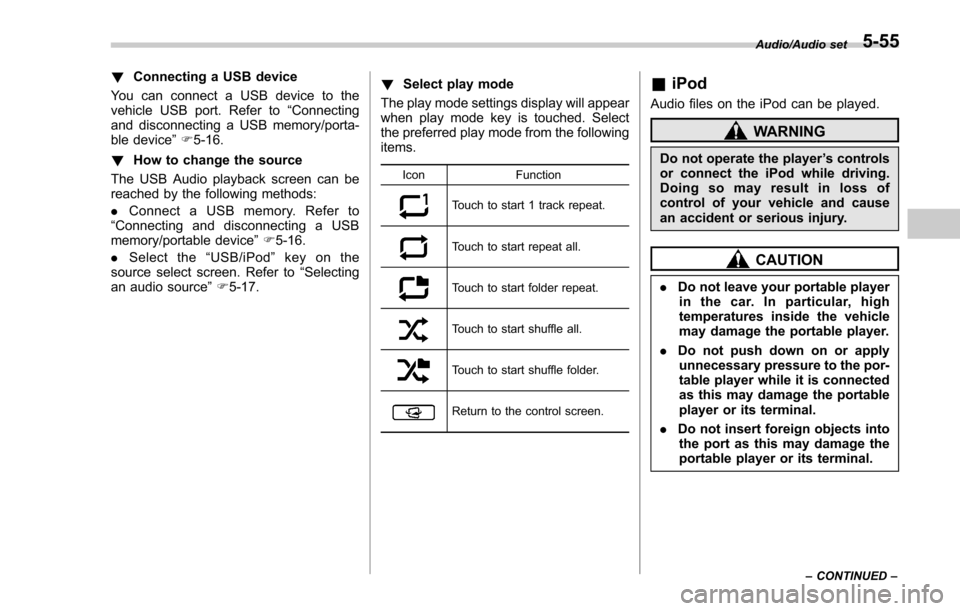
Select play mode
The play mode settings display will appear
when play mode key is touched. Select
the preferred play mode from the following
items.
Icon Function
Touch to start 1 track repeat.
Touch to start repeat all.
Touch to start folder repeat.
Touch to start shuffle all.
Touch to start shuffle folder.
Return to the control screen.
&iPod
Audio files on the iPod can be played.
WARNING
Do not operate the player ’s controls
or connect the iPod while driving.
Doing so may result in loss of
control of your vehicle and cause
an accident or serious injury.
CAUTION
. Do not leave your portable player
in the car. In particular, high
temperatures inside the vehicle
may damage the portable player.
. Do not push down on or apply
unnecessary pressure to the por-
table player while it is connected
as this may damage the portable
player or its terminal.
. Do not insert foreign objects into
the port as this may damage the
portable player or its terminal.
Audio/Audio set
–CONTINUED –5-55
Page 344 of 634
!How to change the source
TheiPodoperationscreencanbe
reached by the following methods:
. Connect an iPod. Refer to “Connecting
and disconnecting a USB memory/porta-
ble device ”F 5-16.
. Select the “USB/iPod ”key on the
source select screen. Refer to “Selecting
an audio source” F5-17.
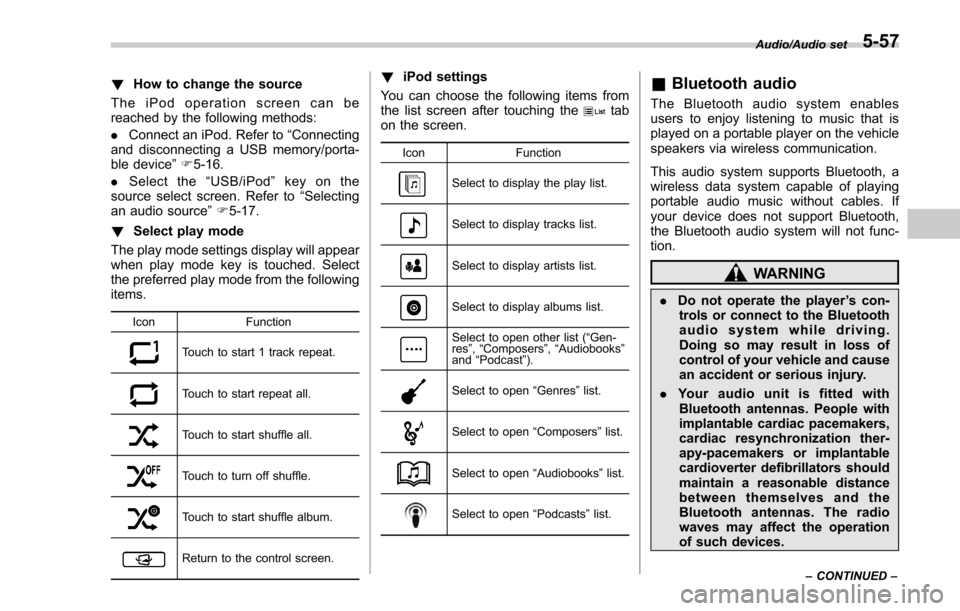
! Select play mode
The play mode settings display will appear
when play mode key is touched. Select
the preferred play mode from the following
items.
Icon Function
Touch to start 1 track repeat.
Touch to start repeat all.
Touch to start shuffle all.
Touch to turn off shuffle.
Touch to start shuffle album.
Return to the control screen.
!iPod settings
You can choose the following items from
the list screen after touching the
tab
on the screen.
Icon Function
Select to display the play list.
Select to display tracks list.
Select to display artists list.
Select to display albums list.
Select to open other list ( “Gen-
res ”, “Composers ”, “Audiobooks ”
and “Podcast ”).
Select to open “Genres ”list.
Select to open “Composers ”list.
Select to open “Audiobooks ”list.
Select to open “Podcasts ”list.
& Bluetooth audio
The Bluetooth audio system enables
users to enjoy listening to music that is
played on a portable player on the vehicle
speakers via wireless communication.
This audio system supports Bluetooth, a
wireless data system capable of playing
portable audio music without cables. If
your device does not support Bluetooth,
the Bluetooth audio system will not func-
tion.
WARNING
. Do not operate the player ’s con-
trols or connect to the Bluetooth
audio system while driving.
Doing so may result in loss of
control of your vehicle and cause
an accident or serious injury.
. Your audio unit is fitted with
Bluetooth antennas. People with
implantable cardiac pacemakers,
cardiac resynchronization ther-
apy-pacemakers or implantable
cardioverter defibrillators should
maintain a reasonable distance
between themselves and the
Bluetooth antennas. The radio
waves may affect the operation
of such devices.
Audio/Audio set
–CONTINUED –5-57
Page 347 of 634
Audio/Audio set
IconFunction
Return to the control screen.
NOTE
If the connected device does not sup-
port the group repeat mode, the group
functions are not available.
&AUX
WARNING
Do not operate the player ’s controls
or connect the portable audio device
while driving. Doing so may result in
loss of control of your vehicle and
cause an accident or serious injury.
CAUTION
. Do not leave portable audio de-
vice in the vehicle. The tempera-
ture inside the vehicle may be-
come high, resulting in damage
to the player.
. Do not push down on or apply
unnecessary pressure to the por-
table audio device while it is
connected as this may damage
the portable audio device or its terminal.
. Do not insert foreign objects into
the port as this may damage the
portable audio device or its term-
inal.
5-60
Page 352 of 634
Bluetooth®settings
WARNING
Be sure to park the vehicle in a safe
location before connecting or oper-
ating a Bluetooth phone or audio
device. Failure to do so may result
in loss of control of your vehicle and
cause an accident or serious injury.
&Regulatory information
The Bluetooth®word mark and logos are
registered trademarks owned by Bluetooth
SIG, Inc.
& Registering/connecting
Bluetooth®device
You can register up to five devices,
regardless of whether they are Bluetooth
phones or audio devices.
NOTE
. Once the phone has been regis-
tered, it is possible to use the hands-
free system or Bluetooth audio.
. Devices cannot be registered during driving.
!
Registering a Bluetooth phone for
the first time
To use the hands-free system, it is
necessary to register a Bluetooth phone
with the system.
For details about registering a Bluetooth
device: Refer to “Registering a Bluetooth
Audio device for the first time ”F 5-66.
1. Turn the Bluetooth connection setting
of your cell phone on. .This function is not available when
Bluetooth connection setting of your
cell phone is set to off.
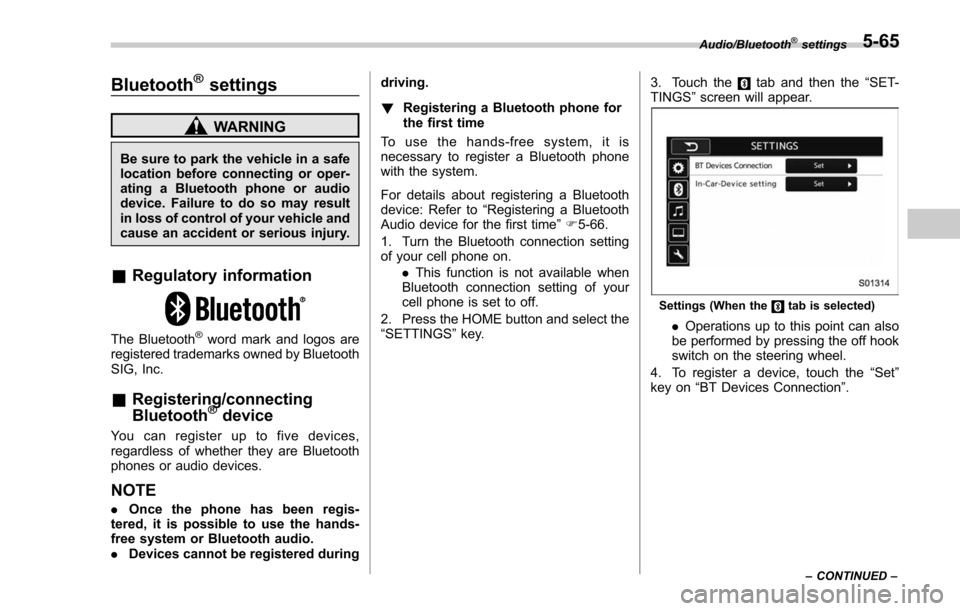
2. Press the HOME button and select the
“SETTINGS ”key. 3. Touch the
tab and then the
“SET-
TINGS ”screen will appear.
Settings (When thetab is selected)
. Operations up to this point can also
be performed by pressing the off hook
switch on the steering wheel.
4. To register a device, touch the “Set”
key on “BT Devices Connection ”.
Audio/Bluetooth®settings
– CONTINUED –5-65
Page 357 of 634
Audio/Hands–free phone system
Hands-free phone system
The hands-free system enables calls to be
made and received without having to take
your hands off the steering wheel.
This system supports Bluetooth. Bluetooth
is a wireless data system that enables cell
phones to be used without being con-
nected by a cable or placed in a cradle.
The operating procedure of the phone is
explained here.
WARNING
. While driving, do not use a cell
phone or connect the Bluetooth
phone. Doing so may result in
loss of control of your vehicle
and cause an accident or serious
injury.
. Your audio unit is fitted with
Bluetooth antennas. People with
implantable cardiac pacemakers,
cardiac resynchronization ther-
apy-pacemakers or implantable
cardioverter defibrillators should
maintain a reasonable distance
between themselves and the
Bluetooth antennas. The radio
waves may affect the operation
of such devices. .
Before using Bluetooth devices,
users of any electrical medical
device other than implantable
cardiac pacemakers, cardiac re-
synchronization therapy-pace-
makers or implantable cardiover-
ter defibrillators should consult
the manufacturer of the device
for information about its opera-
tion under the influence of radio
waves. Radio waves could have
unexpected effects on the opera-
tion of such medical devices.CAUTION
Do not leave your cell phone in the
vehicle. The temperature inside may
rise to a level that could damage the
phone.
NOTE
. If your cell phone does not support
Bluetooth, this system cannot function.
. In the following conditions, the sys-
tem may not function:
–The cell phone is turned off.
– The current position is outside
the communication area.
– The cell phone is not connected.
– The cell phone has a low battery. .
When using the hands free function
and other Bluetooth functions at the
same time, the following problems may
occur:
–The Bluetooth connection may
be cut.
– Noise may be heard when play-
ing back voice with the Bluetooth
function.
. The other party’ s voice will be heard
from the front speakers. The audio/
visual system will be muted during
phone calls or when hands-free voice
commands are used.
. Talk alternately with the other party
on the phone. If both parties speak at
the same time, the other party may not
hear what has been said. (This is not a
malfunction.)
. Keep call volume down. Otherwise,
the other party’ s voice may be audible
outside the vehicle and voice echo may
increase. When talking on the phone,
speak clearly towards the microphone.
. The other party may not hear you
clearly when:
–Drivingonanunpavedroad.
(Making excessive traffic noise.)
– Driving at high speeds.
– The moonroof or windows are
open.
– The air conditioning vents are
5-70
Page 392 of 634
NOTE
When the lid of the center console is
closed, an opening remains between
the center console and the lid to allow
the power outlet in the center console
to be used. Pass the cord of the
electrical appliance through this open-
ing.
&Use with a cigarette lighter (if
equipped)
To use the accessory power outlet as a
cigarette lighter socket, purchase the
cigarette lighter plug, which is an optional
accessory. A cigarette lighter plug is
available from your SUBARU dealer.
The cigarette lighter operates only when
the ignition switch is in the “ON”or “ACC ”
position.
To use the cigarette lighter, push in the
knob and wait a few moments. It will
automatically spring up when ready for
use.
WARNING
To avoid being burned, never grasp
the lighter by the end with the
heating element. Doing so could
result in injury and could also
damage the heating element.
CAUTION
. Do not hold the lighter pushed in,
because it will overheat.
. The electrical power socket is
originally designed to use a gen-
uine SUBARU cigarette lighter
plug. Do not use a non-genuine
cigarette lighter plug in the sock-
et. Doing so may cause a short-
circuit and overheating, resulting
in a fire.
. If the socket is ever used for a
plug-in accessory such as a cell
phone, that may damage the
portion of the socket ’s internal
mechanism that causes a cigar-
ette lighter plug to “pop out ”
after its lighter element is heated.
Therefore, do not place a cigar-
ette lighter plug in a socket that
has been used, even once, to
power a plug-in accessory. Doing
so may cause the plug to stick
and overheat, creating a potential
fire hazard.
Ashtray (if equipped)
CAUTION
. Do not use ashtrays as waste
receptacles or leave a lighted
cigarette in an ashtray. This
could cause a fire.
. Always extinguish matches and
cigarettes before putting them
into the ashtray, and then close
the ashtray securely. If you keep
the ashtray open, the fire of the
cigarette may spread to another
cigarette butt and start a fire.
. Do not put flammable material in
the ashtray.
. Do not leave a lot of cigarette
butts in the ashtray.
NOTE
Particles of ash and tobacco will accu-
mulate around the hinges of the ash-
tray ’s inner lid. Clean them off using a
toothbrush or a similar narrow-ended
implement.
Interior equipment/Ashtray
–CONTINUED –6-11