Mode SUBARU FORESTER 2017 SJ / 4.G Owners Manual
[x] Cancel search | Manufacturer: SUBARU, Model Year: 2017, Model line: FORESTER, Model: SUBARU FORESTER 2017 SJ / 4.GPages: 634, PDF Size: 11.77 MB
Page 364 of 634
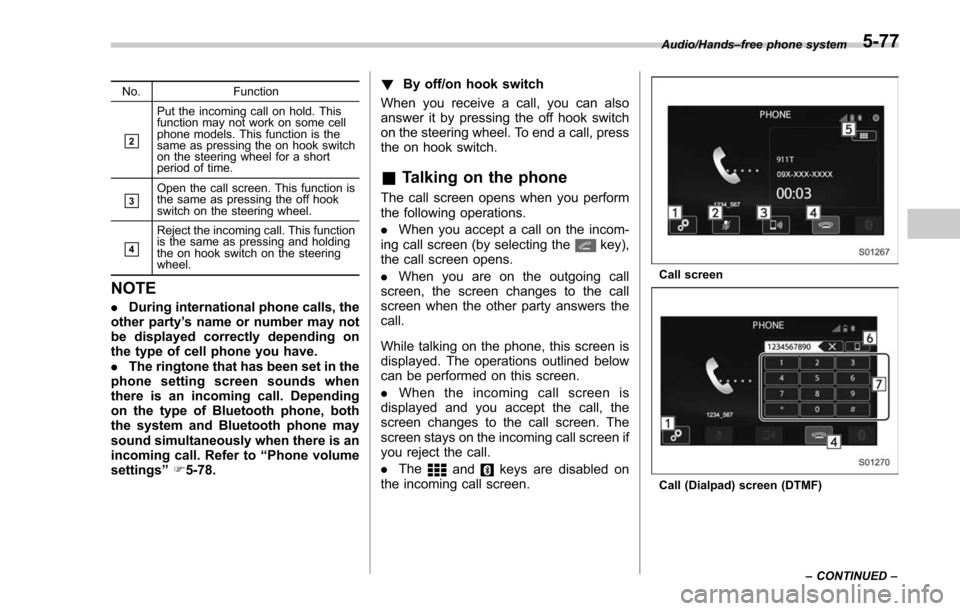
No.Function
&2
Put the incoming call on hold. This
function may not work on some cell
phone models. This function is the
same as pressing the on hook switch
on the steering wheel for a short
period of time.
&3Open the call screen. This function is
the same as pressing the off hook
switch on the steering wheel.
&4
Reject the incoming call. This function
is the same as pressing and holding
the on hook switch on the steering
wheel.
NOTE
.During international phone calls, the
other party’ s name or number may not
be displayed correctly depending on
the type of cell phone you have.
. The ringtone that has been set in the
phone setting screen sounds when
there is an incoming call. Depending
on the type of Bluetooth phone, both
the system and Bluetooth phone may
sound simultaneously when there is an
incoming call. Refer to “Phone volume
settings ”F 5-78. !
By off/on hook switch
When you receive a call, you can also
answer it by pressing the off hook switch
on the steering wheel. To end a call, press
the on hook switch.
& Talking on the phone
The call screen opens when you perform
the following operations.
. When you accept a call on the incom-
ing call screen (by selecting the
key),
the call screen opens.
. When you are on the outgoing call
screen, the screen changes to the call
screen when the other party answers the
call.
While talking on the phone, this screen is
displayed. The operations outlined below
can be performed on this screen.
. When the incoming call screen is
displayed and you accept the call, the
screen changes to the call screen. The
screen stays on the incoming call screen if
you reject the call.
. The
andkeys are disabled on
the incoming call screen.
Call screen
Call (Dialpad) screen (DTMF) Audio/Hands
–free phone system
–CONTINUED –
5-77
Page 365 of 634
Audio/Hands–free phone system
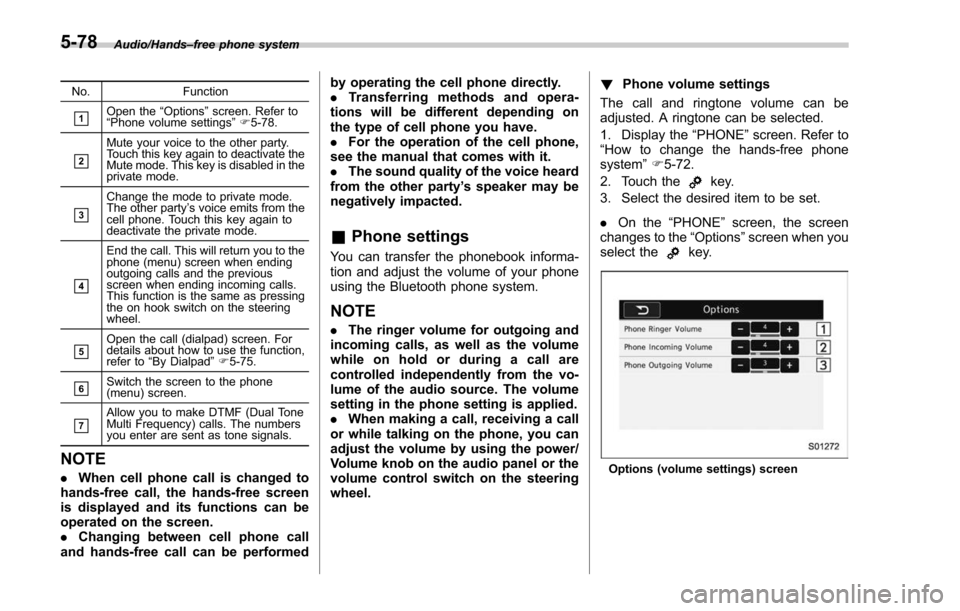
No. Function
&1Open the“Options ”screen. Refer to
“ Phone volume settings ”F 5-78.
&2
Mute your voice to the other party.
Touch this key again to deactivate the
Mute mode. This key is disabled in the
private mode.
&3
Change the mode to private mode.
The other party ’s voice emits from the
cell phone. Touch this key again to
deactivate the private mode.
&4
End the call. This will return you to the
phone (menu) screen when ending
outgoing calls and the previous
screen when ending incoming calls.
This function is the same as pressing
the on hook switch on the steering
wheel.
&5Open the call (dialpad) screen. For
details about how to use the function,
refer to “By Dialpad ”F 5-75.
&6Switch the screen to the phone
(menu) screen.
&7Allow you to make DTMF (Dual Tone
Multi Frequency) calls. The numbers
you enter are sent as tone signals.
NOTE
. When cell phone call is changed to
hands-free call, the hands-free screen
is displayed and its functions can be
operated on the screen.
. Changing between cell phone call
and hands-free call can be performed by operating the cell phone directly.
.
Transferring methods and opera-
tions will be different depending on
the type of cell phone you have.
. For the operation of the cell phone,
see the manual that comes with it.
. The sound quality of the voice heard
from the other party’ s speaker may be
negatively impacted.
& Phone settings
You can transfer the phonebook informa-
tion and adjust the volume of your phone
using the Bluetooth phone system.
NOTE
. The ringer volume for outgoing and
incoming calls, as well as the volume
while on hold or during a call are
controlled independently from the vo-
lume of the audio source. The volume
setting in the phone setting is applied.
. When making a call, receiving a call
or while talking on the phone, you can
adjust the volume by using the power/
Volume knob on the audio panel or the
volume control switch on the steering
wheel. !
Phone volume settings
The call and ringtone volume can be
adjusted. A ringtone can be selected.
1. Display the “PHONE ”screen. Refer to
“How to change the hands-free phone
system ”F 5-72.
2. Touch the
key.
3. Select the desired item to be set.
. On the “PHONE ”screen, the screen
changes to the “Options ”screen when you
select the
key.
Options (volume settings) screen
5-78
Page 368 of 634
&Using the voice command
system
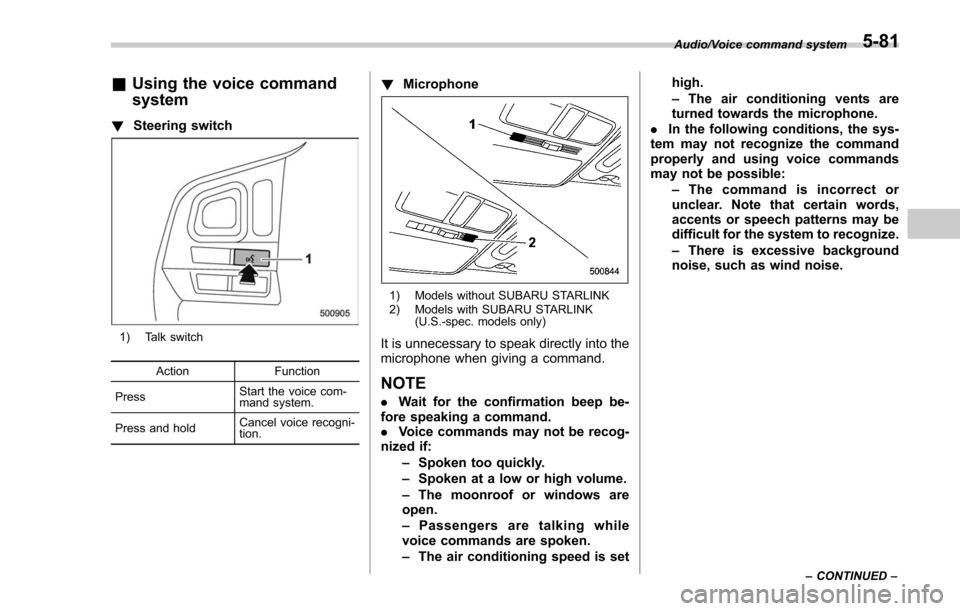
! Steering switch
1) Talk switch
Action Function
Press Start the voice com-
mand system.
Press and hold Cancel voice recogni-
tion.
!
Microphone
1) Models without SUBARU STARLINK
2) Models with SUBARU STARLINK
(U.S.-spec. models only)
It is unnecessary to speak directly into the
microphone when giving a command.
NOTE
.Wait for the confirmation beep be-
fore speaking a command.
. Voice commands may not be recog-
nized if:
–Spoken too quickly.
– Spoken at a low or high volume.
– The moonroof or windows are
open.
– Passengers are talking while
voice commands are spoken.
– The air conditioning speed is set high.
–
The air conditioning vents are
turned towards the microphone.
. In the following conditions, the sys-
tem may not recognize the command
properly and using voice commands
may not be possible:
–The command is incorrect or
unclear. Note that certain words,
accents or speech patterns may be
difficult for the system to recognize.
– There is excessive background
noise, such as wind noise.
Audio/Voice command system
–CONTINUED –5-81
Page 369 of 634
Audio/Voice command system
&Voice command system op-
eration
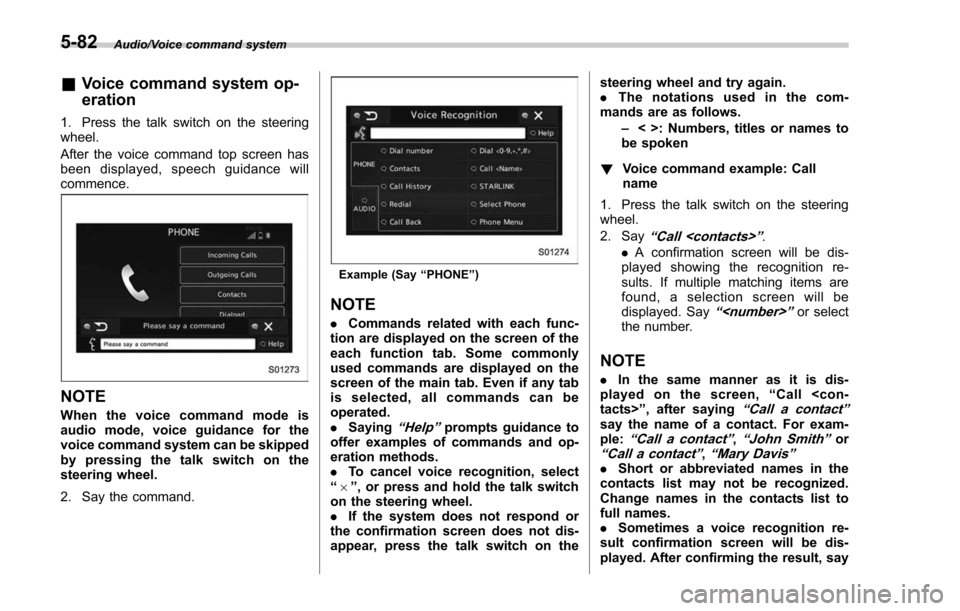
1. Press the talk switch on the steering
wheel.
After the voice command top screen has
been displayed, speech guidance will
commence.
NOTE
When the voice command mode is
audio mode, voice guidance for the
voice command system can be skipped
by pressing the talk switch on the
steering wheel.
2. Say the command.
Example (Say “PHONE ”)
NOTE
. Commands related with each func-
tion are displayed on the screen of the
each function tab. Some commonly
used commands are displayed on the
screen of the main tab. Even if any tab
is selected, all commands can be
operated.
. Saying
“Help ”prompts guidance to
offer examples of commands and op-
eration methods.
. To cancel voice recognition, select
“ 6 ”, or press and hold the talk switch
on the steering wheel.
. If the system does not respond or
the confirmation screen does not dis-
appear, press the talk switch on the steering wheel and try again.
.
The notations used in the com-
mands are as follows.
–< >: Numbers, titles or names to
be spoken
! Voice command example: Call
name
1. Press the talk switch on the steering
wheel.
2. Say
“ Call
. A confirmation screen will be dis-
played showing the recognition re-
sults. If multiple matching items are
found, a selection screen will be
displayed. Say
“
the number.
NOTE
. In the same manner as it is dis-
played on the screen, “Call
“Call a contact ”say the name of a contact. For exam-
ple:“Call a contact ”,“John Smith ”or“Call a contact ”,“Mary Davis ”.Short or abbreviated names in the
contacts list may not be recognized.
Change names in the contacts list to
full names.
. Sometimes a voice recognition re-
sult confirmation screen will be dis-
played. After confirming the result, say
5-82
Page 371 of 634
Audio/Voice command system
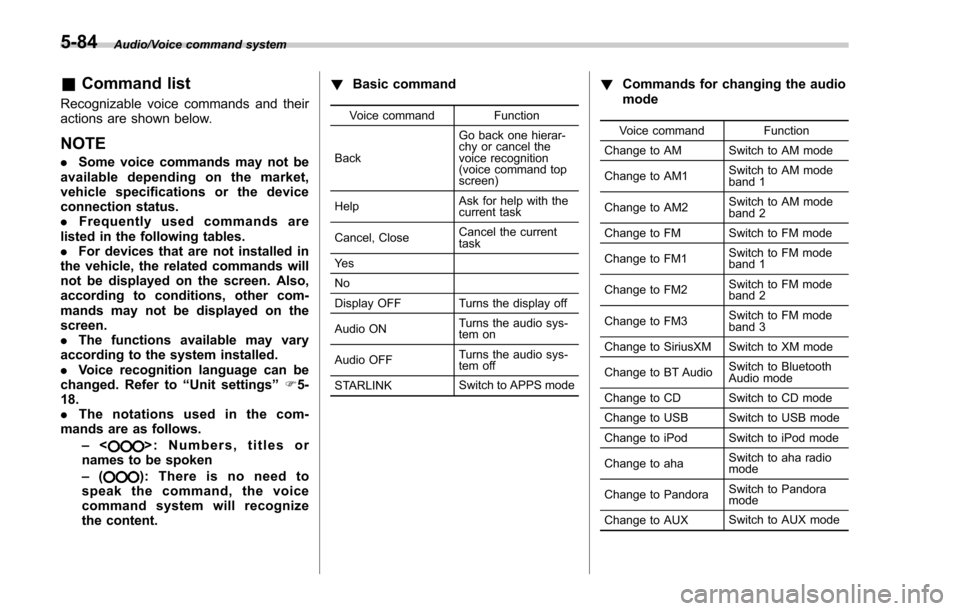
&Command list
Recognizable voice commands and their
actions are shown below.
NOTE
. Some voice commands may not be
available depending on the market,
vehicle specifications or the device
connection status.
. Frequently used commands are
listed in the following tables.
. For devices that are not installed in
the vehicle, the related commands will
not be displayed on the screen. Also,
according to conditions, other com-
mands may not be displayed on the
screen.
. The functions available may vary
according to the system installed.
. Voice recognition language can be
changed. Refer to “Unit settings ”F 5-
18.
. The notations used in the com-
mands are as follows.
–<
>: Numbers, titles or
names to be spoken
– (
): There is no need to
speak the command, the voice
command system will recognize
the content. !
Basic command
Voice command Function
Back Go back one hierar-
chy or cancel the
voice recognition
(voice command top
screen)
Help Ask for help with the
current task
Cancel, Close Cancel the current
task
Ye s
No
Display OFF Turns the display off
Audio ON Turns the audio sys-
tem on
Audio OFF Turns the audio sys-
tem off
STARLINK Switch to APPS mode
!
Commands for changing the audio
mode
Voice command Function
Change to AM Switch to AM mode
Change to AM1 Switch to AM mode
band 1
Change to AM2 Switch to AM mode
band 2
Change to FM Switch to FM mode
Change to FM1 Switch to FM mode
band 1
Change to FM2 Switch to FM mode
band 2
Change to FM3 Switch to FM mode
band 3
Change to SiriusXM Switch to XM mode
Change to BT Audio Switch to Bluetooth
Audio mode
Change to CD Switch to CD mode
Change to USB Switch to USB mode
Change to iPod Switch to iPod mode
Change to aha Switch to aha radio
mode
Change to Pandora Switch to Pandora
mode
Change to AUX Switch to AUX mode
5-84
Page 372 of 634
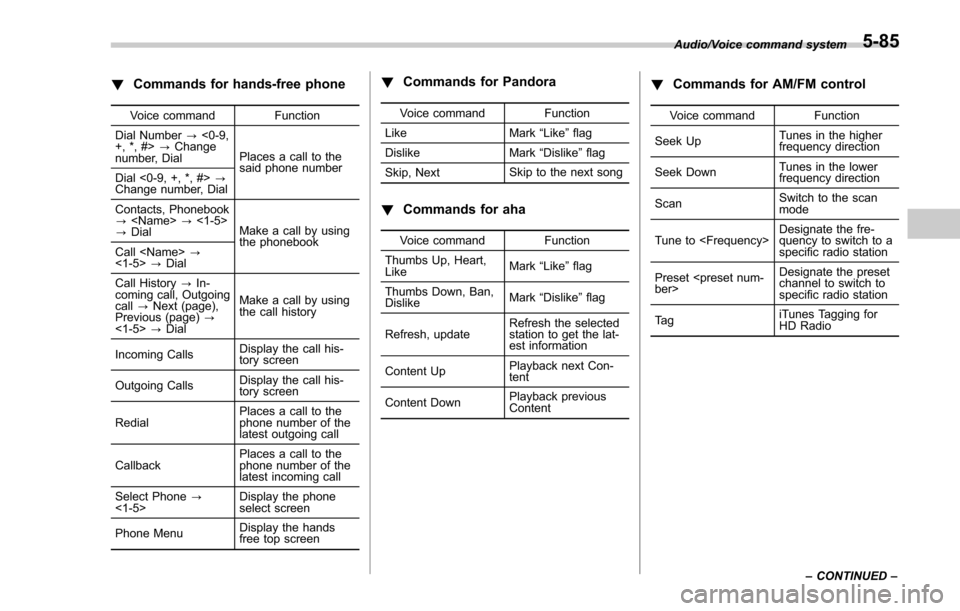
!Commands for hands-free phone
Voice command Function
Dial Number ?<0-9,
+, *, #> ?Change
number, Dial Places a call to the
said phone number
Dial <0-9, +, *, #> ?
Change number, Dial
Contacts, Phonebook
?
? Dial Make a call by using
the phonebook
Call
<1-5> ?Dial
Call History ?In-
coming call, Outgoing
call ?Next (page),
Previous (page) ?
<1-5> ?Dial Make a call by using
the call history
Incoming Calls Display the call his-
tory screen
Outgoing Calls Display the call his-
tory screen
Redial Places a call to the
phone number of the
latest outgoing call
Callback Places a call to the
phone number of the
latest incoming call
Select Phone ?
<1-5> Display the phone
select screen
Phone Menu Display the hands
free top screen
!
Commands for Pandora
Voice command Function
Like Mark “Like ”flag
Dislike Mark“Dislike ”flag
Skip, Next Skip to the next song
!
Commands for aha
Voice command Function
Thumbs Up, Heart,
Like Mark
“Like ”flag
Thumbs Down, Ban,
Dislike Mark
“Dislike ”flag
Refresh, update Refresh the selected
station to get the lat-
est information
Content Up Playback next Con-
tent
Content Down Playback previous
Content
!
Commands for AM/FM control
Voice command Function
Seek Up Tunes in the higher
frequency direction
Seek Down Tunes in the lower
frequency direction
Scan Switch to the scan
mode
Tune to
quency to switch to a
specific radio station
Preset
channel to switch to
specific radio station
Ta g iTunes Tagging for
HD Radio
Audio/Voice command system
–CONTINUED –
5-85
Page 373 of 634
Audio/Voice command system
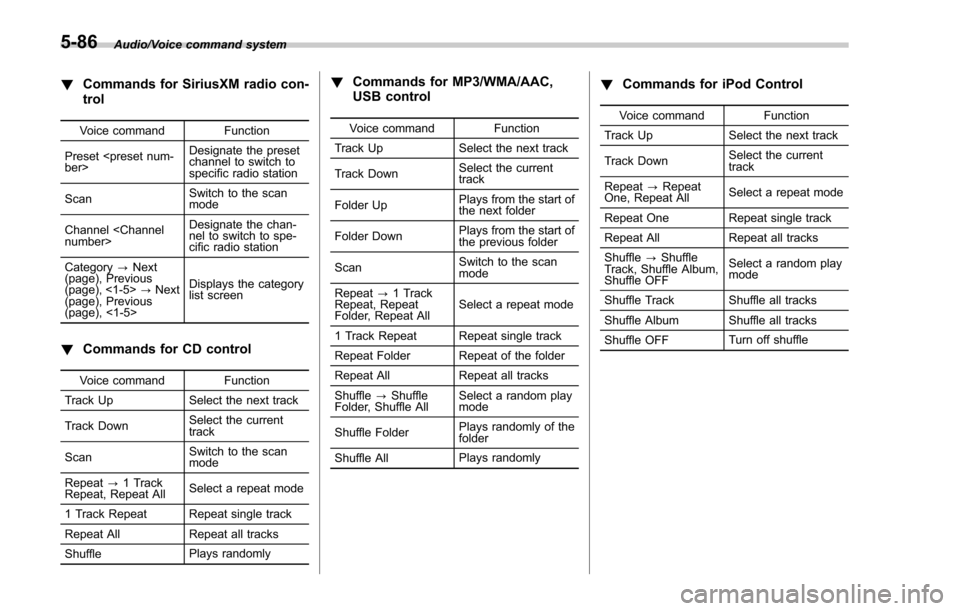
!Commands for SiriusXM radio con-
trol
Voice command Function
Preset
channel to switch to
specific radio station
Scan Switch to the scan
mode
Channel
nel to switch to spe-
cific radio station
Category ?Next
(page), Previous
(page), <1-5> ?Next
(page), Previous
(page), <1-5> Displays the category
list screen
!
Commands for CD control
Voice command Function
Track Up Select the next track
Track Down Select the current
track
Scan Switch to the scan
mode
Repeat ?1 Track
Repeat, Repeat All Select a repeat mode
1 Track Repeat Repeat single track
Repeat All Repeat all tracks
Shuffle Plays randomly
!
Commands for MP3/WMA/AAC,
USB control
Voice command Function
Track Up Select the next track
Track Down Select the current
track
Folder Up Plays from the start of
the next folder
Folder Down Plays from the start of
the previous folder
Scan Switch to the scan
mode
Repeat ?1 Track
Repeat, Repeat
Folder, Repeat All Select a repeat mode
1 Track Repeat Repeat single track
Repeat Folder Repeat of the folder
Repeat All Repeat all tracks
Shuffle ?Shuffle
Folder, Shuffle All Select a random play
mode
Shuffle Folder Plays randomly of the
folder
Shuffle All Plays randomly
!
Commands for iPod Control
Voice command Function
Track Up Select the next track
Track Down Select the current
track
Repeat ?Repeat
One, Repeat All Select a repeat mode
Repeat One Repeat single track
Repeat All Repeat all tracks
Shuffle ?Shuffle
Track, Shuffle Album,
Shuffle OFF Select a random play
mode
Shuffle Track Shuffle all tracks
Shuffle Album Shuffle all tracks
Shuffle OFF Turn off shuffle
5-86
Page 374 of 634
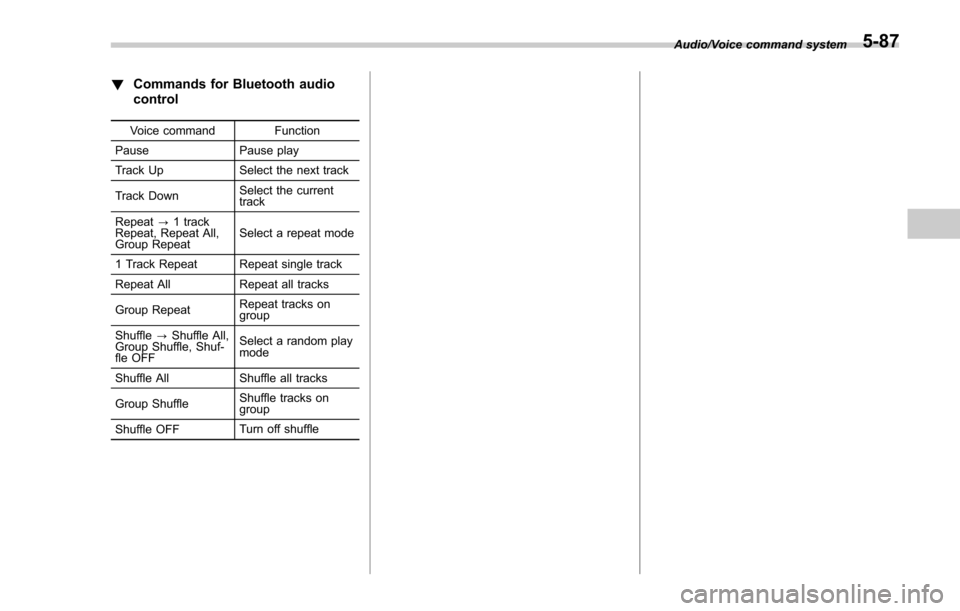
!Commands for Bluetooth audio
control
Voice command Function
Pause Pause play
Track Up Select the next track
Track Down Select the current
track
Repeat ?1 track
Repeat, Repeat All,
Group Repeat Select a repeat mode
1 Track Repeat Repeat single track
Repeat All Repeat all tracks
Group Repeat Repeat tracks on
group
Shuffle ?Shuffle All,
Group Shuffle, Shuf-
fle OFF Select a random play
mode
Shuffle All Shuffle all tracks
Group Shuffle Shuffle tracks on
group
Shuffle OFF Turn off shuffle Audio/Voice command system
5-87
Page 385 of 634
Interior equipment/Sun visors
the lights turn off immediately.
.The ignition switch is turned from the
“LOCK”/ “OFF ”position to the “ACC”or
“ON ”position.
. All doors and the rear gate are locked
using the keyless access function (if
equipped).
. All doors and the rear gate are locked
using the remote keyless entry system.
The setting for the period of time in which
the lights remain on (OFF delay timer) can
be changed by a SUBARU dealer. Con-
tact your SUBARU dealer for details. For
models with multi function display, the
setting can be changed by operating the
multi function display. For details, refer to
“Interior light off delay timer setting ”F 3-
84.Sun visors
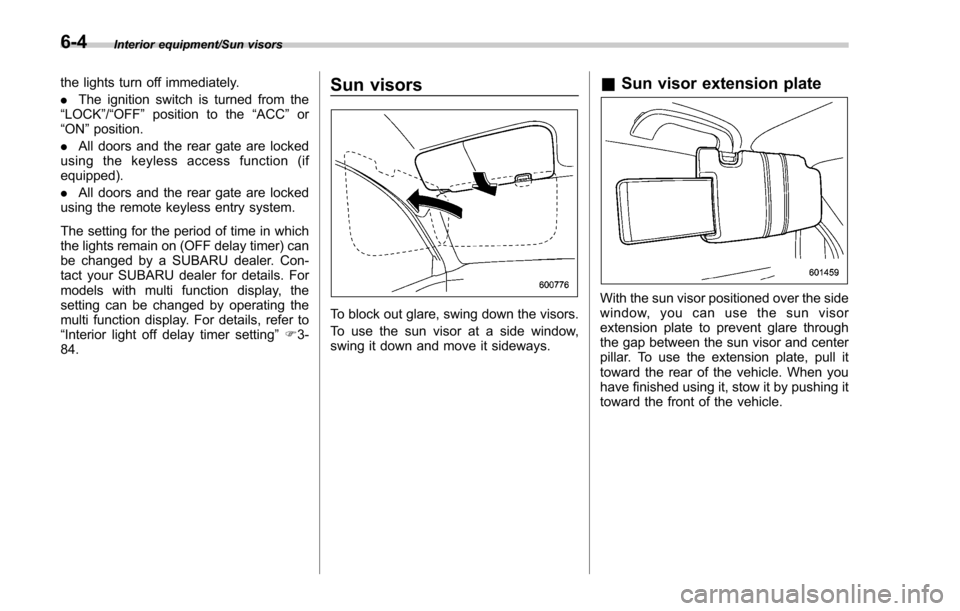
To block out glare, swing down the visors.
To use the sun visor at a side window,
swing it down and move it sideways.
& Sun visor extension plate
With the sun visor positioned over the side
window, you can use the sun visor
extension plate to prevent glare through
the gap between the sun visor and center
pillar. To use the extension plate, pull it
toward the rear of the vehicle. When you
have finished using it, stow it by pushing it
toward the front of the vehicle.
6-4
Page 388 of 634
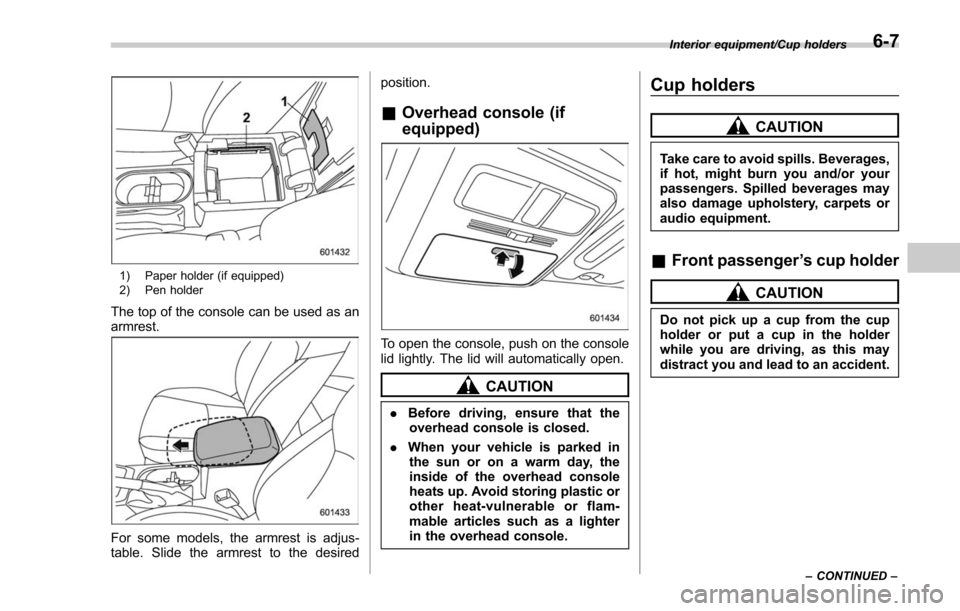
1) Paper holder (if equipped)
2) Pen holder
The top of the console can be used as an
armrest.
For some models, the armrest is adjus-
table. Slide the armrest to the desiredposition.
&
Overhead console (if
equipped)
To open the console, push on the console
lid lightly. The lid will automatically open.
CAUTION
. Before driving, ensure that the
overhead console is closed.
. When your vehicle is parked in
the sun or on a warm day, the
inside of the overhead console
heats up. Avoid storing plastic or
other heat-vulnerable or flam-
mable articles such as a lighter
in the overhead console.
Cup holders
CAUTION
Take care to avoid spills. Beverages,
if hot, might burn you and/or your
passengers. Spilled beverages may
also damage upholstery, carpets or
audio equipment.
& Front passenger ’s cup holder
CAUTION
Do not pick up a cup from the cup
holder or put a cup in the holder
while you are driving, as this may
distract you and lead to an accident.
Interior equipment/Cup holders
–CONTINUED –6-7