audio SUBARU IMPREZA 2011 4.G Repair Manual
[x] Cancel search | Manufacturer: SUBARU, Model Year: 2011, Model line: IMPREZA, Model: SUBARU IMPREZA 2011 4.GPages: 458, PDF Size: 16.22 MB
Page 242 of 458

!Menu list of the Hands-free system
Turn the “TUNE/TRACK/CH ”dial to select
a menu, and then press the dial to enter
the selected menu. Audio
5-55
– CONTINUED –
Page 243 of 458

5-56Audio
First menu Second menu Third menu Details
PHONE BOOK* ADD ENTRY BY VOICE Adding a new number by voice
BY PHONE Adding a new number by cell phone
MANUAL INPUT Adding a new number by inputting manually
CALL HISTORY Adding a new number from the call history
GO BACK
LIST NAMES —Showing the list of the names registered in the phonebook
CHANGE NAME —Changing a name registered in the phonebook
SET SPD DIAL —Registering a speed dial
DELETE ENTRY —Deleting phonebook data
DEL SPD DIAL —Deleting a registered speed dial
GO BACK —
REDIAL DIAL
—Redialing
STORE —Adding a new number stored in the outgoing call history memory
DELETE —Deleting a number stored in the outgoing call history memory
GO BACK —
CALLBACK DIAL
—Dialing a number stored in the incoming call history memory
STORE —Adding a new number stored in the incoming call history memory
DELETE —Deleting a number stored in the incoming call history memory
GO BACK —
*: If a cell phone is not registered, the menu described in the chart is not indicated.
Page 244 of 458

First menu Second menu Third menuDetails
SETUP SECURITY SET PIN Setting a PIN code
PHBK LOCK* Locking the phonebook
PHBK UNLOCK* Unlocking the phonebook
GO BACK
PHONE SETUP PAIR PHONE Registering a new cell phone
SELECT PHONE Selecting a cell phone to be used
CHANGE NAME Changing the registered name of the cell phone
LIST PHONES Showing the list of the registered cell phones
SET PASSKEY Changing the pass key
DELETE Deleting the registered cell phone
GO BACK
SYSTEM SETUP GUIDANCE VOL Setting the volume of the voice guidance
INITIALIZE Initialization
SEL LANGUAGE Selecting the language (using the Hands-free system)
GO BACK
GO BACK —
*: If a PIN code is not registered, the menu described in the chart is not available. Audio
5-57
– CONTINUED –
Page 245 of 458
5-58Audio
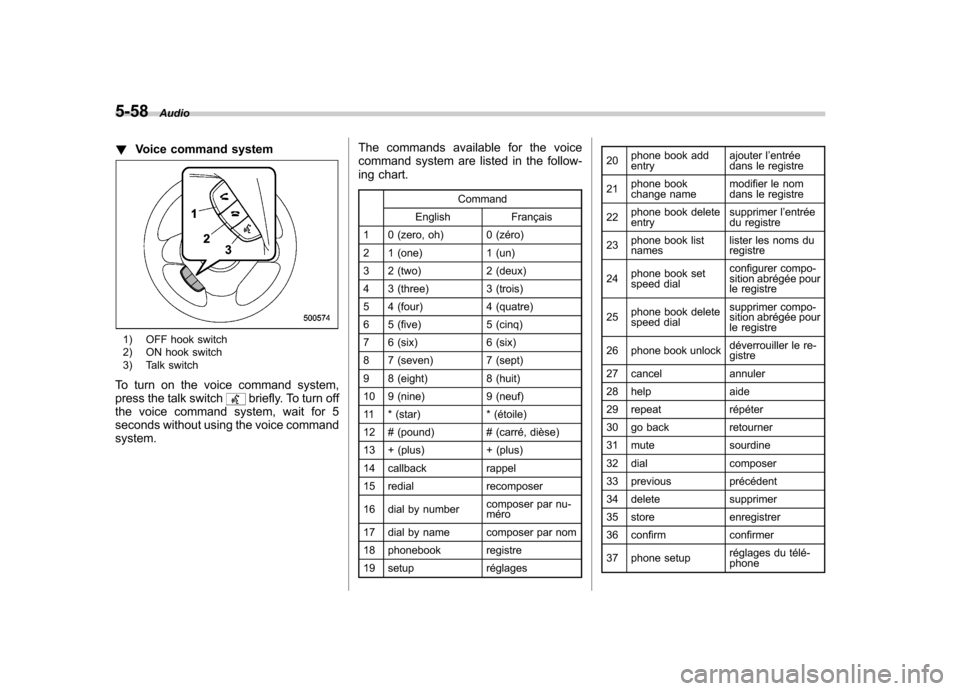
!Voice command system
1) OFF hook switch
2) ON hook switch
3) Talk switch
To turn on the voice command system,
press the talk switch
briefly. To turn off
the voice command system, wait for 5
seconds without using the voice commandsystem. The commands available for the voice
command system are listed in the follow-
ing chart.
Command
English Français
1 0 (zero, oh) 0 (zéro)
2 1 (one) 1 (un)
3 2 (two) 2 (deux)
4 3 (three) 3 (trois)
5 4 (four) 4 (quatre)
6 5 (five) 5 (cinq)
7 6 (six) 6 (six)
8 7 (seven) 7 (sept)
9 8 (eight) 8 (huit)
10 9 (nine) 9 (neuf)
11 * (star) * (étoile)
12 # (pound) # (carré, dièse)
13 + (plus) + (plus)
14 callback rappel
15 redial recomposer
16 dial by number composer par nu- méro
17 dial by name composer par nom
18 phonebook registre
19 setup réglages 20
phone book add entry ajouter l
’entrée
dans le registre
21 phone book
change name modifier le nom
dans le registre
22 phone book deleteentry supprimer l
’entrée
du registre
23 phone book listnames lister les noms duregistre
24 phone book set
speed dial configurer compo-
sition abrégée pour
le registre
25 phone book delete
speed dial supprimer compo-
sition abrégée pour
le registre
26 phone book unlock déverrouiller le re-gistre
27 cancel annuler
28 help aide
29 repeat répéter
30 go back retourner
31 mute sourdine
32 dial composer
33 previous précédent
34 delete supprimer
35 store enregistrer
36 confirm confirmer
37 phone setup réglages du télé- phone
Page 246 of 458

38 security sécurité
39 pair phonejumeler le télé- phone
40 change name modifier le nom
41 select phone sélectionner le tél- éphone
42 list phones lister les télé-phones
43 set pass key configurer le
passe-partout
44 add entry ajouter l ’entrée
45 delete entry supprimer l ’entrée
46 delete speed dial supprimer compo-
sition abrégée
47 by voice vocalement
48 by phone par téléphone
49 call history historique d ’appels
50 set speed dial configurer compo-
sition abrégée
51 incoming entrant
52 outgoing sortant
53 list names lister les noms
54 set PIN configurer NIP
55 phone book lock verrouiller le regis- tre&
Bluetooth®setting
! Security setting
! Setting PIN code
The PIN code is a 4-digit number and is
used when locking the phonebook.
1. Select the “SETUP ”menu.
2. Select the “SECURITY ”menu.
3. Select the “SET PIN ”menu. Then
“ CURRENT PIN? ”is displayed.
4. Input the current PIN code by operat-
ing the “TUNE/TRACK/CH ”dial or saying
the number.
5. Select the “CONFIRM ”menu.
6. Input the new PIN code by operating the “TUNE/TRACK/CH ”dial or saying the
number.
7. Select the “CONFIRM ”menu.
! Locking the phonebook
1. Select the “SETUP ”menu.
2. Select the “SECURITY ”menu.
3. Select “PHBK LOCK ”by operating the
“ TUNE/TRACK/CH ”dial or say “PHONE-
BOOK LOCK ”. Then “CURRENT PIN? ”is
displayed.
4. Input the PIN code by operating the “ TUNE/TRACK/CH ”dial or saying the
number.
5. Select the “CONFIRM ”menu. If the inputted PIN code is correct,
“LOCKED ”is
displayed and the phonebook is locked.
NOTE
While the phonebook is locked, if the
operation restricted menu is selected,“ PHBK LOCK ”is displayed.
! Unlocking the phonebook
1. Select the “SETUP ”menu.
2. Select the “SECURITY ”menu.
3. Select the “PHBK UNLOCK ”menu by
operating the “TUNE/TRACK/CH ”dial or
say “PHONEBOOK UNLOCK ”. Then
“ CURRENT PIN? ”is displayed.
NOTE
If the phonebook is not locked, “UN-
LOCK ”is displayed and the mode
changes to the security mode.
4. Input the PIN code by operating the “ TUNE/TRACK/CH ”dial or saying the
number.
5. Select the “CONFIRM ”menu. If the
inputted PIN code is correct, “UN-
LOCKED ”is displayed and the phone-
book is unlocked. Audio
5-59
– CONTINUED –
Page 247 of 458

5-60Audio
! Phone setup
! Setting pair phone
Refer to “Preparation for using the Hands-
free system ”F 5-50.
! Selecting phone
To select the registered cell phone for
connecting to the in-vehicle equipment,
perform the following procedure.
1. Select the “SETUP ”menu.
2. Select the “PHONE SETUP ”menu.
3. Select the “SELECT PHONE ”menu. If
no cell phones are registered, “EMPTY ”is
displayed and the mode changes to the “ PHONE SETUP ”mode.
4. Select the cell phone by operating the“ TUNE/TRACK/CH ”dial or saying the
voice tag.
5. Select the “CONFIRM ”menu. “SE-
LECTED ”is displayed, the selected cell
phone is connected to the in-vehicle
equipment and the mode changes to the“ PHONE SETUP ”mode.
! Changing the voice tag of the cellphone
1. Select the “SETUP ”menu.
2. Select the “PHONE SETUP ”menu.
3. Select the “CHANGE NAME ”menu. If
no cell phones are registered, “EMPTY ”is displayed and the mode changes to the“
PHONE SETUP ”mode.
4. Select the cell phone by operating the“ TUNE/TRACK/CH ”dial or saying the
voice tag.
5. Select the “RECORD NAME ”menu.
6. Register the voice tag. For details,
refer to “Preparation for using the Hands-
free system ”F 5-50.
! List phones function
The cell phone voice tags saved in the cell
phone list are spoken by using the list
phones function.
1. Select the “SETUP ”menu.
2. Select the “PHONE SETUP ”menu.
3. Select the “LIST PHONES ”menu. If
no cell phones are registered, “EMPTY ”is
displayed and the mode changes to the “ PHONE SETUP ”mode.
4. Registered cell phones are displayed
on the saved side. While displayed, if the“ TUNE/TRACK/CH ”dial is turned, the
next registered cell phone is displayed.
Press the ON hook button
to close the
Hands-free menu.
5. Select a cell phone by operating the “ TUNE/TRACK/CH ”dial or pressing the
talk switch
. Then “SELECTED ”is
displayed.
6. Select the following menus. .
“SELECT PHONE ”to connect the
selected cell phone. “CHANGE NAME ”to change the voice
tag. “DELETE ”to delete the selected cell
phone from the list. “GO BACK ”to go back to the “PHONE
SETUP ”mode
! Setting passkey
1. Select the “SETUP ”menu.
2. Select the “PHONE SETUP ”menu.
3. Select the “SET PASSKEY ”menu.
After the currently set passkey is dis-
played, a new passkey can be entered.
4. Input the new passkey by operating the “TUNE/TRACK/CH ”dial or saying the
passkey.
5. Select the “CONFIRM ”menu. The new
passkey is displayed, the passkey is
changed and the mode changes to the“ PHONE SETUP ”mode.
! Deleting registered cell phone from
the list
1. Select the “SETUP ”menu.
2. Select the “PHONE SETUP ”menu.
3. Select the “DELETE ”menu.
4. Select a cell phone to be deleted by
operating the “TUNE/TRACK/CH ”dial or
Page 248 of 458

saying a voice tag.
5. Select the“CONFIRM ”menu. “DE-
LETED ”is displayed, the data is deleted
and the mode changes to the “PHONE
SETUP ”mode.
! System setup
! Setting guidance volume
To set the guidance volume, perform the
following procedure.
1. Select the “SETUP ”menu.
2. Select the “SYSTEM SETUP ”menu.
3. Select “GUIDANCE VOL ”by operating
the “TUNE/TRACK/CH ”dial.
4. Set the guidance volume by operating the “TUNE/TRACK/CH ”dial.
! Initializing the registered data
To initialize the registered data, perform
the following procedure.
1. Select the “SETUP ”menu.
2. Select the “SYSTEM SETUP ”menu.
3. Select “INITIALIZE ”by operating the
“ TUNE/TRACK/CH ”dial.
4. Select “CONFIRM ”by operating the
“ TUNE/TRACK/CH ”dial. First “PLEASE
WAIT ”, then “INITIALIZED ”is displayed.
The registered data is initialized and the
mode changes to the last mode. !
Selecting language
To select the language, perform the
following procedure.
1. Select the “SETUP ”menu.
2. Select the “SYSTEM SETUP ”menu.
3. Select “SEL LANGUAGE ”by operat-
ing the “TUNE/TRACK/CH ”dial.
4. Select the desired language by oper-
ating the “TUNE/TRACK/CH ”dial. Audio
5-61
Page 254 of 458
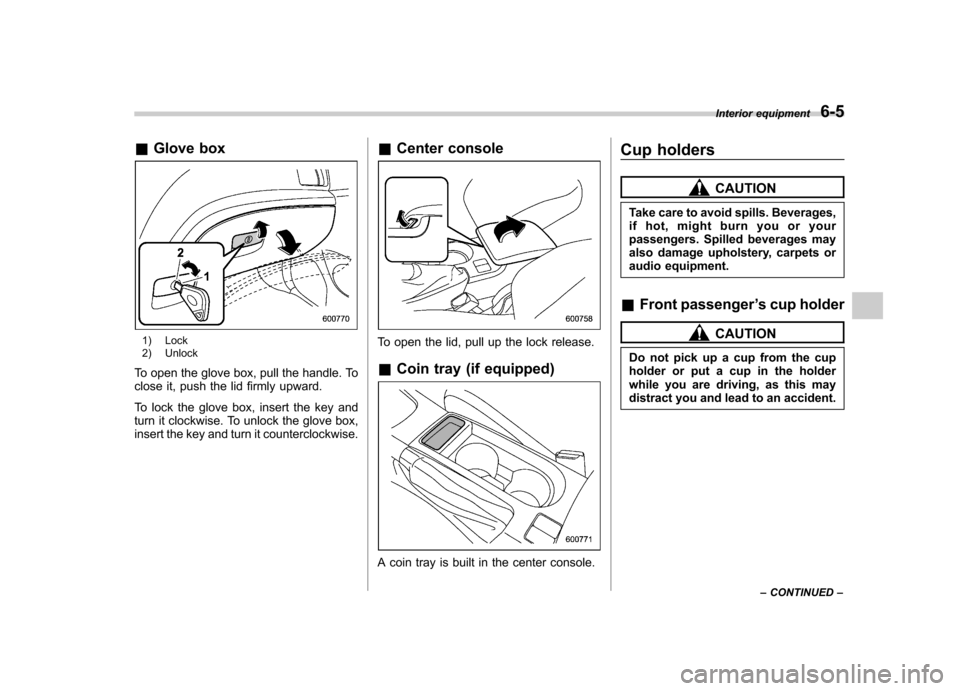
&Glove box
1) Lock
2) Unlock
To open the glove box, pull the handle. To
close it, push the lid firmly upward.
To lock the glove box, insert the key and
turn it clockwise. To unlock the glove box,
insert the key and turn it counterclockwise. &
Center consoleTo open the lid, pull up the lock release. &Coin tray (if equipped)
A coin tray is built in the center console. Cup holders
CAUTION
Take care to avoid spills. Beverages,
if hot, might burn you or your
passengers. Spilled beverages may
also damage upholstery, carpets or
audio equipment.
& Front passenger ’s cup holder
CAUTION
Do not pick up a cup from the cup
holder or put a cup in the holder
while you are driving, as this may
distract you and lead to an accident. Interior equipment
6-5
– CONTINUED –
Page 348 of 458

Exterior care....................................................... 10-2
Washing ............................................................. 10-2
Waxing and polishing ......................................... 10-3
Cleaning aluminum wheels ................................. 10-3
Corrosion protection .......................................... 10-4
Most common causes of corrosion ..................... 10-4
To help prevent corrosion ................................... 10-4 Cleaning the interior
.......................................... 10-5
Seat fabric ......................................................... 10-5
Leather seat materials ........................................ 10-5
Synthetic leather upholstery ............................... 10-5
Climate control panel, audio panel, instrument panel, console panel, and switches .................. 10-5
Navigation monitor (if equipped) ........................ 10-6
Appearance care
10
Page 352 of 458

Cleaning the interior
Use a soft, damp cloth to clean the climate
control panel, audio equipment, instru-
ment panel, center console, combination
meter panel, and switches. (Do not use
organic solvents.) &Seat fabric
Remove loose dirt, dust or debris with a
vacuum cleaner. If the dirt is caked on the
fabric or hard to remove with a vacuum
cleaner, use a soft brush then vacuum it.
Wipe the fabric surface with a tightly
wrung cloth and dry the seat fabric
thoroughly. If the fabric is still dirty, wipe
using a solution of mild soap and luke-
warm water then dry thoroughly.
If the stain does not come out, try a
commercially-available fabric cleaner. Use
the cleaner on a hidden place and make
sure it does not affect the fabric adversely.
Use the cleaner according to its instruc-tions. NOTE
When cleaning the seat, do not use
benzine, paint thinner, or any similarmaterials. &
Leather seat materials
The leather used by SUBARU is a high
quality natural product which will retain its
distinctive appearance and feel for many
years with proper care.
Allowing dust or road dirt to build up on the
surface can cause the material to become
brittle and to wear prematurely. Regular
cleaning with a soft, moist, natural fiber
cloth should be performed monthly, taking
care not to soak the leather or allow water
to penetrate the stitched seams.
A mild detergent suitable for cleaning
woolen fabrics may be used to remove
difficult dirt spots, rubbing with a soft, dry
cloth afterwards to restore the luster. If
your SUBARU is to be parked for a long
time in bright sunlight, it is recommended
that the seats and head restraints be
covered, or the windows shaded, to
prevent fading or shrinkage.
Minor surface blemishes or bald patches
may be treated with a commercial leather
spray lacquer. You will discover that each
leather seat section will develop soft folds
or wrinkles, which is characteristic of
genuine leather. &
Synthetic leather upholstery
The synthetic leather material used on the
SUBARU may be cleaned using mild soap
or detergent and water, after first vacuum-
ing or brushing away loose dirt. Allow the
soap to soak in for a few minutes and wipe
off with a clean, damp cloth. Commercial
foam-type cleaners suitable for synthetic
leather materials may be used when
necessary. NOTE
Strong cleaning agents such as sol-
vents, paint thinners, window cleaner
or gasoline must never be used on
leather or synthetic interior materials. & Climate control panel, audio
panel, instrument panel,
console panel, and switches
Use a soft, damp cloth to clean the climate
control panel, audio equipment, instru-
ment panel, center console, combination
meter panel, and switches. NOTE
Do not use organic solvents such as
paint thinners or gasoline, or strong
cleaning agents that contain thosesolvents. Appearance care
10-5
– CONTINUED –