maintenance SUBARU IMPREZA 2016 5.G User Guide
[x] Cancel search | Manufacturer: SUBARU, Model Year: 2016, Model line: IMPREZA, Model: SUBARU IMPREZA 2016 5.GPages: 594, PDF Size: 5.36 MB
Page 185 of 594
Instruments and controls/Multi information display (models with type B combination meter)
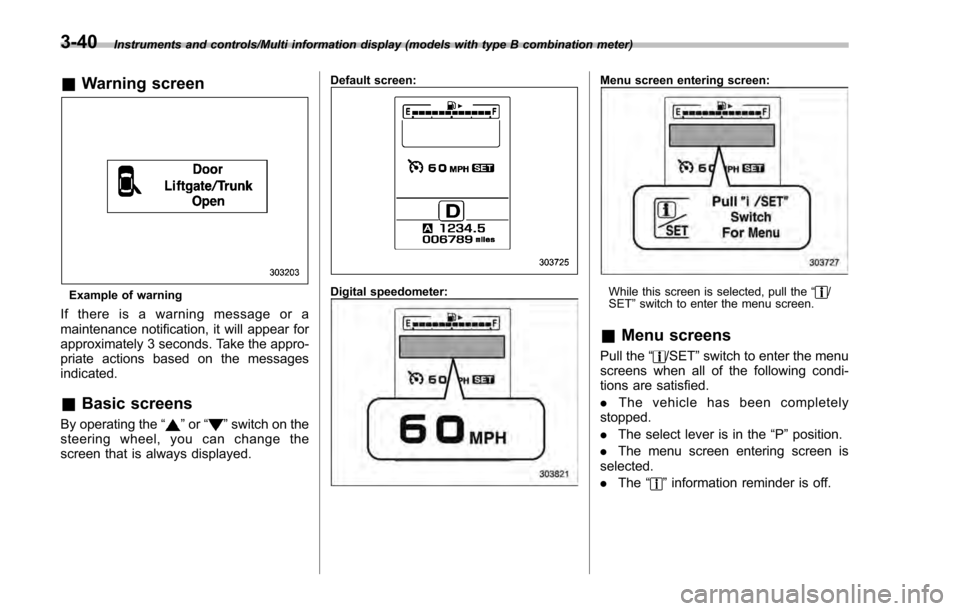
&Warning screen
Example of warning
If there is a warning message or a
maintenance notification, it will appear for
approximately 3 seconds. Take the appro-
priate actions based on the messages
indicated.
&Basic screens
By operating the “”or “”switch on the
steering wheel, you can change the
screen that is always displayed.
Default screen:
Digital speedometer:
Menu screen entering screen:
While this screen is selected, pull the “/
SET ”switch to enter the menu screen.
& Menu screens
Pull the “/SET”switch to enter the menu
screens when all of the following condi-
tions are satisfied.
. The vehicle has been completely
stopped.
. The select lever is in the “P”position.
. The menu screen entering screen is
selected.
. The “
”information reminder is off.
3-40
Page 188 of 594
&Safety precautions
WARNING
Always pay adequate attention to
safe driving when operating the
multi function display while the
vehicle is in motion. When operation
of the multi function display is
disturbing your awareness and abil-
ity to concentrate on driving, stop
the vehicle in a safe place before
performing operations on the
screen. Also, do not concentrate
on the display while driving. Doing
so may cause you to look away from
the road and could result in an
accident.
&Features
The multi function display has the follow-
ing functions.
Description Page
Displays useful messages, such
as warning information, etc. 3-46
Displays basic screens (e.g. fuel
consumption screen, etc.) 3-47
Sets and adjusts maintenance
notification 3-74
Registers driving history 3-77
Sets and customizes car opera-
tion 3-78
Also, the multi function display can also be
used to set and initialize the multi function
display itself.
NOTE
When the vehicle is in motion, certain
functions and selections may not be
available.
&
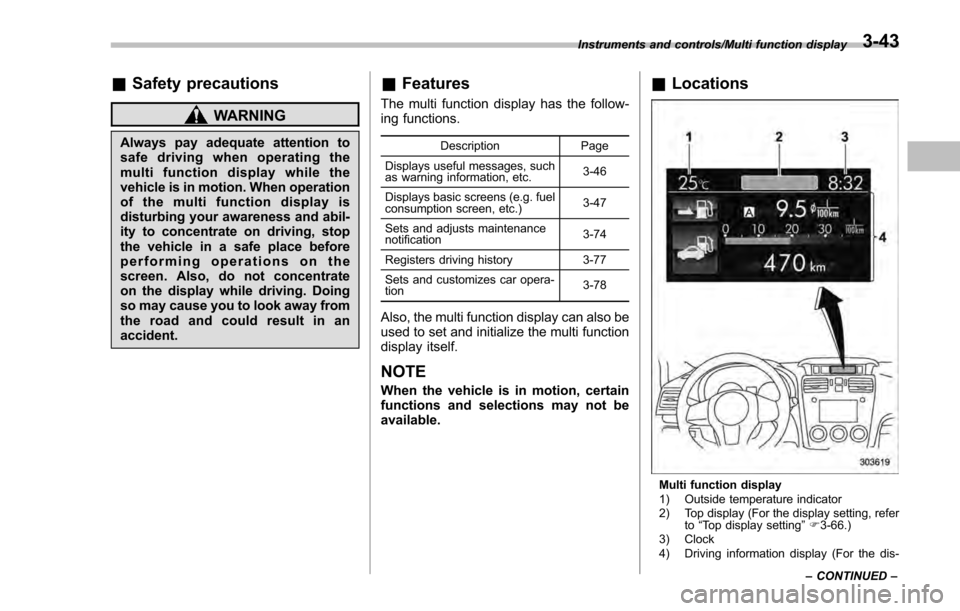
Locations
Multi function display
1) Outside temperature indicator
2) Top display (For the display setting, refer
to“Top display setting ”F 3-66.)
3) Clock
4) Driving information display (For the dis-
Instruments and controls/Multi function display
–CONTINUED –
3-43
Page 189 of 594
Instruments and controls/Multi function display
played contents, refer to “Basic screens ”
F 3-47.)
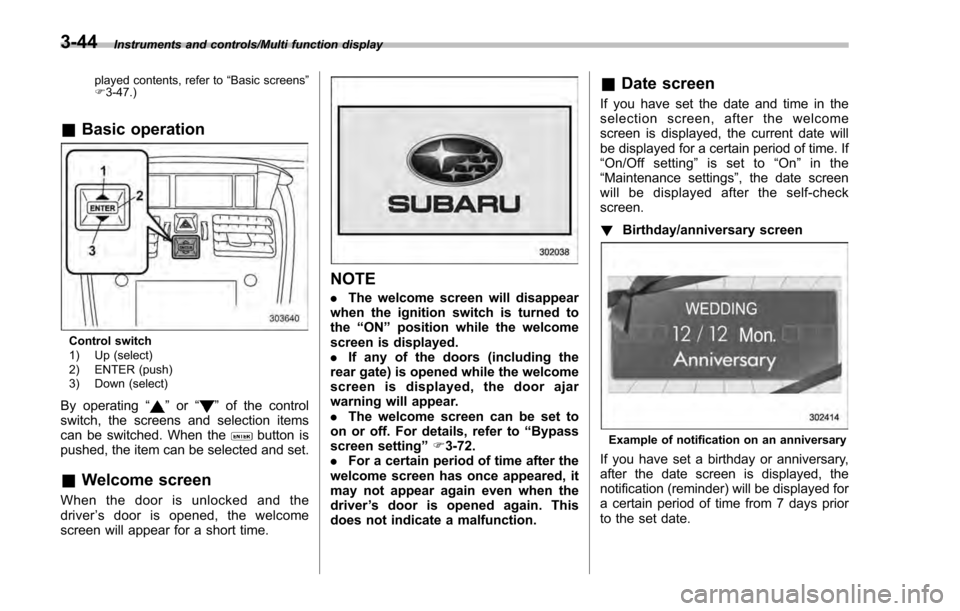
& Basic operation
Control switch
1) Up (select)
2) ENTER (push)
3) Down (select)
By operating “”or “”of the control
switch, the screens and selection items
can be switched. When the
button is
pushed, the item can be selected and set.
& Welcome screen
When the door is unlocked and the
driver ’s door is opened, the welcome
screen will appear for a short time.
NOTE
. The welcome screen will disappear
when the ignition switch is turned to
the “ON ”position while the welcome
screen is displayed.
. If any of the doors (including the
rear gate) is opened while the welcome
screen is displayed, the door ajar
warning will appear.
. The welcome screen can be set to
on or off. For details, refer to “Bypass
screen setting ”F 3-72.
. For a certain period of time after the
welcome screen has once appeared, it
may not appear again even when the
driver ’s door is opened again. This
does not indicate a malfunction.
& Date screen
If you have set the date and time in the
selection screen, after the welcome
screen is displayed, the current date will
be displayed for a certain period of time. If
“On/Off setting ”is set to “On ”in the
“ Maintenance settings” , the date screen
will be displayed after the self-check
screen.
! Birthday/anniversary screen
Example of notification on an anniversary
If you have set a birthday or anniversary,
after the date screen is displayed, the
notification (reminder) will be displayed for
a certain period of time from 7 days prior
to the set date.
3-44
Page 190 of 594
NOTE
.Displaying the birthday/anniversary
screen can be set to on or off. Refer to
“Bypass screen setting” F3-72.
. Up to five items can be set for
birthdays and anniversaries respec-
tively. Refer to “Selection screen ”F 3-
54.
& Ending screen
If“Eco Summary ”is set to “On”in the
“Bypass screen setting ”, the“Fuel con-
sumption results screen” will be displayed
before the screen turns off when the
ignition switch is turned to the “LOCK” /
“ OFF ”position.
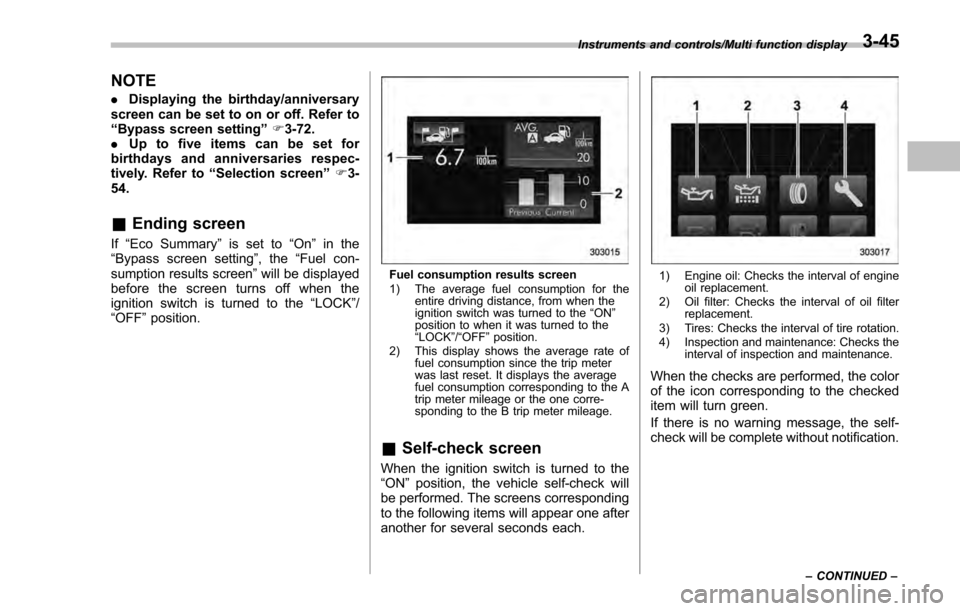
Fuel consumption results screen
1) The average fuel consumption for the
entire driving distance, from when the
ignition switch was turned to the “ON ”
position to when it was turned to the
“ LOCK ”/“ OFF ”position.
2) This display shows the average rate of fuel consumption since the trip meter
was last reset. It displays the average
fuel consumption corresponding to the A
trip meter mileage or the one corre-
sponding to the B trip meter mileage.
&Self-check screen
When the ignition switch is turned to the
“ON ”position, the vehicle self-check will
be performed. The screens corresponding
to the following items will appear one after
another for several seconds each.
1) Engine oil: Checks the interval of engine oil replacement.
2) Oil filter: Checks the interval of oil filter replacement.
3) Tires: Checks the interval of tire rotation.
4) Inspection and maintenance: Checks the interval of inspection and maintenance.
When the checks are performed, the color
of the icon corresponding to the checked
item will turn green.
If there is no warning message, the self-
check will be complete without notification.
Instruments and controls/Multi function display
–CONTINUED –3-45
Page 191 of 594
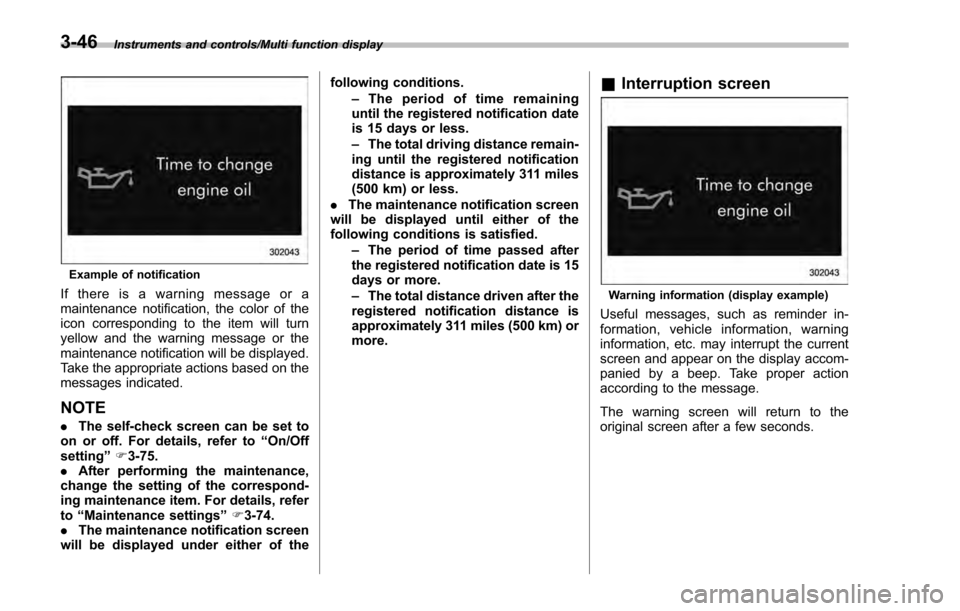
Instruments and controls/Multi function display
Example of notification
If there is a warning message or a
maintenance notification, the color of the
icon corresponding to the item will turn
yellow and the warning message or the
maintenance notification will be displayed.
Take the appropriate actions based on the
messages indicated.
NOTE
.The self-check screen can be set to
on or off. For details, refer to “On/Off
setting ”F 3-75.
. After performing the maintenance,
change the setting of the correspond-
ing maintenance item. For details, refer
to “Maintenance settings ”F 3-74.
. The maintenance notification screen
will be displayed under either of the following conditions.
–The period of time remaining
until the registered notification date
is 15 days or less.
– The total driving distance remain-
ing until the registered notification
distance is approximately 311 miles
(500 km) or less.
. The maintenance notification screen
will be displayed until either of the
following conditions is satisfied.
–The period of time passed after
the registered notification date is 15
days or more.
– The total distance driven after the
registered notification distance is
approximately 311 miles (500 km) or
more.
& Interruption screen
Warning information (display example)
Useful messages, such as reminder in-
formation, vehicle information, warning
information, etc. may interrupt the current
screen and appear on the display accom-
panied by a beep. Take proper action
according to the message.
The warning screen will return to the
original screen after a few seconds.
3-46
Page 200 of 594

Top menuMenu option DescriptionPage
Maintenance Engine Oil Set and adjust the oil maintenance notification date. 3-74
Oil Filter Set and adjust the oil filter maintenance notification date. 3-75
Tires Set and adjust the tire maintenance notification date. 3-75
Maintenance Schedule Set and adjust the vehicle maintenance notification date. 3-75
On/Off Turn on or off the self-check screen that is
activated when the ignition switch is turned to
the
“ON ”position. On or Off
3-75
Clear All Settings Clear all settings for maintenance items. Yes or No 3-76
Go Back Return to the top menu. —
Driving History Set Register and overwrite the driving record. 3-77
Go Back Return to the top menu. —
Car Setting Keyless Buzzer Volume Set the audible signal volume. 0 (OFF) to 73-79
Hazard Warning Flasher Set the hazard warning flasher. On or Off3-79
Defogger Set and customize the operation of the defogger. 15 minutes or Continuous 3-80
Interior Light Set and customize the interior light off delay
timer. 10, 20, 30 seconds or Off
3-82
Auto Light Sensor (if equipped) Set and customize the sensitivity of the auto
light sensor.
Low, Mid, High or Max
3-83
Keyless Access Setting (if
equipped) Set and customize the keyless access function. Driver
’s Door Unlock 3-84
Rear Gate Unlock 3-85
Go Back Return to top menu. —
Instruments and controls/Multi function display
–CONTINUED –
3-55
Page 219 of 594
Instruments and controls/Multi function display
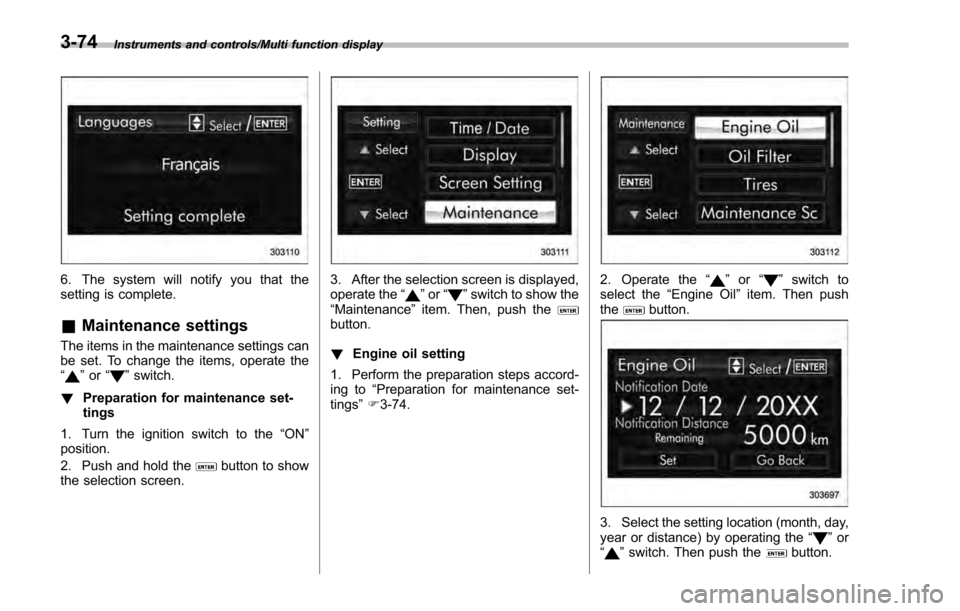
6. The system will notify you that the
setting is complete.
&Maintenance settings
The items in the maintenance settings can
be set. To change the items, operate the
“
”or “”switch.
! Preparation for maintenance set-
tings
1. Turn the ignition switch to the “ON”
position.
2. Push and hold the
button to show
the selection screen.
3. After the selection screen is displayed,
operate the “”or “”switch to show the
“Maintenance ”item. Then, push the
button.
! Engine oil setting
1. Perform the preparation steps accord-
ing to “Preparation for maintenance set-
tings ”F 3-74.
2. Operate the “”or “”switch to
select the “Engine Oil ”item. Then push
the
button.
3. Select the setting location (month, day,
year or distance) by operating the “”or
“” switch. Then push thebutton.
3-74
Page 220 of 594
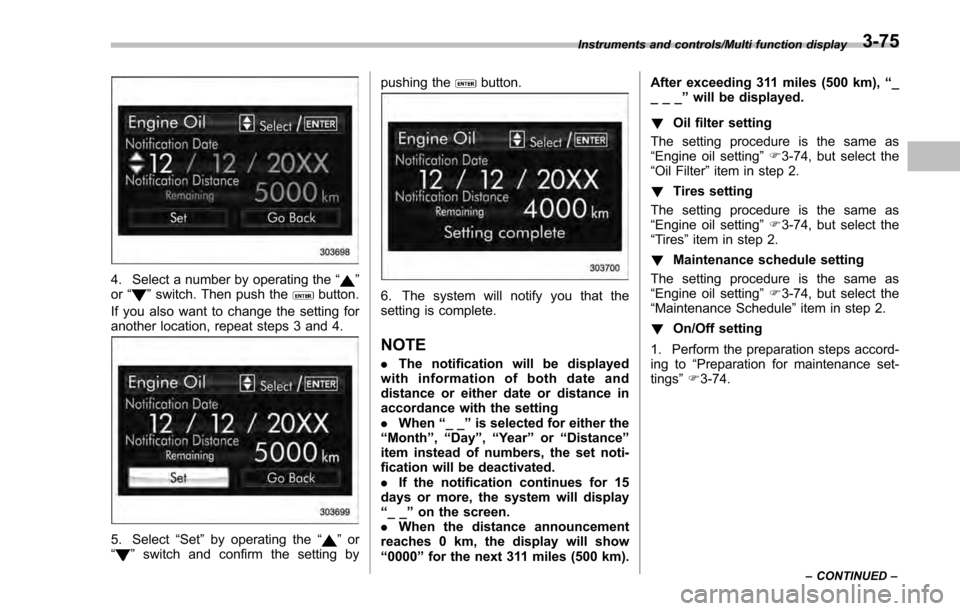
4. Select a number by operating the“”
or “”switch. Then push thebutton.
If you also want to change the setting for
another location, repeat steps 3 and 4.
5. Select “Set”by operating the “”or
“” switch and confirm the setting by pushing the
button.
6. The system will notify you that the
setting is complete.
NOTE
.
The notification will be displayed
with information of both date and
distance or either date or distance in
accordance with the setting
. When “__”is selected for either the
“Month ”,“Day ”,“Year ”or “Distance”
item instead of numbers, the set noti-
fication will be deactivated.
. If the notification continues for 15
days or more, the system will display
“__ ”on the screen.
. When the distance announcement
reaches 0 km, the display will show
“0000 ”for the next 311 miles (500 km). After exceeding 311 miles (500 km),
“_
___ ”will be displayed.
! Oil filter setting
The setting procedure is the same as
“Engine oil setting ”F 3-74, but select the
“Oil Filter ”item in step 2.
! Tires setting
The setting procedure is the same as
“Engine oil setting ”F 3-74, but select the
“Tires ”item in step 2.
! Maintenance schedule setting
The setting procedure is the same as
“Engine oil setting ”F 3-74, but select the
“Maintenance Schedule ”item in step 2.
! On/Off setting
1. Perform the preparation steps accord-
ing to “Preparation for maintenance set-
tings ”F 3-74.
Instruments and controls/Multi function display
–CONTINUED –3-75
Page 221 of 594
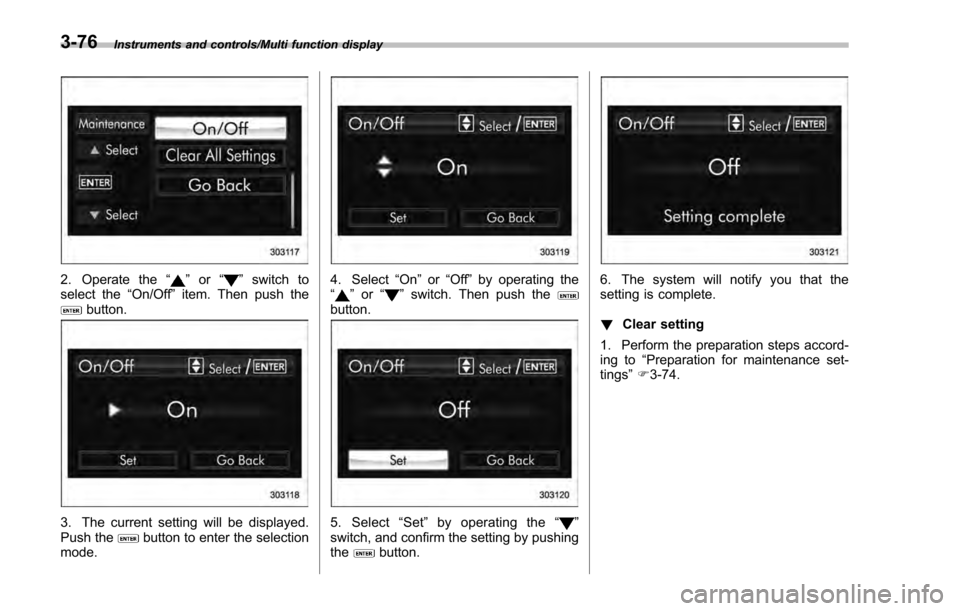
Instruments and controls/Multi function display
2. Operate the“”or “”switch to
select the “On/Off ”item. Then push the
button.
3. The current setting will be displayed.
Push thebutton to enter the selection
mode.
4. Select “On”or“Off ”by operating the
“” or “”switch. Then push thebutton.
5. Select “Set ”by operating the “”
switch, and confirm the setting by pushing
the
button.
6. The system will notify you that the
setting is complete.
! Clear setting
1. Perform the preparation steps accord-
ing to “Preparation for maintenance set-
tings ”F 3-74.
3-76
Page 222 of 594
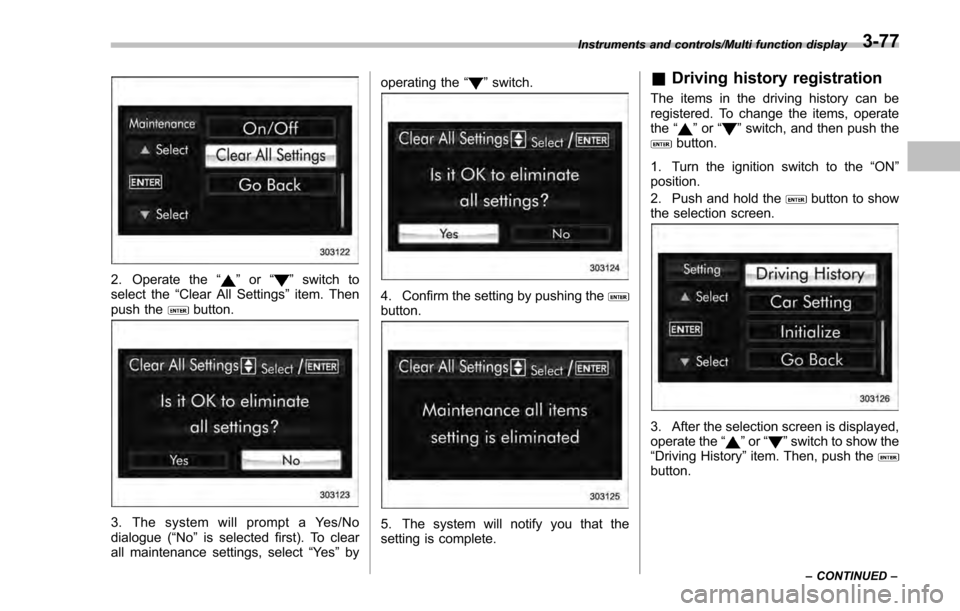
2. Operate the“”or “”switch to
select the “Clear All Settings ”item. Then
push the
button.
3. The system will prompt a Yes/No
dialogue (“ No”is selected first). To clear
all maintenance settings, select “Ye s”by operating the
“
”switch.
4. Confirm the setting by pushing thebutton.
5. The system will notify you that the
setting is complete.
& Driving history registration
The items in the driving history can be
registered. To change the items, operate
the “
”or “”switch, and then push thebutton.
1. Turn the ignition switch to the “ON”
position.
2. Push and hold the
button to show
the selection screen.
3. After the selection screen is displayed,
operate the “”or “”switch to show the
“Driving History” item. Then, push the
button.
Instruments and controls/Multi function display
–CONTINUED –3-77