phone SUBARU IMPREZA 2016 5.G Owner's Guide
[x] Cancel search | Manufacturer: SUBARU, Model Year: 2016, Model line: IMPREZA, Model: SUBARU IMPREZA 2016 5.GPages: 594, PDF Size: 5.36 MB
Page 323 of 594
Audio/Audio set
NOTE
When starting-up Pandora, there are
some smartphone models for which
Pandora application does not start up
automatically.
!Registering Bookmarks
You can register the music and artist now
being played in Bookmark.
1. Touch the
tab.
2. Select the desired key. The following
items are appeared on the screen.
Item Function
Track When selected after the Book-
mark key is pressed, the current
track is bookmarked.
Artist When selected after the Book-
mark key is pressed, the current
artist is bookmarked.
Cancel Select to cancel the bookmark
operation.
!
Station list
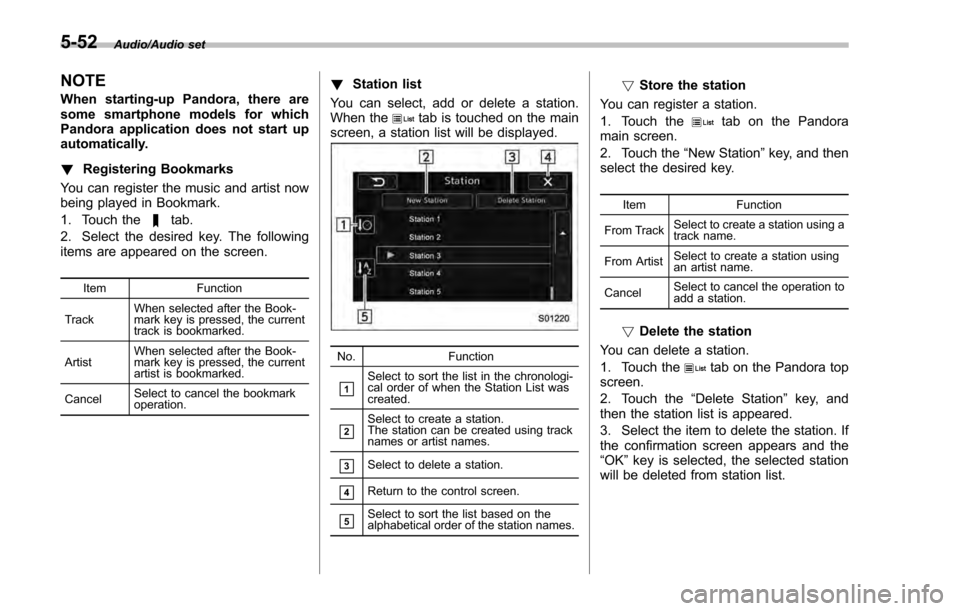
You can select, add or delete a station.
When the
tab is touched on the main
screen, a station list will be displayed.
No. Function
&1Select to sort the list in the chronologi-
cal order of when the Station List was
created.
&2Select to create a station.
The station can be created using track
names or artist names.
&3Select to delete a station.
&4Return to the control screen.
&5Select to sort the list based on the
alphabetical order of the station names.
!Store the station
You can register a station.
1. Touch the
tab on the Pandora
main screen.
2. Touch the “New Station ”key, and then
select the desired key.
Item Function
From Track Select to create a station using a
track name.
From Artist Select to create a station using
an artist name.
Cancel Select to cancel the operation to
add a station.
!
Delete the station
You can delete a station.
1. Touch the
tab on the Pandora top
screen.
2. Touch the “Delete Station” key, and
then the station list is appeared.
3. Select the item to delete the station. If
the confirmation screen appears and the
“OK ”key is selected, the selected station
will be deleted from station list.
5-52
Page 331 of 594

Audio/Audio set
NOTE
.Depending on the Bluetooth device
that is connected to the system, the
music may start playing when selecting
the
key while it is paused. Con-
versely, the music may pause when
selecting the
key while it is playing.
. In the following conditions, the sys-
tem may not function:
–The Bluetooth device is turned
off.
– The Bluetooth device is not con-
nected.
– The Bluetooth device has a low
battery.
. It may take time to connect the
phone when Bluetooth audio is being
played.
. For operating the portable player,
see the instruction manual that comes
with it.
. If the Bluetooth device is discon-
nected due to poor reception from the
Bluetooth network when the ignition
switch is in the “ACC”or “ON ”posi-
tion, the system will automatically
reconnect to the portable player.
. If the Bluetooth device is discon-
nected on purpose, such as it was
turned off, this does not happen.
Reconnect the portable player manu-
ally. .
Bluetooth device information is re-
gistered when the Bluetooth device is
connected to the Bluetooth audio sys-
tem. When selling or disposing of the
vehicle, remove the Bluetooth audio
information from the system. Refer to
“Bluetooth®settings ”F 5-66.
! Connecting a Bluetooth device
To use the Bluetooth audio system, it is
necessary to register a Bluetooth device
with the system.
. Registering an additional device
1. Select the “Add”key on the Bluetooth
devices connection screen.
2. For more information: Refer to “Regis-
tering/connecting Bluetooth
®device ”F 5-
66.
. Selecting a registered device
1. Select the “Select”key on the Blue-
tooth devices connection screen.
2. For more information: Refer to “BT
Devices Connection screen” F5-69.
! How to change the source
Select the “BT Audio”key on the source
select screen. Refer to “Selecting an audio
source” F5-18.
NOTE
Depending on the type of portable
player connected, some functions
may not be available and/or the screen
may look differently than shown in this
manual.
! Select play mode
The play mode settings display will appear
when play mode key is touched. Select
the preferred play mode from the following
items.
Icon Function
Touch to start 1 track repeat.
Touch to start repeat all.
Touch to repeat the tracks in the
group.
Touch to start shuffle all.
Touch to play tracks in the order
in which they are registered in
the audio device.
Touch to start shuffle group.
5-60
Page 337 of 594
Audio/Bluetooth®settings
Bluetooth®settings
WARNING
Be sure to park the vehicle in a safe
location before connecting or oper-
ating a Bluetooth phone or audio
device. Failure to do so may result
in loss of control of your vehicle and
cause an accident or serious injury.
&Regulatory information
The Bluetooth®word mark and logos are
registered trademarks owned by Bluetooth
SIG, Inc.
& Registering/connecting
Bluetooth®device
You can register up to five devices,
regardless of whether they are Bluetooth
phones or audio devices.
NOTE
. Once the phone has been regis-
tered, it is possible to use the hands-
free system or Bluetooth audio.
. Devices cannot be registered during driving.
!
Registering a Bluetooth phone for
the first time
To use the hands-free system, it is
necessary to register a Bluetooth phone
with the system.
For details about registering a Bluetooth
device: Refer to “Registering a Bluetooth
Audio device for the first time ”F 5-67.
1. Turn the Bluetooth connection setting
of your cell phone on. .This function is not available when
Bluetooth connection setting of your
cell phone is set to off.
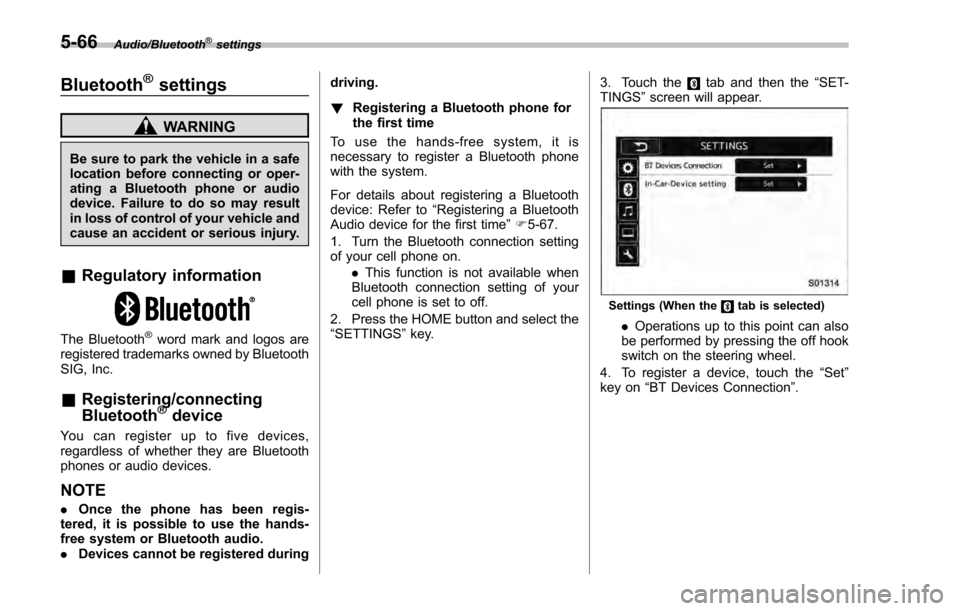
2. Press the HOME button and select the
“SETTINGS” key. 3. Touch the
tab and then the
“SET-
TINGS ”screen will appear.
Settings (When thetab is selected)
. Operations up to this point can also
be performed by pressing the off hook
switch on the steering wheel.
4. To register a device, touch the “Set”
key on “BT Devices Connection ”.
5-66
Page 338 of 594
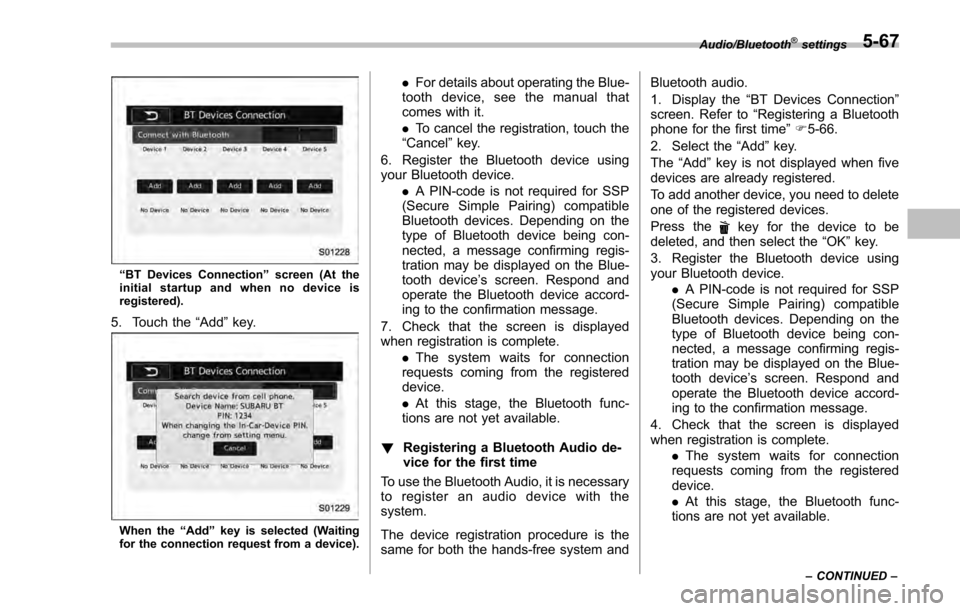
“BT Devices Connection ”screen (At the
initial startup and when no device is
registered).
5. Touch the “Add”key.
When the “Add ”key is selected (Waiting
for the connection request from a device).
. For details about operating the Blue-
tooth device, see the manual that
comes with it.
. To cancel the registration, touch the
“Cancel” key.
6. Register the Bluetooth device using
your Bluetooth device. .A PIN-code is not required for SSP
(Secure Simple Pairing) compatible
Bluetooth devices. Depending on the
type of Bluetooth device being con-
nected, a message confirming regis-
tration may be displayed on the Blue-
tooth device ’s screen. Respond and
operate the Bluetooth device accord-
ing to the confirmation message.
7. Check that the screen is displayed
when registration is complete. .The system waits for connection
requests coming from the registered
device.
. At this stage, the Bluetooth func-
tions are not yet available.
! Registering a Bluetooth Audio de-
vice for the first time
To use the Bluetooth Audio, it is necessary
to register an audio device with the
system.
The device registration procedure is the
same for both the hands-free system and Bluetooth audio.
1. Display the
“BT Devices Connection ”
screen. Refer to “Registering a Bluetooth
phone for the first time ”F 5-66.
2. Select the “Add”key.
The “Add” key is not displayed when five
devices are already registered.
To add another device, you need to delete
one of the registered devices.
Press the
key for the device to be
deleted, and then select the “OK ”key.
3. Register the Bluetooth device using
your Bluetooth device. .A PIN-code is not required for SSP
(Secure Simple Pairing) compatible
Bluetooth devices. Depending on the
type of Bluetooth device being con-
nected, a message confirming regis-
tration may be displayed on the Blue-
tooth device ’s screen. Respond and
operate the Bluetooth device accord-
ing to the confirmation message.
4. Check that the screen is displayed
when registration is complete. .The system waits for connection
requests coming from the registered
device.
. At this stage, the Bluetooth func-
tions are not yet available.
Audio/Bluetooth®settings
– CONTINUED –5-67
Page 339 of 594

Audio/Bluetooth®settings
!Profiles
This system supports the following services.
Bluetooth Device Spec.FunctionRequirements Recommendations
Bluetooth Phone/Bluetooth
Audio Device Bluetooth Specification
Registering a Bluetooth de-
vice Ver. 1.1
Ver. 2.1 + EDR
Bluetooth Device ProfileFunctionRequirements Recommendations
Bluetooth Phone HFP (Hands-Free Profile) Hands-free system
Ver. 1.0Ver. 1.5
OPP (Object Push Profile) Transferring the contacts Ver. 1.1
Ver. 1.1
PBAP (Phone Book Access
profile) Ver. 1.0
Ver. 1.0
MAP (Message Access
Profile) Bluetooth phone message
—Ver. 1.0
SPP (Serial Port Profile) Connecting a Bluetooth
phone —
Ver. 1.1
Bluetooth Audio Device A2DP (Advanced Audio
Distribution Profile)
Bluetooth audio system Ver. 1.0
Ver. 1.2
AVRCP (Audio/Video Re-
mote Control Profile) Ver. 1.0
Ver. 1.4
NOTE
.
If your cell phone does not support HFP, registering the Bluetooth phone or using OPP, PBAP, MAP or SPP profiles
individually will not be possible.
. If the connected Bluetooth device version is older than recommended or incompatible, the Bluetooth device function may
not work properly.
. For USA customers, please visit www.subaru.com for details. Outside of the USA customers, contact your local dealer to
arrange a demonstration in order to confirm whether or not the device can be paired with the vehicle.
5-68
Page 340 of 594
&Setting Bluetooth details
! BT Devices Connection screen
1. Press the HOME button.
2. Touch the “SETTINGS”key and then
touch the
tab.
3. Touch the “BT Devices Connection ”
key and then select the desired device to
register.
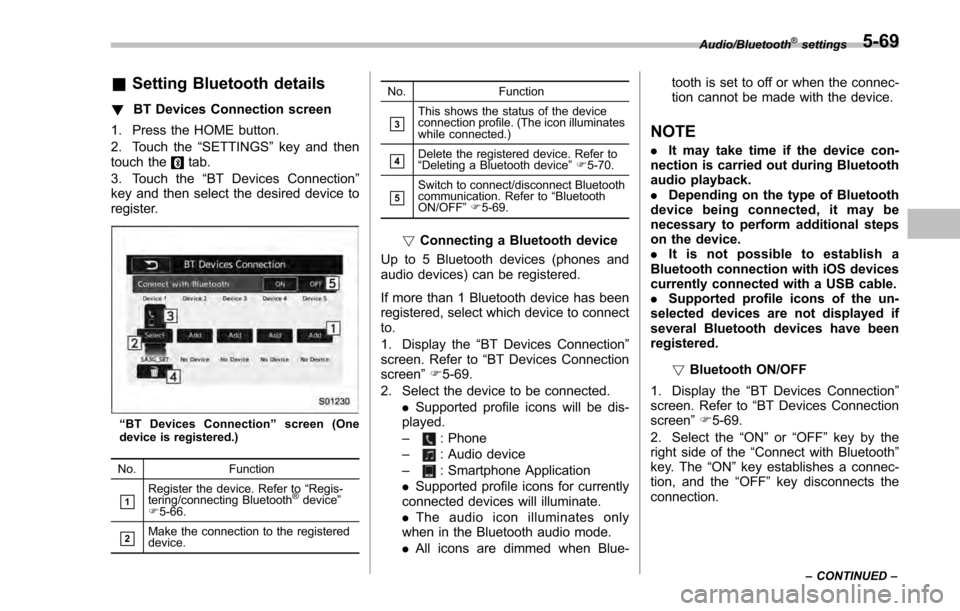
“ BT Devices Connection ”screen (One
device is registered.)
No. Function
&1Register the device. Refer to “Regis-
tering/connecting Bluetooth®device ”
F 5-66.
&2Make the connection to the registered
device. No. Function
&3This shows the status of the device
connection profile. (The icon illuminates
while connected.)
&4Delete the registered device. Refer to
“
Deleting a Bluetooth device ”F 5-70.
&5Switch to connect/disconnect Bluetooth
communication. Refer to “Bluetooth
ON/OFF ”F 5-69.
! Connecting a Bluetooth device
Up to 5 Bluetooth devices (phones and
audio devices) can be registered.
If more than 1 Bluetooth device has been
registered, select which device to connect
to.
1. Display the “BT Devices Connection ”
screen. Refer to “BT Devices Connection
screen” F5-69.
2. Select the device to be connected. .Supported profile icons will be dis-
played.
–
: Phone
–: Audio device
–: Smartphone Application
. Supported profile icons for currently
connected devices will illuminate.
. The audio icon illuminates only
when in the Bluetooth audio mode.
. All icons are dimmed when Blue- tooth is set to off or when the connec-
tion cannot be made with the device.
NOTE
.
It may take time if the device con-
nection is carried out during Bluetooth
audio playback.
. Depending on the type of Bluetooth
device being connected, it may be
necessary to perform additional steps
on the device.
. It is not possible to establish a
Bluetooth connection with iOS devices
currently connected with a USB cable.
. Supported profile icons of the un-
selected devices are not displayed if
several Bluetooth devices have been
registered.
!Bluetooth ON/OFF
1. Display the “BT Devices Connection ”
screen. Refer to “BT Devices Connection
screen” F5-69.
2. Select the “ON ”or “OFF ”key by the
right side of the “Connect with Bluetooth ”
key. The “ON”key establishes a connec-
tion, and the “OFF”key disconnects the
connection.
Audio/Bluetooth®settings
– CONTINUED –5-69
Page 341 of 594
Audio/Bluetooth®settings
NOTE
The setting is fixed as the“OFF”key
when no device is registered.
!Deleting a Bluetooth device
1. Display the “BT Devices Connection ”
screen. Refer to “BT Devices Connection
screen” F5-69.
2. Select the desired device.
3. Touch the
key for the device to be
deleted, and then select the “OK ”key.
NOTE
When deleting a Bluetooth phone, the
contact data will be deleted at the same
time.
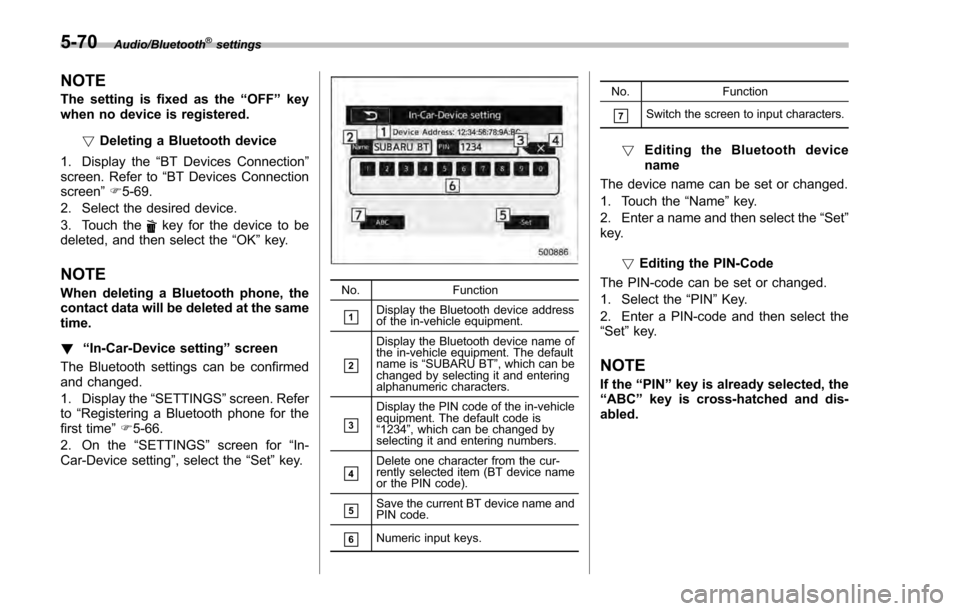
! “In-Car-Device setting ”screen
The Bluetooth settings can be confirmed
and changed.
1. Display the “SETTINGS”screen. Refer
to “Registering a Bluetooth phone for the
first time ”F 5-66.
2. On the “SETTINGS” screen for“In-
Car-Device setting ”, select the“Set”key.No. Function
&1Display the Bluetooth device address
of the in-vehicle equipment.
&2
Display the Bluetooth device name of
the in-vehicle equipment. The default
name is“SUBARU BT ”, which can be
changed by selecting it and entering
alphanumeric characters.
&3
Display the PIN code of the in-vehicle
equipment. The default code is
“ 1234 ”, which can be changed by
selecting it and entering numbers.
&4Delete one character from the cur-
rently selected item (BT device name
or the PIN code).
&5Save the current BT device name and
PIN code.
&6Numeric input keys. No. Function
&7Switch the screen to input characters.
!
Editing the Bluetooth device
name
The device name can be set or changed.
1. Touch the “Name ”key.
2. Enter a name and then select the “Set”
key.
!Editing the PIN-Code
The PIN-code can be set or changed.
1. Select the “PIN”Key.
2. Enter a PIN-code and then select the
“ Set ”key.
NOTE
If the “PIN”key is already selected, the
“ABC ”key is cross-hatched and dis-
abled.
5-70
Page 342 of 594
Hands-free phone system
The hands-free system enables calls to be
made and received without having to take
your hands off the steering wheel.
This system supports Bluetooth. Bluetooth
is a wireless data system that enables cell
phones to be used without being con-
nected by a cable or placed in a cradle.
The operating procedure of the phone is
explained here.
WARNING
.While driving, do not use a cell
phone or connect the Bluetooth
phone. Doing so may result in
loss of control of your vehicle
and cause an accident or serious
injury.
. Your audio unit is fitted with
Bluetooth antennas. People with
implantable cardiac pacemakers,
cardiac resynchronization ther-
apy-pacemakers or implantable
cardioverter defibrillators should
maintain a reasonable distance
between themselves and the
Bluetooth antennas. The radio
waves may affect the operation
of such devices. .
Before using Bluetooth devices,
users of any electrical medical
device other than implantable
cardiac pacemakers, cardiac re-
synchronization therapy-pace-
makers or implantable cardiover-
ter defibrillators should consult
the manufacturer of the device
for information about its opera-
tion under the influence of radio
waves. Radio waves could have
unexpected effects on the opera-
tion of such medical devices.CAUTION
Do not leave your cell phone in the
vehicle. The temperature inside may
rise to a level that could damage the
phone.
NOTE
. If your cell phone does not support
Bluetooth, this system cannot function.
. In the following conditions, the sys-
tem may not function:
–The cell phone is turned off.
– The current position is outside
the communication area.
– The cell phone is not connected.
– The cell phone has a low battery. .
When using the hands free function
and other Bluetooth functions at the
same time, the following problems may
occur:
–The Bluetooth connection may
be cut.
– Noise may be heard when play-
ing back voice with the Bluetooth
function.
. The other party’ s voice will be heard
from the front speakers. The audio/
visual system will be muted during
phone calls or when hands-free voice
commands are used.
. Talk alternately with the other party
on the phone. If both parties speak at
the same time, the other party may not
hear what has been said. (This is not a
malfunction.)
. Keep call volume down. Otherwise,
the other party’ s voice may be audible
outside the vehicle and voice echo may
increase. When talking on the phone,
speak clearly towards the microphone.
. The other party may not hear you
clearly when:
–Drivingonanunpavedroad.
(Making excessive traffic noise.)
– Driving at high speeds.
– The moonroof or windows are
open.
– The air conditioning vents are
Audio/Hands –free phone system
–CONTINUED –5-71
Page 343 of 594
Audio/Hands–free phone system
pointed towards the microphone.
– The sound of the air conditioning
fan is loud.
– Thereisanegativeeffecton
sound quality due to the phone
and/or network being used.
. When another phone is connected,
the following registered data cannot be
read:
–Contact data
– Call history data
– All phone settings
. When selling or disposing of the
vehicle, initialize the data. Refer to
“Unit settings ”F 5-19.
. Once initialized, the data and set-
tings will be erased. Take extra caution
when initializing the data.
. The voice command system sup-
ports phone commands, so dialing a
phone number using your voice is
possible. Refer to “Vo i c e c o m m a n d
system ”F 5-82.
. The images shown in this Owner ’s
Manual are sample images. The actual
images may vary depending on the
market and specifications of your ve-
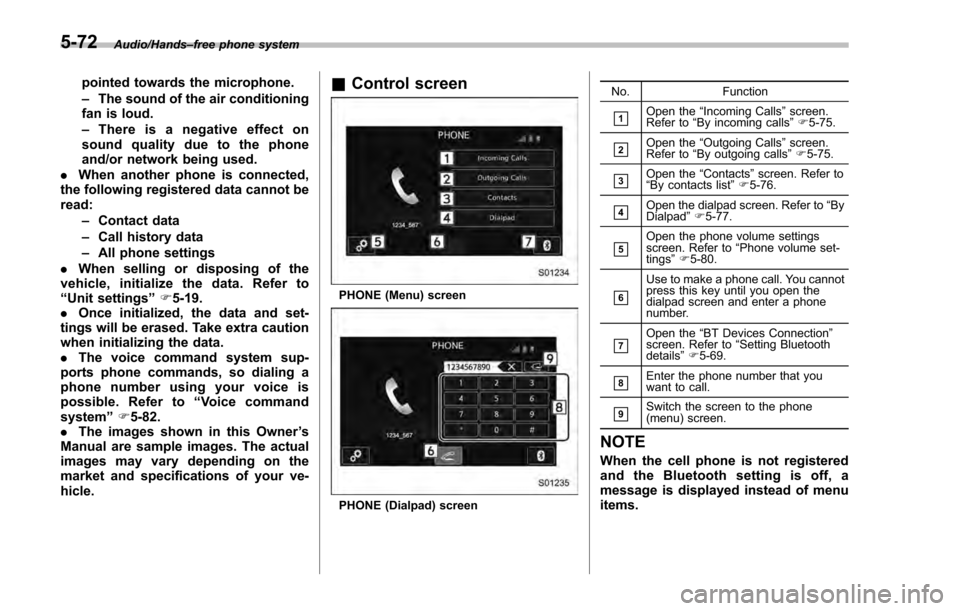
hicle.& Control screen
PHONE (Menu) screen
PHONE (Dialpad) screen No. Function
&1Open the
“Incoming Calls ”screen.
Refer to “By incoming calls ”F 5-75.
&2Open the “Outgoing Calls ”screen.
Refer to “By outgoing calls ”F 5-75.
&3Open the “Contacts ”screen. Refer to
“ By contacts list ”F 5-76.
&4Open the dialpad screen. Refer to “By
Dialpad ”F 5-77.
&5Open the phone volume settings
screen. Refer to “Phone volume set-
tings ”F 5-80.
&6
Use to make a phone call. You cannot
press this key until you open the
dialpad screen and enter a phone
number.
&7Open the “BT Devices Connection ”
screen. Refer to “Setting Bluetooth
details ”F 5-69.
&8Enter the phone number that you
want to call.
&9Switch the screen to the phone
(menu) screen.
NOTE
When the cell phone is not registered
and the Bluetooth setting is off, a
message is displayed instead of menu
items.
5-72
Page 344 of 594
&Registering/connecting a
Bluetooth phone
To use the hands-free system for cell
phones, it is necessary to register a cell
phone with the system. Refer to “Register-
ing/connecting Bluetooth
®device ”F 5-66.
! Bluetooth phone condition display
The condition of the Bluetooth phone
appears on the upper right side of the
screen.
& Using the phone switch/mi-
crophone
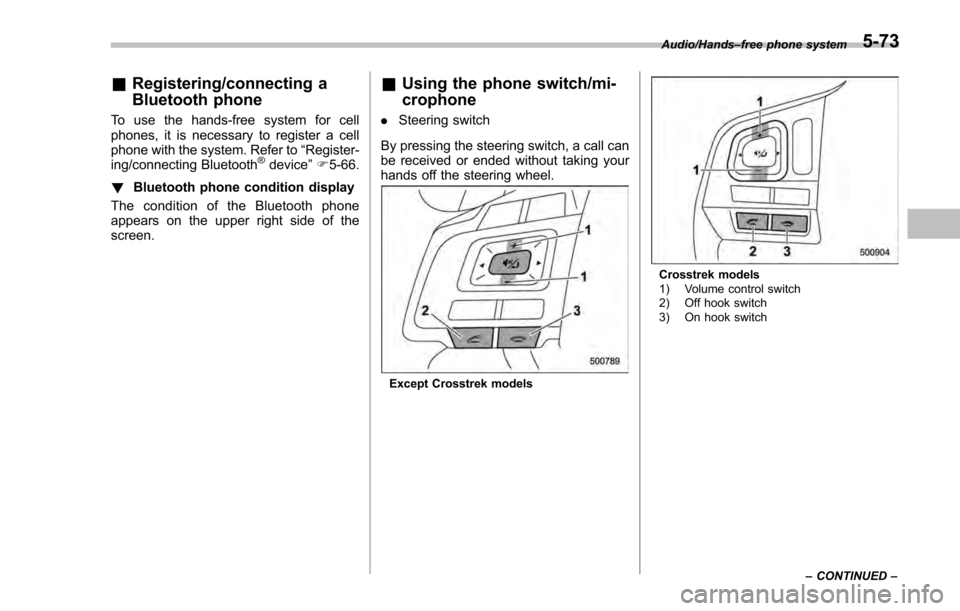
. Steering switch
By pressing the steering switch, a call can
be received or ended without taking your
hands off the steering wheel.
Except Crosstrek models
Crosstrek models
1) Volume control switch
2) Off hook switch
3) On hook switch Audio/Hands
–free phone system
–CONTINUED –
5-73