ignition SUBARU IMPREZA 2016 5.G Repair Manual
[x] Cancel search | Manufacturer: SUBARU, Model Year: 2016, Model line: IMPREZA, Model: SUBARU IMPREZA 2016 5.GPages: 594, PDF Size: 5.36 MB
Page 181 of 594
Instruments and controls/Information display
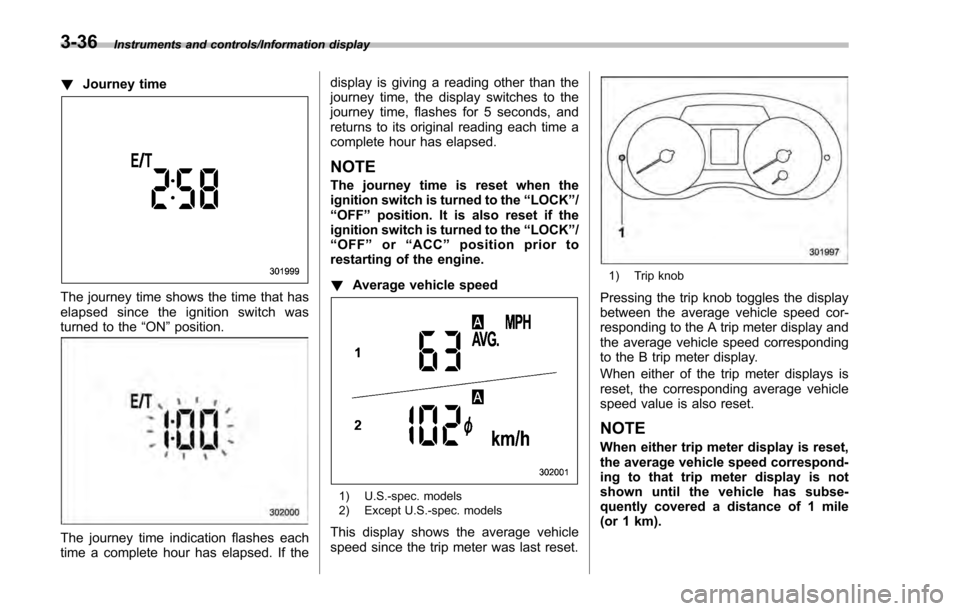
!Journey time
The journey time shows the time that has
elapsed since the ignition switch was
turned to the “ON”position.
The journey time indication flashes each
time a complete hour has elapsed. If the display is giving a reading other than the
journey time, the display switches to the
journey time, flashes for 5 seconds, and
returns to its original reading each time a
complete hour has elapsed.
NOTE
The journey time is reset when the
ignition switch is turned to the
“LOCK”/
“OFF ”position. It is also reset if the
ignition switch is turned to the “LOCK”/
“ OFF ”or “ACC” position prior to
restarting of the engine.
! Average vehicle speed
1) U.S.-spec. models
2) Except U.S.-spec. models
This display shows the average vehicle
speed since the trip meter was last reset.
1) Trip knob
Pressing the trip knob toggles the display
between the average vehicle speed cor-
responding to the A trip meter display and
the average vehicle speed corresponding
to the B trip meter display.
When either of the trip meter displays is
reset, the corresponding average vehicle
speed value is also reset.
NOTE
When either trip meter display is reset,
the average vehicle speed correspond-
ing to that trip meter display is not
shown until the vehicle has subse-
quently covered a distance of 1 mile
(or 1 km).
3-36
Page 182 of 594
!Turn off display of driving informa-
tion display
The driving information display can be
turned off.
To turn off the display, turn the ignition
switch to the “LOCK”/“OFF ”position and
press the “+ ” button adjacent to the clock
display for approximately 5 seconds.
Then, the driving information display and
the clock display will blink for 3 seconds to
notify you that the driving information
display has been turned off.
To restore the driving information display,
once again press the “+ ” button for
approximately 5 seconds.
NOTE
. The initial display setting of the
driving information display has been
set to operational at the time of ship-
ment from the factory.
. The average fuel consumption and
average vehicle speed are calculated
even while the driving information dis-
play is not displayed.
. Evenifyouturnoffthedriving
information display, the display will
automatically turn on when the battery
voltage is disconnected and then re-
connected for battery replacement or
fuse replacement.
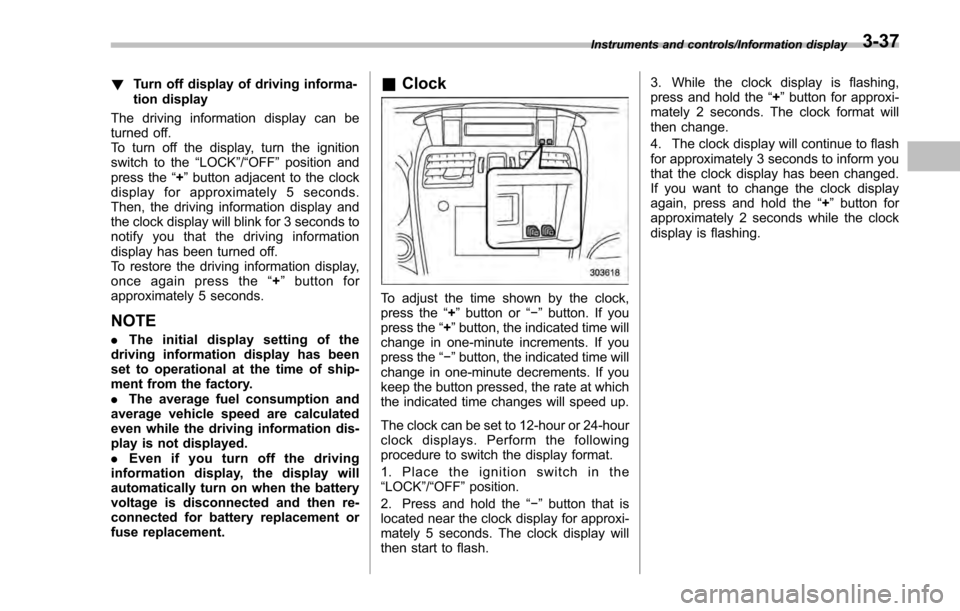
& Clock
To adjust the time shown by the clock,
press the “+”button or “−”button. If you
press the “+”button, the indicated time will
change in one-minute increments. If you
press the “−”button, the indicated time will
change in one-minute decrements. If you
keep the button pressed, the rate at which
the indicated time changes will speed up.
The clock can be set to 12-hour or 24-hour
clock displays. Perform the following
procedure to switch the display format.
1. Place the ignition switch in the
“LOCK”/ “OFF ”position.
2. Press and hold the “−”button that is
located near the clock display for approxi-
mately 5 seconds. The clock display will
then start to flash. 3. While the clock display is flashing,
press and hold the
“+”button for approxi-
mately 2 seconds. The clock format will
then change.
4. The clock display will continue to flash
for approximately 3 seconds to inform you
that the clock display has been changed.
If you want to change the clock display
again, press and hold the “+”button for
approximately 2 seconds while the clock
display is flashing.
Instruments and controls/Information display3-37
Page 184 of 594
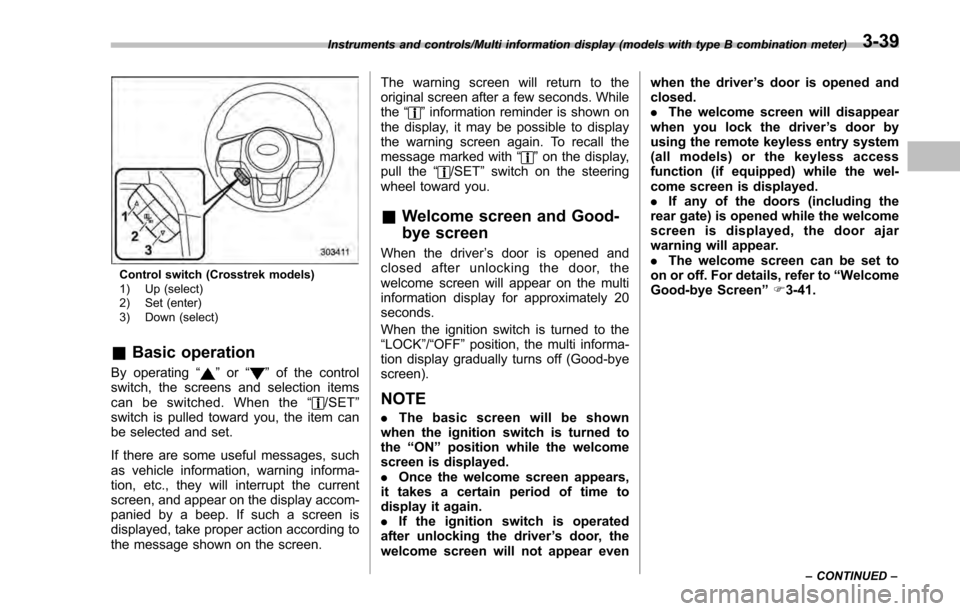
Control switch (Crosstrek models)
1) Up (select)
2) Set (enter)
3) Down (select)
&Basic operation
By operating “”or “”of the control
switch, the screens and selection items
can be switched. When the “
/SET”
switch is pulled toward you, the item can
be selected and set.
If there are some useful messages, such
as vehicle information, warning informa-
tion, etc., they will interrupt the current
screen, and appear on the display accom-
panied by a beep. If such a screen is
displayed, take proper action according to
the message shown on the screen. The warning screen will return to the
original screen after a few seconds. While
the
“
”information reminder is shown on
the display, it may be possible to display
the warning screen again. To recall the
message marked with “
”on the display,
pull the “/SET”switch on the steering
wheel toward you.
& Welcome screen and Good-
bye screen
When the driver ’s door is opened and
closed after unlocking the door, the
welcome screen will appear on the multi
information display for approximately 20
seconds.
When the ignition switch is turned to the
“LOCK”/ “OFF”position, the multi informa-
tion display gradually turns off (Good-bye
screen).
NOTE
. The basic screen will be shown
when the ignition switch is turned to
the “ON ”position while the welcome
screen is displayed.
. Once the welcome screen appears,
it takes a certain period of time to
display it again.
. If the ignition switch is operated
after unlocking the driver ’s door, the
welcome screen will not appear even when the driver
’s door is opened and
closed.
. The welcome screen will disappear
when you lock the driver ’s door by
using the remote keyless entry system
(all models) or the keyless access
function (if equipped) while the wel-
come screen is displayed.
. If any of the doors (including the
rear gate) is opened while the welcome
screen is displayed, the door ajar
warning will appear.
. The welcome screen can be set to
on or off. For details, refer to “Welcome
Good-bye Screen ”F 3-41.
Instruments and controls/Multi information display (models with type B combination meter)
–CONTINUED –3-39
Page 186 of 594

The menu list is as follows.
First menuSecond menu
Screen Settings Welcome Good-bye Screen
Gauge Initial Movement
Languages
Go Back
EyeSight (models with EyeSight system) Warning Volume
Lead Vehicle Acquisition Sound
Lead Vehicle Moving Monitor Function
Go Back
BSD/RCTA (if equipped) Warning Volume
Default Settings ―
By operating the
“”or “”switch on the
steering wheel, you can select the menu.
Pull the “
/SET”switch to enter the
selected menu.
NOTE
If you enter the “Go Back”menu, the
system will return to the previous
screen.
! Screen Settings
After entering the “Screen Settings ”menu,
select one of the following menus.
!Welcome Good-bye Screen
The welcome screen/good-bye screens
can be activated or deactivated. Select
“ On ”to activate the screens. Select “Off”
to deactivate the screens.
!Gauge Initial Movement
The movement of the meter needles and
gauge needles that occurs when the
ignition switch is turned to the “ON ”
position can be activated or deactivated.
Select “On ”to activate. Select “Off”to
deactivate.
Instruments and controls/Multi information display (models with type B combination meter)
–CONTINUED –3-41
Page 189 of 594
Instruments and controls/Multi function display
played contents, refer to “Basic screens ”
F 3-47.)
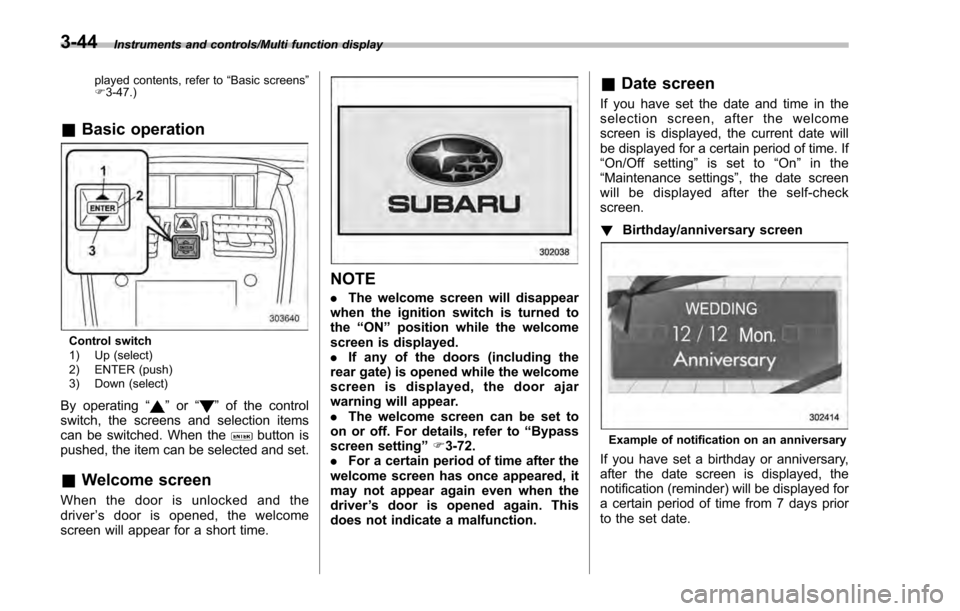
& Basic operation
Control switch
1) Up (select)
2) ENTER (push)
3) Down (select)
By operating “”or “”of the control
switch, the screens and selection items
can be switched. When the
button is
pushed, the item can be selected and set.
& Welcome screen
When the door is unlocked and the
driver ’s door is opened, the welcome
screen will appear for a short time.
NOTE
. The welcome screen will disappear
when the ignition switch is turned to
the “ON ”position while the welcome
screen is displayed.
. If any of the doors (including the
rear gate) is opened while the welcome
screen is displayed, the door ajar
warning will appear.
. The welcome screen can be set to
on or off. For details, refer to “Bypass
screen setting ”F 3-72.
. For a certain period of time after the
welcome screen has once appeared, it
may not appear again even when the
driver ’s door is opened again. This
does not indicate a malfunction.
& Date screen
If you have set the date and time in the
selection screen, after the welcome
screen is displayed, the current date will
be displayed for a certain period of time. If
“On/Off setting ”is set to “On ”in the
“ Maintenance settings” , the date screen
will be displayed after the self-check
screen.
! Birthday/anniversary screen
Example of notification on an anniversary
If you have set a birthday or anniversary,
after the date screen is displayed, the
notification (reminder) will be displayed for
a certain period of time from 7 days prior
to the set date.
3-44
Page 190 of 594
NOTE
.Displaying the birthday/anniversary
screen can be set to on or off. Refer to
“Bypass screen setting” F3-72.
. Up to five items can be set for
birthdays and anniversaries respec-
tively. Refer to “Selection screen ”F 3-
54.
& Ending screen
If“Eco Summary ”is set to “On”in the
“Bypass screen setting ”, the“Fuel con-
sumption results screen” will be displayed
before the screen turns off when the
ignition switch is turned to the “LOCK” /
“ OFF ”position.
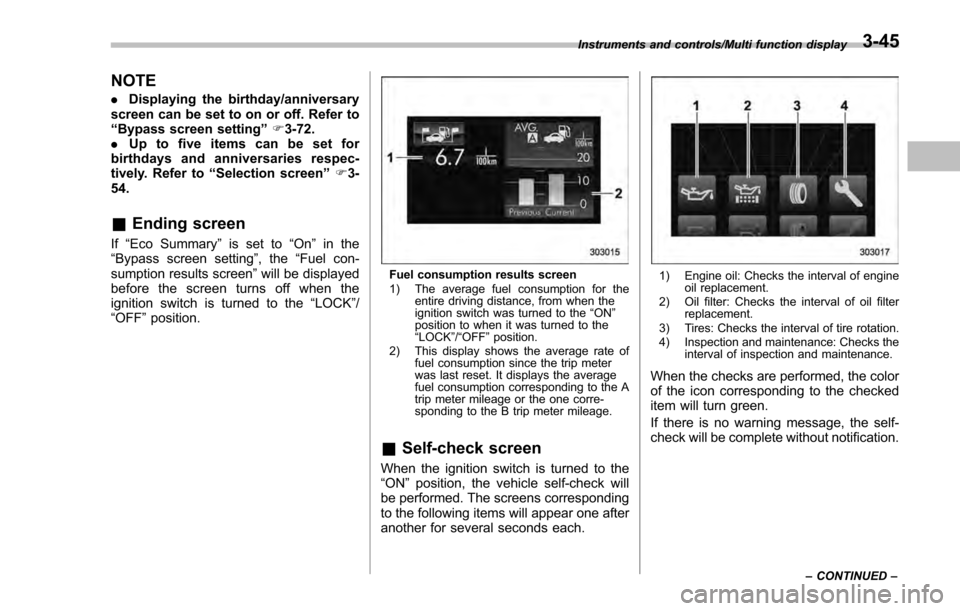
Fuel consumption results screen
1) The average fuel consumption for the
entire driving distance, from when the
ignition switch was turned to the “ON ”
position to when it was turned to the
“ LOCK ”/“ OFF ”position.
2) This display shows the average rate of fuel consumption since the trip meter
was last reset. It displays the average
fuel consumption corresponding to the A
trip meter mileage or the one corre-
sponding to the B trip meter mileage.
&Self-check screen
When the ignition switch is turned to the
“ON ”position, the vehicle self-check will
be performed. The screens corresponding
to the following items will appear one after
another for several seconds each.
1) Engine oil: Checks the interval of engine oil replacement.
2) Oil filter: Checks the interval of oil filter replacement.
3) Tires: Checks the interval of tire rotation.
4) Inspection and maintenance: Checks the interval of inspection and maintenance.
When the checks are performed, the color
of the icon corresponding to the checked
item will turn green.
If there is no warning message, the self-
check will be complete without notification.
Instruments and controls/Multi function display
–CONTINUED –3-45
Page 192 of 594
&Basic screens
! Basic screen items
These are the basic screens of the multi
function display.
Item Page
Information bar 3-47
Fuel consumption screen 3-48
ECO gauge screen (if
equipped) 3-49
ECO history screen 3-49
Vehicle activation status
screen 3-50
EyeSight screen (models with
the EyeSight system) 3-51
Triple meter screen 3-51
Guidance screen 3-52
Clock/calendar screen 3-52
By operating the
“”or “”switch on the
steering wheel, you can switch the screen
that is always displayed. Also, when the
button is pressed and held, the
selection screen can be displayed. For
details about the selection screen, refer to
“Selection screen ”F 3-54. !
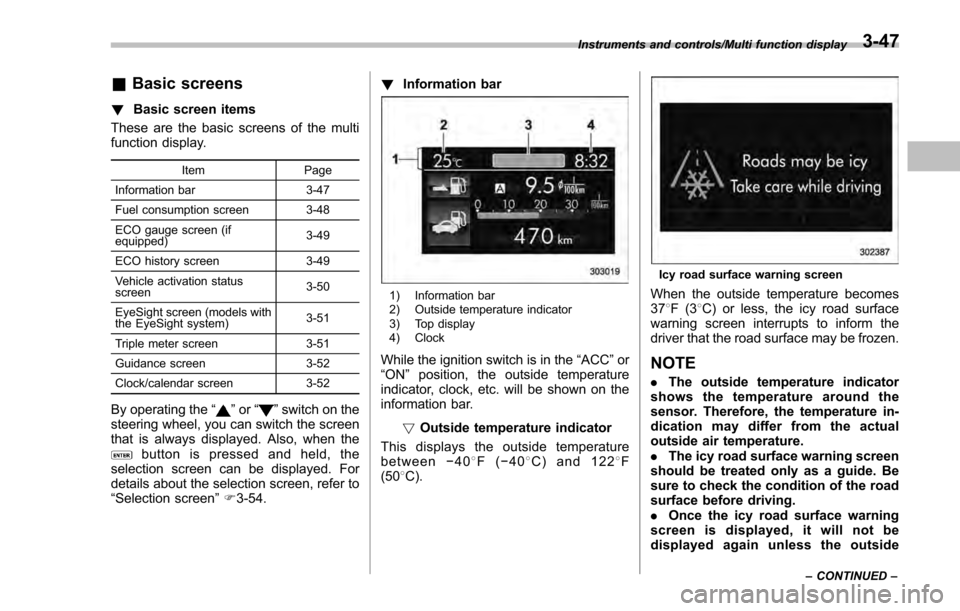
Information bar
1) Information bar
2) Outside temperature indicator
3) Top display
4) Clock
While the ignition switch is in the “ACC ”or
“ON ”position, the outside temperature
indicator, clock, etc. will be shown on the
information bar.
!Outside temperature indicator
This displays the outside temperature
between −40 8F( −408 C) and 122 8F
(50 8C).
Icy road surface warning screen
When the outside temperature becomes
37 8F(3 8C) or less, the icy road surface
warning screen interrupts to inform the
driver that the road surface may be frozen.
NOTE
. The outside temperature indicator
shows the temperature around the
sensor. Therefore, the temperature in-
dication may differ from the actual
outside air temperature.
. The icy road surface warning screen
should be treated only as a guide. Be
sure to check the condition of the road
surface before driving.
. Once the icy road surface warning
screen is displayed, it will not be
displayed again unless the outside
Instruments and controls/Multi function display
–CONTINUED –3-47
Page 197 of 594
Instruments and controls/Multi function display
ItemDetails
Average vehicle speed (Average
vehicle speed for the entire driving
time from when the trip meter was
reset)
Lifetime fuel consumption
Engine oil temperature
Accelerator opening ratio
Journey time (the time that has
elapsed since the ignition switch
was turned to the“ON ”position) (if
equipped)
Journey distance (the distance
that has been driven since the
ignition switch was turned to the
“ ON ”position)
Average fuel consumption for the
entire driving distance from when
the ignition switch was turned to
the “ON ”position
Boost pressure
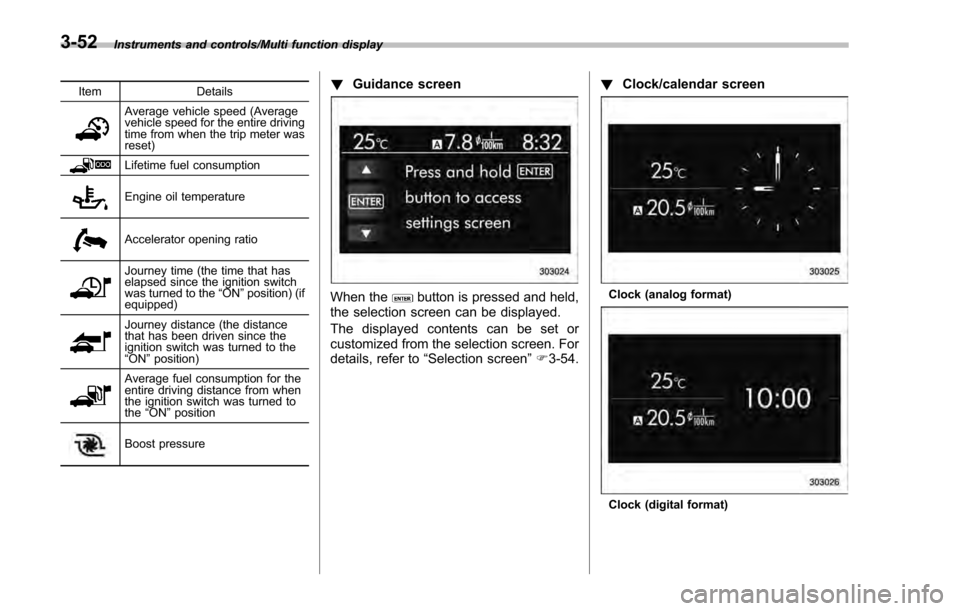
! Guidance screen
When thebutton is pressed and held,
the selection screen can be displayed.
The displayed contents can be set or
customized from the selection screen. For
details, refer to “Selection screen” F3-54. !
Clock/calendar screenClock (analog format)
Clock (digital format)
3-52
Page 200 of 594

Top menuMenu option DescriptionPage
Maintenance Engine Oil Set and adjust the oil maintenance notification date. 3-74
Oil Filter Set and adjust the oil filter maintenance notification date. 3-75
Tires Set and adjust the tire maintenance notification date. 3-75
Maintenance Schedule Set and adjust the vehicle maintenance notification date. 3-75
On/Off Turn on or off the self-check screen that is
activated when the ignition switch is turned to
the
“ON ”position. On or Off
3-75
Clear All Settings Clear all settings for maintenance items. Yes or No 3-76
Go Back Return to the top menu. —
Driving History Set Register and overwrite the driving record. 3-77
Go Back Return to the top menu. —
Car Setting Keyless Buzzer Volume Set the audible signal volume. 0 (OFF) to 73-79
Hazard Warning Flasher Set the hazard warning flasher. On or Off3-79
Defogger Set and customize the operation of the defogger. 15 minutes or Continuous 3-80
Interior Light Set and customize the interior light off delay
timer. 10, 20, 30 seconds or Off
3-82
Auto Light Sensor (if equipped) Set and customize the sensitivity of the auto
light sensor.
Low, Mid, High or Max
3-83
Keyless Access Setting (if
equipped) Set and customize the keyless access function. Driver
’s Door Unlock 3-84
Rear Gate Unlock 3-85
Go Back Return to top menu. —
Instruments and controls/Multi function display
–CONTINUED –
3-55
Page 202 of 594
&Date and time settings
The items in the date and time settings
can be set. To change the items, operate
the “
”or “”switch.
NOTE
. The “Time/Date ”item must be set to
display the “Birthday”,“Anniversary ”
and notifications for vehicle mainte-
nance.
. The “Birthday ”and “Anniversary ”
items can be entered after the “Date”
item has been set.
. Dates that do not exist in the
Gregorian calendar cannot be set (for
example, April 31).
. If your vehicle is equipped with
genuine SUBARU navigation system,
the clock of navigation system must be
set separately.
! Preparation for date setting
1. Turn the ignition switch to the “ON”
position.
2. Push and hold the
button to show
the selection screen.
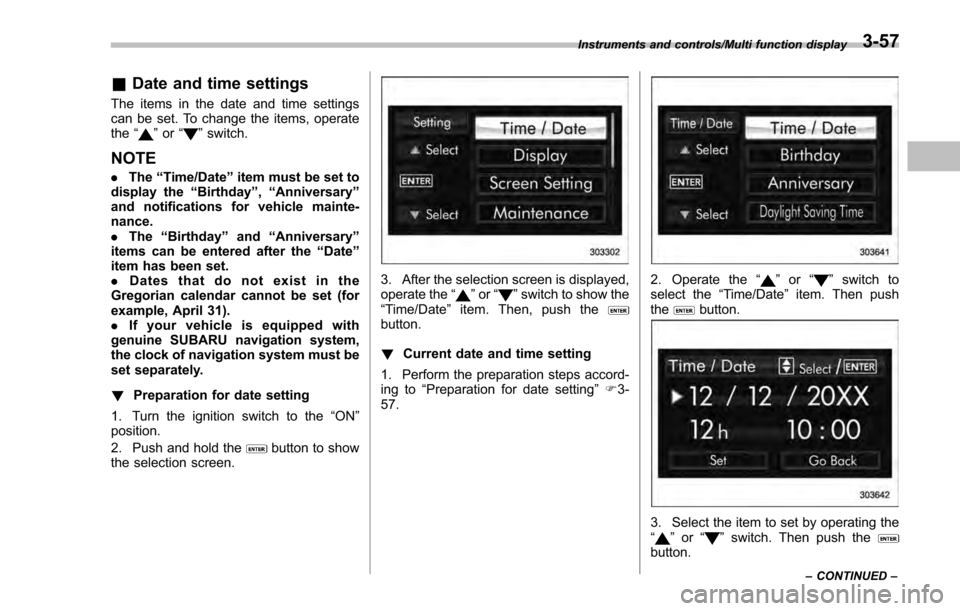
3. After the selection screen is displayed,
operate the “”or “”switch to show the
“Time/Date ”item. Then, push the
button.
! Current date and time setting
1. Perform the preparation steps accord-
ing to “Preparation for date setting ”F 3-
57.
2. Operate the “”or “”switch to
select the “Time/Date”item. Then push
the
button.
3. Select the item to set by operating the
“” or “”switch. Then push thebutton.
Instruments and controls/Multi function display
–CONTINUED –3-57