display SUBARU IMPREZA WRX 2007 3.G User Guide
[x] Cancel search | Manufacturer: SUBARU, Model Year: 2007, Model line: IMPREZA WRX, Model: SUBARU IMPREZA WRX 2007 3.GPages: 364, PDF Size: 11.91 MB
Page 167 of 364
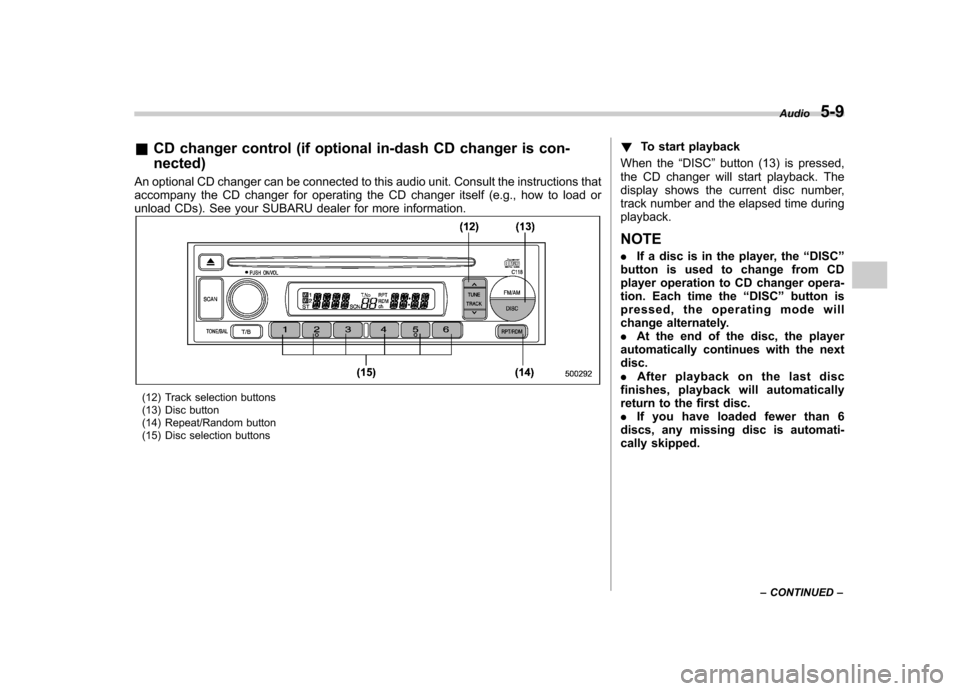
&CD changer control (if optional in-dash CD changer is con- nected)
An optional CD changer can be connected to this audio unit. Consult the instructions that
accompany the CD changer for operating the CD changer itself (e.g., how to load or
unload CDs). See your SUBARU dealer for more information.
(12) Track selection buttons
(13) Disc button
(14) Repeat/Random button
(15) Disc selection buttons !
To start playback
When the “DISC ”button (13) is pressed,
the CD changer will start playback. The
display shows the current disc number,
track number and the elapsed time duringplayback. NOTE . If a disc is in the player, the “DISC ”
button is used to change from CD
player operation to CD changer opera-
tion. Each time the “DISC ”button is
pressed, the operating mode will
change alternately. . At the end of the disc, the player
automatically continues with the next disc.. After playback on the last disc
finishes, playback will automatically
return to the first disc.. If you have loaded fewer than 6
discs, any missing disc is automati-
cally skipped. Audio
5-9
– CONTINUED –
Page 170 of 364

5-12Audio
Display Control mode
Turn counterclockwise Turn clockwise
BASS Bass control For less bass sound For more bass sound
MIDDLE Midrange control For less midrange sound For more midrange sound
TREBLE Treble control For less treble sound For more treble sound
FADER Fader control To increase rear speaker volume and
decrease front speaker volume To increase front speaker volume and
decrease rear speaker volume
BALANCE Balance control To increase left speaker volume and de-
crease right speaker volume To increase right speaker volume and
decrease left speaker volume
VOLUME Volume control For less volume For more volume
! Sound control
The dial (5) controls the Bass, Midrange,
Treble, Balance and Fader when you
select the appropriate sound control
mode. Choose the desired setting for
each mode by depressing the “SOUND ”
controldial(5).Thecontrolfunction returns to last mode after approximately
5 seconds.
To change control modes:
Each brief
press of the “SOUND ”control dial (5)
changes control modes in the following
sequence starting from bass controlmode.
Page 171 of 364

!Display illumination dimness cance-
lation (BRIGHT)
The brightness of the radio display dims
when the light switch is in the “
”or
“” position. If this makes the display
difficult to read, press the volume dial for
more than 2 seconds to return the display
to original brightness. Subsequently
pressing the volume dial again for more
than 2 seconds or if you can safely do so,
turning the light switch to the OFF position
and back to the “
”or “”position
makes the radio display dim again. ! FM/AM selection button (FM/AM)
Push the “FM/AM ”button (2) when the
radio is on to select FM1, FM2 or AM
reception. Each time this button is
pressed, the band will change in the
following order:
The display indicates which one is cur-
rently selected. ! Stereo indicator
The stereo indicator “ST ”will come on
when an FM stereo broadcast is received. !
Manual tuning (TUNE)
Turn the tuning dial (5) clockwise to
increase the tuning frequency and turn
the dial counterclockwise to decrease it.
Each click the dial is turned, the frequency
changes 10 kHz in the AM waveband and
0.2 MHz in the FM waveband. ! Seek tuning
When the “
”side of the “SEEK/TRACK/
CAT ”button (3) is depressed, the radio will
begin to automatically seek up for recei-
vable frequencies and will stop at the first
one found. For the “
”side, the radio will
begin to automatically seek down. This
function may not be available, however,
when radio signals are weak. In such a
situation, perform manual tuning to select
the desired station. ! Automatic tuning (SCAN)
Press the “SCAN ”button (4) to change the
radio to the SCAN mode. In this mode, the
radio scans through the radio band until a
station is found. The radio will stop at a
receivable station for 5 seconds while
displaying the frequency by blinking, after
which scanning will continue until the
entire band has been scanned from the
low end to the high end. Press the “SCAN ”
button again to cancel the SCAN mode
and to stop on any displayed frequency.
When the “SCAN ”button is pressed for automatic tuning, stations are scanned in
the direction of low frequencies to high
frequencies only. Automatic tuning may
not function properly if the station recep-
tion is weakened by distance from the
station or proximity to tall buildings andhills. !
Selecting preset stations
Presetting a station with a preset button
(6) allows you to select that station in a
single operation. Up to six AM, FM1 and
FM2 stations each may be preset. ! How to preset stations
1. Press the “FM/AM ”button (2) to select
AM, FM1 or FM2 reception.
2. Press the “SCAN ”button (4) or tune
the radio manually until the desired station
frequency is displayed.
3. Press one of the preset buttons (6) for
at least 2 seconds to store the frequency.
The frequency of the station will flash once
on the display at this time. NOTE . If the connection between the radio
and battery is broken for any reason
such as vehicle maintenance or radio
removal, all stations stored in the
preset buttons are cleared. If this
occurs, it is necessary to reset the Audio
5-13
– CONTINUED –
Page 173 of 364
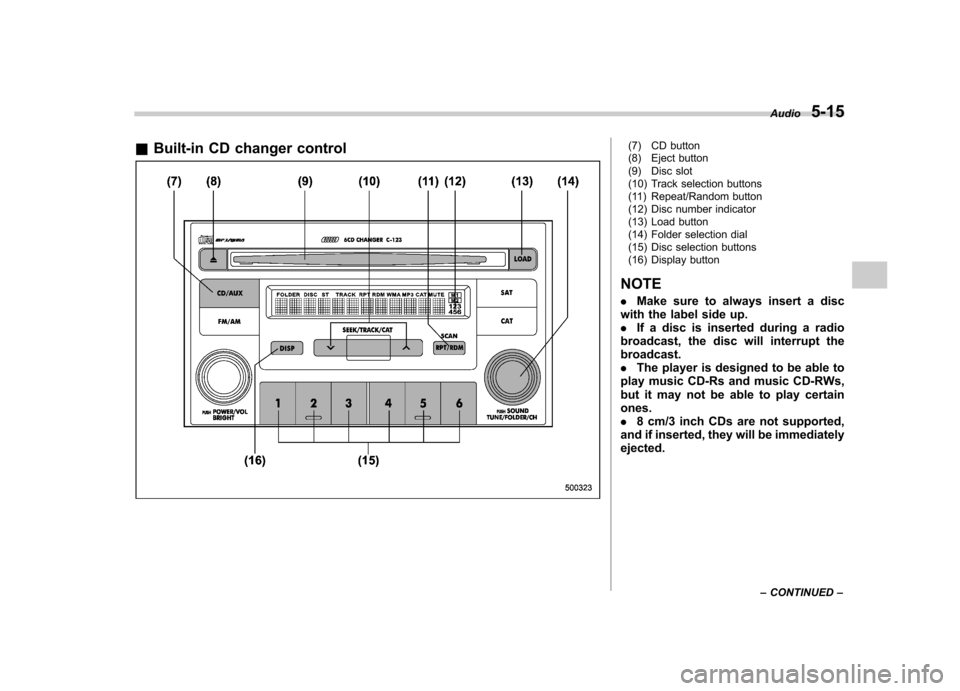
&Built-in CD changer control(7) CD button
(8) Eject button
(9) Disc slot
(10) Track selection buttons
(11) Repeat/Random button
(12) Disc number indicator
(13) Load button
(14) Folder selection dial
(15) Disc selection buttons
(16) Display button
NOTE . Make sure to always insert a disc
with the label side up. . If a disc is inserted during a radio
broadcast, the disc will interrupt thebroadcast.. The player is designed to be able to
play music CD-Rs and music CD-RWs,
but it may not be able to play certainones.. 8 cm/3 inch CDs are not supported,
and if inserted, they will be immediatelyejected. Audio
5-15
– CONTINUED –
Page 174 of 364

5-16Audio
! How to insert a CD(s)
! Inserting a CD
1. Briefly press the “LOAD ”button (13). If
the magazine in the player has an idle
position where you can insert a disc, the
disc number indicator associated with the
idle position will blink. If no indicator
blinks, it means that there is no idle
position in the magazine.
2. When “IN ”is displayed, insert the disc.
Once you have inserted the disc, the disc
number indicator will stop blinking. The
disc will be then automatically drawn in,
and the player will begin to play back the
first track of the disc. . To insert more discs in succession,
repeat Steps 1 and 2. The magazine will
be loaded with discs in the ascending
order of position number. If you do not
insert any disc within 15 seconds after you
have pressed the “LOAD ”button and “IN ”
is displayed, the player will begin to play
back the first track of the last disc you
have inserted. . While the player is in the loading mode,
if you press the “FM/AM ”button (2), the
player will enter the standby mode. Press the “CD/AUX ”button (7) to start playback. !
Inserting a disc in a desired position
1. Briefly press the “LOAD ”button (13). If
the magazine in the player has an idle
position where you can insert a disc, the
disc number indicator (12) associated with
the idle position will blink.
2. Press the disc selection button (15) at
the position where you want to insert a
disc. The associated disc number indica-
tor will blink.
3. If you insert a disc during the 15-
second period while “IN ”is displayed, the
disc will be automatically drawn in, and the
player will start playback of the disc,
beginning with the first track. . To insert more discs in succession,
repeat Steps 1 and 3. . While the player is in the loading mode,
if you press the “FM/AM ”button (2), the
player will enter standby mode. Press the “ CD/AUX ”button (7) to start playback.
! Loading all the magazine (Full disc
loading mode)
1. If you continue to press the “LOAD ”
button (13) for more than 2 seconds, the
player will enter the full disc loading mode.
2. The disc number indicator (12) asso-
ciated with the idle position will blink. The
magazine will be loaded with discs in the
ascending order of position number. 3. When the loading of a disc is com-
plete, the next disc number indicator (12)
will blink. Then repeat Step 2.
4. When the magazine is filled with discs
by repeating Steps 2 and 3, the player will
start playback of the discs, beginning with
the one inserted first. If you fail to insert
any disc during each 15 seconds interval,
the full disc loading mode will be can-
celed, and the player will start playback of
the disc inserted first. !
How to play back a CD or make a pause
! When there is no CD inserted:
Insert a CD by referring to “How to insert a
CD(s) ”.
When a CD is loaded, the player will start
playback of the CD, beginning with the
first track. ! When there are CDs loaded:
Depress the “CD/AUX ”button to turn on
the CD (when the last mode of the player
is CD) and press a desired one of the disc
selection buttons (15). The player will then
start playback of the selected CD, begin-
ning with the first track.
Page 176 of 364

5-18Audio
disc number indicator associated with the
disc you have selected will blink, and the
disc will be ejected. To remove more discs
in succession, repeat Steps 1 and 2. If you
press the eject button after turning OFF
the ignition switch, only one disc will beejected. !Ejecting all discs from the player (All
disc ejection mode)
1. If you continue to press the eject
button (8) for more than 2 seconds, the
player will enter the all disc ejection mode.
2. Remove the disc that has been
ejected, the display indicates “CD ALL
EJECT ”(when the ignition switch is in the
“ Acc ”or “ON ”position) and disc indicator
will blink. The other discs loaded will then
be ejected one after another. If you do not
remove the ejected disc within 15 sec-
onds, the “All disc ejection mode ”will be
canceled. NOTE
Avoid driving the vehicle with a CD
sticking out, because vibration might
make it fall out.
CAUTION
Do not attempt to insert two or more discs into the slot at a time. Doing
so can cause mechanical damage to
the CD changer.
! Title display selection
If you briefly press the “DISP ”button (16)
during playback, the indication will change
to the next one in the following sequence. . For MP3/WMA:
.For Satellite radio:
The display mode that you selected will
not be changed until you select the display
mode again.
When you depress the “DISP ”button for
more than 2 seconds, the title will be
scrolled so you can see all of it. You will
see 12 characters at a time. . The page scroll mode will be can-
celed if you perform any of the follow-
ing steps: . When you do not operate any button
within 10 seconds.. Press any button to select another play mode..
Press the eject button.
. Press the disc selection button.
. Select the radio mode.
. Press the “
”or “”button.
. Turn off the power of the audio
equipment. . Turn the ignition switch to the “OFF ”
position.
NOTE
When the disc has no title, the display indicates “NO TITLE ”.
! When the following messages aredisplayed
If one of the following messages is
displayed while operating the CD player,
determine the cause based on the follow-
ing information. If you cannot clear those
messages, please contact your SUBARU
dealer. ! When “PUSH EJECT ”is displayed
This message means that there is a
mechanical error. Depress the eject button
to unload the disc. Check the disc for
damage or deformation, and also check
that the correct disc is inserted. Do not try
to unload the disc forcibly. 8 cm/3 inch
CDs are not supported, and if inserted,
they will be immediately ejected and this
Page 177 of 364

error message will be displayed. If the disc
cannot be unloaded or the error message
remains displayed, please contact your
SUBARU dealer. !When “CHECK DISC ”is displayed
Press the eject button to unload the discs.
Check that the disc is not damaged or
scratched, and also check that the disc is
inserted correctly. Some CD-RW discs
may be causing this error message to
appear. Check that the disc type (i.e., 8
cm/3 inch CDs are not supported) and
data format are correct. This player can
only play MP3 and WMA data formats. If
the disc cannot be unloaded or the error
message remains displayed, please con-
tact your SUBARU dealer. Audio
5-19
– CONTINUED –
Page 180 of 364

5-22Audio
! Displaying Sirius ID of tuner
When you activate Sirius, you should
have your Sirius tuner ID ready because
each tuner is identified by its unique Sirius
tuner ID.
The Sirius ID will be needed when you
activate Sirius and receive Sirius custo-
mer support.
The Sirius ID can be found on the audio
display by tuning the channel to “0 ”.
Turn the “TUNE/FOLDER/CH ”dial (23) to
select the satellite radio channel. ! Channel selection
Turn the “TUNE/FOLDER/CH ”dial (23) to
select the radio channel. Turn the tuning
dial clockwise to change the channel
upward and turn the dial counterclockwise
to change the channel downward with
each click of the dial. ! Category selection
Press the “SEEK/TRACK/CAT ”button
(18) to select the category of radio
channel. Press the “
”side of the button
(18) to change the category upward and the “
”side of the button to downward
with each press of the button. ! Channel preset
Presetting a channel with a preset button
(22) allows you to select that station in a
single operation. Up to six SR1, SR2 and SR3 channels each may be preset.
Press one of the preset buttons for
at
least 2 seconds to store the channel. The
number of the channel will flash once on
the display, and the unit produces a beep
sound at this time. ! Channel scan
Press the “SCAN ”button (19) to change
the radio to the SCAN mode. In this mode,
the radio scans through the channel until a
station is found. The radio will stop at the
station for 5 seconds while displaying the
channel number, after which scanning will
continue until the entire channel has been
scanned from the low end to the high end.
Press the “SCAN ”button (19) again to
cancel the SCAN mode and to stop on any
displayed station.
When the “SCAN ”button is pressed for
automatic tuning, stations are only
scanned in an upward direction. ! Category mode
Press the “CAT ”button (21) for at least 2
seconds to turn the category mode on. In
this mode, the radio operations (channel
selection, channel scan) are performed
only in the selected category. To cancel
the category mode, press the “CAT ”button
(21) for at least 2 seconds again. !
Band selection
Push the “SAT ”button (20) when the radio
is on to select SR1, SR2 or SR3 reception.
Each time this button is pressed, the band
will change in the following order:
! AUX mode
Press the “CD/AUX ”button (17) to select
the “AUX mode ”(when the AUX unit is
connected to the AUX terminal).
Page 287 of 364
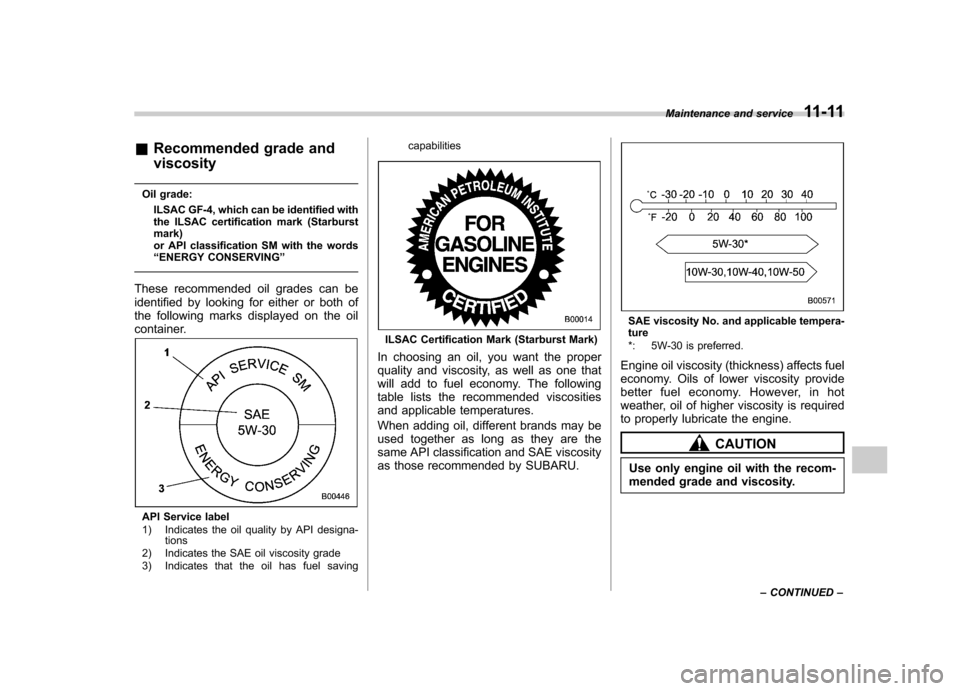
&Recommended grade and viscosity
Oil grade: ILSAC GF-4, which can be identified with
the ILSAC certification mark (Starburst mark)
or API classification SM with the words“ENERGY CONSERVING ”
These recommended oil grades can be
identified by looking for either or both of
the following marks displayed on the oil
container.
API Service label
1) Indicates the oil quality by API designa- tions
2) Indicates the SAE oil viscosity grade
3) Indicates that the oil has fuel saving capabilities
ILSAC Certification Mark (Starburst Mark)
In choosing an oil, you want the proper
quality and viscosity, as well as one that
will add to fuel economy. The following
table lists the recommended viscosities
and applicable temperatures.
When adding oil, different brands may be
used together as long as they are the
same API classification and SAE viscosity
as those recommended by SUBARU.
SAE viscosity No. and applicable tempera- ture
*: 5W-30 is preferred.
Engine oil viscosity (thickness) affects fuel
economy. Oils of lower viscosity provide
better fuel economy. However, in hot
weather, oil of higher viscosity is required
to properly lubricate the engine.
CAUTION
Use only engine oil with the recom-
mended grade and viscosity. Maintenance and service
11-11
– CONTINUED –
Page 364 of 364

GAS STATION REFERENCE
& Fuel:
! 2.5-liter non-turbo models
Use only unleaded gasoline with an octane rating of 87 AKI or
higher. ! WRX
Use premium unleaded gasoline with an octane rating of 91 AKI
or higher. If premium unleaded gasoline with an octane rating of
91 AKI is not available, regular unleaded gasoline with octane
rating of 87 AKI or higher may be temporarily used. For
optimum engine performance and driveability, it is required that
you use premium grade unleaded gasoline with an octane
rating of 91 AKI or higher. ! WRX-STI
Use super-premium unleaded gasoline with an octane rating of
93 AKI or higher. If super-premium unleaded gasoline with an
octane rating of 93 AKI is not available, premium unleaded
gasoline with octane rating of 91 AKI or higher may be
temporarily used. For optimum engine performance and driveability, it is required that you use super-premium grade
unleaded gasoline with an octane rating of 93 AKI or higher.
& Fuel octane rating
This octane rating is the average of the Research Octane and
Motor Octane numbers and is commonly referred to as the Anti
Knock Index (AKI). Refer to “Fuel ”section in this manual.
& Fuel capacity
15.9 US gal (60 liters, 13.2 Imp gal) & Engine oil:
Use only API classification SM with the words “ENERGY
CONSERVING ”and the ILSAC certification mark (starburst
mark) displayed on the container. & Engine oil capacity:
4.2 US qt (4.0 liters, 3.5 Imp qt)
& Cold tire pressure:
Tire size P205/55R16 89V 215/45R17 91W 225/45R17 90W
Wheel size 16 66
1/2JJ 17 67JJ 17 68JJ
Pressure Front 33 psi (230 kPa, 2.3 kgf/cm
2) 33 psi (230 kPa, 2.3 kgf/cm2) 35 psi (240 kPa, 2.4 kgf/cm2)
Rear 30 psi (210 kPa, 2.1 kgf/cm
2) 32 psi (220 kPa, 2.2 kgf/cm2) 29 psi (200 kPa, 2.0 kgf/cm2)
Temporary
spare tire Size
T135/70 D16 T135/70 D17
Pressure 60 psi (420 kPa, 4.2 kgf/cm
2)