ecu SUBARU LEGACY 2012 5.G Workshop Manual
[x] Cancel search | Manufacturer: SUBARU, Model Year: 2012, Model line: LEGACY, Model: SUBARU LEGACY 2012 5.GPages: 474, PDF Size: 17.45 MB
Page 216 of 474

USB storage device / iPod®
operations (type B and C audio) &Play file
Refer to “Play file ”F 5-23.
& Connectable USB storage device
Mass storage class USB memory can be
connected. USB storage devices that can
be played back are accompanied by the
following restrictions. . Maximum directory layers: 8 layers
(including the ROOT). Maximum number of files in a folder:
255. Maximum number of folders: 512 (type
B audio)/255 (type C audio) (including the ROOT) . Maximum number of files on the
device: 130,560 (type B audio)/2,500
(type C audio) NOTE . HUB class USB memory cannot be
played. . ATAPI subclass USB cannot be
played.. High Speed USB 2.0 cannot be
played. .
A USB memory that is powered by a
source other than the USB power
supply (for example, an AC power
adapter, etc.) cannot be operated.. A USB memory that is connected to
the memory card reader or multi card
reader cannot be operated.. If the USB memory consists of two
drives or more, the system will recog-
nize only one of the drives after con-
necting the USB memory.. The contents stored on the USB
memory may not be played in the same
order as they appear on a personal
computer.. A personal computer cannot be
used even if it is connected to the
system using a USB cable.. If the USB memory has a security
function, the contents stored on the
USB memory cannot be played by thesystem.. A USB memory and an iPod
®cannot
be connected to the system at the
same time. &
Connectable iPod
®models
Type B audio:
Model Firmware version
iPod
®
5G 1.3
5.5G 1.3
classic 1G 2.0.4
classic 2G
nano 2G 1.1.3
nano 3G 1.1.3
nano 4G 1.0.4
nano 5G 1.0.2
touch 1G 3.1.2
touch 2G 3.1.2
iPhone
®1G 3.1.2
3G 3.1.2
3G S 3.1.2Audio
5-33
– CONTINUED –
Page 239 of 474

5-56Audio
First menu Second menu Third menu Details Page
SETUP SECURITY SET PIN Setting a PIN code 5-67
PHBK LOCK
*1Locking the phonebook 5-67
PHBK UNLOCK*1Unlocking the phonebook 5-68
GO BACK
PHONE SETUP PAIR PHONE Registering a new cell phone
*25-53
SELECT PHONE Selecting a cell phone to be used 5-68
CHANGE NAME Changing the registered name of the cell phone 5-68
LIST PHONES Showing the list of the registered cell phones 5-69
SET PASSKEY Changing the pass key 5-69
DELETE Deleting the registered cell phone 5-69
GO BACK
SYSTEM SETUP GUIDANCE VOL Setting the volume of the voice guidance 5-70
INITIALIZE Initialization 5-70
SEL LANGUAGE Selecting the language (using the Hands-free system) 5-70
GO BACK
GO BACK —
*1: If a PIN code is not registered, the menu described in the chart is not available.
*2: Up to 5 cell phones can be registered.
Page 241 of 474

5-58Audio
First menu Second menu Third menu Details
Page
Setup Security*1Set PIN Setting a PIN code 5-67
Phonebook Lock Locking the phonebook 5-67
Phonebook Unlock Unlocking the phonebook 5-68
Go Back
Phone setup Pair Phone Registering a new cell phone
*35-53
Select Phone*1Selecting a cell phone to be used 5-68
Change Phone Name
*1Changing the registered name of the cell phone 5-68
List Phones
*1Showing the list of the registered cell phones 5-69
Set Passkey Changing the pass key 5-69
Delete Phone
*1Deleting the registered cell phone 5-69
Handsfree Power*1Turning the Hands-free power ON/OFF 5-69
Go Back
BT Audio Setup
*1Pair Audio Players Registering an audio player (device)*35-47
Select Audio Player*2Selecting the registered audio player (device) 5-47
Change Name*2Changing the name of the registered audio player (device) 5-47
List Audio Players*2Speaking the names of the registered audio players (devices) 5-47
Set Passkey Setting a new passkey for the registered audio player (device) 5-48
Delete Audio Player
*2Deleting the registered audio player (device) 5-48
Go Back
*1: If a cell phone is not registered, the menu described in the chart is not indicated.
*2: If a device is not registered, the menu described in the chart is not indicated.
*3: Up to 6 cell phones and Bluetooth
®audio devices can be registered.
Page 244 of 474

37 security sécurité
38 pair phonejumeler le télé- phone
39 change name modifier le nom
40 select phone sélectionner le tél- éphone
41 list phones lister les télé-phones
42 set pass key configurer le
passe-partout
43 add entry ajouter l ’entrée
44 delete entry supprimer l ’entrée
45 delete speed dial supprimer compo-
sition abrégée
46 by voice vocalement
47 by phone par téléphone
48 call history historique d ’appels
49 set speed dial configurer compo-
sition abrégée
50 incoming entrant
51 outgoing sortant
52 list names lister les noms
53 set PIN configurer NIP
54 phone book lock verrouiller le regis- tre!
Type C audio
Command
English Français
1 0 (zero, oh) 0 (zéro)
2 1 (one) 1 (un)
3 2 (two) 2 (deux)
4 3 (three) 3 (trois)
5 4 (four) 4 (quatre)
6 5 (five) 5 (cinq)
7 6 (six) 6 (six)
8 7 (seven) 7 (sept)
9 8 (eight) 8 (huit)
10 9 (nine) 9 (neuf)
11 * (star) * (étoile)
12 # (pound) # (dièse)
13 + (plus) + (plus)
14 add entry ajouter entrée 15 Bluetooth Audio setup configuration
Audio Bluetooth
16 BT-A setup configuration
Audio Bluetooth
17 BT-Audio setup configuration
Audio Bluetooth
18 by phone par téléphone
19 by voice par la voix 20 call history
historique des ap- pels
21 call transfer transfert d ’appel
22 callback rappel automatique
23 cancel annuler
24 change name changer nom
25 confirm valider
26 delete supprimer
27 delete audio supprimer audio
28 delete audio player supprimer lecteur audio
29 delete entry supprimer entrée
30 delete phone supprimer télé- phone
31 delete speed dial supprimer compo-
sition rapide
32 dial composer
33 dial by name composer par nom
34 dial by number composer par nu- méro
35 from audio depuis audio
36 from car depuis voiture
37 go back retour
38 hands free power alimentation mains libres
39 help aide
40 incoming appel d ’arrivée
Audio
5-61
– CONTINUED –
Page 245 of 474

5-62Audio
41 internal audio audio interne
42 list audio players lister lecteurs audio
43 list names lister noms
44 list phones lister téléphones
45 mute sourdine
46 next suivant
47 outgoing appel de départ
48 pair audio player jumeler lecteur audio
49 pair phone jumeler téléphone 50 phone book add entry annuaire ajouterentrée
51 phone book
change name annuaire changernom
52 phone book deleteentry annuaire suppri-
mer entrée
53 phone book listnames annuaire listernoms
54 phone book lock annuaire bloquer 55 phone book set
speed dial annuaire définir
composition rapide
56 phone book unlock annuaire déblo-quer
57 phone only téléphone unique-ment
58 phone setup configuration télé-phone59 phonebook annuaire 60
phonebook delete
speed dial annuaire suppri-
mer compositionrapide
61 previous précédent
62 redial recomposer
63 repeat répéter
64 security sécurité
65 select audio player sélectionner lec-
teur audio
66 select phone sélectionner télé-phone
67 send envoyer
68 set pass key définir mot de passe
69 set PIN définir NIP
70 set speed dial définir composition rapide
71 setup configurer
72 store enregistrer
73 turn on activer
74 turn off désactiver
! Updating phonebook data
NOTE . The maximum number of phone-
book entries that can be registered in the phonebook is 50 (type B audio)/20
(type C audio)..
After registering phonebook data,
you can add a phone number to the
speed dial memory. For details, refer to“ Registering speed dial ”F 5-64.
! Registering by voice
1. Select the “BY VOICE ”menu.
2. Press the talk switch
.
3. Say the phone number to be regis- tered.
4. Select the “CONFIRM ”menu.
5. Perform either of the following proce- dures. –Select the “RECORD NAME ”menu
by operating the “TUNE ”dial.
– Press the talk switch
.
6. Say the name (voice tag) to be registered.
7. Select the “CONFIRM ”menu.
– The phone number is then regis-
tered and “STORED ”(type B audio)/
“ Phone number stored. ”(type C audio)
is displayed.
! Registering by phone
1. Select the “BY PHONE ”menu.
2. Select the “CONFIRM ”(type B audio)/
“ Confirm Transfer phonebook entry? ”
(type C audio) menu.
Page 250 of 474
To put an incoming call on hold(only if
the cell phone has this function): Press the
ON hook switch
briefly.
To decline an incoming call (only if the
cell phone has this function): Press and
hold the ON hook switch
.
! Ending a call
Press the ON hook switch
.
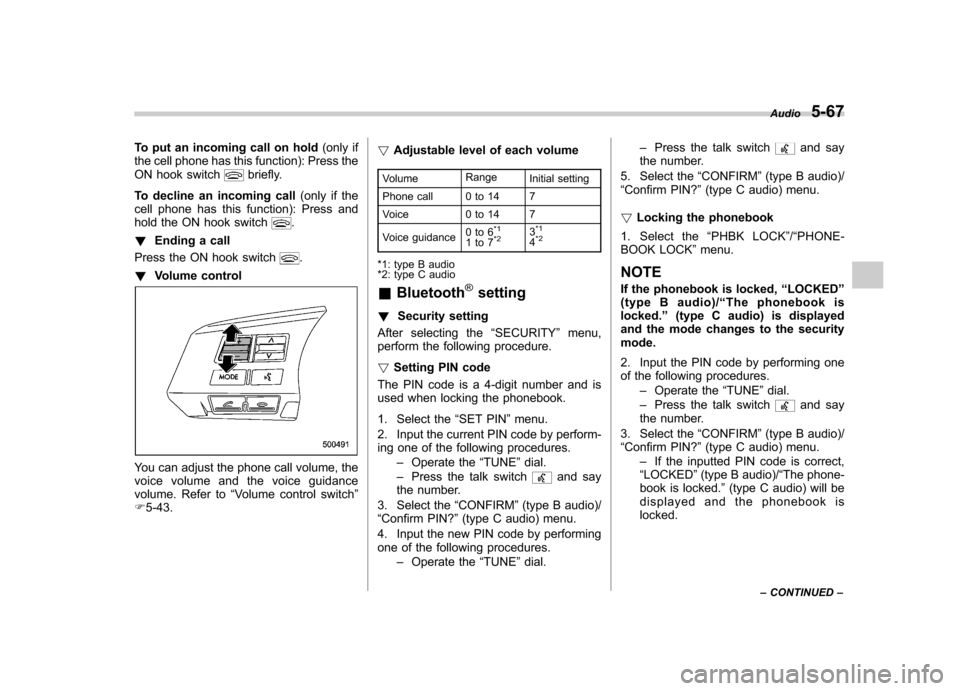
! Volume control
You can adjust the phone call volume, the
voice volume and the voice guidance
volume. Refer to “Volume control switch ”
F 5-43. !
Adjustable level of each volume
Volume Range
Initial setting
Phone call 0 to 14 7
Voice 0 to 14 7
Voice guidance 0to6
*1
1to7*23*1
4*2
*1: type B audio
*2: type C audio &
Bluetooth
®setting
! Security setting
After selecting the “SECURITY ”menu,
perform the following procedure. ! Setting PIN code
The PIN code is a 4-digit number and is
used when locking the phonebook.
1. Select the “SET PIN ”menu.
2. Input the current PIN code by perform-
ing one of the following procedures. –Operate the “TUNE ”dial.
– Press the talk switch
and say
the number.
3. Select the “CONFIRM ”(type B audio)/
“ Confirm PIN? ”(type C audio) menu.
4. Input the new PIN code by performing
one of the following procedures. –Operate the “TUNE ”dial. –
Press the talk switch
and say
the number.
5. Select the “CONFIRM ”(type B audio)/
“ Confirm PIN? ”(type C audio) menu.
! Locking the phonebook
1. Select the “PHBK LOCK ”/“ PHONE-
BOOK LOCK ”menu.
NOTE
If the phonebook is locked, “LOCKED ”
(type B audio)/ “The phonebook is
locked. ”(type C audio) is displayed
and the mode changes to the security mode.
2. Input the PIN code by performing one
of the following procedures.
–Operate the “TUNE ”dial.
– Press the talk switch
and say
the number.
3. Select the “CONFIRM ”(type B audio)/
“ Confirm PIN? ”(type C audio) menu.
– If the inputted PIN code is correct,
“ LOCKED ”(type B audio)/ “The phone-
book is locked. ”(type C audio) will be
displayed and the phonebook is locked. Audio
5-67
– CONTINUED –
Page 251 of 474

5-68Audio
NOTE
While the phonebook is locked, if the
operation restricted menu is selected,“ PHBK LOCK ”(type B audio)/ “Phone-
book locked! ”(type C audio) is dis-
played. ! Unlocking the phonebook
1. Select the “PHBK UNLOCK ”/“ PHONE-
BOOK UNLOCK ”menu.
NOTE
If the phonebook is not locked, “UN-
LOCK ”(type B audio)/ “The phonebook
is unlocked. ”(type C audio) is dis-
played and the mode changes to the
security mode.
2. Input the PIN code by performing one
of the following procedures.
–Operate the “TUNE ”dial.
– Press the talk switch
and say
the number.
3. Select the “CONFIRM ”(type B audio)/
“ Confirm PIN? ”(type C audio) menu.
– If the inputted PIN code is correct,
“ UNLOCKED ”(type B audio)/ “The
phonebook is unlocked. ”(type C
audio) will be displayed and the
phonebook is unlocked. !
Phone setup
After selecting the “PHONE SETUP ”
menu, perform the following procedure. ! Pairing phone
Refer to “Preparation for using the Hands-
free system ”F 5-53.
! Selecting phone
To select the registered cell phone for
connecting to the in-vehicle equipment,
perform the following procedure.
1. Select the “SELECT PHONE ”menu.
– If no cell phones are registered,
“ EMPTY ”(type B audio)/ “No Phones
have been paired. ”(type C audio) is
displayed and the mode changes to the “PHONE SETUP ”mode.
2. Select the cell phone by performing
one of the following procedures. –Operate the “TUNE ”dial.
– Press the talk switch
and say
the voice tag. – Press the talk switch
and use
the list phones function (refer to “List
phones function ”F 5-69.)
3. Select the “CONFIRM ”(type B audio)/
“ Confirm Phone selection? ”(type C audio)
menu (only after saying the voice tag).
–“ SELECTED ”(type B audio)/
“ Phone is selected. ”(type C audio) is displayed, the selected cell phone is
connected to the in-vehicle equipment
and the mode changes to the
“PHONE
SETUP ”mode.
NOTE
For type B audio, if the cell phone
cannot be connected to the in-vehicleequipment, “FAILED ”is displayed and
the mode changes to the “PHONE
SETUP ”mode.
! Changing the voice tag of the cellphone
1. Select the “CHANGE NAME ”(type B
audio)/ “Change Phone Name ”(type C
audio) menu.
–If no cell phones are registered,
“ EMPTY ”(type B audio)/ “No Phones
have been paired. ”(type C audio) is
displayed and the mode changes tothe “PHONE SETUP ”mode.
2. Select the cell phone by performing
one of the following procedures. –Operate the “TUNE ”dial.
– Press the talk switch
and say
the voice tag. – Press the talk switch
and use
the list phones function (refer to “List
phones function ”F 5-69.).
3. Register the voice tag. For details,
Page 265 of 474

6-12Interior equipment
power outlet in the center console to be
used. Pass the cord of the electrical
appliance through this gap. Ashtray (if equipped)
CAUTION
. Do not use ashtrays as waste
receptacles or leave a lighted
cigarette in an ashtray. This
could cause a fire.
. Always extinguish matches and
cigarettes before putting them
into the ashtray, and then close
the ashtray securely. If you keep
the ashtray open, the fire of the
cigarette may spread to another
cigarette butt and start a fire.
. Do not put flammable material in
the ashtray.
. Do not leave a lot of cigarette
butts in the ashtray.
The portable ashtray can be installed in
each cup holder. For the locations of the
cup holders, refer to “Cup holder ”F 6-8.
When using the ashtray, open the lid of the
ashtray. When removing the ashtray from
a cup holder, pull the ashtray upwards.
Fully close the lid after using the ashtray to
help reduce residual smoke. NOTE
Particles of ash and tobacco will accu-
mulate around the hinges of the ash-tray ’s inner lid. Clean them off using a
toothbrush or another narrow-endedimplement.
Page 267 of 474
6-14Interior equipment
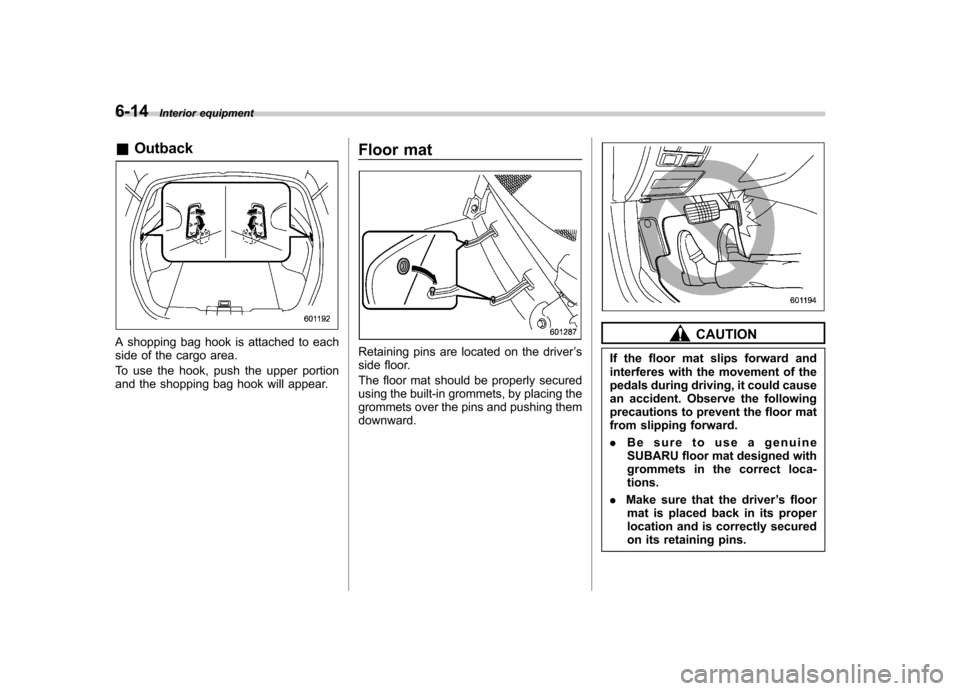
&Outback
A shopping bag hook is attached to each
side of the cargo area.
To use the hook, push the upper portion
and the shopping bag hook will appear. Floor matRetaining pins are located on the driver
’s
side floor.
The floor mat should be properly secured
using the built-in grommets, by placing the
grommets over the pins and pushing themdownward.
CAUTION
If the floor mat slips forward and
interferes with the movement of the
pedals during driving, it could cause
an accident. Observe the following
precautions to prevent the floor mat
from slipping forward. . Be sure to use a genuine
SUBARU floor mat designed with
grommets in the correct loca-tions.
. Make sure that the driver ’s floor
mat is placed back in its proper
location and is correctly secured
on its retaining pins.
Page 270 of 474
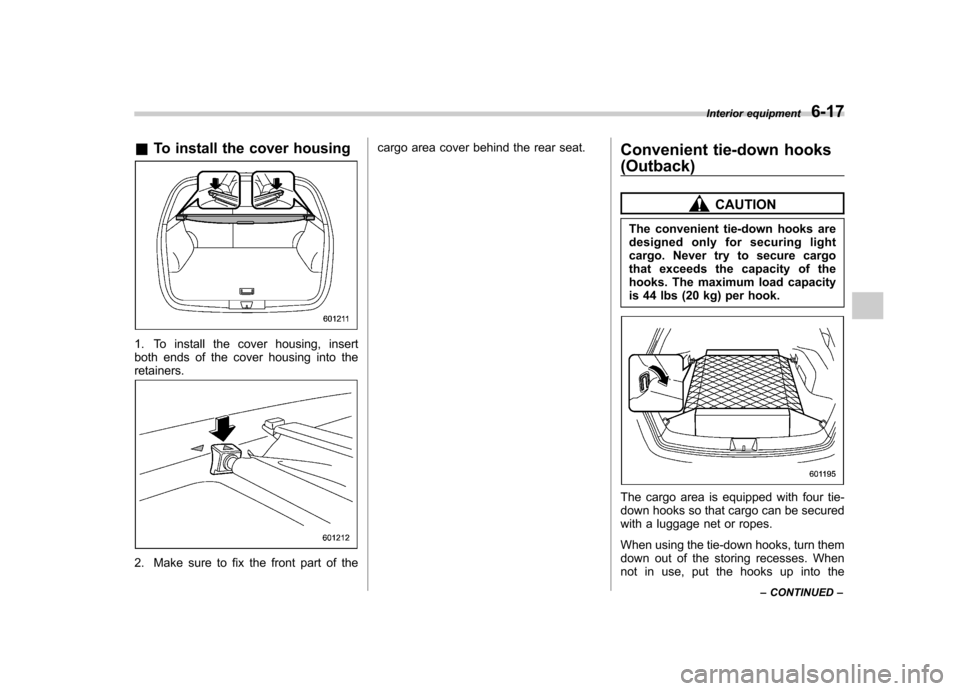
&To install the cover housing
1. To install the cover housing, insert
both ends of the cover housing into theretainers.
2. Make sure to fix the front part of the cargo area cover behind the rear seat.
Convenient tie-down hooks
(Outback)
CAUTION
The convenient tie-down hooks are
designed only for securing light
cargo. Never try to secure cargo
that exceeds the capacity of the
hooks. The maximum load capacity
is 44 lbs (20 kg) per hook.
The cargo area is equipped with four tie-
down hooks so that cargo can be secured
with a luggage net or ropes.
When using the tie-down hooks, turn them
down out of the storing recesses. When
not in use, put the hooks up into the Interior equipment
6-17
– CONTINUED –