ignition SUBARU LEGACY 2012 5.G Repair Manual
[x] Cancel search | Manufacturer: SUBARU, Model Year: 2012, Model line: LEGACY, Model: SUBARU LEGACY 2012 5.GPages: 474, PDF Size: 17.45 MB
Page 190 of 474

&Type C audio set (if equipped)The audio set will operate only when the
ignition switch is in the “Acc ”or “ON ”
position. . Power and audio controls: refer to page
5-8. Radio operation: refer to page 5-12
. Satellite radio operation (if equipped):
refer to page 5-19. CD (compact disc) player operation:
refer to page 5-23. Auxiliary input jack: refer to page 5-30
. USB storage device/iPod
®operation:
refer to page 5-33. Bluetooth
®audio: refer to page 5-43
. Hands-free system: refer to page 5-49
NOTE
HD Radio Technology should be in-
cluded as a feature in the type C audio. Audio
5-7
Page 201 of 474

5-18Audio
&Station preset
! How to preset stations
1. Select the preferred reception mode.
2. Select the preferred station.
3. Press and hold one of the preset
buttons (from
to) to store the
frequency. If the button is pressed briefly,
the preceding selection will remain in the
memory.
NOTE . Up to six stations for each reception
mode may be preset. . If the connection between the radio
and battery is broken for any reason
such as vehicle maintenance or radio
removal, all stations stored in the
preset buttons are cleared. If this
occurs, it is necessary to reset the
preset buttons.. If a cell phone is placed near the
radio, it may cause the radio to emit
noise when a phone call is received.
This noise does not indicate a radiomalfunction.. For type C audio, if you press and
hold a preset button while receiving a
broadcasting station with SPS (Supple-
mental Program Service), the station
will be stored in the memory for that preset button. !
Selecting preset stations
1. Select the preferred reception mode.
2. Press the preferred preset button (from
to) briefly.
NOTE
For type C audio, if the preset button
which stores a broadcasting station
with SPS (Supplemental Program Ser-
vice) while the HD Radio OFF mode isselected, “No digital data available ”will
be displayed and the volume will be
reduced to zero. ! Auto-store
Auto-store button:
Type A audio
Type B audio
Type C audio
Using the Auto-store function, you can
automatically store 6 stations on the current waveband by pressing and holding
the Auto-store button. Use Auto-store to
quickly find the strongest stations, for
example when traveling through different
reception areas. NOTE .
When you use Auto-store, the new
stations replace any stations pre-
viously stored.. Interrupting Auto-store: If you acci-
dentally press the Auto-store button,
you can cancel the Auto-store function
before it has been completed as fol-lows.
–Switch to the other source mode.
– Switch to the other band.
– Press the Auto-store button.
– Press the “SCAN ”button (type A
and B audio). – Press the “SEEK ”button.
– Press any of the preset buttons.
– Turn the “TUNE ”dial.
– Turn off the audio system.
– Turn off the ignition switch.
. When you use the Auto-store func-
tion while selecting the FM mode, even
if you have selected the FM1 or FM2
station, the new stations are stored in
the FM3 (type A and C audio)/FM-AS
(type B audio) station memory. . For type B audio, when you use the
Page 207 of 474

5-24Audio
MP3: .Based on MPEG 1, 2 and 2.5 Layer 3
(type A and B audio). Based on MPEG 1, 2 and 2.5 Layer 2
and 3 (type C audio). Sampling rate (kHz): 48, 44.1, 32, 24,
22.05, 16, 12, 11.025, 8. Bit rate (kbps): 8 to 320 (type A and B
audio). Bit rate (kbps): 32 to 320 (type C audio)
. Supports variable bit rates
WMA (type B audio):. Based on Windows Media Audio 9
. Sampling rate (kHz): 48, 44.1, 32
. Bit rate (kbps): 32 to 192
WMA (type C audio): . Based on Windows Media Audio 7, 8
and 9 . Sampling rate (kHz): 48, 44.1, 32
. Bit rate (kbps): 32 to 192
AAC (type B audio):. Based on MPEG4 AAC
. Sampling rate (kHz): 48, 44.1, 32, 24,
22.05, 16, 12, 11.025, 8. Bit rate (kbps): 24 to 320
. Number of channels: 1 to 2ch AAC (type C audio):.
Based on MPEG2 AAC and MPEG4
AAC. Sampling rate (kHz): 48, 44.1, 32, 24,
22.05, 16, 12, 11.025, 8. Bit rate (kbps): 24 to 320
. Number of channels: 1 to 2ch
& How to insert a CD
While the ignition switch is in the “Acc ”or
“ ON ”position, hold a disc with a finger in
the center hole while gripping the edge of
the disc, then insert it in to the slot (with
the label side up) and the player will
automatically pull the disc into position.
NOTE
DO NOT INSERT TWO DISCS INTO THE
DISC INSERTION SLOT AT A TIME. & How to play back a CD
! When there is no CD inserted
Insert a CD by referring to “How to insert a
CD ”F 5-24.
When a CD is loaded, the player will start
playback of the CD, beginning with the
first track. !
When CD is in the player (type A)
When the
button is pressed, the
player will start playback. ! When CD is in the player (type B
and C)
Type B audio
Type C audio
Each brief press of the “CD/AUX ”button
changes the modes in the following sequence.
*: For type B audio, “BT-A ”is displayed.
When the CD mode is selected, the player
will start playback. & To select a track from the beginning
NOTE
With an MP3, WMA or AAC: . Skipping past the last track/file will
take you back to the first track/file in
the folder.
Page 211 of 474

5-28Audio
&Scan
Type A audio
Type B audio
Type C audio
The scan mode lets you listen to the first
10 seconds of each track/file in succes-
sion. Press the “SCAN ”button to start
scanning upward beginning with the track/
file(s) following the currently selected one.
After all track/file(s) in the disk/folder have
been scanned, normal playback will be
resumed. To cancel the scan mode, pressthe “SCAN ”button again.
NOTE
The scan mode will be cancelled if you
perform any of the following steps. . Press the “RPT/RDM ”button (type A
and B audio). . Press the “RPT ”button (type C
audio).. Press the “RDM ”button (type C
audio). .
Turn the “TUNE ”dial.
. Press the “
”or “”side of the
“ FOLDER ”button (type A and B audio).
. Press the “
”button.
. Press the “”or “”side of the
“ SEEK ”button.
. Select the radio or AUX mode.
. Turn off the power of the audio
equipment. . Turn the ignition switch to the
“ LOCK ”position.
& Display selection (type A and
B audio)
Type A audio
Type B audio
If you press the “TEXT ”button during
playback, the indication will change to the
next one in the following sequence.
For CD-DA:
For MP3/WMA/AAC:
! Page (track/folder title) scroll
If you press and hold the “TEXT ”button
while displaying the title (name), the title
will be scrolled so you can see all of it. NOTE
The display is designed to show titles
for up to 30 characters. & Folder selection
NOTE . Selecting folders in this way is
possible only within a single disc. . Only MP3/WMA/AAC folders are re-
cognized when an attempt to select the
next or previous folder is made. If no
appropriate folder exists on the disc,
performing the following procedures
starts playback beginning with the firsttrack/file.
–Press the “
”or “”side of the
“ FOLDER ”button (type A and B
audio). – Tu r n t h e “TUNE ”dial (type C
audio).
Page 217 of 474
5-34Audio
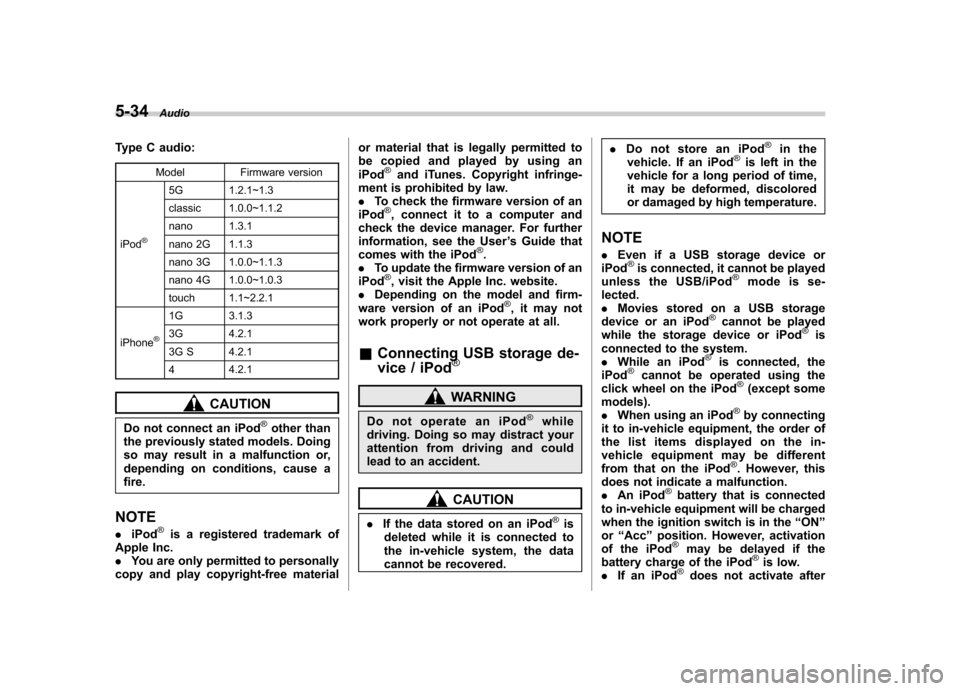
Type C audio:
Model Firmware version
iPod
®
5G 1.2.1~1.3
classic 1.0.0~1.1.2
nano 1.3.1
nano 2G 1.1.3
nano 3G 1.0.0~1.1.3
nano 4G 1.0.0~1.0.3
touch 1.1~2.2.1
iPhone
®
1G 3.1.3
3G 4.2.1
3G S 4.2.1 4 4.2.1
CAUTION
Do not connect an iPod
®other than
the previously stated models. Doing
so may result in a malfunction or,
depending on conditions, cause afire.
NOTE . iPod
®is a registered trademark of
Apple Inc. . You are only permitted to personally
copy and play copyright-free material or material that is legally permitted to
be copied and played by using aniPod
®and iTunes. Copyright infringe-
ment is prohibited by law.. To check the firmware version of an
iPod
®, connect it to a computer and
check the device manager. For further
information, see the User ’s Guide that
comes with the iPod
®.
. To update the firmware version of an
iPod
®, visit the Apple Inc. website.
. Depending on the model and firm-
ware version of an iPod
®, it may not
work properly or not operate at all. & Connecting USB storage de-
vice / iPod
®
WARNING
Do not operate an iPod
®while
driving. Doing so may distract your
attention from driving and could
lead to an accident.
CAUTION
. If the data stored on an iPod
®is
deleted while it is connected to
the in-vehicle system, the data
cannot be recovered. .
Do not store an iPod
®in the
vehicle. If an iPod®is left in the
vehicle for a long period of time,
it may be deformed, discolored
or damaged by high temperature.
NOTE . Even if a USB storage device or
iPod
®is connected, it cannot be played
unless the USB/iPod®mode is se-
lected. . Movies stored on a USB storage
device or an iPod
®cannot be played
while the storage device or iPod®is
connected to the system.. While an iPod
®is connected, the
iPod®cannot be operated using the
click wheel on the iPod®(except some
models). . When using an iPod
®by connecting
it to in-vehicle equipment, the order of
the list items displayed on the in-
vehicle equipment may be different
from that on the iPod
®. However, this
does not indicate a malfunction.. An iPod
®battery that is connected
to in-vehicle equipment will be charged
when the ignition switch is in the “ON ”
or “Acc ”position. However, activation
of the iPod
®may be delayed if the
battery charge of the iPod®is low.
. If an iPod®does not activate after
Page 227 of 474

5-44Audio
NOTE . The Bluetooth
®audio function may
not operate properly under the follow-
ing conditions.
–The device is turned off.
– The battery of the device has run
down. – The device is not connected to
the system.– The device is behind the seat or
in the glove box.– A metal material is covering or
touching the device.
. Depending on the type of device that
is used, operation and sound volume
may be different from normal use of
those devices. . The sound quality may degrade due
to the influence of the device that is
connected to the system or the circum-
stances of the Bluetooth network. . When another Bluetooth
®device is
simultaneously connected, noise may
be heard. & Media format
Bluetooth
®audio devices cannot be
connected if they are not compatible with
the following Bluetooth
®profiles.
. A2DP (Advanced Audio Distribution
Profile) .
AVRCP (Audio/Video Remote Control
Profile)
& Setting Bluetooth
®audio
(type B audio)
1. Select “BT-A SETUP ”by pressing the
“ MENU ”button.
2. Perform the following procedure by
operating the “TUNE ”dial while “BT-A ”is
displayed.
NOTE
You cannot set Bluetooth
®audio while
driving. ! Registering (pairing) device
NOTE
Only one device can be registered.
1. Select the “PAIR AUDIO ”menu.
– If a device is already registered,
“ MEMORY FULL ”is displayed and the
mode changes to the Bluetooth
®
audio setting mode.
2. After the passkey is shown on the
display, input the passkey into the device. –If the registering procedure is fin-
ished, “PAIRED ”and the name of the
device are displayed. – If the registering procedure was not
successful, “FAILED ”is displayed. After the name of the device or
“FAILED ”
is displayed, the mode changes to the Bluetooth
®audio setting mode.
NOTE
After the ignition switch is turned to the “ LOCK ”position, the registered device
is not automatically connected to the
system even if the ignition switch is
turned to the “Acc ”or “ON ”position.
! Selecting device
1. Select the “SELECT AUDIO ”menu.
– If no devices are registered,
“ EMPTY ”is displayed and the mode
changes to the Bluetooth
®audio
setting mode.
2. Select the “CONFIRM ”menu.
– Then the name of the selected
device is displayed. – If the device is connected, “SE-
LECTED ”is displayed and the mode
changes to the Bluetooth
®audio
setting mode.– If the device cannot be connected,
“ FAILED ”is displayed and the select-
ing procedure was not successful.
! Setting passkey
1. Select the “SET PASSKEY ”menu.
– After the currently set passkey is
displayed, a new passkey can be
Page 228 of 474
entered.
2. Input the new passkey (a 4 - 8 digit
number) by operating the “TUNE ”dial.
3. Select the “CONFIRM ”menu.
– The new passkey is displayed, the
passkey is changed and the mode
changes to the Bluetooth
®audio
setting mode.
! Deleting device
1. Select the “DELETE AUDIO ”menu.
– If no devices are registered,
“ EMPTY ”is displayed and the mode
changes to the Bluetooth
®audio
setting mode.
2. Select the “CONFIRM ”menu.
–“ DELETED ”is displayed and the
mode changes to the Bluetooth
®
audio setting mode.
& Setting Bluetooth
®audio
(type C audio)
1. Press the
button to select the
“ BT Audio ”mode.
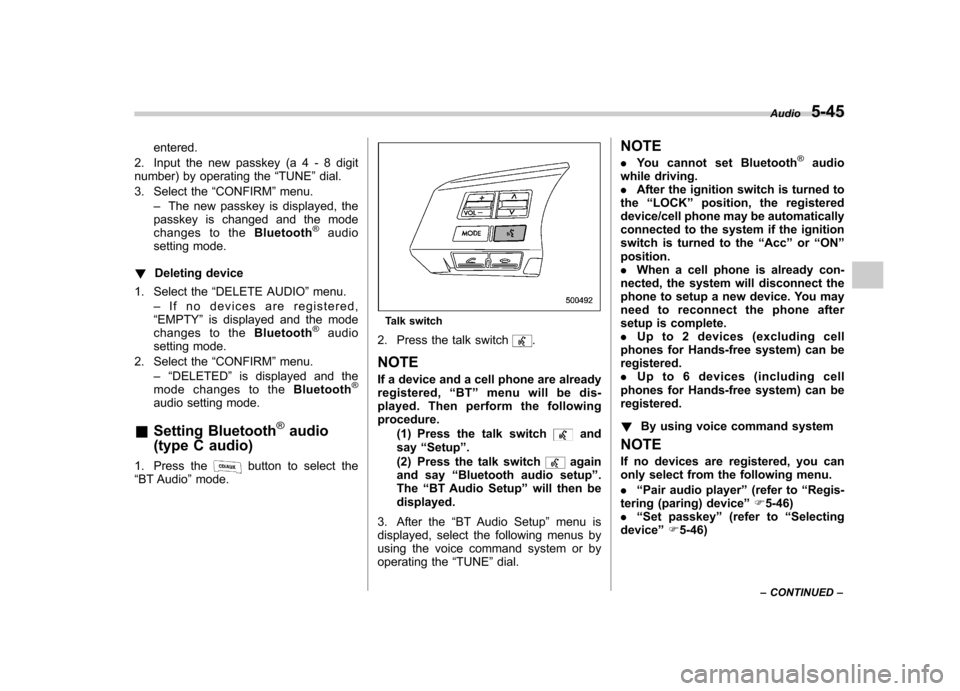
Talk switch
2. Press the talk switch
.
NOTE
If a device and a cell phone are already
registered, “BT ”menu will be dis-
played. Then perform the followingprocedure.
(1) Press the talk switch
and
say “Setup ”.
(2) Press the talk switch
again
and say “Bluetooth audio setup ”.
The “BT Audio Setup ”will then be
displayed.
3. After the “BT Audio Setup ”menu is
displayed, select the following menus by
using the voice command system or by
operating the “TUNE ”dial. NOTE .
You cannot set Bluetooth
®audio
while driving. . After the ignition switch is turned to
the “LOCK ”position, the registered
device/cell phone may be automatically
connected to the system if the ignition
switch is turned to the “Acc ”or “ON ”
position.. When a cell phone is already con-
nected, the system will disconnect the
phone to setup a new device. You may
need to reconnect the phone after
setup is complete.. Up to 2 devices (excluding cell
phones for Hands-free system) can beregistered.. Up to 6 devices (including cell
phones for Hands-free system) can beregistered. ! By using voice command system
NOTE
If no devices are registered, you can
only select from the following menu. . “Pair audio player ”(refer to “Regis-
tering (paring) device ”F 5-46)
. “Set passkey ”(refer to “Selecting
device ”F 5-46) Audio
5-45
– CONTINUED –
Page 232 of 474

Hands-free system (if equipped) NOTE .For models with the genuine
SUBARU navigation system, refer to
the Owner ’s Manual supplement for the
navigation system.. When selling your vehicle, make
sure that you initialize the Hands-free
system to prevent personal data from
being improperly accessed.
The Hands-free system operates while the
ignition switch is in the “Acc ”or “ON ”
position.
& Tips for the Hands-free sys- tem
! Bluetooth
®
It is possible to connect a cell phone to the
in-vehicle equipment through the Blue-
tooth
®format (wireless) to make a phone
call from the in-vehicle equipment or take
an incoming phone call.
Since the Bluetooth
®format is wireless, a
connection between the in-vehicle equip-
ment and the cell phone can be made
without placing them in close vicinity of
each other. The cell phone can be used
with it left in the breast pocket or bag. NOTE .
The Hands-free system may not
operate properly under the following conditions.
–The cell phone is turned off.
– The cell phone is not in the
phone call area. – The battery of the cell phone has
run down.– The cell phone is not connected
to the Hands-free system.– The cell phone is behind the seat
or in the glove box.– A metal material covers or
touches the cell phone.
. Depending on the type of cell phone
that is used, the screen on the cell
phone may remain illuminated while
the ignition switch is in the “ON ”
position. If this occurs, turn the illumi-
nation off by adjusting the cell phonesettings. . Depending on the setting of the cell
phone, the dial lock function may be
activated after making a call. Deacti-
vate the automatic dial lock function of
the cell phone before using the Hands-
free system. . Depending on the type of cell phone
that is used, operation and the sound
volume may be different from those of
cell phones currently used. .
When the ignition switch is turned to
the “LOCK ”position during a call, the
call may be disconnected or continued
on the cell phone depending on the
type of cell phone that is used. Note
that operation of the cell phone may be
necessary if the call is continued on the
cell phone. . Do not speak at the same time as the
other party during a call. If you and the
party speak at the same time, it may be
difficult for the other party to hear your
voice and vice versa. This is normal. . The receiver sound volume should
be set as low as possible. Otherwise,
the party you are calling may notice an
undesirable echo sound. . Speak clearly and loudly.
. Your voice may be difficult to be
heard by the party under the following conditions.
–Driving on a rough road.
– Driving at a high speed.
– Driving with a window open.
– When air from the ventilator
blows directly towards the micro-phone. – When the sound coming from the
ventilator is loud.– When the cell phone is too close
to the microphone. Audio
5-49
– CONTINUED –
Page 236 of 474

Hands-free mode, press the ON hook switch.
! Preparation for using the Hands-
free system
Before using the Hands-free system, it is
necessary to register a cell phone in the
system. Perform the following procedure
to register a cell phone. NOTE . Up to 5 cell phones can be regis-
tered (for type B audio). . Up to 6 cell phones (including Blue-
tooth
®audio devices) can be registered
(for type C audio).. When the ignition switch is turned to
the “Acc ”or “ON ”position, the regis-
tered cell phone may be automatically
connected to the system. ! Registering by operating dial
“ TUNE ”dial:
Type B audio
Type C audio
Select the menus by operating the “TUNE ”
dial.
Type B audio:
1. Press the OFF hook switch
.
2. Select “ENGLISH ”/“ FRANÇAIS ”by
operating the “TUNE ”dial.
–“ WELCOME! ”will then be dis-
played.
3. Press the “TUNE ”dial or the talk
switch
.
4. Select the “RECORD NAME ”menu, or
press the talk switch
.
5. Say the name to be registered.
6. Select the “CONFIRM ”menu.
– After “CAR M_MEDIA ”is displayed,
a pass key will be displayed.
7. Input the displayed pass key into the
cell phone while “PKY: **** ”is displayed.
Type C audio:
1. Press the OFF hook switch
.
– If no cell phone is registered,
“ Welcome!! ”is shown on the screen.
In this case, perform the procedure
after step 4.
2. Select the “Setup ”menu.
3. Select the “Phone Setup ”menu.
4. Select the “Pair Phone ”menu.
5. Select the “Record Name ”menu.
6. Say the name to be registered. 7. Select the
“Confirm pair phone? ”
menu.
8. Select the “Phone Only ”menu to
register only a cell phone, or select “Int.
Audio ”menu to register internal audio in
addition to the cell phone.
9. After “Car Multi-Media ”is displayed, a
pass key will be displayed.
10. Input the displayed pass key into the
cell phone while “Passkey: **** ”is dis-
played. ! Registering by using voice com-
mand system (type C audio)
NOTE
If no cell phone is registered, when the
OFF hook switch
is pressed, “Wel-
come!! ”is shown on the screen. In this
case, perform the procedure after step 4.
1. Select a mode other than “BT Audio ”
mode.
2. Press the talk switch
and say
“ Setup ”.
3. Press the talk switch
and say
“ Phone Setup ”.
4. Press the talk switch
and say “Pair
Phone ”.
5. Press the talk switch
and say the
name to be registered. Audio
5-53
– CONTINUED –
Page 252 of 474

refer to“Preparation for using the Hands-
free system ”F 5-53.
! List phones function
The cell phone voice tags saved in the cell
phone list are displayed by using the list
phones function.
1. Select the “LIST PHONES ”menu.
– If no cell phones are registered,
“ EMPTY ”(type B audio)/ “No Phones
have been paired. ”(type C audio) is
displayed and the mode changes to the “PHONE SETUP ”mode.
2. Registered cell phones are displayed
in the saved order. While displayed, if the“ TUNE ”dial is turned, the next registered
cell phone is displayed. Press the ON
hook button
to close the Hands-free
menu.
3. Select a cell phone by performing
either of the following procedures.
–Operate the “TUNE ”dial.
– Press the talk switch
.
4. After “SELECTED ”(type B audio)/
“ Phone is selected. ”(type C audio) is
displayed, you can select the following menus. . “SELECT PHONE ”to connect the
selected cell phone . “CHANGE NAME ”(type B audio)/ “
Change Phone Name ”(type C audio) to
change the voice tag. “DELETE ”(type B audio)/ “Delete
Phone ”(type C audio) to delete the
selected cell phone from the list. “GO BACK ”to go back to the “PHONE
SETUP ”mode
! Setting passkey
1. Select the “SET PASSKEY ”menu.
– After the currently set passkey is
displayed, a new passkey can be entered.
2. Input the new passkey by performing
one of the following procedures. –Operate the “TUNE ”dial.
– Press the talk switch
and say
the passkey.
3. Select the “CONFIRM ”(type B audio)/
“ Confirm passkey? ”(type C audio) menu.
– The new passkey is displayed, the
passkey is changed and the mode
changes to the “PHONE SETUP ”
mode.
! Deleting registered cell phone from
the list
1. Select the “DELETE ”(type B audio)/
“ Delete Phone ”(type C audio) menu.
2. Select a cell phone to be deleted by
performing one of the following proce- dures.
–Operate the “TUNE ”dial.
– Press the talk switch
and say
the voice tag. – Press the talk switch
and use
the list phones function.
3. Select the “CONFIRM ”(type B audio)/
“ Confirm delete phone? ”(type C audio)
menu.
–“DELETED ”(type B audio)/ “Phone
has been deleted. ”(type C audio) is
displayed, the data is deleted and the
mode changes to the “PHONE SET-
UP ”mode.
! Turning the Hands-free power on/off
(type C audio)
You can turn the Hands-free power on or
off. If the Hands-free power is ON, the
registered cell phones are automatically
connected to the system when the ignition
switch is turned to the “Acc ”or “ON ”
position.
1. S e l e c t t h e “Hands-free Power ”/
“ Handsfree Power ”menu.
2. To turn off the Hands-free power when
the Hands-free power is ON, perform
either of the following procedures. –Press the talk switch
and say
“ Turn off ”.
– Select “Turn off ”by operating the Audio
5-69
– CONTINUED –