key SUBARU OUTBACK 2017 6.G Owners Manual
[x] Cancel search | Manufacturer: SUBARU, Model Year: 2017, Model line: OUTBACK, Model: SUBARU OUTBACK 2017 6.GPages: 610, PDF Size: 10.28 MB
Page 282 of 610
AM and FM broadcast sound quality is
now crystal clear, with AM sound quality
that virtually matches FM quality of the
past, and FM broadcasts that have near
CD-level sound quality.
HD Radio Technology manufactured un-
der license from iBiquity Digital Corpora-
tion. Foreign Patents. HD Radio
TMand the
HD, HD Radio, and “Arc ”logos are
proprietary trademarks of iBiquity Digital
Corp.
FM stations can provide additional digital-
only audio programming on HD2/HD3
Channels.
! Available HD Radio
TMtechnology (if
equipped)
! Multicast
On the FM radio frequency most digital
stations have “multiple”or supplemental
programs on one FM station.
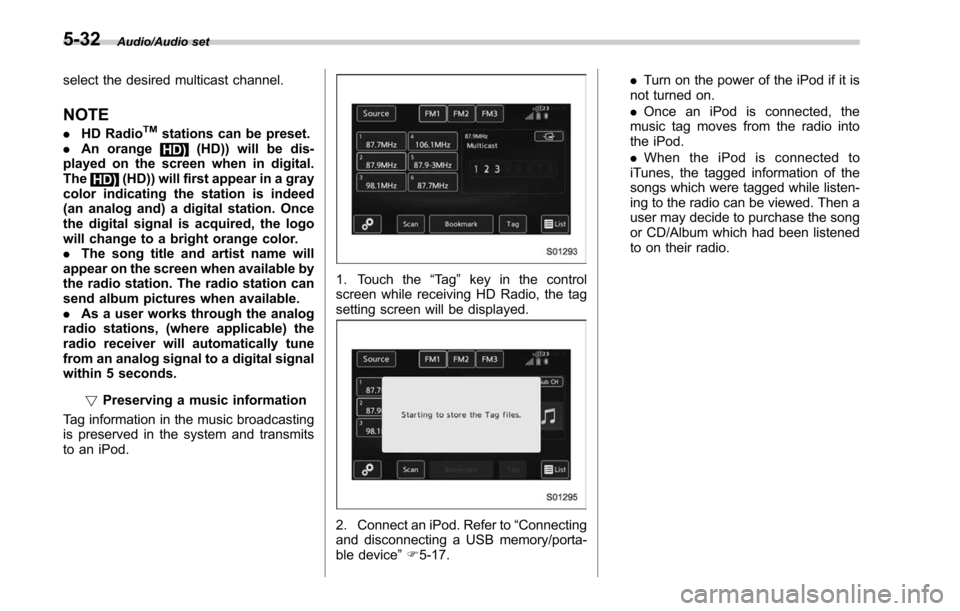
1. Touch the “Sub CH ”key on the control
screen and the following screen will be
displayed.
2. The indication that shows whether the
current broadcast is digital or analog is
displayed on the top right of the control
screen.
3. Select the desired channel.
Turning the AUDIO/TUNE knob can also
Audio/Audio set
–CONTINUED –5-31
Page 283 of 610
Audio/Audio set
select the desired multicast channel.
NOTE
.HD RadioTMstations can be preset.
. An orange
HD) (HD)) will be dis-
played on the screen when in digital.
The
HD) (HD)) will first appear in a gray
color indicating the station is indeed
(an analog and) a digital station. Once
the digital signal is acquired, the logo
will change to a bright orange color.
. The song title and artist name will
appear on the screen when available by
the radio station. The radio station can
send album pictures when available.
. As a user works through the analog
radio stations, (where applicable) the
radio receiver will automatically tune
from an analog signal to a digital signal
within 5 seconds.
!Preserving a music information
Tag information in the music broadcasting
is preserved in the system and transmits
to an iPod.
1. Touch the “Ta g”key in the control
screen while receiving HD Radio, the tag
setting screen will be displayed.
2. Connect an iPod. Refer to “Connecting
and disconnecting a USB memory/porta-
ble device ”F 5-17. .
Turn on the power of the iPod if it is
not turned on.
. Once an iPod is connected, the
music tag moves from the radio into
the iPod.
. When the iPod is connected to
iTunes, the tagged information of the
songs which were tagged while listen-
ing to the radio can be viewed. Then a
user may decide to purchase the song
or CD/Album which had been listened
to on their radio.
5-32
Page 291 of 610
Audio/Audio set
NOTE
.SiriusXM Satellite Services —De-
scriptions
–Only SiriusXM Satellite Radio
®
brings you more of what you love,
all in one place. Get over 175
channels, including commercial-
free music, plus the best sports,
news, talk, comedy and entertain-
ment. Welcome to the world of
satellite radio. More information
about SiriusXM Satellite Radio is
available online at www.siriusxm.
com (U.S.) and www.siriusxm.ca
(Canada).
. SiriusXM Satellite Services —Sub-
scription Instructions
–For SiriusXM Services requiring
a subscription (such as SiriusXM
Satellite Radio, and some Infotain-
ment & data services), the following
paragraph shall be included.
Required SiriusXM Satellite Radio
and some Infotainment & data ser-
vices monthly subscriptions sold
separately after trial period. Sub-
scription fee is consumer only. All
fees and programming subject to
change. Subscriptions are subject
to the Customer Agreement avail-
able at www.siriusxm.com (U.S.) or
www.siriusxm.ca (Canada). Sirius, XM and all related marks and logos
are trademarks of Sirius XM Radio
Inc. All other marks, channel names
and logos are the property of their
respective owners.
For more information, program
schedules, and to subscribe or
extend subscription after compli-
mentary trial period; more informa-
tion is available at:
.
U.S. customers:
Visit www.siriusxm.com or call
1-866-635-2349
. Canadian customers:
Visit www.siriusxm.ca or call
1-877-209-0079
. SiriusXM Satellite Radio is solely
responsible for the quality, availability
and content of the satellite radio ser-
vices provided, which are subject to
the terms and conditions of the
SiriusXM Satellite Radio customer ser-
vice agreement.
. Customers should have their radio
ID ready; the radio ID can be found by
tuning to “Ch 000” on the radio. For
details, see “DISPLAYING THE RADIO
ID ”below.
. All fees and programming are the
responsibility of SiriusXM Satellite
Radio and are subject to change. !
How to change the source
Select the “Sirius XM”key on the source
select screen. Refer to “Selecting an audio
source” F5-18.
5-40
Page 292 of 610
!Presetting a channel
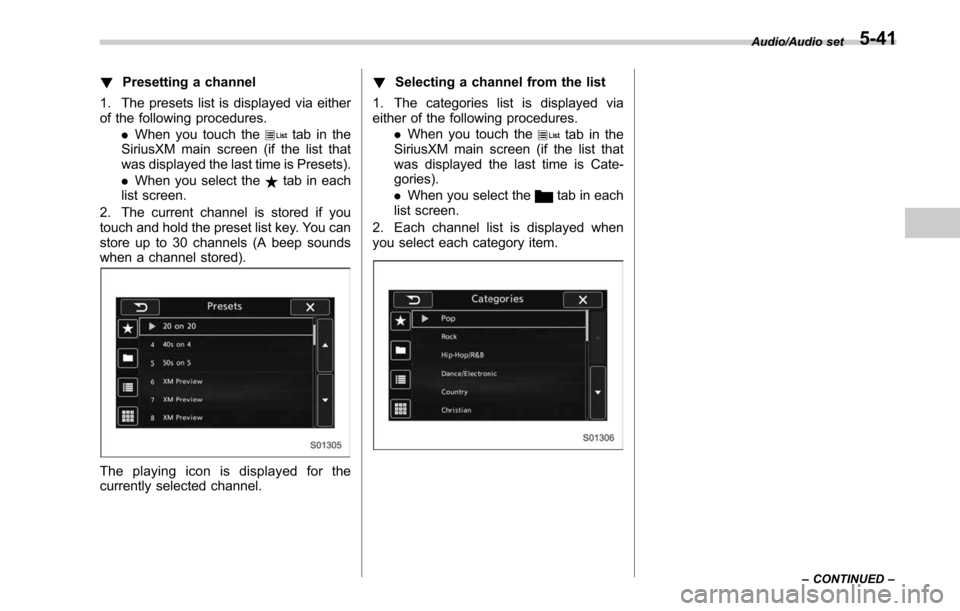
1. The presets list is displayed via either
of the following procedures. .When you touch the
tab in the
SiriusXM main screen (if the list that
was displayed the last time is Presets).
. When you select the
tab in each
list screen.
2. The current channel is stored if you
touch and hold the preset list key. You can
store up to 30 channels (A beep sounds
when a channel stored).
The playing icon is displayed for the
currently selected channel. !
Selecting a channel from the list
1. The categories list is displayed via
either of the following procedures. .When you touch the
tab in the
SiriusXM main screen (if the list that
was displayed the last time is Cate-
gories).
. When you select the
tab in each
list screen.
2. Each channel list is displayed when
you select each category item.
Audio/Audio set
–CONTINUED –5-41
Page 293 of 610
Audio/Audio set
In addition, the following messages appear.
Display MessageContents
“ Subscription Update ”
“ Press OK to Continue ” An update to your SiriusXM subscription has
been received by the SiriusXM tuner. Touch
any key to continue.
“ Channel XXX Not Available ”
( “ XXX ”refers to the selected channel number.) This channel is not a valid SiriusXM channel.
The channel number has been entered incor-
rectly, or the channel was removed from the
SiriusXM channel lineup.
“ Channel XXX Not Subscribed Call. ”
“ Call SiriusXM to Subscribed. ”
( “ XXX ”refers to the selected channel number.) This channel is not included in your SiriusXM
subscription plan.
“ Ch Locked ”
“ Lock Code? ” The selected channel has been locked by the
parental controls.
A prompt to enter the unlock code will appear.
“ Check Antenna ” Ensure the SiriusXM antenna cable is con-
nected to the SiriusXM tuner correctly.
Check the SiriusXM antenna wire for breaks or
sharp bends.
Replace the antenna if necessary.
“ No Signal ” The vehicle must be outside, and the antenna
must have a clear view of the southern sky.
NOTEContact SiriusXM
.
Listener Care Center (U.S. customers):
1-866-635-2349
. Listener Care Centre (Canadian customers):
1-877-209-0079 !
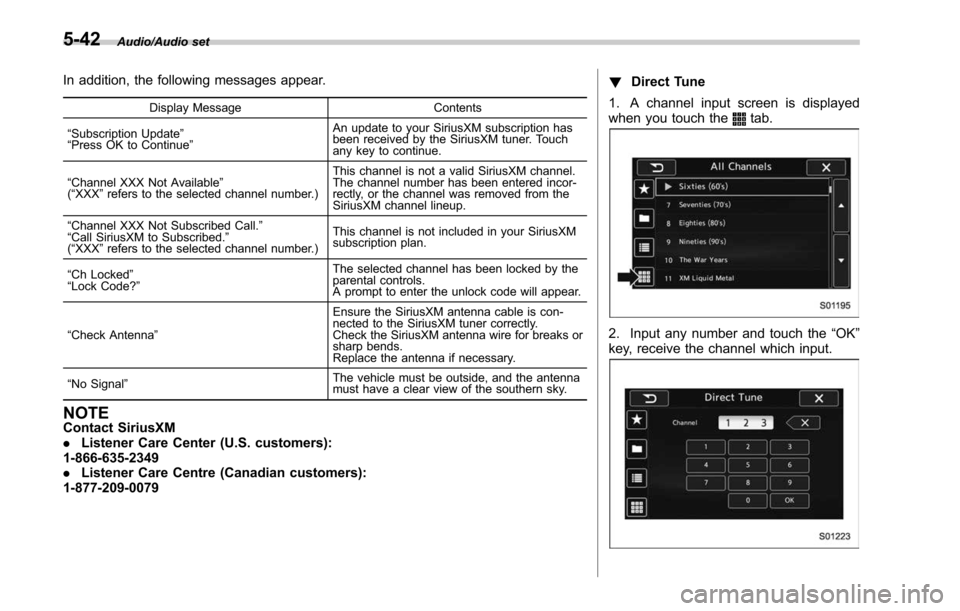
Direct Tune
1. A channel input screen is displayed
when you touch the
tab.
2. Input any number and touch the “OK”
key, receive the channel which input.
5-42
Page 294 of 610
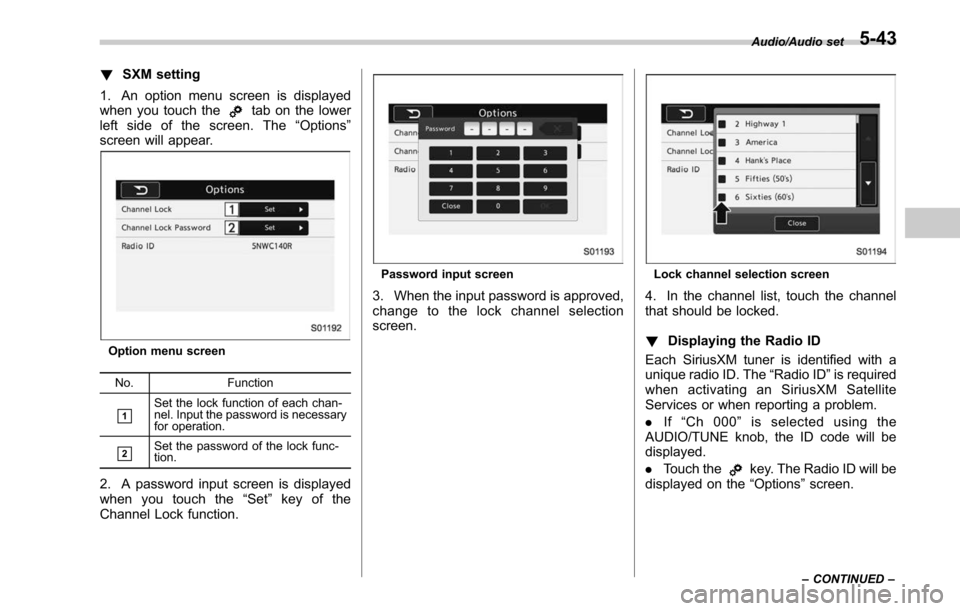
!SXM setting
1. An option menu screen is displayed
when you touch the
tab on the lower
left side of the screen. The “Options ”
screen will appear.
Option menu screen
No. Function
&1Set the lock function of each chan-
nel. Input the password is necessary
for operation.
&2Set the password of the lock func-
tion.
2. A password input screen is displayed
when you touch the “Set”key of the
Channel Lock function.
Password input screen
3. When the input password is approved,
change to the lock channel selection
screen.
Lock channel selection screen
4. In the channel list, touch the channel
that should be locked.
! Displaying the Radio ID
Each SiriusXM tuner is identified with a
unique radio ID. The “Radio ID”is required
when activating an SiriusXM Satellite
Services or when reporting a problem.
. If“Ch 000 ”is selected using the
AUDIO/TUNE knob, the ID code will be
displayed.
. Touch the
key. The Radio ID will be
displayed on the “Options”screen.
Audio/Audio set
–CONTINUED –5-43
Page 300 of 610
necting an Android device: Refer to
“Registering/connecting Bluetooth®
device ”F 5-66.
NOTE
When iPhone/iPod touch and Android
devices are connected at the same
time, iPhone/iPod touch is prioritized.
! How to change the source
. Select the “aha”key on the source
select screen. Refer to “Basic operation ”
F 5-18.
. Select the “aha”key on the APPS
screen. Refer to “SUBARU STARLINK ”
F 5-26.
NOTE
When starting-up “aha ”,thereare
some smartphone models for which
“ aha ”application does not start up
automatically. !
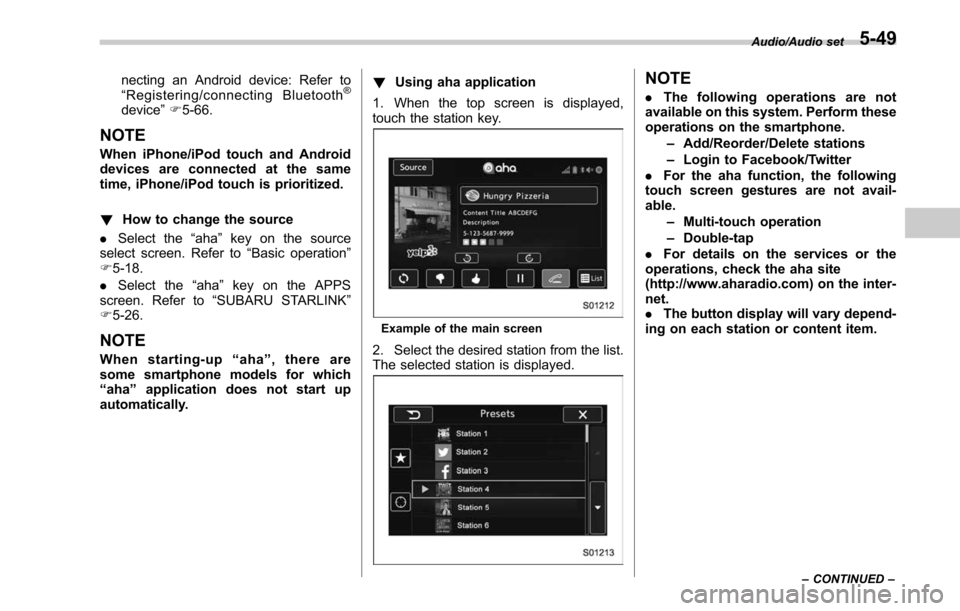
Using aha application
1. When the top screen is displayed,
touch the station key.
Example of the main screen
2. Select the desired station from the list.
The selected station is displayed.
NOTE
. The following operations are not
available on this system. Perform these
operations on the smartphone.
–Add/Reorder/Delete stations
– Login to Facebook/Twitter
. For the aha function, the following
touch screen gestures are not avail-
able.
–Multi-touch operation
– Double-tap
. For details on the services or the
operations, check the aha site
(http://www.aharadio.com) on the inter-
net.
. The button display will vary depend-
ing on each station or content item.
Audio/Audio set
–CONTINUED –5-49
Page 302 of 610
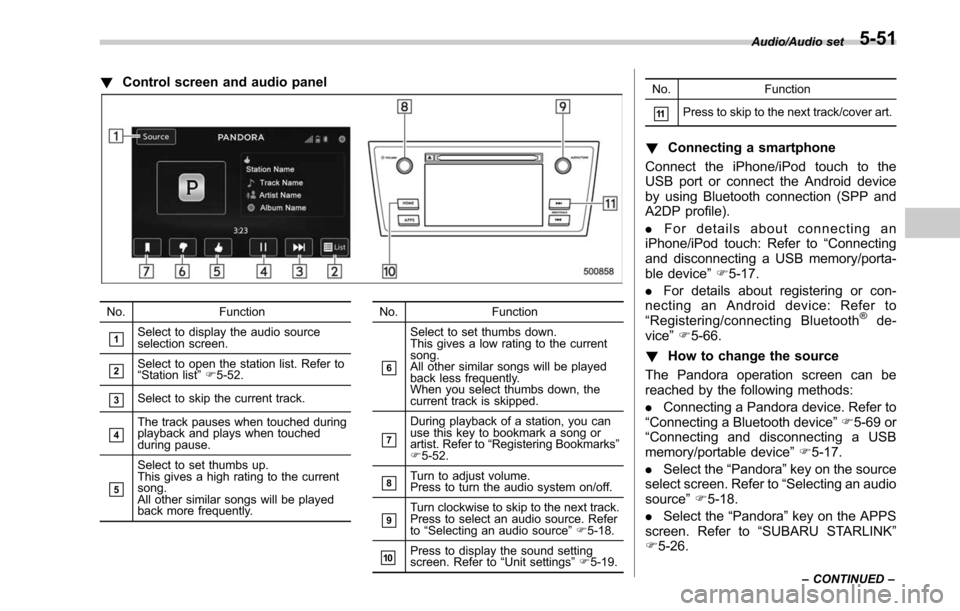
!Control screen and audio panel
No. Function
&1Select to display the audio source
selection screen.
&2Select to open the station list. Refer to
“Station list ”F 5-52.
&3Select to skip the current track.
&4The track pauses when touched during
playback and plays when touched
during pause.
&5
Select to set thumbs up.
This gives a high rating to the current
song.
All other similar songs will be played
back more frequently. No. Function
&6
Select to set thumbs down.
This gives a low rating to the current
song.
All other similar songs will be played
back less frequently.
When you select thumbs down, the
current track is skipped.
&7
During playback of a station, you can
use this key to bookmark a song or
artist. Refer to
“Registering Bookmarks ”
F 5-52.
&8Turn to adjust volume.
Press to turn the audio system on/off.
&9Turn clockwise to skip to the next track.
Press to select an audio source. Refer
to “Selecting an audio source ”F 5-18.
&10Press to display the sound setting
screen. Refer to “Unit settings ”F 5-19. No. Function
&11Press to skip to the next track/cover art.
!
Connecting a smartphone
Connect the iPhone/iPod touch to the
USB port or connect the Android device
by using Bluetooth connection (SPP and
A2DP profile).
. For details about connecting an
iPhone/iPod touch: Refer to “Connecting
and disconnecting a USB memory/porta-
ble device ”F 5-17.
. For details about registering or con-
necting an Android device: Refer to
“ Registering/connecting Bluetooth
®de-
vice” F5-66.
! How to change the source
The Pandora operation screen can be
reached by the following methods:
. Connecting a Pandora device. Refer to
“Connecting a Bluetooth device ”F 5-69 or
“ Connecting and disconnecting a USB
memory/portable device ”F 5-17.
. Select the “Pandora”key on the source
select screen. Refer to “Selecting an audio
source” F5-18.
. Select the “Pandora”key on the APPS
screen. Refer to “SUBARU STARLINK ”
F 5-26.
Audio/Audio set
–CONTINUED –5-51
Page 303 of 610
Audio/Audio set
NOTE
When starting-up Pandora, there are
some smartphone models for which
Pandora application does not start up
automatically.
!Registering Bookmarks
You can register the music and artist now
being played in Bookmark.
1. Touch the
tab.
2. Select the desired key. The following
items are appeared on the screen.
Item Function
Track When selected after the Book-
mark key is pressed, the current
track is bookmarked.
Artist When selected after the Book-
mark key is pressed, the current
artist is bookmarked.
Cancel Select to cancel the bookmark
operation.
!
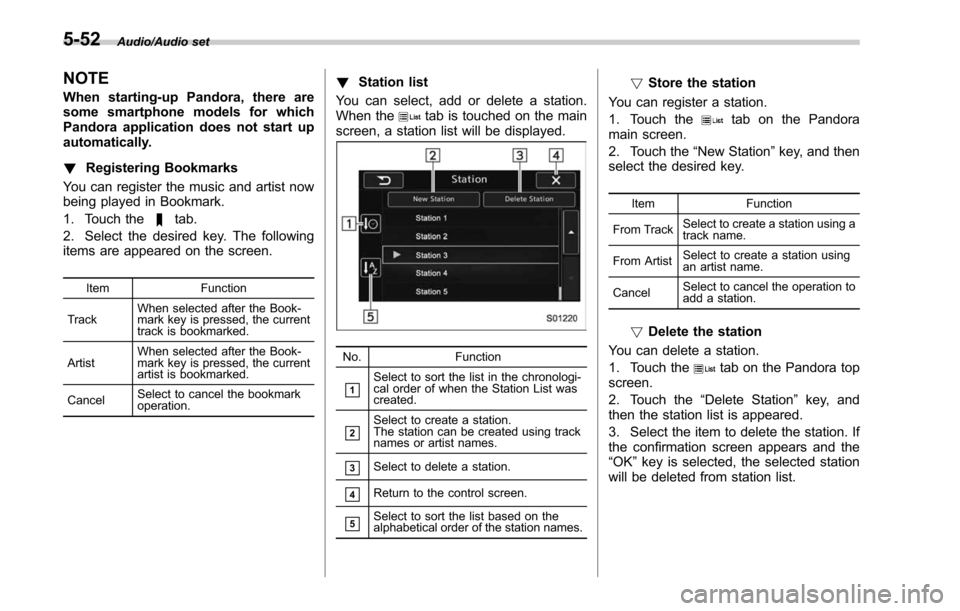
Station list
You can select, add or delete a station.
When the
tab is touched on the main
screen, a station list will be displayed.
No. Function
&1Select to sort the list in the chronologi-
cal order of when the Station List was
created.
&2Select to create a station.
The station can be created using track
names or artist names.
&3Select to delete a station.
&4Return to the control screen.
&5Select to sort the list based on the
alphabetical order of the station names.
!Store the station
You can register a station.
1. Touch the
tab on the Pandora
main screen.
2. Touch the “New Station”key, and then
select the desired key.
Item Function
From Track Select to create a station using a
track name.
From Artist Select to create a station using
an artist name.
Cancel Select to cancel the operation to
add a station.
!
Delete the station
You can delete a station.
1. Touch the
tab on the Pandora top
screen.
2. Touch the “Delete Station ”key, and
then the station list is appeared.
3. Select the item to delete the station. If
the confirmation screen appears and the
“OK ”key is selected, the selected station
will be deleted from station list.
5-52
Page 304 of 610
&CD
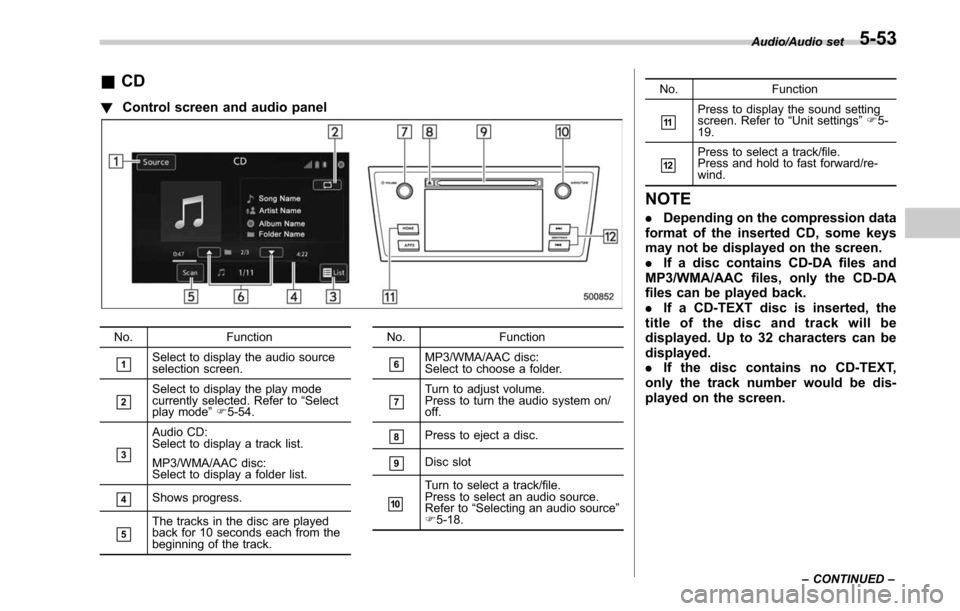
! Control screen and audio panel
No. Function
&1Select to display the audio source
selection screen.
&2Select to display the play mode
currently selected. Refer to “Select
play mode ”F 5-54.
&3
Audio CD:
Select to display a track list.
MP3/WMA/AAC disc:
Select to display a folder list.
&4Shows progress.
&5The tracks in the disc are played
back for 10 seconds each from the
beginning of the track. No. Function
&6MP3/WMA/AAC disc:
Select to choose a folder.
&7Turn to adjust volume.
Press to turn the audio system on/
off.
&8Press to eject a disc.
&9Disc slot
&10
Turn to select a track/file.
Press to select an audio source.
Refer to
“Selecting an audio source ”
F 5-18. No. Function
&11Press to display the sound setting
screen. Refer to
“Unit settings ”F 5-
19.
&12Press to select a track/file.
Press and hold to fast forward/re-
wind.
NOTE
. Depending on the compression data
format of the inserted CD, some keys
may not be displayed on the screen.
. If a disc contains CD-DA files and
MP3/WMA/AAC files, only the CD-DA
files can be played back.
. If a CD-TEXT disc is inserted, the
title of the disc and track will be
displayed. Up to 32 characters can be
displayed.
. If the disc contains no CD-TEXT,
only the track number would be dis-
played on the screen.
Audio/Audio set
–CONTINUED –5-53