load SUBARU OUTBACK 2017 6.G User Guide
[x] Cancel search | Manufacturer: SUBARU, Model Year: 2017, Model line: OUTBACK, Model: SUBARU OUTBACK 2017 6.GPages: 610, PDF Size: 10.28 MB
Page 209 of 610
Instruments and controls/Headlight beam leveler (models with HID headlights)
.While the hazard warning flasher is
on, the high beam headlights turn off.Headlight beam leveler
(models with HID headlights)
The HID headlights generate more light
than conventional halogen headlights.
Therefore a driver of an oncoming vehicle
may experience too much glare when your
headlight beam height adjustment is high
due to the vehicle carrying heavy load.
The automatic headlight beam leveler
adjusts the headlight beam height auto-
matically and optimally according to the
load being carried by the vehicle.
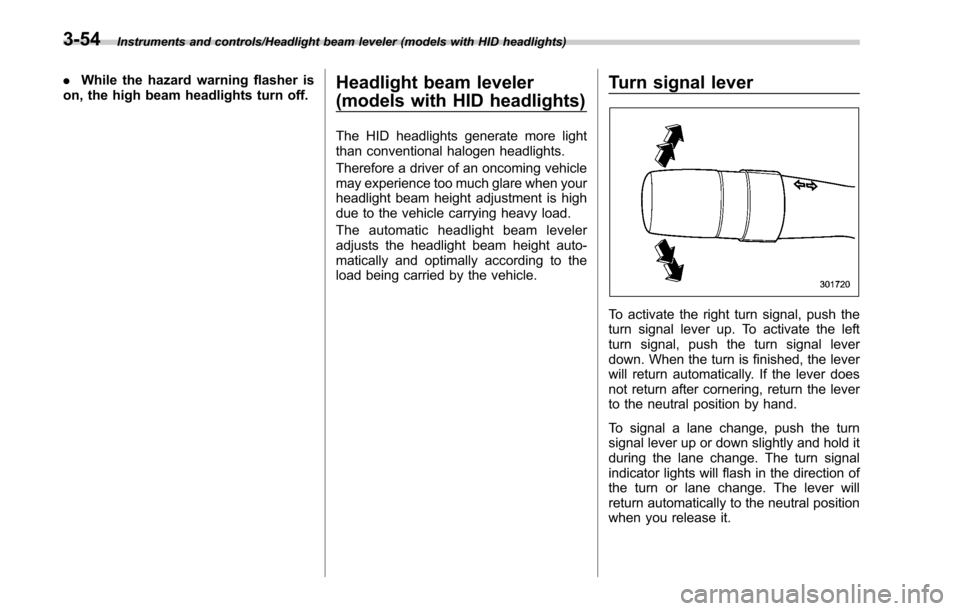
Turn signal lever
To activate the right turn signal, push the
turn signal lever up. To activate the left
turn signal, push the turn signal lever
down. When the turn is finished, the lever
will return automatically. If the lever does
not return after cornering, return the lever
to the neutral position by hand.
To signal a lane change, push the turn
signal lever up or down slightly and hold it
during the lane change. The turn signal
indicator lights will flash in the direction of
the turn or lane change. The lever will
return automatically to the neutral position
when you release it.
3-54
Page 213 of 610
Instruments and controls/Wiper and washer
.In freezing weather, be sure that
the blade rubbers are not frozen
to the windshield or rear window
before switching on the wipers.
Attempting to operate the wiper
with the blade rubbers frozen to
the window glass could cause
not only the blade rubbers to be
damaged but also might cause
the wiper motor to fail. If the
blade rubbers are frozen to the
window glass, be sure to operate
the defroster, windshield wiper
deicer (if equipped) or rear win-
dow defogger before turning on
the wiper.
. If the wipers stop during opera-
tion because of ice or some other
obstruction on the window, this
might cause the wiper motor to
fail even if the wiper switch is
turned off. If this occurs,
promptly stop the vehicle in a
safe location, turn the ignition
switch to the “LOCK ”/“ OFF ”po-
sition and clean the window
glass to allow proper wiper op-
eration.
. Use clean water if windshield
washer fluid is unavailable. In
areas where water freezes in
winter, use SUBARU Windshield Washer Fluid or the equivalent.
Refer to
“Windshield washer
fluid ”F 11-32.
Also, when driving the vehicle
when there are freezing tempera-
tures, use non-freezing type wi-
per blades.
. Do not clean the wiper blades
with gasoline or a solvent, such
as paint thinner or benzine. This
will cause deterioration of the
wiper blades.
NOTE
. The windshield wiper motor is pro-
tected against overloads by a circuit
breaker. If the motor operates continu-
ously under an unusually heavy load,
the circuit breaker may trip to stop the
motor temporarily. If this happens, park
your vehicle in a safe location, turn off
the wiper switch, and wait for approxi-
mately 10 minutes. The circuit breaker
will reset itself, and the wipers will
again operate normally.
. Clean your blade rubbers and win-
dow glass periodically with a washer
solution to prevent streaking, and to
remove accumulations of road salt or
road film. Operate the windshield
washer for at least 1 second so that washer solution will be sprinkled all
over the windshield or rear window.
.
Grease, wax, insects or other mate-
rial on the windshield or the blade
rubbers results in jerky wiper operation
and streaking on the glass. If you
cannot remove those streaks after
operating the washer or if the wiper
operation is jerky, clean the outer sur-
face of the windshield or rear window
and the blade rubbers using a sponge
or soft cloth with a neutral detergent or
mild abrasive cleaner. After cleaning,
rinse the window glass and blade
rubbers with clean water. The glass is
clean if no beads form on the glass
when you rinse with water.
. If you cannot eliminate the streaking
even after following this procedure,
replace the wiper blades (or blade
rubbers) with new ones. For replace-
ment instructions, refer to “Replace-
ment of wiper blades ”F 11-33.
3-58
Page 240 of 610
Ventilator control................................................. 4-2
Center ventilators ................................................ 4-2
Side ventilators ................................................... 4-2
Rear ventilators (if equipped) ............................... 4-2
Climate control panel.......................................... 4-3
Type A ................................................................ 4-3
Type B ................................................................ 4-4
Automatic climate control system (type B) ....... 4-5Sensors.............................................................. 4-5
Manual climate control ....................................... 4-6Airflow mode selection........................................ 4-6
Temperature control ............................................ 4-7
Fan speed control ............................................... 4-8
Air conditioner control ........................................ 4-8
Air inlet selection ................................................ 4-8
Defrosting............................................................ 4-9 Operating tips for heater and air
conditioner ........................................................ 4-9
Cleaning ventilator grille ...................................... 4-9
Efficient cooling after parking in direct sunlight ............................................................. 4-9
Lubrication oil circulation in the refrigerant circuit .............................................................. 4-10
Checking air conditioning system before summer season ............................................................ 4-10
Cooling and dehumidifying in high humidity and low temperature weather condition ................... 4-10
Air conditioner compressor shut-off when engine is heavily loaded .............................................. 4-10
Refrigerant for your climate control system ... ..... 4-10
Air filtration system (if equipped)..................... 4-10Replacing an air filter......................................... 4-11
Climate control
4
Page 249 of 610
Climate control/Air filtration system
allow outside air to circulate into the
heated interior. This results in quicker
cooling by the air conditioner. Keep the
windows closed during the operation of
the air conditioner for maximum cooling
efficiency.
&Lubrication oil circulation in
the refrigerant circuit
Operate the air conditioner compressor at
a low engine speed (at idle or low driving
speeds) a few minutes each month during
the off-season to circulate its oil.
&Checking air conditioning
system before summer sea-
son
Check the air conditioner unit for refriger-
ant leaks, hose conditions, and proper
operation each spring. Have the air con-
ditioning system checked by your
SUBARU dealer.
&Cooling and dehumidifying in
high humidity and low tem-
perature weather condition
Under certain weather conditions (high
relative humidity, low temperatures, etc.) a
small amount of water vapor emission
from the air outlets may be noticed. This
condition is normal and does not indicate any problem with the air conditioning
system.
&
Air conditioner compressor
shut-off when engine is
heavily loaded
To improve acceleration and gas mileage,
the air conditioner compressor is designed
to temporarily shut off during air condi-
tioner operation whenever the accelerator
is fully depressed such as during rapid
acceleration or when driving on a steep
upgrade.
&Refrigerant for your climate
control system
Your air conditioner uses ozone friendly
refrigerant HFO-1234yf. Therefore, the
method of adding, changing or checking
the refrigerant is different from the method
for CFC12 (freon) or HFC134a. Consult
your SUBARU dealer for service. Repairs
needed as a result of using the wrong
refrigerant are not covered under war-
ranty.
Air filtration system (if
equipped)
Your vehicle’ s air conditioning system is
equipped with an air filtration system.
Replace the air filter element according
to the replacement schedule shown in the
following table. This schedule should be
followed to maintain the filter ’sdust
collection ability. Under extremely dusty
conditions, the filter should be replaced
more frequently. Have your filter checked
or replaced by your SUBARU dealer. For
replacement, use only a genuine
SUBARU air filter kit. For the replacement
schedule, refer to the “Warranty and
Maintenance Booklet ”.
CAUTION
Contact your SUBARU dealer if the
following occurs, even if it is not yet
time to change the filter.
.Reduction of the airflow through
the vents.
. Windshield gets easily fogged or
misted.
NOTE
The filter can influence the air condi-
tioning, heating and defroster perfor-
4-10
Page 258 of 610
&Tips for operating the audio/
visual system
CAUTION
To avoid damage to the audio/visual
system:
. Be careful not to spill beverages
over the audio/visual system.
. Do not put anything other than an
appropriate disc into the disc
slot.
NOTE
The use of a cell phone inside or near
the vehicle may cause a noise from the
speakers of the audio/visual system
which you are listening to. However,
this does not indicate a malfunction.
! Radio
Usually, a problem with radio reception
does not mean there is a problem with the
radio —it is just the normal result of
conditions outside the vehicle.
For example, nearby buildings and terrain
can interfere with FM reception. Power
lines or phone wires can interfere with AM
signals. And of course, radio signals have
a limited range. The farther the vehicle is from a station, the weaker its signal will
be. In addition, reception conditions
change constantly as the vehicle moves.
Here, some common reception problems
that probably do not indicate a problem
with the radio are described.
!FM
Fading and drifting stations: Generally, the
effective range of FM is about 25 miles (40
km). Once outside this range, you may
notice fading and drifting, which increase
with the distance from the radio transmit-
ter. They are often accompanied by
distortion.
Multi-path: FM signals are reflective,
making it possible for 2 signals to reach
the vehicle’ s antenna at the same time. If
this happens, the signals will cancel each
other out, causing a momentary flutter or
loss of reception.
Static and fluttering: These occur when
signals are blocked by buildings, trees or
other large objects. Increasing the bass
level may reduce static and fluttering.
Station swapping: If the FM signal being
listened to is interrupted or weakened, and
there is another strong station nearby on
the FM band, the radio may tune in the
second station until the original signal can
be picked up again. !
AM
Fading: AM broadcasts are reflected by
the upper atmosphere —especially at
night. These reflected signals can inter-
fere with those received directly from the
radio station, causing the radio station to
sound alternately strong and weak.
Station interference: When a reflected
signal and a signal received directly from
a radio station are very nearly the same
frequency, they can interfere with each
other, making it difficult to hear the broad-
cast.
Static: AM is easily affected by external
sources of electrical noise, such as high
tension power lines, lightening or electrical
motors. This results in static.
!SiriusXM (if equipped)
. Cargo loaded on the roof luggage
carrier, especially metal objects, may
adversely affect the reception of SiriusXM
Satellite Radio.
. Alternation or modifications carried out
without appropriate authorization may in-
validate the user ’s right to operate the
equipment.
Audio/Audio set
–CONTINUED –5-7
Page 298 of 610
–Outside wireless communication
range, such as some countryside
areas
– Where the wireless communica-
tion network is congested, or where
communications are restricted
. Depending on the circumstances
and environment, the signal may be
weak or not be received. In such cases,
an error may occur.
. Top 35 entries in the preset station
list on the smartphone are displayed.
When there are more than 35 entries in
the preset station list, change the order
of the entries in the list on the smart-
phone. You can change the priority of
your preset stations within the aha
application (after disconnected from
this system) to modify the station list
shown on the screen. Please see your
smartphone aha application “Edit Pre-
sets (in Main menu) ”to modify this list.
. For operating the smartphone, see
the instruction manual that comes with
it.
. If there are multiple music files
stored on your iPhone or iPod touch,
it may take some time until playback
starts.
. Playback may be intermittent when
you switch to streaming Bluetooth
audio from aha on your smartphone device.
.
When connecting the device via
Bluetooth, the communication speed
may become slower than via USB.
! Before using aha application
In order to use the aha application on this
system, the application must be installed
on the smartphone.
! Settings required to use aha
application
. Search and download the aha applica-
tion from your smartphone app store.
–iPhone and iPod touch: Apple App
Store via iTunes
– Android device: Google Play Store
. Create an account and login to the aha
application on the smartphone.
NOTE
Please use the latest version of the aha
application.
!About app-based connected con-
tent
Requirements for using the connected
content services of the aha application
on this system.
. Latest version of the system is compa-
tible with connected content application(s)
for the smartphone, available from aha, downloaded to your smartphone.
.
A current account with a wireless
content service provider.
. A smartphone data plan: If the data
plan for your smartphone does not provide
for unlimited data usage, additional
charges from your carrier may apply for
accessing app-based connected content
via 3G, 4G, Wi-Fi or 4G LTE wireless
networks.
. Connection to the internet via 3G, 4G,
Wi-Fi or 4G LTE networks.
NOTE
. Changes to product specifications
may result in differences between the
content of the manual and features of
the product.
. Be careful not to exceed the data
usage limits for your smartphone.
Doing so will result in additional data
usage charges from your phone car-
rier.
. Access to app-based connected
content will depend on the availability
of wireless cell and/or Wi-Fi network
coverage for the purpose of allowing
your smartphone to connect to the
internet.
. Service availability may be geogra-
phically limited by region. Consult the
wireless connected content service
Audio/Audio set
–CONTINUED –5-47
Page 305 of 610
Audio/Audio set
!Loading a disc
CAUTION
Never try to disassemble the audio
kit or lubricate any part of the CD
player. Do not insert anything other
than a disc into the slot.
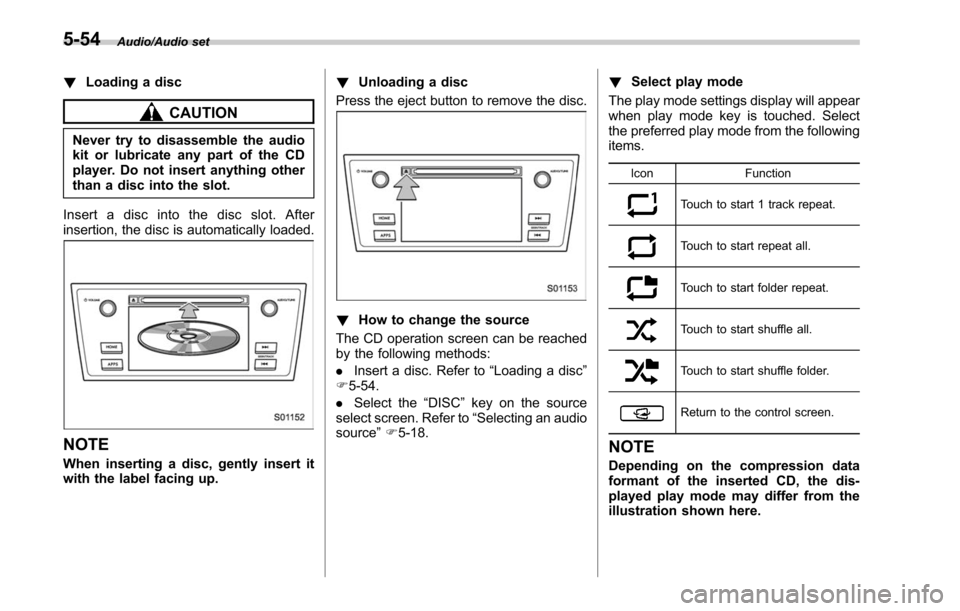
Insert a disc into the disc slot. After
insertion, the disc is automatically loaded.
NOTE
When inserting a disc, gently insert it
with the label facing up. !
Unloading a disc
Press the eject button to remove the disc.
! How to change the source
The CD operation screen can be reached
by the following methods:
. Insert a disc. Refer to “Loading a disc”
F 5-54.
. Select the “DISC ”key on the source
select screen. Refer to “Selecting an audio
source” F5-18. !
Select play mode
The play mode settings display will appear
when play mode key is touched. Select
the preferred play mode from the following
items.
Icon Function
Touch to start 1 track repeat.
Touch to start repeat all.
Touch to start folder repeat.
Touch to start shuffle all.
Touch to start shuffle folder.
Return to the control screen.
NOTE
Depending on the compression data
formant of the inserted CD, the dis-
played play mode may differ from the
illustration shown here.
5-54
Page 326 of 610
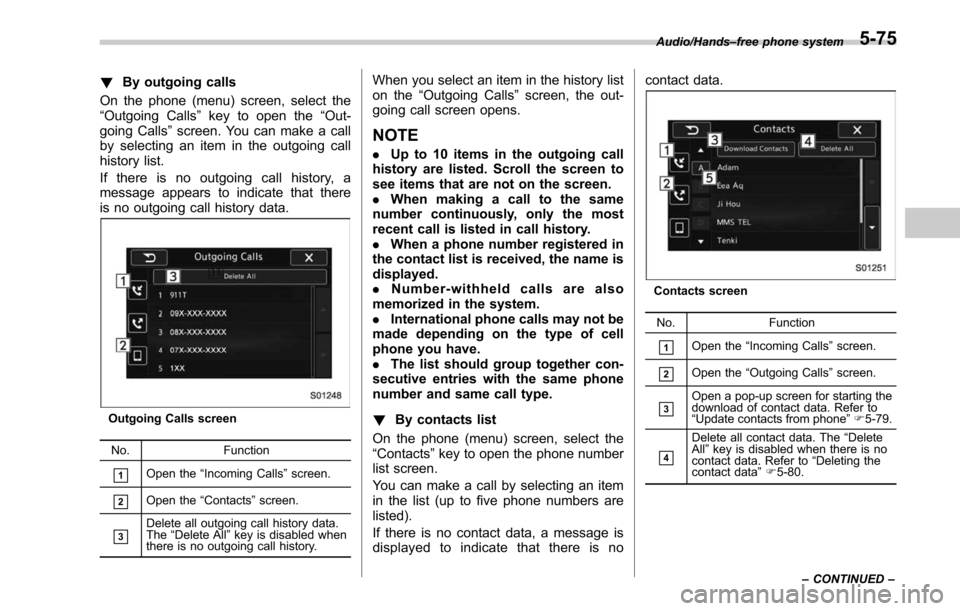
!By outgoing calls
On the phone (menu) screen, select the
“Outgoing Calls ”key to open the “Out-
going Calls ”screen. You can make a call
by selecting an item in the outgoing call
history list.
If there is no outgoing call history, a
message appears to indicate that there
is no outgoing call history data.
Outgoing Calls screen
No. Function
&1Open the “Incoming Calls ”screen.
&2Open the “Contacts ”screen.
&3Delete all outgoing call history data.
The “Delete All” key is disabled when
there is no outgoing call history.
When you select an item in the history list
on the “Outgoing Calls ”screen, the out-
going call screen opens.
NOTE
. Up to 10 items in the outgoing call
history are listed. Scroll the screen to
see items that are not on the screen.
. When making a call to the same
number continuously, only the most
recent call is listed in call history.
. When a phone number registered in
the contact list is received, the name is
displayed.
. Number-withheld calls are also
memorized in the system.
. International phone calls may not be
made depending on the type of cell
phone you have.
. The list should group together con-
secutive entries with the same phone
number and same call type.
! By contacts list
On the phone (menu) screen, select the
“ Contacts” key to open the phone number
list screen.
You can make a call by selecting an item
in the list (up to five phone numbers are
listed).
If there is no contact data, a message is
displayed to indicate that there is no contact data.
Contacts screen
No. Function
&1Open the“Incoming Calls ”screen.
&2Open the “Outgoing Calls ”screen.
&3Open a pop-up screen for starting the
download of contact data. Refer to
“Update contacts from phone ”F 5-79.
&4
Delete all contact data. The “Delete
All” key is disabled when there is no
contact data. Refer to “Deleting the
contact data ”F 5-80.
Audio/Hands
–free phone system
–CONTINUED –
5-75
Page 327 of 610
Audio/Hands–free phone system
No. Function
&5
Open a list of contacts that starts with
the selected character. This key is
cross-hatched and cannot be se-
lected if there is no contact data that
starts with the selected character.
Select the up/down arrow key to scroll the
list of contacts.
When you select a phone number on the
screen, the outgoing call screen opens.
NOTE
Up to 1000 items in the contact data are
listed. Scroll the screen to see items
that are not on the screen.
!When the contact is empty
For PBAP incompatible but OPP com-
patible Bluetooth phones
On the “Contacts ”screen, select the
“Download Contacts” key. A screen where
you can select how to download contacts
opens.
You can select to download all items or
download one item. For details, refer to
“Update contacts from phone ”F 5-79. !
Delete contacts
When the “Delete All”key is selected, all
contact data downloaded into the in-
vehicle equipment will be deleted.
Refer to “Deleting the contact data ”F 5-
80.
! By Dialpad
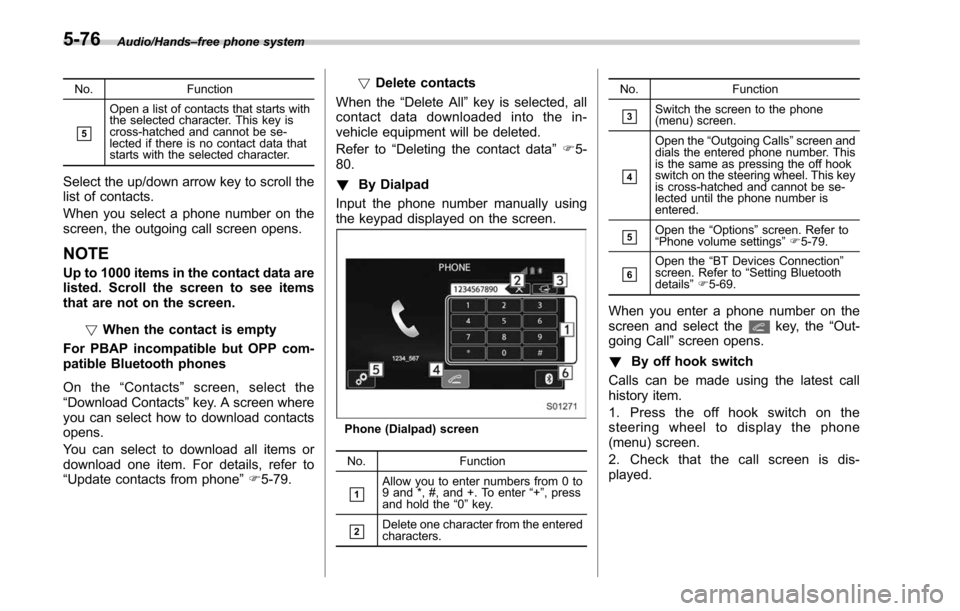
Input the phone number manually using
the keypad displayed on the screen.
Phone (Dialpad) screen
No. Function
&1Allow you to enter numbers from 0 to
9 and *, #, and +. To enter “+” , press
and hold the “0 ” key.
&2Delete one character from the entered
characters. No. Function
&3Switch the screen to the phone
(menu) screen.
&4
Open the
“Outgoing Calls ”screen and
dials the entered phone number. This
is the same as pressing the off hook
switch on the steering wheel. This key
is cross-hatched and cannot be se-
lected until the phone number is
entered.
&5Open the “Options ”screen. Refer to
“ Phone volume settings ”F 5-79.
&6Open the “BT Devices Connection ”
screen. Refer to “Setting Bluetooth
details ”F 5-69.
When you enter a phone number on the
screen and select thekey, the “Out-
going Call ”screen opens.
! By off hook switch
Calls can be made using the latest call
history item.
1. Press the off hook switch on the
steering wheel to display the phone
(menu) screen.
2. Check that the call screen is dis-
played.
5-76
Page 331 of 610
Audio/Hands–free phone system
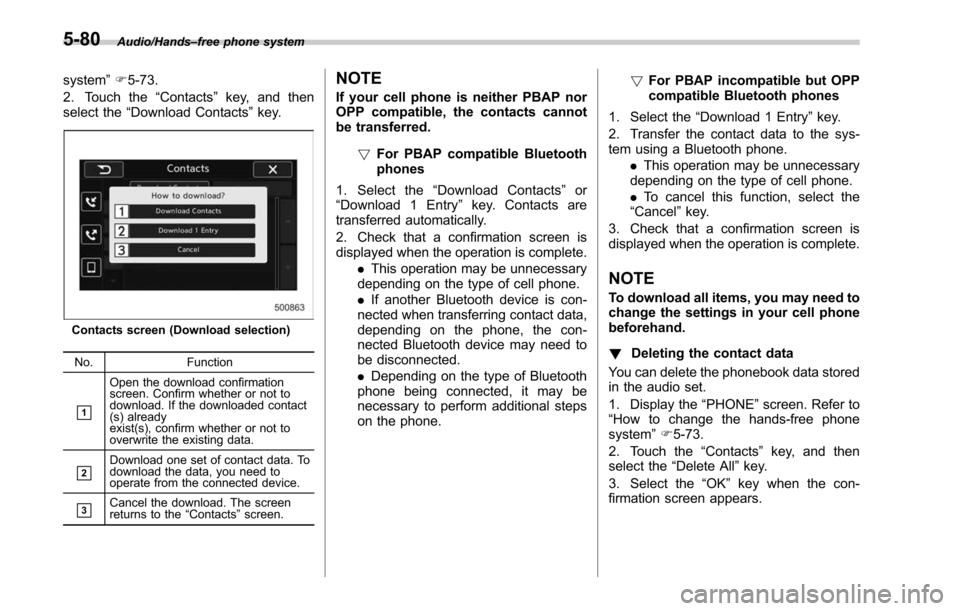
system ”F 5-73.
2. Touch the “Contacts”key, and then
select the “Download Contacts” key.
Contacts screen (Download selection)
No. Function
&1
Open the download confirmation
screen. Confirm whether or not to
download. If the downloaded contact
(s) already
exist(s), confirm whether or not to
overwrite the existing data.
&2Download one set of contact data. To
download the data, you need to
operate from the connected device.
&3Cancel the download. The screen
returns to the “Contacts ”screen.
NOTE
If your cell phone is neither PBAP nor
OPP compatible, the contacts cannot
be transferred.
!For PBAP compatible Bluetooth
phones
1. Select the “Download Contacts ”or
“Download 1 Entry ”key. Contacts are
transferred automatically.
2. Check that a confirmation screen is
displayed when the operation is complete.
.This operation may be unnecessary
depending on the type of cell phone.
. If another Bluetooth device is con-
nected when transferring contact data,
depending on the phone, the con-
nected Bluetooth device may need to
be disconnected.
. Depending on the type of Bluetooth
phone being connected, it may be
necessary to perform additional steps
on the phone. !
For PBAP incompatible but OPP
compatible Bluetooth phones
1. Select the “Download 1 Entry ”key.
2. Transfer the contact data to the sys-
tem using a Bluetooth phone. .This operation may be unnecessary
depending on the type of cell phone.
. To cancel this function, select the
“Cancel ”key.
3. Check that a confirmation screen is
displayed when the operation is complete.
NOTE
To download all items, you may need to
change the settings in your cell phone
beforehand.
! Deleting the contact data
You can delete the phonebook data stored
in the audio set.
1. Display the “PHONE ”screen. Refer to
“How to change the hands-free phone
system ”F 5-73.
2. Touch the “Contacts”key, and then
select the “Delete All”key.
3. Select the “OK”key when the con-
firmation screen appears.
5-80