high SUBARU OUTBACK 2020 Getting Started Guide
[x] Cancel search | Manufacturer: SUBARU, Model Year: 2020, Model line: OUTBACK, Model: SUBARU OUTBACK 2020Pages: 132, PDF Size: 5.99 MB
Page 77 of 132
SUBARU STARLINK™ MOBILE APP
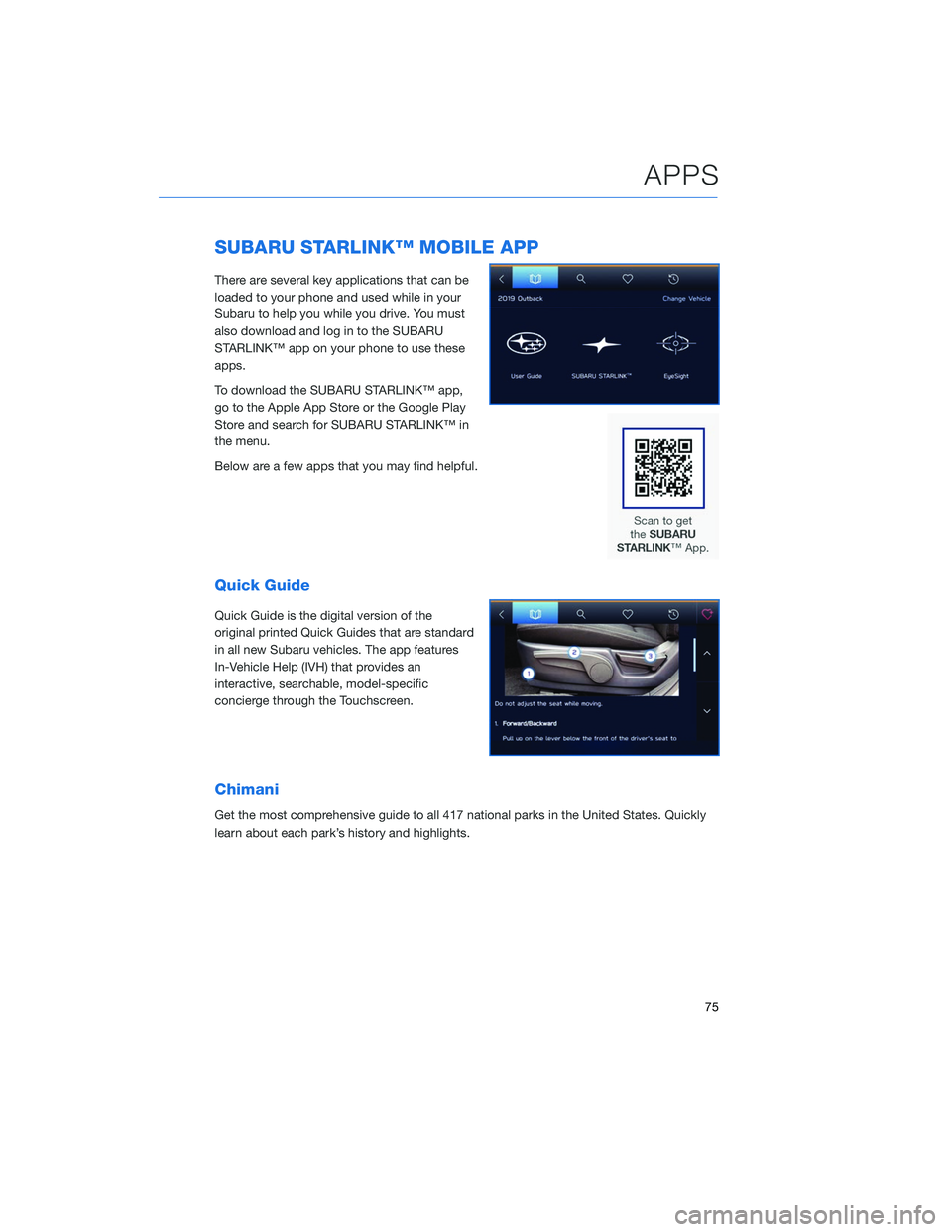
There are several key applications that can be
loaded to your phone and used while in your
Subaru to help you while you drive. You must
also download and log in to the SUBARU
STARLINK™ app on your phone to use these
apps.
To download the SUBARU STARLINK™ app,
go to the Apple App Store or the Google Play
Store and search for SUBARU STARLINK™ in
the menu.
Below are a few apps that you may find helpful.
Quick Guide
Quick Guide is the digital version of the
original printed Quick Guides that are standard
in all new Subaru vehicles. The app features
In-Vehicle Help (IVH) that provides an
interactive, searchable, model-specific
concierge through the Touchscreen.
Chimani
Get the most comprehensive guide to all 417 national parks in the United States. Quickly
learn about each park’s history and highlights.
APPS
75
Page 101 of 132
Traffic Information
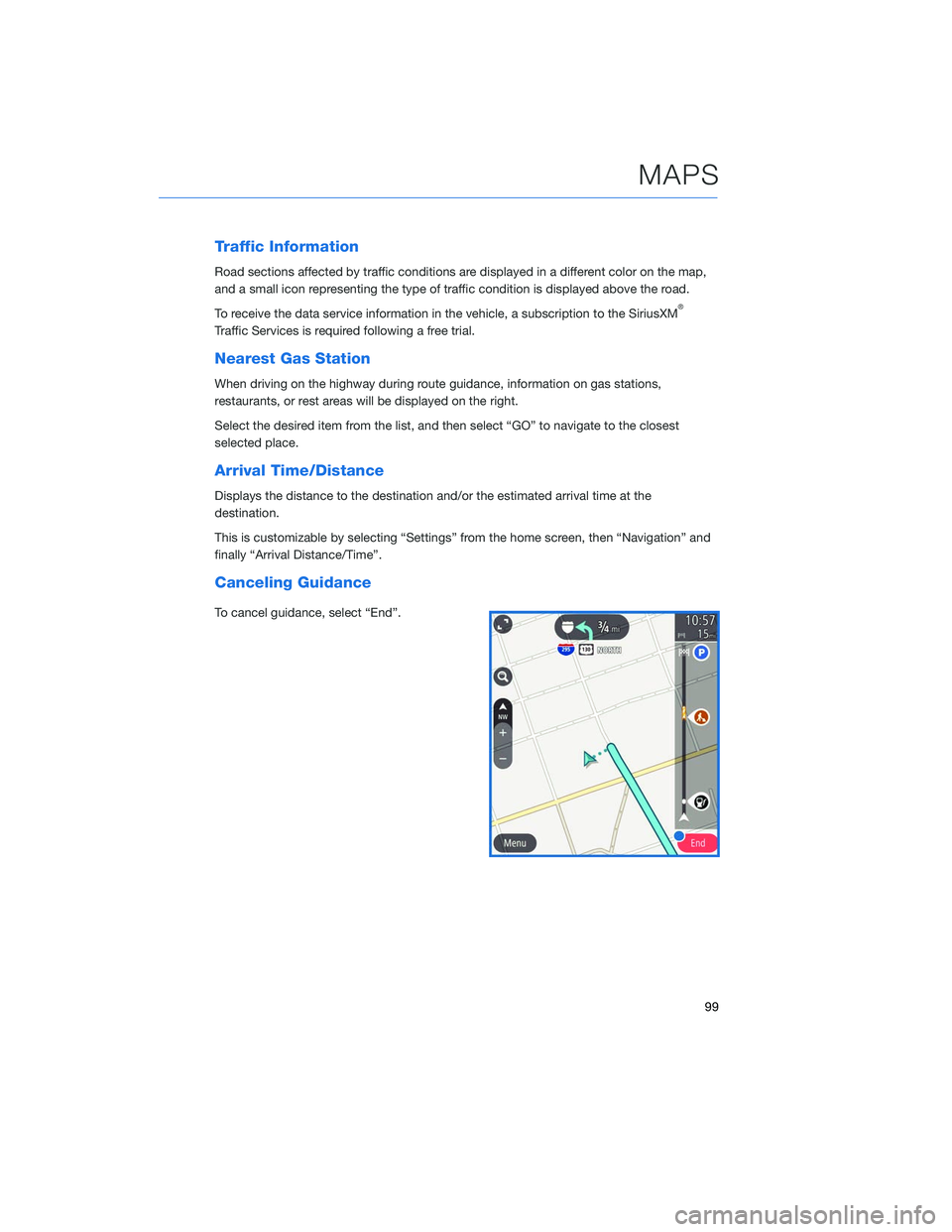
Road sections affected by traffic conditions are displayed in a different color on the map,
and a small icon representing the type of traffic condition is displayed above the road.
To receive the data service information in the vehicle, a subscription to the SiriusXM
®
Traffic Services is required following a free trial.
Nearest Gas Station
When driving on the highway during route guidance, information on gas stations,
restaurants, or rest areas will be displayed on the right.
Select the desired item from the list, and then select “GO” to navigate to the closest
selected place.
Arrival Time/Distance
Displays the distance to the destination and/or the estimated arrival time at the
destination.
This is customizable by selecting “Settings” from the home screen, then “Navigation” and
finally “Arrival Distance/Time”.
Canceling Guidance
To cancel guidance, select “End”.
MAPS
99
Page 104 of 132
SOUND
To change the sound settings, press the “Home” button and select “Settings”, then
“Sound”. Choose the setting you want to change.
SETTINGFUNCTION
Audio In the audio settings, you may have the following setting capabilities: •Sound Customization — This function allows you to set the Equalizer,
Balance/Fader and Vocal Image Control. • Equalizer — How good an audio program sounds is largely
determined by the mix of the treble, mid and bass levels. In fact,
different kinds of music and vocal programs usually sound better with
different mixes of treble, mid and bass.
• Balance/Fader — A good balance of the left and right stereo
channels and of the front and rear sound levels is also important.
Keep in mind that when listening to a stereo recording or broadcast,
changing the right/left balance will increase the volume of 1 group of
sounds while decreasing the volume of another.
• Vocal Image Control — Extracts only vocal sound from whole sound
and adjusts volume balance off vocals only.
• Sound Restorer — This function plays compressed audio with quality
near original sound by adding the complement signal of high tone.
• Virtual Base — This function corrects the bass sound by adding
harmonic sound.
• Dynamic Beat Enhancer — This function expands the dynamic range
lost in data compression and creates a sharp beat sound.
• Speed Volume Control — The system adjusts to the optimum volume
and tone quality according to vehicle speed to compensate for increased
vehicle noise.
• AUX Volume Gain — Sets the AUX volume gain.
Navigation
Guidance
Volume Sets the navigation prompt volume.
Beep
Sound
Setting Sets the interrupt guidance volume.
Beep
Sound
Volume Turns the tone sound on or off.
Phone
Ringtone
Volume Sets the tone sound volume.
SETTINGS AND UPDATES
102
Page 118 of 132
ANDROID AUTO
Cables
Always use a high-quality OEM USB cable.
Ensure the Android phone is fully up to date. Also verify that the
Android Auto app, along with all other apps that work with Android
Auto, are up to date. Android Auto might not function properly if one
of them is outdated or having an issue. The apps can be
downloaded from the Play Store.
For more information, visit www.android.com/auto/.
Connecting an Android Phone
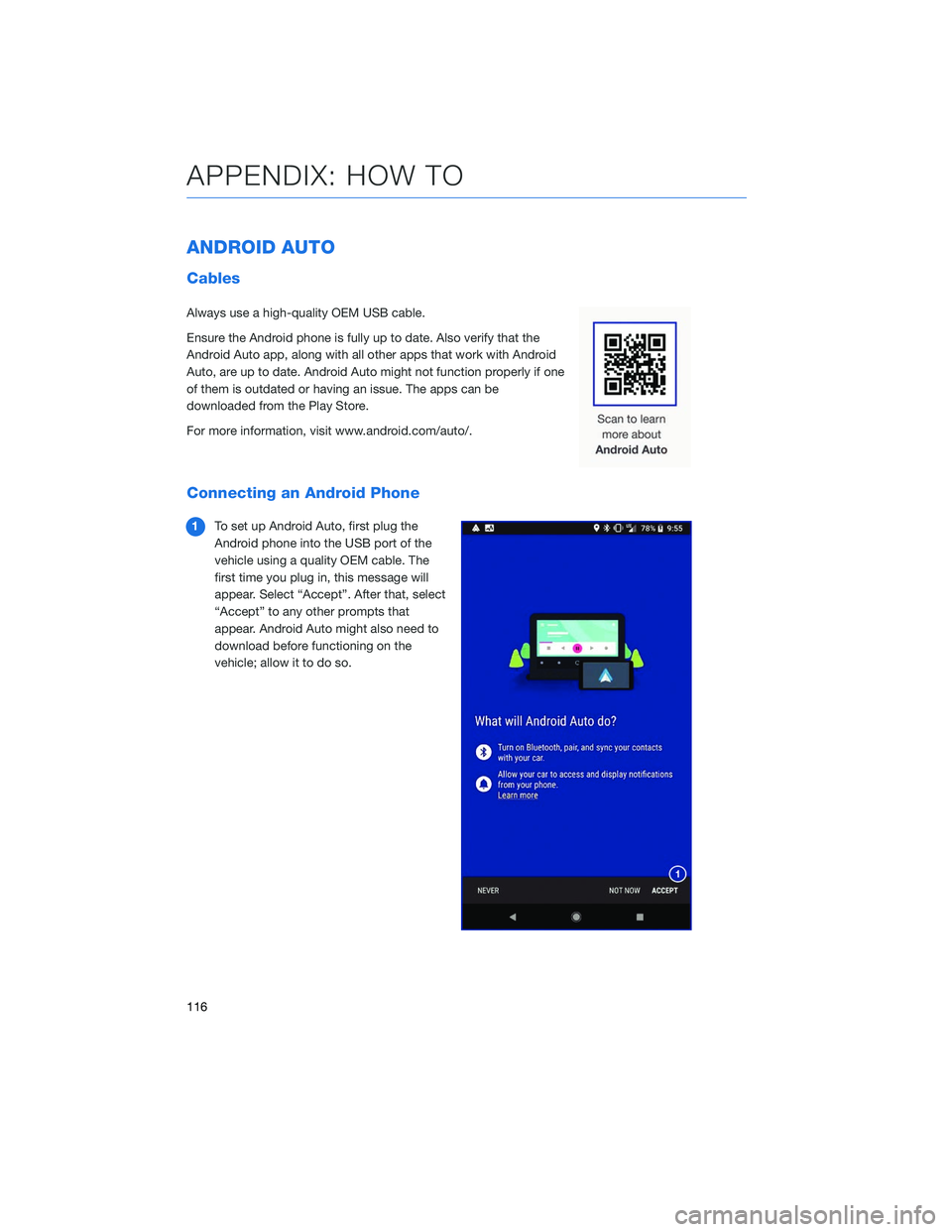
1To set up Android Auto, first plug the
Android phone into the USB port of the
vehicle using a quality OEM cable. The
first time you plug in, this message will
appear. Select “Accept”. After that, select
“Accept” to any other prompts that
appear. Android Auto might also need to
download before functioning on the
vehicle; allow it to do so.
APPENDIX: HOW TO
116