air SUBARU OUTBACK 2022 Getting Started Guide
[x] Cancel search | Manufacturer: SUBARU, Model Year: 2022, Model line: OUTBACK, Model: SUBARU OUTBACK 2022Pages: 172, PDF Size: 58.6 MB
Page 103 of 172
OPERATION
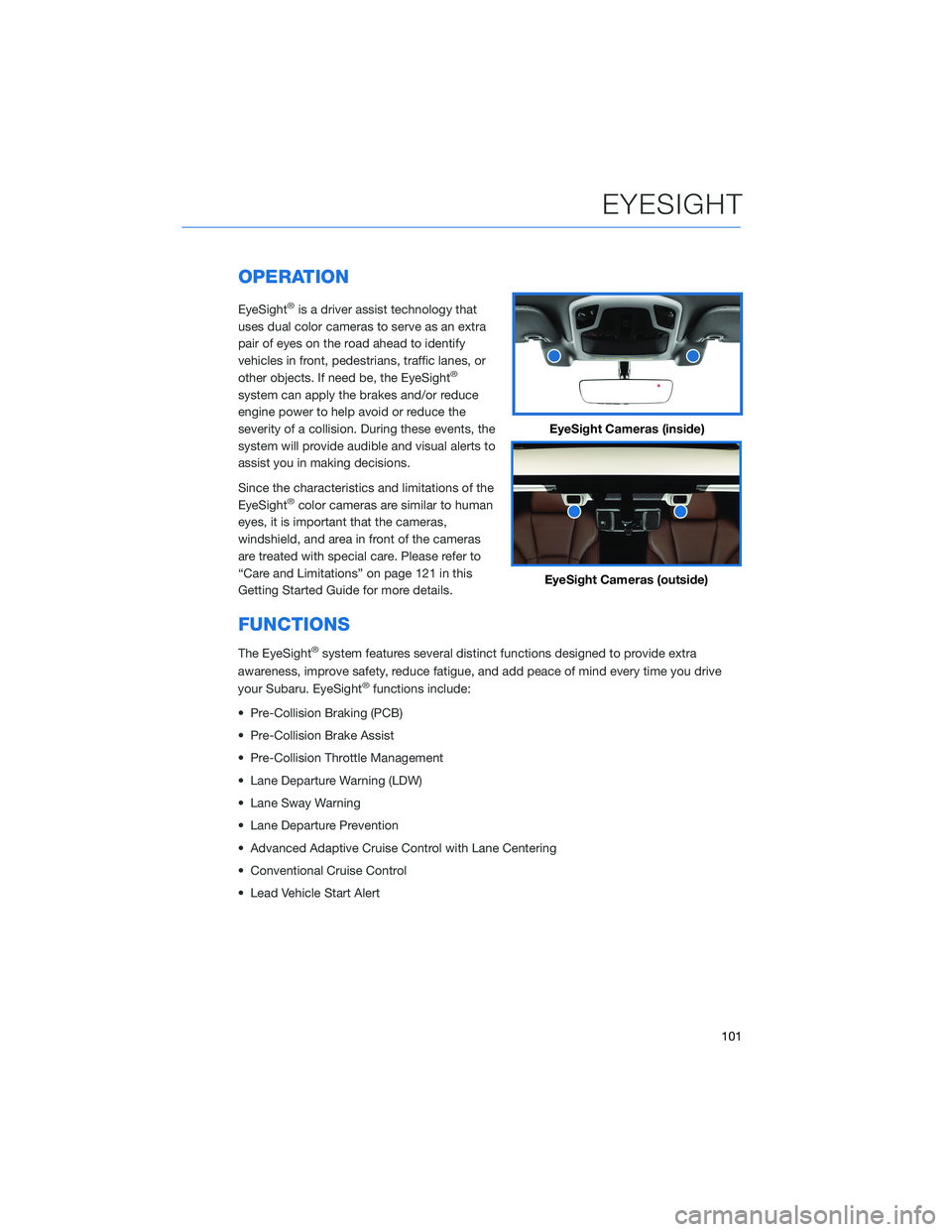
EyeSight®is a driver assist technology that
uses dual color cameras to serve as an extra
pair of eyes on the road ahead to identify
vehicles in front, pedestrians, traffic lanes, or
other objects. If need be, the EyeSight
®
system can apply the brakes and/or reduce
engine power to help avoid or reduce the
severity of a collision. During these events, the
system will provide audible and visual alerts to
assist you in making decisions.
Since the characteristics and limitations of the
EyeSight
®color cameras are similar to human
eyes, it is important that the cameras,
windshield, and area in front of the cameras
are treated with special care. Please refer to
“Care and Limitations” on page 121 in this
Getting Started Guide for more details.
FUNCTIONS
The EyeSight®system features several distinct functions designed to provide extra
awareness, improve safety, reduce fatigue, and add peace of mind every time you drive
your Subaru. EyeSight
®functions include:
• Pre-Collision Braking (PCB)
• Pre-Collision Brake Assist
• Pre-Collision Throttle Management
• Lane Departure Warning (LDW)
• Lane Sway Warning
• Lane Departure Prevention
• Advanced Adaptive Cruise Control with Lane Centering
• Conventional Cruise Control
• Lead Vehicle Start Alert
EyeSight Cameras (inside)
EyeSight Cameras (outside)
EYESIGHT
101
Page 123 of 172
STEREO CAMERA PRECAUTIONS
Your EyeSight®stereo cameras are precision components that must be kept free from
obstruction and contamination, such as fingerprints or cleaning solutions. When the
system detects that the stereo camera lenses are impaired, a malfunction indicator will be
displayed and EyeSight
®functions will not be available.
When you are in the vicinity of the EyeSight
®stereo cameras, always observe the following
precautions:
• Do not touch or attempt to clean the EyeSight
®camera lenses inside the vehicle. Extra
caution should be used when cleaning the inside of the windshield. Over-spray from
cleaning solutions may impair or even damage the camera lenses. Please inform others
who may attempt to clean the windshield, such as car wash staff, of this precaution.
• Electronic Toll Collection devices, such as EZPass
TM, must be installed in an area
that does not obstruct the stereo cameras' field of vision. See "Prohibited Area" on
page 122.
• Adjust the rearview mirror so it does not obstruct the stereo cameras' field of vision.
• Do not install any interior rearview mirror accessories, such as a wide-type mirror or
hanging objects. Only approved Genuine SUBARU accessories may be installed.
For more detailed information, please refer to your EyeSight®Owner’s Manual.
WINDSHIELD GLASS AND DASHBOARD
Since the characteristics and limitations of the EyeSight®stereo cameras are similar to
human eyes, it is important that the area in front of the cameras be kept free from dirt,
scratches, cracks, fogging, or accessories mounted to the windshield, hood or dashboard.
Visual impairments or reflections can affect EyeSight
®system performance. Extra caution
should be taken when cleaning the windshield to prevent over-spray from cleaning
solutions.
The image in the following section outlines those areas that must be kept clean and free
from obstruction. Please refer to the Owner’s Manual for a complete listing of limitations.
CARE AND LIMITATIONS
121
Page 129 of 172
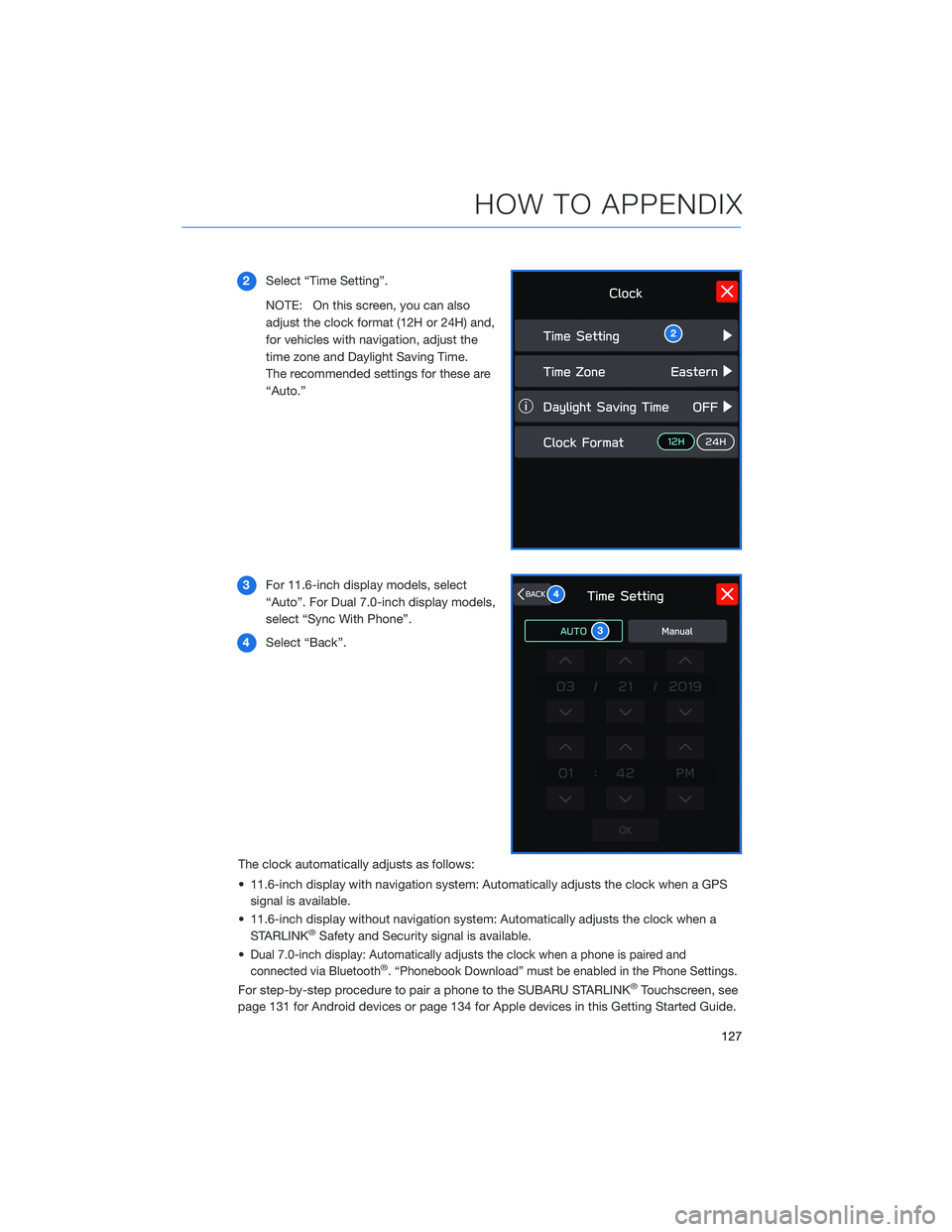
2Select “Time Setting”.
NOTE: On this screen, you can also
adjust the clock format (12H or 24H) and,
for vehicles with navigation, adjust the
time zone and Daylight Saving Time.
The recommended settings for these are
“Auto.”
3For 11.6-inch display models, select
“Auto”. For Dual 7.0-inch display models,
select “Sync With Phone”.
4Select “Back”.
The clock automatically adjusts as follows:
• 11.6-inch display with navigation system: Automatically adjusts the clock when a GPS
signal is available.
• 11.6-inch display without navigation system: Automatically adjusts the clock when a
STARLINK
®Safety and Security signal is available.
•
Dual 7.0-inch display: Automatically adjusts the clock when a phone is paired and
connected via Bluetooth®. “Phonebook Download” must be enabled in the Phone Settings.
For step-by-step procedure to pair a phone to the SUBARU STARLINK®Touchscreen, see
page 131 for Android devices or page 134 for Apple devices in this Getting Started Guide.
2
3
4
HOW TO APPENDIX
127
Page 133 of 172
BLUETOOTH®PAIRING
Pairing an Android Device
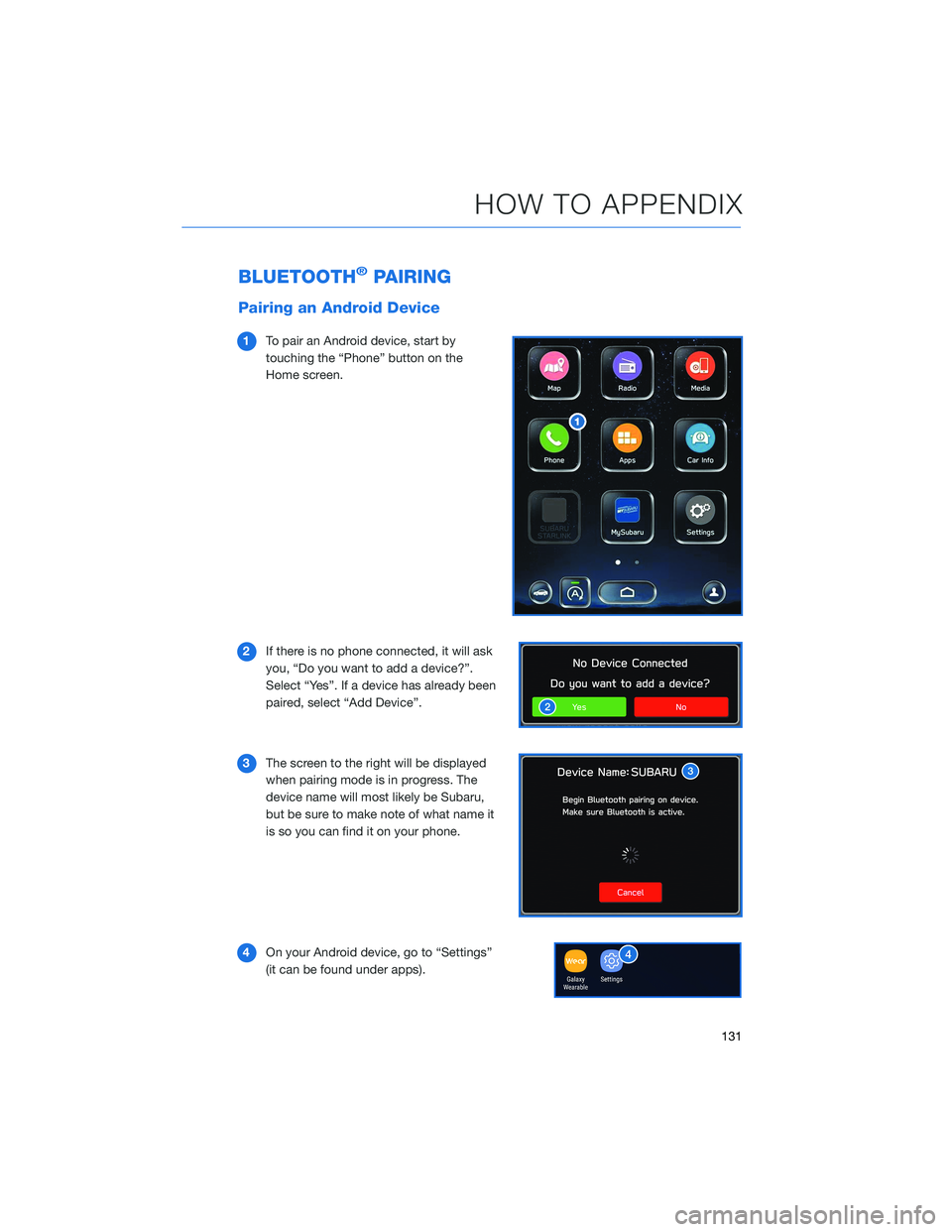
1To pair an Android device, start by
touching the “Phone” button on the
Home screen.
2If there is no phone connected, it will ask
you, “Do you want to add a device?”.
Select “Yes”. If a device has already been
paired, select “Add Device”.
3The screen to the right will be displayed
when pairing mode is in progress. The
device name will most likely be Subaru,
but be sure to make note of what name it
is so you can find it on your phone.
4On your Android device, go to “Settings”
(it can be found under apps).
HOW TO APPENDIX
131
Page 134 of 172
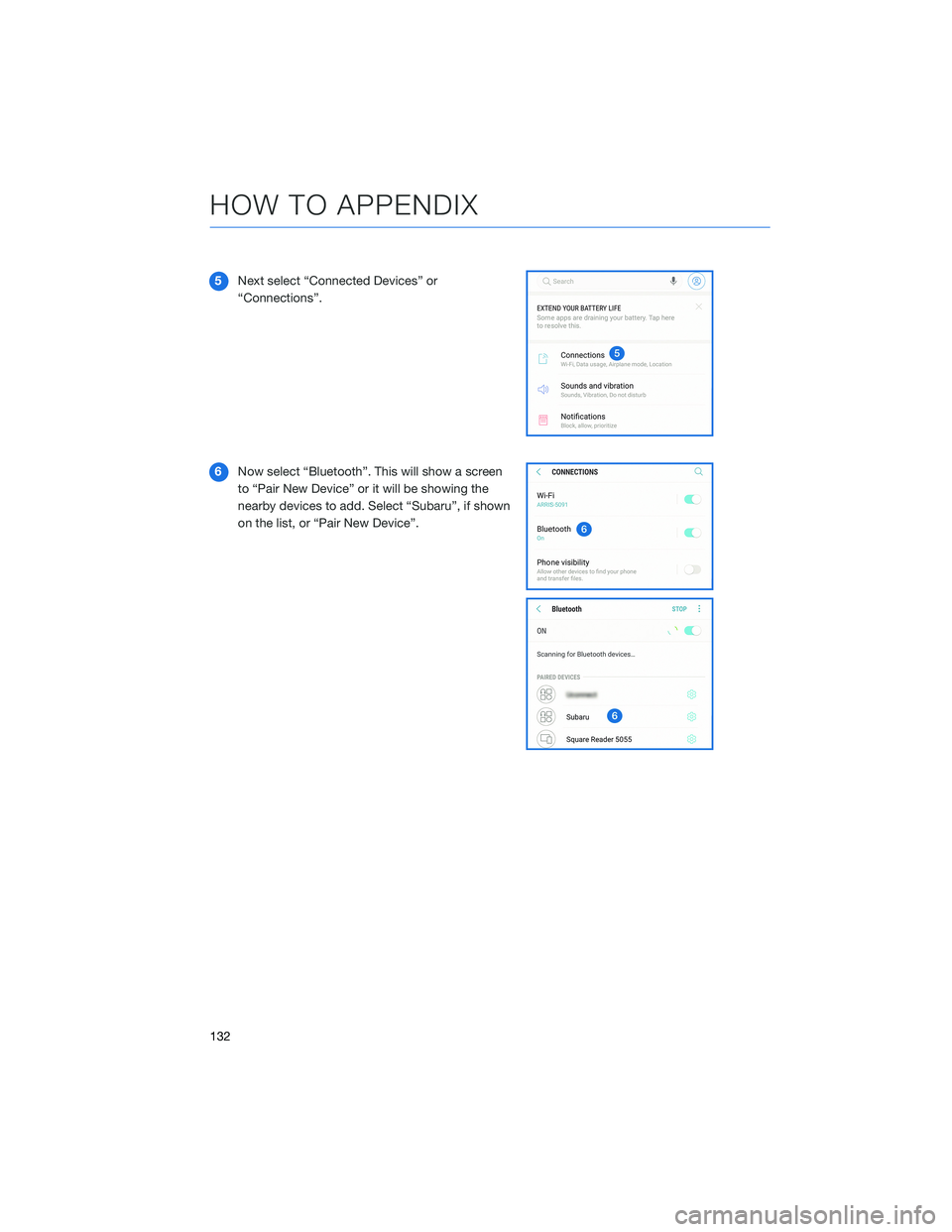
5Next select “Connected Devices” or
“Connections”.
6Now select “Bluetooth”. This will show a screen
to “Pair New Device” or it will be showing the
nearby devices to add. Select “Subaru”, if shown
on the list, or “Pair New Device”.
HOW TO APPENDIX
132
Page 135 of 172
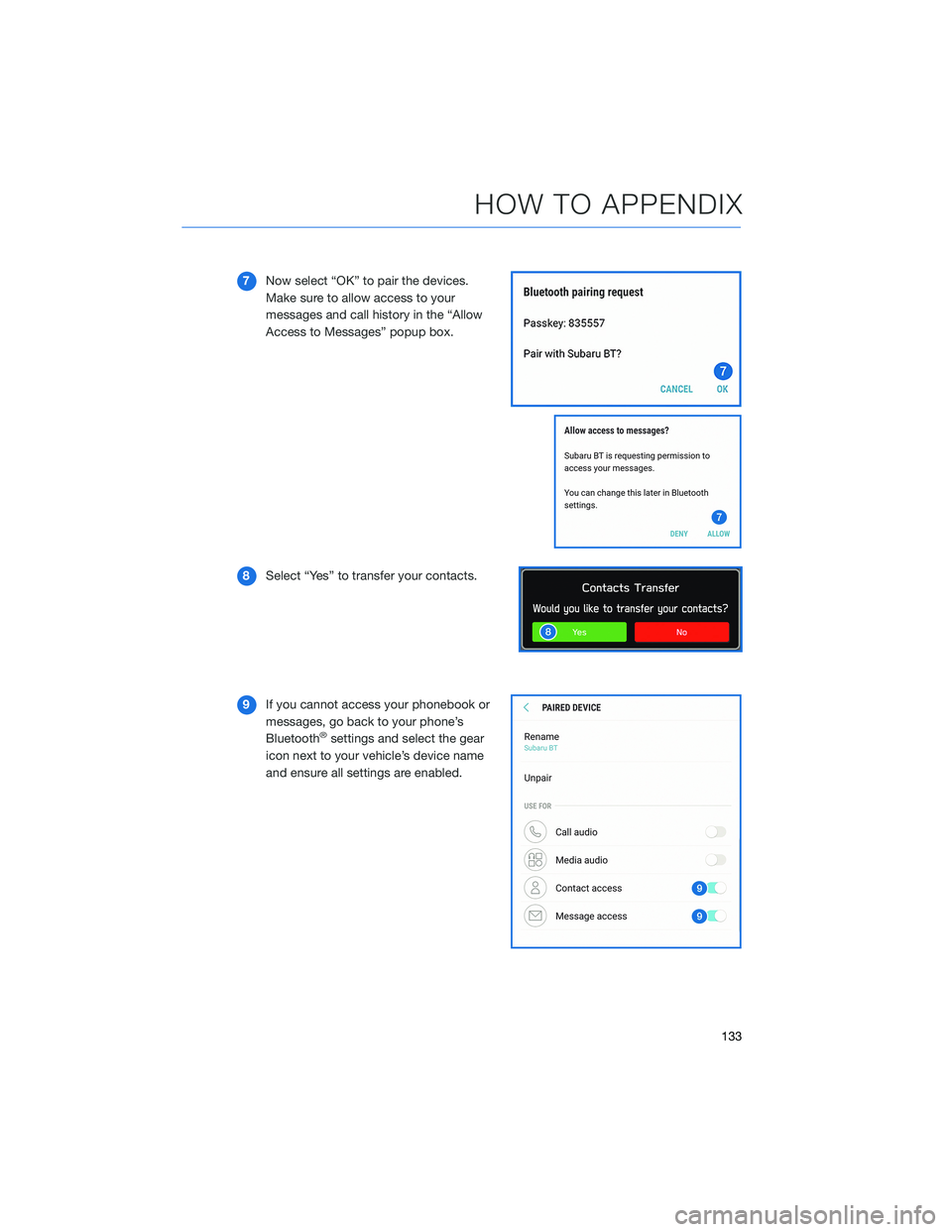
7Now select “OK” to pair the devices.
Make sure to allow access to your
messages and call history in the “Allow
Access to Messages” popup box.
8Select “Yes” to transfer your contacts.
9If you cannot access your phonebook or
messages, go back to your phone’s
Bluetooth
®settings and select the gear
icon next to your vehicle’s device name
and ensure all settings are enabled.
HOW TO APPENDIX
133
Page 136 of 172
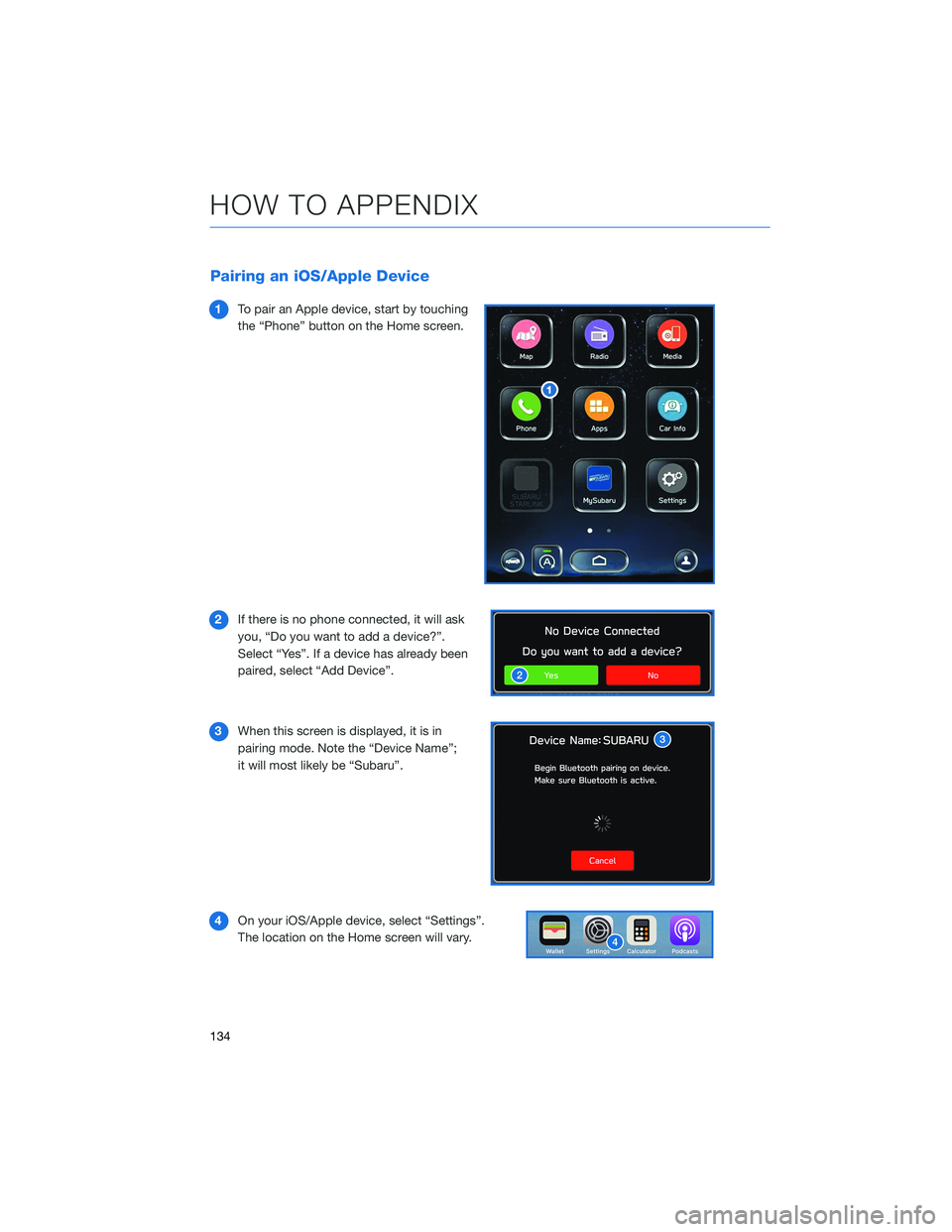
Pairing an iOS/Apple Device
1To pair an Apple device, start by touching
the “Phone” button on the Home screen.
2If there is no phone connected, it will ask
you, “Do you want to add a device?”.
Select “Yes”. If a device has already been
paired, select “Add Device”.
3When this screen is displayed, it is in
pairing mode. Note the “Device Name”;
it will most likely be “Subaru”.
4On your iOS/Apple device, select “Settings”.
The location on the Home screen will vary.
HOW TO APPENDIX
134
Page 138 of 172
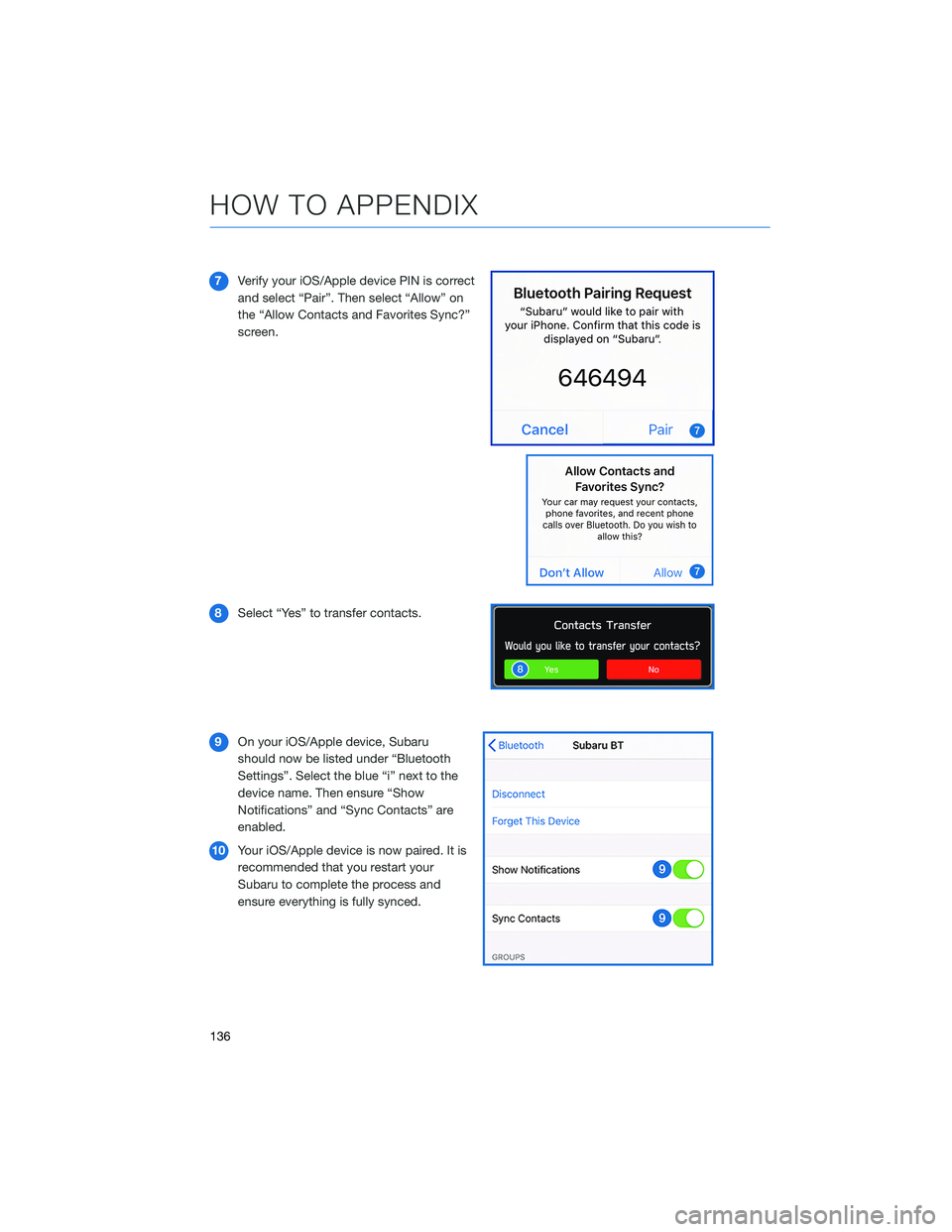
7Verify your iOS/Apple device PIN is correct
and select “Pair”. Then select “Allow” on
the “Allow Contacts and Favorites Sync?”
screen.
8Select “Yes” to transfer contacts.
9On your iOS/Apple device, Subaru
should now be listed under “Bluetooth
Settings”. Select the blue “i” next to the
device name. Then ensure “Show
Notifications” and “Sync Contacts” are
enabled.
10Your iOS/Apple device is now paired. It is
recommended that you restart your
Subaru to complete the process and
ensure everything is fully synced.
HOW TO APPENDIX
136
Page 167 of 172
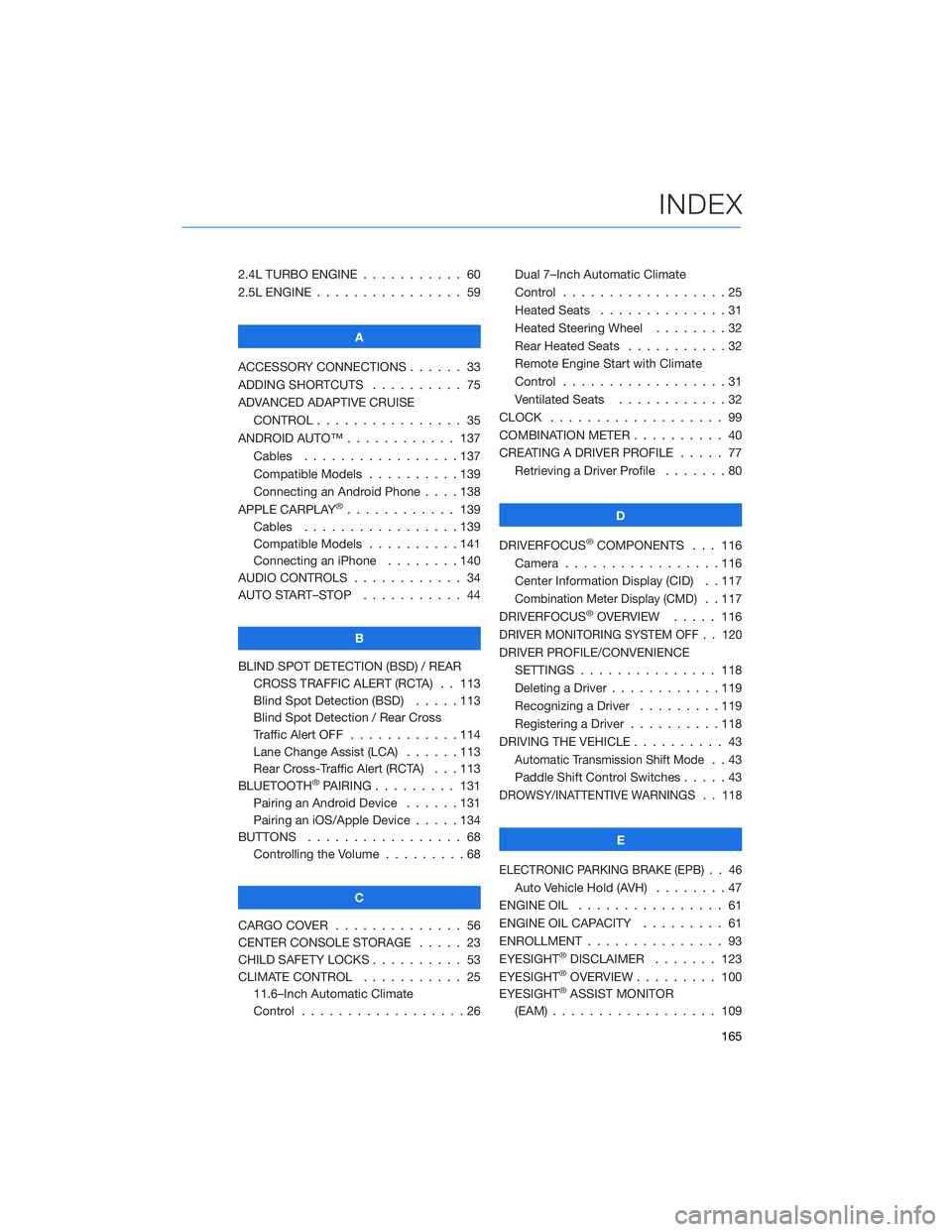
2.4L TURBO ENGINE ........... 60
2.5L ENGINE . . . . . . .......... 59
A
ACCESSORY CONNECTIONS . . . . . . 33
ADDING SHORTCUTS . . . . ...... 75
ADVANCED ADAPTIVE CRUISE
CONTROL . . . . . ........... 35
ANDROID AUTO™ . . . . . ....... 137
Cables . . . . . . . ..........137
Compatible Models ..........139
Connecting an Android Phone....138
APPLE CARPLAY
®............ 139
Cables . . . . . . . ..........139
Compatible Models ..........141
Connecting an iPhone . . . .....140
AUDIO CONTROLS ............ 34
AUTO START–STOP . . . . . . . . . . . 44
B
BLIND SPOT DETECTION (BSD) / REAR
CROSS TRAFFIC ALERT (RCTA) . . 113
Blind Spot Detection (BSD) . . . . . 113
Blind Spot Detection / Rear Cross
Traffic Alert OFF . . . . ........114
Lane Change Assist (LCA)......113
Rear Cross-Traffic Alert (RCTA) . . . 113
BLUETOOTH
®PAIRING . . ....... 131
Pairing an Android Device . . . . . . 131
Pairing an iOS/Apple Device . . . . . 134
BUTTONS . . . . ............. 68
Controlling the Volume . . . . . . . . . 68
C
CARGO COVER . . . . . . . . ...... 56
CENTER CONSOLE STORAGE ..... 23
CHILD SAFETY LOCKS.......... 53
CLIMATE CONTROL........... 25
11.6–Inch Automatic Climate
Control . . . . . . . . . . . . . . . . . . 26Dual 7–Inch Automatic Climate
Control . . . . . . . . . . . . . . . . . . 25
Heated Seats . .............31
Heated Steering Wheel . .......32
Rear Heated Seats...........32
Remote Engine Start with Climate
Control . . . . . . . . . . . . . . . . . . 31
Ventilated Seats . . . . . . . . . . . . 32
CLOCK . . ................. 99
COMBINATION METER .......... 40
CREATING A DRIVER PROFILE ..... 77
Retrieving a Driver Profile.......80
D
DRIVERFOCUS
®COMPONENTS . . . 116
Camera . ................116
Center Information Display (CID) . . 117
Combination Meter Display (CMD). . 117
DRIVERFOCUS®OVERVIEW..... 116
DRIVER MONITORING SYSTEM OFF . . 120
DRIVER PROFILE/CONVENIENCE
SETTINGS ............... 118
Deleting a Driver . . ..........119
Recognizing a Driver.........119
Registering a Driver . . . . . . . . . . 118
DRIVING THE VEHICLE . . . ....... 43
Automatic Transmission Shift Mode..43
Paddle Shift Control Switches.....43
DROWSY/INATTENTIVE WARNINGS . . 118
E
ELECTRONIC PARKING BRAKE (EPB) . . 46
Auto Vehicle Hold (AVH) . . ......47
ENGINE OIL . . .............. 61
ENGINE OIL CAPACITY......... 61
ENROLLMENT . . . . . . ......... 93
EYESIGHT
®DISCLAIMER . . ..... 123
EYESIGHT®OVERVIEW . . . . . . . . . 100
EYESIGHT®ASSIST MONITOR
(EAM) . . . . . . . ........... 109
INDEX
165
Page 169 of 172
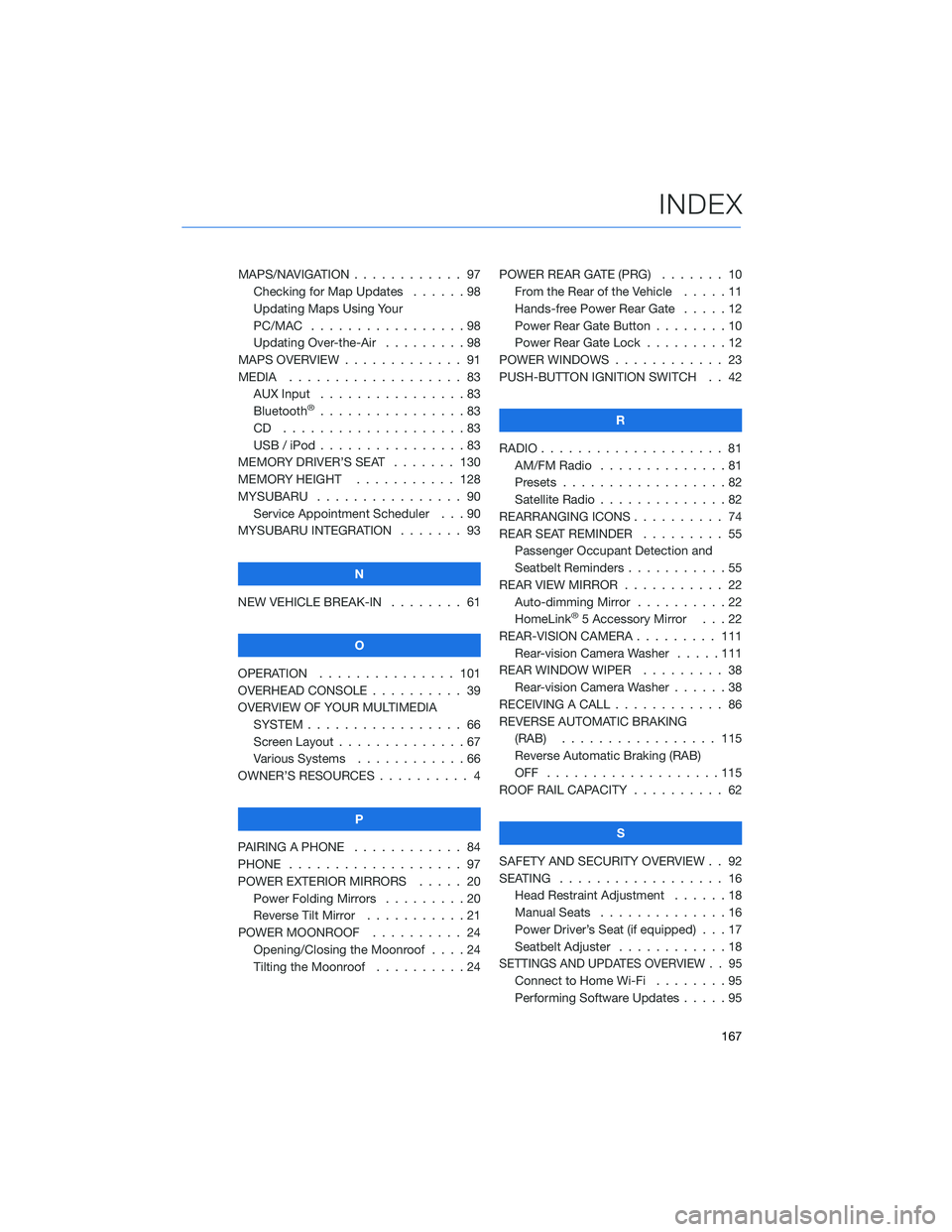
MAPS/NAVIGATION . ........... 97
Checking for Map Updates . . . . . . 98
Updating Maps Using Your
PC/MAC . . . . . . . . . ........98
Updating Over-the-Air . . . ......98
MAPS OVERVIEW . . . . . . . . . . . . . 91
MEDIA . . . . . . . . ........... 83
AUX Input . . . . . . . . . . . . . . . . 83
Bluetooth
®................83
CD ....................83
USB / iPod . . . . . ...........83
MEMORY DRIVER’S SEAT ....... 130
MEMORY HEIGHT . . ......... 128
MYSUBARU . . . . . ........... 90
Service Appointment Scheduler . . . 90
MYSUBARU INTEGRATION....... 93
N
NEW VEHICLE BREAK-IN . . . . . . . . 61
O
OPERATION . . . . . . ......... 101
OVERHEAD CONSOLE .......... 39
OVERVIEW OF YOUR MULTIMEDIA
SYSTEM . . . . . . . . . . . . . . . . . 66
Screen Layout . . ............67
Various Systems . ...........66
OWNER’S RESOURCES . ......... 4
P
PAIRING A PHONE . . . . . . . . . . . . 84
PHONE . . . . . . . . ........... 97
POWER EXTERIOR MIRRORS . . . . . 20
Power Folding Mirrors . . . . . . . . . 20
Reverse Tilt Mirror ...........21
POWER MOONROOF.......... 24
Opening/Closing the Moonroof . . . . 24
Tilting the Moonroof..........24POWER REAR GATE (PRG)....... 10
From the Rear of the Vehicle .....11
Hands-free Power Rear Gate . . . . . 12
Power Rear Gate Button . . ......10
Power Rear Gate Lock.........12
POWER WINDOWS . . . . ........ 23
PUSH-BUTTON IGNITION SWITCH . . 42
R
RADIO.................... 81
AM/FM Radio . . . . . . . . . .....81
Presets . . . . . . . ...........82
Satellite Radio . . . . ..........82
REARRANGING ICONS.......... 74
REAR SEAT REMINDER . . . . . . . . . 55
Passenger Occupant Detection and
Seatbelt Reminders . . . ........55
REAR VIEW MIRROR . . ......... 22
Auto-dimming Mirror . .........22
HomeLink
®5 Accessory Mirror . . . 22
REAR-VISION CAMERA . . . ...... 111
Rear-vision Camera Washer.....111
REAR WINDOW WIPER . . . ...... 38
Rear-vision Camera Washer . . . . . . 38
RECEIVING A CALL . . . . . . . . . . . . 86
REVERSE AUTOMATIC BRAKING
(RAB) . . . . . . ........... 115
Reverse Automatic Braking (RAB)
OFF ...................115
ROOF RAIL CAPACITY.......... 62
S
SAFETY AND SECURITY OVERVIEW . . 92
SEATING . . . . .............. 16
Head Restraint Adjustment ......18
Manual Seats . . . . . . . . . . . . . . 16
Power Driver’s Seat (if equipped) . . . 17
Seatbelt Adjuster . . . .........18
SETTINGS AND UPDATES OVERVIEW . . 95
Connect to Home Wi-Fi........95
Performing Software Updates . . . . . 95
INDEX
167