air SUBARU OUTBACK 2022 Getting Started Guide
[x] Cancel search | Manufacturer: SUBARU, Model Year: 2022, Model line: OUTBACK, Model: SUBARU OUTBACK 2022Pages: 172, PDF Size: 58.6 MB
Page 69 of 172
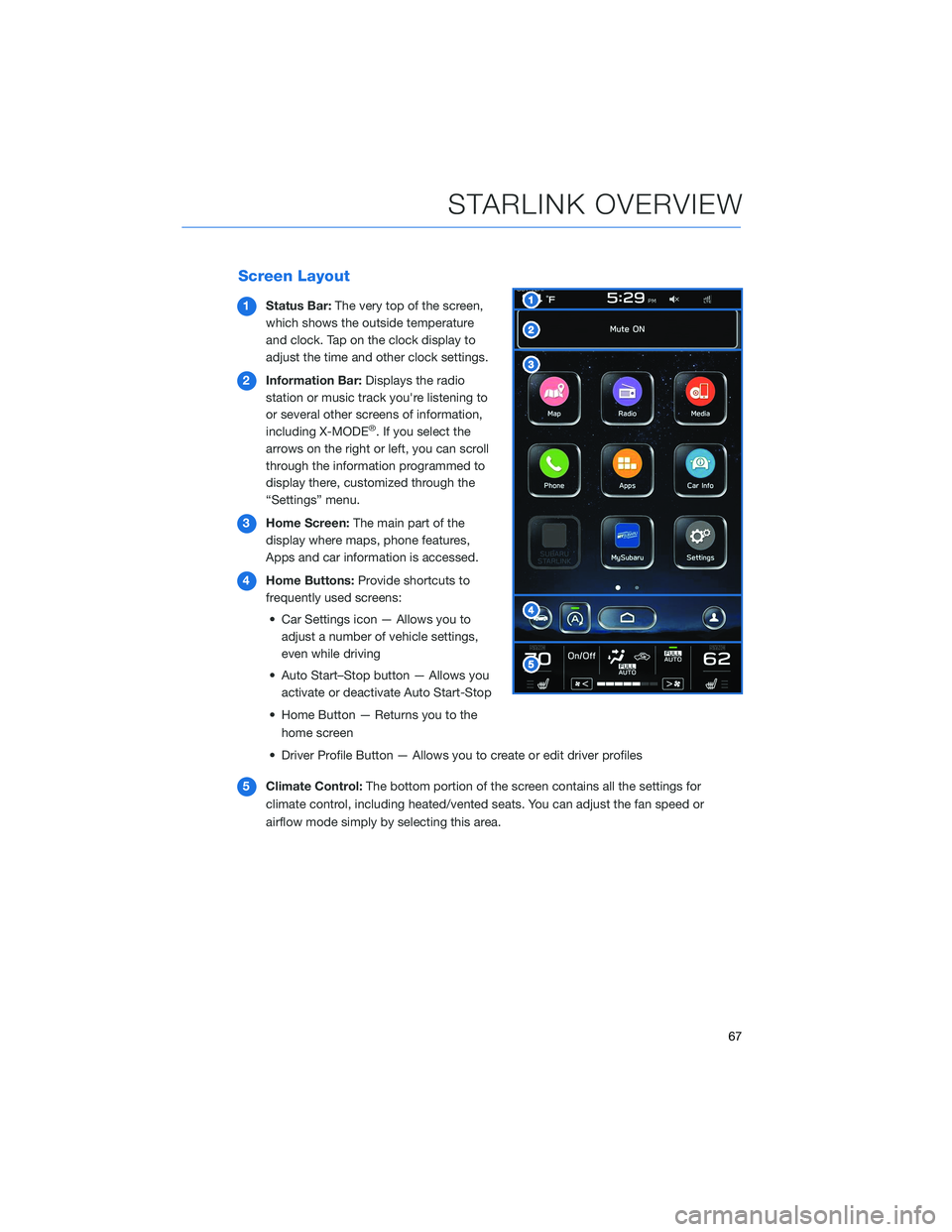
Screen Layout
1Status Bar:The very top of the screen,
which shows the outside temperature
and clock. Tap on the clock display to
adjust the time and other clock settings.
2Information Bar:Displays the radio
station or music track you're listening to
or several other screens of information,
including X-MODE
®. If you select the
arrows on the right or left, you can scroll
through the information programmed to
display there, customized through the
“Settings” menu.
3Home Screen:The main part of the
display where maps, phone features,
Apps and car information is accessed.
4Home Buttons:Provide shortcuts to
frequently used screens:
• Car Settings icon — Allows you to
adjust a number of vehicle settings,
even while driving
• Auto Start–Stop button — Allows you
activate or deactivate Auto Start-Stop
• Home Button — Returns you to the
home screen
• Driver Profile Button — Allows you to create or edit driver profiles
5Climate Control:The bottom portion of the screen contains all the settings for
climate control, including heated/vented seats. You can adjust the fan speed or
airflow mode simply by selecting this area.
STARLINK OVERVIEW
67
Page 72 of 172
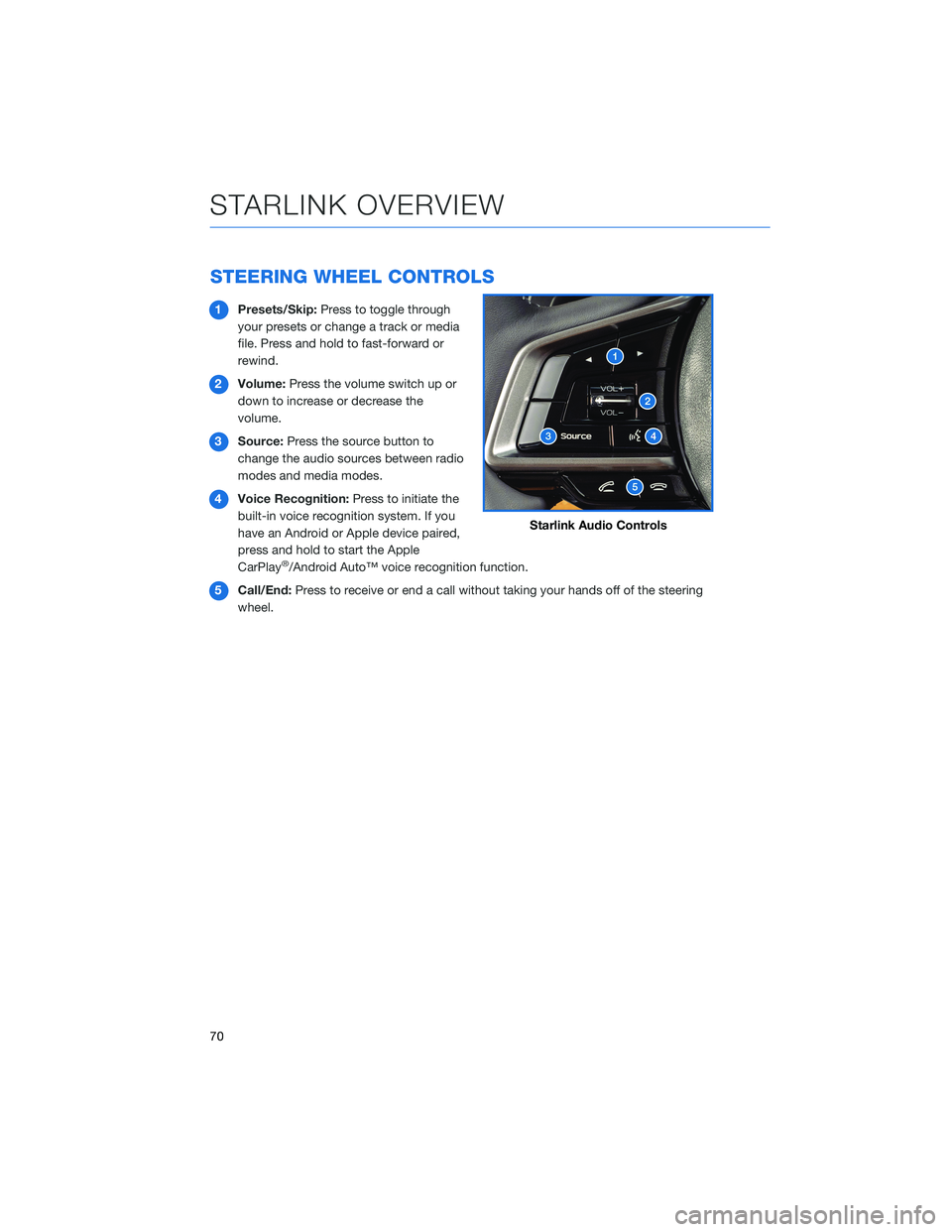
STEERING WHEEL CONTROLS
1Presets/Skip:Press to toggle through
your presets or change a track or media
file. Press and hold to fast-forward or
rewind.
2Volume:Press the volume switch up or
down to increase or decrease the
volume.
3Source:Press the source button to
change the audio sources between radio
modes and media modes.
4Voice Recognition:Press to initiate the
built-in voice recognition system. If you
have an Android or Apple device paired,
press and hold to start the Apple
CarPlay
®/Android Auto™ voice recognition function.
5Call/End:Press to receive or end a call without taking your hands off of the steering
wheel.
Starlink Audio Controls
STARLINK OVERVIEW
70
Page 75 of 172
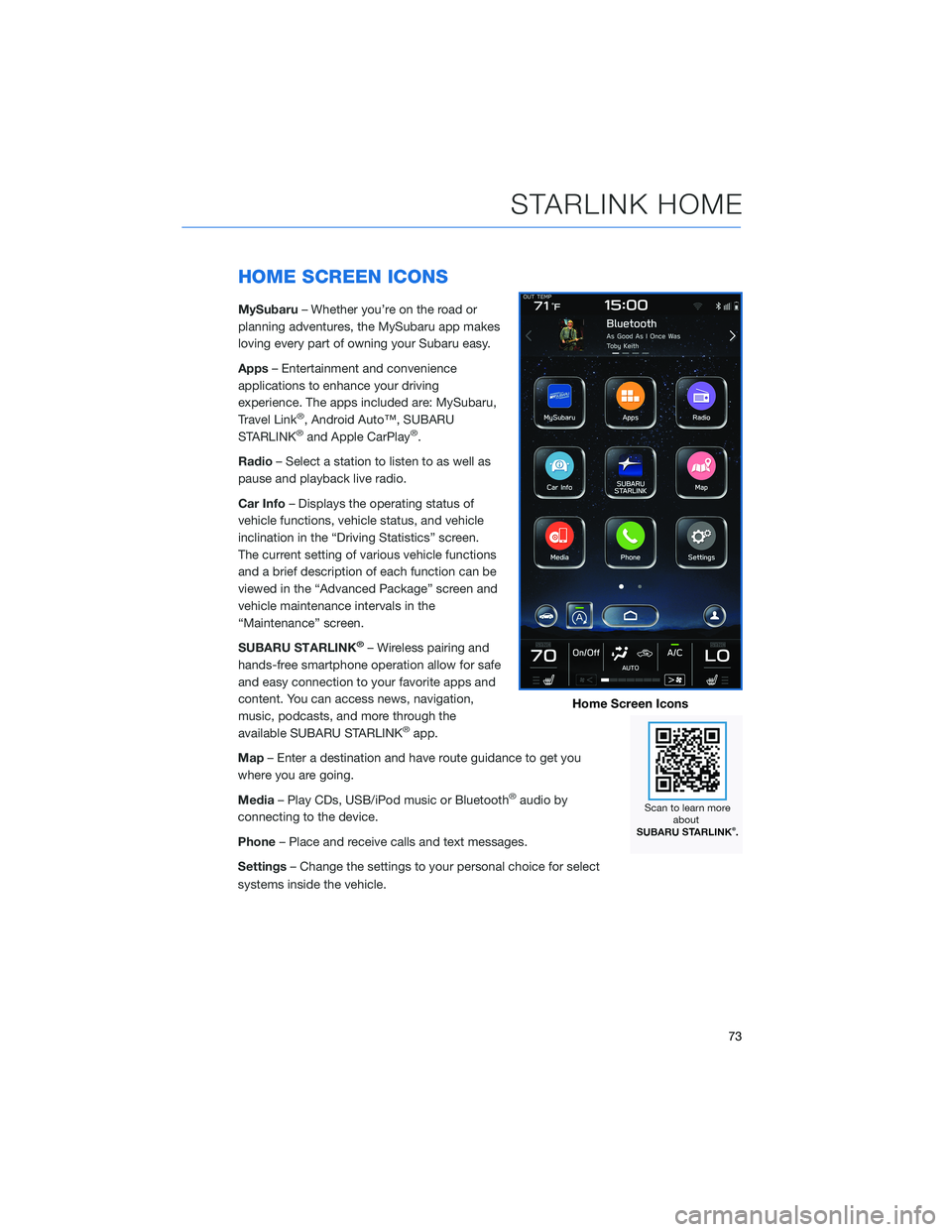
HOME SCREEN ICONS
MySubaru– Whether you’re on the road or
planning adventures, the MySubaru app makes
loving every part of owning your Subaru easy.
Apps– Entertainment and convenience
applications to enhance your driving
experience. The apps included are: MySubaru,
Travel Link
®, Android Auto™, SUBARU
STARLINK®and Apple CarPlay®.
Radio– Select a station to listen to as well as
pause and playback live radio.
Car Info– Displays the operating status of
vehicle functions, vehicle status, and vehicle
inclination in the “Driving Statistics” screen.
The current setting of various vehicle functions
and a brief description of each function can be
viewed in the “Advanced Package” screen and
vehicle maintenance intervals in the
“Maintenance” screen.
SUBARU STARLINK
®– Wireless pairing and
hands-free smartphone operation allow for safe
and easy connection to your favorite apps and
content. You can access news, navigation,
music, podcasts, and more through the
available SUBARU STARLINK
®app.
Map– Enter a destination and have route guidance to get you
where you are going.
Media– Play CDs, USB/iPod music or Bluetooth
®audio by
connecting to the device.
Phone– Place and receive calls and text messages.
Settings– Change the settings to your personal choice for select
systems inside the vehicle.
Home Screen Icons
STARLINK HOME
73
Page 79 of 172
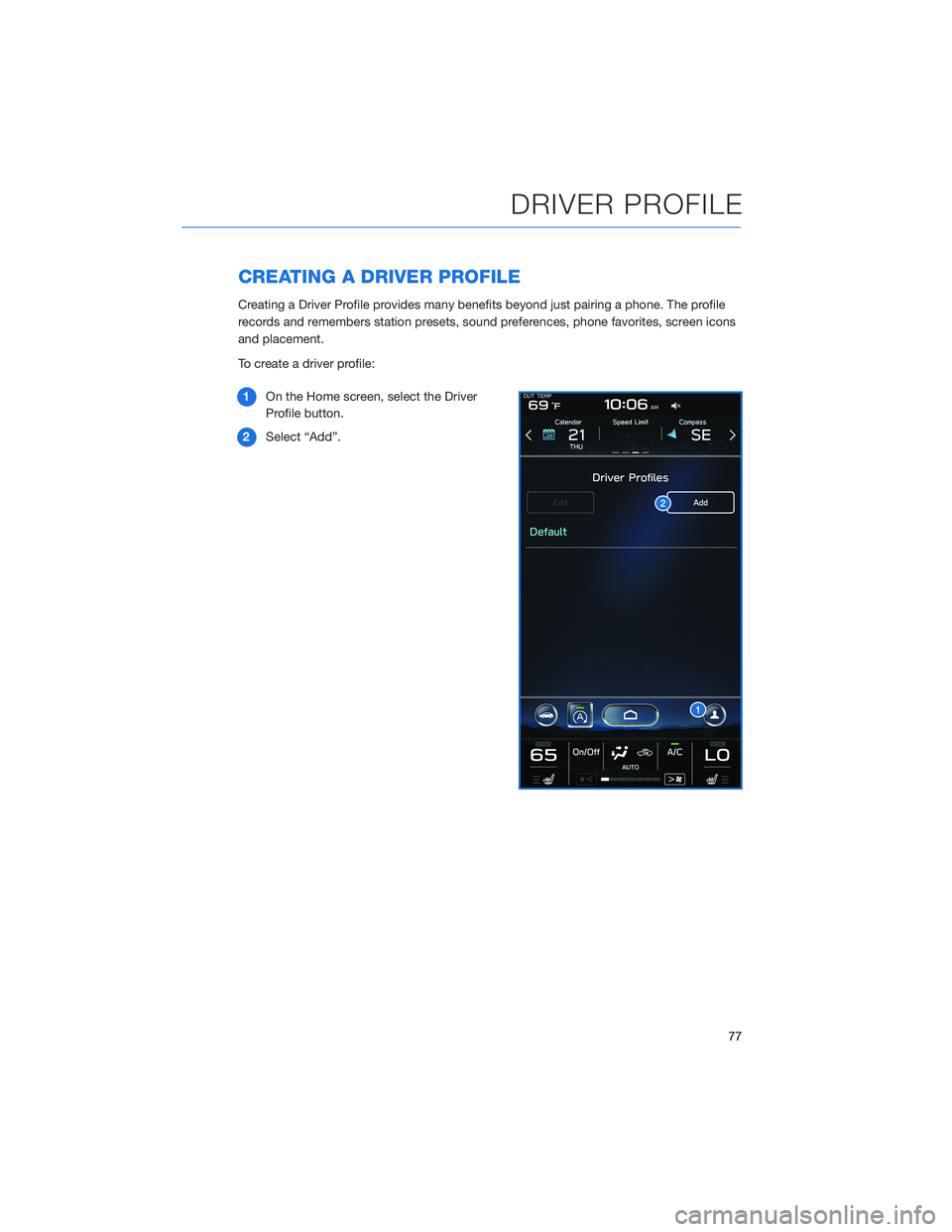
CREATING A DRIVER PROFILE
Creating a Driver Profile provides many benefits beyond just pairing a phone. The profile
records and remembers station presets, sound preferences, phone favorites, screen icons
and placement.
To create a driver profile:
1On the Home screen, select the Driver
Profile button.
2Select “Add”.
DRIVER PROFILE
77
Page 81 of 172
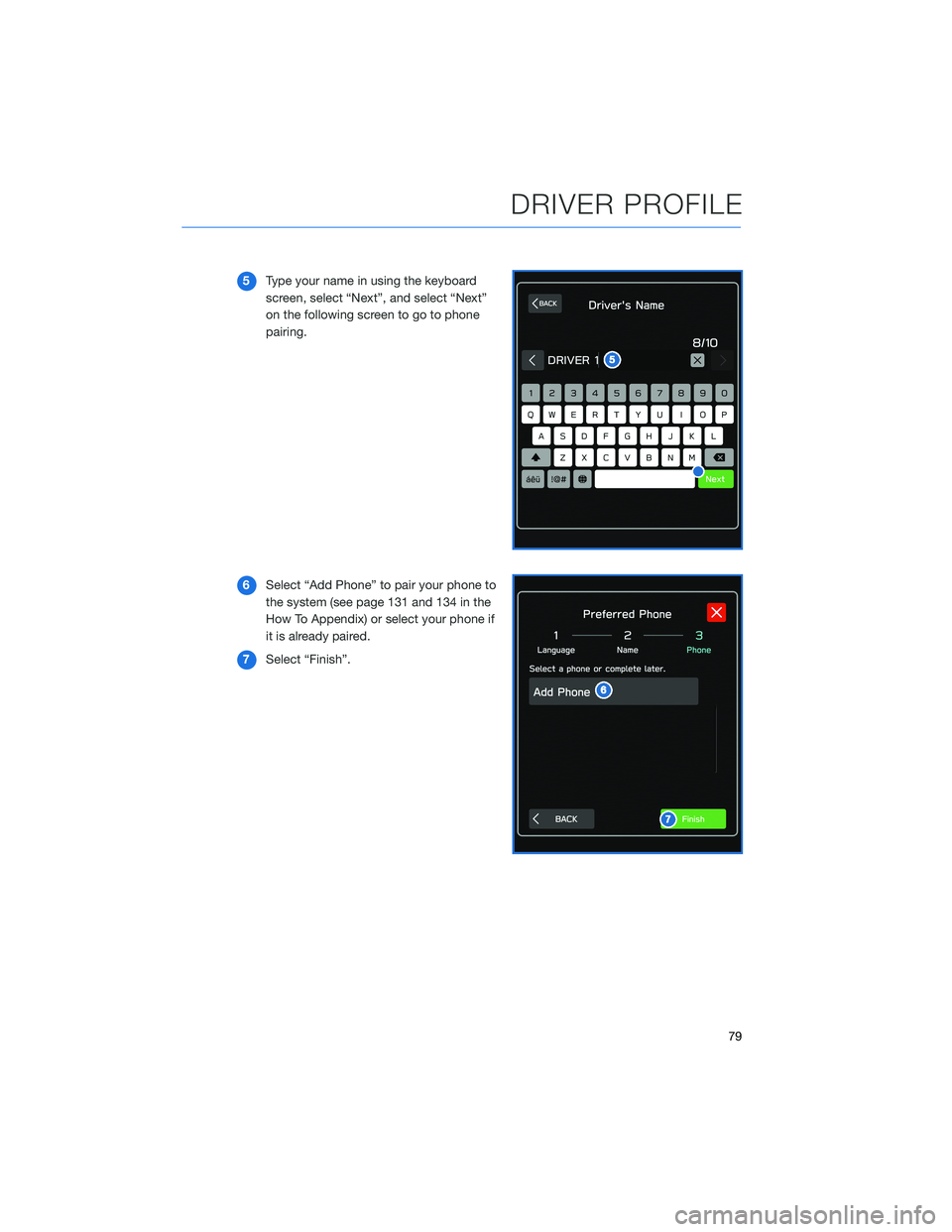
5Type your name in using the keyboard
screen, select “Next”, and select “Next”
on the following screen to go to phone
pairing.
6Select “Add Phone” to pair your phone to
the system (see page 131 and 134 in the
How To Appendix) or select your phone if
it is already paired.
7Select “Finish”.
DRIVER PROFILE
79
Page 85 of 172
MEDIA
Bluetooth®
Your Subaru has Bluetooth®hands-free technology to manage your phone and audio
systems. Bluetooth®-enabled mobile phones link directly through your Touchscreen
automatically, once connected. Receive and initiate calls or play music directly from your
device while keeping it stowed for safety.
To pair a Bluetooth
®device to the Touchscreen, see page 131 for Android devices or
page 134 for Apple devices.
CD(if equipped)
The CD player holds a single disc. To access the CD menu, put a CD in the player or on
the Home Screen, select "Media", then select "CD". Depending on the CD format, the
Touchscreen may show the CD album artwork.
USB / iPod
The USB connection is below the Center Information Display (CID) in front of the select
lever. You can plug in a USB memory storage device or iPod. This will bring up the media
screen with controls. If using an iPod, make sure to use an Apple certified cable or MFi
certified cable for proper operation.
AUX Input
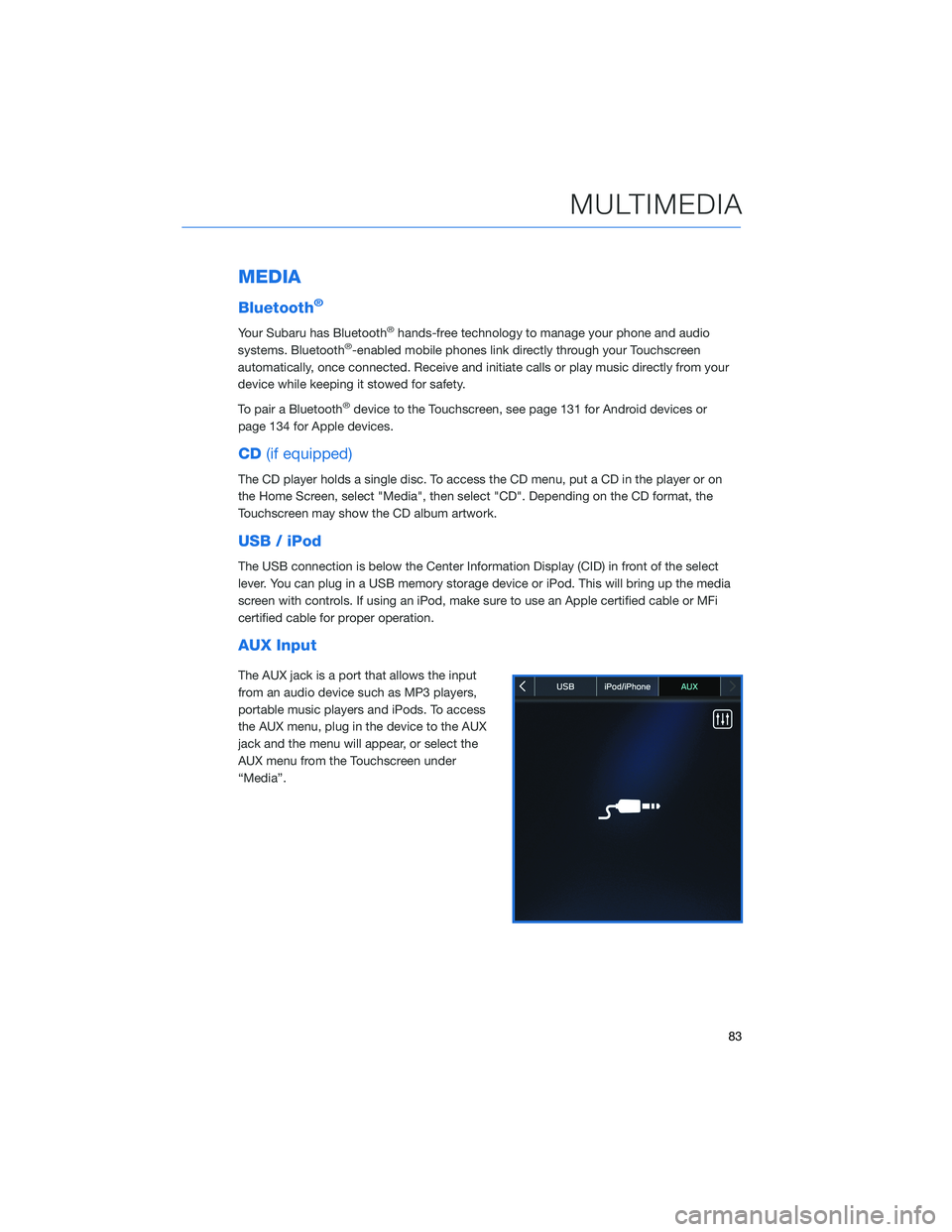
The AUX jack is a port that allows the input
from an audio device such as MP3 players,
portable music players and iPods. To access
the AUX menu, plug in the device to the AUX
jack and the menu will appear, or select the
AUX menu from the Touchscreen under
“Media”.
MULTIMEDIA
83
Page 86 of 172
PAIRING A PHONE
Using a Bluetooth®connection with the Touchscreen allows you to
use the voice recognition system to make and receive calls.
It provides access to your phone book on your phone and can read
incoming text messages as well as reply via voice recognition.
It remembers your driver profile when your phone pairs via
Bluetooth
®.
For instructions on how to pair your phone to the Touchscreen, see
page 131 for Android devices or page 134 for Apple devices.
Visit www.subaru.com/owners/starlink/multimedia.html for complete
details on what is available by connecting a phone to the Touchscreen.
PHONE
84
Page 87 of 172
MAKING A CALL
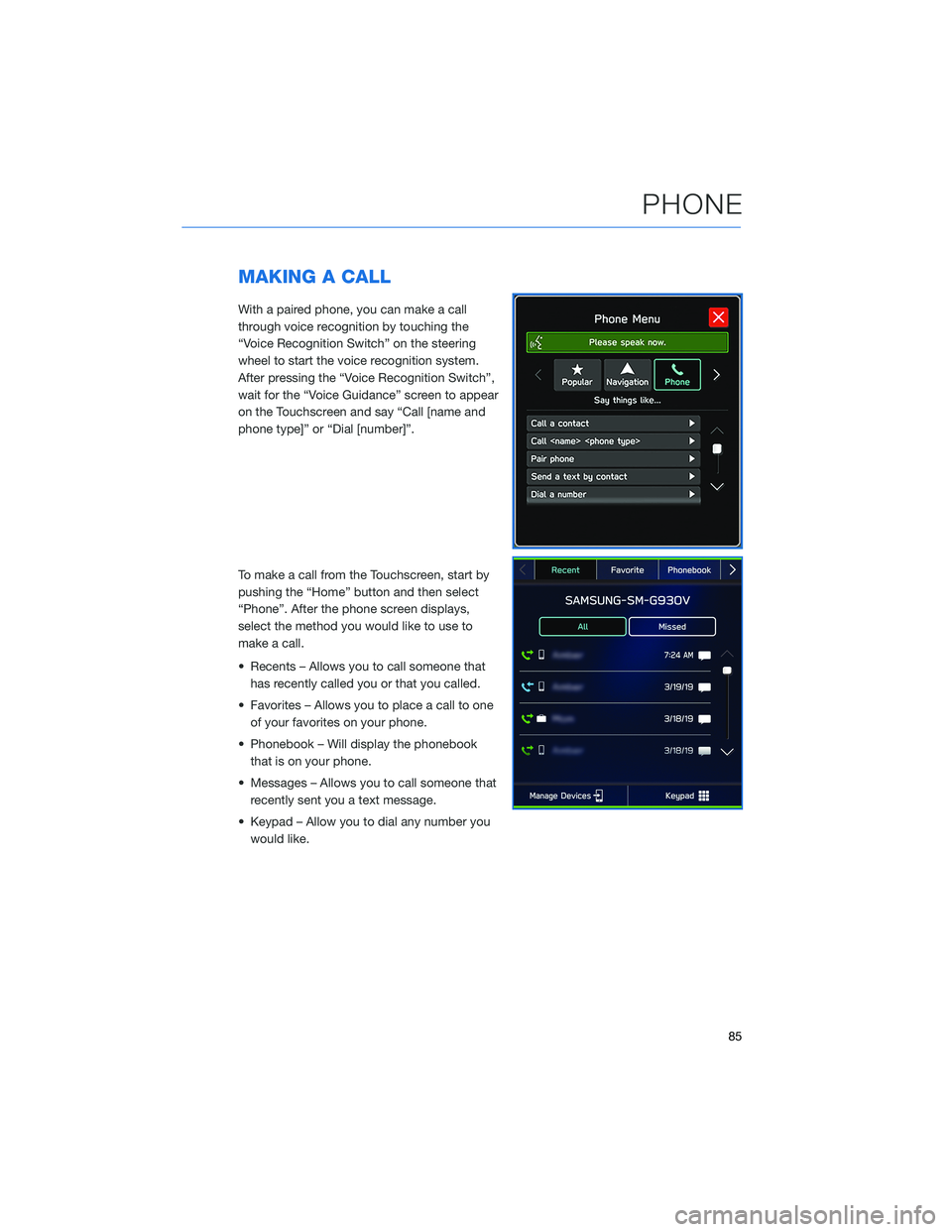
With a paired phone, you can make a call
through voice recognition by touching the
“Voice Recognition Switch” on the steering
wheel to start the voice recognition system.
After pressing the “Voice Recognition Switch”,
wait for the “Voice Guidance” screen to appear
on the Touchscreen and say “Call [name and
phone type]” or “Dial [number]”.
To make a call from the Touchscreen, start by
pushing the “Home” button and then select
“Phone”. After the phone screen displays,
select the method you would like to use to
make a call.
• Recents – Allows you to call someone that
has recently called you or that you called.
• Favorites – Allows you to place a call to one
of your favorites on your phone.
• Phonebook – Will display the phonebook
that is on your phone.
• Messages – Allows you to call someone that
recently sent you a text message.
• Keypad – Allow you to dial any number you
would like.
PHONE
85
Page 90 of 172
SUBARU STARLINK®IN-VEHICLE APPS
SUBARU STARLINK®Multimedia offers advanced connectivity
through Apple CarPlay®or Android Auto™ apps. Wireless pairing
and hands-free smartphone operation allow for safe and easy
connection to your favorite apps and content. You can access
news, navigation, music, podcasts, and more through the available
SUBARU STARLINK
®app.
For a complete list of all the apps available, visit
www.subaru.com/owners/starlink/multimedia.html.
Android Auto™
Android Auto™ can be used to view maps, play
music, and place calls by connecting your Android
device to the system. Supported applications can also
be run.
For more information, please refer to page 137.
For details on the services or the operations, visit the
Android Auto sites www.android.com/auto/ or
www.support.google.com/androidauto/
To use the Android Auto™ application, connect your Android device to the USB port.
Apple CarPlay®
Apple CarPlay®can be used to view maps, play music, and place
calls by connecting your iPhone to the system. Supported
applications can also be run.
For more information, please refer to page 139.
For details on the services or the operations, check the Apple
CarPlay
®site: www.apple.com/ios/carplay/
To use the Apple CarPlay
®application, connect your iPhone to the
USB port.
APPS
88
Page 100 of 172
Checking for Map Updates
You can update the maps to the latest information. The maps should be checked and
updated regularly for the best possible navigation experience.
Atwww.subaru-maps.com, you can update the entire USA map at once via USB. The
maps can also be updated over the air. When updating over the air, you can update eight
regions at a time. This allows you to update your home state without having to download
the entire map program for the United States. This option is great if you normally stay in
your home state and/or surrounding states.
Updating Over-the-Air
To check for available updates over-the-air, first connect to a Wi-Fi network (see page141).
Map updates can be found by selecting “Settings”, then “Navigation” on the Touchscreen.
For step by step directions for updating your maps through Wi-Fi, please refer to
page 162.
Updating Maps Using Your PC/MAC
Maps can also be updated using a USB memory device, which will
allow the entire map program to be updated at one time. This is a
great option if you are going to take a cross-country trip and your
maps have not been updated in a while.
To update the map using a USB memory device, start by going to
www.subaru-maps.com.
SETTINGS AND UPDATES
98