phone SUBARU SOLTERRA 2023 Owner's Manual
[x] Cancel search | Manufacturer: SUBARU, Model Year: 2023, Model line: SOLTERRA, Model: SUBARU SOLTERRA 2023Pages: 628, PDF Size: 11.91 MB
Page 375 of 628
3755-4. Using the driving support systems
Owners Manual_USA_M42C01_en
5
Driving
Remote Park app on the
smartphone.
The detection area of the electronic
key is within approximately 9.8 ft. (3
m) around the vehicle. If there is a
cone or other obstruction in the
path of the vehicle, move it after
exiting the vehicle.
6 From outside of the vehicle,
confirm the parking space on
the screen of the smartphone
and then select the start but-
ton.
Start operation of Remote control
function while standing approxi-
mately 1.6 ft. (50 cm) or more from
the vehicle and out of the path of
the vehicle.
7 Checking the safety of the
area around the vehicle,
trace the operation area on
the screen of the smartphone
continuously, the vehicle will
move and parking assis-
tance will be performed.
If operation of the screen of the
smartphone is stopped, assistance
can be suspended and the vehicle
can be stopped. T he doors are
automatically locked before the
vehicle starts moving.
8 When the parking space is
reached, after the vehicle is
stopped by the parking
brake, the shift position will
be changed to P, the power
switch will be turned off, the
doors will be locked and the
mirrors will be closed.
A completion screen will then be
displayed on the smartphone.
Make sure to perform the follow-
ing before using Remote control
function:
1Download the Remote Park
app from the app store.
2 Turn the power switch to ON
and register the smartphone
as a Bluetooth device to the
multimedia system. For
details on registering a Blue-
tooth device, refer to the
“MULTIMEDIA OWNER’S
MANUAL”.
3 Setup the Remote Park app
and register the vehicle.
4 The registered vehicle will be
displayed on the screen of
the smartphone.
Select the vehicle.
The name and image of the vehicle
can be changed on the new vehicle
registration screen.
Vehicles can be added through the
menu screen.
1Select and then select
“Advanced Park” on the Mul-
timedia display.
2 Select “Remote Park” to turn
it on/off. (The default setting
is on.)Preparation before using
Remote control function
Preparation before using
Remote control function
on/off
Page 376 of 628
3765-4. Using the driving support systems
Owners Manual_USA_M42C01_en
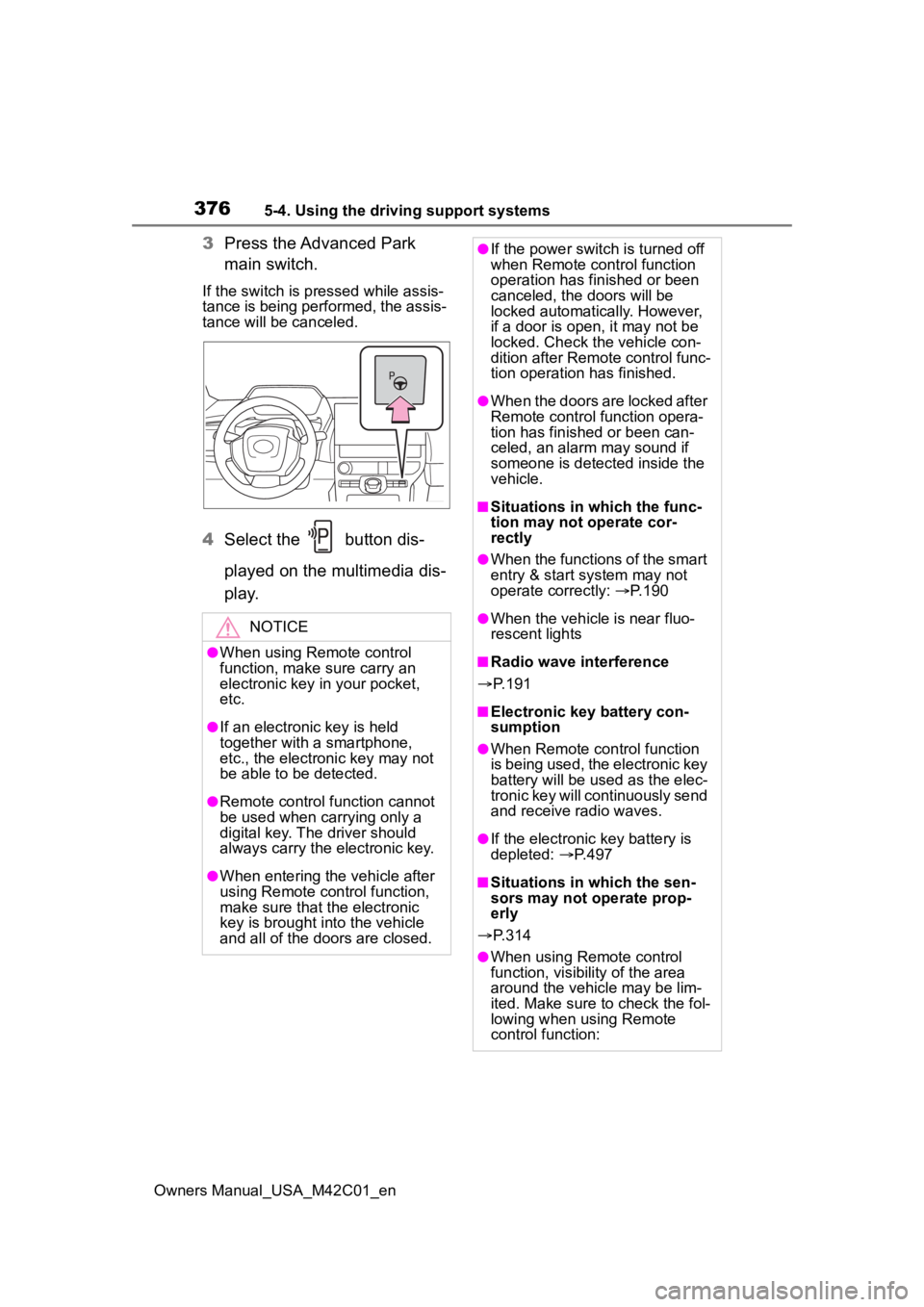
3Press the Advanced Park
main switch.
If the switch is pressed while assis-
tance is being performed, the assis-
tance will be canceled.
4Select the button dis-
played on the multimedia dis-
p l a y.
NOTICE
●When using Remote control
function, make sure carry an
electronic key in your pocket,
etc.
●If an electronic key is held
together with a smartphone,
etc., the electronic key may not
be able to be detected.
●Remote control function cannot
be used when carrying only a
digital key. The driver should
always carry the electronic key.
●When entering the vehicle after
using Remote control function,
make sure that the electronic
key is brought i nto the vehicle
and all of the doors are closed.
●If the power switch is turned off
when Remote control function
operation has finished or been
canceled, the doors will be
locked automatica lly. However,
if a door is open , it may not be
locked. Check the vehicle con-
dition after Remote control func-
tion operation has finished.
●When the doors are locked after
Remote control function opera-
tion has finished or been can-
celed, an alarm may sound if
someone is detected inside the
vehicle.
■Situations in which the func-
tion may not operate cor-
rectly
●When the functions of the smart
entry & start system may not
operate correctly: P. 1 9 0
●When the vehicle is near fluo-
rescent lights
■Radio wave interference
P. 1 9 1
■Electronic key battery con-
sumption
●When Remote control function
is being used, the electronic key
battery will be used as the elec-
tronic key will continuously send
and receive radio waves.
●If the electronic key battery is
depleted: P. 4 9 7
■Situations in which the sen-
sors may not operate prop-
erly
P. 3 1 4
●When using Remote control
function, visibility of the area
around the vehicle may be lim-
ited. Make sure to check the fol-
lowing when using Remote
control function:
Page 378 of 628

3785-4. Using the driving support systems
Owners Manual_USA_M42C01_en
changed
Brake control operates
Camera switch is pressed
The PKSB (Parking Support
Brake) PCS (Pre-Collision
System) has operates
■Remote control function
assistance will be canceled
when
In situations such as the follow-
ing, Remote control function
operation will be canceled.
As system operation has been
canceled, while carrying an
electronic key, enter the vehicle
and park the vehicle manually,
using the steering wheel.
When a condition for stopping
Advanced Park assistance is
met, with the exception sus-
pension due to a door being
opened or the driver’s seat
belt being released
When Remote control func-
tion is operated while the
remote air conditioning is
operating and the power
switch is changed to ON
before remote air conditioning
has ended
When 5 minutes have
elapsed since Remote con-
trol function operation was
started
When 3 minutes have
elapsed since any operation
was performed
When 30 seconds have
elapsed with the vehicle not
being able to be driven, even
though the screen of the
smartphone is being operated
to drive the vehicle
When the power button on the
screen of the smartphone is
selected
When the Remote Park app is
force closed
When the vehicle is on a
steep slope
When an electronic key is
detected inside the vehicle
while Remote control function
operation is suspended
When the ambient tempera-
ture is 14°F (-10°C) or less
■Remote control function
assistance will be sus-
pended when
In situations such as the follow-
ing, assistance will be sus-
pended.
When the Bluetooth commu-
nication between the smart-
phone and multimedia system
get lost
When smartphone continuous
operation is suspended
When the Remote Park app is
pushed to the background (a
call is received, the home but-
ton is pressed, etc.)
When electronic key does not
detected
Page 380 of 628
3805-4. Using the driving support systems
Owners Manual_USA_M42C01_en
■Parking Path Adjustment
The course for when parking
assistance is operating can be
adjusted inward or outward.
If the tires are worn, the path of
vehicle may be offset from the cen-
ter of the parking space. In this
case, use this setting to adjust the
parking course.
■Road Width Adjustment
When parking assistance is
started, the amount of lateral
movement while the vehicle is
moving forward can be
adjusted.
■Park Position Adjustment
(fwd.)
The position at which perpendic-
ular parking (forward/reverse) is
completed can be adjusted.
(Except when using the memory
function.)
■Park Position Adjustment
(rev.)
The position at which perpendic-
ular parking (forward/reverse) is
completed can be adjusted.
(Except when using the memory
function.)
■Rear Accessory Setting
If an accessory, such as a trailer
hitch, has been installed to the
rear of the vehicle, the length of
the rear of the vehicle can be
adjusted to help avoid colliding
with objects to the rear of the
vehicle.
■Clear Registered Parking
Space
The parking spaces registered
to the memory function can be
deleted. Parking space informa-
tion cannot be deleted when
assistance is being performed
or when registering parking
space information to the mem-
ory function.
■Intuitive parking assist-sen-
sor warning sound ON/OFF
(Smartphone setting)
The warning sounds of the intui-
tive parking assist-sensor from
smartphone application can be
turned on/off using the Remote
Park app.
■Intuitive parking assist-sen-
sor warning sound volume
adjustment (Smartphone
setting)
The volume of the warning
sounds of the intuitive parking
assist-sensor from smartphone
application can be adjusted
using the Remote Park app.
The operating state, assistance
operation, etc. of the Advanced
Park is displayed on the multi-
media display. If a message is
Changing the Remote
Park app settings
Advanced Park Displayed
messages
Page 430 of 628
4306-4. Using the other interior features
Owners Manual_USA_M42C01_ensuch as a USB memory device, is
connected
●If the connected external device is
turned off (depending on device)
●If the temperature inside the vehi-
cle is high, such as after the vehi-
cle has been park
ed in the sun
■About connected external
devices
Depending on the connected exter-
nal device, charging may occasion-
ally be suspended and then start
again. This is not a malfunction.
A portable device can be
charged by just placing Qi stan-
dard wireless charge compatible
portable devices according to
the Wireless Power Consortium,
such as smartphones and
mobile batteries, etc., on the
charge area.
This function cannot be used
with portable devices that are
larger than the charging tray.
Also, depending on the portable
device, it may not operate as
normal. Please read the opera-
tion manual for portable devices
to be used.
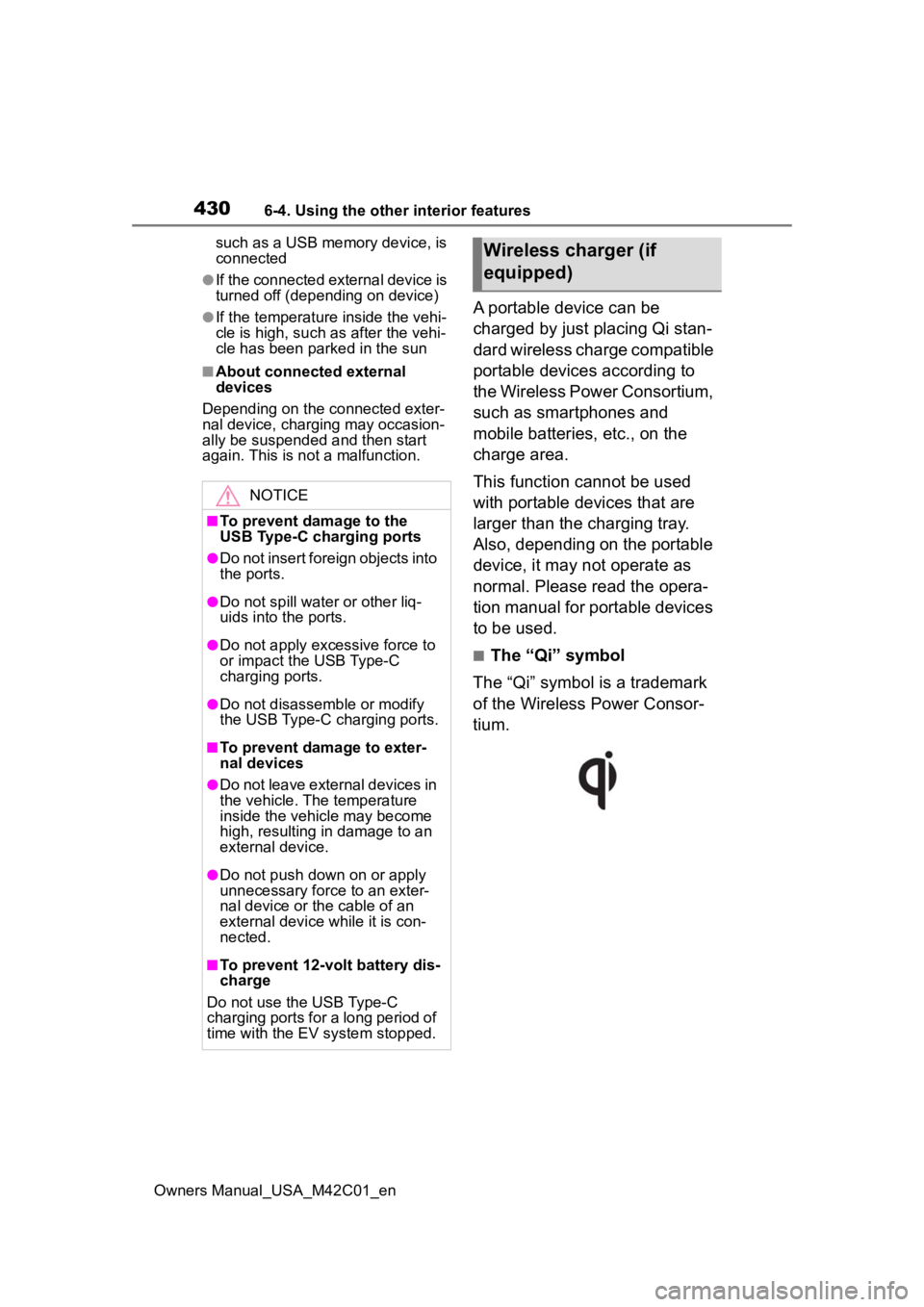
■The “Qi” symbol
The “Qi” symbol is a trademark
of the Wireless Power Consor-
tium.
NOTICE
■To prevent damage to the
USB Type-C charging ports
●Do not insert foreign objects into
the ports.
●Do not spill water or other liq-
uids into the ports.
●Do not apply excessive force to
or impact the USB Type-C
charging ports.
●Do not disassemble or modify
the USB Type-C charging ports.
■To prevent damage to exter-
nal devices
●Do not leave external devices in
the vehicle. The temperature
inside the vehicle may become
high, resulting in damage to an
external device.
●Do not push down on or apply
unnecessary force to an exter-
nal device or the cable of an
external device while it is con-
nected.
■To prevent 12-volt battery dis-
charge
Do not use the USB Type-C
charging ports for a long period of
time with the EV system stopped.
Wireless charger (if
equipped)
Page 432 of 628
4326-4. Using the other interior features
Owners Manual_USA_M42C01_en
■Rapid charging function
The following portable
devices support rapid
charging.
• Portable devices compliant with
WPC Ver1.2.4 and compatible
with rapid charging • iPhone’s with an iOS version that
supports 7.5 W c harging (iPhone
8 and later models)
When a portable device that
supports rapid charging is
charged, charging automati-
cally switches to the rapid
charging function.
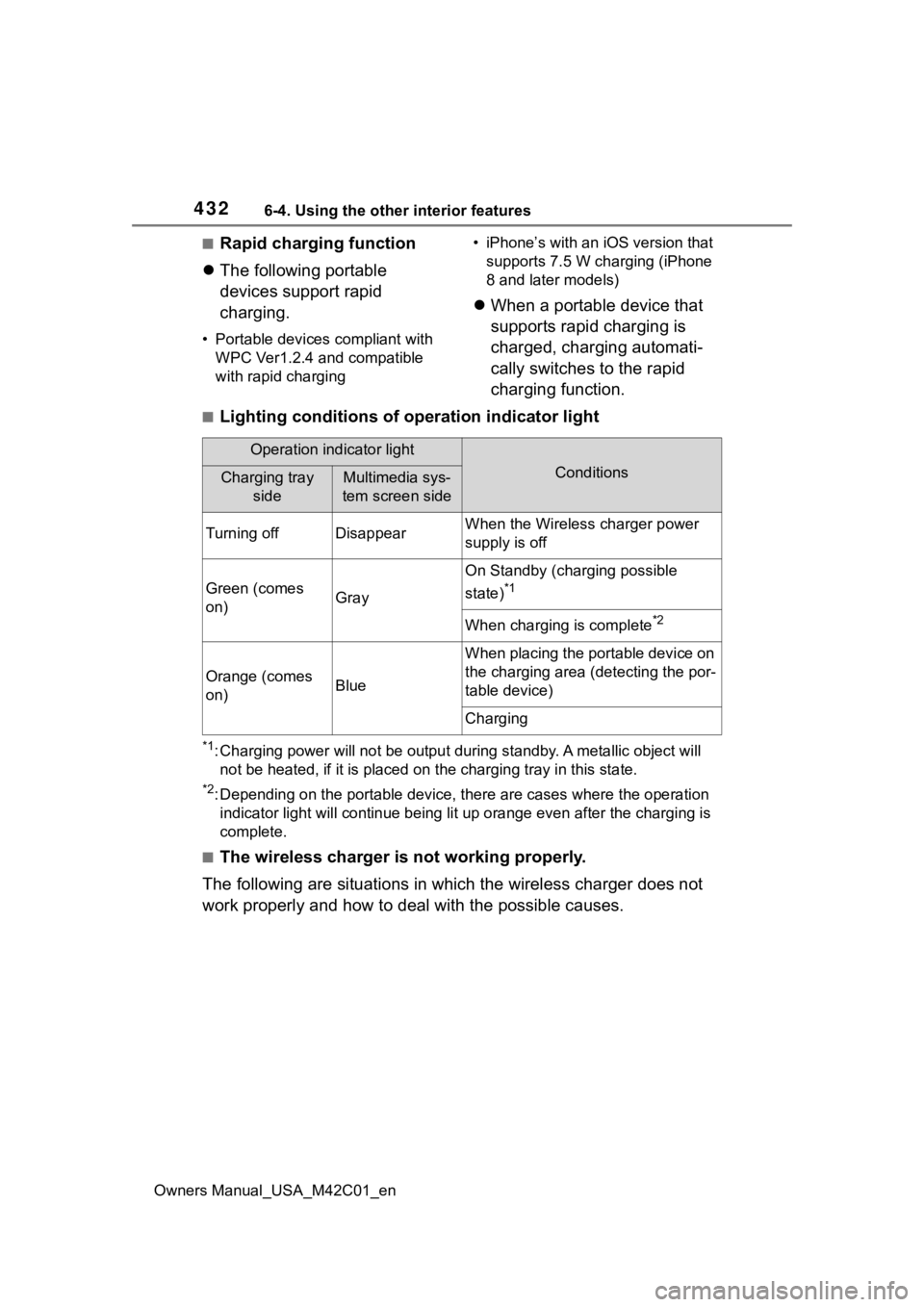
■Lighting conditions of operation indicator light
*1: Charging power will not be output during standby. A metallic o bject will
not be heated, if it is placed on the charging tray in this sta te.
*2: Depending on the portable devic e, there are cases where the operation
indicator light will continue bei ng lit up orange even after the charging is
complete.
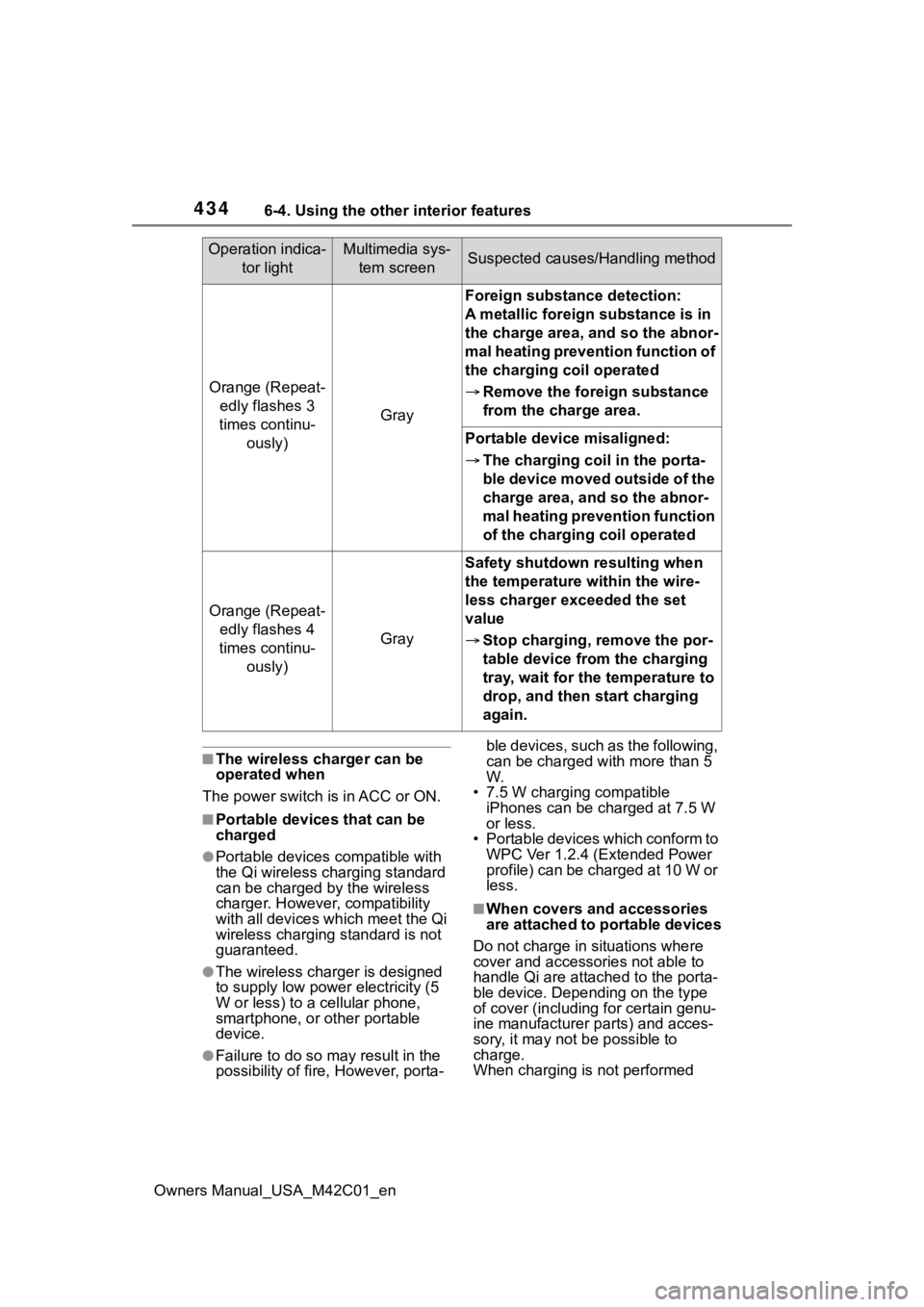
■The wireless charger is not working properly.
The following are situations in which the wireless charger does not
work properly and how to deal with the possible causes.
Operation indicator light
ConditionsCharging tray sideMultimedia sys-
tem screen side
Turning offDisappearWhen the Wireless charger power
supply is off
Green (comes
on)Gray
On Standby (charging possible
state)
*1
When charging is complete*2
Orange (comes
on)Blue
When placing the portable device on
the charging area (detecting the por-
table device)
Charging
Page 434 of 628
4346-4. Using the other interior features
Owners Manual_USA_M42C01_en
■The wireless charger can be
operated when
The power switch i s in ACC or ON.
■Portable devices that can be
charged
●Portable devices compatible with
the Qi wireless charging standard
can be charged by the wireless
charger. However, compatibility
with all devices which meet the Qi
wireless charging standard is not
guaranteed.
●The wireless charger is designed
to supply low power electricity (5
W or less) to a cellular phone,
smartphone, or other portable
device.
●Failure to do so may result in the
possibility of fire, However, porta- ble devices, such as the following,
can be charged with more than 5
W.
• 7.5 W charging compatible iPhones can be charged at 7.5 W
or less.
• Portable devices which conform to WPC Ver 1.2.4 (Extended Power
profile) can be charged at 10 W or
less.
■When covers and accessories
are attached to portable devices
Do not charge in situations where
cover and accessories not able to
handle Qi are attached to the porta-
ble device. Depending on the type
of cover (including for certain genu-
ine manufacturer parts) and acces-
sory, it may not be possible to
charge.
When charging is not performed
Orange (Repeat- edly flashes 3
times continu- ously)
Gray
Foreign substance detection:
A metallic foreign substance is in
the charge area, and so the abnor-
mal heating prevention function of
the charging coil operated
Remove the foreign substance
from the charge area.
Portable device misaligned:
The charging coil in the porta-
ble device moved outside of the
charge area, and so the abnor-
mal heating prevention function
of the charging coil operated
Orange (Repeat-
edly flashes 4
times continu- ously)
Gray
Safety shutdown resulting when
the temperature within the wire-
less charger exceeded the set
value
Stop charging, remove the por-
table device from the charging
tray, wait for the temperature to
drop, and then start charging
again.
Operation indica-
tor lightMultimedia sys-tem screenSuspected causes/Handling method
Page 435 of 628
4356-4. Using the other interior features
Owners Manual_USA_M42C01_en
6
Interior features
even with the portable device placed
on the charge area, remove the
cover and accessories.
■Charging precautions
●If the electronic key cannot be
detected in the cabin, charging
cannot be performed. When a
door is opened and closed,
charging may be temporarily sus-
pended.
●While charging, the wireless char-
ger and the portable device will
become warm. This is not a mal-
function.
If a portable de vice becomes
warm while charging and charging
stops due to the protection func-
tion of the portable device, wait
until the portable device cools
down and charge it again.
●Depending on usage of the porta-
ble device, it may not be fully
charged. This is not a malfunction.
■Important points of the wire-
less charger
●If the electronic key cannot be
detected within the vehicle inte-
rior, charging can not be done.
When the door is opened and
closed, charging may be tempo-
rarily suspended.
●When charging, the wireless
charging device and portable
device will get warmer, however
this is not a malfunction. When a
portable device gets warm while
charging may stop due to the pro-
tection function on the portable
device side. In this case, when the
temperature of the portable drops
significantly, charge again.
The fan may start operating to
lower the temperature inside the
wireless charger, however this is
not a malfunction.
■Sound generated during opera-
tion
When the power su pply switch is
turned on or while a portable device
is being identified, operation sounds may be heard. This is not a malfunc-
tion.
■Cleaning the wireless charger
P.452
■Certification
P.623
WARNING
■Caution while driving
When charging a portable device,
for safety reasons, the driver
should not operate the main part
of the portable device while driv-
ing.
■Caution while in motion
Do not charge lightweight devices
such as wireless headphones
while in motion. These devices
are very light and may be ejected
from the charging tray, which may
lead to unforeseen accidents.
■Caution regarding interfer-
ence with electronic devices
People with implantable cardiac
pacemakers, cardiac resynchroni-
zation therapy-pacemakers or
implantable cardio verters, as well
as any other electrical medical
device, should consult their physi-
cian about the usage of the wire-
less charger.
■To prevent malfunctions or
burns
Observe the following precau-
tions. Failure to do so may result
in a equipment failure and dam-
age, catch fire, bur ns due to over-
heat or electric shock.
●Do not insert any metallic
objects between the charge
area and the portable device
while charging
●Do not attach a n aluminum
sticker or other metallic object to
the charge area
Page 437 of 628
4376-4. Using the other interior features
Owners Manual_USA_M42C01_en
6
Interior features
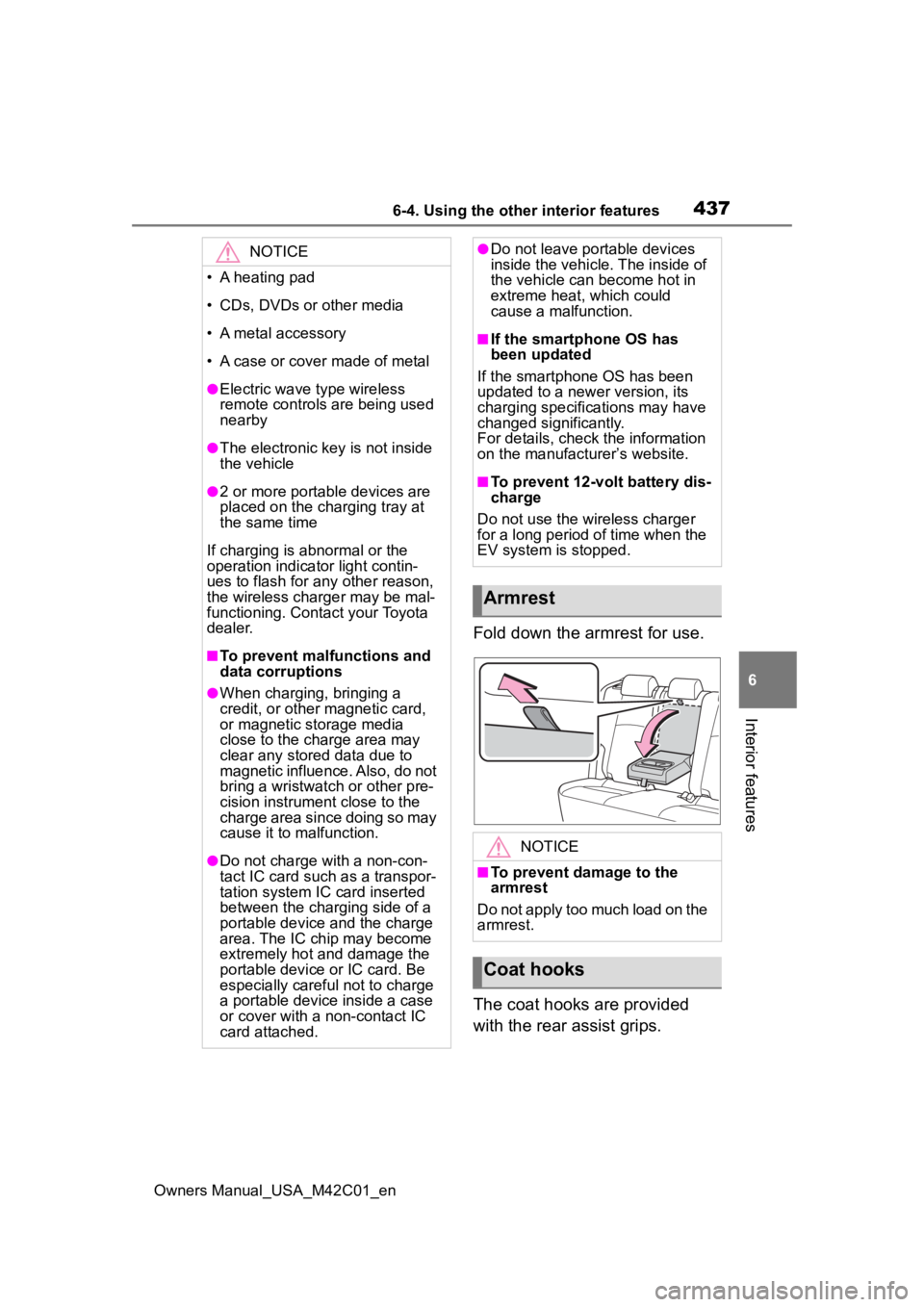
Fold down the armrest for use.
The coat hooks are provided
with the rear assist grips.
NOTICE
• A heating pad
• CDs, DVDs or other media
• A metal accessory
• A case or cover made of metal
●Electric wave type wireless
remote controls are being used
nearby
●The electronic key is not inside
the vehicle
●2 or more portable devices are
placed on the charging tray at
the same time
If charging is abnormal or the
operation indicator light contin-
ues to flash for any other reason,
the wireless charger may be mal-
functioning. Contact your Toyota
dealer.
■To prevent malfunctions and
data corruptions
●When charging, bringing a
credit, or other magnetic card,
or magnetic storage media
close to the charge area may
clear any stored data due to
magnetic influence. Also, do not
bring a wristwatch or other pre-
cision instrument close to the
charge area since doing so may
cause it to malfunction.
●Do not charge with a non-con-
tact IC card such as a transpor-
tation system IC card inserted
between the charging side of a
portable device and the charge
area. The IC chip may become
extremely hot and damage the
portable device or IC card. Be
especially careful not to charge
a portable device inside a case
or cover with a non-contact IC
card attached.
●Do not leave portable devices
inside the vehicle. The inside of
the vehicle can become hot in
extreme heat, which could
cause a malfunction.
■If the smartphone OS has
been updated
If the smartphone OS has been
updated to a newer version, its
charging specifications may have
changed significantly.
For details, check the information
on the manufacturer’s website.
■To prevent 12-volt battery dis-
charge
Do not use the wireless charger
for a long period of time when the
EV system is stopped.
Armrest
NOTICE
■To prevent damage to the
armrest
Do not apply too much load on the
armrest.
Coat hooks
Page 476 of 628
4767-3. Do-it-yourself maintenance
Owners Manual_USA_M42C01_en
●Performance may be affected in
the following situations.
• Near a TV tower, electric power
plant, gas station, radio station,
large display, airpo rt or other facil-
ity that generates strong radio
waves or electrical noise
• When carrying a portable radio, cellular phone, cordless phone or
other wireless communication
device
If tire position information is not cor-
rectly displayed due to the radio
wave conditions, the display may be
corrected by driving and changing
the radio wave conditions.
●When the vehicle is parked, the
time taken for the warning to start
or go off could be extended.
●When tire inflation pressure
declines rapidly for example when
a tire has burst, the warning may
not function.
When replacing tires or wheels,
tire pressure warning valves and
transmitters must also be
installed.
When new tire pressure warning
valves and transmitters are
installed, new ID codes must be
registered in the tire pressure warn-
ing computer and the tire pressure
warning system must be initialized.
( P.481)
■When replacing the tires and
wheels
If the ID code of the tire pressure
warning valve and transmitter is not
registered, the tire pressure warning
system will not work properly. After driving for about 10 minutes, the tire
pressure warning light blinks for 1
minute and stays on to indicate a
system malfunction.
Installing tire pressure
warning valves and trans-
mitters
NOTICE
■Repairing or replacing tires,
wheels, tire pressure warn-
ing valves, transmitters and
tire valve caps
●When removing or fitting the
wheels, tires or the tire pressure
warning valves and transmit-
ters, contact your
Toyota dealer
as the tire pressure warning
valves and transmitters may be
damaged if not handled cor-
rectly.
●Make sure to install the tire
valve caps. If the tire valve caps
are not installed, water could
enter the tire pressure warning
valves and the tire pressure
warning valves could be bound.
●When replacing tire valve caps,
do not use tire valve caps other
than those specified. The cap
may become stuck.
■To avoid damage to the tire
pressure warning valves and
transmitters
When a tire is repa ired with liquid
sealants, the tire pressure warn-
ing valve and transmitter may not
operate properly. If a liquid seal-
ant is used, contact your Toyota
dealer as soon as possible. After
use of liquid sealant, make sure to
replace the tire p ressure warning
valve and transmitter when repair-
ing or replacing the tire.