radio SUBARU WRX 2016 User Guide
[x] Cancel search | Manufacturer: SUBARU, Model Year: 2016, Model line: WRX, Model: SUBARU WRX 2016Pages: 594, PDF Size: 19.43 MB
Page 110 of 594

& Unlocking Perform steps 1 to 5 described in “ Regis-
tration ” .
NOTE . You cannot unlock by PIN Code
Access in the following cases.
– when the access key is within the
operating ranges
– when the ignition switch is in the
“ ACC ” or “ ON ” position
. If you make an operation error
during the unlocking procedure, start
over with the unlocking procedure after
waiting for 5 seconds or longer.
. To protect your vehicle from theft, a
buzzer will sound if incorrect PIN codes
are entered five times continuously. If
this occurs, you cannot unlock the
doors by PIN Code Access for 5
minutes. Remote keyless entry system CAUTION. Do not expose the remote trans-
mitter to severe shocks, such as
those experienced as a result of
dropping or throwing.
. Do not take the remote transmit-
ter apart except when replacing
the battery.
. Do not get the remote transmitter
wet. If it gets wet, wipe it dry with
a cloth immediately.
. When you carry the remote trans-
mitteronanairplane,donot
press the button of the remote
transmitter while in the airplane.
When any button of the remote
transmitter is pressed, radio
waves are sent and may affect
the operation of the airplane.
When you carry the remote trans-
mitter in a bag on an airplane,
take measures to prevent the
buttons of the remote transmitter
from being pressed.
For models with “ keyless access with
push-button start system ” , the access
key is used as the transmitter for the remote keyless entry system. For models
without “ keyless access with push-button
start system ” , the transmitter for the
remote keyless entry system is located
inside the key head.
The remote keyless entry system has the
following functions.
. Locking and unlocking the doors with-
out a key
. Opening the trunk without a key
. Sounding a panic alarm
. Arming and disarming the alarm sys-
tem. For detailed information, refer to
“ Alarm system ” F 2-25.
The operable distance of the remote
keyless entry system is approximately 30
feet (10 meters). However, this distance
will vary depending on environmental
conditions. The system ’ s operable dis-
tance will be shorter in areas near a
facility or electronic equipment emitting
strong radio waves such as a power plant,
broadcast station, TV tower, or remote
controller of home electronic appliances.
NOTE . For models with “ keyless access
with push-button start system ” ,the
remote keyless entry system will not
be activated when the push-button
ignition switch is in any position other Keys and doors/Remote keyless entry system
– CONTINUED –2-21
Page 114 of 594

This device complies with Part 15 of the
FCC Rules. Operation is subject to the
following two conditions: (1) This device
may not cause harmful interference, and
(2) this device must accept any interfer-
ence received, including interference that
may cause undesired operation.
! Canada-spec. models
This device complies with Industry
Canada licence-exempt RSS standard
(s). Operation is subject to the following
two conditions: (1) this device may not
cause interference, and (2) this device
must accept any interference, including
interference that may cause undesired
operation of the device.
Le présent appareil est conforme aux
CNR d ’ Industrie Canada applicables aux
appareils radio exempts de licence. L ’ ex-
ploitation est autorisée aux deux condi-
tions suivantes: (1) l ’ appareil ne doit pas
produire de brouillage, et (2) l ’ utilisateur
de l ’ appareil doit accepter tout brouillage
radioélectrique subi, même si le brouillage
est susceptible d ’ en compromettre le
fonctionnement. ! Mexico-spec. models
COFETEL RCPSUTW13-2221
COFETEL RLVSU8813-2140 Alarm system The alarm system helps to protect your
vehicle and valuables from theft. The horn
sounds and the hazard warning flashers
flash if someone attempts to break into
your vehicle.
For models with “ keyless access with
push-button start system ” :
The system can be armed and disarmed
with the keyless access function or access
key.
The system will not be activated when the
push-button ignition switch is in the “ ACC ”
or “ ON ” position.
For models without “ keyless access
with push-button start system ” :
The system can be armed and disarmed
with the remote transmitter.
The system will not be activated when the
key is inserted into the ignition switch.
Your vehicle ’ s alarm system has been set
for activation at the time of shipment from
the factory. You can set the system for
deactivation yourself or have it done by
your SUBARU dealer. Keys and doors/Alarm system
– CONTINUED –2-25
Page 236 of 594
www.homelink.com or call 1-800-355-
3515.
. U.S.-spec. models
FCC ID: NZLWLHL4
CAUTIONFCC WARNING
Changes or modifications not ex-
pressly approved by the party re-
sponsible for compliance could void
the user ’ s authority to operate the
equipment.
This device complies with part 15 of the
FCC Rules. Operation is subject to the
following two conditions: (1) This de-
vice may not cause harmful interfer-
ence, and (2) this device must accept
any interference received, including
interference that may cause undesired
operation.
. Canada-spec. models
NOTE This device complies with Industry
Canada licence-exempt RSS standard
(s). Operation is subject to the follow-
ing two conditions: (1) this device may
not cause interference, and (2) this
device must accept any interference, including interference that may cause
undesired operation of the device.
NOTE Le présent appareil est conforme aux
CNR d ’ Industrie Canada applicables
aux appareils radio exempts de licence.
L ’ exploitation est autorisée aux deux
conditions suivantes: (1) l ’ appareil ne
doit pas produire de brouillage, et (2)
l ’ utilisateur de l ’ appareil doit accepter
tout brouillage radioélectrique subi,
même si le brouillage est susceptible
d ’ en compromettre le fonctionnement.
HomeLink ®
and the HomeLink ®
house are
registered trademarks of Johnson Con-
trols, Inc.
WARNING
. When programming the
HomeLink ®
Wireless Control Sys-
tem, you may be operating a
garage door opener or other
device. Make sure that people
and objects are out of the way
ofthegaragedoororother
device to prevent potential harm
or damage.
. Do not use the HomeLink ®
Wire-
less Control System with a gar- age door opener that lacks the
safety stop and reverse feature
as required by applicable safety
standards. A garage door opener
which cannot detect an object,
signaling the door to stop and
reverse, does not meet these
safety standards. Using a garage
door opener without these fea-
tures increases risk of serious
injury or death. For more infor-
mation, consult the HomeLink ®
website at www.homelink.com or
call 1-800-355-3515.
CAUTIONWhen programming the HomeLink ®
Wireless Control System to operate
a garage door opener or an entrance
gate, unplug the device ’ s motor
from the outlet during programming
to prevent motor burnout.
NOTE . After programming your HomeLink ®
Wireless Control System for the de-
sired devices, retain the hand-held
transmitters for further programming
or device testing in the event of a
problem. Instruments and controls/Mirrors
– CONTINUED –3-107
Page 256 of 594

Antenna system .................................................. 5-2Roof antenna ...................................................... 5-2
FM reception ....................................................... 5-2
Installation of accessories .................................. 5-3
Audio set ............................................................. 5-3Audio set ............................................................ 5-4
Basic information before use ............................. 5-5Initial screen ....................................................... 5-5
Loading and unloading a disc .............................. 5-5
Connecting and disconnecting a USB memory/
portable device ................................................. 5-6
Touch screen gestures ........................................ 5-7
Touch screen operation ....................................... 5-7
Entering letters and numbers/list screen
operation .......................................................... 5-8
Screen adjustment .............................................. 5-9
Other settings ..................................................... 5-10
Basic operation .................................................. 5-12Some basics ...................................................... 5-12
Audio/visual remote controls ............................ 5-18Steering switches ............................................... 5-18
Tips for operating the audio/visual system ...... 5-21Operating information. ........................................ 5-21
Useful information .............................................. 5-28
SiriusXM Data Service* ....................................... 5-28
STARLINK .......................................................... 5-30
Radio operation .................................................. 5-33
AM/FM radio ....................................................... 5-33
SiriusXM Satellite Radio ..................................... 5-45 Media operation ................................................. 5-50CD .................................................................... 5-50
USB memory ..................................................... 5-53
iPod .................................................................. 5-56
Bluetooth audio ................................................. 5-60
aha TM
by HARMAN ............................................ 5-64
AUX .................................................................. 5-73
Pandora ®
........................................................... 5-76
Bluetooth ®
settings ........................................... 5-81Registering/connecting Bluetooth ®
device .......... 5-81
Setting Bluetooth details .................................... 5-84
Phone operation (Hands-free system for
cellular phones) .............................................. 5-87Quick reference ................................................. 5-87
Some basics ...................................................... 5-88
Calling on the Bluetooth phone .......................... 5-91
Receiving on the Bluetooth phone ...................... 5-98
Talking on the Bluetooth phone .......................... 5-99
Setup ................................................................ 5-101 Phone settings ................................................ 5-101
What to do if.... ................................................. 5-103Troubleshooting ............................................... 5-103
Voice command system operation ................. 5-107
Voice command system ................................... 5-107
Command list ................................................... 5-110
Appendix .......................................................... 5-114
Certification ..................................................... 5-114
Certification for the Hands-free system ............. 5-115
Certification for Mexico models ........................ 5-115Audio
5
Page 258 of 594

Installation of accessories Always consult your SUBARU dealer
before installing a citizen band radio or
other transmitting device in your vehicle.
Such devices may cause the electronic
control system to malfunction if they are
incorrectly installed or if they are not
suited for the vehicle.
Audio set Your SUBARU may be equipped with one
of the following audio sets. Refer to the
pages indicated in this section for operat-
ing details.
NOTE If a cell phone is placed near the audio
set, it may cause the audio set to emit
noise when the phone receives calls.
This noise does not indicate an audio
set malfunction. Note that a cell phone
should be placed as far as possible
from the audio set. Audio/Installation of accessories
– CONTINUED –5-3
Page 259 of 594

Audio/Audio set
& Audio set The audio set will operate only when the
ignition switch is in the “ ACC ” or “ ON ”
position.
NOTE HD Radio Technology should be in-
cluded as feature.
5-4
Page 274 of 594

“ +/- ” switch Mode Operation Function
Except list screen Press Volume up/down
Press and hold Volume up/down continuously
List screen Press Move cursor up/down
“ <> ” switch Mode Operation Function
AM/FM Radio, SiriusXM Press Preset channel up/down
Press and hold Seek up/down continuously
while the switch is being
pressed
aha Press Content up/down
Press and hold Reverse the current content
item for 15 seconds/Fast for-
ward the current content item
for 30 seconds
Audio CD, MP3/WMA/AAC
disc, USB, iPod, BT audio Press Select a track/file
Press and hold Fast forward/rewind
Pandora Press and hold Thumbs up
List screen Press Move cursor left/right Audio/Audio/visual remote controls
– CONTINUED –5-19
Page 276 of 594

Tips for operating the audio/
visual system & Operating information CAUTION. To avoid damage to the audio/
visual system:
– Be careful not to spill bev-
erages over the audio/visual
system.
– Do not put anything other than
an appropriate disc into the
disc slot.
NOTE The use of a cellular phone inside or
near the vehicle may cause a noise
from the speakers of the audio/visual
system which you are listening to.
However, this does not indicate a
malfunction.
! Radio
Usually, a problem with radio reception
does not mean there is a problem with the
radio — it is just the normal result of
conditions outside the vehicle.
For example, nearby buildings and terrain can interfere with FM reception. Power
lines or phone wires can interfere with AM
signals. And of course, radio signals have
a limited range. The farther the vehicle is
from a station, the weaker its signal will
be. In addition, reception conditions
change constantly as the vehicle moves.
Here, some common reception problems
that probably do not indicate a problem
with the radio are described.
! FM
Fading and drifting stations: Generally, the
effective range of FM is about 25 miles (40
km). Once outside this range, you may
notice fading and drifting, which increase
with the distance from the radio transmit-
ter. They are often accompanied by
distortion.
Static and fluttering: These occur when
signals are blocked by buildings, trees or
other large objects. Increasing the bass
level may reduce static and fluttering.
Station swapping: If the FM signal being
listened to is interrupted or weakened, and
there is another strong station nearby on
the FM band, the radio may tune in the
second station until the original signal can
be picked up again. ! AM
Fading: AM broadcasts are reflected by
the upper atmosphere — especially at
night. These reflected signals can inter-
fere with those received directly from the
radio station, causing the radio station to
sound alternately strong and weak.
Station interference: When a reflected
signal and a signal received directly from
a radio station are very nearly the same
frequency, they can interfere with each
other, making it difficult to hear the broad-
cast.
Static: AM is easily affected by external
sources of electrical noise, such as high
tension power lines, lightening or electrical
motors. This results in static.
! SiriusXM
. Cargo loaded on the roof luggage
carrier, especially metal objects, may
adversely affect the reception of SiriusXM
Satellite Radio.
. Alternation or modifications carried out
without appropriate authorization may in-
validate the user ’ s right to operate the
equipment.Audio/Tips for operating the audio/visual system
– CONTINUED –5-21
Page 283 of 594
Audio/Useful information
Useful information & SiriusXM Data Service*Data service information, which is com-
prised of traffic information and weather
information, can be received via the
SiriusXM Radio.
To receive the data service information in
the vehicle, a subscription to the SiriusXM
Satellite Radio service is necessary. Refer
to “ SiriusXM Satellite Radio ” F 5-45.
Content set to use the SiriusXM data
service is reset when personal information
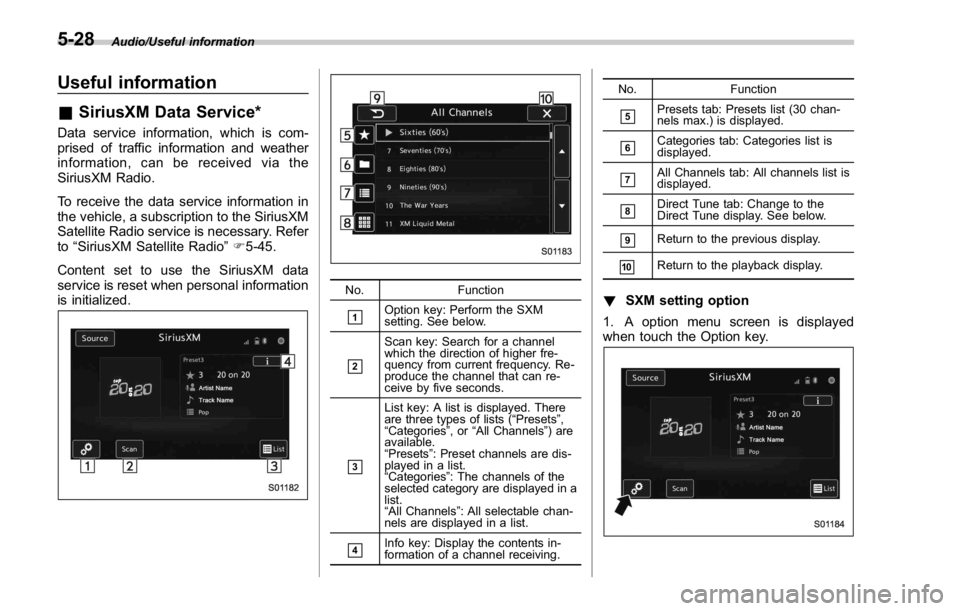
is initialized. No. Function
& 1
Option key: Perform the SXM
setting. See below.
& 2
Scan key: Search for a channel
which the direction of higher fre-
quency from current frequency. Re-
produce the channel that can re-
ceive by five seconds.
& 3List key: A list is displayed. There
are three types of lists ( “ Presets ” ,
“ Categories ” ,or “ All Channels ” ) are
available.
“ Presets ” : Preset channels are dis-
played in a list.
“ Categories ” : The channels of the
selected category are displayed in a
list.
“ All Channels ” : All selectable chan-
nels are displayed in a list.
& 4
Info key: Display the contents in-
formation of a channel receiving. No. Function
& 5
Presets tab: Presets list (30 chan-
nels max.) is displayed.
& 6
Categories tab: Categories list is
displayed.
& 7
All Channels tab: All channels list is
displayed.
& 8
Direct Tune tab: Change to the
Direct Tune display. See below.
& 9
Return to the previous display.
& 10
Return to the playback display.
! SXM setting option
1. A option menu screen is displayed
when touch the Option key.5-28
Page 286 of 594
STARLINK disclaimer error screen
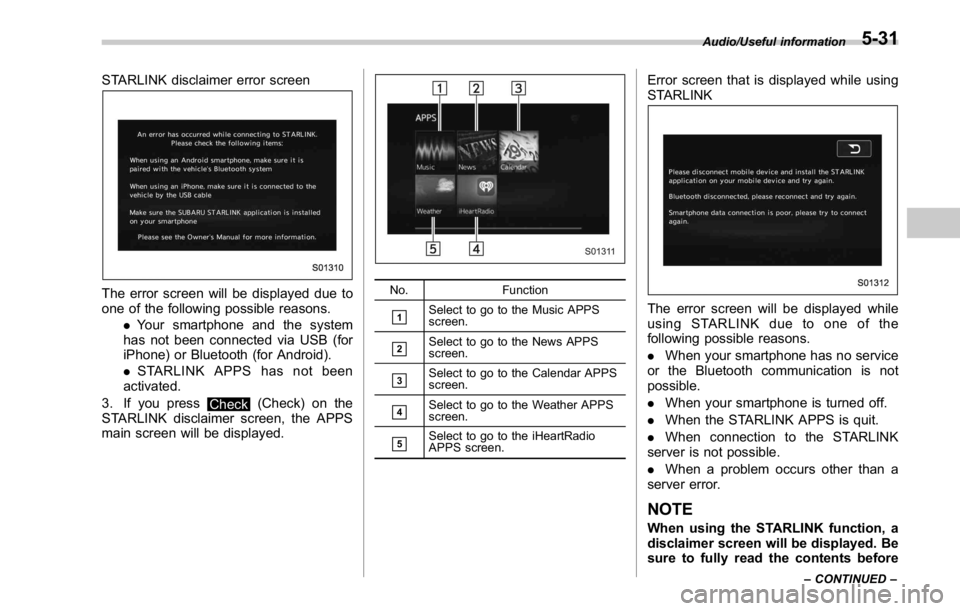
The error screen will be displayed due to
one of the following possible reasons.
. Your smartphone and the system
has not been connected via USB (for
iPhone) or Bluetooth (for Android).
. STARLINK APPS has not been
activated.
3. If you press
Check (Check) on the
STARLINK disclaimer screen, the APPS
main screen will be displayed. No. Function
& 1
Select to go to the Music APPS
screen.
& 2
Select to go to the News APPS
screen.
& 3
Select to go to the Calendar APPS
screen.
& 4
Select to go to the Weather APPS
screen.
& 5
Select to go to the iHeartRadio
APPS screen. Error screen that is displayed while using
STARLINK
The error screen will be displayed while
using STARLINK due to one of the
following possible reasons.
. When your smartphone has no service
or the Bluetooth communication is not
possible.
. When your smartphone is turned off.
. When the STARLINK APPS is quit.
. When connection to the STARLINK
server is not possible.
. When a problem occurs other than a
server error.
NOTE
When using the STARLINK function, a
disclaimer screen will be displayed. Be
sure to fully read the contents before Audio/Useful information
– CONTINUED –5-31