change time SUBARU WRX 2016 Owner's Manual
[x] Cancel search | Manufacturer: SUBARU, Model Year: 2016, Model line: WRX, Model: SUBARU WRX 2016Pages: 594, PDF Size: 19.43 MB
Page 227 of 594
Instruments and controls/Illumination brightness control
& One-touch lane changerTo flash the turn signal and turn signal
indicator light three times, push the turn
signal lever up or down slightly and
immediately release it.
The operational/non-operational setting of
the one-touch lane changer ’ s can be
changed by a SUBARU dealer. Contact
the nearest SUBARU dealer for details. Illumination brightness con-
trol
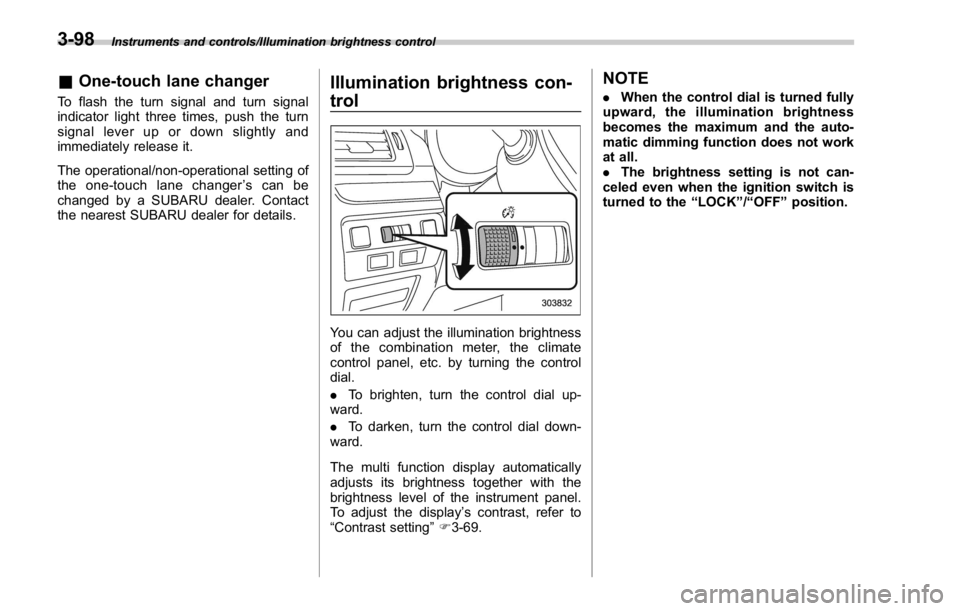
You can adjust the illumination brightness
of the combination meter, the climate
control panel, etc. by turning the control
dial.
. To brighten, turn the control dial up-
ward.
. To darken, turn the control dial down-
ward.
The multi function display automatically
adjusts its brightness together with the
brightness level of the instrument panel.
To adjust the display ’ s contrast, refer to
“ Contrast setting ” F 3-69. NOTE . When the control dial is turned fully
upward, the illumination brightness
becomes the maximum and the auto-
matic dimming function does not work
at all.
. The brightness setting is not can-
celed even when the ignition switch is
turned to the “ LOCK ” / “ OFF ” position.3-98
Page 241 of 594
Instruments and controls/Defogger and deicer
Defogger and deicer
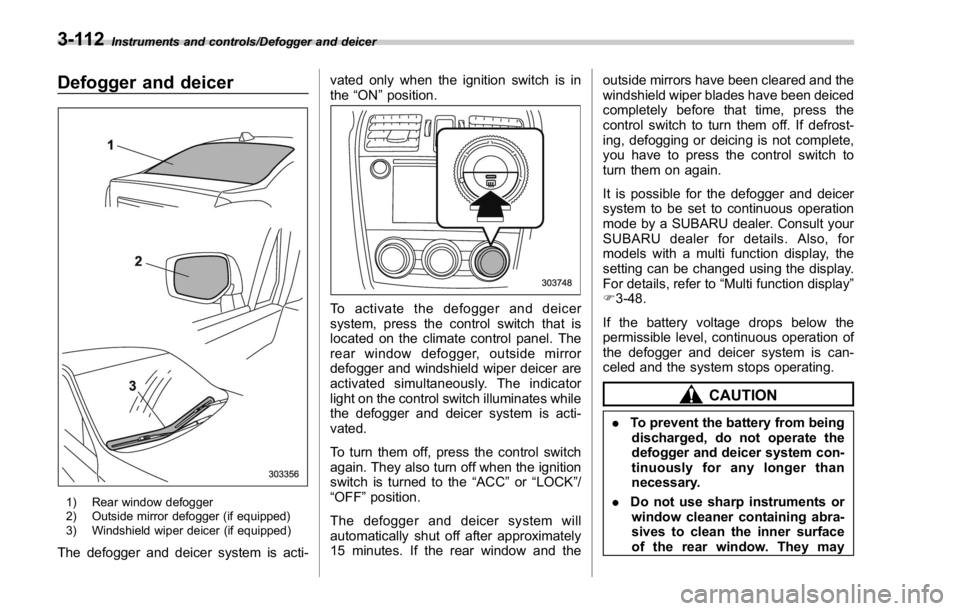
1) Rear window defogger
2) Outside mirror defogger (if equipped)
3) Windshield wiper deicer (if equipped)
The defogger and deicer system is acti- vated only when the ignition switch is in
the “ ON ” position.
To activate the defogger and deicer
system, press the control switch that is
located on the climate control panel. The
rear window defogger, outside mirror
defogger and windshield wiper deicer are
activated simultaneously. The indicator
light on the control switch illuminates while
the defogger and deicer system is acti-
vated.
To turn them off, press the control switch
again. They also turn off when the ignition
switch is turned to the “ ACC ” or “ LOCK ” /
“ OFF ” position.
The defogger and deicer system will
automatically shut off after approximately
15 minutes. If the rear window and the outside mirrors have been cleared and the
windshield wiper blades have been deiced
completely before that time, press the
control switch to turn them off. If defrost-
ing, defogging or deicing is not complete,
you have to press the control switch to
turn them on again.
It is possible for the defogger and deicer
system to be set to continuous operation
mode by a SUBARU dealer. Consult your
SUBARU dealer for details. Also, for
models with a multi function display, the
setting can be changed using the display.
For details, refer to “ Multi function display ”
F 3-48.
If the battery voltage drops below the
permissible level, continuous operation of
the defogger and deicer system is can-
celed and the system stops operating.
CAUTION
. To prevent the battery from being
discharged, do not operate the
defogger and deicer system con-
tinuously for any longer than
necessary.
. Do not use sharp instruments or
window cleaner containing abra-
sives to clean the inner surface
of the rear window. They may3-112
Page 250 of 594

both side windows to prevent fogging.)
(Heat-def): Windshield defroster outlets,
foot outlets and both side outlets of the
instrument panel (Refer to “ Defrosting ”
F 4-9.)
(Defrost): Windshield defroster outlets and both side outlets of the instrument
panel (Refer to “ Defrosting ” F 4-9.)
NOTE When the “ ” or “ ” mode is se-
lected, the air conditioner compressor
operates automatically regardless of
the position of the air conditioner
button to defrost the windshield more
quickly. However the indicator on the
air conditioner button will not illumi-
nate. At the same time, the air inlet
selection is automatically set to the
outside air mode. After defrosting the
windshield by pressing the defroster
button “
” , pressing the button again
returns the system to the setting that
had been selected before the defroster
was activated.
& Temperature control Turn the temperature control dial to set the
preferred interior temperature. With the
dial set to your preferred temperature, the
system automatically adjusts the tempera-
ture of air supplied from the outlets so that
the preferred temperature is achieved and
maintained.
If the dial is turned fully counterclockwise,
the system provides maximum cooling
performance. If the dial is turned fully
clockwise, the system provides maximum heating performance.
NOTE The controllable temperature range
may vary depending on the regional
specifications of the vehicle.
! “ DUAL ” mode (type B)
a) Front passenger ’ s side temperature
b) Driver ’ s side temperature
You can change the setting of the driver ’ s
side and front passenger ’ s side tempera-
ture independently by selecting the
“ DUAL ” mode.
You can select the “ DUAL ” mode by
performing either of the following proce-
dures.
. Press the “ DUAL ” buttonClimate control/Manual climate control operation
– CONTINUED –4-7
Page 254 of 594
Air filtration system Replace the filter element according to the
replacement schedule as follows. This
schedule should be followed to maintain
the filter ’ s dust collection ability. Under
extremely dusty conditions, the filter
should be replaced more frequently. It is
recommended that you have your filter
checked or replaced by your SUBARU
dealer. For replacement, use only a
genuine SUBARU air filter kit. For the
replacement schedule, refer to the “ War-
ranty and Maintenance Booklet ” .
CAUTIONContact your SUBARU dealer if the
following occurs, even if it is not yet
time to change the filter:
. Reduction of the airflow through
the vents.
. Windshield gets easily fogged or
misted.
NOTE The filter can influence the air condi-
tioning, heating and defroster perfor-
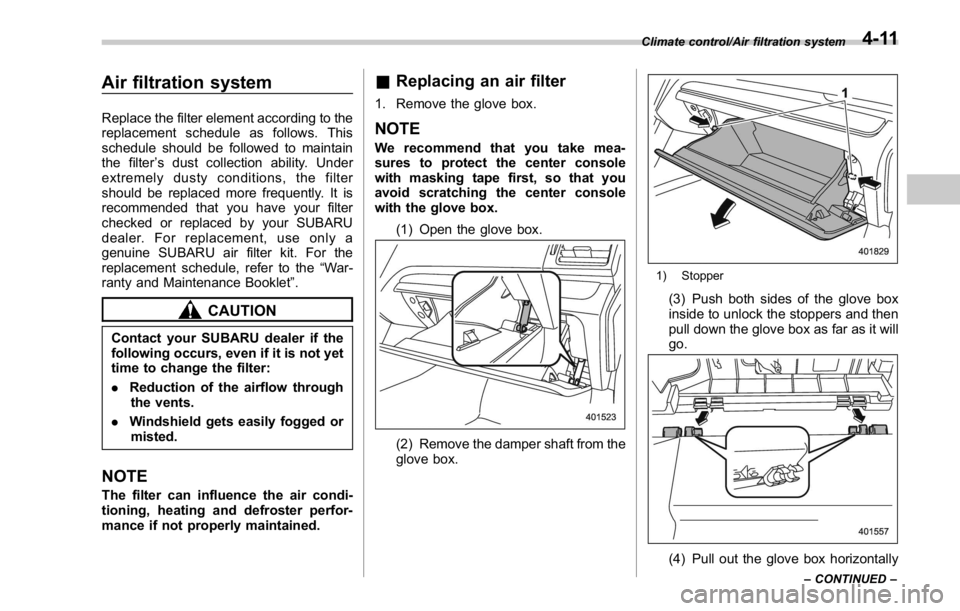
mance if not properly maintained. & Replacing an air filter 1. Remove the glove box.
NOTE We recommend that you take mea-
sures to protect the center console
with masking tape first, so that you
avoid scratching the center console
with the glove box.
(1) Open the glove box.
(2) Remove the damper shaft from the
glove box. 1) Stopper
(3) Push both sides of the glove box
inside to unlock the stoppers and then
pull down the glove box as far as it will
go.
(4) Pull out the glove box horizontally Climate control/Air filtration system
– CONTINUED –4-11
Page 264 of 594
! List screen
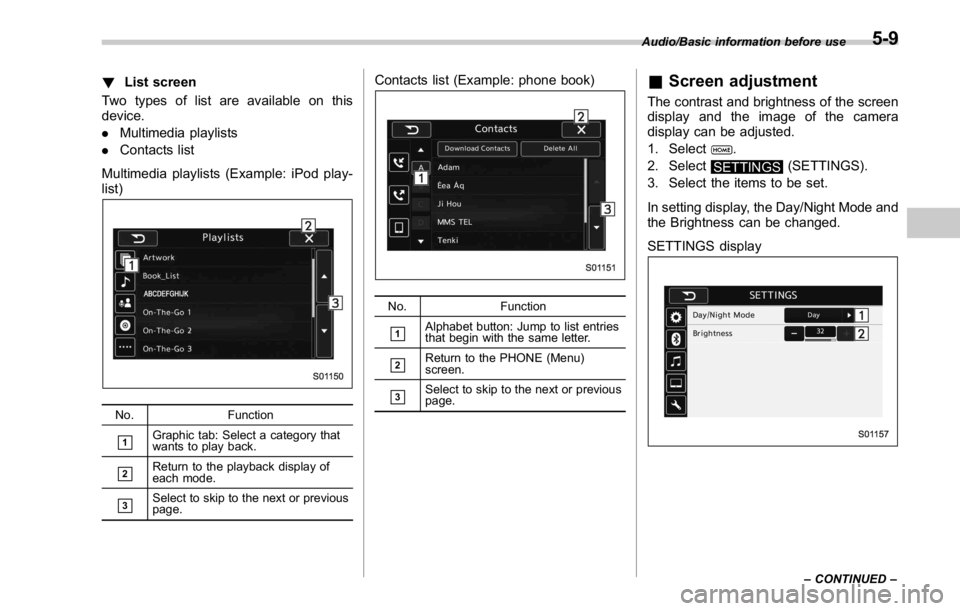
Two types of list are available on this
device.
. Multimedia playlists
. Contacts list
Multimedia playlists (Example: iPod play-
list)
No. Function
& 1
Graphic tab: Select a category that
wants to play back.
& 2
Return to the playback display of
each mode.
& 3
Select to skip to the next or previous
page. Contacts list (Example: phone book)
No. Function
& 1
Alphabet button: Jump to list entries
that begin with the same letter.
& 2
Return to the PHONE (Menu)
screen.
& 3
Select to skip to the next or previous
page. & Screen adjustment The contrast and brightness of the screen
display and the image of the camera
display can be adjusted.
1. Select
.
2. Select
SETTINGS (SETTINGS).
3. Select the items to be set.
In setting display, the Day/Night Mode and
the Brightness can be changed.
SETTINGS display Audio/Basic information before use
– CONTINUED –5-9
Page 292 of 594
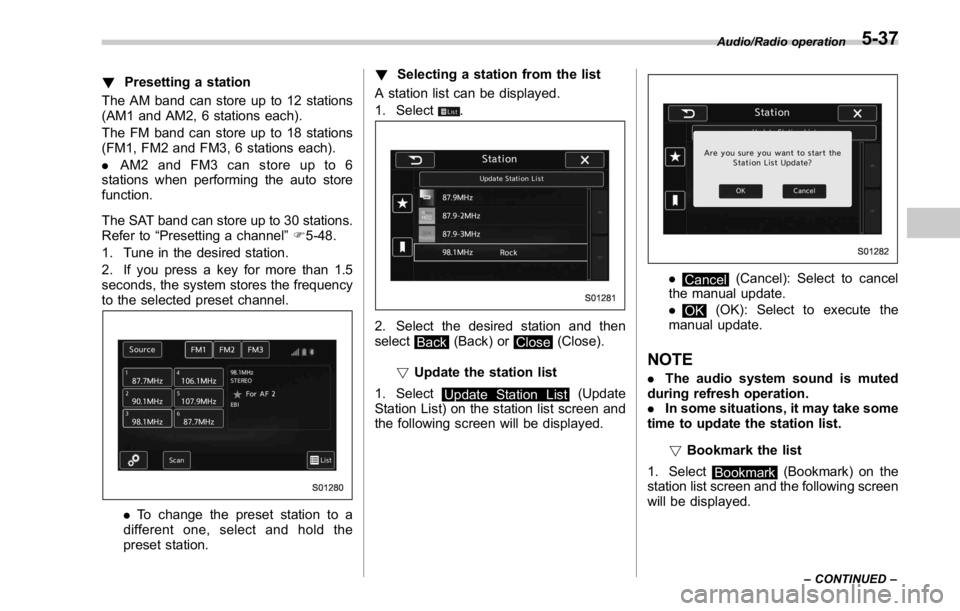
! Presetting a station
The AM band can store up to 12 stations
(AM1 and AM2, 6 stations each).
The FM band can store up to 18 stations
(FM1, FM2 and FM3, 6 stations each).
. AM2andFM3canstoreupto6
stations when performing the auto store
function.
The SAT band can store up to 30 stations.
Refer to “ Presetting a channel ” F 5-48.
1. Tune in the desired station.
2. If you press a key for more than 1.5
seconds, the system stores the frequency
to the selected preset channel.
. To change the preset station to a
different one, select and hold the
preset station. ! Selecting a station from the list
A station list can be displayed.
1. Select
.
2. Select the desired station and then
select
Back (Back) or
Close (Close).
! Update the station list
1. Select
Update Station List (Update
Station List) on the station list screen and
the following screen will be displayed. .
Cancel (Cancel): Select to cancel
the manual update.
.
OK (OK): Select to execute the
manual update.
NOTE . The audio system sound is muted
during refresh operation.
. In some situations, it may take some
time to update the station list.
! Bookmark the list
1. Select
Bookmark (Bookmark) on the
station list screen and the following screen
will be displayed. Audio/Radio operation
– CONTINUED –5-37
Page 302 of 594
WARNING. SiriusXM Satellite Radio Services
— Legal Disclaimers and Warn-
ings
– Fees and Taxes — Subscrip-
tion fee, taxes, one time acti-
vation fee, and other fees may
apply. Subscription fee is con-
sumer only. All fees and pro-
gramming subject to change.
Subscriptions subject to Cus-
tomer Agreement available at
www.siriusxm.ca XM service
only available in Canada.
Explicit Language Notice —
Channels with frequent expli-
cit language are indicated
with an “ XL ” preceding the
channel name. Channel block-
ing is available for SiriusXM
Satellite Radio receivers by
notifying XM at;
Visit www.siriusxm.ca or call-
ing
1-877-209-0079 CAUTION. It is prohibited to copy, decom-
pile, disassemble, reverse engi-
neer, hack, manipulate, or other-
wise make available any technol-
ogy or software incorporated in
receivers compatible with the
SiriusXM Satellite Radio System
or that support the XM website,
the Online Service or any of its
content. Furthermore, the
AMBE ®
voice compression soft-
ware included in this product is
protected by intellectual property
rights including patent rights,
copyrights, and trade secrets of
Digital Voice Systems, Inc.
. Note: this applies to SiriusXM
Satellite Radio receivers only
and not XM Ready devices.
NOTE . SiriusXM Satellite Services — De-
scriptions
– Only SiriusXM Satellite Radio ®
brings you more of what you love,
all in one place. Get over 175
channels, including commercial-
free music, plus the best sports,
news, talk, comedy and entertain- ment. Welcome to the world of
satellite radio. More information
about SiriusXM Satellite Radio is
available online at www.siriusxm.
ca.
. SiriusXM Satellite Services — Sub-
scription Instructions
– For SiriusXM Services requiring
a subscription (such as SiriusXM
Satellite Radio, and some Infotain-
ment & data services), the following
applies.
Required SiriusXM Satellite Radio
and some Infotainment & data ser-
vices monthly subscriptions sold
separately after trial period. Sub-
scription fee is consumer only. All
fees and programming subject to
change. Subscriptions are subject
to the Customer Agreement avail-
able at www.siriusxm.ca. Sirius, XM
and all related marks and logos are
trademarks of Sirius XM Radio Inc.
All other marks, channel names and
logos are the property of their
respective owners.
For more information, program
schedules, and to subscribe or
extend subscription after compli-
mentary trial period; more informa-
tion is available at:
Visit www.siriusxm.ca or calling Audio/Radio operation
– CONTINUED –5-47
Page 303 of 594
Audio/Radio operation
1-877-209-0079
. SiriusXM Satellite Radio is solely
responsible for the quality, availability
and content of the satellite radio ser-
vices provided, which are subject to
the terms and conditions of the
SiriusXM Satellite Radio customer ser-
vice agreement.
. Customers should have their radio
ID ready; the radio ID can be found by
tuning to “ Ch 000 ” on the radio. For
details, see “ DISPLAYING THE RADIO
ID ” below.
. All fees and programming are the
responsibility of SiriusXM Satellite
Radio and are subject to change.
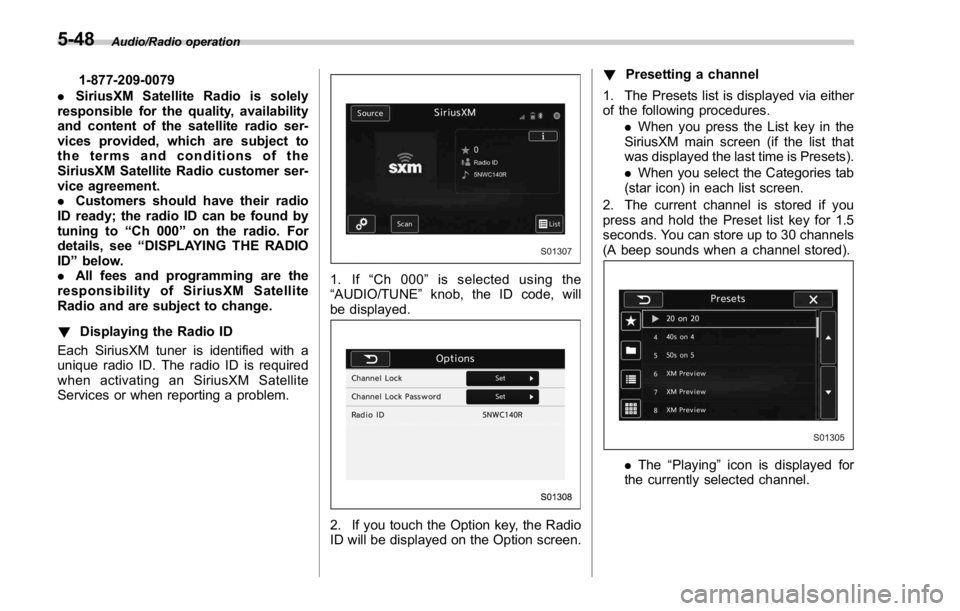
! Displaying the Radio ID
Each SiriusXM tuner is identified with a
unique radio ID. The radio ID is required
when activating an SiriusXM Satellite
Services or when reporting a problem. 1. If “ Ch 000 ” is selected using the
“ AUDIO/TUNE ” knob, the ID code, will
be displayed.
2. If you touch the Option key, the Radio
ID will be displayed on the Option screen. ! Presetting a channel
1. The Presets list is displayed via either
of the following procedures.
. When you press the List key in the
SiriusXM main screen (if the list that
was displayed the last time is Presets).
. When you select the Categories tab
(star icon) in each list screen.
2. The current channel is stored if you
press and hold the Preset list key for 1.5
seconds. You can store up to 30 channels
(A beep sounds when a channel stored).
. The “ Playing ” icon is displayed for
the currently selected channel.5-48
Page 323 of 594
Audio/Media operation
WARNING. Do not connect or operate the
smartphone while driving.
. Be sure to park the vehicle in a
safe location before connecting
or operating the smartphone.
CAUTION. Do not leave your smartphone in
the car. In particular, high tem-
peratures inside the vehicle may
damage the smartphone.
. Do not push down on or apply
unnecessary pressure to the
smartphone while it is connected
as this may damage the smart-
phone or its terminal.
. Do not insert foreign objects into
the port as this may damage the
smartphone or its terminal.
NOTE . For safety reasons, certain func-
tions are not available while your
vehicle is in motion.
. In order to maximize signal recep-
tion, performance and precision of the
smartphone, please ensure the smart- phone is placed as close to the system
as possible, while ensuring it is stowed
and secure while driving.
. Use USB cables of iPhone/iPod
touch accessories.
. When the ignition switch is in the
“ ACC ” or “ ON ” position, the battery of
the connected iPhone/iPod touch is
charged.
. iPhone/iPod touch may not be re-
cognized when the ignition switch is in
the “ ACC ” or “ ON ” position. In this
case, remove the iPhone/iPod touch
and reconnect it.
. The accuracy of the displayed in-
formation or the signal reception per-
formance depends on the smartphone
or the connected device, and it ’ s wire-
less connection.
. Since the aha application uses sig-
nals from GPS satellites and wireless
communication lines, it may not work
properly in the following locations.
– In a tunnel
– In underground parking lots
– Outside wireless communication
range, such as some countryside
areas
– Where the wireless communica-
tion network is congested, or where
communications are restricted
. Depending on the circumstances and environment, the signal may be
weak or not be received. In such cases,
an error may occur.
. Top 35 entries in the preset station
list on the smartphone are displayed.
When there are more than 35 entries in
the preset station list, change the order
of the entries in the list on the smart-
phone. You can change the priority of
your preset stations within the aha
application (after disconnected from
this system) to modify the station list
shown on the screen. Please see your
smartphone aha application “ Edit Pre-
sets (in Main menu) ” to modify this list.
. For operating the smartphone, see
the instruction manual that comes with
it.
. If there are multiple music files
stored on your iPhone or iPod touch,
it may take some time until playback
starts.
. Playback may be intermittent when
youswitchtostreamingBluetooth
audio from aha on your smartphone
device.
. When connecting the device via
Bluetooth, the communication speed
may become slower than via USB.5-68
Page 340 of 594
tration may be displayed on the Blue-
tooth device ’ s screen. Respond and
operate the Bluetooth device accord-
ing to the confirmation message.
4. Check that the screen is displayed
when registration is complete.
. The system waits for connection
requests coming from the registered
device.
. At this stage, the Bluetooth func-
tions are not yet available.
! Deleting a Bluetooth device
1. Display the “ BT Devices Connection ”
screen. Refer to “ Registering a Bluetooth
phone for the first time ” F 5-81.
2. Select the desired device.
Press and hold the Trash box icon for the
device to be deleted, and then select
“ OK ” .
NOTE When deleting a Bluetooth phone, the
contact data will be deleted at the same
time.
! Connecting a Bluetooth device
Up to 5 Bluetooth devices (Phones (HFP)
and audio devices (AVP)) can be regis-
tered. If more than 1 Bluetooth device has been
registered, select which device to connect
to.
1. Display the “ BT Devices Connection ”
screen. Refer to “ Registering a Bluetooth
phone for the first time ” F 5-81.
2. Select the device to be connected.
. Supported profile icons will be dis-
played.
–
: Phone
– : Audio device
– : Smartphone Application
. Supported profile icons for currently
connected devices will illuminate.
. The Audio icon illuminates only
when in the Bluetooth audio mode.
. All icons are dimmed when Blue-
tooth is set to OFF or when the
connection cannot be made with the
device.
NOTE . It may take time if the device con-
nection is carried out during Bluetooth
audio playback.
. Depending on the type of Bluetooth
device being connected, it may be
necessary to perform additional steps
on the device.
. It is not possible to establish a
Bluetooth connection with iOS devices currently connected with a USB cable.
! Bluetooth ON/OFF
1. Display the “ BT Devices Connection ”
screen. Refer to “ Registering a Bluetooth
phone for the first time ” F 5-81.
2. Select the “ Bluetooth ON/OFF ” key.
. Select “ ON ” or “ OFF ” to connect/
disconnect the Bluetooth communica-
tion. “ ON ” establishes a connection,
and “ OFF ” disconnects the connec-
tion.
. The setting is fixed as “ OFF ” when
no device is registered.
! “ In-Car-Device setting ” screen
The Bluetooth settings can be confirmed
and changed.
1. Display the “ SETTINGS ” screen. Refer
to “ Registering a Bluetooth phone for the
first time ” F 5-81.
2. On the SETTINGS for In-Car-Device
setting select “ set ” key. Audio/Bluetooth ®
settings
– CONTINUED –5-85