radio SUBARU WRX 2018 User Guide
[x] Cancel search | Manufacturer: SUBARU, Model Year: 2018, Model line: WRX, Model: SUBARU WRX 2018Pages: 578, PDF Size: 33.21 MB
Page 236 of 578

(245,1)
北米Model "A1700BE-B" EDITED: 2017/ 10/ 11
Antenna...................................................................5-2
Roof antenna......................................................... 5-2
Audio set.................................................................5-2
Base display audio set (if equipped)....................... 5-3
SUBARU STARLINK
TM
7.0 Multimedia Plus audio
set (U.S. spec. models only, if equipped).............. 5-5
Tips for operating the audio/visual system............. 5-6
Basic information before use................................5-14
Basic operation.....................................................5-17
Unit settings.........................................................5-18
SUBARU STARLINK (if equipped)..........................5-25
AM/FM radio.........................................................5-27
SiriusXM Satellite Radio (if equipped)....................5-36
aha
TM
by HARMAN................................................5-42
Pandora®(if equipped)..........................................5-48
CD ........................................................................5-51
USB memory........................................................5-53
iPod......................................................................5-54
Bluetooth audio....................................................5-56
AUX ......................................................................5-59
Steering switches foraudio.................................5-61Bluetooth
®settings..............................................5-64
Regulatory information.........................................5-64
Registering/connecting Bluetooth
®device.............5-64
Setting Bluetooth details.......................................5-67
Hands-free phone system....................................5-69
Control screen......................................................5-70
Registering/connecting a Bluetooth phone ............5-71
Using the phone switch/microphone.....................5-71
How to change the hands-free phone system........5-72
Making a call........................................................5-72
Receiving a call....................................................5-75
Talking on the phone............................................5-76
Phone settings.....................................................5-77
Voice commandsystem.......................................5-79
Using the voice command system........................5-79
Voice command system operation.........................5-81
Command list.......................................................5-83
What to doif.........................................................5-87
Troubleshooting...................................................5-87
Appendix...............................................................5-91
Certification..........................................................5-91
Certification for the Hands-free system.................5-91
Certification for Mexico models.............................5-92
Audio
5
Page 237 of 578

(246,1)
北米Model "A1700BE-B" EDITED: 2017/ 10/ 11
Antenna&Roof antennaThe shark-fin type roof antenna is installed
in the center at the rear of the roof.
Audio setYour vehicle may be equipped with one of
the following audio sets. Refer to the
pages indicated in this section for operat-
ing details.
CAUTION
.Always consult your SUBARU
dealer before installing a citizen
band radio or other transmitting
device in your vehicle. Such
devices may cause the electronic
control system to malfunction if
they are incorrectly installed or if
they are not suited for the vehi-
cle.
.To prevent the battery from being
discharged, do not leave the
audio/visual system on when the
engine is not running.NOTE.If a cell phone is placed near the
audio set, it may cause the audio set to
emit noise when the phone receives
calls. This noise does not indicate an
audio set malfunction. Note that a cell
phone should not be placed near the
audio set..Some functions may not be available
depending on the market and specifi-
cations of your vehicle.
.The images shown in this Owner’s
Manual are sample images. The actual
images may vary depending on the
market and specifications of your ve-
hicle.
Audio/Antenna
5-2
Page 238 of 578

(247,1)
北米Model "A1700BE-B" EDITED: 2017/ 10/ 11
&Base display audio set (if equipped)1) Power/VOLUME knob
2) Eject button
3) AUDIO/TUNE knob
4) HOME button5) APPS button
6) Display
7) SEEK/TRACK buttons
The audio set will operate only when the
ignition switch is in the“ACC”or“ON”
position.
.Power and audio controls: refer to
“Basic operation”F5-17.
.SUBARU STARLINK (if equipped):
refer to“SUBARU STARLINK”F5-25.
.Radio operation: refer to“AM/FM radio”
F5-27.
.Satellite radio operation (if equipped):
refer to“SiriusXM Satellite Radio”F5-36.
.aha
TM: refer to“aha
TM
by HARMAN”
F5-42.
.Pandora
®(if equipped): refer to“Pan-
dora
®”F5-48.
.CD (compact disc) player operation:
refer to“CD”F5-51.
.USB storage device: refer to“USB
memory”F5-53.
.iPod operation: refer to“iPod”F5-54.
.Bluetooth
®audio: refer to“Bluetooth
audio”F5-56.
.Auxiliary input jack: refer to“AUX”F5-
59.
.Hands-free phone system: refer to
“Hands-free phone system”F5-69.
–CONTINUED–
Audio/Audio set
5-3
5
Page 239 of 578

(248,1)
北米Model "A1700BE-B" EDITED: 2017/ 10/ 11
NOTEHD Radio
TM
Technology (if equipped)
should be included as a feature in the
base display audio set.
This display audio set is referred to as
follows.
.U.S. customers: SUBARU
STARLINK
TM
6.2 Multimedia
.Canadian customers: 6.2-inch infotain-
ment system
Audio/Audio set
5-4
Page 240 of 578

(249,1)
北米Model "A1700BE-B" EDITED: 2017/ 10/ 11
&SUBARU STARLINK
TM
7.0 Multimedia Plus audio set (U.S. spec.
models only, if equipped)
The audio set will operate only when the
ignition switch is in the“ACC”or“ON”
position.
For details about how to use the SUBARU
STARLINK
TM
7.0 Multimedia Plus audio
set, refer to the SUBARU STARLINK
TM
7.0
Multimedia Plus or SUBARU
STARLINK
TM
7.0 Multimedia Navigation
Owner’s Manual.
NOTEHD Radio Technology should be in-
cluded as a feature in the SUBARU
STARLINK
TM
7.0 Multimedia Plus audio
set.
–CONTINUED–
Audio/Audio set
5-5
5
Page 241 of 578

(250,1)
北米Model "A1700BE-B" EDITED: 2017/ 10/ 11
&Tips for operating the audio/
visual system
CAUTION
To avoid damage to the audio/visual
system:
.Be careful not to spill beverages
over the audio/visual system.
.Do not put anything other than an
appropriate disc into the disc
slot.NOTEThe use of a cell phone inside or near
the vehicle may cause a noise from the
speakers of the audio/visual system
which you are listening to. However,
this does not indicate a malfunction.
!Radio
Usually, a problem with radio reception
does not mean there is a problem with the
radio—it is just the normal result of
conditions outside the vehicle.
For example, nearby buildings and terrain
can interfere with FM reception. Power
lines or phone wires can interfere with AM
signals. And of course, radio signals have
a limited range. The farther the vehicle isfrom a station, the weaker its signal will be.
In addition, reception conditions change
constantly as the vehicle moves.
Here, some common reception problems
that probably do not indicate a problem
with the radio are described.
!FM
Fading and drifting stations: Generally, the
effective range of FM is about 25 miles (40
km). Once outside this range, you may
notice fading and drifting, which increase
with the distance from the radio transmit-
ter. They are often accompanied by
distortion.
Multi-path: FM signals are reflective, mak-
ing it possible for 2 signals to reach the
vehicle’s antenna at the same time. If this
happens, the signals will cancel each other
out, causing a momentary flutter or loss of
reception.
Static and fluttering: These occur when
signals are blocked by buildings, trees or
other large objects. Increasing the bass
level may reduce static and fluttering.
Station swapping: If the FM signal being
listened to is interrupted or weakened, and
there is another strong station nearby on
the FM band, the radio may tune in the
second station until the original signal can
be picked up again.!AM
Fading: AM broadcasts are reflected by
the upper atmosphere—especially at
night. These reflected signals can interfere
with those received directly from the radio
station, causing the radio station to sound
alternately strong and weak.
Station interference: When a reflected
signal and a signal received directly from
a radio station are very nearly the same
frequency, they can interfere with each
other, making it difficult to hear the broad-
cast.
Static: AM is easily affected by external
sources of electrical noise, such as high
tension power lines, lightening or electrical
motors. This results in static.
!SiriusXM (if equipped)
.Cargo loaded on the roof luggage
carrier, especially metal objects, may
adversely affect the reception of SiriusXM
Satellite Radio.
.Alternation or modifications carried out
without appropriate authorization may in-
validate the user’s right to operate the
equipment.
Audio/Audio set
5-6
Page 261 of 578
(270,1)
北米Model "A1700BE-B" EDITED: 2017/ 10/ 11
.You can also switch to aha or
Pandora (if equipped) from the APPS
screen.
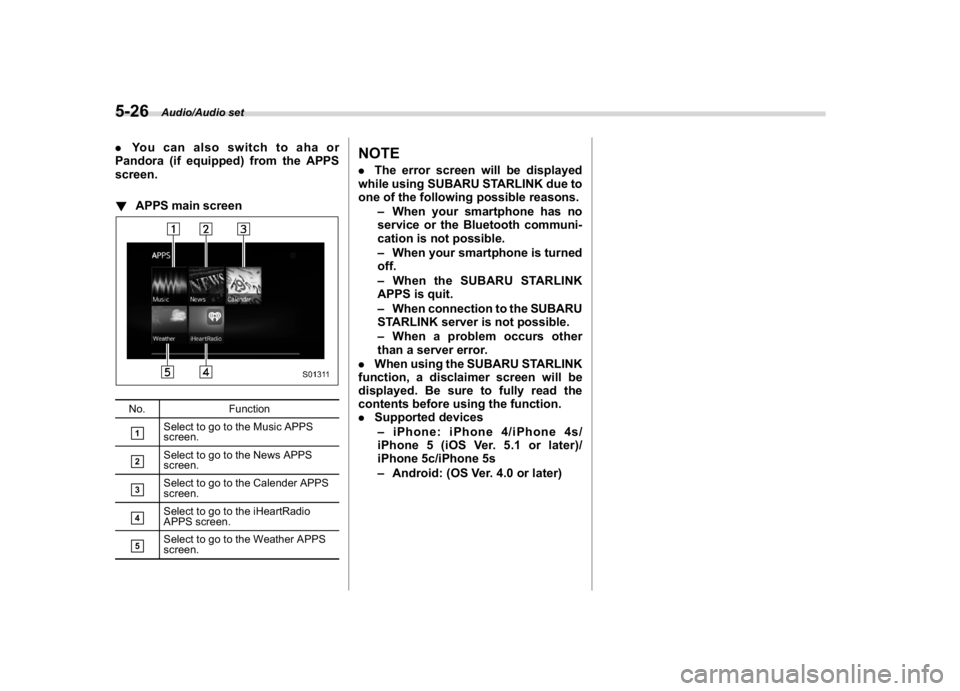
!APPS main screenNo. Function&1
Select to go to the Music APPS
screen.
&2
Select to go to the News APPS
screen.
&3
Select to go to the Calender APPS
screen.
&4
Select to go to the iHeartRadio
APPS screen.
&5
Select to go to the Weather APPS
screen.
NOTE.The error screen will be displayed
while using SUBARU STARLINK due to
one of the following possible reasons.
–When your smartphone has no
service or the Bluetooth communi-
cation is not possible.
–When your smartphone is turned
off.
–When the SUBARU STARLINK
APPS is quit.
–When connection to the SUBARU
STARLINK server is not possible.
–When a problem occurs other
than a server error.
.When using the SUBARU STARLINK
function, a disclaimer screen will be
displayed. Be sure to fully read the
contents before using the function.
.Supported devices
–iPhone: iPhone 4/iPhone 4s/
iPhone 5 (iOS Ver. 5.1 or later)/
iPhone 5c/iPhone 5s
–Android: (OS Ver. 4.0 or later)
Audio/Audio set
5-26
Page 262 of 578
(271,1)
北米Model "A1700BE-B" EDITED: 2017/ 10/ 11
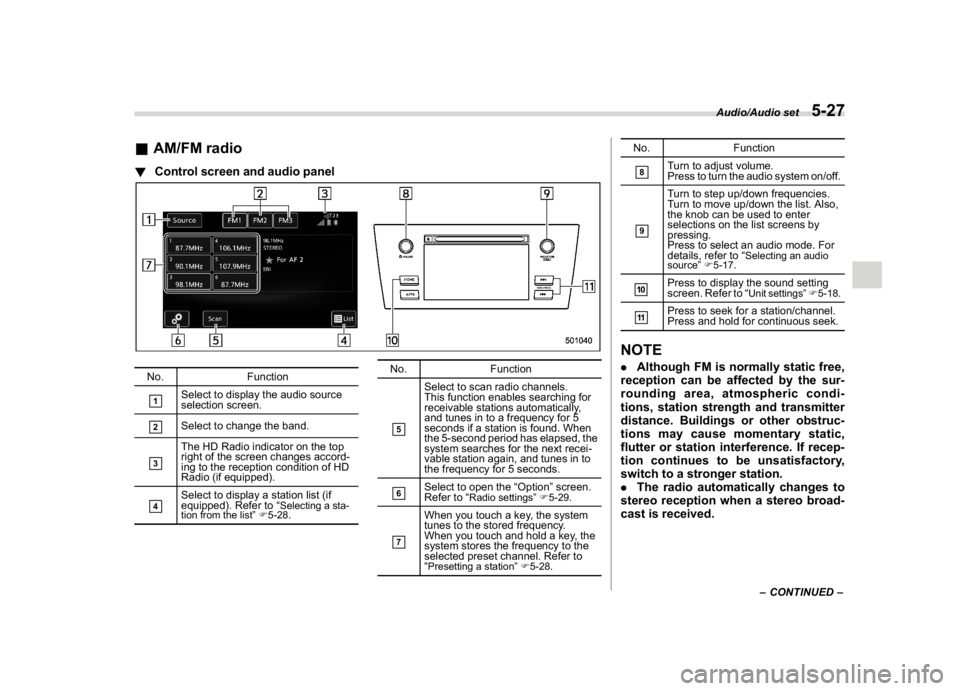
&AM/FM radio!Control screen and audio panelNo. Function&1
Select to display the audio source
selection screen.
&2
Select to change the band.
&3
The HD Radio indicator on the top
right of the screen changes accord-
ing to the reception condition of HD
Radio (if equipped).
&4
Select to display a station list (if
equipped). Refer to“
Selecting a sta-
tion from the list”F5-28.
No. Function&5
Select to scan radio channels.
This function enables searching for
receivable stations automatically,
and tunes in to a frequency for 5
seconds if a station is found. When
the 5-second period has elapsed, the
system searches for the next recei-
vable station again, and tunes in to
the frequency for 5 seconds.
&6
Select to open the“Option”screen.
Refer to“
Radio settings”F5-29.
&7
When you touch a key, the system
tunes to the stored frequency.
When you touch and hold a key, the
system stores the frequency to the
selected preset channel. Refer to
“Presetting a station”F5-28.
No. Function&8
Turn to adjust volume.
Press to turn the audio system on/off.
&9
Turn to step up/down frequencies.
Turn to move up/down the list. Also,
the knob can be used to enter
selections on the list screens by
pressing.
Press to select an audio mode. For
details, refer to“
Selecting an audio
source”F5-17.
&10
Press to display the sound setting
screen. Refer to“
Unit settings”F5-18.
&11
Press to seek for a station/channel.
Press and hold for continuous seek.
NOTE.Although FM is normally static free,
reception can be affected by the sur-
rounding area, atmospheric condi-
tions, station strength and transmitter
distance. Buildings or other obstruc-
tions may cause momentary static,
flutter or station interference. If recep-
tion continues to be unsatisfactory,
switch to a stronger station.
.The radio automatically changes to
stereo reception when a stereo broad-
cast is received.
–CONTINUED–
Audio/Audio set
5-27
5
Page 263 of 578
(272,1)
北米Model "A1700BE-B" EDITED: 2017/ 10/ 11
.The radio automatically blends to an
HD Radio signal (if equipped) in AM or
FM where available.
!How to change the source
Select the“AM”or“FM”key on the source
select screen. Refer to“Selecting an audio
source”F5-17.
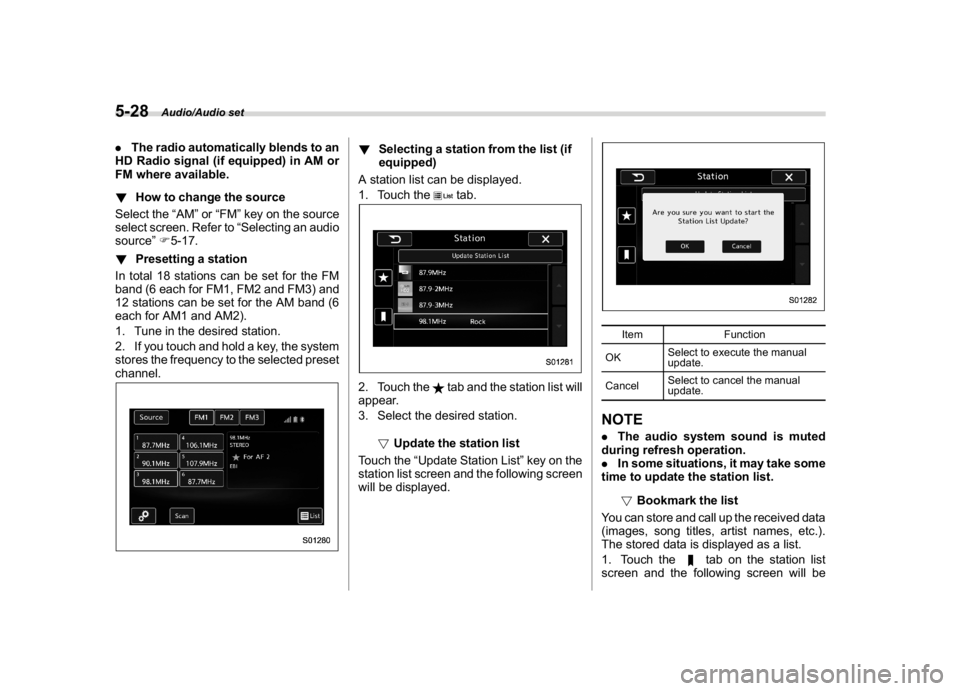
!Presetting a station
In total 18 stations can be set for the FM
band (6 each for FM1, FM2 and FM3) and
12 stations can be set for the AM band (6
each for AM1 and AM2).
1. Tune in the desired station.
2. If you touch and hold a key, the system
stores the frequency to the selected preset
channel.
!Selecting a station from the list (if
equipped)
A station list can be displayed.
1. Touch the
tab.
2. Touch the
tab and the station list will
appear.
3. Select the desired station.
!Update the station list
Touch the“Update Station List”key on the
station list screen and the following screen
will be displayed.
Item Function
OKSelect to execute the manual
update.
CancelSelect to cancel the manual
update.
NOTE.The audio system sound is muted
during refresh operation.
.In some situations, it may take some
time to update the station list.
!Bookmark the list
You can store and call up the received data
(images, song titles, artist names, etc.).
The stored data is displayed as a list.
1. Touch the
tab on the station list
screen and the following screen will be
Audio/Audio set
5-28
Page 264 of 578
(273,1)
北米Model "A1700BE-B" EDITED: 2017/ 10/ 11
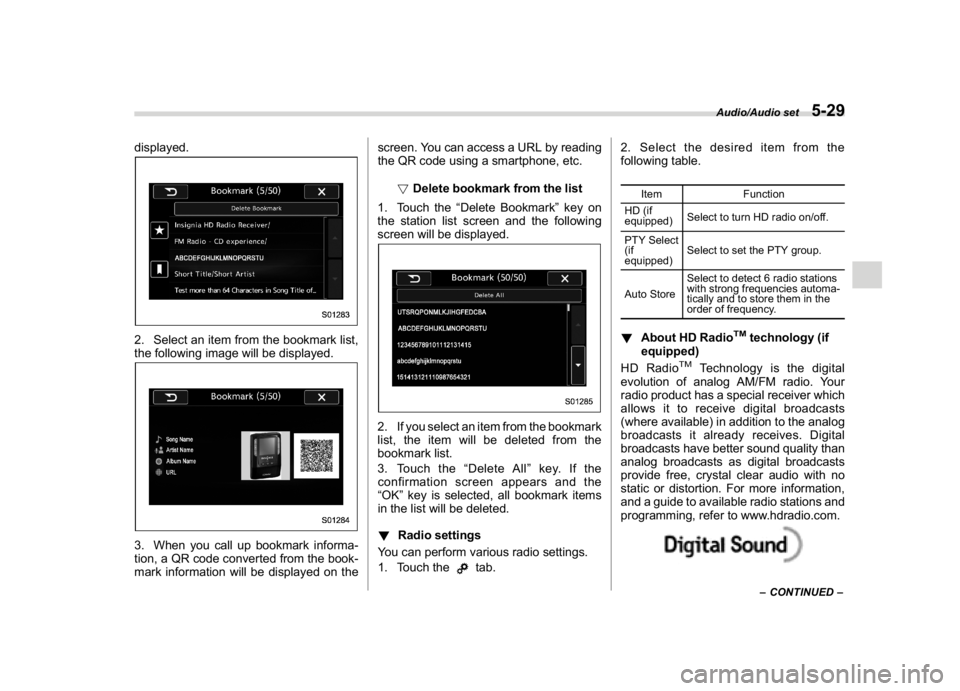
displayed.2. Select an item from the bookmark list,
the following image will be displayed.3. When you call up bookmark informa-
tion, a QR code converted from the book-
mark information will be displayed on thescreen. You can access a URL by reading
the QR code using a smartphone, etc.
!Delete bookmark from the list
1. Touch the“Delete Bookmark”key on
the station list screen and the following
screen will be displayed.
2. If you select an item from the bookmark
list, the item will be deleted from the
bookmark list.
3. Touch the“Delete All”key. If the
confirmation screen appears and the
“OK”key is selected, all bookmark items
in the list will be deleted.
!Radio settings
You can perform various radio settings.
1. Touch the
tab.2. Select the desired item from the
following table.
Item Function
HD (if
equipped)Select to turn HD radio on/off.
PTY Select
(if
equipped)Select to set the PTY group.
Auto StoreSelect to detect 6 radio stations
with strong frequencies automa-
tically and to store them in the
order of frequency.
!About HD Radio
TM
technology (if
equipped)
HD Radio
TM
Technology is the digital
evolution of analog AM/FM radio. Your
radio product has a special receiver which
allows it to receive digital broadcasts
(where available) in addition to the analog
broadcasts it already receives. Digital
broadcasts have better sound quality than
analog broadcasts as digital broadcasts
provide free, crystal clear audio with no
static or distortion. For more information,
and a guide to available radio stations and
programming, refer to www.hdradio.com.
–CONTINUED–
Audio/Audio set
5-29
5