display SUBARU WRX 2018 Workshop Manual
[x] Cancel search | Manufacturer: SUBARU, Model Year: 2018, Model line: WRX, Model: SUBARU WRX 2018Pages: 578, PDF Size: 33.21 MB
Page 231 of 578
(238,1)
北米Model "A1700BE-B" EDITED: 2017/ 10/ 11
control dial
Press the“DUAL”button to cancel the
“DUAL”mode.
When the“DUAL”mode is selected:
Turn the driver’s side dial to set the driver’s
side temperature. Turn the front passen-
ger’s side dial to set the front passenger’s
side temperature.
When the“DUAL”mode is canceled:
Turn the driver’s side dial to set the desired
temperature.
When the“DUAL”mode is canceled, only
the driver’s side temperature is displayed.&Fan speed controlThe fan operates only when the ignition
switch is in the“ON”position. Turn the fan
speed control dial to select the preferred
fan speed.
&Air conditioner controlThe air conditioner operates only when the
engine is running.
Press the air conditioner button while the
fan is in operation to turn on the air
conditioner. When the air conditioner is
on, the“A/C”indicator light illuminates.
To turn off the air conditioner, press the
button again.NOTEFor efficient defogging or dehumidify-
ing in cold weather, turn on the air
conditioner. However, if the ambient
temperature decreases to approxi-
mately 328F(08C), the air conditioner
compressor will stop operating.&Air inlet selectionSelect the air inlet by pressing the air inlet
selection button.
ON position (recirculation):Interior air is
recirculated inside the vehicle. Press the
air inlet selection button to the ON position
for fast cooling with the air conditioner or
when driving on a dusty road.
OFF position (outside air):Outside air is
drawn into the passenger compartment.
Press the air inlet selection button to the
OFF position when the interior has cooledto a comfortable temperature and the road
is no longer dusty.
WARNING
Continued operation in the ON posi-
tion may fog up the windows. Switch
to the OFF position as soon as the
outside conditions are no longer
dusty.NOTEWhen the battery is disconnected or the
battery voltage drops, the air inlet
selection operation indicator light may
blink. This does not indicate a malfunc-
tion. However, if the indicator light
blinks every time you start the engine,
a malfunction may occur in the elec-
trical circuit. Have the vehicle in-
spected at the nearest SUBARU dealer.
Climate control/Manual climate control operation
4-8
Page 236 of 578

(245,1)
北米Model "A1700BE-B" EDITED: 2017/ 10/ 11
Antenna...................................................................5-2
Roof antenna......................................................... 5-2
Audio set.................................................................5-2
Base display audio set (if equipped)....................... 5-3
SUBARU STARLINK
TM
7.0 Multimedia Plus audio
set (U.S. spec. models only, if equipped).............. 5-5
Tips for operating the audio/visual system............. 5-6
Basic information before use................................5-14
Basic operation.....................................................5-17
Unit settings.........................................................5-18
SUBARU STARLINK (if equipped)..........................5-25
AM/FM radio.........................................................5-27
SiriusXM Satellite Radio (if equipped)....................5-36
aha
TM
by HARMAN................................................5-42
Pandora®(if equipped)..........................................5-48
CD ........................................................................5-51
USB memory........................................................5-53
iPod......................................................................5-54
Bluetooth audio....................................................5-56
AUX ......................................................................5-59
Steering switches foraudio.................................5-61Bluetooth
®settings..............................................5-64
Regulatory information.........................................5-64
Registering/connecting Bluetooth
®device.............5-64
Setting Bluetooth details.......................................5-67
Hands-free phone system....................................5-69
Control screen......................................................5-70
Registering/connecting a Bluetooth phone ............5-71
Using the phone switch/microphone.....................5-71
How to change the hands-free phone system........5-72
Making a call........................................................5-72
Receiving a call....................................................5-75
Talking on the phone............................................5-76
Phone settings.....................................................5-77
Voice commandsystem.......................................5-79
Using the voice command system........................5-79
Voice command system operation.........................5-81
Command list.......................................................5-83
What to doif.........................................................5-87
Troubleshooting...................................................5-87
Appendix...............................................................5-91
Certification..........................................................5-91
Certification for the Hands-free system.................5-91
Certification for Mexico models.............................5-92
Audio
5
Page 238 of 578

(247,1)
北米Model "A1700BE-B" EDITED: 2017/ 10/ 11
&Base display audio set (if equipped)1) Power/VOLUME knob
2) Eject button
3) AUDIO/TUNE knob
4) HOME button5) APPS button
6) Display
7) SEEK/TRACK buttons
The audio set will operate only when the
ignition switch is in the“ACC”or“ON”
position.
.Power and audio controls: refer to
“Basic operation”F5-17.
.SUBARU STARLINK (if equipped):
refer to“SUBARU STARLINK”F5-25.
.Radio operation: refer to“AM/FM radio”
F5-27.
.Satellite radio operation (if equipped):
refer to“SiriusXM Satellite Radio”F5-36.
.aha
TM: refer to“aha
TM
by HARMAN”
F5-42.
.Pandora
®(if equipped): refer to“Pan-
dora
®”F5-48.
.CD (compact disc) player operation:
refer to“CD”F5-51.
.USB storage device: refer to“USB
memory”F5-53.
.iPod operation: refer to“iPod”F5-54.
.Bluetooth
®audio: refer to“Bluetooth
audio”F5-56.
.Auxiliary input jack: refer to“AUX”F5-
59.
.Hands-free phone system: refer to
“Hands-free phone system”F5-69.
–CONTINUED–
Audio/Audio set
5-3
5
Page 239 of 578

(248,1)
北米Model "A1700BE-B" EDITED: 2017/ 10/ 11
NOTEHD Radio
TM
Technology (if equipped)
should be included as a feature in the
base display audio set.
This display audio set is referred to as
follows.
.U.S. customers: SUBARU
STARLINK
TM
6.2 Multimedia
.Canadian customers: 6.2-inch infotain-
ment system
Audio/Audio set
5-4
Page 245 of 578

(254,1)
北米Model "A1700BE-B" EDITED: 2017/ 10/ 11
!File information
Compatible compressed files (Audio)
Item USB DISC
Compatible
file formatMP3/WMA/AAC
Folders in the
deviceMaximum
512Maximum
255
Files in the
deviceMaximum
8000Maximum
512
Files per
folderMaximum
255—
Corresponding sampling frequency
(Audio)
File type Frequency (kHz)
MP3 files:
MPEG 1 LAYER 332/44.1/48
MP3 files:
MPEG 2 LSF LAYER 316/22.05/24
WMA files:
Ver. 7, 8, 9 (9.1/9.2)32/48/64/80/96/128/
160/192
AAC files:
MPEG4/AAC-LC48/44.1/32/24/22.05/
16/12/11.025/8
Corresponding bit rates (Audio)
File type Bit rate (kbps)
MP3 files:
MPEG 1 LAYER 332 - 320
MP3 files:
MPEG 2 LSF LAYER 38 - 160
WMA files: Ver. 7, 8 CBR 48 - 192
WMA files:
Ver. 9 (9.1/9.2)CBR 32 - 192
AAC files:
MPEG4/AAC-LC16 - 320
(Variable Bit Rate (VBR) compatible)
.MP3 (MPEG Audio Layer 3), WMA
(Windows Media Audio) and AAC (Ad-
vanced Audio Coding) are audio compres-
sion standards.
.This system can play MP3/WMA/AAC
files on CD-R, CD-RW discs, USB mem-
ory, and Bluetooth device.
.This system can play disc recordings
compatible with ISO 9660 level 1 and level
2 and with the Romeo and Joliet file
system.
.When naming an MP3/WMA/AAC file,
add an appropriate file extension (.mp3/
.wma/.m4a).
.This system plays back files with .mp3/
.wma/.m4a file extensions as MP3/WMA/
AAC files respectively. To prevent noiseand playback errors, use the appropriate
file extension.
.This system can play only the first
session when using multi-session compa-
tible CDs.
.MP3 files are compatible with the ID3
Tag Ver. 1.0, Ver. 1.1, Ver. 2.2 and Ver. 2.3
formats. This system cannot display disc
title, track title and artist name in other
formats.
.WMA/AAC files can contain a WMA/
AAC tag that is used in the same way as an
ID3 tag. WMA/AAC tags carry information
such as track title and artist name.
.The emphasis function is available only
when playing MP3/WMA files recorded at
32, 44.1 and 48 kHz.
.This system can play back AAC files
encoded by iTunes.
.The sound quality of MP3/WMA files
generally improves with higher bit rates. In
order to achieve a reasonable level of
sound quality, discs recorded with a bit rate
of at least 128 kbps are recommended.
.The MP3/WMA player does not play
back MP3/WMA files from discs recorded
using packet write data transfer (UDF
format). Discs should be recorded using
“pre-mastering”software rather than pack-
etwrite software.
.M3u playlists are not compatible with
Audio/Audio set
5-10
Page 246 of 578
(255,1)
北米Model "A1700BE-B" EDITED: 2017/ 10/ 11
the audio device.
.MP3i (MP3 interactive) and MP3PRO
formats are not compatible with the audio
device.
.The player is compatible with VBR
(Variable Bit Rate).
.When playing back files recorded as
VBR (Variable Bit Rate) files, the play time
will not be correctly displayed if the fast
forward or reverse operations are used.
.It is not possible to check folders that do
not include MP3/WMA/AAC files.
.MP3/WMA/AAC files in folders up to 8
levels deep can be played. However, the
start of playback may be delayed when
using discs containing numerous levels of
folders. For this reason, we recommend
creating discs with no more than 2 levels of
folders.
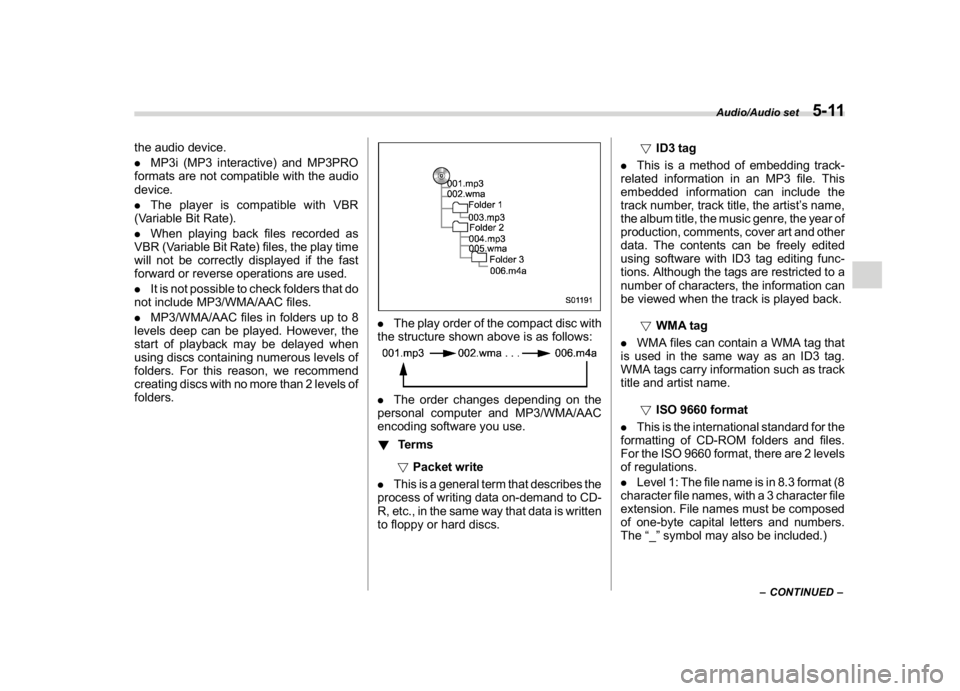
.The play order of the compact disc with
the structure shown above is as follows:.The order changes depending on the
personal computer and MP3/WMA/AAC
encoding software you use.
!Terms
!Packet write
.This is a general term that describes the
process of writing data on-demand to CD-
R, etc., in the same way that data is written
to floppy or hard discs.!ID3 tag
.This is a method of embedding track-
related information in an MP3 file. This
embedded information can include the
track number, track title, the artist’s name,
the album title, the music genre, the year of
production, comments, cover art and other
data. The contents can be freely edited
using software with ID3 tag editing func-
tions. Although the tags are restricted to a
number of characters, the information can
be viewed when the track is played back.
!WMA tag
.WMA files can contain a WMA tag that
is used in the same way as an ID3 tag.
WMA tags carry information such as track
title and artist name.
!ISO 9660 format
.This is the international standard for the
formatting of CD-ROM folders and files.
For the ISO 9660 format, there are 2 levels
of regulations.
.Level 1: The file name is in 8.3 format (8
character file names, with a 3 character file
extension. File names must be composed
of one-byte capital letters and numbers.
The“_”symbol may also be included.)
–CONTINUED–
Audio/Audio set
5-11
5
Page 250 of 578
(259,1)
北米Model "A1700BE-B" EDITED: 2017/ 10/ 11
!Touch screen operation
This system is operated mainly by the keys
on the screen.
When a screen key is touched, a beep
sounds. You can set the beep sound.
Refer to“Unit settings”F5-18.NOTE.If the system does not respond to
touching a screen key, move your
finger away from the screen and touch
it again.
.Grayed-out screen keys cannot be
operated.
.The displayed image may become
darker and moving images may be
slightly distorted when the screen is
cold.
.In extremely cold conditions, the
screen may not be displayed correctly.
Also, the screen keys may be less
responsive than usual when pressed.
.When you look at the screen through
polarized material such as polarized
sunglasses, the screen may be dark
and difficult to see. If so, look at the
screen from different angles, adjust the
screen settings or take off your sun-
glasses. Refer to“Unit settings”F5-18.!Entering letters and numbers/list
screen operation
!Entering letters and numbers
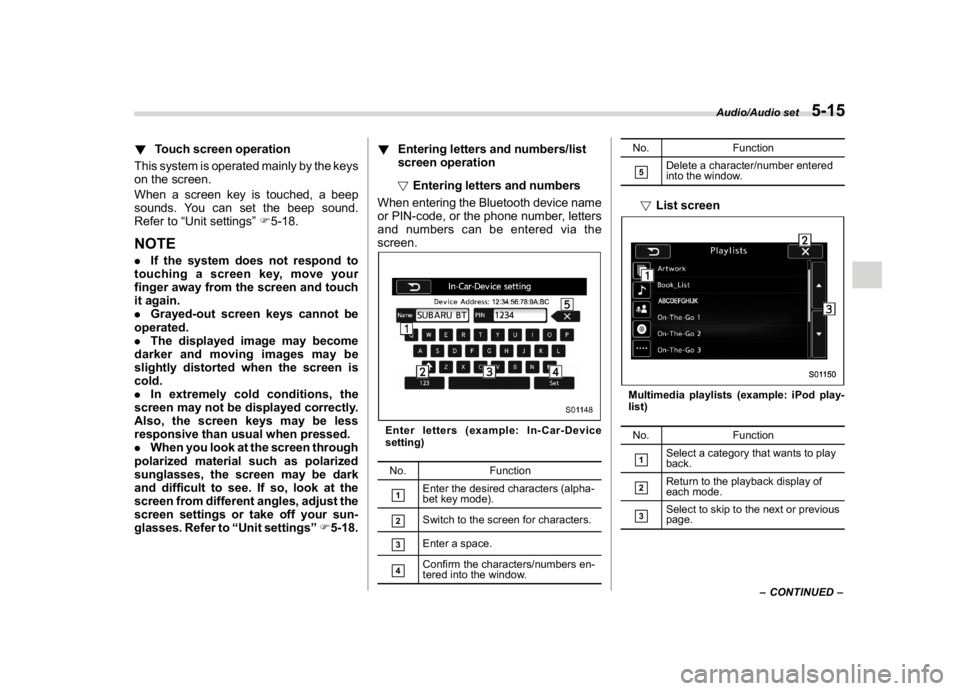
When entering the Bluetooth device name
or PIN-code, or the phone number, letters
and numbers can be entered via the
screen.
Enter letters (example: In-Car-Device
setting)
No. Function&1
Enter the desired characters (alpha-
bet key mode).
&2
Switch to the screen for characters.
&3
Enter a space.
&4
Confirm the characters/numbers en-
tered into the window.No. Function
&5
Delete a character/number entered
into the window.
!List screenMultimedia playlists (example: iPod play-
list)
No. Function&1
Select a category that wants to play
back.
&2
Return to the playback display of
each mode.
&3
Select to skip to the next or previous
page.
–CONTINUED–
Audio/Audio set
5-15
5
Page 251 of 578
(260,1)
北米Model "A1700BE-B" EDITED: 2017/ 10/ 11
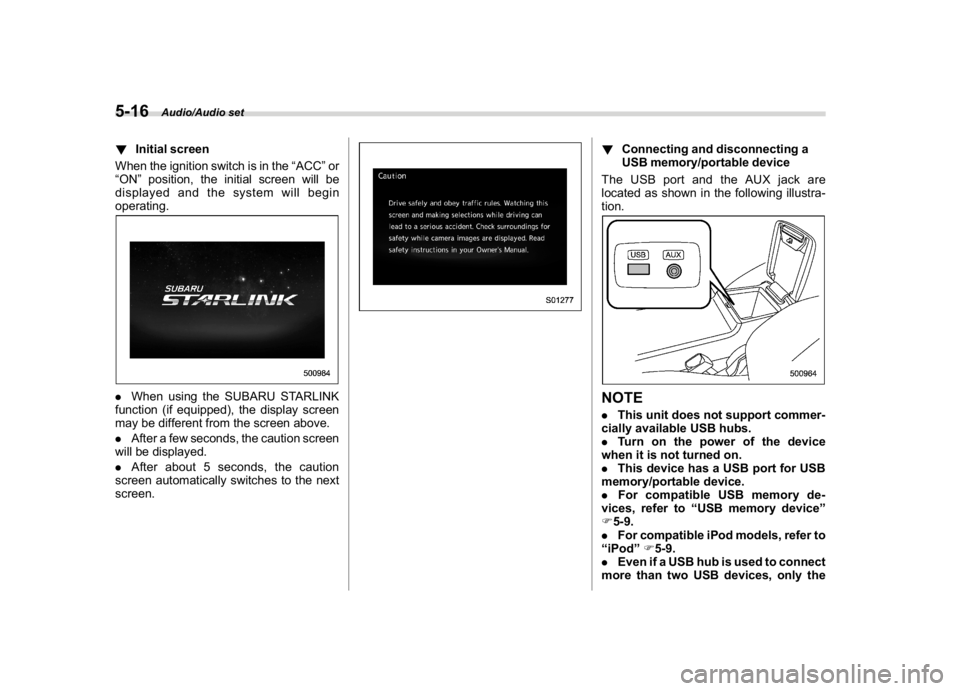
!Initial screen
When the ignition switch is in the“ACC”or
“ON”position, the initial screen will be
displayed and the system will begin
operating..When using the SUBARU STARLINK
function (if equipped), the display screen
may be different from the screen above.
.After a few seconds, the caution screen
will be displayed.
.After about 5 seconds, the caution
screen automatically switches to the next
screen.
!Connecting and disconnecting a
USB memory/portable device
The USB port and the AUX jack are
located as shown in the following illustra-
tion.NOTE.This unit does not support commer-
cially available USB hubs.
.Turn on the power of the device
when it is not turned on.
.This device has a USB port for USB
memory/portable device.
.For compatible USB memory de-
vices, refer to“USB memory device”
F5-9.
.For compatible iPod models, refer to
“iPod”F5-9.
.Even if a USB hub is used to connect
more than two USB devices, only the
Audio/Audio set
5-16
Page 252 of 578
(261,1)
北米Model "A1700BE-B" EDITED: 2017/ 10/ 11
first two connected devices will be
recognized.&Basic operationThis section describes some of the basic
features of the audio/visual system. Some
information may not pertain to your sys-
tem.
Your audio/visual system works when the
ignition switch is turned to the“ACC”or
“ON”position.
CAUTION
To prevent the battery from being
discharged, do not leave the audio/
visual system on longer than neces-
sary when the engine is not running.NOTESome functions can also be operated
by using the voice command system.
For details, refer to“Voice command
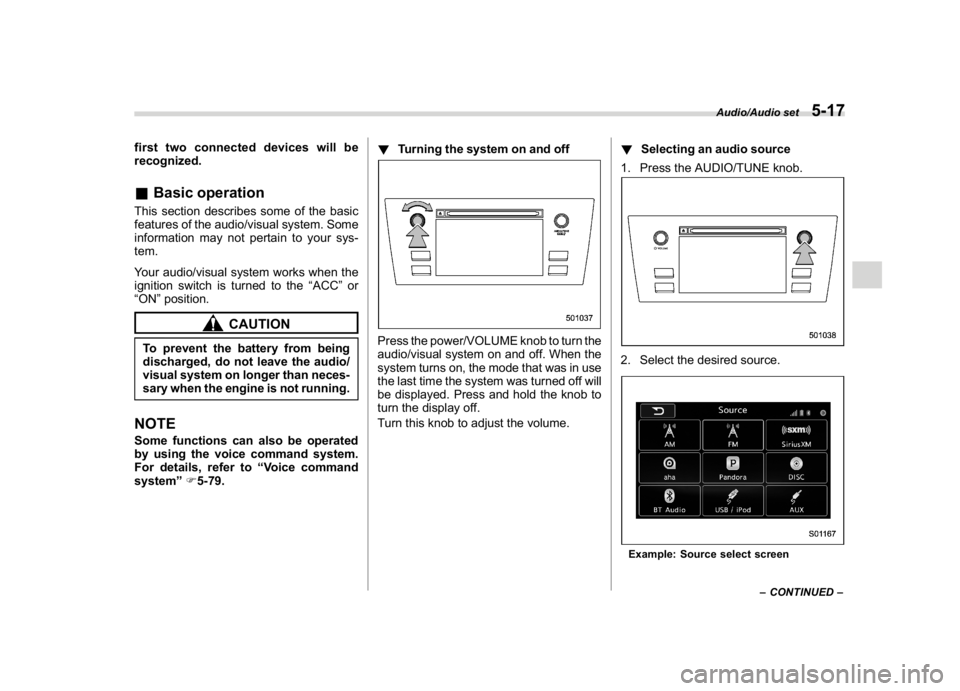
system”F5-79.!Turning the system on and off
Press the power/VOLUME knob to turn the
audio/visual system on and off. When the
system turns on, the mode that was in use
the last time the system was turned off will
be displayed. Press and hold the knob to
turn the display off.
Turn this knob to adjust the volume.!Selecting an audio source
1. Press the AUDIO/TUNE knob.
2. Select the desired source.Example: Source select screen
–CONTINUED–
Audio/Audio set
5-17
5
Page 253 of 578
(262,1)
北米Model "A1700BE-B" EDITED: 2017/ 10/ 11
NOTE.If the audio control screen appears,
select the“Source”key on the audio
screen or press the AUDIO/TUNE knob
again.
.When you push the AUDIO/TUNE
knob while any screen other than the
audio control screen is displayed, the
display will return to the audio control
screen.
.When the AUDIO/TUNE knob is
pushed and held, the graphic equalizer
screen will be displayed. Refer to
““Graphic Equalizer””F5-22.
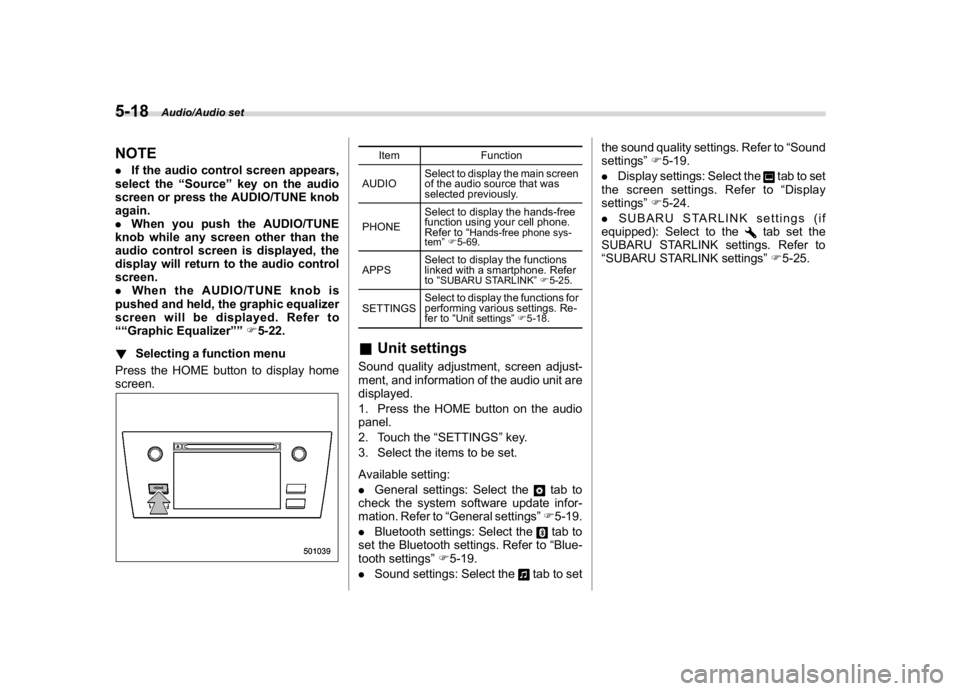
!Selecting a function menu
Press the HOME button to display home
screen.
Item Function
AUDIOSelect to display the main screen
of the audio source that was
selected previously.
PHONESelect to display the hands-free
function using your cell phone.
Refer to“
Hands-free phone sys-
tem”F5-69.
APPSSelect to display the functions
linked with a smartphone. Refer
to“
SUBARU STARLINK”F5-25.
SETTINGSSelect to display the functions for
performing various settings. Re-
fer to“
Unit settings”F5-18.
&Unit settingsSound quality adjustment, screen adjust-
ment, and information of the audio unit are
displayed.
1. Press the HOME button on the audio
panel.
2. Touch the“SETTINGS”key.
3. Select the items to be set.
Available setting:
.General settings: Select the
tab to
check the system software update infor-
mation. Refer to“General settings”F5-19.
.Bluetooth settings: Select thetab to
set the Bluetooth settings. Refer to“Blue-
tooth settings”F5-19.
.Sound settings: Select the
tab to setthe sound quality settings. Refer to“Sound
settings”F5-19.
.Display settings: Select the
tab to set
the screen settings. Refer to“Display
settings”F5-24.
.SUBARU STARLINK settings (if
equipped): Select to the
tab set the
SUBARU STARLINK settings. Refer to
“SUBARU STARLINK settings”F5-25.
Audio/Audio set
5-18