display SUBARU WRX 2018 Owners Manual
[x] Cancel search | Manufacturer: SUBARU, Model Year: 2018, Model line: WRX, Model: SUBARU WRX 2018Pages: 578, PDF Size: 33.21 MB
Page 295 of 578
(304,1)
北米Model "A1700BE-B" EDITED: 2017/ 10/ 11
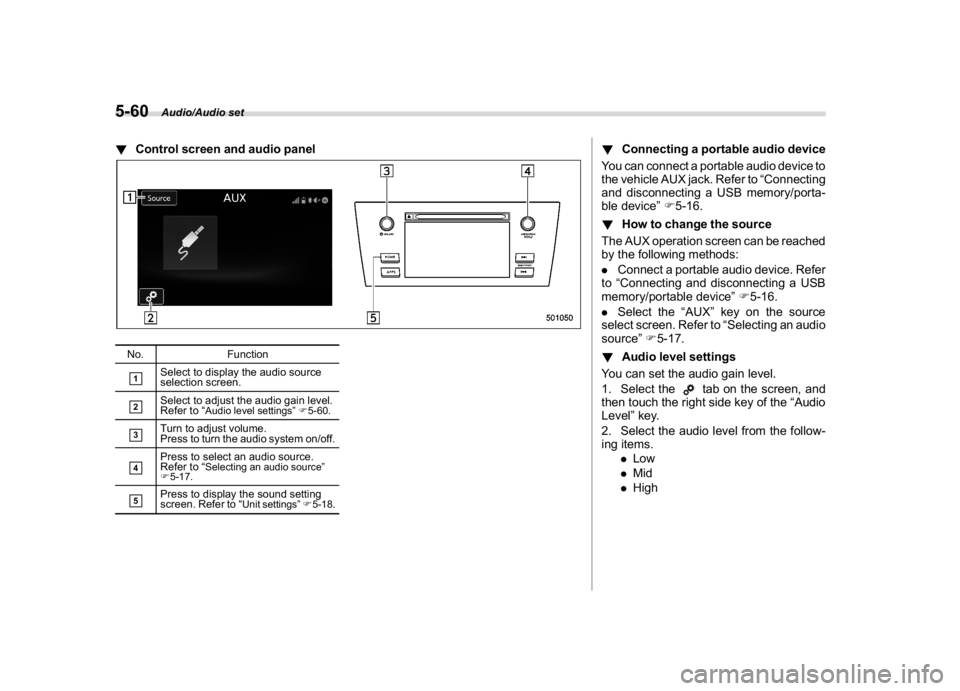
!Control screen and audio panelNo. Function&1
Select to display the audio source
selection screen.
&2
Select to adjust the audio gain level.
Refer to“
Audio level settings”F5-60.
&3
Turn to adjust volume.
Press to turn the audio system on/off.
&4
Press to select an audio source.
Refer to“
Selecting an audio source”
F5-17.
&5
Press to display the sound setting
screen. Refer to“
Unit settings”F5-18.
!Connecting a portable audio device
You can connect a portable audio device to
the vehicle AUX jack. Refer to“Connecting
and disconnecting a USB memory/porta-
ble device”F5-16.
!How to change the source
The AUX operation screen can be reached
by the following methods:
.Connect a portable audio device. Refer
to“Connecting and disconnecting a USB
memory/portable device”F5-16.
.Select the“AUX”key on the source
select screen. Refer to“Selecting an audio
source”F5-17.
!Audio level settings
You can set the audio gain level.
1. Select the
tab on the screen, and
then touch the right side key of the“Audio
Level”key.
2. Select the audio level from the follow-
ing items.
.Low
.Mid
.High
Audio/Audio set
5-60
Page 300 of 578
(309,1)
北米Model "A1700BE-B" EDITED: 2017/ 10/ 11
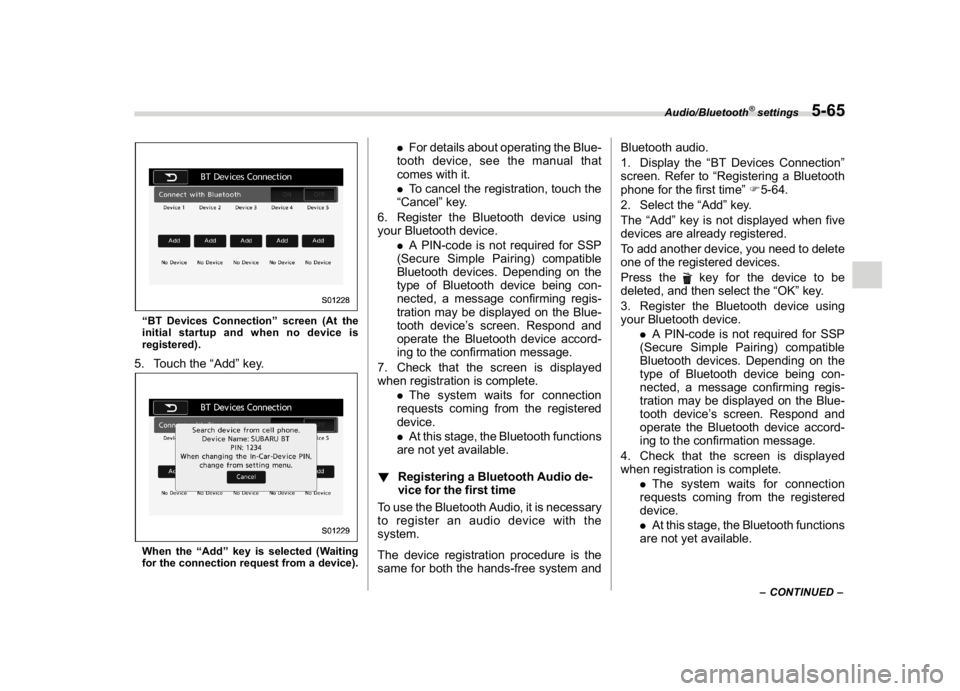
“BT Devices Connection”screen (At the
initial startup and when no device is
registered).5. Touch the“Add”key.When the“Add”key is selected (Waiting
for the connection request from a device).
.For details about operating the Blue-
tooth device, see the manual that
comes with it.
.To cancel the registration, touch the
“Cancel”key.
6. Register the Bluetooth device using
your Bluetooth device.
.A PIN-code is not required for SSP
(Secure Simple Pairing) compatible
Bluetooth devices. Depending on the
type of Bluetooth device being con-
nected, a message confirming regis-
tration may be displayed on the Blue-
tooth device’s screen. Respond and
operate the Bluetooth device accord-
ing to the confirmation message.
7. Check that the screen is displayed
when registration is complete.
.The system waits for connection
requests coming from the registered
device.
.At this stage, the Bluetooth functions
are not yet available.
!Registering a Bluetooth Audio de-
vice for the first time
To use the Bluetooth Audio, it is necessary
to register an audio device with the
system.
The device registration procedure is the
same for both the hands-free system andBluetooth audio.
1. Display the“BT Devices Connection”
screen. Refer to“Registering a Bluetooth
phone for the first time”F5-64.
2. Select the“Add”key.
The“Add”key is not displayed when five
devices are already registered.
To add another device, you need to delete
one of the registered devices.
Press the
key for the device to be
deleted, and then select the“OK”key.
3. Register the Bluetooth device using
your Bluetooth device.
.A PIN-code is not required for SSP
(Secure Simple Pairing) compatible
Bluetooth devices. Depending on the
type of Bluetooth device being con-
nected, a message confirming regis-
tration may be displayed on the Blue-
tooth device’s screen. Respond and
operate the Bluetooth device accord-
ing to the confirmation message.
4. Check that the screen is displayed
when registration is complete.
.The system waits for connection
requests coming from the registered
device.
.At this stage, the Bluetooth functions
are not yet available.
–CONTINUED–
Audio/Bluetooth
®settings
5-65
5
Page 302 of 578
(311,1)
北米Model "A1700BE-B" EDITED: 2017/ 10/ 11
&Setting Bluetooth details!BT Devices Connection screen
1. Press the HOME button.
2. Touch the“SETTINGS”key and then
touch the
tab.
3. Touch the“BT Devices Connection”
key and then select the desired device to
register.
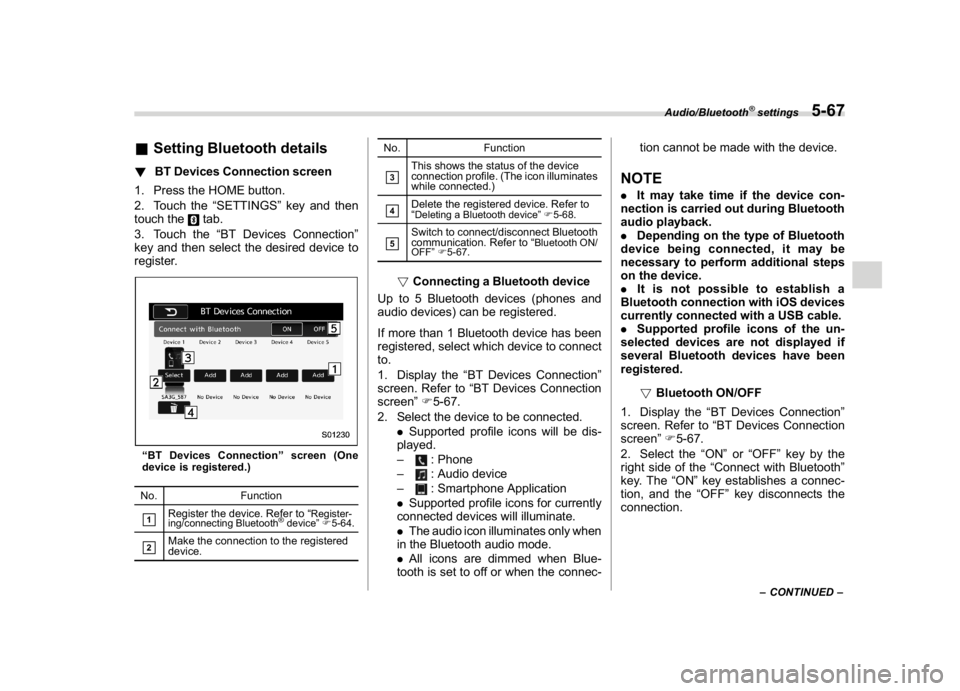
“BT Devices Connection”screen (One
device is registered.)
No. Function&1
Register the device. Refer to“
Register-
ing/connecting Bluetooth
®device”F5-64.
&2
Make the connection to the registered
device.No. Function
&3
This shows the status of the device
connection profile. (The icon illuminates
while connected.)
&4
Delete the registered device. Refer to
“Deleting a Bluetooth device”F5-68.
&5
Switch to connect/disconnect Bluetooth
communication. Refer to“
Bluetooth ON/
OFF”F5-67.
!Connecting a Bluetooth device
Up to 5 Bluetooth devices (phones and
audio devices) can be registered.
If more than 1 Bluetooth device has been
registered, select which device to connect
to.
1. Display the“BT Devices Connection”
screen. Refer to“BT Devices Connection
screen”F5-67.
2. Select the device to be connected.
.Supported profile icons will be dis-
played.
–
: Phone
–: Audio device
–: Smartphone Application
.Supported profile icons for currently
connected devices will illuminate.
.The audio icon illuminates only when
in the Bluetooth audio mode.
.All icons are dimmed when Blue-
tooth is set to off or when the connec-tion cannot be made with the device.
NOTE.It may take time if the device con-
nection is carried out during Bluetooth
audio playback.
.Depending on the type of Bluetooth
device being connected, it may be
necessary to perform additional steps
on the device.
.It is not possible to establish a
Bluetooth connection with iOS devices
currently connected with a USB cable.
.Supported profile icons of the un-
selected devices are not displayed if
several Bluetooth devices have been
registered.
!Bluetooth ON/OFF
1. Display the“BT Devices Connection”
screen. Refer to“BT Devices Connection
screen”F5-67.
2. Select the“ON”or“OFF”key by the
right side of the“Connect with Bluetooth”
key. The“ON”key establishes a connec-
tion, and the“OFF”key disconnects the
connection.
–CONTINUED–
Audio/Bluetooth
®settings
5-67
5
Page 303 of 578
(312,1)
北米Model "A1700BE-B" EDITED: 2017/ 10/ 11
NOTEThe setting is fixed as the“OFF”key
when no device is registered.
!Deleting a Bluetooth device
1. Display the“BT Devices Connection”
screen. Refer to“BT Devices Connection
screen”F5-67.
2. Select the desired device.
3. Touch the
key for the device to be
deleted, and then select the“OK”key.
NOTEWhen deleting a Bluetooth phone, the
contact data will be deleted at the same
time.
!“In-Car-Device setting”screen
The Bluetooth settings can be confirmed
and changed.
1. Display the“SETTINGS”screen. Refer
to“Registering a Bluetooth phone for the
first time”F5-64.
2. On the“SETTINGS”screen for“In-
Car-Device setting”, select the“Set”key.
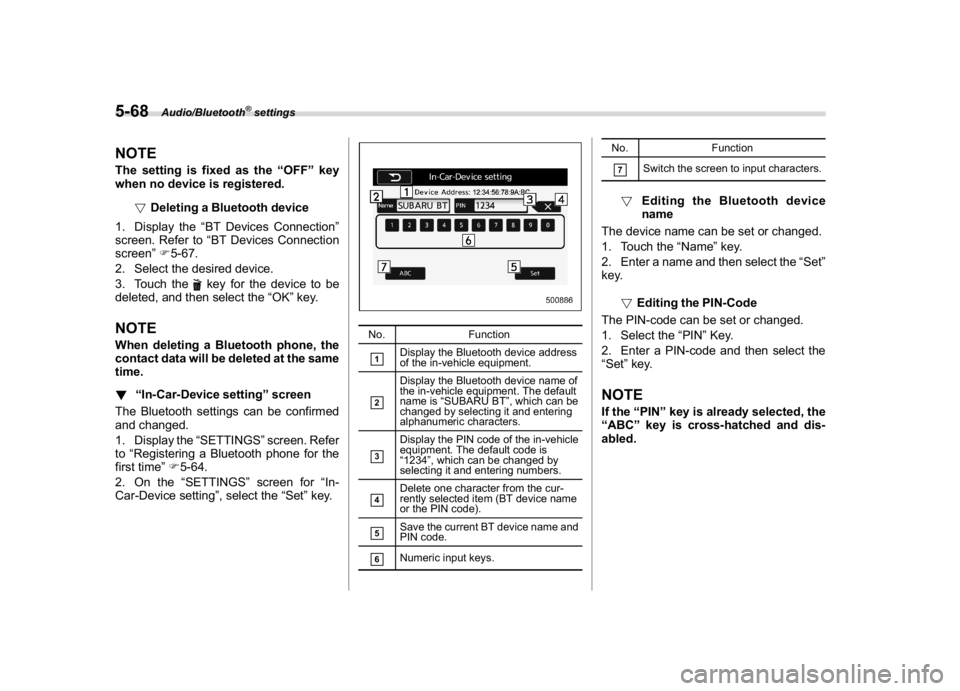
No. Function&1
Display the Bluetooth device address
of the in-vehicle equipment.
&2
Display the Bluetooth device name of
the in-vehicle equipment. The default
name is“SUBARU BT”, which can be
changed by selecting it and entering
alphanumeric characters.
&3
Display the PIN code of the in-vehicle
equipment. The default code is
“1234”, which can be changed by
selecting it and entering numbers.
&4
Delete one character from the cur-
rently selected item (BT device name
or the PIN code).
&5
Save the current BT device name and
PIN code.
&6
Numeric input keys.No. Function
&7
Switch the screen to input characters.
!Editing the Bluetooth device
name
The device name can be set or changed.
1. Touch the“Name”key.
2. Enter a name and then select the“Set”
key.
!Editing the PIN-Code
The PIN-code can be set or changed.
1. Select the“PIN”Key.
2. Enter a PIN-code and then select the
“Set”key.
NOTEIf the“PIN”key is already selected, the
“ABC”key is cross-hatched and dis-
abled.
Audio/Bluetooth
®settings
5-68
Page 305 of 578
(314,1)
北米Model "A1700BE-B" EDITED: 2017/ 10/ 11
pointed towards the microphone.
–The sound of the air conditioning
fan is loud.
–There is a negative effect on
sound quality due to the phone
and/or network being used.
.When another phone is connected,
the following registered data cannot be
read:
–Contact data
–Call history data
–All phone settings
.When selling or disposing of the
vehicle, initialize the data. Refer to
“Unit settings”F5-18.
.Once initialized, the data and set-
tings will be erased. Take extra caution
when initializing the data.
.The voice command system sup-
ports phone commands, so dialing a
phone number using your voice is
possible. Refer to“Voice command
system”F5-79.
.The images shown in this Owner’s
Manual are sample images. The actual
images may vary depending on the
market and specifications of your ve-
hicle.
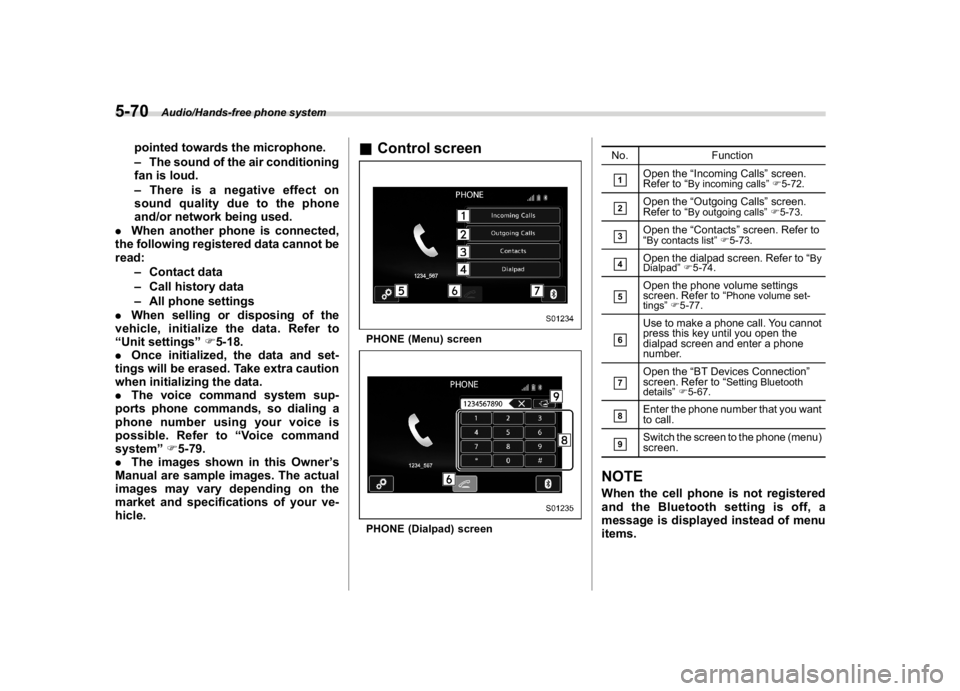
&Control screenPHONE (Menu) screenPHONE (Dialpad) screenNo. Function
&1
Open the“Incoming Calls”screen.
Refer to“
By incoming calls”F5-72.
&2
Open the“Outgoing Calls”screen.
Refer to“
By outgoing calls”F5-73.
&3
Open the“Contacts”screen. Refer to
“By contacts list”F5-73.
&4
Open the dialpad screen. Refer to“
By
Dialpad”F5-74.
&5
Open the phone volume settings
screen. Refer to“
Phone volume set-
tings”F5-77.
&6
Use to make a phone call. You cannot
press this key until you open the
dialpad screen and enter a phone
number.
&7
Open the“BT Devices Connection”
screen. Refer to“
Setting Bluetooth
details”F5-67.
&8
Enter the phone number that you want
to call.
&9
Switch the screen to the phone (menu)
screen.
NOTEWhen the cell phone is not registered
and the Bluetooth setting is off, a
message is displayed instead of menu
items.
Audio/Hands-free phone system
5-70
Page 306 of 578
(315,1)
北米Model "A1700BE-B" EDITED: 2017/ 10/ 11
&Registering/connecting a
Bluetooth phoneTo use the hands-free system for cell
phones, it is necessary to register a cell
phone with the system. Refer to“Register-
ing/connecting Bluetooth
®device”F5-64.
!Bluetooth phone condition display
The condition of the Bluetooth phone
appears on the upper right side of the
screen.
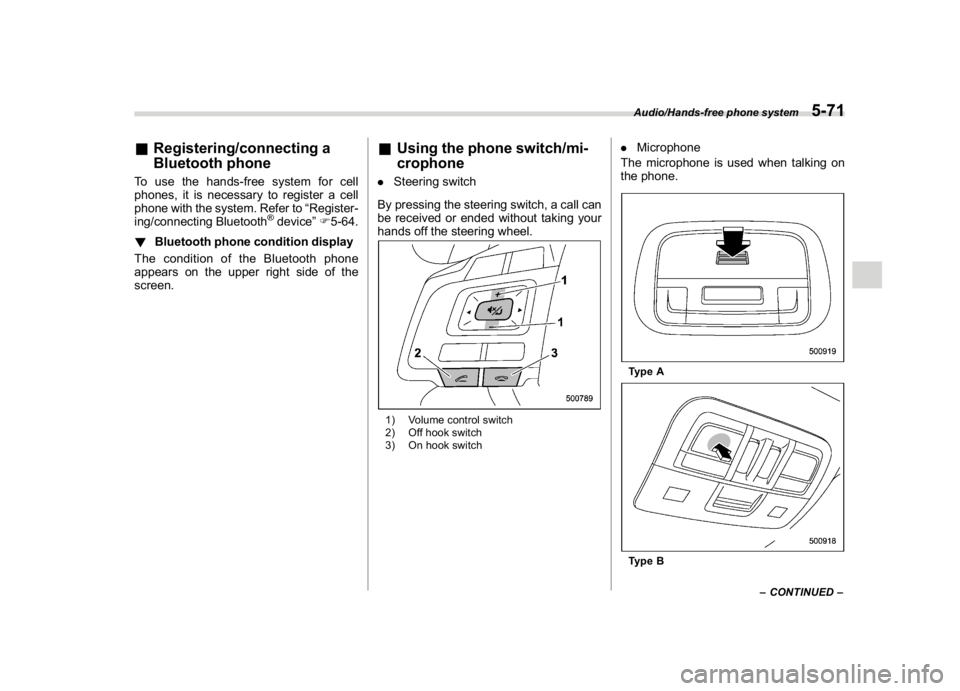
&Using the phone switch/mi-
crophone.Steering switch
By pressing the steering switch, a call can
be received or ended without taking your
hands off the steering wheel.1) Volume control switch
2) Off hook switch
3) On hook switch
.Microphone
The microphone is used when talking on
the phone.Type AType B
–CONTINUED–Audio/Hands-free phone system
5-71
5
Page 307 of 578
(316,1)
北米Model "A1700BE-B" EDITED: 2017/ 10/ 11
&How to change the hands-free
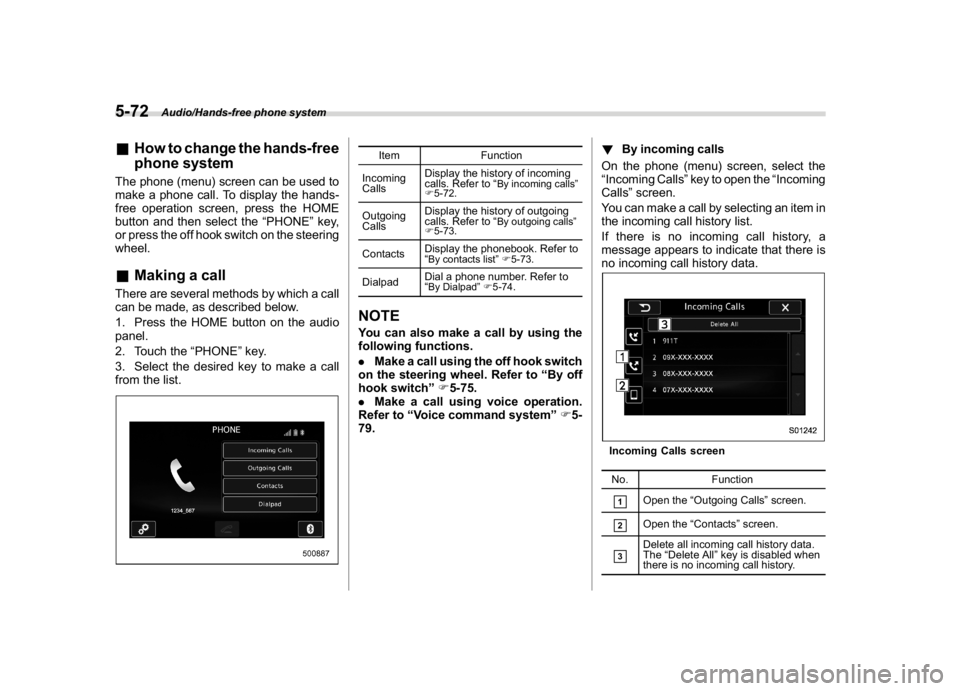
phone systemThe phone (menu) screen can be used to
make a phone call. To display the hands-
free operation screen, press the HOME
button and then select the“PHONE”key,
or press the off hook switch on the steering
wheel.&Making a callThere are several methods by which a call
can be made, as described below.
1. Press the HOME button on the audio
panel.
2. Touch the“PHONE”key.
3. Select the desired key to make a call
from the list.
Item Function
Incoming
CallsDisplay the history of incoming
calls. Refer to“
By incoming calls”
F5-72.
Outgoing
CallsDisplay the history of outgoing
calls. Refer to“
By outgoing calls”
F5-73.
ContactsDisplay the phonebook. Refer to
“
By contacts list”F5-73.
DialpadDial a phone number. Refer to
“
By Dialpad”F5-74.
NOTEYou can also make a call by using the
following functions.
.Make a call using the off hook switch
on the steering wheel. Refer to“By off
hook switch”F5-75.
.Make a call using voice operation.
Refer to“Voice command system”F5-
79.!By incoming calls
On the phone (menu) screen, select the
“Incoming Calls”key to open the“Incoming
Calls”screen.
You can make a call by selecting an item in
the incoming call history list.
If there is no incoming call history, a
message appears to indicate that there is
no incoming call history data.
Incoming Calls screen
No. Function&1
Open the“Outgoing Calls”screen.
&2
Open the“Contacts”screen.
&3
Delete all incoming call history data.
The“Delete All”key is disabled when
there is no incoming call history.
Audio/Hands-free phone system
5-72
Page 308 of 578
(317,1)
北米Model "A1700BE-B" EDITED: 2017/ 10/ 11
When you select an item in the history list
on the“Incoming Calls”screen, the out-
going call screen opens.NOTE.Up to 10 items in the incoming call
history are listed. Scroll the screen to
see items that are not on the screen.
.When making a call to the same
number continuously, only the most
recent call is listed in call history.
.When a phone number registered in
the contact list is received, the name is
displayed.
.Number-withheld calls are also
memorized in the system.
.International phone calls may not be
made depending on the type of cell
phone you have.
.The list should group together con-
secutive entries with the same phone
number and same call type.!By outgoing calls
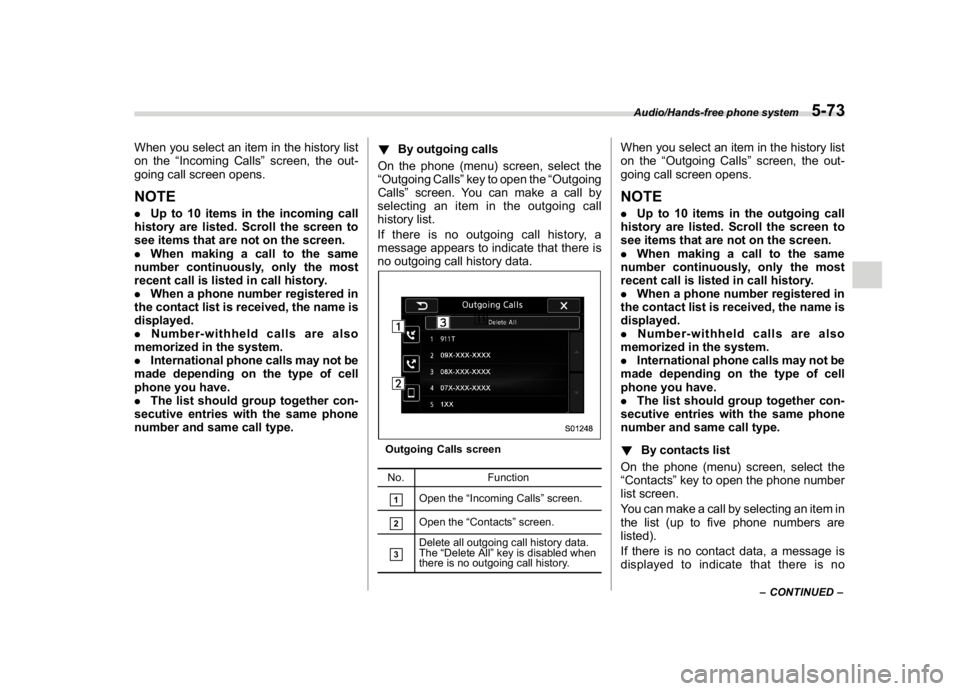
On the phone (menu) screen, select the
“Outgoing Calls”key to open the“Outgoing
Calls”screen. You can make a call by
selecting an item in the outgoing call
history list.
If there is no outgoing call history, a
message appears to indicate that there is
no outgoing call history data.
Outgoing Calls screen
No. Function&1
Open the“Incoming Calls”screen.
&2
Open the“Contacts”screen.
&3
Delete all outgoing call history data.
The“Delete All”key is disabled when
there is no outgoing call history.
When you select an item in the history list
on the“Outgoing Calls”screen, the out-
going call screen opens.NOTE.Up to 10 items in the outgoing call
history are listed. Scroll the screen to
see items that are not on the screen.
.When making a call to the same
number continuously, only the most
recent call is listed in call history.
.When a phone number registered in
the contact list is received, the name is
displayed.
.Number-withheld calls are also
memorized in the system.
.International phone calls may not be
made depending on the type of cell
phone you have.
.The list should group together con-
secutive entries with the same phone
number and same call type.
!By contacts list
On the phone (menu) screen, select the
“Contacts”key to open the phone number
list screen.
You can make a call by selecting an item in
the list (up to five phone numbers are
listed).
If there is no contact data, a message is
displayed to indicate that there is no
–CONTINUED–
Audio/Hands-free phone system
5-73
5
Page 309 of 578
(318,1)
北米Model "A1700BE-B" EDITED: 2017/ 10/ 11
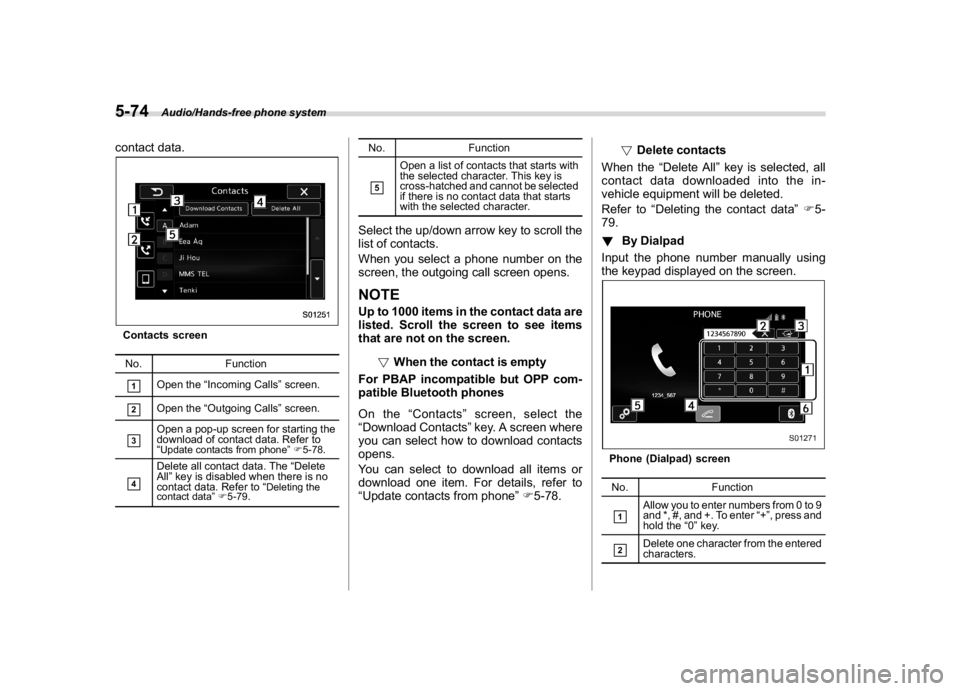
contact data.Contacts screen
No. Function&1
Open the“Incoming Calls”screen.
&2
Open the“Outgoing Calls”screen.
&3
Open a pop-up screen for starting the
download of contact data. Refer to
“Update contacts from phone”F5-78.
&4
Delete all contact data. The“Delete
All”key is disabled when there is no
contact data. Refer to“
Deleting the
contact data”F5-79.
No. Function&5
Open a list of contacts that starts with
the selected character. This key is
cross-hatched and cannot be selected
if there is no contact data that starts
with the selected character.
Select the up/down arrow key to scroll the
list of contacts.
When you select a phone number on the
screen, the outgoing call screen opens.NOTEUp to 1000 items in the contact data are
listed. Scroll the screen to see items
that are not on the screen.
!When the contact is empty
For PBAP incompatible but OPP com-
patible Bluetooth phones
On the“Contacts”screen, select the
“Download Contacts”key. A screen where
you can select how to download contacts
opens.
You can select to download all items or
download one item. For details, refer to
“Update contacts from phone”F5-78.!Delete contacts
When the“Delete All”key is selected, all
contact data downloaded into the in-
vehicle equipment will be deleted.
Refer to“Deleting the contact data”F5-
79.
!By Dialpad
Input the phone number manually using
the keypad displayed on the screen.
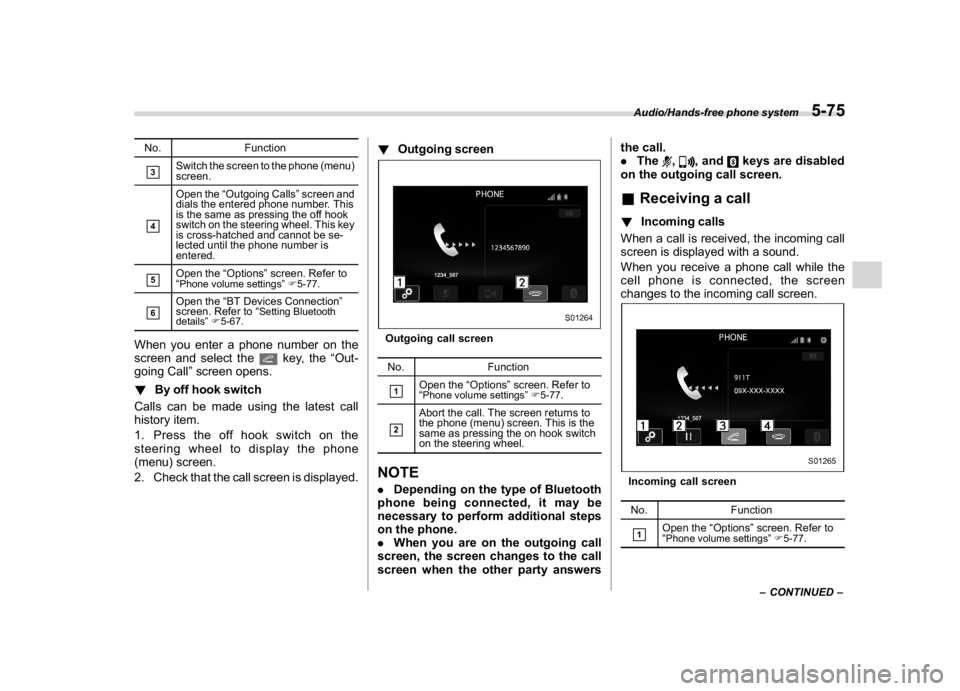
Phone (Dialpad) screen
No. Function&1
Allow you to enter numbers from 0 to 9
and *, #, and +. To enter“+”, press and
hold the“0”key.
&2
Delete one character from the entered
characters.
Audio/Hands-free phone system
5-74
Page 310 of 578
(319,1)
北米Model "A1700BE-B" EDITED: 2017/ 10/ 11
No. Function&3
Switch the screen to the phone (menu)
screen.
&4
Open the“Outgoing Calls”screen and
dials the entered phone number. This
is the same as pressing the off hook
switch on the steering wheel. This key
is cross-hatched and cannot be se-
lected until the phone number is
entered.
&5
Open the“Options”screen. Refer to
“Phone volume settings”F5-77.
&6
Open the“BT Devices Connection”
screen. Refer to“
Setting Bluetooth
details”F5-67.
When you enter a phone number on the
screen and select the
key, the“Out-
going Call”screen opens.
!By off hook switch
Calls can be made using the latest call
history item.
1. Press the off hook switch on the
steering wheel to display the phone
(menu) screen.
2. Check that the call screen is displayed.!Outgoing screen
Outgoing call screen
No. Function&1
Open the“Options”screen. Refer to
“Phone volume settings”F5-77.
&2
Abort the call. The screen returns to
the phone (menu) screen. This is the
same as pressing the on hook switch
on the steering wheel.
NOTE.Depending on the type of Bluetooth
phone being connected, it may be
necessary to perform additional steps
on the phone.
.When you are on the outgoing call
screen, the screen changes to the call
screen when the other party answersthe call.
.The
,
, and
keys are disabled
on the outgoing call screen.
&Receiving a call!Incoming calls
When a call is received, the incoming call
screen is displayed with a sound.
When you receive a phone call while the
cell phone is connected, the screen
changes to the incoming call screen.Incoming call screen
No. Function&1
Open the“Options”screen. Refer to
“Phone volume settings”F5-77.
–CONTINUED–
Audio/Hands-free phone system
5-75
5