change SUZUKI CELERIO 2022 Owner's Manual
[x] Cancel search | Manufacturer: SUZUKI, Model Year: 2022, Model line: CELERIO, Model: SUZUKI CELERIO 2022Pages: 201, PDF Size: 5.82 MB
Page 117 of 201
5-21
OTHER CONTROLS AND EQUIPMENT
76MH1-74E
76MH1-74E
The tracks in the loaded disc will be played in random order.
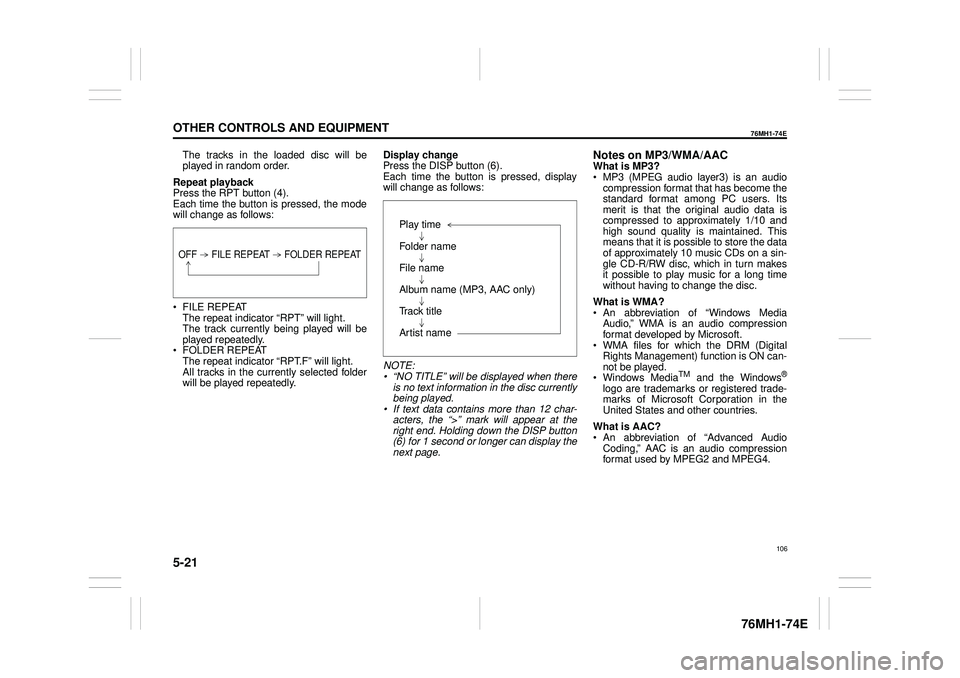
Repeat playback Press the RPT button (4). Each time the button is pressed, the modewill change as follows:
FILE REPEAT The repeat indicator “RPT” will light.The track currently being played will be played repeatedly. FOLDER REPEAT The repeat indicator “RPT.F” will light. All tracks in the currently selected folderwill be played repeatedly.
Display change Press the DISP button (6). Each time the button is pressed, displaywill change as follows:
NOTE: • “NO TITLE” will be displayed when there is no text information in the disc currently being played.• If text data contains more than 12 char- acters, the “>” mark will appear at the right end. Holding down the DISP button(6) for 1 second or longer can display the next page.
Notes on MP3/WMA/AACWhat is MP3? MP3 (MPEG audio layer3) is an audio compression format that has become the standard format among PC users. Itsmerit is that the original audio data is compressed to approximately 1/10 and high sound quality is maintained. Thismeans that it is possible to store the data of approximately 10 music CDs on a sin- gle CD-R/RW disc, which in turn makesit possible to play music for a long time without having to change the disc.
What is WMA? An abbreviation of “Windows Media Audio,” WMA is an audio compressionformat developed by Microsoft. WMA files for which the DRM (Digital Rights Management) function is ON can-not be played. Windows MediaTM and the Windows®
logo are trademarks or registered trade- marks of Microsoft Corporation in the United States and other countries.
What is AAC? An abbreviation of “Advanced Audio Coding,” AAC is an audio compressionformat used by MPEG2 and MPEG4.
OFF FILE REPEAT FOLDER REPEAT
Play time
Folder name
File name
Album name (MP3, AAC only)
Track title
Artist name
106
Page 119 of 201
5-23
OTHER CONTROLS AND EQUIPMENT
76MH1-74E
76MH1-74E
Listening to files stored in a USB
device
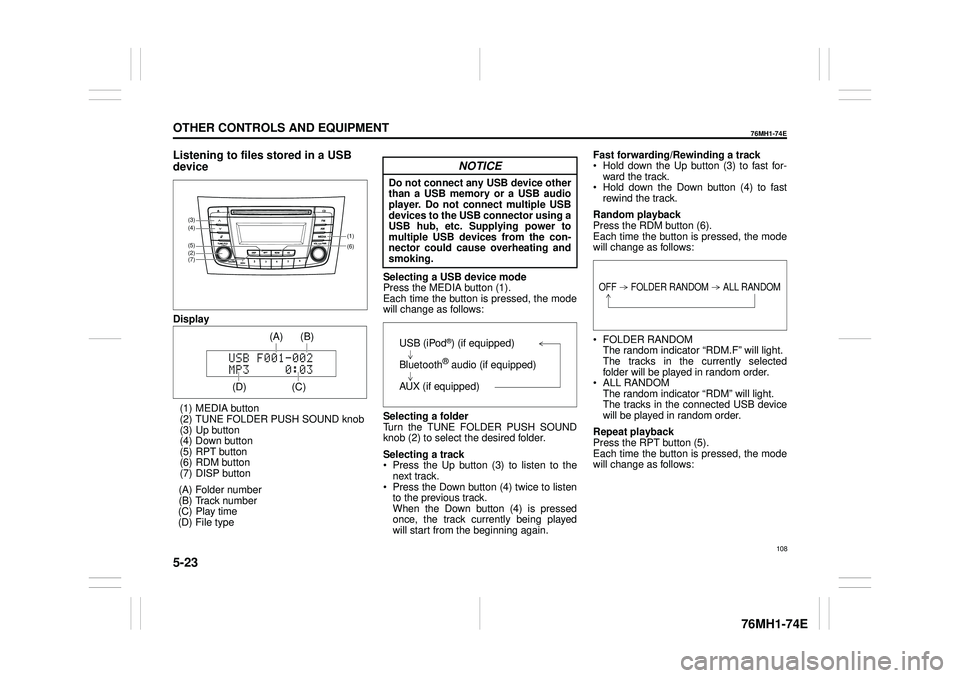
Display
(1) MEDIA button (2) TUNE FOLDER PUSH SOUND knob (3) Up button (4) Down button(5) RPT button (6) RDM button (7) DISP button
(A) Folder number (B) Track number(C) Play time (D) File type
Selecting a USB device mode Press the MEDIA button (1).Each time the button is pressed, the mode will change as follows:
Selecting a folder Turn the TUNE FOLDER PUSH SOUNDknob (2) to select the desired folder.
Selecting a track Press the Up button (3) to listen to the next track. Press the Down button (4) twice to listento the previous track. When the Down button (4) is pressed once, the track currently being playedwill start from the beginning again.
Fast forwarding/Rewinding a track Hold down the Up button (3) to fast for- ward the track. Hold down the Down button (4) to fast rewind the track.
Random playback Press the RDM button (6). Each time the button is pressed, the modewill change as follows:
FOLDER RANDOM The random indicator “RDM.F” will light. The tracks in the currently selected folder will be played in random order. ALL RANDOM The random indicator “RDM” will light. The tracks in the connected USB devicewill be played in random order.
Repeat playback Press the RPT button (5). Each time the button is pressed, the mode will change as follows:
(6)
(7)
(5)
(4)
(2)
(3)
(1)
(C)
(B) (A)
(D)
USB (iPod®) (if equipped)
Bluetooth® audio (if equipped)
AUX (if equipped)
OFF FOLDER RANDOM ALL RANDOM
108
Page 120 of 201
5-24
OTHER CONTROLS AND EQUIPMENT
76MH1-74E
76MH1-74E
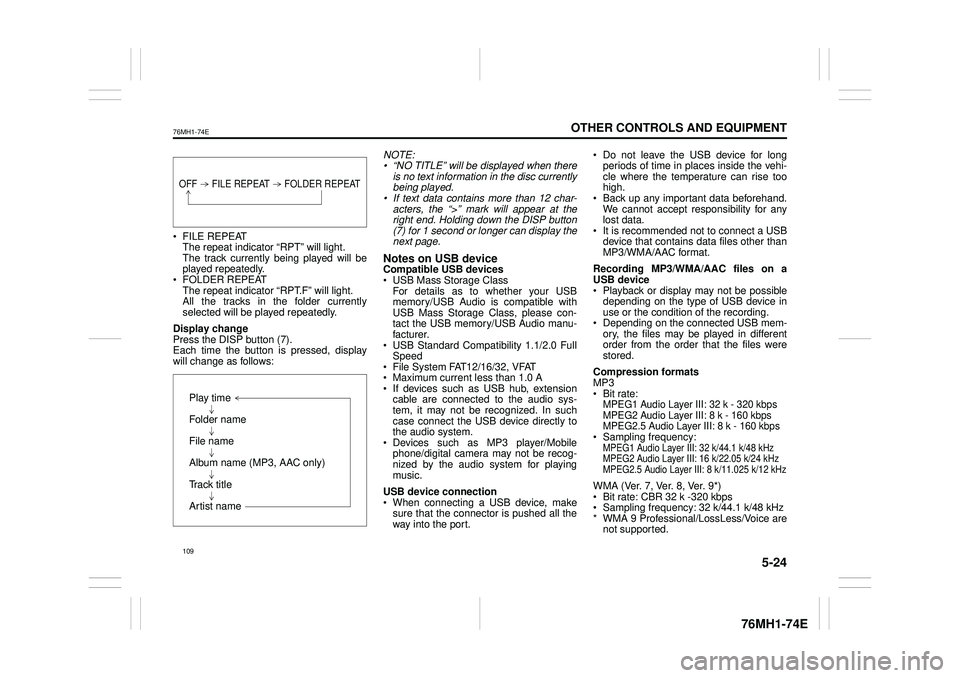
FILE REPEAT The repeat indicator “RPT” will light. The track currently being played will beplayed repeatedly. FOLDER REPEAT The repeat indicator “RPT.F” will light.All the tracks in the folder currently selected will be played repeatedly.
Display change Press the DISP button (7). Each time the button is pressed, display will change as follows:
NOTE: • “NO TITLE” will be displayed when there is no text information in the disc currentlybeing played. • If text data contains more than 12 char- acters, the “>” mark will appear at theright end. Holding down the DISP button (7) for 1 second or longer can display the next page.
Notes on USB deviceCompatible USB devices USB Mass Storage Class For details as to whether your USBmemory/USB Audio is compatible with USB Mass Storage Class, please con- tact the USB memory/USB Audio manu-facturer. USB Standard Compatibility 1.1/2.0 Full Speed File System FAT12/16/32, VFAT Maximum current less than 1.0 A If devices such as USB hub, extensioncable are connected to the audio sys- tem, it may not be recognized. In such case connect the USB device directly tothe audio system. Devices such as MP3 player/Mobile phone/digital camera may not be recog-nized by the audio system for playing music.
USB device connection When connecting a USB device, make sure that the connector is pushed all theway into the port.
Do not leave the USB device for long periods of time in places inside the vehi- cle where the temperature can rise toohigh. Back up any important data beforehand. We cannot accept responsibility for anylost data. It is recommended not to connect a USB device that contains data files other thanMP3/WMA/AAC format.
Recording MP3/WMA/AAC files on a USB device Playback or display may not be possible depending on the type of USB device inuse or the condition of the recording. Depending on the connected USB mem- ory, the files may be played in differentorder from the order that the files were stored.
Compression formats MP3 Bit rate:MPEG1 Audio Layer III: 32 k - 320 kbps MPEG2 Audio Layer III: 8 k - 160 kbps MPEG2.5 Audio Layer III: 8 k - 160 kbps Sampling frequency:MPEG1 Audio Layer III: 32 k/44.1 k/48 kHzMPEG2 Audio Layer III: 16 k/22.05 k/24 kHzMPEG2.5 Audio Layer III: 8 k/11.025 k/12 kHz
WMA (Ver. 7, Ver. 8, Ver. 9*) Bit rate: CBR 32 k -320 kbps Sampling frequency: 32 k/44.1 k/48 kHz * WMA 9 Professional/LossLess/Voice arenot supported.
OFF FILE REPEAT FOLDER REPEAT
Play time
Folder name
File name
Album name (MP3, AAC only)
Track title
Artist name
109
Page 121 of 201
5-25
OTHER CONTROLS AND EQUIPMENT
76MH1-74E
76MH1-74E
AAC* Bit rate: ABR 16k - 320 kbbs Sampling frequency: 32 k/44.1 k/48 kHz* Apple Lossless is not supported.
Maximum number of files/folders Maximum number of files: 2500 Maximum number of files in a folder: 255 Maximum depth of tree structure: 8 Maximum number of folders: 255 (Root folder is included.)
Listening to an iPod®
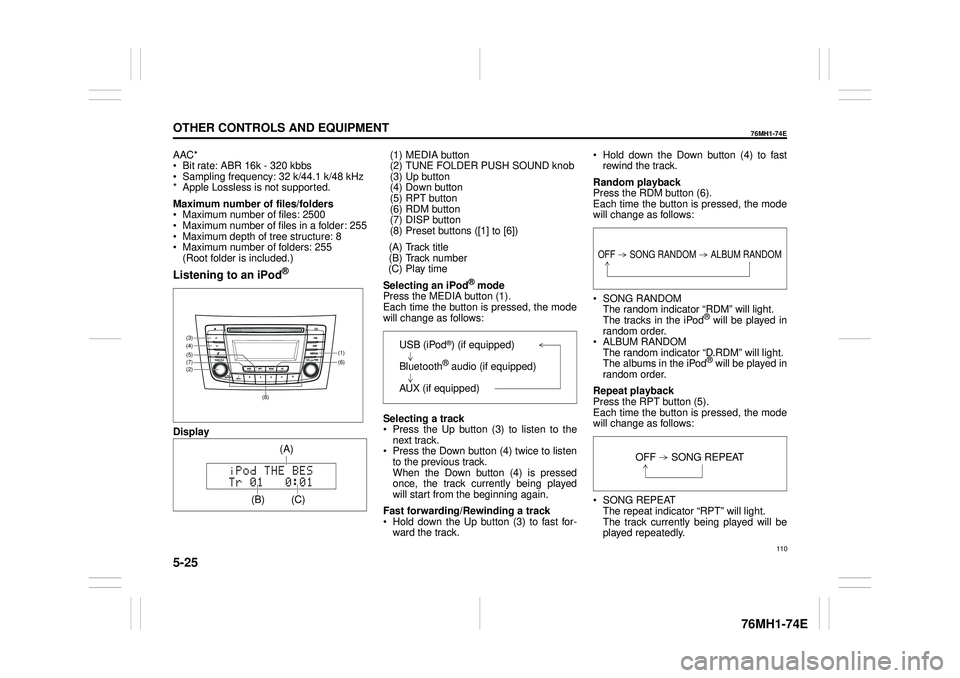
Display
(1) MEDIA button (2) TUNE FOLDER PUSH SOUND knob (3) Up button(4) Down button (5) RPT button (6) RDM button(7) DISP button (8) Preset buttons ([1] to [6])
(A) Track title (B) Track number (C) Play time
Selecting an iPod® mode Press the MEDIA button (1).Each time the button is pressed, the mode will change as follows:
Selecting a track Press the Up button (3) to listen to the next track. Press the Down button (4) twice to listento the previous track. When the Down button (4) is pressed once, the track currently being playedwill start from the beginning again.
Fast forwarding/Rewinding a track Hold down the Up button (3) to fast for- ward the track.
Hold down the Down button (4) to fast rewind the track.
Random playback Press the RDM button (6). Each time the button is pressed, the modewill change as follows:
SONG RANDOM The random indicator “RDM” will light.The tracks in the iPod® will be played in random order. ALBUM RANDOM The random indicator “D.RDM” will light. The albums in the iPod® will be played inrandom order.
Repeat playback Press the RPT button (5). Each time the button is pressed, the mode will change as follows:
SONG REPEAT The repeat indicator “RPT” will light. The track currently being played will beplayed repeatedly.
(6) (7)
(4)
(2)
(3)
(5)(1)
(8)
(C)
(A)
OFF SONG RANDOM ALBUM RANDOM
OFF SONG REPEAT
110
Page 122 of 201
5-26
OTHER CONTROLS AND EQUIPMENT
76MH1-74E
76MH1-74E
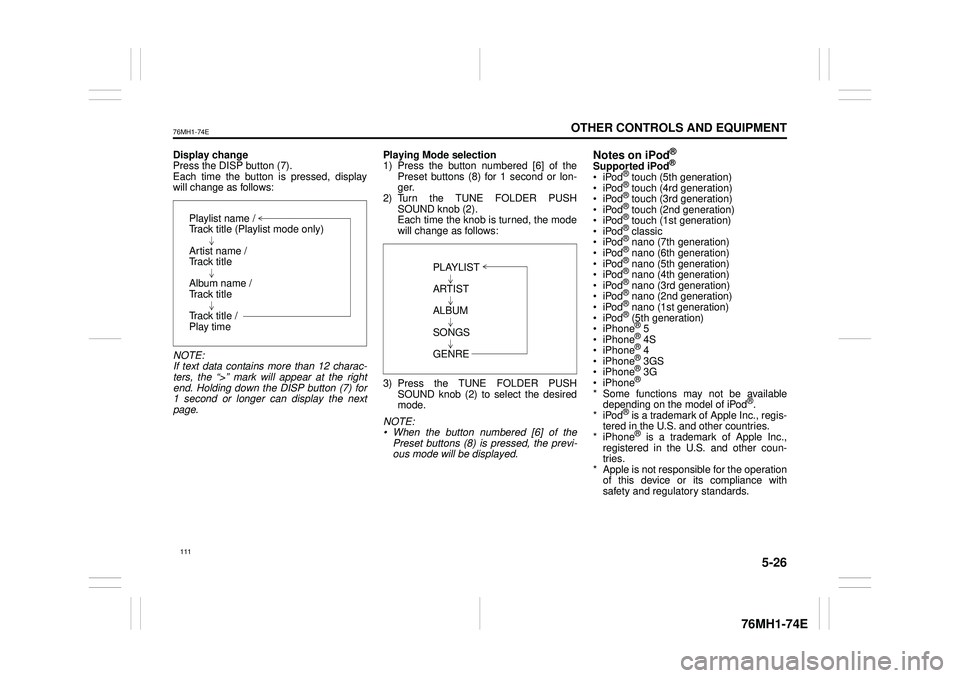
Display change Press the DISP button (7). Each time the button is pressed, displaywill change as follows:
NOTE: If text data contains more than 12 charac- ters, the “>” mark will appear at the right end. Holding down the DISP button (7) for1 second or longer can display the next page.
Playing Mode selection 1) Press the button numbered [6] of the Preset buttons (8) for 1 second or lon-ger. 2) Turn the TUNE FOLDER PUSH SOUND knob (2).Each time the knob is turned, the mode will change as follows:
3) Press the TUNE FOLDER PUSH SOUND knob (2) to select the desired mode.
NOTE: • When the button numbered [6] of thePreset buttons (8) is pressed, the previ- ous mode will be displayed.
Notes on iPod®
Supported iPod®
® touch (5th generation)® touch (4rd generation) ® touch (3rd generation)® touch (2nd generation) ® touch (1st generation) ® classic® nano (7th generation) ® nano (6th generation) ® nano (5th generation)® nano (4th generation) ® nano (3rd generation) ® nano (2nd generation)® nano (1st generation) ® (5th generation) iPhone® 5 iPhone® 4S iPhone® 4 iPhone® 3GS iPhone® 3G iPhone®
* Some functions may not be available depending on the model of iPod®. *iPod® is a trademark of Apple Inc., regis- tered in the U.S. and other countries.* iPhone® is a trademark of Apple Inc., registered in the U.S. and other coun- tries.* Apple is not responsible for the operation of this device or its compliance with safety and regulatory standards.
Playlist name /Track title (Playlist mode only)
Artist name / Track title
Album name / Track title
Track title / Play time
PLAYLIST
ARTIST
ALBUM
SONGS
GENRE
111
Page 123 of 201
5-27
OTHER CONTROLS AND EQUIPMENT
76MH1-74E
76MH1-74E
iPod® connection Make sure to detach the iPod® after pressing the engine switch to change theignition switch is in “LOCK” position. The iPod® may not be shut down when it is being connected and may result in bat-tery depletion. Please do not connect iPod® accesso- ries such as an iPod® remote control orheadphones while connecting the iPod®
with the unit. The unit may not operatecorrectly.
AUX Function
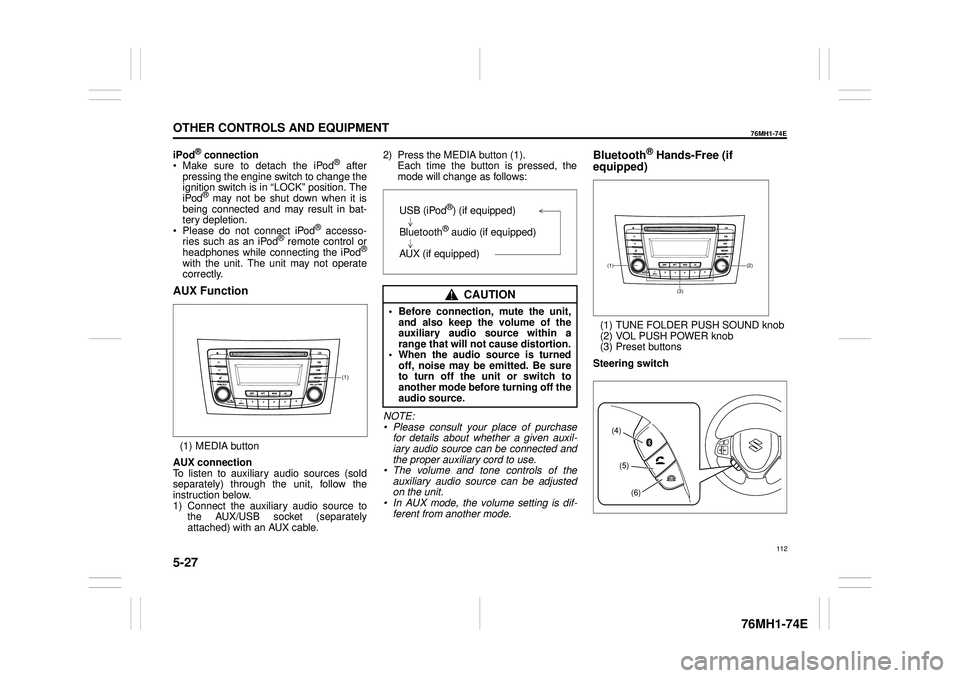
(1) MEDIA button
AUX connection To listen to auxiliary audio sources (sold separately) through the unit, follow theinstruction below. 1) Connect the auxiliary audio source to the AUX/USB socket (separatelyattached) with an AUX cable.
2) Press the MEDIA button (1). Each time the button is pressed, the mode will change as follows:
NOTE: • Please consult your place of purchasefor details about whether a given auxil- iary audio source can be connected and the proper auxiliary cord to use.• The volume and tone controls of the auxiliary audio source can be adjusted on the unit.• In AUX mode, the volume setting is dif- ferent from another mode.
Bluetooth® Hands-Free (if
equipped)
(1) TUNE FOLDER PUSH SOUND knob (2) VOL PUSH POWER knob(3) Preset buttons
Steering switch
(1)
CAUTION
• Before connection, mute the unit, and also keep the volume of the auxiliary audio source within arange that will not cause distortion. • When the audio source is turned off, noise may be emitted. Be sureto turn off the unit or switch to another mode before turning off the audio source.
USB (iPod®) (if equipped)
Bluetooth® audio (if equipped)
AUX (if equipped)(2)(1)
(3)
(4)
(5)
(6)
112
Page 133 of 201
5-37
OTHER CONTROLS AND EQUIPMENT
76MH1-74E
76MH1-74E
NOTE: When selecting “Go Back”, the previous menu will be displayed.
Deletion of audio device information (Delete Audio)Follow the instructions below to delete the registered information of audio device. 1) Press the Bluetooth® setup button (6). The Bluetooth® setup menu will be dis- played. 2) Turn the TUNE FOLDER PUSHSOUND knob (2) to select “Setup Blue- tooth”, and press the knob (2) to deter- mine the selection.3) Turn the TUNE FOLDER PUSH SOUND knob (2) to select “List Audio”, and press the knob (2) to determine theselection. 4) Turn the TUNE FOLDER PUSH SOUND knob (2) to select an audiodevice to be deleted, and press the knob (2) to determine the selection. 5) Turn the TUNE FOLDER PUSHSOUND knob (2) to select “Delete”, and press the knob (2) to determine the selection.6) Turn the TUNE FOLDER PUSH SOUND knob (2) to select “Delete?”, and press the knob (2) to determine theselection. 7) Turn the TUNE FOLDER PUSH SOUND knob (2) to select “Confirm”,and press the knob (2) to complete the deletion.
NOTE: When selecting “Go Back”, the previous menu will be displayed.
Disclaimer for Bluetooth® function Depending on the mobile phone models, some phones may not be compatible fully or partially (some function may berestricted). Connectivity or voice quality may get affected depending on circumstances. After the ignition switch is turned to the “ON” position, the audio system takes few seconds to detect and connect to theBluetooth® device (if already paired). Make sure that you are aware of all applicable local laws and accordinglyuse Bluetooth device.
Remote Audio Controls
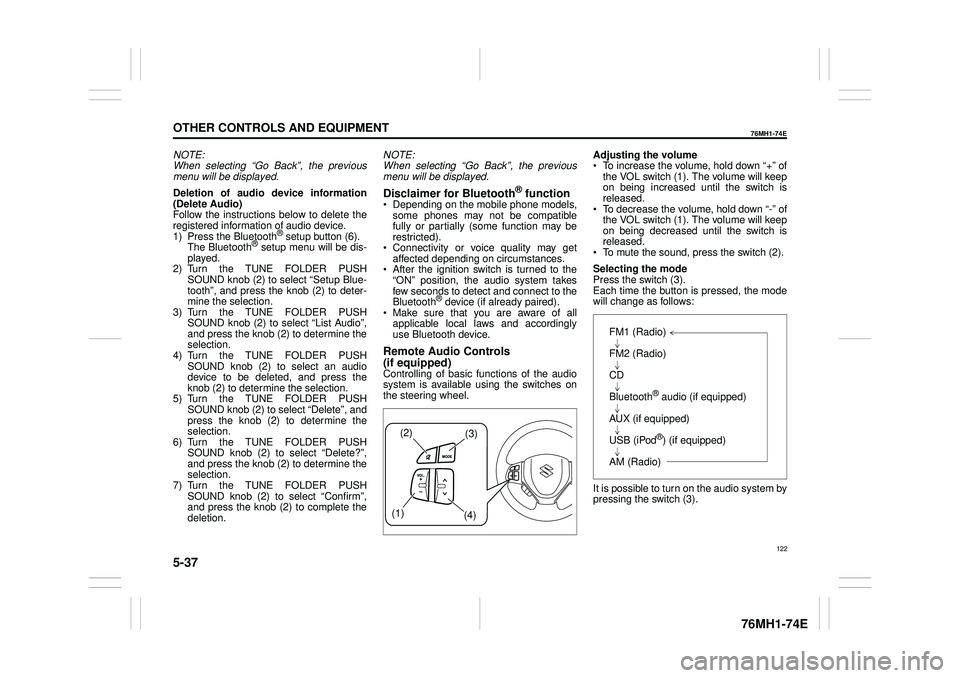
(if equipped)Controlling of basic functions of the audio system is available us ing the switches on the steering wheel.
Adjusting the volume To increase the volume, hold down “+” of the VOL switch (1). The volume will keepon being increased until the switch is released. To decrease the volume, hold down “-” ofthe VOL switch (1). The volume will keep on being decreased until the switch is released. To mute the sound, press the switch (2).
Selecting the mode Press the switch (3). Each time the button is pressed, the mode will change as follows:
It is possible to turn on the audio system by pressing the switch (3).
(2)(3)
(1) (4)
FM1 (Radio)
FM2 (Radio)
CD
Bluetooth® audio (if equipped)
AUX (if equipped)
USB (iPod®) (if equipped)
AM (Radio)
122
Page 135 of 201
5-39
OTHER CONTROLS AND EQUIPMENT
76MH1-74E
76MH1-74E
NOTE: To change your PIN, first delete your cur- rent PIN, then set a new one.
Confirming the Personal Identification Number (PIN)When the main power source is discon- nected such as when the battery is replaced, etc, it is required to enter the PINto make the unit operable again. 1) Set the ignition switch to the “ACC” position. “SECURITY” will be displayed. 2) Press the Up button (3) and the button numbered [1] of the Preset buttons (2)simultaneously. 3) Enter a 4-digit number to be registered as PIN using the buttons numbered [1] -[4] of the Preset buttons (2). 4) Hold down TUNE FOLDER PUSH SOUND knob (4) for 1 second or lon-ger. When the PIN same as registered is entered, the power of the audio systemwill be turned off automatically and it will become operable again.
NOTE: If an incorrect PIN is entered, “ERROR” and the total number of incorrect entryattempts will be displayed. If an incorrect PIN is entered 10 times, “HELP” will be displayed and the audiosystem will become inoperable.
Battery Installation
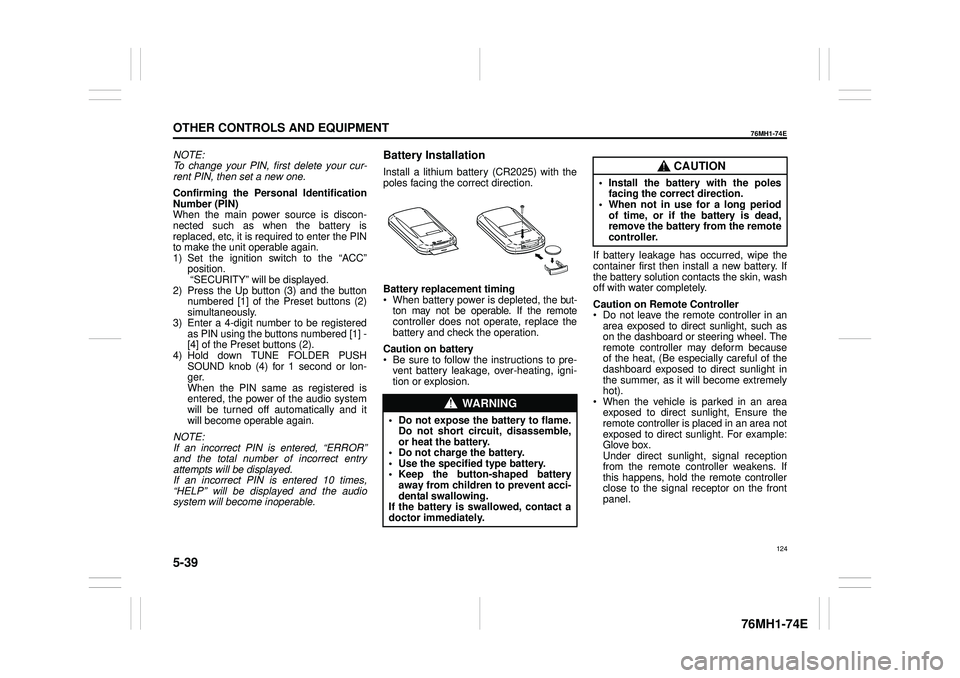
Install a lithium battery (CR2025) with the poles facing the correct direction.
Battery replacement timing When battery power is depleted, the but-ton may not be operable. If the remote controller does not operate, replace the battery and check the operation.
Caution on battery Be sure to follow the instructions to pre- vent battery leakage, over-heating, igni- tion or explosion.
If battery leakage has occurred, wipe the container first then install a new battery. If the battery solution contacts the skin, wash off with water completely.
Caution on Remote Controller Do not leave the remote controller in anarea exposed to direct sunlight, such as on the dashboard or steering wheel. The remote controller may deform becauseof the heat, (Be especially careful of the dashboard exposed to direct sunlight in the summer, as it will become extremelyhot). When the vehicle is parked in an area exposed to direct sunlight, Ensure theremote controller is placed in an area not exposed to direct sunlight. For example: Glove box.Under direct sunlight , signal reception from the remote controller weakens. If this happens, hold the remote controllerclose to the signal receptor on the front panel.
WA R N I N G
• Do not expose the battery to flame. Do not short circuit, disassemble,or heat the battery. • Do not charge the battery. • Use the specified type battery.• Keep the button-shaped battery away from children to prevent acci- dental swallowing.If the battery is swallowed, contact a doctor immediately.
CAUTION
• Install the battery with the poles facing the correct direction.• When not in use for a long period of time, or if the battery is dead, remove the battery from the remotecontroller.
124
Page 143 of 201
5-47
OTHER CONTROLS AND EQUIPMENT
76MH1-74E
76MH1-74E
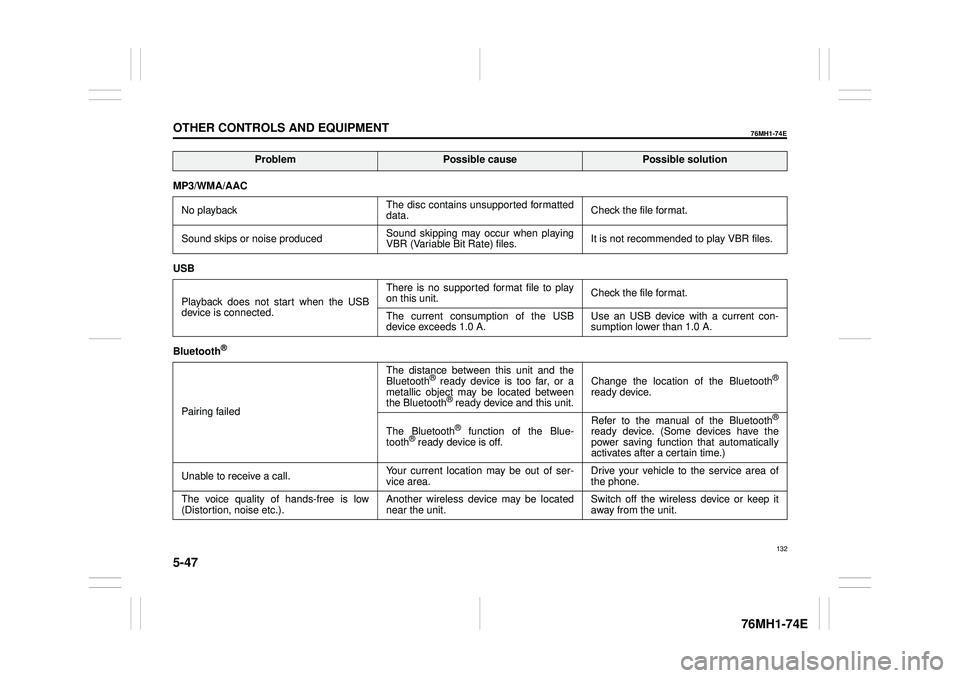
MP3/WMA/AAC
No playback The disc contains unsupported formatted data. Check the file format.
Sound skips or noise produced Sound skipping may occur when playing VBR (Variable Bit Rate) files. It is not recommended to play VBR files.
USB
Playback does not start when the USB device is connected.
There is no supported format file to play on this unit. Check the file format.
The current consumption of the USB device exceeds 1.0 A. Use an USB device with a current con- sumption lower than 1.0 A.
Bluetooth®
Pairing failed
The distance between this unit and the Bluetooth® ready device is too far, or a metallic object may be located between the Bluetooth® ready device and this unit.
Change the location of the Bluetooth®
ready device.
The Bluetooth® function of the Blue- tooth® ready device is off.
Refer to the manual of the Bluetooth®
ready device. (Some devices have the power saving function that automatically activates after a certain time.)
Unable to receive a call. Your current location may be out of ser- vice area. Drive your vehicle to the service area of the phone.
The voice quality of hands-free is low (Distortion, noise etc.). Another wireless device may be located near the unit. Switch off the wireless device or keep it away from the unit.
ProblemPossible causePossible solution
132
Page 151 of 201
7-2
INSPECTION AND MAINTENANCE
76MH1-74E
76MH1-74E
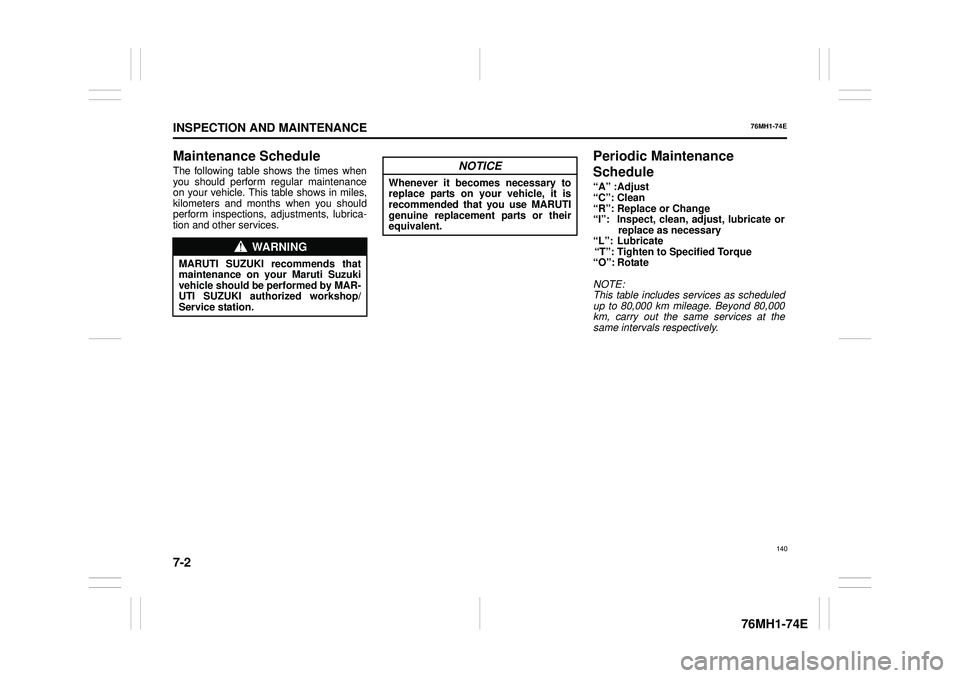
Maintenance Schedule
The following table shows the times when you should perform regular maintenanceon your vehicle. This table shows in miles, kilometers and months when you should perform inspections, adjustments, lubrica-tion and other services.
Periodic Maintenance
Schedule
“A” :Adjust “C”: Clean “R”: Replace or Change “I”: Inspect, clean, adjust, lubricate orreplace as necessary “L”: Lubricate “T”: Tighten to Specified Torque “O”: Rotate
NOTE: This table includes services as scheduled up to 80,000 km mileage. Beyond 80,000 km, carry out the same services at thesame intervals respectively.
WA R N I N G
MARUTI SUZUKI recommends thatmaintenance on your Maruti Suzuki vehicle should be performed by MAR- UTI SUZUKI authorized workshop/Service station.
NOTICE
Whenever it becomes necessary toreplace parts on your vehicle, it isrecommended that you use MARUTI genuine replacement parts or their equivalent.
140