SELECT SUZUKI GRAND VITARA 2012 Owner's Manual
[x] Cancel search | Manufacturer: SUZUKI, Model Year: 2012, Model line: GRAND VITARA, Model: SUZUKI GRAND VITARA 2012Pages: 337, PDF Size: 6.21 MB
Page 159 of 337
5-6
OTHER CONTROLS AND EQUIPMENT
79K21-03E
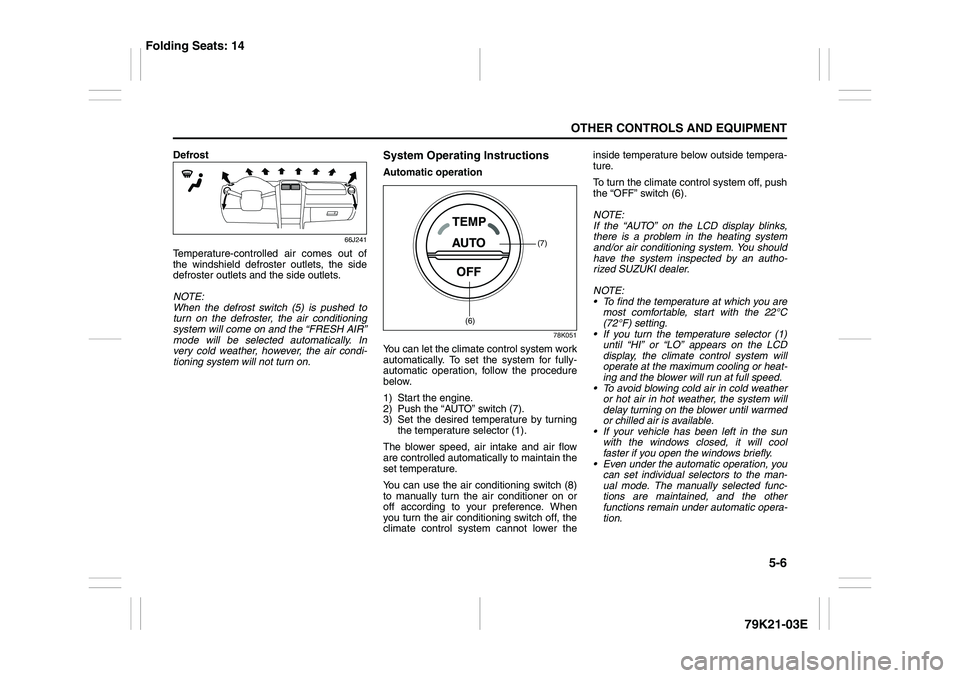
Defrost
66J241
Temperature-controlled air comes out of
the windshield defroster outlets, the side
defroster outlets and the side outlets.
NOTE:
When the defrost switch (5) is pushed to
turn on the defroster, the air conditioning
system will come on and the “FRESH AIR”
mode will be selected automatically. In
very cold weather, however, the air condi-
tioning system will not turn on.
System Operating InstructionsAutomatic operation
78K051
You can let the climate control system work
automatically. To set the system for fully-
automatic operation, follow the procedure
below.
1) Start the engine.
2) Push the “AUTO” switch (7).
3) Set the desired temperature by turning
the temperature selector (1).
The blower speed, air intake and air flow
are controlled automatically to maintain the
set temperature.
You can use the air conditioning switch (8)
to manually turn the air conditioner on or
off according to your preference. When
you turn the air conditioning switch off, the
climate control system cannot lower theinside temperature below outside tempera-
ture.
To turn the climate control system off, push
the “OFF” switch (6).
NOTE:
If the “AUTO” on the LCD display blinks,
there is a problem in the heating system
and/or air conditioning system. You should
have the system inspected by an autho-
rized SUZUKI dealer.
NOTE:
To find the temperature at which you are
most comfortable, start with the 22°C
(72°F) setting.
If you turn the temperature selector (1)
until “HI” or “LO” appears on the LCD
display, the climate control system will
operate at the maximum cooling or heat-
ing and the blower will run at full speed.
To avoid blowing cold air in cold weather
or hot air in hot weather, the system will
delay turning on the blower until warmed
or chilled air is available.
If your vehicle has been left in the sun
with the windows closed, it will cool
faster if you open the windows briefly.
Even under the automatic operation, you
can set individual selectors to the man-
ual mode. The manually selected func-
tions are maintained, and the other
functions remain under automatic opera-
tion.
(7)
(6)
Folding Seats: 14
Page 160 of 337
5-7OTHER CONTROLS AND EQUIPMENT
79K21-03E
To return the blower speed selector (2),
air intake selector (3), and air flow selec-
tor (4) to automatic operation, push the
“AUTO” switch.
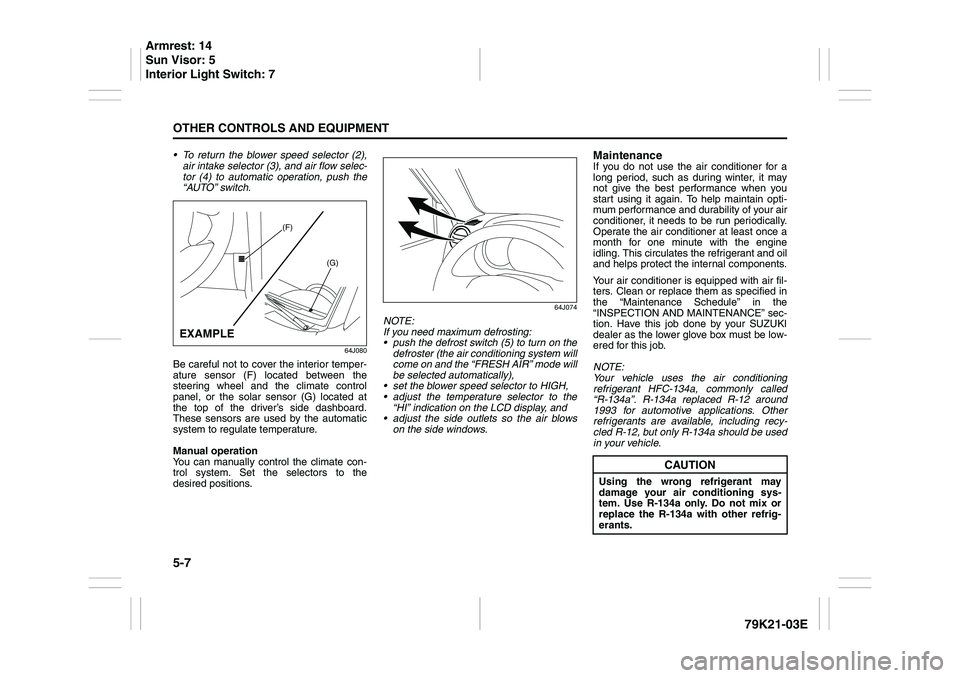
64J080
Be careful not to cover the interior temper-
ature sensor (F) located between the
steering wheel and the climate control
panel, or the solar sensor (G) located at
the top of the driver’s side dashboard.
These sensors are used by the automatic
system to regulate temperature.
Manual operation
You can manually control the climate con-
trol system. Set the selectors to the
desired positions.
64J074
NOTE:
If you need maximum defrosting:
push the defrost switch (5) to turn on the
defroster (the air conditioning system will
come on and the “FRESH AIR” mode will
be selected automatically),
set the blower speed selector to HIGH,
adjust the temperature selector to the
“HI” indication on the LCD display, and
adjust the side outlets so the air blows
on the side windows.
MaintenanceIf you do not use the air conditioner for a
long period, such as during winter, it may
not give the best performance when you
start using it again. To help maintain opti-
mum performance and durability of your air
conditioner, it needs to be run periodically.
Operate the air conditioner at least once a
month for one minute with the engine
idling. This circulates the refrigerant and oil
and helps protect the internal components.
Your air conditioner is equipped with air fil-
ters. Clean or replace them as specified in
the “Maintenance Schedule” in the
“INSPECTION AND MAINTENANCE” sec-
tion. Have this job done by your SUZUKI
dealer as the lower glove box must be low-
ered for this job.
NOTE:
Your vehicle uses the air conditioning
refrigerant HFC-134a, commonly called
“R-134a”. R-134a replaced R-12 around
1993 for automotive applications. Other
refrigerants are available, including recy-
cled R-12, but only R-134a should be used
in your vehicle.
(F)
(G)
EXAMPLE
CAUTION
Using the wrong refrigerant may
damage your air conditioning sys-
tem. Use R-134a only. Do not mix or
replace the R-134a with other refrig-
erants.
Armrest: 14
Sun Visor: 5
Interior Light Switch: 7
Page 165 of 337
5-12
OTHER CONTROLS AND EQUIPMENT
79K21-03E
Turning power on/off
Press the power on/off knob (1).
The unit starts in the function mode it was
in when the power was turned off last.
Adjusting the volume
Turn the volume control knob (1).
Turning it clockwise increases the volume;
turning it counterclockwise decreases the
volume.
NOTE:
While driving, adjust the volume to an
extent that sound and/or noise coming
from outside the car can be heard.
Adjusting the clock
1) Press the clock button H (5) to adjust
the hours.
Press the clock button M (6) to adjust
the minutes.
2) Hold the button depressed to automati-
cally increment the number.
3) To reset the clock to an hour signal,
press the clock button H (5) while hold-
ing the clock button M (6) depressed.
NOTE:
When the clock has not been set, the time
“12:00” will flash in the display.
Clock reset is effected as follows:
When minutes are between 00 and 29,
the clock will reset to the current hour.
(example: 12:23 ➔ 12:00) When minutes are between 30 and 59,
the clock will reset to the next hour.
(example: 12:38 ➔ 1:00)
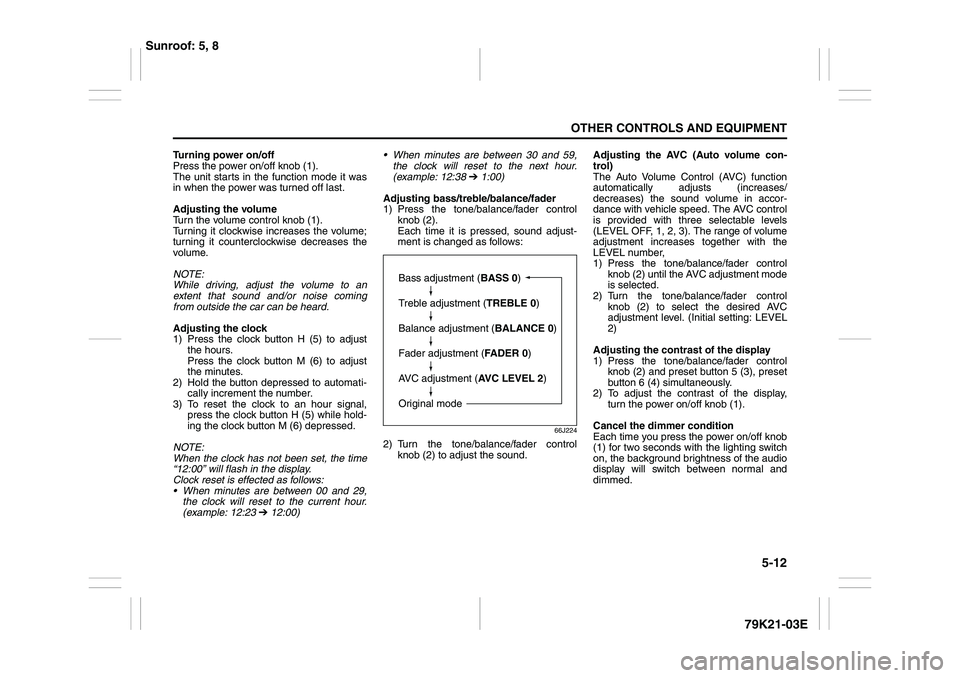
Adjusting bass/treble/balance/fader
1) Press the tone/balance/fader control
knob (2).
Each time it is pressed, sound adjust-
ment is changed as follows:
66J224
2) Turn the tone/balance/fader control
knob (2) to adjust the sound.Adjusting the AVC (Auto volume con-
trol)
The Auto Volume Control (AVC) function
automatically adjusts (increases/
decreases) the sound volume in accor-
dance with vehicle speed. The AVC control
is provided with three selectable levels
(LEVEL OFF, 1, 2, 3). The range of volume
adjustment increases together with the
LEVEL number,
1) Press the tone/balance/fader control
knob (2) until the AVC adjustment mode
is selected.
2) Turn the tone/balance/fader control
knob (2) to select the desired AVC
adjustment level. (Initial setting: LEVEL
2)
Adjusting the contrast of the display
1) Press the tone/balance/fader control
knob (2) and preset button 5 (3), preset
button 6 (4) simultaneously.
2) To adjust the contrast of the display,
turn the power on/off knob (1).
Cancel the dimmer condition
Each time you press the power on/off knob
(1) for two seconds with the lighting switch
on, the background brightness of the audio
display will switch between normal and
dimmed.
Bass adjustment (BASS 0)
Treble adjustment (TREBLE 0)
Balance adjustment (BALANCE 0)
Fader adjustment (FADER 0)
AVC adjustment (AVC LEVEL 2)
Original mode
Sunroof: 5, 8
Page 167 of 337
5-14
OTHER CONTROLS AND EQUIPMENT
79K21-03E
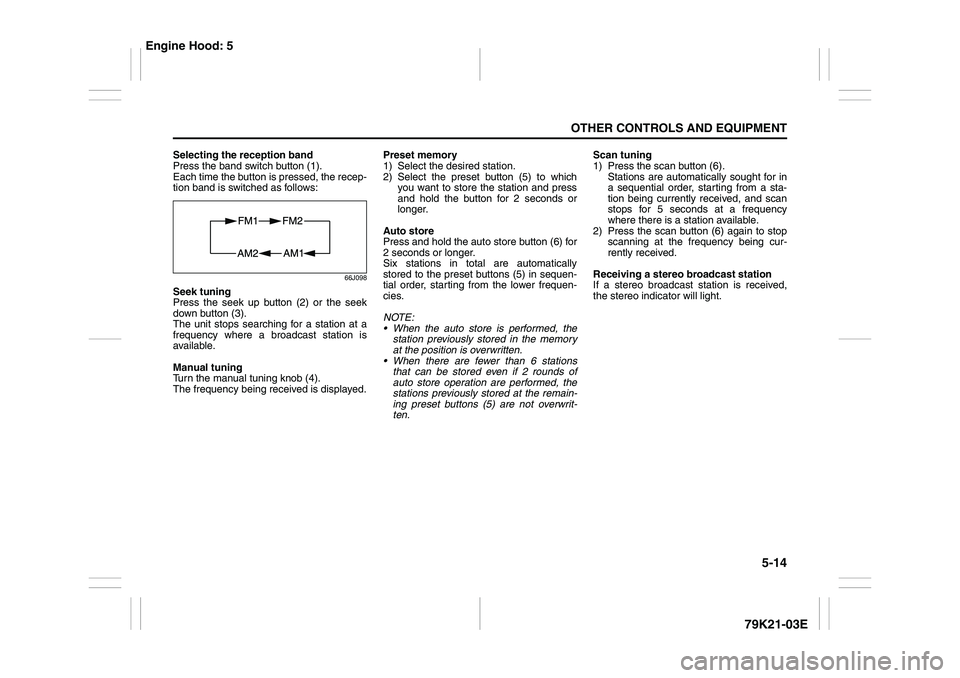
Selecting the reception band
Press the band switch button (1).
Each time the button is pressed, the recep-
tion band is switched as follows:
66J098
Seek tuning
Press the seek up button (2) or the seek
down button (3).
The unit stops searching for a station at a
frequency where a broadcast station is
available.
Manual tuning
Turn the manual tuning knob (4).
The frequency being received is displayed.Preset memory
1) Select the desired station.
2) Select the preset button (5) to which
you want to store the station and press
and hold the button for 2 seconds or
longer.
Auto store
Press and hold the auto store button (6) for
2 seconds or longer.
Six stations in total are automatically
stored to the preset buttons (5) in sequen-
tial order, starting from the lower frequen-
cies.
NOTE:
When the auto store is performed, the
station previously stored in the memory
at the position is overwritten.
When there are fewer than 6 stations
that can be stored even if 2 rounds of
auto store operation are performed, the
stations previously stored at the remain-
ing preset buttons (5) are not overwrit-
ten.Scan tuning
1) Press the scan button (6).
Stations are automatically sought for in
a sequential order, starting from a sta-
tion being currently received, and scan
stops for 5 seconds at a frequency
where there is a station available.
2) Press the scan button (6) again to stop
scanning at the frequency being cur-
rently received.
Receiving a stereo broadcast station
If a stereo broadcast station is received,
the stereo indicator will light.
Engine Hood: 5
Page 170 of 337
5-17OTHER CONTROLS AND EQUIPMENT
79K21-03E
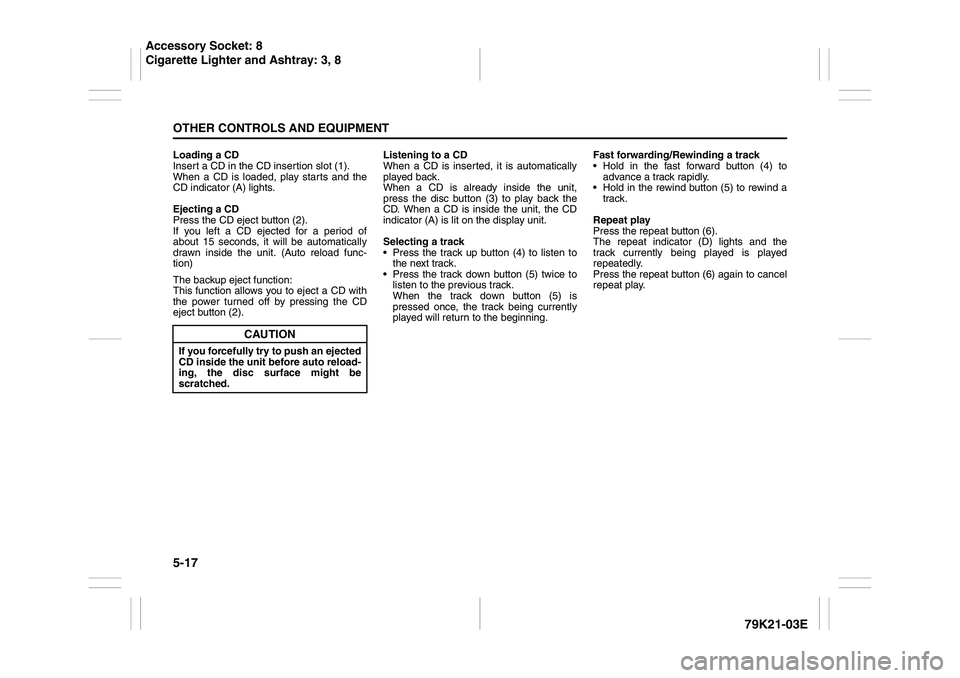
Loading a CD
Insert a CD in the CD insertion slot (1).
When a CD is loaded, play starts and the
CD indicator (A) lights.
Ejecting a CD
Press the CD eject button (2).
If you left a CD ejected for a period of
about 15 seconds, it will be automatically
drawn inside the unit. (Auto reload func-
tion)
The backup eject function:
This function allows you to eject a CD with
the power turned off by pressing the CD
eject button (2).Listening to a CD
When a CD is inserted, it is automatically
played back.
When a CD is already inside the unit,
press the disc button (3) to play back the
CD. When a CD is inside the unit, the CD
indicator (A) is lit on the display unit.
Selecting a track
Press the track up button (4) to listen to
the next track.
Press the track down button (5) twice to
listen to the previous track.
When the track down button (5) is
pressed once, the track being currently
played will return to the beginning.Fast forwarding/Rewinding a track
Hold in the fast forward button (4) to
advance a track rapidly.
Hold in the rewind button (5) to rewind a
track.
Repeat play
Press the repeat button (6).
The repeat indicator (D) lights and the
track currently being played is played
repeatedly.
Press the repeat button (6) again to cancel
repeat play.
CAUTION
If you forcefully try to push an ejected
CD inside the unit before auto reload-
ing, the disc surface might be
scratched.
Accessory Socket: 8
Cigarette Lighter and Ashtray: 3, 8
Page 171 of 337
5-18
OTHER CONTROLS AND EQUIPMENT
79K21-03E
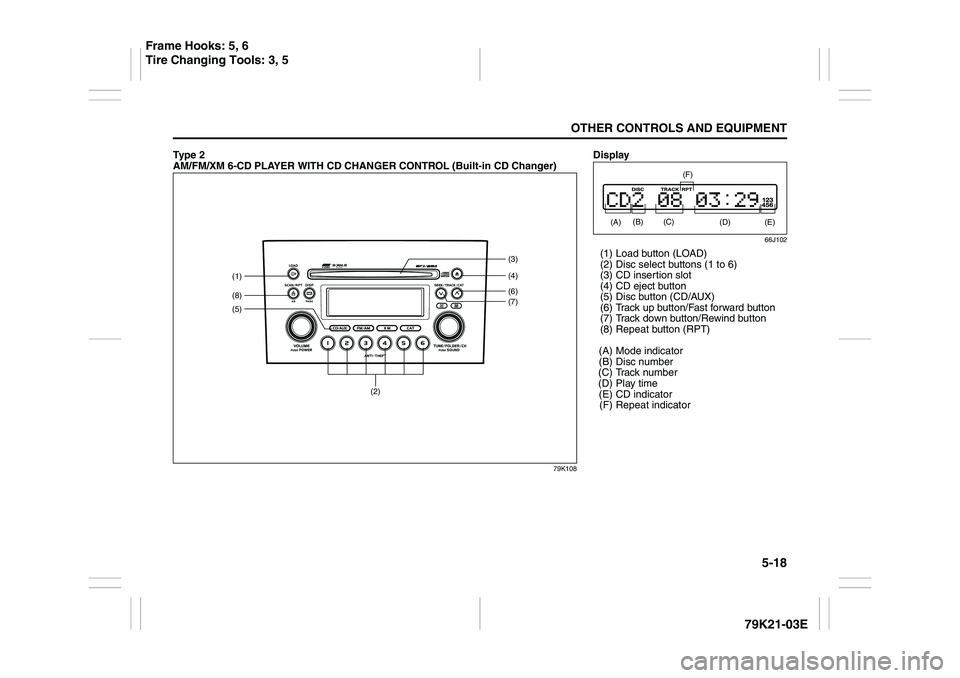
Ty p e 2
AM/FM/XM 6-CD PLAYER WITH CD CHANGER CONTROL (Built-in CD Changer)
79K108
(2)
(5)(1)(8)
(6)(4) (3)
(7)
Display
66J102
(1) Load button (LOAD)
(2) Disc select buttons (1 to 6)
(3) CD insertion slot
(4) CD eject button
(5) Disc button (CD/AUX)
(6) Track up button/Fast forward button
(7) Track down button/Rewind button
(8) Repeat button (RPT)
(A) Mode indicator
(B) Disc number
(C) Track number
(D) Play time
(E) CD indicator
(F) Repeat indicator (A) (C)
(D)
(F)
(B)
(E)
Frame Hooks: 5, 6
Tire Changing Tools: 3, 5
Page 172 of 337
5-19OTHER CONTROLS AND EQUIPMENT
79K21-03E
NOTE:
About Single CDs (8 cm CDs)
Since the unit is not compatible with a
single CD, do not load it into the unit.
Keep in mind the fact that a single CD
cannot be played even using a single CD
adaptor for the unit.
When a single CD is loaded into the unit
accidentally, it will be ejected immedi-
ately. Please be sure to remove it.
If you forcefully try to push it into the unit
without removing it, the CD cannot be
ejected. This will result in a damage to
the mechanism. Please never do this.Loading one CD
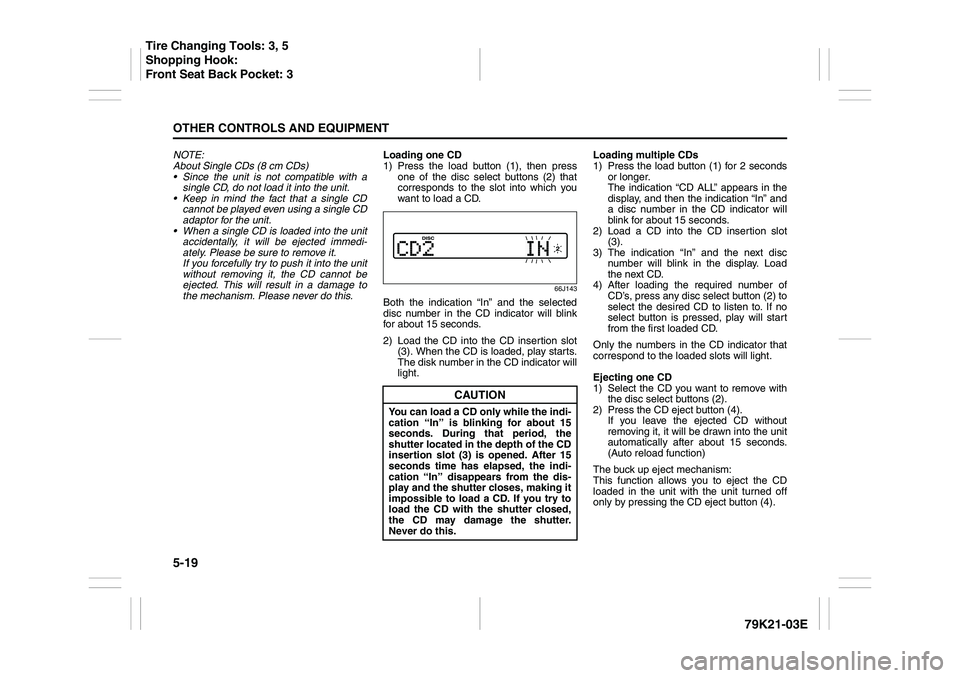
1) Press the load button (1), then press
one of the disc select buttons (2) that
corresponds to the slot into which you
want to load a CD.
66J143
Both the indication “In” and the selected
disc number in the CD indicator will blink
for about 15 seconds.
2) Load the CD into the CD insertion slot
(3). When the CD is loaded, play starts.
The disk number in the CD indicator will
light.Loading multiple CDs
1) Press the load button (1) for 2 seconds
or longer.
The indication “CD ALL” appears in the
display, and then the indication “In” and
a disc number in the CD indicator will
blink for about 15 seconds.
2) Load a CD into the CD insertion slot
(3).
3) The indication “In” and the next disc
number will blink in the display. Load
the next CD.
4) After loading the required number of
CD’s, press any disc select button (2) to
select the desired CD to listen to. If no
select button is pressed, play will start
from the first loaded CD.
Only the numbers in the CD indicator that
correspond to the loaded slots will light.
Ejecting one CD
1) Select the CD you want to remove with
the disc select buttons (2).
2) Press the CD eject button (4).
If you leave the ejected CD without
removing it, it will be drawn into the unit
automatically after about 15 seconds.
(Auto reload function)
The buck up eject mechanism:
This function allows you to eject the CD
loaded in the unit with the unit turned off
only by pressing the CD eject button (4).
CAUTION
You can load a CD only while the indi-
cation “In” is blinking for about 15
seconds. During that period, the
shutter located in the depth of the CD
insertion slot (3) is opened. After 15
seconds time has elapsed, the indi-
cation “In” disappears from the dis-
play and the shutter closes, making it
impossible to load a CD. If you try to
load the CD with the shutter closed,
the CD may damage the shutter.
Never do this.
Tire Changing Tools: 3, 5
Shopping Hook:
Front Seat Back Pocket: 3
Page 173 of 337
5-20
OTHER CONTROLS AND EQUIPMENT
79K21-03E
Ejecting all the CDs
Press the CD eject button (4) for 2 seconds
or longer. All the CDs will be ejected from
the unit in a sequential manner.
Please prepare a location where
removed CDs can be stored.
If you leave the ejected CD without
removing it, it will be drawn into the unit
automatically after about 15 seconds.
(Auto reload function)
The buck up eject mechanism:
This function allows you to eject the CD
loaded in the unit with the unit turned off
only by pressing the CD eject button (4).Listening to a CD
1) When a CD is inserted, it is automati-
cally played back.
When a CD is already inside the unit,
press the disc button (5) to play back
the CD. When a CD is inside the unit,
the CD indicator (A) is lit on the display
unit.
2) If you want to play another CD, select it
with the disc select buttons (2).
Play starts from the point on the disc
that the unit played last (Last position
memory).
Selecting a track
Press the track up button (6) to listen to
the next track.
Press the track down button (7) twice to
listen to the previous track.
When the track down button (7) is
pressed once, the track being currently
played will return to the beginning.
Fast forwarding/Rewinding a track
Hold in the fast forward button (6) to
advance a track rapidly.
Hold in the rewind button (7) to rewind a
track.Repeat play
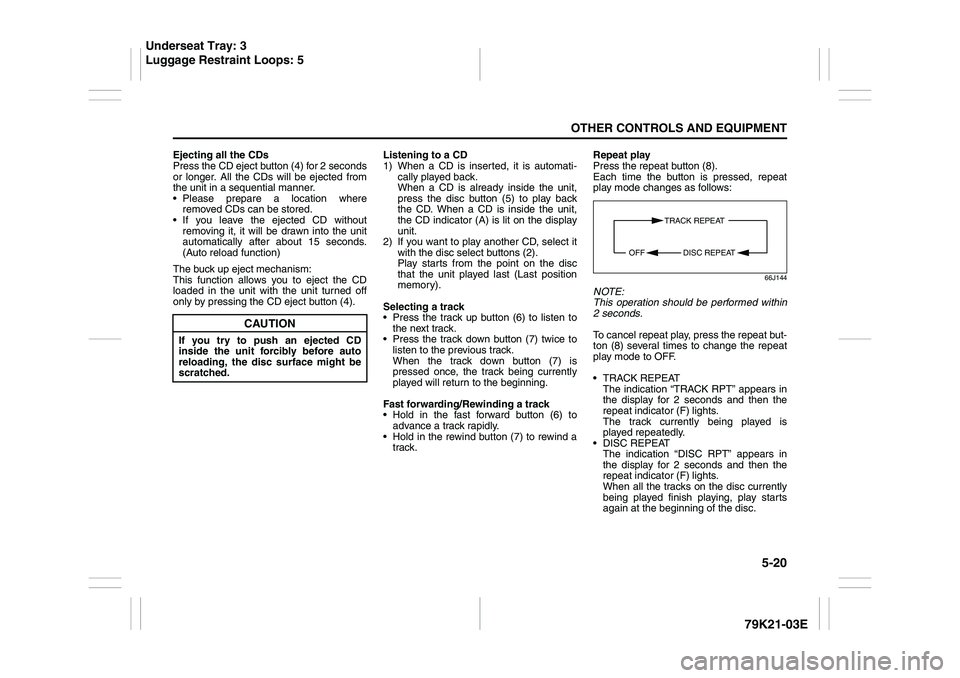
Press the repeat button (8).
Each time the button is pressed, repeat
play mode changes as follows:
66J144
NOTE:
This operation should be performed within
2 seconds.
To cancel repeat play, press the repeat but-
ton (8) several times to change the repeat
play mode to OFF.
TRACK REPEAT
The indication “TRACK RPT” appears in
the display for 2 seconds and then the
repeat indicator (F) lights.
The track currently being played is
played repeatedly.
DISC REPEAT
The indication “DISC RPT” appears in
the display for 2 seconds and then the
repeat indicator (F) lights.
When all the tracks on the disc currently
being played finish playing, play starts
again at the beginning of the disc.
CAUTION
If you try to push an ejected CD
inside the unit forcibly before auto
reloading, the disc surface might be
scratched.
TRACK REPEAT
DISC REPEAT OFF
Underseat Tray: 3
Luggage Restraint Loops: 5
Page 175 of 337
5-22
OTHER CONTROLS AND EQUIPMENT
79K21-03E
What is MP3/WMA?
MP3 (MPEG1/2 Audio Layer-III) and WMA
(Windows Media
TM
Audio) are the com-
pression formats of digital audio. The
former is developed by MPEG (Motion Pic-
ture Experts Group), and the latter is
developed by Microsoft Corporation. Using
these compression formats, you can
record the contents of about 10 music CDs
on a single CD media (This figures refer to
data recorded on a 650 MB CD-R or CD-
RW at a fixed bit rate of 128 kbps and a
sampling frequency of 44.1 kHz).Points to remember when making MP3/
WMA files
Common
High bit rate and high sampling fre-
quency are recommended for high qual-
ity sounds.
Selecting VBR (Variable Bit Rate) is not
recommended because playing time is
not displayed properly and sound may
be skipped.
The playback sound quality differs
depending on the encoding circum-
stances. For details, refer to the user
manual of your own encoding software
and writing software.
MP3
It is recommended to set the bit rate to
“128 kbps or more” and “fixed”.
WMA
It is recommended to set the bit rate to
“64 kbps or more” and “fixed”.
Do not set the copy protect attribute on
the WMA file to enable this unit to play
back.
NOTE:
Never assign the “.mp3”, or “.wma” file
name extension to a file that is not in the
MP3/WMA format. This may not only pro-
duce noise from the speaker damage, but
also damage your hearing.Recording MP3/WMA files on a CD-
media
You are recommended to minimize the
chances of making a disc that contains
both CD-DA files and MP3/WMA files.
If CD-DA files are on the same disc as
MP3 or WMA files, the songs may not
play in the intended order, or some
songs may not play at all.
When storing MP3 data and WMA data
on the same disc, use different folders
for each data.
Do not record files other than MP3/WMA
files and unnecessary folder on a disc.
The name of an MP3/WMA file should
be added by rules as shown in the fol-
lowing descriptions and also comply with
the rules of each file system.
The file extension “.mp3” or “.wma”
should be assigned to each file depend-
ing on the file format.
You may encounter trouble in playing
MP3/WMA files or displaying the infor-
mation of MP3/WMA files recorded with
certain writing software or CD recorders.
This unit does not have a play list func-
tion.
Although Multi-session recording is sup-
ported, the use of Disc-at-Once is rec-
ommended.
Underfloor Bins:
Roof Rails or Roof Rack Anchors: 5, 13
Page 176 of 337
5-23OTHER CONTROLS AND EQUIPMENT
79K21-03E
Compression formats
MP3
Bit rate
MPEG1 Audio Layer III : 32 k - 320 kbps
MPEG2 Audio Layer III : 8 k - 160 kbps
Sampling frequency
MPEG1 Audio Layer III : 44.1 k/48 k/32
kHz
MPEG2 Audio Layer III : 22.05 k/24 k/16
kHz
WMA (Ver.7, Ver.8, Ver.9*)
Bit rate
32 k - 192 kbps
Sampling frequency
44.1 k/48 k/32 kHz
* WMA 9 Professional/LossLess/Voice are
not supported.
Supported file systems
ISO 9660 Level 1/Level 2, Apple Extension
to ISO 9660, Joliet, RomeoMaximum number of files/folders
Maximum number of files:
CD Player: 999(files + folders)
6-CD Player: 512(files + folders)
Maximum number of files in one folder:
255
Maximum depth of trees: 8
Maximum number of folders: 255
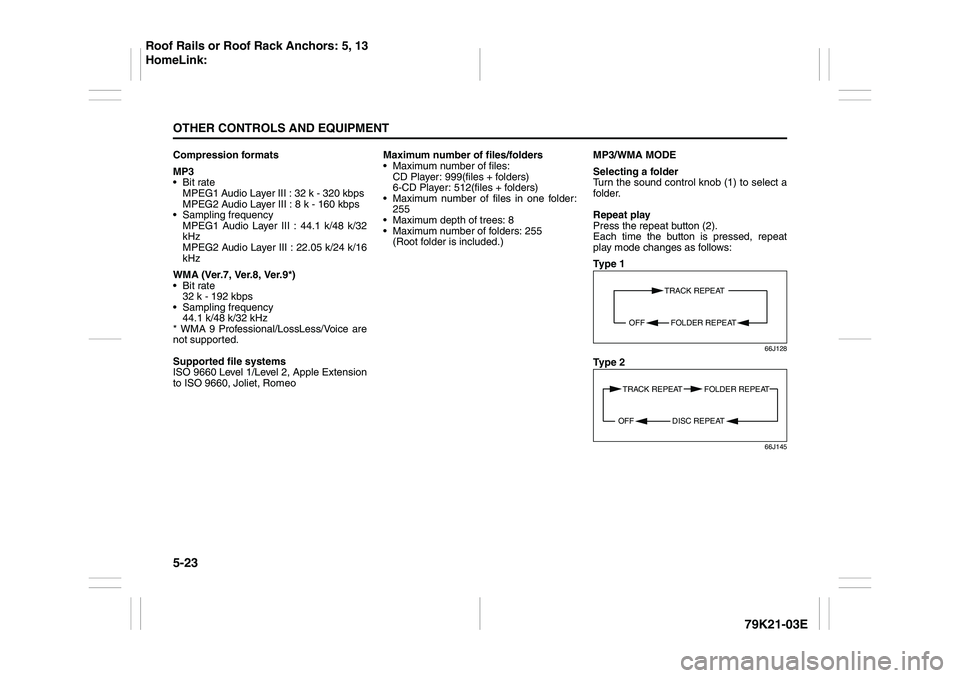
(Root folder is included.)MP3/WMA MODE
Selecting a folder
Turn the sound control knob (1) to select a
folder.
Repeat play
Press the repeat button (2).
Each time the button is pressed, repeat
play mode changes as follows:
Ty p e 1
66J128
Ty p e 2
66J145
TRACK REPEAT
FOLDER REPEAT OFF
TRACK REPEAT FOLDER REPEAT
DISC REPEAT OFF
Roof Rails or Roof Rack Anchors: 5, 13
HomeLink: