SELECT SUZUKI GRAND VITARA 2012 Owner's Guide
[x] Cancel search | Manufacturer: SUZUKI, Model Year: 2012, Model line: GRAND VITARA, Model: SUZUKI GRAND VITARA 2012Pages: 337, PDF Size: 6.21 MB
Page 177 of 337
5-24
OTHER CONTROLS AND EQUIPMENT
79K21-03E
NOTE:
This operation should be performed within
2 seconds.
To cancel repeat play, press the repeat but-
ton (2) several times to change the repeat
play mode to OFF.
TRACK REPEAT
The indication “TRACK RPT” appears in
the display for 2 seconds and then the
repeat indicator (D) lights.
The track currently being played is
played repeatedly.
FOLDER REPEAT
The indication “FOLDER RPT” appears
in the display for 2 seconds and then the
repeat indicator (D) lights.
All the tracks in the folder currently being
played are played repeatedly.
DISC REPEAT
The indication “DISC RPT” appears in
the display for 2 seconds and then the
repeat indicator (D) lights.
When all the tracks on the disc currently
being played finish playing, play starts
again at the beginning of the disc.Selecting a track
Press the track up button (3) to listen to
the next track.
Press the track down button (4) twice to
listen to the previous track.
When the track down button (4) is
pressed once, the track currently being
played will start again at the beginning.
Fast forwarding/Rewinding a track
Hold in the fast forward button (3) to
advance a track rapidly.
Hold in the rewind button (4) to rewind a
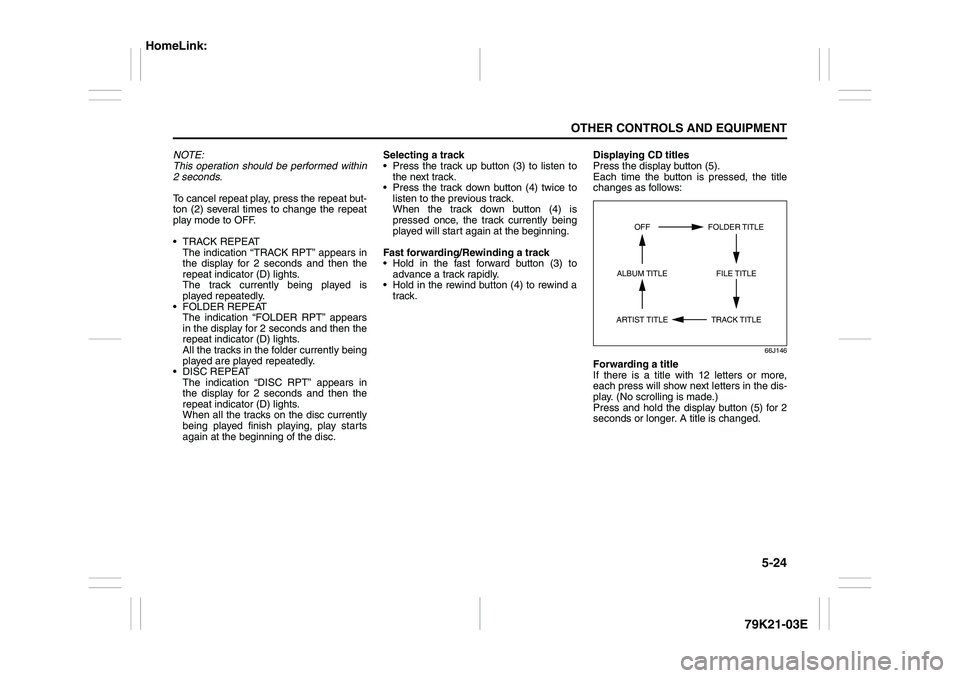
track.Displaying CD titles
Press the display button (5).
Each time the button is pressed, the title
changes as follows:
66J146
Forwarding a title
If there is a title with 12 letters or more,
each press will show next letters in the dis-
play. (No scrolling is made.)
Press and hold the display button (5) for 2
seconds or longer. A title is changed.
TRACK TITLE FOLDER TITLE
ARTIST TITLEOFF
FILE TITLE ALBUM TITLE
HomeLink:
Page 179 of 337
5-26
OTHER CONTROLS AND EQUIPMENT
79K21-03E
XM MODE
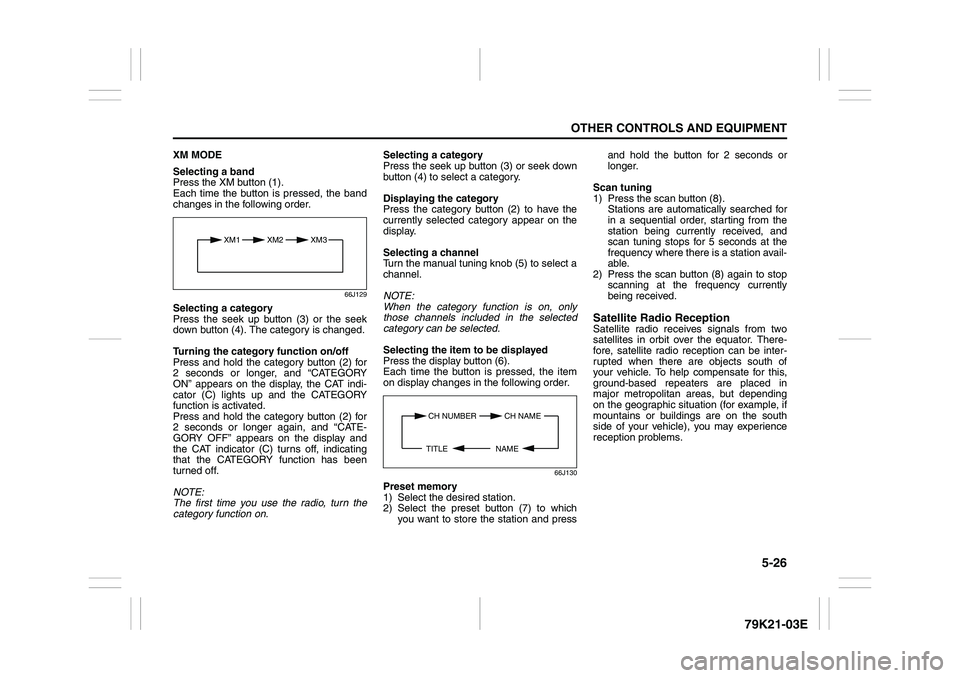
Selecting a band
Press the XM button (1).
Each time the button is pressed, the band
changes in the following order.
66J129
Selecting a category
Press the seek up button (3) or the seek
down button (4). The category is changed.
Turning the category function on/off
Press and hold the category button (2) for
2 seconds or longer, and “CATEGORY
ON” appears on the display, the CAT indi-
cator (C) lights up and the CATEGORY
function is activated.
Press and hold the category button (2) for
2 seconds or longer again, and “CATE-
GORY OFF” appears on the display and
the CAT indicator (C) turns off, indicating
that the CATEGORY function has been
turned off.
NOTE:
The first time you use the radio, turn the
category function on.Selecting a category
Press the seek up button (3) or seek down
button (4) to select a category.
Displaying the category
Press the category button (2) to have the
currently selected category appear on the
display.
Selecting a channel
Turn the manual tuning knob (5) to select a
channel.
NOTE:
When the category function is on, only
those channels included in the selected
category can be selected.
Selecting the item to be displayed
Press the display button (6).
Each time the button is pressed, the item
on display changes in the following order.
66J130
Preset memory
1) Select the desired station.
2) Select the preset button (7) to which
you want to store the station and pressand hold the button for 2 seconds or
longer.
Scan tuning
1) Press the scan button (8).
Stations are automatically searched for
in a sequential order, starting from the
station being currently received, and
scan tuning stops for 5 seconds at the
frequency where there is a station avail-
able.
2) Press the scan button (8) again to stop
scanning at the frequency currently
being received.
Satellite Radio ReceptionSatellite radio receives signals from two
satellites in orbit over the equator. There-
fore, satellite radio reception can be inter-
rupted when there are objects south of
your vehicle. To help compensate for this,
ground-based repeaters are placed in
major metropolitan areas, but depending
on the geographic situation (for example, if
mountains or buildings are on the south
side of your vehicle), you may experience
reception problems.
XM1 XM2
XM3
CH NUMBER CH NAME
NAME TITLE
Page 180 of 337
5-27OTHER CONTROLS AND EQUIPMENT
79K21-03E
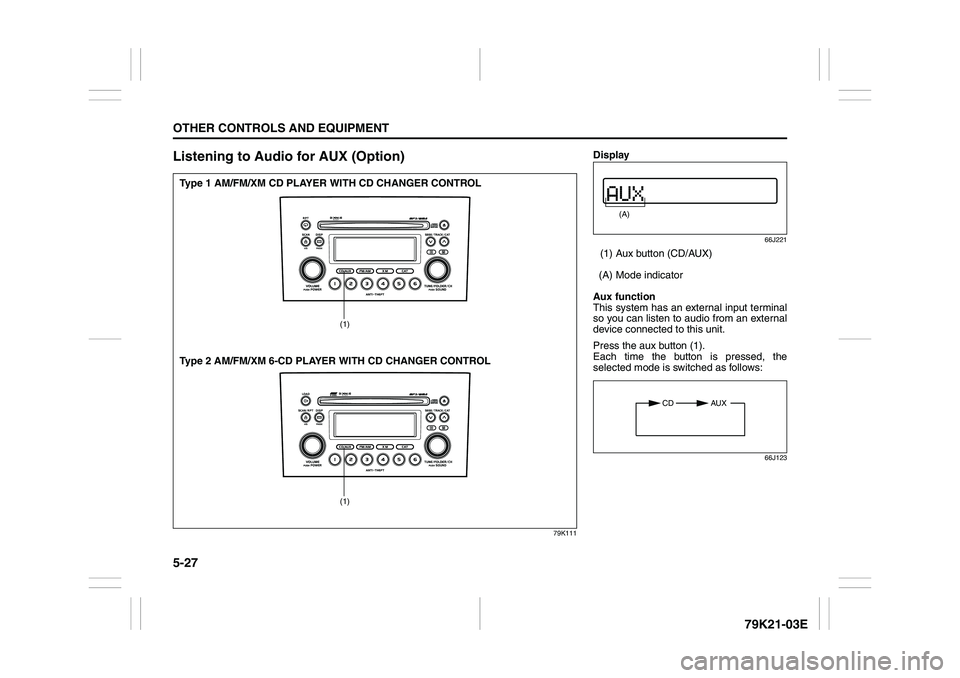
Listening to Audio for AUX (Option)
79K111
(1)(1)
Type 1 AM/FM/XM CD PLAYER WITH CD CHANGER CONTROL
Type 2 AM/FM/XM 6-CD PLAYER WITH CD CHANGER CONTROL
Display
66J221
(1) Aux button (CD/AUX)
(A) Mode indicator
Aux function
This system has an external input terminal
so you can listen to audio from an external
device connected to this unit.
Press the aux button (1).
Each time the button is pressed, the
selected mode is switched as follows:
66J123
(A)
CD AUX
Page 181 of 337
5-28
OTHER CONTROLS AND EQUIPMENT
79K21-03E
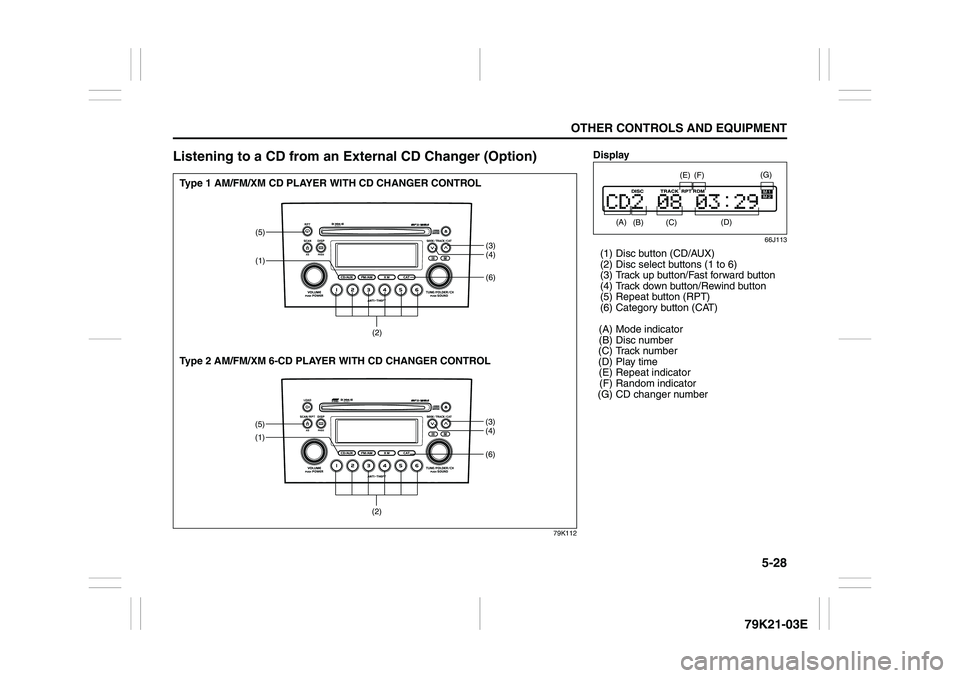
Listening to a CD from an External CD Changer (Option)
79K112
(6)
(5)
(1)
(3)
(4)
(2)
(6)
(5)
(1)
(3)
(4)
(2)
Type 1 AM/FM/XM CD PLAYER WITH CD CHANGER CONTROL
Type 2 AM/FM/XM 6-CD PLAYER WITH CD CHANGER CONTROL
Display
66J113
(1) Disc button (CD/AUX)
(2) Disc select buttons (1 to 6)
(3) Track up button/Fast forward button
(4) Track down button/Rewind button
(5) Repeat button (RPT)
(6) Category button (CAT)
(A) Mode indicator
(B) Disc number
(C) Track number
(D) Play time
(E) Repeat indicator
(F) Random indicator
(G) CD changer number
(A)
(B)
(E)
(D)
(F)
(C)
(G)
Page 182 of 337
5-29OTHER CONTROLS AND EQUIPMENT
79K21-03E
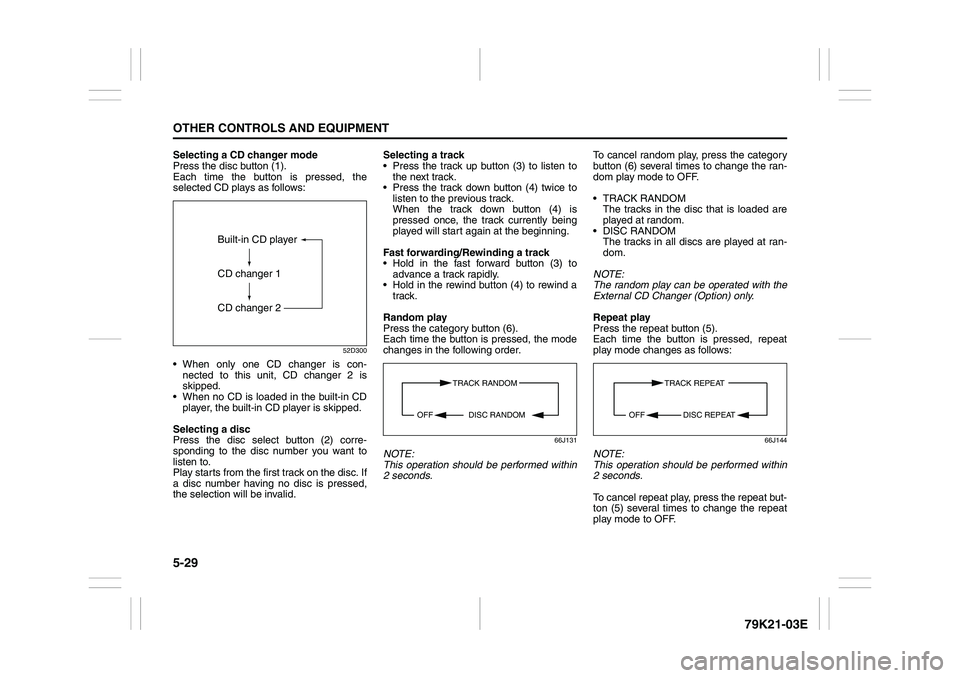
Selecting a CD changer mode
Press the disc button (1).
Each time the button is pressed, the
selected CD plays as follows:
52D300
When only one CD changer is con-
nected to this unit, CD changer 2 is
skipped.
When no CD is loaded in the built-in CD
player, the built-in CD player is skipped.
Selecting a disc
Press the disc select button (2) corre-
sponding to the disc number you want to
listen to.
Play starts from the first track on the disc. If
a disc number having no disc is pressed,
the selection will be invalid.Selecting a track
Press the track up button (3) to listen to
the next track.
Press the track down button (4) twice to
listen to the previous track.
When the track down button (4) is
pressed once, the track currently being
played will start again at the beginning.
Fast forwarding/Rewinding a track
Hold in the fast forward button (3) to
advance a track rapidly.
Hold in the rewind button (4) to rewind a
track.
Random play
Press the category button (6).
Each time the button is pressed, the mode
changes in the following order.
66J131
NOTE:
This operation should be performed within
2 seconds.To cancel random play, press the category
button (6) several times to change the ran-
dom play mode to OFF.
TRACK RANDOM
The tracks in the disc that is loaded are
played at random.
DISC RANDOM
The tracks in all discs are played at ran-
dom.
NOTE:
The random play can be operated with the
External CD Changer (Option) only.
Repeat play
Press the repeat button (5).
Each time the button is pressed, repeat
play mode changes as follows:
66J144
NOTE:
This operation should be performed within
2 seconds.
To cancel repeat play, press the repeat but-
ton (5) several times to change the repeat
play mode to OFF.
Built-in CD player
CD changer 1
CD changer 2
TRACK RANDOM
DISC RANDOM OFF
TRACK REPEAT
DISC REPEAT OFF
Page 183 of 337
5-30
OTHER CONTROLS AND EQUIPMENT
79K21-03E
TRACK REPEAT
The indication “TRACK RPT” appears in
the display for 2 seconds and then the
repeat indicator (E) lights.
The track being currently played is
played repeatedly.
DISC REPEAT
The indication “DISC RPT” appears in
the display for 2 seconds and then the
repeat indicator (E) lights.
When all the tracks on a disc being cur-
rently played finish playing, play starts
again at the beginning of the disc.
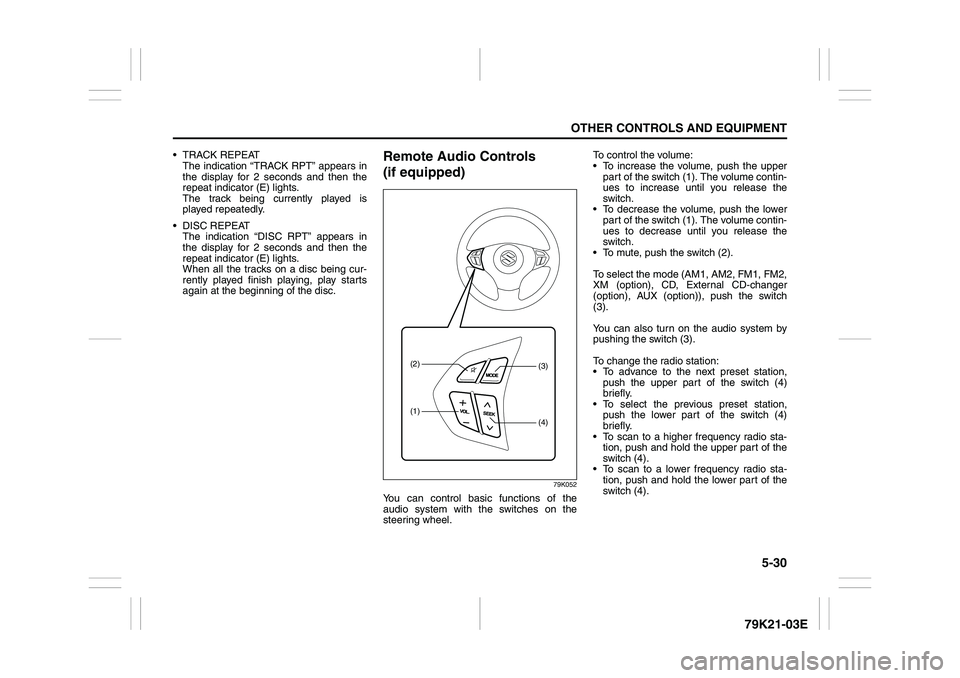
Remote Audio Controls
(if equipped)
79K052
You can control basic functions of the
audio system with the switches on the
steering wheel.To control the volume:
To increase the volume, push the upper
part of the switch (1). The volume contin-
ues to increase until you release the
switch.
To decrease the volume, push the lower
part of the switch (1). The volume contin-
ues to decrease until you release the
switch.
To mute, push the switch (2).
To select the mode (AM1, AM2, FM1, FM2,
XM (option), CD, External CD-changer
(option), AUX (option)), push the switch
(3).
You can also turn on the audio system by
pushing the switch (3).
To change the radio station:
To advance to the next preset station,
push the upper part of the switch (4)
briefly.
To select the previous preset station,
push the lower part of the switch (4)
briefly.
To scan to a higher frequency radio sta-
tion, push and hold the upper part of the
switch (4).
To scan to a lower frequency radio sta-
tion, push and hold the lower part of the
switch (4).
(1)(2)
(4)(3)
Page 184 of 337
5-31OTHER CONTROLS AND EQUIPMENT
79K21-03E
To change the selection on a CD:
To advance to the next track on a CD,
push the upper part of the switch (4)
briefly.
To select the previous track on a CD,
push the lower part of the switch (4).
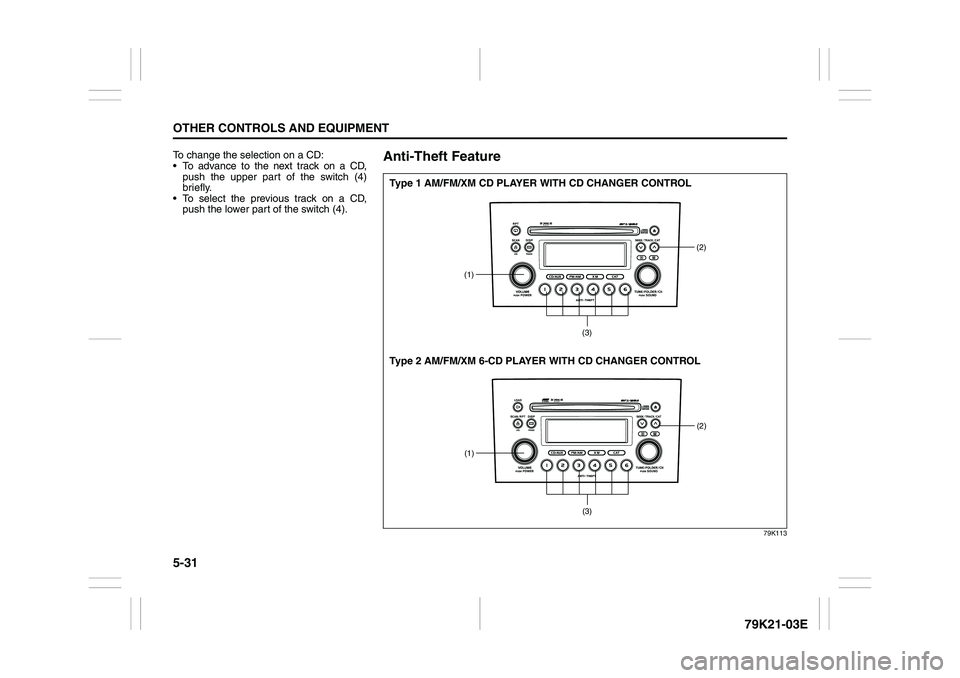
Anti-Theft Feature
79K113
(1)
(2)
(3)
(1)
(2)
(3)
Type 1 AM/FM/XM CD PLAYER WITH CD CHANGER CONTROL
Type 2 AM/FM/XM 6-CD PLAYER WITH CD CHANGER CONTROL
Page 187 of 337
5-34
OTHER CONTROLS AND EQUIPMENT
79K21-03E
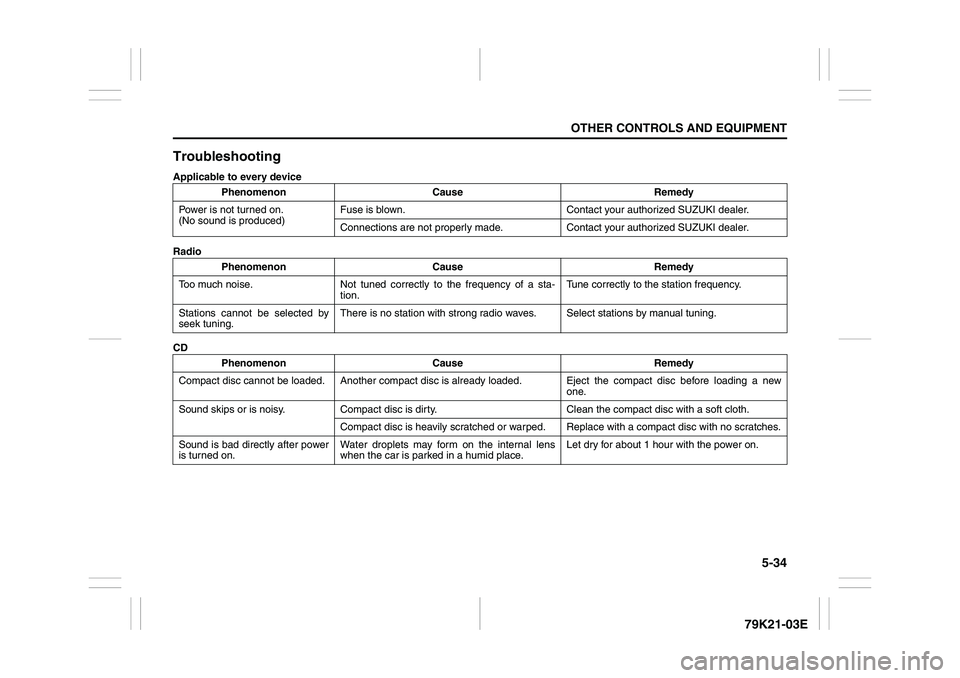
TroubleshootingApplicable to every device
Radio
CDPhenomenon Cause Remedy
Power is not turned on.
(No sound is produced)Fuse is blown. Contact your authorized SUZUKI dealer.
Connections are not properly made. Contact your authorized SUZUKI dealer.
Phenomenon Cause Remedy
Too much noise. Not tuned correctly to the frequency of a sta-
tion.Tune correctly to the station frequency.
Stations cannot be selected by
seek tuning.There is no station with strong radio waves. Select stations by manual tuning.
Phenomenon Cause Remedy
Compact disc cannot be loaded. Another compact disc is already loaded. Eject the compact disc before loading a new
one.
Sound skips or is noisy. Compact disc is dirty. Clean the compact disc with a soft cloth.
Compact disc is heavily scratched or warped. Replace with a compact disc with no scratches.
Sound is bad directly after power
is turned on.Water droplets may form on the internal lens
when the car is parked in a humid place.Let dry for about 1 hour with the power on.
Page 192 of 337
5-39OTHER CONTROLS AND EQUIPMENT
79K21-03E
Turning power on/off
Press the power on/off knob (1).
The unit starts in the function mode it was
in when the power was turned off last.
Adjusting the volume
Turn the volume control knob (1).
Turning it clockwise increases the volume;
turning it counterclockwise decreases the
volume.
NOTE:
While driving, adjust the volume to an
extent that sound and/or noise coming
from outside the car can be heard.
Adjusting the clock
1) Press the clock button H (5) to adjust
the hours.
Press the clock button M (6) to adjust
the minutes.
2) Hold the button depressed to automati-
cally increment the number.
3) To reset the clock to an hour signal,
press the clock button H (5) while hold-
ing the clock button M (6) depressed.
NOTE:
When the clock has not been set, the time
“12:00” will flash in the display.
Clock reset is effected as follows:
When minutes are between 00 and 29,
the clock will reset to the current hour.
(example: 12:23 ➔ 12:00) When minutes are between 30 and 59,
the clock will reset to the next hour.
(example: 12:38 ➔ 1:00)
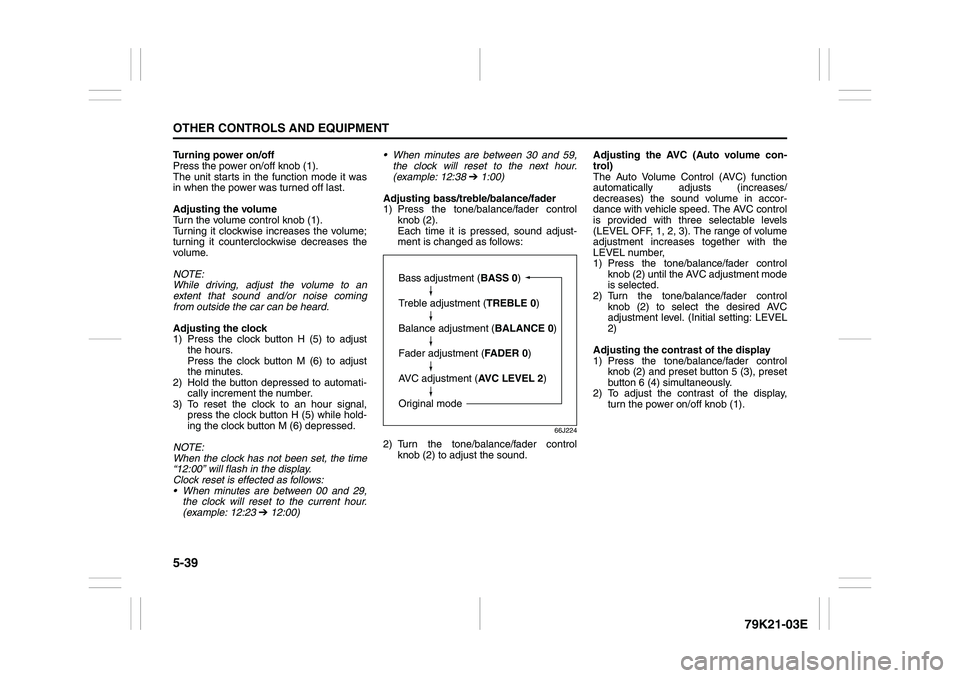
Adjusting bass/treble/balance/fader
1) Press the tone/balance/fader control
knob (2).
Each time it is pressed, sound adjust-
ment is changed as follows:
66J224
2) Turn the tone/balance/fader control
knob (2) to adjust the sound.Adjusting the AVC (Auto volume con-
trol)
The Auto Volume Control (AVC) function
automatically adjusts (increases/
decreases) the sound volume in accor-
dance with vehicle speed. The AVC control
is provided with three selectable levels
(LEVEL OFF, 1, 2, 3). The range of volume
adjustment increases together with the
LEVEL number,
1) Press the tone/balance/fader control
knob (2) until the AVC adjustment mode
is selected.
2) Turn the tone/balance/fader control
knob (2) to select the desired AVC
adjustment level. (Initial setting: LEVEL
2)
Adjusting the contrast of the display
1) Press the tone/balance/fader control
knob (2) and preset button 5 (3), preset
button 6 (4) simultaneously.
2) To adjust the contrast of the display,
turn the power on/off knob (1).
Bass adjustment (BASS 0)
Treble adjustment (TREBLE 0)
Balance adjustment (BALANCE 0)
Fader adjustment (FADER 0)
AVC adjustment (AVC LEVEL 2)
Original mode
Page 194 of 337
5-41OTHER CONTROLS AND EQUIPMENT
79K21-03E
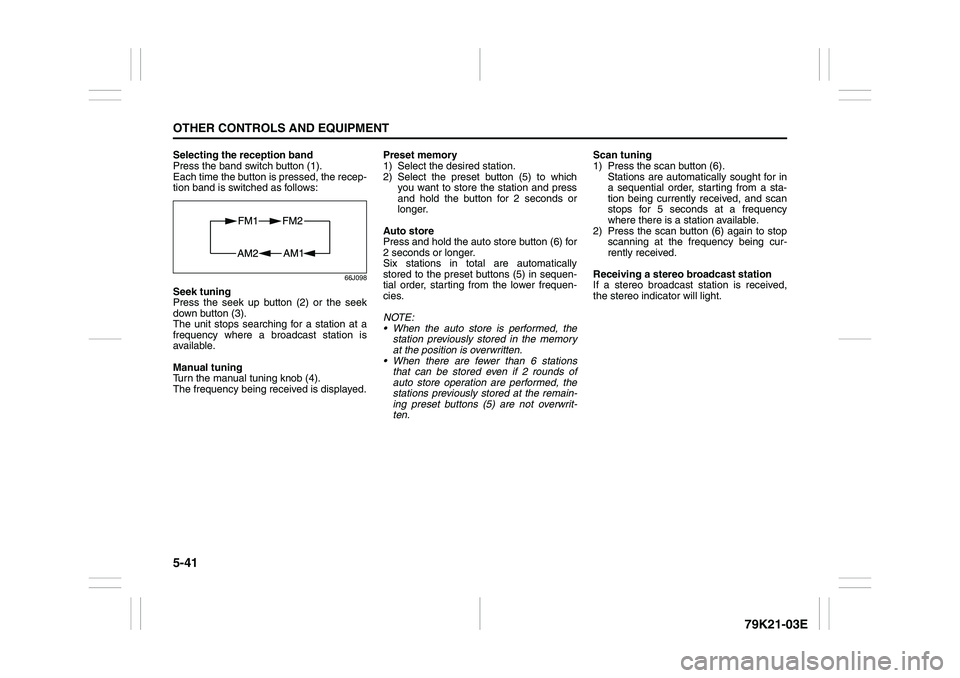
Selecting the reception band
Press the band switch button (1).
Each time the button is pressed, the recep-
tion band is switched as follows:
66J098
Seek tuning
Press the seek up button (2) or the seek
down button (3).
The unit stops searching for a station at a
frequency where a broadcast station is
available.
Manual tuning
Turn the manual tuning knob (4).
The frequency being received is displayed.Preset memory
1) Select the desired station.
2) Select the preset button (5) to which
you want to store the station and press
and hold the button for 2 seconds or
longer.
Auto store
Press and hold the auto store button (6) for
2 seconds or longer.
Six stations in total are automatically
stored to the preset buttons (5) in sequen-
tial order, starting from the lower frequen-
cies.
NOTE:
When the auto store is performed, the
station previously stored in the memory
at the position is overwritten.
When there are fewer than 6 stations
that can be stored even if 2 rounds of
auto store operation are performed, the
stations previously stored at the remain-
ing preset buttons (5) are not overwrit-
ten.Scan tuning
1) Press the scan button (6).
Stations are automatically sought for in
a sequential order, starting from a sta-
tion being currently received, and scan
stops for 5 seconds at a frequency
where there is a station available.
2) Press the scan button (6) again to stop
scanning at the frequency being cur-
rently received.
Receiving a stereo broadcast station
If a stereo broadcast station is received,
the stereo indicator will light.