ECO mode SUZUKI GRAND VITARA 2015 Repair Manual
[x] Cancel search | Manufacturer: SUZUKI, Model Year: 2015, Model line: GRAND VITARA, Model: SUZUKI GRAND VITARA 2015Pages: 482, PDF Size: 21 MB
Page 300 of 482
5-58
OTHER CONTROLS AND EQUIPMENT
54P00-01E
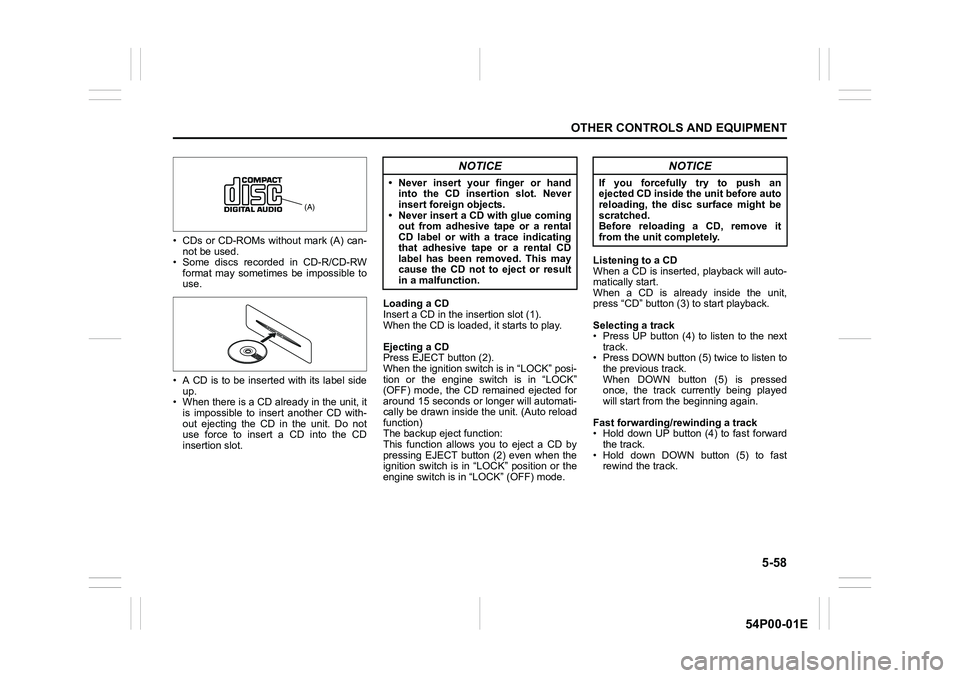
• CDs or CD-ROMs without mark (A) can-
not be used.
• Some discs recorded in CD-R/CD-RW
format may sometimes be impossible to
use.
• A CD is to be inserted with its label side
up.
• When there is a CD already in the unit, it
is impossible to insert another CD with-
out ejecting the CD in the unit. Do not
use force to insert a CD into the CD
insertion slot.Loading a CD
Insert a CD in the insertion slot (1).
When the CD is loaded, it starts to play.
Ejecting a CD
Press EJECT button (2).
When the ignition switch is in “LOCK” posi-
tion or the engine switch is in “LOCK”
(OFF) mode, the CD remained ejected for
around 15 seconds or longer will automati-
cally be drawn inside the unit. (Auto reload
function)
The backup eject function:
This function allows you to eject a CD by
pressing EJECT button (2) even when the
ignition switch is in “LOCK” position or the
engine switch is in “LOCK” (OFF) mode.Listening to a CD
When a CD is inserted, playback will auto-
matically start.
When a CD is already inside the unit,
press “CD” button (3) to start playback.
Selecting a track
• Press UP button (4) to listen to the next
track.
• Press DOWN button (5) twice to listen to
the previous track.
When DOWN button (5) is pressed
once, the track currently being played
will start from the beginning again.
Fast forwarding/rewinding a track
• Hold down UP button (4) to fast forward
the track.
• Hold down DOWN button (5) to fast
rewind the track.
(A)
NOTICE
• Never insert your finger or hand
into the CD insertion slot. Never
insert foreign objects.
• Never insert a CD with glue coming
out from adhesive tape or a rental
CD label or with a trace indicating
that adhesive tape or a rental CD
label has been removed. This may
cause the CD not to eject or result
in a malfunction.
NOTICE
If you forcefully try to push an
ejected CD inside the unit before auto
reloading, the disc surface might be
scratched.
Before reloading a CD, remove it
from the unit completely.
Page 301 of 482
5-59
OTHER CONTROLS AND EQUIPMENT
54P00-01E
Random playback
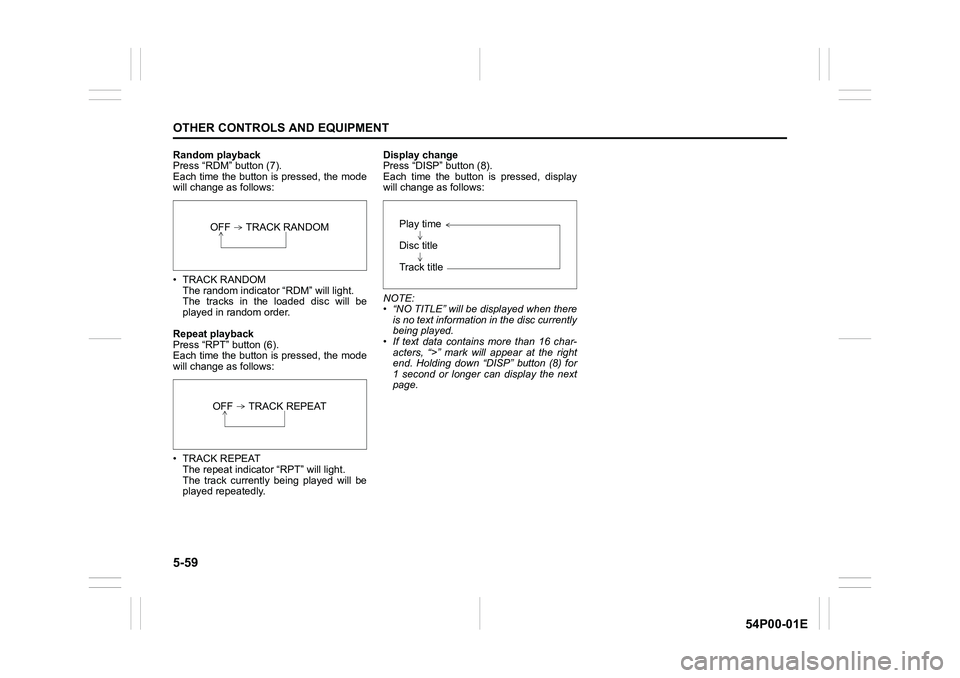
Press “RDM” button (7).
Each time the button is pressed, the mode
will change as follows:
• TRACK RANDOM
The random indicator “RDM” will light.
The tracks in the loaded disc will be
played in random order.
Repeat playback
Press “RPT” button (6).
Each time the button is pressed, the mode
will change as follows:
• TRACK REPEAT
The repeat indicator “RPT” will light.
The track currently being played will be
played repeatedly.Display change
Press “DISP” button (8).
Each time the button is pressed, display
will change as follows:
NOTE:
• “NO TITLE” will be displayed when there
is no text information in the disc currently
being played.
• If text data contains more than 16 char-
acters, “>” mark will appear at the right
end. Holding down “DISP” button (8) for
1 second or longer can display the next
page.
OFF TRACK RANDOM
OFF TRACK REPEAT
Play time
Disc title
Track title
Page 305 of 482
5-63
OTHER CONTROLS AND EQUIPMENT
54P00-01E
Recording MP3/WMA/AAC files on a CD
media
• It is recommended not to write both CD-
DA files and MP3/WMA/AAC files on a
disc.
• If both CD-DA files and MP3/WMA/AAC
files are on the same disc, tracks may
not be played in the correct order or
some tracks may not be played at all.
• When storing both MP3 data and WMA
data on the same disc, sort and place
them in different folders.
• Do not write files other than MP3/WMA/
AAC files and unnecessary folders on a
disc.
• MP3/WMA/AAC files should be named
to meet the standards and the file sys-
tem specifications as shown below.
• The file extension “.mp3”, “.wma” or
“.m4a” should be assigned to files based
on their format independently.
• You may encounter a trouble in playing
MP3/WMA/AAC files or displaying infor-
mation of MP3/WMA/AAC files depend-
ing on the writing software or CD
recorder in use.
• This unit does not have a playlist func-
tion.
• It is recommended to write discs in Disc-
at-Once mode even though Multi-ses-
sion mode is supported. These modes
are the methods for writing audio data in
CD.Compression formats
MP3
•Bit rate
:
MPEG1 Audio Layer III: 32 k - 320 kbps
MPEG2 Audio Layer III: 8 k - 160 kbps
MPEG2.5 Audio Layer III: 8 k - 160 kbps
• Sampling frequency:
MPEG1 Audio Layer III: 32 k/44.1 k/
48 kHz
MPEG2 Audio Layer III: 16 k/22.05 k/
24 kHz
MPEG2.5 Audio Layer III: 8 k/11.025 k/
12 kHz
WMA (Ver. 7, Ver. 8, Ver. 9*)
• Bit rate: CBR 32 k - 320 kbps
• Sampling frequency: 32 k/44.1 k/48 kHz
* WMA 9 Professional/LossLess/Voice are
not supported.
AAC*
• Bit rate: ABR 16 k - 320 kbps
• Sampling frequency: 32 k/44.1 k/48 kHz
* Apple Lossless is not supported.
Supported file systems
ISO 9660 Level 1/Level 2, Joliet, Romeo
Maximum number of files/folders
• Maximum number of files: 512
• Maximum number of files in a folder: 255
• Maximum depth of tree structure: 8
• Maximum number of folders: 255
(Root folder is included.)
Page 307 of 482
5-65
OTHER CONTROLS AND EQUIPMENT
54P00-01E
Selecting a USB device mode
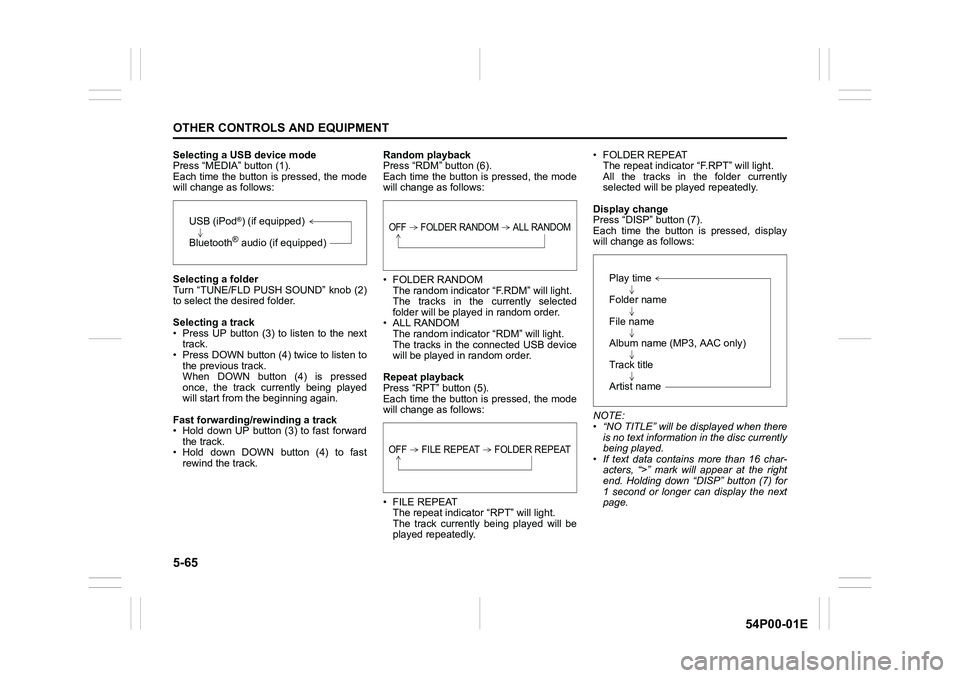
Press “MEDIA” button (1).
Each time the button is pressed, the mode
will change as follows:
Selecting a folder
Turn “TUNE/FLD PUSH SOUND” knob (2)
to select the desired folder.
Selecting a track
• Press UP button (3) to listen to the next
track.
• Press DOWN button (4) twice to listen to
the previous track.
When DOWN button (4) is pressed
once, the track currently being played
will start from the beginning again.
Fast forwarding/rewinding a track
• Hold down UP button (3) to fast forward
the track.
• Hold down DOWN button (4) to fast
rewind the track.Random playback
Press “RDM” button (6).
Each time the button is pressed, the mode
will change as follows:
• FOLDER RANDOM
The random indicator “F.RDM” will light.
The tracks in the currently selected
folder will be played in random order.
• ALL RANDOM
The random indicator “RDM” will light.
The tracks in the connected USB device
will be played in random order.
Repeat playback
Press “RPT” button (5).
Each time the button is pressed, the mode
will change as follows:
• FILE REPEAT
The repeat indicator “RPT” will light.
The track currently being played will be
played repeatedly.• FOLDER REPEAT
The repeat indicator “F.RPT” will light.
All the tracks in the folder currently
selected will be played repeatedly.
Display change
Press “DISP” button (7).
Each time the button is pressed, display
will change as follows:
NOTE:
• “NO TITLE” will be displayed when there
is no text information in the disc currently
being played.
• If text data contains more than 16 char-
acters, “>” mark will appear at the right
end. Holding down “DISP” button (7) for
1 second or longer can display the next
page.
USB (iPod®) (if equipped)
Bluetooth
® audio (if equipped)
OFF FOLDER RANDOM ALL RANDOM
OFF FILE REPEAT FOLDER REPEAT
Play time
Folder name
File name
Album name (MP3, AAC only)
Track title
Artist name
Page 311 of 482
![SUZUKI GRAND VITARA 2015 Repair Manual 5-69
OTHER CONTROLS AND EQUIPMENT
54P00-01E
Playing mode selection
1) Press the button numbered [6] of PRE-
SET buttons (8) for 1 second or longer.
2) Turn “TUNE/FLD PUSH SOUND” knob
(2).
Each tim](/img/20/43489/w960_43489-310.png "SUZUKI GRAND VITARA 2015 Repair Manual 5-69
OTHER CONTROLS AND EQUIPMENT
54P00-01E
Playing mode selection
1) Press the button numbered [6] of PRE-
SET buttons (8) for 1 second or longer.
2) Turn “TUNE/FLD PUSH SOUND” knob
(2).
Each tim")
5-69
OTHER CONTROLS AND EQUIPMENT
54P00-01E
Playing mode selection
1) Press the button numbered [6] of PRE-
SET buttons (8) for 1 second or longer.
2) Turn “TUNE/FLD PUSH SOUND” knob
(2).
Each time the knob is turned, the mode
will change as follows:
3) Press “TUNE/FLD PUSH SOUND”
knob (2) to select the desired mode.
NOTE:
• When the button numbered [6] of PRE-
SET buttons (8) is pressed, the previous
mode will be displayed.Notes on iPod®
Supported iPod®
•iPod® touch (5th generation)
•iPod® touch (4th generation)
•iPod® touch (3rd generation)
•iPod® touch (2nd generation)
•iPod® touch (1st generation)
•iPod® classic
•iPod® nano (7th generation)
•iPod® nano (6th generation)
•iPod® nano (5th generation)
•iPod® nano (4th generation)
•iPod® nano (3rd generation)
•iPod® nano (2nd generation)
•iPod® nano (1st generation)
•iPod® (5th generation)
• iPhone® 5
• iPhone® 4S
• iPhone® 4
• iPhone® 3GS
• iPhone® 3G
• iPhone®
* Some functions may not be available
depending on the model of iPod®.
*iPod® is a trademark of Apple Inc., regis-
tered in the U.S. and other countries.
* iPhone
® is a trademark of Apple Inc.,
registered in the U.S. and other coun-
tries.
* Apple is not responsible for the opera-
tion of this device or its compliance with
safety and regulatory standards.iPod
® connection
• Make sure to detach the iPod® after
turning the ignition switch to “LOCK”
position or pressing the engine switch to
change the ignition mode to “LOCK”
(OFF). The iPod
® may not be shut down
when it is being connected and may
result in battery depletion.
• Do not connect iPod
® accessories such
as an iPod® remote control or head-
phones while connecting the iPod® with
the unit. The unit may not operate cor-
rectly.PLAYLIST
ARTIST
ALBUM
SONGS
GENRE
Page 313 of 482
5-71
OTHER CONTROLS AND EQUIPMENT
54P00-01E
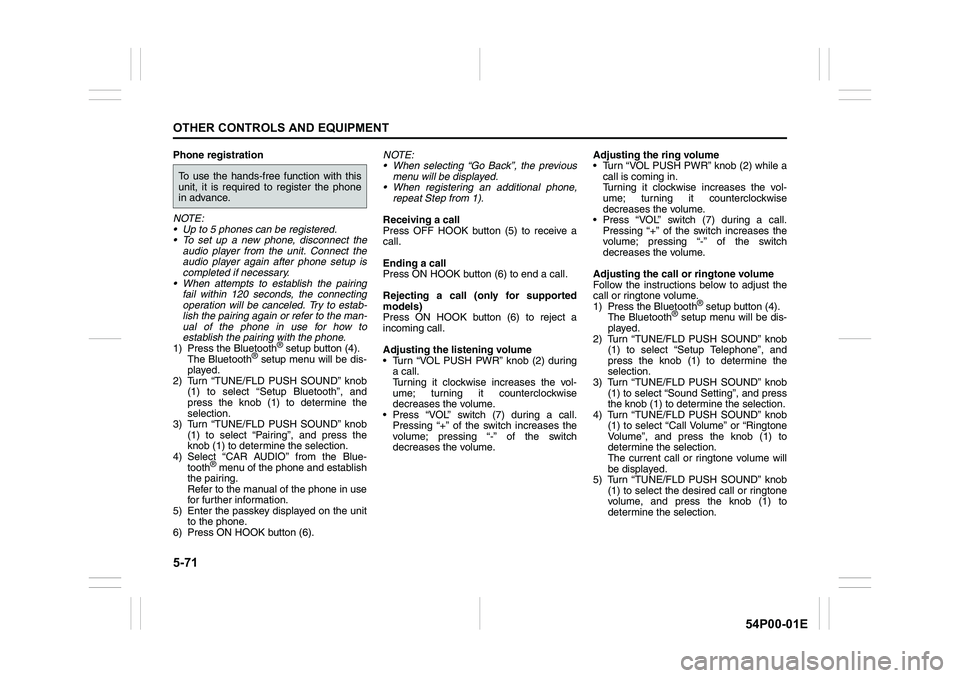
Phone registration
NOTE:
• Up to 5 phones can be registered.
To set up a new phone, disconnect the
audio player from the unit. Connect the
audio player again after phone setup is
completed if necessary.
When attempts to establish the pairing
fail within 120 seconds, the connecting
operation will be canceled. Try to estab-
lish the pairing again or refer to the man-
ual of the phone in use for how to
establish the pairing with the phone.
1) Press the Bluetooth
® setup button (4).
The Bluetooth® setup menu will be dis-
played.
2) Turn “TUNE/FLD PUSH SOUND” knob
(1) to select “Setup Bluetooth”, and
press the knob (1) to determine the
selection.
3) Turn “TUNE/FLD PUSH SOUND” knob
(1) to select “Pairing”, and press the
knob (1) to determine the selection.
4) Select “CAR AUDIO” from the Blue-
tooth
® menu of the phone and establish
the pairing.
Refer to the manual of the phone in use
for further information.
5) Enter the passkey displayed on the unit
to the phone.
6) Press ON HOOK button (6).NOTE:
When selecting “Go Back”, the previous
menu will be displayed.
When registering an additional phone,
repeat Step from 1).
Receiving a call
Press OFF HOOK button (5) to receive a
call.
Ending a call
Press ON HOOK button (6) to end a call.
Rejecting a call (only for supported
models)
Press ON HOOK button (6) to reject a
incoming call.
Adjusting the listening volume
Turn “VOL PUSH PWR” knob (2) during
a call.
Turning it clockwise increases the vol-
ume; turning it counterclockwise
decreases the volume.
Press “VOL” switch (7) during a call.
Pressing “+” of the switch increases the
volume; pressing “-” of the switch
decreases the volume.Adjusting the ring volume
Turn “VOL PUSH PWR” knob (2) while a
call is coming in.
Turning it clockwise increases the vol-
ume; turning it counterclockwise
decreases the volume.
Press “VOL” switch (7) during a call.
Pressing “+” of the switch increases the
volume; pressing “-” of the switch
decreases the volume.
Adjusting the call or ringtone volume
Follow the instructions below to adjust the
call or ringtone volume.
1) Press the Bluetooth
® setup button (4).
The Bluetooth® setup menu will be dis-
played.
2) Turn “TUNE/FLD PUSH SOUND” knob
(1) to select “Setup Telephone”, and
press the knob (1) to determine the
selection.
3) Turn “TUNE/FLD PUSH SOUND” knob
(1) to select “Sound Setting”, and press
the knob (1) to determine the selection.
4) Turn “TUNE/FLD PUSH SOUND” knob
(1) to select “Call Volume” or “Ringtone
Volume”, and press the knob (1) to
determine the selection.
The current call or ringtone volume will
be displayed.
5) Turn “TUNE/FLD PUSH SOUND” knob
(1) to select the desired call or ringtone
volume, and press the knob (1) to
determine the selection.
To use the hands-free function with this
unit, it is required to register the phone
in advance.
Page 321 of 482
5-79
OTHER CONTROLS AND EQUIPMENT
54P00-01E
Registration of audio devices
NOTE:
• To set up a new audio player, disconnect
the phone from the unit. Connect the
phone after audio player setup is com-
pleted if necessary.
• When attempts to establish the pairing
fail within 120 seconds, the connecting
operation will be canceled. Try to estab-
lish the pairing again or refer to the audio
player manual for assistance with the
pairing process.
1) Press the Bluetooth
® setup button (6).
The Bluetooth® setup menu will be dis-
played.
2) Turn “TUNE/FLD PUSH SOUND” knob
(2) to select “Setup Bluetooth”, and
press the knob (2) to determine the
selection.
3) Turn “TUNE/FLD PUSH SOUND” knob
(2) to select “Pairing”, and press the
knob (2) to determine the selection.
4) Select “CAR AUDIO” from the Blue-
tooth
® menu of the audio player and
establish the pairing.
Refer to the manual of the audio player
in use for further information.
5) Enter the passkey displayed on the unit
to the audio player.NOTE:
• When selecting “Go Back”, the previous
menu will be displayed.
• When registering additional audio
devices, repeat Step from 1).
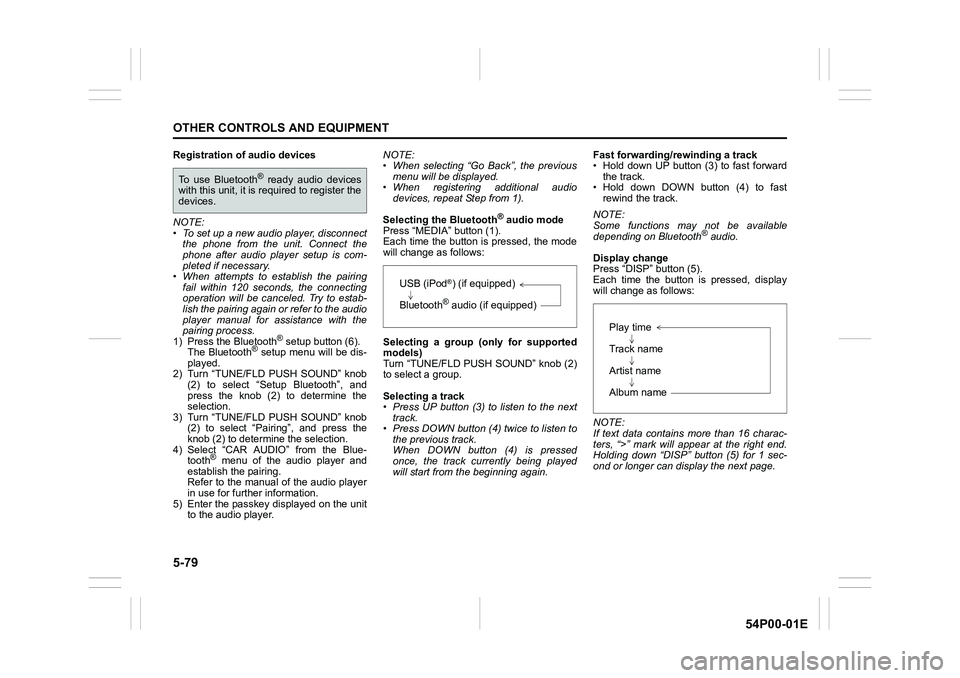
Selecting the Bluetooth
® audio mode
Press “MEDIA” button (1).
Each time the button is pressed, the mode
will change as follows:
Selecting a group (only for supported
models)
Turn “TUNE/FLD PUSH SOUND” knob (2)
to select a group.
Selecting a track
• Press UP button (3) to listen to the next
track.
• Press DOWN button (4) twice to listen to
the previous track.
When DOWN button (4) is pressed
once, the track currently being played
will start from the beginning again.Fast forwarding/rewinding a track
• Hold down UP button (3) to fast forward
the track.
• Hold down DOWN button (4) to fast
rewind the track.
NOTE:
Some functions may not be available
depending on Bluetooth
® audio.
Display change
Press “DISP” button (5).
Each time the button is pressed, display
will change as follows:
NOTE:
If text data contains more than 16 charac-
ters, “>” mark will appear at the right end.
Holding down “DISP” button (5) for 1 sec-
ond or longer can display the next page.
To use Bluetooth® ready audio devices
with this unit, it is required to register the
devices.
USB (iPod®) (if equipped)
Bluetooth
® audio (if equipped)
Play time
Track name
Artist name
Album name
Page 323 of 482
5-81
OTHER CONTROLS AND EQUIPMENT
54P00-01E
Deletion of audio device information
(Delete Audio)
Follow the instructions below to delete the
registered audio device information.
1) Press the Bluetooth
® setup button (6).
The Bluetooth® setup menu will be dis-
played.
2) Turn “TUNE/FLD PUSH SOUND” knob
(2) to select “Setup Bluetooth”, and
press the knob (2) to determine the
selection.
3) Turn “TUNE/FLD PUSH SOUND” knob
(2) to select “List Audio”, and press the
knob (2) to determine the selection.
4) Turn “TUNE/FLD PUSH SOUND” knob
(2) to select an audio device to be
deleted, and press the knob (2) to
determine the selection.
5) Turn “TUNE/FLD PUSH SOUND” knob
(2) to select “Delete”, and press the
knob (2) to determine the selection.
6) Turn “TUNE/FLD PUSH SOUND” knob
(2) to select “Delete?”, and press the
knob (2) to determine the selection.
7) Turn “TUNE/FLD PUSH SOUND” knob
(2) to select “Confirm”, and press the
knob (2) to complete the deletion.
NOTE:
When selecting “Go Back”, the previous
menu will be displayed.
Disclaimer for Bluetooth® function
• Depending on compatibility of mobile
phone models, no Bluetooth® function
can be used, or some Bluetooth® func-
tions may be restricted.
• Connectivity or voice quality may get
affected depending on circumstances.
• After the ignition switch is turned to “ON”
position or the engine switch is pressed
to change the ignition mode to “ON”, the
audio system takes few seconds to
detect and connect to the Bluetooth
®
device (if already paired).
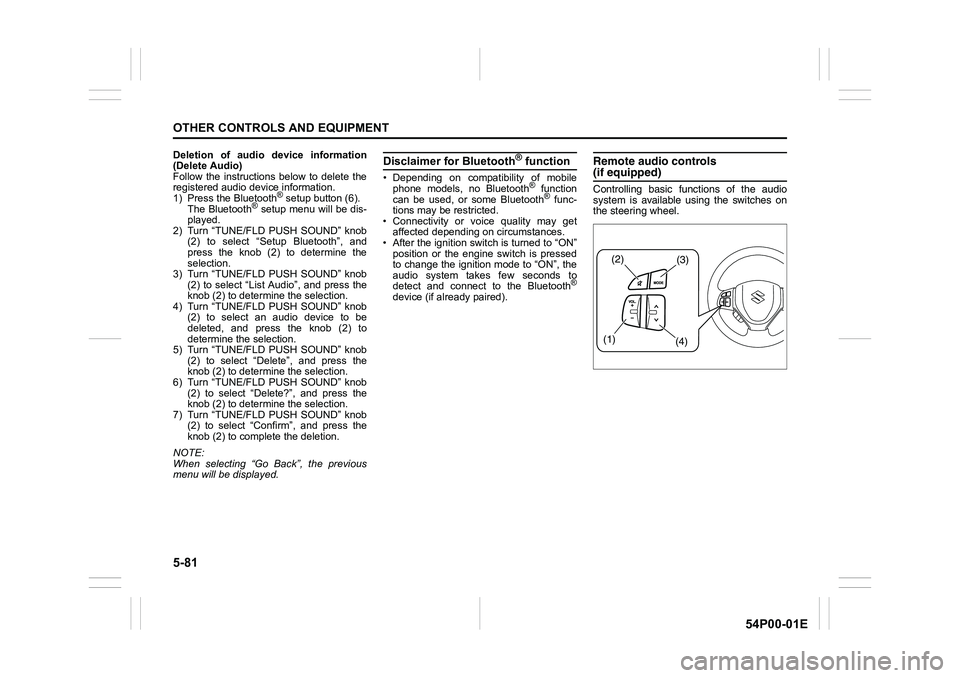
Remote audio controls(if equipped)
Controlling basic functions of the audio
system is available using the switches on
the steering wheel.
(2)(3)
(1)
(4)
Page 324 of 482
5-82
OTHER CONTROLS AND EQUIPMENT
54P00-01E
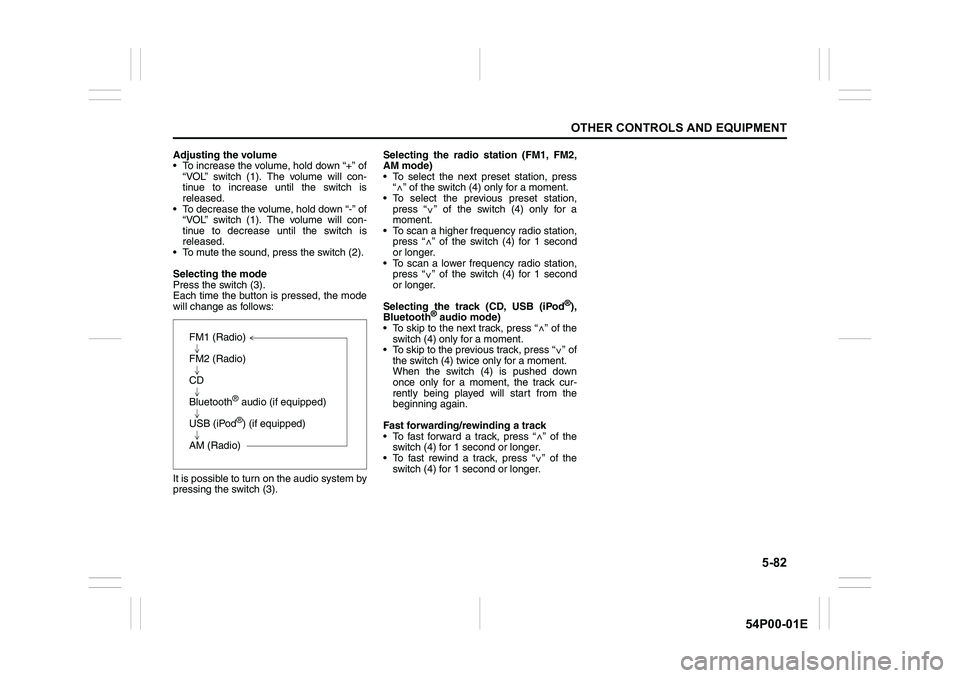
Adjusting the volume
To increase the volume, hold down “+” of
“VOL” switch (1). The volume will con-
tinue to increase until the switch is
released.
To decrease the volume, hold down “-” of
“VOL” switch (1). The volume will con-
tinue to decrease until the switch is
released.
To mute the sound, press the switch (2).
Selecting the mode
Press the switch (3).
Each time the button is pressed, the mode
will change as follows:
It is possible to turn on the audio system by
pressing the switch (3).Selecting the radio station (FM1, FM2,
AM mode)
To select the next preset station, press
“ ” of the switch (4) only for a moment.
To select the previous preset station,
press “ ” of the switch (4) only for a
moment.
To scan a higher frequency radio station,
press “ ” of the switch (4) for 1 second
or longer.
To scan a lower frequency radio station,
press “ ” of the switch (4) for 1 second
or longer.
Selecting the track (CD, USB (iPod
®),
Bluetooth® audio mode)
To skip to the next track, press “ ” of the
switch (4) only for a moment.
To skip to the previous track, press “ ” of
the switch (4) twice only for a moment.
When the switch (4) is pushed down
once only for a moment, the track cur-
rently being played will start from the
beginning again.
Fast forwarding/rewinding a track
To fast forward a track, press “ ” of the
switch (4) for 1 second or longer.
To fast rewind a track, press “ ” of the
switch (4) for 1 second or longer.
FM1 (Radio)
FM2 (Radio)
CD
Bluetooth
® audio (if equipped)
USB (iPod
®) (if equipped)
AM (Radio)
<
<
<
<
<
<
<
<
Page 327 of 482
5-85
OTHER CONTROLS AND EQUIPMENT
54P00-01E
Confirming the Personal Identification
Number (PIN)
When the main power source is discon-
nected such as when the battery is
replaced, etc, it is required to enter the PIN
to operate the unit again.
1) Set the ignition switch to “ACC” posi-
tion or the ignition mode to “ON”.
“SECURITY” will be displayed.
2) Press UP button (3) and the button
numbered [1] of PRESET buttons (2)
simultaneously.
3) Enter a 4-digit number to be registered
as PIN using the buttons numbered [1]
- [4] of PRESET buttons (2).
4) Hold down “TUNE/FLD PUSH
SOUND” knob (4) for 1 second or lon-
ger.
When the same PIN as registered is
entered, the power of the audio system
will be turned off automatically and it
will become operable again.
NOTE:
If an incorrect PIN is entered, “ERROR”
and the total number of incorrect entry
attempts will be displayed.
If an incorrect PIN is entered 10 times or
more, “HELP” will be displayed and the
audio system will become inoperable.