Initial SUZUKI IGNIS 2022 User Guide
[x] Cancel search | Manufacturer: SUZUKI, Model Year: 2022, Model line: IGNIS, Model: SUZUKI IGNIS 2022Pages: 505, PDF Size: 8.36 MB
Page 122 of 505
2-99BEFORE DRIVING
75RM4-01E
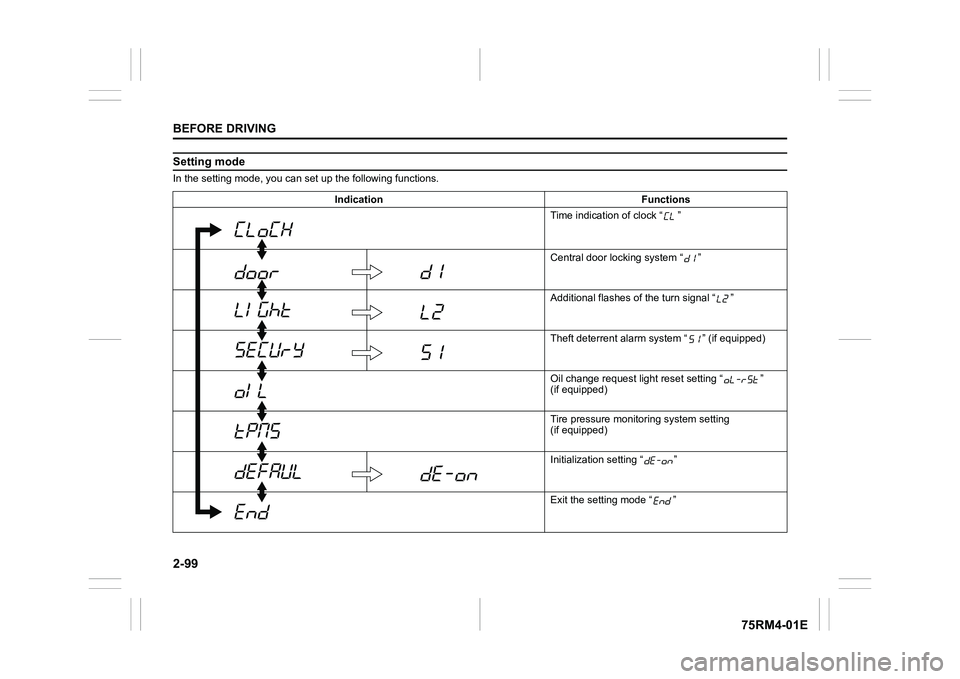
Setting modeIn the setting mode, you can set up the following functions.
Indication Functions Time indication of clock “ ”
Central door locking system “ ”
Additional flashes of the turn signal “ ”
Theft deterrent alarm system “ ” (if equipped)
Oil change request lig ht reset setting “ ”
(if equipped)
Tire pressure monito ring system setting
(if equipped)
Initialization setting “ ”
Exit the setting mode “ ”
Page 123 of 505
2-100
BEFORE DRIVING
75RM4-01E
NOTE:
Depending on vehicle’s specifications,
some items may not be displayed.
How to operate the setting mode:
1) When the ignition switch is in “ON”
position and the vehicle is stationary,
push the trip meter selector knob (1) to
switch the information display indication
(C) to the odometer.
2) Push and hold the indicator selector knob (2) until the display shows
“”.
3) Turn and/or push the indicator selector knob (2) to select a function that you
want to set up according to the above
chart.
4) Turn and/or push the indicator selector knob (2) to register settings of the fol-
lowing functions. Time indication of clock “ ”
• : 12-hour format (default set-
ting)
• : 24-hour format
Central door locking system “ ”
• : Unlock all doors by turning the key once
• : Unlock all doors by turning
the key twice (default setting)
Additional flashes of the turn signal
“”
• : Turn signal flashes three times after the turn signal
lever is returned (default set-
ting)
• : Disable the additional flashes of turn signal
Theft deterrent alarm system “ ”
(if equipped)
• : Enable the theft deterrent alarm system (default setting)
• : Disable the theft deterrent alarm system
Oil change request light reset setting
“ ” (if equipped)
• : Reset of the oil life monitoring system Tire pressure monitoring system set-
ting (if equipped)
• : Unladen Mode (default set-
ting)
• : Laden Mode
Refer to “Tire pressure monitoring system
(TPMS)” in the “OPERATING YOUR VEHI-
CLE” section for details.
Initialization setting “ ”
• : Initialize all settings
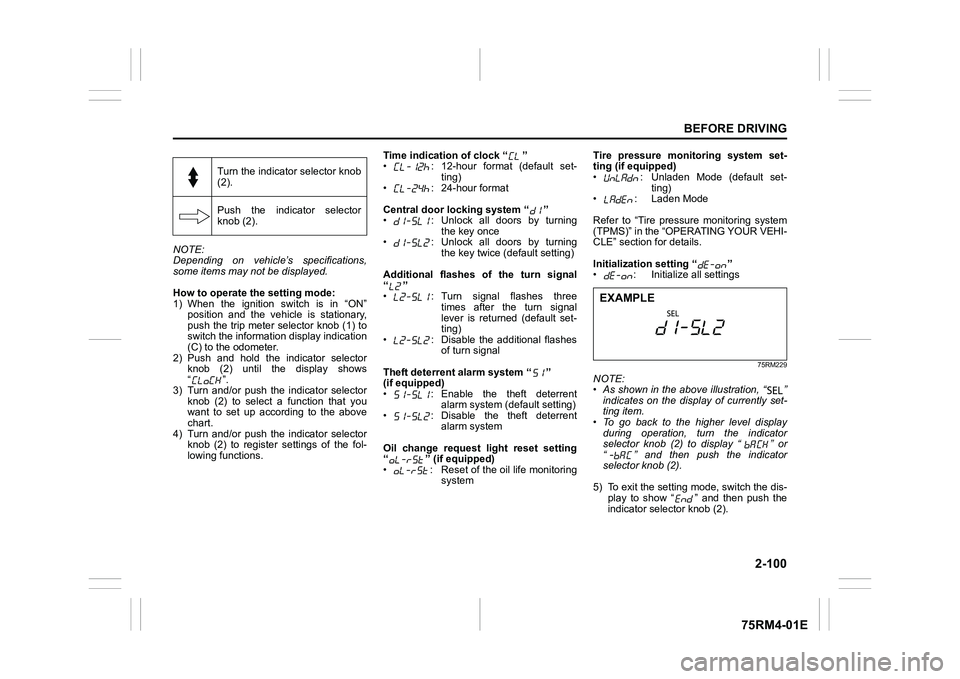
75RM229
NOTE:
• As shown in the above illustration, “ ”
indicates on the disp lay of currently set-
ting item.
• To go back to the higher level display
during operation, turn the indicator
selector knob (2) to display “ ” or
“ ” and then push the indicator
selector knob (2).
5) To exit the setting mode, switch the dis- play to show “ ” and then push the
indicator selector knob (2).
Turn the indicator selector knob
(2).
Push the indicator selector
knob (2).EXAMPLE
Page 226 of 505

3-73OPERATING YOUR VEHICLE
75RM4-01E
NOTE:
If body wax gets on the camera lens, wipe
off the wax with a clean cloth dampened
with mild detergent diluted with water, and
then wipe the lens with a dry cloth.
How to use rearview camera1) Turn the ignition switch to “ON” positionor press the engine switch to change
the ignition mode to ON.
2) Shift the gearshift lever in “R” position. • The display automatically shows the
view behind the vehicle.
• When the gearshift lever is shifted from “R” to another gearshift lever
position, the display returns to the
previous display.
NOTE:
The rearview camera display has first pri-
ority in any display mode. However, the
rearview camera display does not show
the rear view while the system is initializ-
ing.Display range of rearview cameraThe rearview camera display shows the
area behind the rear end of the tailgate.
The display cannot show objects which are
close to the bumper o r under the bumper.
The rearview camera display cannot show
obstacles which are higher than the cam-
era. Upper parts of tall objects such as
road signs cannot be viewed on the dis-
play. Display range of rearview camera
75RM293
54P000370
(1) Display range
NOTICE
If water enters the rearview camera, it
may cause a malfunction or catch
fire.
Do not use high pressure water
around the camera.
NOTICE
This lens is hard coated to prevent
damage or discoloration. Damage or
discoloration of lens may obscure
the image.
• Do not use a brush to clean lens.
• Do not use alcohol, benzene or thinner to clean the lens.
• Do not use wax on the camera lens.
(1)
EXAMPLE
(1)
EXAMPLE
Page 243 of 505
3-90
OPERATING YOUR VEHICLE
75RM4-01E
TPMS setting• For the instrument cluster with tachome-
ter, you can check the current tire infla-
tion pressure on the information display.
• You can set one of the initial value of tire pressure below that is indicated on the
tire information label.
– Comfort Mode (Unladen Mode)
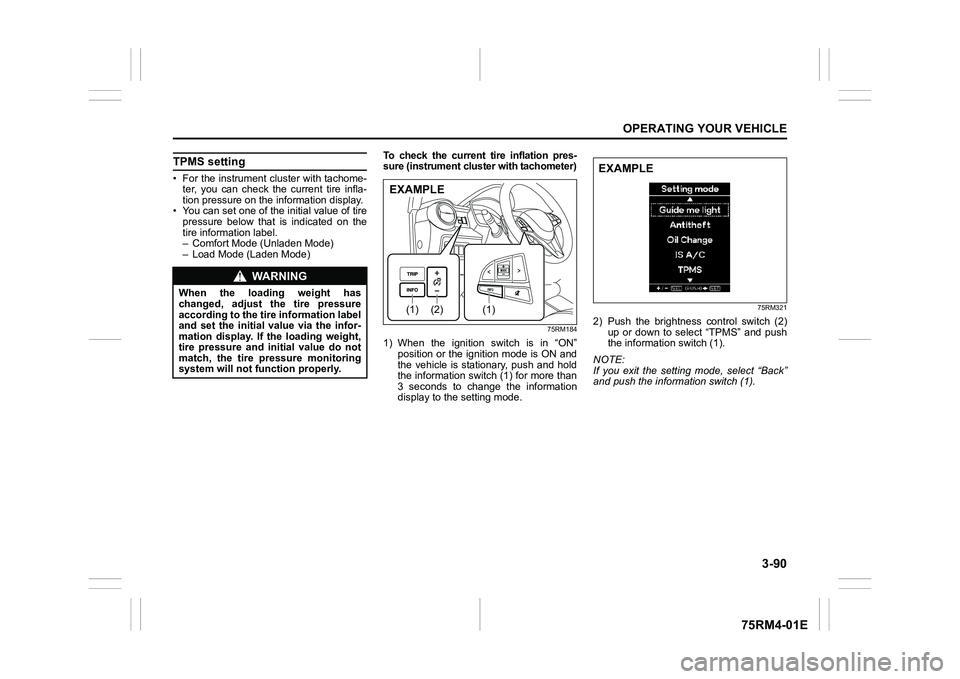
– Load Mode (Laden Mode) To check the current tire inflation pres-
sure (instrument cluster with tachometer)
75RM184
1) When the ignition switch is in “ON”
position or the ignition mode is ON and
the vehicle is stationary, push and hold
the information switch (1) for more than
3 seconds to change the information
display to the setting mode.
75RM321
2) Push the brightness control switch (2)
up or down to select “TPMS” and push
the information switch (1).
NOTE:
If you exit the setting mode, select “Back”
and push the information switch (1).
WA R N I N G
When the loading weight has
changed, adjust the tire pressure
according to the tire information label
and set the initial value via the infor-
mation display. If the loading weight,
tire pressure and initial value do not
match, the tire pressure monitoring
system will not function properly.
(2)
(1)
(1)
EXAMPLE
EXAMPLE
Page 244 of 505
3-91OPERATING YOUR VEHICLE
75RM4-01E
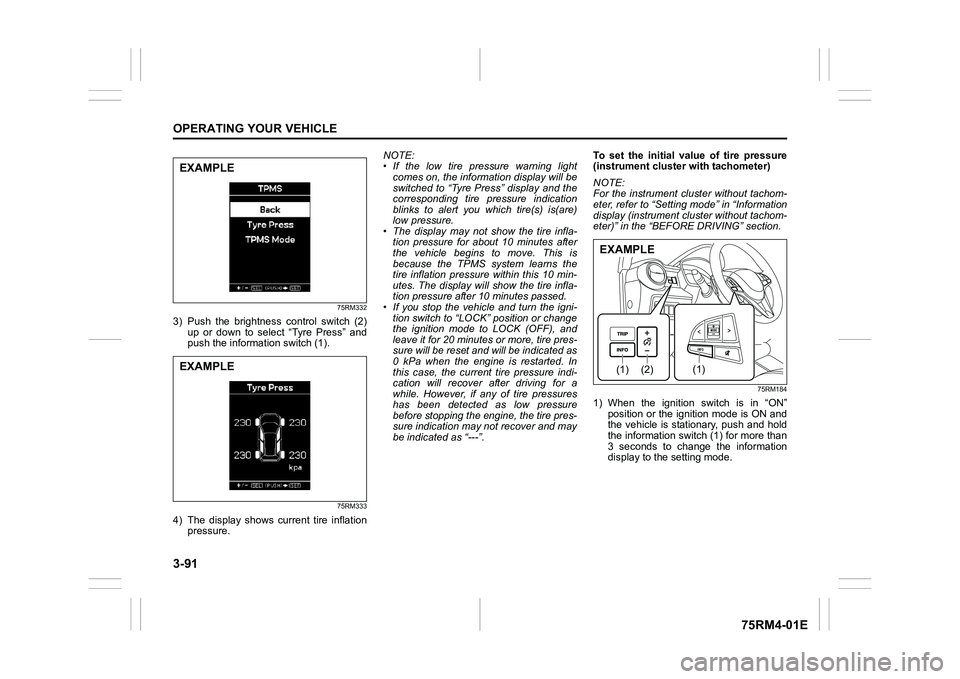
75RM332
3) Push the brightness control switch (2)
up or down to select “Tyre Press” and
push the information switch (1).
75RM333
4) The display shows current tire inflation pressure. NOTE:
• If the low tire pressure warning light
comes on, the information display will be
switched to “Tyre Press” display and the
corresponding tire pressure indication
blinks to alert you which tire(s) is(are)
low pressure.
• The display may not show the tire infla- tion pressure for about 10 minutes after
the vehicle begins to move. This is
because the TPMS system learns the
tire inflation pressure within this 10 min-
utes. The display will show the tire infla-
tion pressure after 10 minutes passed.
• If you stop the vehicle and turn the igni-
tion switch to “LOCK” position or change
the ignition mode to LOCK (OFF), and
leave it for 20 minutes or more, tire pres-
sure will be reset and will be indicated as
0 kPa when the engine is restarted. In
this case, the current tire pressure indi-
cation will recover after driving for a
while. However, if any of tire pressures
has been detected as low pressure
before stopping the engine, the tire pres-
sure indication may not recover and may
be indicated as “---”. To set the initial value of tire pressure
(instrument
cluster with tachometer)
NOTE:
For the instrument cl uster without tachom-
eter, refer to “Setting mode” in “Information
display (instrument cluster without tachom-
eter)” in the “BEFORE DRIVING” section.
75RM184
1) When the ignition switch is in “ON” position or the ignition mode is ON and
the vehicle is stationary, push and hold
the information switch (1) for more than
3 seconds to change the information
display to the setting mode.
EXAMPLEEXAMPLE
(2)
(1)
(1)
EXAMPLE
Page 245 of 505

3-92
OPERATING YOUR VEHICLE
75RM4-01E
75RM321
2) Push the brightness control switch (2)
up or down to select “TPMS” and push
the information switch (1).
NOTE:
If you exit the setting mode, select “Back”
and push the information switch (1).
75RM332
3) Push the brightness control switch (2)
up or down to select “TPMS Mode” and
push the information switch (1).
75RM334
4) Push the brightness control switch (2)
up or down to select the initial value
and push the information switch (1).
EXAMPLE
EXAMPLE
EXAMPLE
Page 324 of 505

5-69OTHER CONTROLS AND EQUIPMENT
75RM4-01E
Automatic transfer of phonebook/call
history
You can select whether or not the device
transfers the phonebook and the call his-
tory automatically when the phone is regis-
tered.
Follow the instructions below to select.
1) Press the Bluetooth
® setup button (5)
or (6).
The Bluetooth
® setup menu will be dis-
played.
2) Turn “TUNE/FLD PUSH SOUND” knob
(1) to select “Setup Telephone”, and
press the knob (1) to determine the
selection.
3) Turn “TUNE/FLD PUSH SOUND” knob (1) to select “A.Transfer”, and press the
knob (1) to determine the selection.
4) Pressing “TUNE/FLD PUSH SOUND” knob (1) switches between “A.transfer
On” and “A.transfer Off”.
5) Selecting “Go Back” or pressing the BACK button (4) stores displayed set-
ting and the previous menu is dis-
played. Making a call by phonebook
Follow the instructions below to dial a num-
ber registered in phonebook.
1) Press OFF HOOK
button (7).
The Bluetooth
® phonebook menu will
be displayed.
2) Turn “TUNE/FLD PUSH SOUND” knob (1) to select “Phonebook”, and press
the knob (1) to dete rmine the selection.
3) Turn “TUNE/FLD PUSH SOUND” knob (1) to select the initial of the name you
would like to make a call, and press the
knob (1) to determine the selection.
The registered numbers will be dis-
played in sequence. If names have
been registered tog ether with numbers,
the names will be displayed.
Turn “TUNE/FLD PUSH SOUND” knob
(1) to select the name you would like to
make a call, and press the knob (1) to
determine the selection.
4) Turn “TUNE/FLD PUSH SOUND” knob (1) to select “Dial”, and press the knob
(1) or OFF HOOK button (7).
The displayed number or the number
registered with the displayed name will
be dialed. Deletion of registered data (Delete
Entry)
Follow the instructions below to delete a
number registered in phonebook.
1) Press the Bluetooth
® setup button (5)
or (6).
The Bluetooth
® setup menu will be dis-
played.
2) Turn “TUNE/FLD PUSH SOUND” knob
(1) to select “Setup Telephone”, and
press the knob (1) to determine the
selection.
3) Turn “TUNE/FLD PUSH SOUND” knob (1) to select “Setup Phonebook”, and
press the knob (1) to determine the
selection.
4) Turn “TUNE/FLD PUSH SOUND” knob
(1) to select “Delete Contacts”, and
press the knob (1) to determine the
selection.
5) Turn “TUNE/FLD PUSH SOUND” knob (1) to select the initial of the name you
would like to delete or “ALL”, and press
the knob (1) to dete rmine the selection.
Turn “TUNE/FLD PUSH SOUND” knob
(1) to select the name you would like to
delete, and press the knob (1) to deter-
mine the selection.
6) Turn “TUNE/FLD PUSH SOUND” knob
(1) to select “Delete?” or “Delete All?”,
and press the knob (1) to determine the
selection.
7) Turn “TUNE/FLD PUSH SOUND” knob (1) to select “Confirm”, and press the
knob (1) to complete the deletion.
Page 325 of 505

5-70
OTHER CONTROLS AND EQUIPMENT
75RM4-01E
NOTE:
When selecting “Go Back” or pressing
BACK button (4), the previous menu will
be displayed.
Registration in speed dial
Follow the instructions below to assign a
number to one of PRESET buttons (3) to
use as the speed dial.
1) Press the Bluetooth
® setup button (5)
or (6).
The Bluetooth
® setup menu will be dis-
played.
2) Turn “TUNE/FLD PUSH SOUND” knob (1) to select “Setup Telephone”, and
press the knob (1) to determine the
selection.
3) Turn “TUNE/FLD PUSH SOUND” knob (1) to select “Setup Phonebook”, and
press the knob (1) to determine the
selection.
4) Turn “TUNE/FLD PUSH SOUND” knob (1) to select “Add Speed Dial”, and
press the knob (1) to determine the
selection.
5) Turn “TUNE/FLD PUSH SOUND” knob
(1) to select the initial of the name you
would like to register in speed dial, and
press the knob (1) to determine the
selection.
The registered numbers will be dis-
played in sequence. If names have
been registered tog ether with numbers,
the names will be displayed.
Turn “TUNE/FLD PUSH SOUND” knob
(1) to select the name you would like to register in speed dial, and press the
knob (1) to determine the selection.
6) Turn “TUNE/FLD PUSH SOUND” knob
(1) to select “Choose Preset”, and
press one of PRESET buttons (3) to
which the selected number is to be
assigned. If a number is already
assigned to the selected button, a con-
firmation message will be displayed.
Turn “TUNE/FLD PUSH SOUND” knob
(1) to select a confirmation message,
and press the knob (1) to complete the
assignment.
Turn “TUNE/FLD PUSH SOUND” knob
(1) to select “Confirm”, and press the
knob (1) to complete the assignment.
When the assignment is completed, the
“Setup Phonebook” will be displayed.
NOTE:
When selecting “Go Back” or pressing
BACK button (4), the previous menu will
be displayed. One-touch call (Speed dial)
Follow the instructions below to dial the
number assigned to each of the PRESET
buttons (3).
1) Press OFF HOOK
button (7).
The Bluetooth
® phonebook menu will
be displayed.
Pressing one of PRESET buttons (3)
can skip step 2) and the 1st line of step
3).
2) Turn “TUNE/FLD PUSH SOUND” knob (1) to select “Speed Dials”, and press
the knob (1) to dete rmine the selection.
3) Press one of PRESET buttons (3). The assigned number will be displayed.
If no number is assigned, “No Entry” is
displayed.
4) Press OFF HOOK button (7).
The selected num ber will be dialed.
Page 326 of 505

5-71OTHER CONTROLS AND EQUIPMENT
75RM4-01E
Deletion of speed dial (Del Speed Dial)
Follow the instructions below to delete the
number assigned for the speed dial.
1) Press OFF HOOK button (7).
The Bluetooth
® phonebook menu will
be displayed.
2) Turn “TUNE/FLD PUSH SOUND” knob (1) to select “Speed Dials”, and press
the knob (1) to dete rmine the selection.
3) Press one of PRESET buttons (3) to which the number to be deleted is
assigned.
If the number is not registered, “No
Entry” is displayed.
4) Turn “TUNE/FLD PUSH SOUND” knob
(1) to select “Delete”, and press the
knob (1) to determine the selection.
5) Turn “TUNE/FLD PUSH SOUND” knob (1) to select “Del Speed Dial”, and
press the knob (1) to determine the
selection.
6) Turn “TUNE/FLD PUSH SOUND” knob (1) to select “Confirm”, and press the
knob (1) to complete the deletion.
NOTE:
When selecting “Go Back” or pressing
BACK button (4), the previous menu will
be displayed. Display of device
data (Device Name)
Follow the instructions below to display the
BD (Bluetooth
® Device) address and
device name.
1) Press the Bluetooth
® setup button (5)
or (6).
The Bluetooth
® setup menu will be dis-
played.
2) Turn “TUNE/FLD PUSH SOUND” knob
(1) to select “Setup Bluetooth”, and
press the knob (1) to determine the
selection.
3) Turn “TUNE/FLD PUSH SOUND” knob (1) to select “Bluetooth Info”, and press
the knob (1) to dete rmine the selection.
4) Turn “TUNE/FLD PUSH SOUND” knob (1) to select “Device Name” or “Device
Address”, and press the knob (1) to dis-
play the device name or the BD (Blue-
tooth
® Device) address.
NOTE:
When selecting “Go Back” or pressing
BACK button (4), the previous menu will
be displayed. Reset to the factory defaults
Follow the instructions below to reset all
the settings to the factory defaults.
1) Press the Bluetooth
® setup button (5)
or (6).
The Bluetooth
® setup menu will be dis-
played.
2) Turn “TUNE/FLD PUSH SOUND” knob (1) to select “Setup Bluetooth”, and
press the knob (1) to determine the
selection.
3) Turn “TUNE/FLD PUSH SOUND” knob
(1) to select “Initialize”, and press the
knob (1) to determine the selection.
4) Turn “TUNE/FLD PUSH SOUND” knob
(1) to select “All Initialize”, and press
the knob (1) to dete rmine the selection.
5) Turn “TUNE/FLD PUSH SOUND” knob (1) to select “Confirm”, and press the
knob (1) to start the reset.
NOTE:
When selecting “Go Back” or pressing
BACK button (4), the previous menu will
be displayed.
Page 393 of 505
7-44
INSPECTION AND MAINTENANCE
75RM4-01E
To remove the battery:
1) Disconnect the negative cable (1).
2) Disconnect the positive cable (2).
For vehicles without ENG A-STOP sys-
tem;
3) Remove the retainer nuts (3) and remove the retainer (4).
For vehicles with ENG A-STOP system ;
3) Remove the bracket bolt (3) and remove the bracket (4).
4) Remove the battery.
To install the battery:
1) Install the battery in the reverse order of removal.
2) Tighten the bracket bolt and battery cables securely.
NOTE:
When the battery is disconnected, some of
the vehicle’s function will be initialized and/
or deactivated.
These function are required to reset after
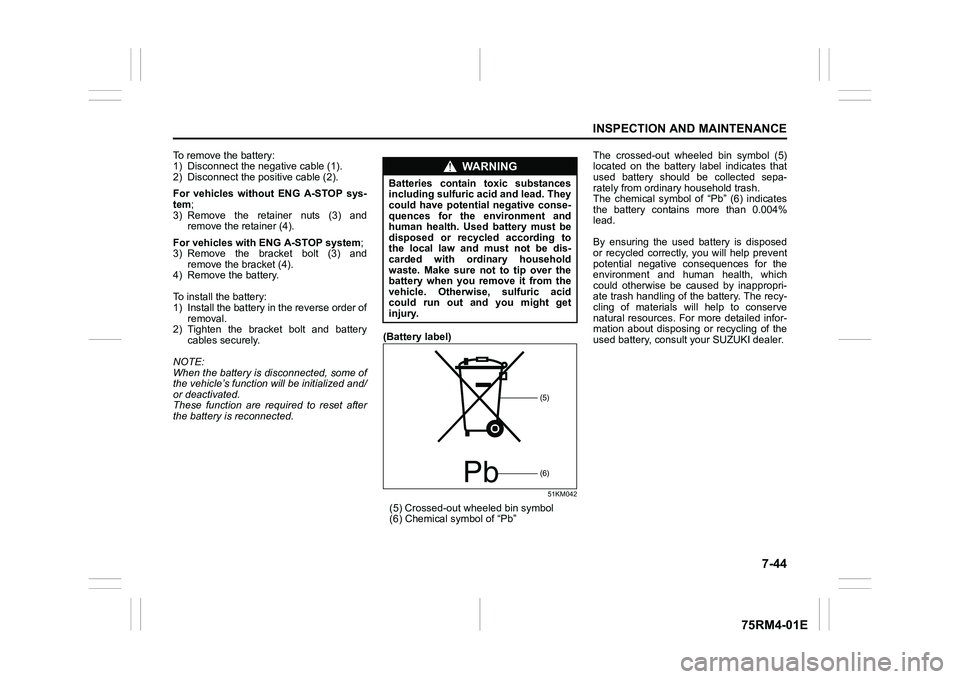
the battery is reconnected. (Battery label)
51KM042
(5) Crossed-out
wheeled bin symbol
(6) Chemical symbol of “Pb” The crossed-out wheeled bin symbol (5)
located on the battery label indicates that
used battery should be collected sepa-
rately from ordinary household trash.
The chemical symbol of “Pb” (6) indicates
the battery contains more than 0.004%
lead.
By ensuring the used battery is disposed
or recycled correctly, you will help prevent
potential negative consequences for the
environment and human health, which
could otherwise be caused by inappropri-
ate trash handling of the battery. The recy-
cling of materials will help to conserve
natural resources. For more detailed infor-
mation about disposing or recycling of the
used battery, consult your SUZUKI dealer.
WA R N I N G
Batteries contain toxic substances
including sulfuric acid and lead. They
could have potential negative conse-
quences for the environment and
human health. Used
battery must be
disposed or recycled according to
the local law and must not be dis-
carded with ordinary household
waste. Make sure not to tip over the
battery when you remove it from the
vehicle. Otherwise, sulfuric acid
could run out and you might get
injury.
Pb
(5)(6)