USB SUZUKI KIZASHI 2010 1.G User Guide
[x] Cancel search | Manufacturer: SUZUKI, Model Year: 2010, Model line: KIZASHI, Model: SUZUKI KIZASHI 2010 1.GPages: 388, PDF Size: 4.94 MB
Page 214 of 388
5-35OTHER CONTROLS AND EQUIPMENT
57L20-03E
Listening to an iPod
®
TUNE / FOLDER / CHDISPAS
RPT
XM
USBMENU
RDM
SEEK/ TRACK/CAT
SOUNDPUSH
1
2
3
4
5
6
VOL PUSH POWER
CD
FM/ AMH
M
(4) (3)(7)
(5)
(6) (2)
(1)
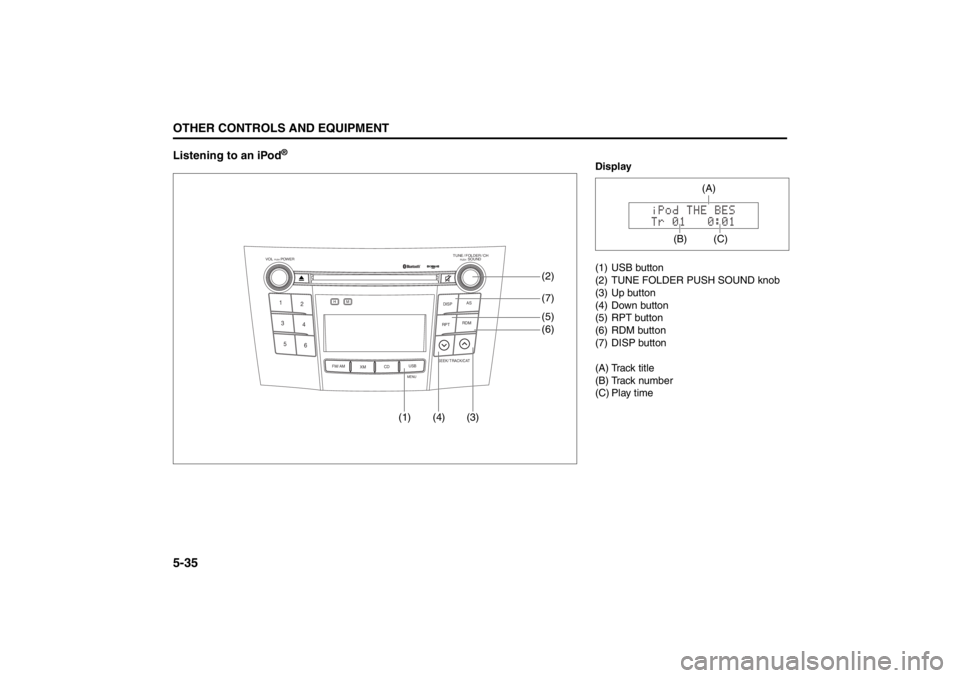
Display
(1) USB button
(2) TUNE FOLDER PUSH SOUND knob
(3) Up button
(4) Down button
(5) RPT button
(6) RDM button
(7) DISP button
(A) Track title
(B) Track number
(C) Play time
(C)
(A)
(B)
Page 215 of 388

5-36
OTHER CONTROLS AND EQUIPMENT
57L20-03E
Selecting an iPod
® mode
Press the USB button (1).
Selecting a track
Press the Up button (3) to listen to the
next track.
Press the Down button (4) twice to listen
to the previous track.
When the Down button (4) is pressed
once, the track currently being played
will start again at the beginning.
Fast forwarding/Rewinding a track
Hold in the Up button (3) to advance a
track rapidly.
Hold in the Down button (4) to rewind a
track.Random play
Press the RDM button (6).
Each time the button is pressed, the mode
changes in the following order.
NOTE:
To cancel random play, press the RDM
button (6) several times to change the ran-
dom play mode to OFF.
SONG RANDOM
The random indicator “RDM” lights.
The tracks in the iPod
® are played at
random.
ALBUM RANDOM
The random indicator “D.RDM” lights.
The albums in the iPod® that are played
at random.Repeat play
Press the RPT button (5).
Each time the button is pressed, repeat
play mode changes as follows:
NOTE:
To cancel repeat play, press the RPT but-
ton (5) again.
SONG REPEAT
The repeat indicator “RPT” lights.
The track currently being played is
played repeatedly.
OFF SONG RANDOM ALBUM RANDOM
OFF SONG REPEAT
Page 216 of 388

5-37OTHER CONTROLS AND EQUIPMENT
57L20-03E
Display change
Press the DISP button (7).
Each time it is pressed, display is changed
as follows:
NOTE:
If all the text data cannot be displayed, the
“>” mark appears at the right end. Holding
down the DISP button (7) for 1 sec. or
more calls the next page.Playing Mode selection
1) Press and hold the USB button (1) for
1 second or longer.
2) Turn the TUNE FOLDER PUSH
SOUND knob (2).
Each time it is turned, mode is
changed as follows:
3) Press the TUNE FOLDER PUSH
SOUND knob (2) to select an item.
NOTE:
When the USB button (1) is pressed, the
previous screen appears.
When the DISP button (7) is pressed,
the regular screen appears.
“NO SONGS” will appear if no song
exists.
Notes on iPod
®
Controllable iPod
®/software version
iPod
® touch
iPod® classic
iPod® nano (4th generation)
iPod® nano (3rd generation)
iPod® nano (2nd generation)
iPod® nano (1st generation)
iPod® (5th generation)
* Please update the firmware of your
iPod® before using it.
Some functions may not be available
depending on the model of iPod
® or its
firmware version.
iPod
® is a trademark of Apple Inc., reg-
istered in the U.S. and other countries.
Apple is not responsible for the opera-
tion of this device or its compliance with
safety and regulatory standards.
iPod
® connection
Please make sure to detach the iPod
®
after turning off the car engine (turning
the ACC to OFF). The iPod
® may not
shut down while still connected, which
may result in battery depletion.
Please do not connect iPod® accesso-
ries such as an iPod
® remote control or
headphones while connecting iPod
®
with the unit. The unit may not operate
correctly. Playlist name & Track title display
(Playlist mode only)
Artist name & Track title display
Album name & Track title display
Track title & Play time display
PLAYLIST
ARTIST
ALBUM
SONGS
GENRE
Page 217 of 388
5-38
OTHER CONTROLS AND EQUIPMENT
57L20-03E
Bluetooth
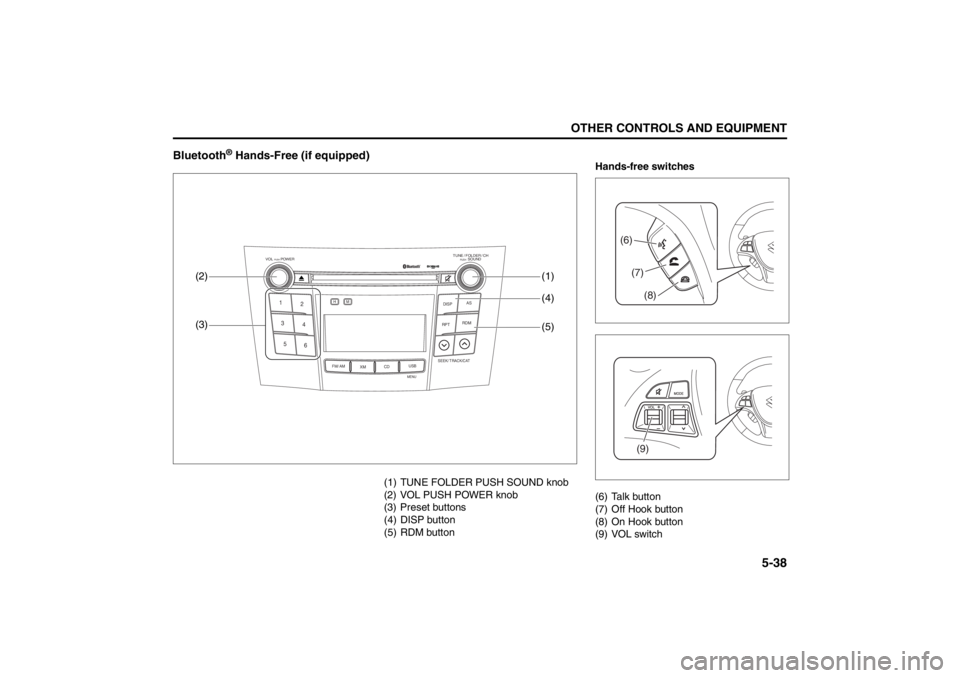
® Hands-Free (if equipped)
(1) TUNE FOLDER PUSH SOUND knob
(2) VOL PUSH POWER knob
(3) Preset buttons
(4) DISP button
(5) RDM button
TUNE / FOLDER / CHDISPAS
RPT
XM
USBMENU
RDM
SEEK/ TRACK/CAT
SOUNDPUSH
1
2
3
4
5
6
VOL PUSH POWER
CD
FM/ AMH
M
(4) (1)
(3) (2)(5)
Hands-free switches
(6) Talk button
(7) Off Hook button
(8) On Hook button
(9) VOL switch
(6)(7)
(8)(9)
Page 228 of 388
5-49OTHER CONTROLS AND EQUIPMENT
57L20-03E
Bluetooth
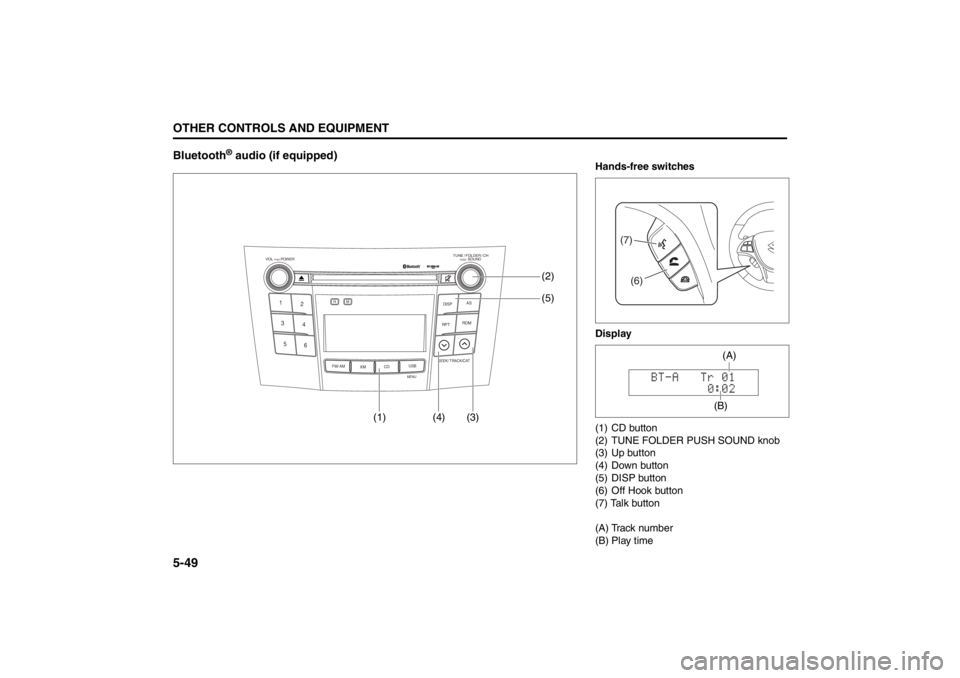
® audio (if equipped)
TUNE / FOLDER / CHDISPAS
RPT
XM
USBMENU
RDM
SEEK/ TRACK/CAT
SOUNDPUSH
1
2
3
4
5
6
VOL PUSH POWER
CD
FM/ AMH
M
(4) (3)(5) (2)
(1)
Hands-free switches
Display
(1) CD button
(2) TUNE FOLDER PUSH SOUND knob
(3) Up button
(4) Down button
(5) DISP button
(6) Off Hook button
(7) Talk button
(A) Track number
(B) Play time
(7)(6)
(B)(A)
Page 243 of 388
5-64
OTHER CONTROLS AND EQUIPMENT
57L20-03E
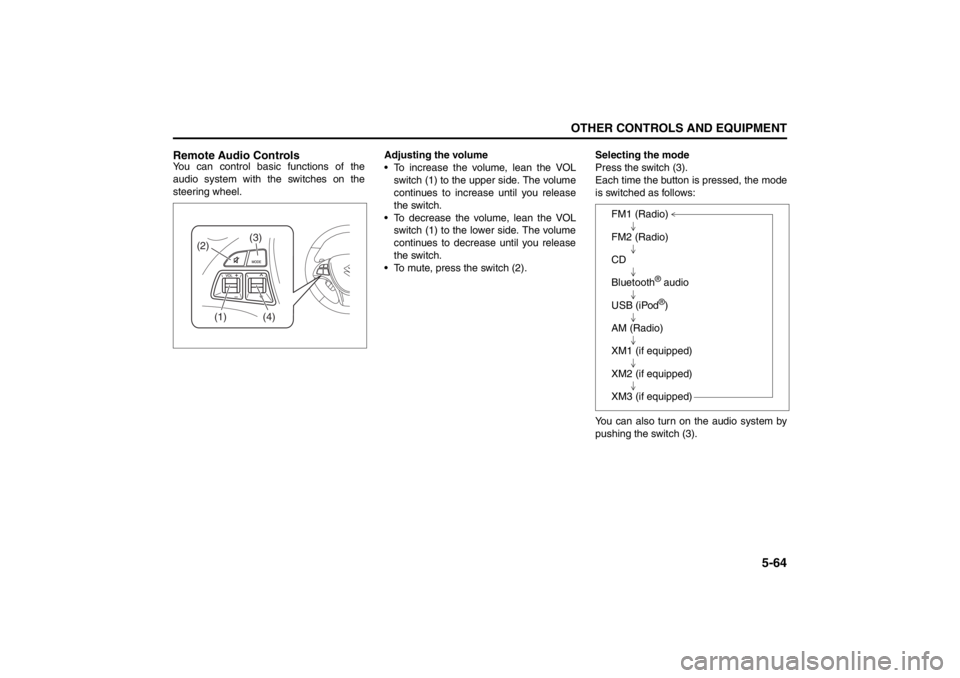
Remote Audio ControlsYou can control basic functions of the
audio system with the switches on the
steering wheel.Adjusting the volume
To increase the volume, lean the VOL
switch (1) to the upper side. The volume
continues to increase until you release
the switch.
To decrease the volume, lean the VOL
switch (1) to the lower side. The volume
continues to decrease until you release
the switch.
To mute, press the switch (2).Selecting the mode
Press the switch (3).
Each time the button is pressed, the mode
is switched as follows:
You can also turn on the audio system by
pushing the switch (3).
(2)
(1)
(4)
(3)
FM1 (Radio)
FM2 (Radio)
CD
Bluetooth
® audio
USB (iPod®)
AM (Radio)
XM1 (if equipped)
XM2 (if equipped)
XM3 (if equipped)
Page 244 of 388

5-65OTHER CONTROLS AND EQUIPMENT
57L20-03E
Selecting the radio station (FM1, FM2,
AM mode)
To select the next preset station, lean
the SEEK switch (4) to the upper side
briefly.
To select the previous preset station,
lean the SEEK switch (4) to the lower
side briefly.
To scan to a higher frequency radio sta-
tion, lean the SEEK switch (4) to the
upper side for 1 sec. or longer.
To scan to a lower frequency radio sta-
tion, lean the SEEK switch (4) to the
lower side for 1 sec. or longer.Selecting the channel (XM1, XM2, XM3
mode)
To select the next preset channel, lean
the SEEK switch (4) to the upper side
briefly.
To select the previous preset channel,
lean the SEEK switch (4) to the lower
side briefly.
To select the next channel in the same
category, lean the SEEK switch (4) to
the upper side for 1 sec. or longer.
To select the previous channel in the
same category, lean the SEEK switch
(4) to the lower side for 1 sec. or longer.Selecting the track (CD, USB (iPod
®),
Bluetooth
® audio mode)
To advance to the next track, lean the
SEEK switch (4) to the upper side
briefly.
To select the previous track, lean the
SEEK switch (4) to the lower side briefly.
Fast forwarding/Rewinding a track
To advance a track rapidly, lean the
SEEK switch (4) to the upper side for 1
sec. or longer
To rewind a track, lean the SEEK switch
(4) to the lower side for 1 sec. or longer.
Page 245 of 388
5-66
OTHER CONTROLS AND EQUIPMENT
57L20-03E
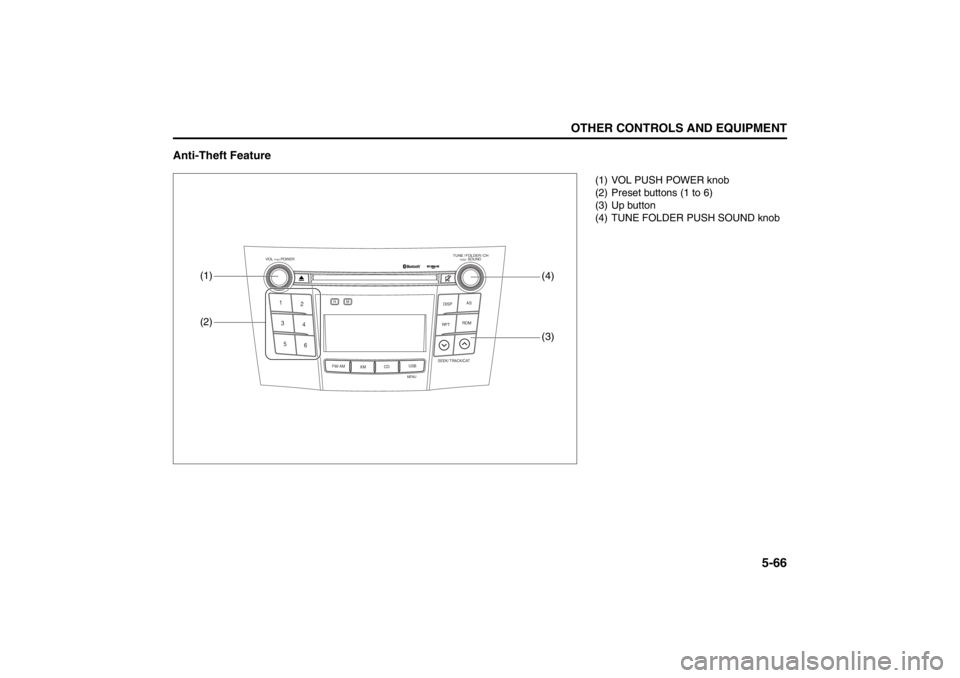
Anti-Theft Feature
TUNE / FOLDER / CHDISPAS
RPT
XM
USBMENU
RDM
SEEK/ TRACK/CAT
SOUNDPUSH
1
2
3
4
5
6
VOL PUSH POWER
CD
FM/ AMH
M
(2)
(3)
(1)
(4)
(1) VOL PUSH POWER knob
(2) Preset buttons (1 to 6)
(3) Up button
(4) TUNE FOLDER PUSH SOUND knob
Page 248 of 388
5-69OTHER CONTROLS AND EQUIPMENT
57L20-03E
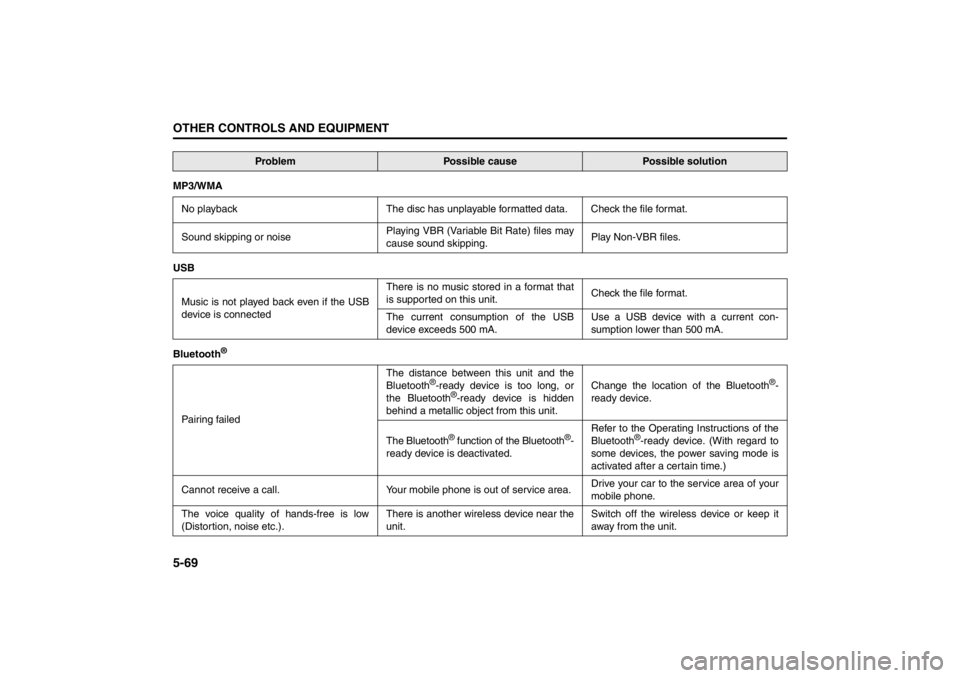
MP3/WMA
No playback The disc has unplayable formatted data. Check the file format.
Sound skipping or noisePlaying VBR (Variable Bit Rate) files may
cause sound skipping.Play Non-VBR files.
USB
Music is not played back even if the USB
device is connectedThere is no music stored in a format that
is supported on this unit.Check the file format.
The current consumption of the USB
device exceeds 500 mA.Use a USB device with a current con-
sumption lower than 500 mA.
Bluetooth
®
Pairing failedThe distance between this unit and the
Bluetooth
®-ready device is too long, or
the Bluetooth
®-ready device is hidden
behind a metallic object from this unit.Change the location of the Bluetooth
®-
ready device.
The Bluetooth
® function of the Bluetooth
®-
ready device is deactivated.Refer to the Operating Instructions of the
Bluetooth
®-ready device. (With regard to
some devices, the power saving mode is
activated after a certain time.)
Cannot receive a call. Your mobile phone is out of service area.Drive your car to the service area of your
mobile phone.
The voice quality of hands-free is low
(Distortion, noise etc.).There is another wireless device near the
unit.Switch off the wireless device or keep it
away from the unit.
Problem
Possible cause
Possible solution
Page 250 of 388
5-71OTHER CONTROLS AND EQUIPMENT
57L20-03E
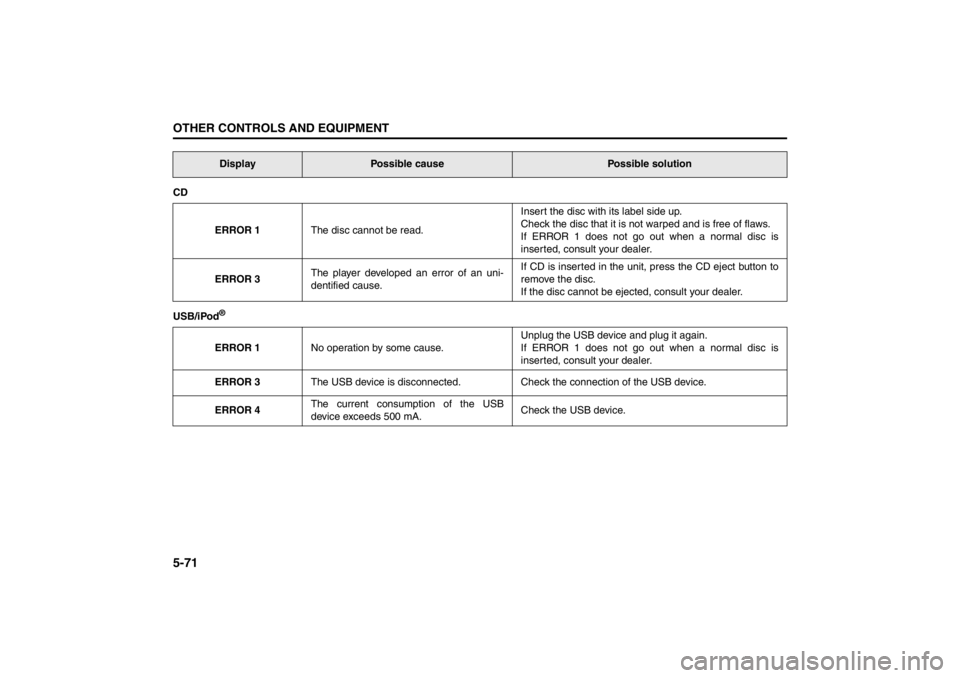
CD
ERROR 1The disc cannot be read.Insert the disc with its label side up.
Check the disc that it is not warped and is free of flaws.
If ERROR 1 does not go out when a normal disc is
inserted, consult your dealer.
ERROR 3The player developed an error of an uni-
dentified cause.If CD is inserted in the unit, press the CD eject button to
remove the disc.
If the disc cannot be ejected, consult your dealer.
USB/iPod
®ERROR 1No operation by some cause.Unplug the USB device and plug it again.
If ERROR 1 does not go out when a normal disc is
inserted, consult your dealer.
ERROR 3The USB device is disconnected. Check the connection of the USB device.
ERROR 4The current consumption of the USB
device exceeds 500 mA.Check the USB device.Display
Possible cause
Possible solution