audio SUZUKI KIZASHI 2010 1.G User Guide
[x] Cancel search | Manufacturer: SUZUKI, Model Year: 2010, Model line: KIZASHI, Model: SUZUKI KIZASHI 2010 1.GPages: 388, PDF Size: 4.94 MB
Page 213 of 388

5-34
OTHER CONTROLS AND EQUIPMENT
57L20-03E
Display change
Press the DISP button (7).
Each time it is pressed, display is changed
as follows:
NOTE:
“NO TITLE” is displayed when there is
no information on the disc.
If all the text data cannot be displayed,
the “>” mark appears at the right end.
Holding down the DISP button (7) for
1 sec. or more calls the next page.
Notes on USB deviceCompatible USB devices
USB Mass Storage Class
For details as to whether your USB
memory/USB Audio is compatible with
USB Mass Storage Class, please con-
tact the USB memory/USB Audio manu-
facturer.
USB Standard Compatibility 1.1/2.0 Full
Speed
File System FAT16/32
Maximum current less than 500 mA
Capacity less than 4 GB (1 partition)
USB device connection
When connecting a USB device, make
sure the connector is pushed all the way
into the socket.
Do not leave the USB device for long
periods of time in places inside the car
where the temperature rises too high.
Back up any important data beforehand.
We cannot accept responsibility for any
lost data.
The use of USB devices that contain
data files other than MP3/WMA format
is not recommended.
Recording MP3/WMA files on a USB device Playback or display may not be possible
depending on the type of USB device or
the condition of the recording. Depending on the connected USB
memory, the order in which the files are
played back may differ from the order in
which the files were stored.
Compression formats
MP3
Bit rate: MPEG1 Audio Layer III : 64 k - 320 kbps
MPEG2 Audio Layer III : 64 k - 160 kbps Sampling frequency: MPEG1 Audio Layer III : 32 k/44.1 k/48 kHz
MPEG2 Audio Layer III : 16 k/22.05 k/24 kHzWMA (Ver.7, Ver.8)
Bit rate: CBR 48 k - 192 kbps
Sampling frequency: 32 k/44.1 k/48 kHz
WMA (Ver. 9*)
Bit rate: CBR 48 k - 320 kbps
Sampling frequency: 32 k/44.1 k/48 kHz
* WMA 9 Professional/LossLess/Voice are
not supported.
Maximum number of files/folders
Maximum number of files: 2500 (files +
folders) Maximum number of files in one folder: 255 Maximum depth of trees: 8
Maximum number of folders: 255
(Root folder is included.) Play time display
Folder name display
File name display
Album name display (MP3 only)
Track title display
Artist name display
Page 218 of 388
5-39OTHER CONTROLS AND EQUIPMENT
57L20-03E
Bluetooth
® language selection
The language used for the voice guidance,
menu, and voice recognition can be
selected. (Default: English)
1) Press the Off Hook button (7).
The hands-free mode is activated.
2) Hold down RDM button (5) for 2 sec. or
more.
3) Turn the TUNE FOLDER PUSH
SOUND knob (1) to select a language,
and press the TUNE FOLDER PUSH
SOUND knob (1) to determine the
selection.
NOTE:
The regular screen resumes if no opera-
tion is performed for 5 sec. or more. Telephone registration
NOTE:
Up to 6 telephones can be registered.
To set up a new phone, disconnect the
system from the audio player. The audio
player shall be reconnected after phone
setup is completed.
If connection cannot be confirmed within
120 seconds, the connecting operation
is canceled. Please try again or refer to
the Phone's manual for assistance with
the pairing process.
1) Press the Off Hook button (7).
The Bluetooth
® main menu appears.
2) Turn the TUNE FOLDER PUSH
SOUND knob (1) to select “Pair
Phone”, and press the TUNE FOLDER
PUSH SOUND knob (1) to determine
the selection.
3) Turn the TUNE FOLDER PUSH
SOUND knob (1) to select “Record
Name”, and press the TUNE FOLDER
PUSH SOUND knob (1) to determine
the selection.
4) Pronounce the name to be used at
voice recognition. 5) Turn the TUNE FOLDER PUSH
SOUND knob (1) to select “Confirm”,
and press the TUNE FOLDER PUSH
SOUND knob (1) to determine the
selection.
6) Turn the TUNE FOLDER PUSH
SOUND knob (1) to select “Phone
Only” or “Int. Audio”, and press the
TUNE FOLDER PUSH SOUND knob
(1) to determine the selection.
“Phone Only” shall be selected for
using only as the telephone, and
“Int.Audio” shall be selected for using
as the built-in audio equipment as well
as the telephone.
7) Select “CAR_M.MEDIA” from the
Bluetooth
® menu of the cell phone and
make a connection.
Refer to the manual of your cell phone
for further information.
8) Enter the Passkey displayed on the
system into the cell phone.
9) Press the On Hook button (8).
NOTE:
Selection of “Go Back” displays the pre-
vious menu.
If you select “Pair Phone” at step 8, you
can register the other phones continu-
ously.
To activate the hands-free function with
this unit, your cell phone needs to be
registered.
Page 225 of 388

5-46
OTHER CONTROLS AND EQUIPMENT
57L20-03E
Reset to factory defaults
You can delete all registered data and
reset the all changement to the factory
default.
1) Press the Off Hook button (7).
The Bluetooth
® main menu appears.
2) Turn the TUNE FOLDER PUSH
SOUND knob (1) to select “Setup”,
and press the TUNE FOLDER PUSH
SOUND knob (1) to determine the
selection.
3) Turn the TUNE FOLDER PUSH
SOUND knob (1) to select “System
Setup”, and press the TUNE FOLDER
PUSH SOUND knob (1) to determine
the selection.
4) Turn the TUNE FOLDER PUSH
SOUND knob (1) to select “Initialize”,
and press the TUNE FOLDER PUSH
SOUND knob (1) to determine the
selection.
5) Turn the TUNE FOLDER PUSH
SOUND knob (1) to select “Confirm”,
and press the TUNE FOLDER PUSH
SOUND knob (1) to determine the
selection.
6) Turn the TUNE FOLDER PUSH
SOUND knob (1) to select “Confirm”,
and press the TUNE FOLDER PUSH
SOUND knob (1) to determine the
selection.
NOTE:
Selection of “Go Back” displays the previ-
ous menu.Selection of telephone (Select Phone)
The phone to be used can be selected.
1) Press the Off Hook button (7).
The Bluetooth
® main menu appears.
2) Turn the TUNE FOLDER PUSH SOUND
knob (1) to select “Setup”, and press the
TUNE FOLDER PUSH SOUND knob (1)
to determine the selection.
3) Turn the TUNE FOLDER PUSH SOUND
knob (1) to select “Phone Setup”, and
press the TUNE FOLDER PUSH
SOUND knob (1) to determine the selec-
tion.
4) Turn the TUNE FOLDER PUSH SOUND
knob (1) to select “Select Phone”, and
press the TUNE FOLDER PUSH
SOUND knob (1) to determine the selec-
tion.
5) Turn the TUNE FOLDER PUSH SOUND
knob (1) to select a phone to be paired,
and press the TUNE FOLDER PUSH
SOUND knob (1) to determine the selec-
tion.
6) Turn the TUNE FOLDER PUSH SOUND
knob (1) to select “Confirm”, and press
the TUNE FOLDER PUSH SOUND knob
(1) to determine the selection.
NOTE:
Selection of “Go Back” displays the previ-
ous menu.
The Bluetooth
®-ready audio device will be
disconnected when the phone is selected.
Name change (Change Name)
The registered name of phones are
changed.
1) Press the Off Hook button (7).
The Bluetooth
® main menu appears.
2) Turn the TUNE FOLDER PUSH
SOUND knob (1) to select “Setup”,
and press the TUNE FOLDER PUSH
SOUND knob (1) to determine the
selection.
3) Turn the TUNE FOLDER PUSH
SOUND knob (1) to select “Phone
Setup”, and press the TUNE FOLDER
PUSH SOUND knob (1) to determine
the selection.
4) Turn the TUNE FOLDER PUSH
SOUND knob (1) to select “Change
Name”, and press the TUNE FOLDER
PUSH SOUND knob (1) to determine
the selection.
5) Turn the TUNE FOLDER PUSH
SOUND knob (1) to select a phone to
be changed, and press the TUNE
FOLDER PUSH SOUND knob (1) to
determine the selection.
6) Turn the TUNE FOLDER PUSH
SOUND knob (1) to select “Record
Name”, and press the TUNE FOLDER
PUSH SOUND knob (1) to determine
the selection.
Page 228 of 388
5-49OTHER CONTROLS AND EQUIPMENT
57L20-03E
Bluetooth
® audio (if equipped)
TUNE / FOLDER / CHDISPAS
RPT
XM
USBMENU
RDM
SEEK/ TRACK/CAT
SOUNDPUSH
1
2
3
4
5
6
VOL PUSH POWER
CD
FM/ AMH
M
(4) (3)(5) (2)
(1)
Hands-free switches
Display
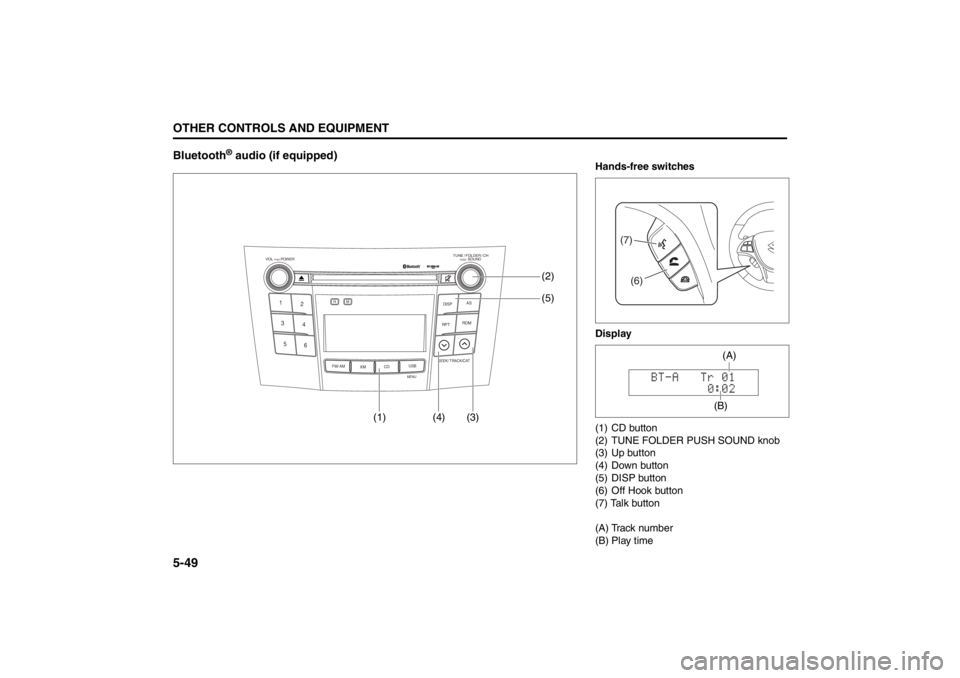
(1) CD button
(2) TUNE FOLDER PUSH SOUND knob
(3) Up button
(4) Down button
(5) DISP button
(6) Off Hook button
(7) Talk button
(A) Track number
(B) Play time
(7)(6)
(B)(A)
Page 229 of 388
5-50
OTHER CONTROLS AND EQUIPMENT
57L20-03E
Registration of audio devices (Pair
Audio, when no cell phone is regis-
tered)
NOTE:
To set up a new audio player, disconnect
the system from the phone. The phone
shall be reconnected after audio player
setup is completed.
If connection cannot be confirmed within
120 seconds, the connecting operation
is canceled. Please try again or refer to
the audio player manual for assistance
with the pairing process.
1) Press the CD button (1) to select
Bluetooth
® audio mode.
“BT-A” is displayed.
2) Press the Talk button (7).
The Bluetooth
® main menu appears.
3) Turn the TUNE FOLDER PUSH
SOUND knob (2) to select “Pair
Audio”, and press the TUNE FOLDER
PUSH SOUND knob (2) to determine
the selection.
4) Turn the TUNE FOLDER PUSH
SOUND knob (2) to select “Record
Name”, and press the TUNE FOLDER
PUSH SOUND knob (2) to determinethe selection.
5) Pronounce the name to be used at
voice recognition.
6) Turn the TUNE FOLDER PUSH
SOUND knob (2) to select “Confirm”,
and press the TUNE FOLDER PUSH
SOUND knob (2) to determine the
selection.
7) Select “CAR_M.MEDIA” from the
Bluetooth
® menu of the audio player
and make a connection.
Refer to the manual of your audio
player for further information.
8) Enter the Passkey displayed on the
system into the audio player.
NOTE:
Selection of “Go Back” displays the previ-
ous menu.Registration of audio devices (Pair
Audio, when your cell phone is regis-
tered)
NOTE:
To set up a new audio player, disconnect
the system from the phone. The phone
shall be reconnected after audio player
setup is completed.
If connection cannot be confirmed within
120 seconds, the connecting operation
is canceled. Please try again or refer to
the audio player manual for assistance
with the pairing process.
1) Press the Off Hook button (6).
The Bluetooth
® main menu appears.
2) Turn the TUNE FOLDER PUSH
SOUND knob (2) to select “Setup”,
and press the TUNE FOLDER PUSH
SOUND knob (2) to determine the
selection.
3) Turn the TUNE FOLDER PUSH
SOUND knob (2) to select “BT.A
Setup”, and press the TUNE FOLDER
PUSH SOUND knob (2) to determine
the selection.
To use Bluetooth
®-ready audio devices
with this unit, the devices need to be
registered.
To use Bluetooth
®-ready audio devices
with this unit, the devices need to be
registered.
Page 230 of 388

5-51OTHER CONTROLS AND EQUIPMENT
57L20-03E
4) Turn the TUNE FOLDER PUSH
SOUND knob (2) to select “Record
Name”, and press the TUNE FOLDER
PUSH SOUND knob (2) to determine
the selection.
5) Pronounce the name to be used at
voice recognition.
6) Turn the TUNE FOLDER PUSH
SOUND knob (2) to select “Confirm”,
and press the TUNE FOLDER PUSH
SOUND knob (2) to determine the
selection.
7) Select “CAR_M.MEDIA” from the
Bluetooth
® menu of the audio player
and make a connection.
Refer to the manual of your audio
player for further information.
8) Enter the Passkey displayed on the
system into the audio player.
NOTE:
Selection of “Go Back” displays the previ-
ous menu.Selecting the bluetooth audio mode
Press the CD button (1).
Each time the button is pressed, the
source is switched as follows:
Selecting a group (only for supported-
models)
Turn the TUNE FOLDER PUSH SOUND
knob (2) to select a group.
Selecting a track
Press the Up button (3) to listen to the
next track.
Press the Down button (4) twice to listen
to the previous track.
When the Down button (4) is pressed
once, the track currently being played
will start again at the beginning.
Fast forwarding/Rewinding a track
Hold in the Up button (3) to advance a
track rapidly.
Hold in the Down button (4) to rewind a
track.Display change
Press the DISP button (5).
Each time it is pressed, display is changed
as follows:
NOTE:
If all the text data cannot be displayed, the
“>” mark appears at the right end. Holding
down the DISP button (5) for 1 sec. or
more calls the next page. CD Bluetooth
® audio
Play time display
Track name display
Artist name display
Album name display
Page 231 of 388

5-52
OTHER CONTROLS AND EQUIPMENT
57L20-03E
Selection of audio device (Select
Audio)
The audio device to be used can be
selected.
1) Press the Off Hook button (6).
The Bluetooth
® main menu appears.
2) Turn the TUNE FOLDER PUSH
SOUND knob (2) to select “Setup”,
and press the TUNE FOLDER PUSH
SOUND knob (2) to determine the
selection.
3) Turn the TUNE FOLDER PUSH
SOUND knob (2) to select “BT.A
Setup”, and press the TUNE FOLDER
PUSH SOUND knob (2) to determine
the selection.
4) Turn the TUNE FOLDER PUSH
SOUND knob (2) to select “Select
Audio”, and press the TUNE FOLDER
PUSH SOUND knob (2) to determine
the selection.
5) Turn the TUNE FOLDER PUSH
SOUND knob (2) to select an audio
device to be paired, and press the
TUNE FOLDER PUSH SOUND knob
(2) to determine the selection.
6) Turn the TUNE FOLDER PUSH
SOUND knob (2) to select “Confirm”,
and press the TUNE FOLDER PUSH
SOUND knob (2) to determine the
selection.7) Turn the TUNE FOLDER PUSH
SOUND knob (2) to select “From Car”
or “From Audio”, and press the TUNE
FOLDER PUSH SOUND knob (2) to
determine the selection.
"From Car": Makes a pairing from the
unit.
"From Audio": Makes a pairing from
the audio device.
8) Turn the TUNE FOLDER PUSH
SOUND knob (2) to select “Confirm”,
and press the TUNE FOLDER PUSH
SOUND knob (2) to determine the
selection.
NOTE:
Selection of “Go Back” displays the pre-
vious menu.
The phone will be disconnected when
the Bluetooth
®-ready audio device is
selected.Change of audio device name (Change
Name)
The registered name of audio devices are
changed.
1) Press the Off Hook button (6).
The Bluetooth
® main menu appears.
2) Turn the TUNE FOLDER PUSH
SOUND knob (2) to select “Setup”,
and press the TUNE FOLDER PUSH
SOUND knob (2) to determine the
selection.
3) Turn the TUNE FOLDER PUSH
SOUND knob (2) to select “BT.A
Setup”, and press the TUNE FOLDER
PUSH SOUND knob (2) to determine
the selection.
4) Turn the TUNE FOLDER PUSH
SOUND knob (2) to select “Change
Name”, and press the TUNE FOLDER
PUSH SOUND knob (2) to determine
the selection.
5) Turn the TUNE FOLDER PUSH
SOUND knob (2) to select an audio
device to be changed, and press the
TUNE FOLDER PUSH SOUND knob
(2) to determine the selection.
6) Turn the TUNE FOLDER PUSH
SOUND knob (2) to select “Record
Name”, and press the TUNE FOLDER
PUSH SOUND knob (2) to determine
the selection.
Page 232 of 388

5-53OTHER CONTROLS AND EQUIPMENT
57L20-03E
7) Pronounce the name to be used at
voice recognition.
8) Turn the TUNE FOLDER PUSH
SOUND knob (2) to select “Confirm”,
and press the TUNE FOLDER PUSH
SOUND knob (2) to determine the
selection.
NOTE:
Selection of “Go Back” displays the previ-
ous menu.List of audio devices (List Audio)
The registered name of audio devices are
displayed in sequence.
1) Press the Off Hook button (6).
The Bluetooth
® main menu appears.
2) Turn the TUNE FOLDER PUSH
SOUND knob (2) to select “Setup”,
and press the TUNE FOLDER PUSH
SOUND knob (2) to determine the
selection.
3) Turn the TUNE FOLDER PUSH
SOUND knob (2) to select “BT.A
Setup”, and press the TUNE FOLDER
PUSH SOUND knob (2) to determine
the selection.
4) Turn the TUNE FOLDER PUSH
SOUND knob (2) to select “List
Audios”, and press the TUNE
FOLDER PUSH SOUND knob (2) to
determine the selection.
The names of registered phones are
displayed in sequence.
NOTE:
Selection of “Go Back” displays the previ-
ous menu.Passkey setting (Set Passkey)
The security number (Passkey) is speci-
fied.
1) Press the Off Hook button (6).
The Bluetooth
® main menu appears.
2) Turn the TUNE FOLDER PUSH
SOUND knob (2) to select “Setup”,
and press the TUNE FOLDER PUSH
SOUND knob (2) to determine the
selection.
3) Turn the TUNE FOLDER PUSH
SOUND knob (2) to select “BT.A
Setup”, and press the TUNE FOLDER
PUSH SOUND knob (2) to determine
the selection.
4) Turn the TUNE FOLDER PUSH
SOUND knob (2) to select “Set Pass-
key”, and press the TUNE FOLDER
PUSH SOUND knob (2) to determine
the selection.
5) Turn the TUNE FOLDER PUSH
SOUND knob (2) to select a number
for ones digit, and press the TUNE
FOLDER PUSH SOUND knob (2) to
determine the selection. Determine the
tens, hundreds, and thousands digits
in the same manner.
NOTE:
Selection of “Go Back” displays the previ-
ous menu.
Page 233 of 388

5-54
OTHER CONTROLS AND EQUIPMENT
57L20-03E
Deletion of connection data (Delete
Audio)
The registered information of audio device
is deleted.
1) Press the Off Hook button (6).
The Bluetooth
® main menu appears.
2) Turn the TUNE FOLDER PUSH
SOUND knob (2) to select “Setup”,
and press the TUNE FOLDER PUSH
SOUND knob (2) to determine the
selection.
3) Turn the TUNE FOLDER PUSH
SOUND knob (2) to select “BT.A
Setup”, and press the TUNE FOLDER
PUSH SOUND knob (2) to determine
the selection.
4) Turn the TUNE FOLDER PUSH
SOUND knob (2) to select “Delete
Audio”, and press the TUNE FOLDER
PUSH SOUND knob (2) to determine
the selection.
5) Turn the TUNE FOLDER PUSH
SOUND knob (2) to select an audio
device to be deleted, and press the
TUNE FOLDER PUSH SOUND knob
(2) to determine the selection.
6) Turn the TUNE FOLDER PUSH
SOUND knob (2) to select “Confirm”,
and press the TUNE FOLDER PUSH
SOUND knob (2) to determine the
selection.NOTE:
Selection of “Go Back” displays the previ-
ous menu.
Page 234 of 388
5-55OTHER CONTROLS AND EQUIPMENT
57L20-03E
Voice command for Bluetooth
® Hands-Free/Bluetooth
® Audio
Voice commands are also available for Bluetooth
® Hands-Free functions and Bluetooth
® Audio functions. Press the Talk button, and then
pronounce a word.
The usable commands are as follows:
NOTE:
Only “Pair phone” and “Set Passkey” are available before the Registration of cell phones.
Only “Pair audio player” and “Set Passkey” are available before the Registration of audio devices.
When no cell phone is registered
When no audio device is registered
NOTE:
Before using these command, you must disconnect your cell phone and select Bluetooth® audio mode by pressing CD button.
1st word
Function
“Pair phone”Telephone connection
1) Pronounce “(phone name)” and “Confirm” to confirm the operation.
2) Pronounce “Phone only” or “Internal audio” and subsequently “Confirm” to confirm the operation.
“Set Passkey”Passkey setting
Pronounce “(4- to 8-digit number)” and “Confirm” to confirm the operation.
1st word
Function
“Pair audio
player”Audio device connection
Pronounce “(audio device name)” and “Confirm” to confirm the operation.
“Set Passkey”Passkey setting
Pronounce “(4- to 8-digit number)” and “Confirm” to confirm the operation.