reset SUZUKI KIZASHI 2010 1.G User Guide
[x] Cancel search | Manufacturer: SUZUKI, Model Year: 2010, Model line: KIZASHI, Model: SUZUKI KIZASHI 2010 1.GPages: 388, PDF Size: 4.94 MB
Page 201 of 388
5-22
OTHER CONTROLS AND EQUIPMENT
57L20-03E
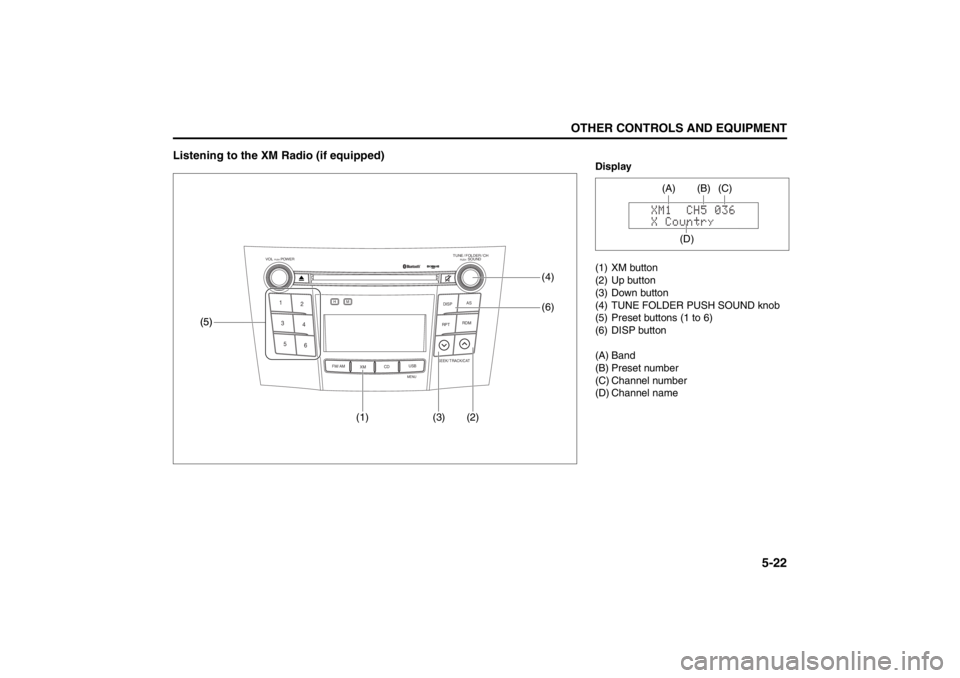
Listening to the XM Radio (if equipped)
TUNE / FOLDER / CHDISPAS
RPT
XM
USBMENU
RDM
SEEK/ TRACK/CAT
SOUNDPUSH
1
2
3
4
5
6
VOL PUSH POWER
CD
FM/ AMH
M(1) (3) (2)(6)
(5) (5)
(4)
Display
(1) XM button
(2) Up button
(3) Down button
(4) TUNE FOLDER PUSH SOUND knob
(5) Preset buttons (1 to 6)
(6) DISP button
(A) Band
(B) Preset number
(C) Channel number
(D) Channel name
(A)
(D)(C) (B)
Page 202 of 388

5-23OTHER CONTROLS AND EQUIPMENT
57L20-03E
Selecting the reception band
Press the XM button (1).
Each time the button is pressed, the
reception band is switched as follows:
Category selection
Press the Up button (2) or the Down but-
ton (3).
The category being received is displayed.Channel selection
Turn the TUNE FOLDER PUSH SOUND
knob (4).
The channel being received is displayed.
NOTE:
• “RADIO ID” is displayed with channel
000.
“Loading” is displayed during the acqui- sition of audio data or information.
Channel selection by category
Turn the TUNE FOLDER PUSH SOUND
knob (4) during category display.
The channel being received is displayed.
Preset memory
1) Select the desired channel.
2) Select the Preset buttons (5) to which you want to store the channel and
press and hold the button for 2 sec-
onds or longer.
Preset channel calling
Press the Preset button (5).
The corresponding channel preset can be
received.
NOTE:
If the button for a channel not preset is
pressed, the unit displays “- - - ”. Display change
Press the DISP button (6).
Each time it is pressed, display is changed
as follows:
XM Reception
XM reception can be affected by atmo-
spheric conditions. Nearby buildings or
under the overhead railway may interfere
or deflect reception, causing poor recep-
tion.
XM1 XM2 XM3
Channel name/
Channel number display
Song (program) title display
Artist (feature) name display
Page 217 of 388
5-38
OTHER CONTROLS AND EQUIPMENT
57L20-03E
Bluetooth
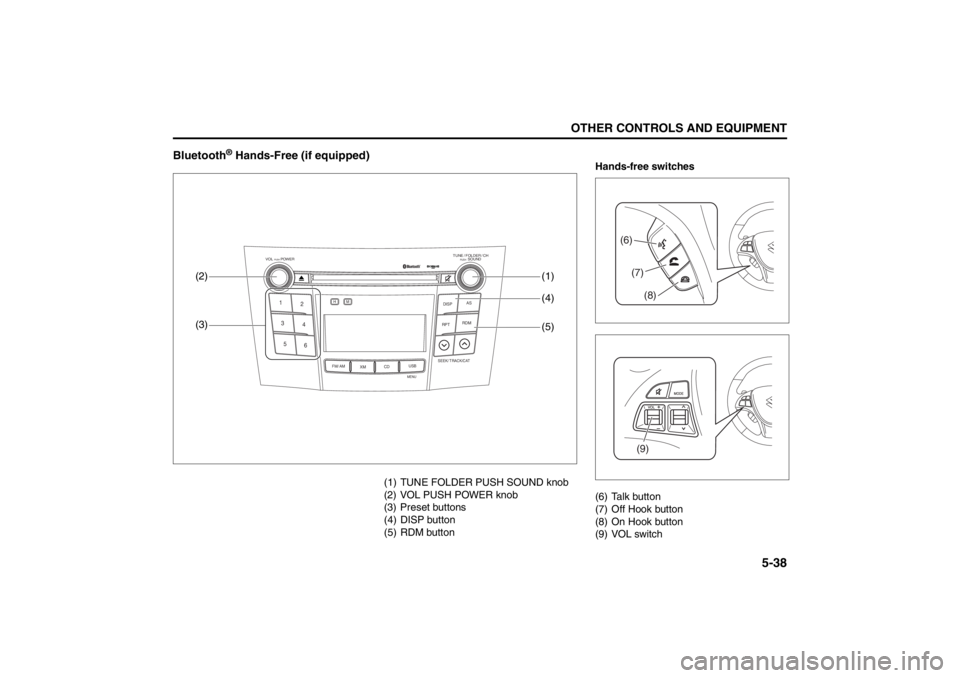
® Hands-Free (if equipped)
(1) TUNE FOLDER PUSH SOUND knob
(2) VOL PUSH POWER knob
(3) Preset buttons
(4) DISP button
(5) RDM button
TUNE / FOLDER / CHDISPAS
RPT
XM
USBMENU
RDM
SEEK/ TRACK/CAT
SOUNDPUSH
1
2
3
4
5
6
VOL PUSH POWER
CD
FM/ AMH
M
(4) (1)
(3) (2)(5)
Hands-free switches
(6) Talk button
(7) Off Hook button
(8) On Hook button
(9) VOL switch
(6)(7)
(8)(9)
Page 222 of 388

5-43OTHER CONTROLS AND EQUIPMENT
57L20-03E
One-touch call (Speed dial)
One of the numbers registered to the Pre-
set buttons (3) is dialed.
1) Press the Off Hook button (7).
The hands-free mode is activated.
2) Press one of the Preset buttons (3).
The registered name is pronounced.
When no registered name is found,
“Empty” is pronounced.
3) Press the Off Hook button (7).
The selected number is dialed.Registration in speed dial
A telephone number is registered to the
speed dial.
1) Press the Off Hook button (7).
The Bluetooth
® main menu appears.
2) Turn the TUNE FOLDER PUSH
SOUND knob (1) to select “Phone-
book”, and press the TUNE FOLDER
PUSH SOUND knob (1) to determine
the selection.
3) Turn the TUNE FOLDER PUSH
SOUND knob (1) to select “Speed
Dial”, and press the TUNE FOLDER
PUSH SOUND knob (1) to determine
the selection.
4) Turn the TUNE FOLDER PUSH
SOUND knob (1) to select a number to
be registered, and press the TUNE
FOLDER PUSH SOUND knob (1) to
determine the selection.
5) Press one of the Preset buttons (3), to
which the selected number is regis-
tered.
If a number is already registered to the
selected button, a confirmation mes-
sage is displayed. Turn the TUNE
FOLDER PUSH SOUND knob (1) to
select “Confirm”, and press the TUNE
FOLDER PUSH SOUND knob (1) to
determine the selection.
NOTE:
Selection of “Go Back” displays the previ-
ous menu. Deletion of speed dial (Del Spd Dial)
The numbers registered to the speed dial
is deleted.
1) Press the Off Hook button (7).
The Bluetooth
® main menu appears.
2) Turn the TUNE FOLDER PUSH
SOUND knob (1) to select “Phone-
book”, and press the TUNE FOLDER
PUSH SOUND knob (1) to determine
the selection.
3) Turn the TUNE FOLDER PUSH
SOUND knob (1) to select “Del Spd
Dial”, and press the TUNE FOLDER
PUSH SOUND knob (1) to determine
the selection.
4) Press one of the Preset buttons (3), to
which the selected number is regis-
tered.
5) Turn the TUNE FOLDER PUSH
SOUND knob (1) to select “Confirm”,
and press the TUNE FOLDER PUSH
SOUND knob (1) to determine the
selection.
NOTE:
Selection of “Go Back” displays the previ-
ous menu.
Page 225 of 388

5-46
OTHER CONTROLS AND EQUIPMENT
57L20-03E
Reset to factory defaults
You can delete all registered data and
reset the all changement to the factory
default.
1) Press the Off Hook button (7).
The Bluetooth
® main menu appears.
2) Turn the TUNE FOLDER PUSH
SOUND knob (1) to select “Setup”,
and press the TUNE FOLDER PUSH
SOUND knob (1) to determine the
selection.
3) Turn the TUNE FOLDER PUSH
SOUND knob (1) to select “System
Setup”, and press the TUNE FOLDER
PUSH SOUND knob (1) to determine
the selection.
4) Turn the TUNE FOLDER PUSH
SOUND knob (1) to select “Initialize”,
and press the TUNE FOLDER PUSH
SOUND knob (1) to determine the
selection.
5) Turn the TUNE FOLDER PUSH
SOUND knob (1) to select “Confirm”,
and press the TUNE FOLDER PUSH
SOUND knob (1) to determine the
selection.
6) Turn the TUNE FOLDER PUSH
SOUND knob (1) to select “Confirm”,
and press the TUNE FOLDER PUSH
SOUND knob (1) to determine the
selection.
NOTE:
Selection of “Go Back” displays the previ-
ous menu.Selection of telephone (Select Phone)
The phone to be used can be selected.
1) Press the Off Hook button (7).
The Bluetooth
® main menu appears.
2) Turn the TUNE FOLDER PUSH SOUND
knob (1) to select “Setup”, and press the
TUNE FOLDER PUSH SOUND knob (1)
to determine the selection.
3) Turn the TUNE FOLDER PUSH SOUND
knob (1) to select “Phone Setup”, and
press the TUNE FOLDER PUSH
SOUND knob (1) to determine the selec-
tion.
4) Turn the TUNE FOLDER PUSH SOUND
knob (1) to select “Select Phone”, and
press the TUNE FOLDER PUSH
SOUND knob (1) to determine the selec-
tion.
5) Turn the TUNE FOLDER PUSH SOUND
knob (1) to select a phone to be paired,
and press the TUNE FOLDER PUSH
SOUND knob (1) to determine the selec-
tion.
6) Turn the TUNE FOLDER PUSH SOUND
knob (1) to select “Confirm”, and press
the TUNE FOLDER PUSH SOUND knob
(1) to determine the selection.
NOTE:
Selection of “Go Back” displays the previ-
ous menu.
The Bluetooth
®-ready audio device will be
disconnected when the phone is selected.
Name change (Change Name)
The registered name of phones are
changed.
1) Press the Off Hook button (7).
The Bluetooth
® main menu appears.
2) Turn the TUNE FOLDER PUSH
SOUND knob (1) to select “Setup”,
and press the TUNE FOLDER PUSH
SOUND knob (1) to determine the
selection.
3) Turn the TUNE FOLDER PUSH
SOUND knob (1) to select “Phone
Setup”, and press the TUNE FOLDER
PUSH SOUND knob (1) to determine
the selection.
4) Turn the TUNE FOLDER PUSH
SOUND knob (1) to select “Change
Name”, and press the TUNE FOLDER
PUSH SOUND knob (1) to determine
the selection.
5) Turn the TUNE FOLDER PUSH
SOUND knob (1) to select a phone to
be changed, and press the TUNE
FOLDER PUSH SOUND knob (1) to
determine the selection.
6) Turn the TUNE FOLDER PUSH
SOUND knob (1) to select “Record
Name”, and press the TUNE FOLDER
PUSH SOUND knob (1) to determine
the selection.
Page 235 of 388
5-56
OTHER CONTROLS AND EQUIPMENT
57L20-03E
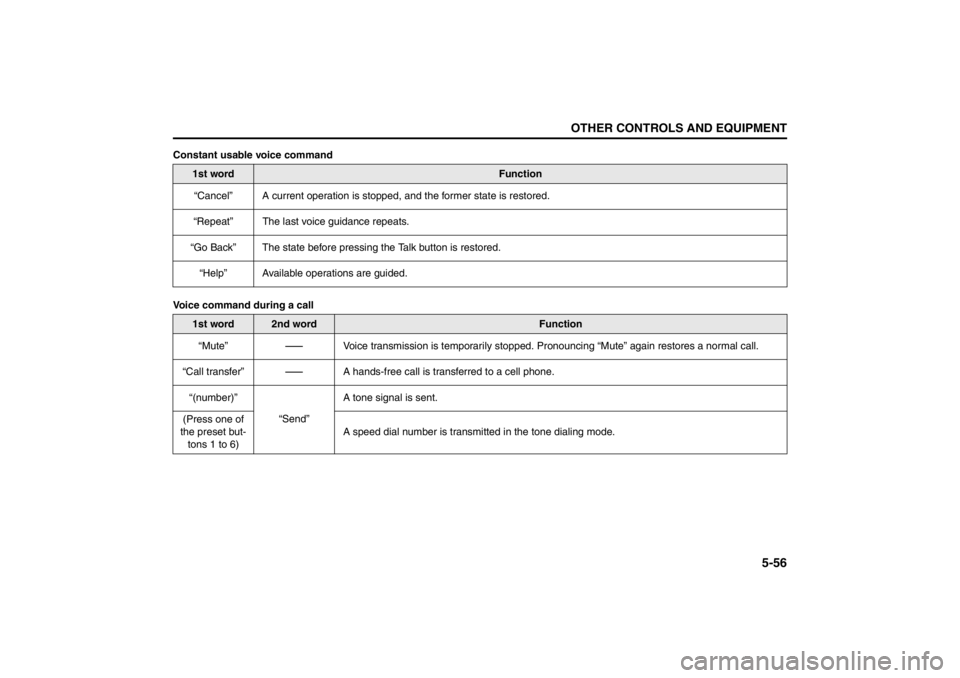
Constant usable voice command
Voice command during a call
1st word
Function
“Cancel” A current operation is stopped, and the former state is restored.
“Repeat” The last voice guidance repeats.
“Go Back” The state before pressing the Talk button is restored.
“Help” Available operations are guided.
1st word
2nd word
Function
“Mute”
-
Voice transmission is temporarily stopped. Pronouncing “Mute” again restores a normal call.
“Call transfer”
-
A hands-free call is transferred to a cell phone.
“(number)”
“Send”A tone signal is sent.
(Press one of
the preset but-
tons 1 to 6)A speed dial number is transmitted in the tone dialing mode.
Page 237 of 388
5-58
OTHER CONTROLS AND EQUIPMENT
57L20-03E
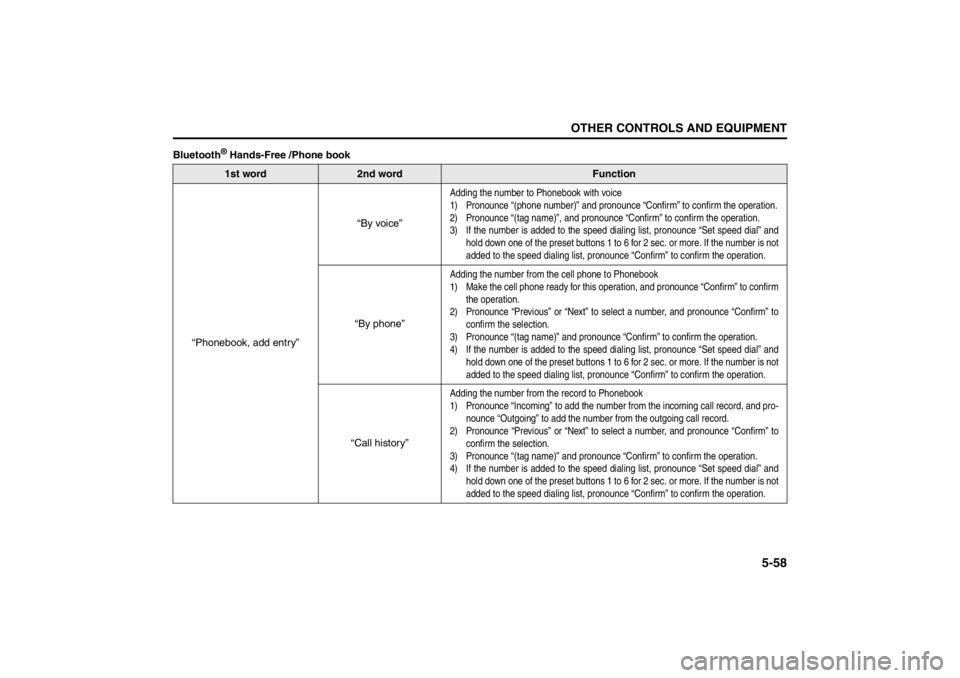
Bluetooth
® Hands-Free /Phone book1st word
2nd word
Function
“Phonebook, add entry”“By voice”
Adding the number to Phonebook with voice
1) Pronounce “(phone number)” and pronounce “Confirm” to confirm the operation.
2) Pronounce “(tag name)”, and pronounce “Confirm” to confirm the operation.
3) If the number is added to the speed dialing list, pronounce “Set speed dial” and
hold down one of the preset buttons 1 to 6 for 2 sec. or more. If the number is not
added to the speed dialing list, pronounce “Confirm” to confirm the operation.
“By phone”
Adding the number from the cell phone to Phonebook
1) Make the cell phone ready for this operation, and pronounce “Confirm” to confirm
the operation.
2) Pronounce “Previous” or “Next” to select a number, and pronounce “Confirm” to
confirm the selection.
3) Pronounce “(tag name)” and pronounce “Confirm” to confirm the operation.
4) If the number is added to the speed dialing list, pronounce “Set speed dial” and
hold down one of the preset buttons 1 to 6 for 2 sec. or more. If the number is not
added to the speed dialing list, pronounce “Confirm” to confirm the operation.
“Call history”
Adding the number from the record to Phonebook
1) Pronounce “Incoming” to add the number from the incoming call record, and pro-
nounce “Outgoing” to add the number from the outgoing call record.
2) Pronounce “Previous” or “Next” to select a number, and pronounce “Confirm” to
confirm the selection.
3) Pronounce “(tag name)” and pronounce “Confirm” to confirm the operation.
4) If the number is added to the speed dialing list, pronounce “Set speed dial” and
hold down one of the preset buttons 1 to 6 for 2 sec. or more. If the number is not
added to the speed dialing list, pronounce “Confirm” to confirm the operation.
Page 238 of 388
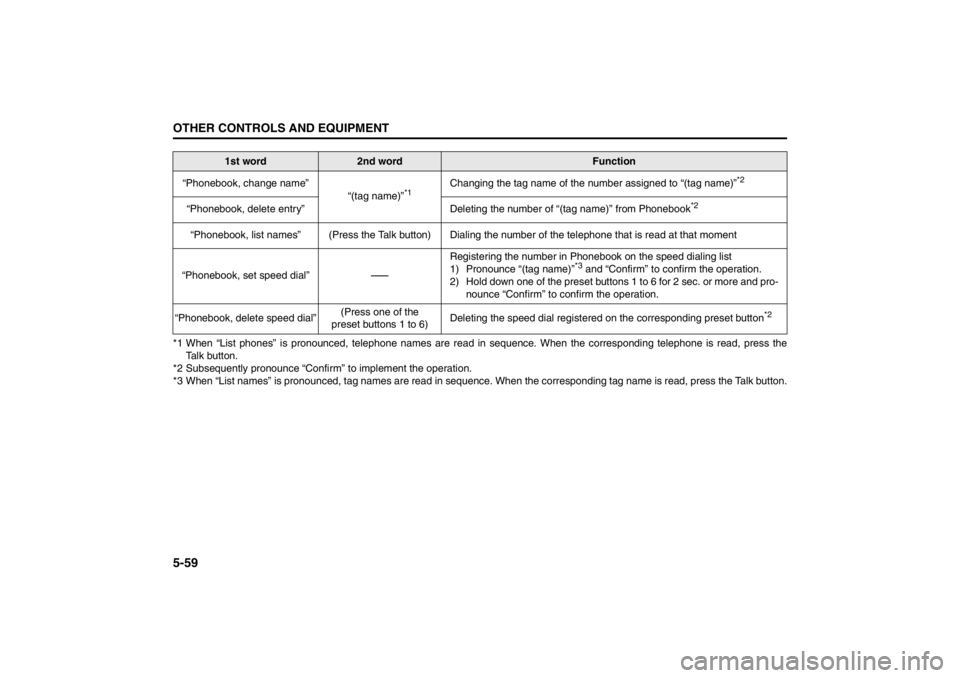
5-59OTHER CONTROLS AND EQUIPMENT
57L20-03E
*1 When “List phones” is pronounced, telephone names are read in sequence. When the corresponding telephone is read, press the
Talk button.
*2 Subsequently pronounce “Confirm” to implement the operation.
*3 When “List names” is pronounced, tag names are read in sequence. When the corresponding tag name is read, press the Talk button. “Phonebook, change name”
“(tag name)”
*1
Changing the tag name of the number assigned to “(tag name)”
*2
“Phonebook, delete entry” Deleting the number of “(tag name)” from Phonebook
*2
“Phonebook, list names” (Press the Talk button) Dialing the number of the telephone that is read at that moment
“Phonebook, set speed dial”
-
Registering the number in Phonebook on the speed dialing list
1) Pronounce “(tag name)”
*3 and “Confirm” to confirm the operation.
2) Hold down one of the preset buttons 1 to 6 for 2 sec. or more and pro-
nounce “Confirm” to confirm the operation.
“Phonebook, delete speed dial”(Press one of the
preset buttons 1 to 6)Deleting the speed dial registered on the corresponding preset button
*2
1st word
2nd word
Function
Page 244 of 388

5-65OTHER CONTROLS AND EQUIPMENT
57L20-03E
Selecting the radio station (FM1, FM2,
AM mode)
To select the next preset station, lean
the SEEK switch (4) to the upper side
briefly.
To select the previous preset station,
lean the SEEK switch (4) to the lower
side briefly.
To scan to a higher frequency radio sta-
tion, lean the SEEK switch (4) to the
upper side for 1 sec. or longer.
To scan to a lower frequency radio sta-
tion, lean the SEEK switch (4) to the
lower side for 1 sec. or longer.Selecting the channel (XM1, XM2, XM3
mode)
To select the next preset channel, lean
the SEEK switch (4) to the upper side
briefly.
To select the previous preset channel,
lean the SEEK switch (4) to the lower
side briefly.
To select the next channel in the same
category, lean the SEEK switch (4) to
the upper side for 1 sec. or longer.
To select the previous channel in the
same category, lean the SEEK switch
(4) to the lower side for 1 sec. or longer.Selecting the track (CD, USB (iPod
®),
Bluetooth
® audio mode)
To advance to the next track, lean the
SEEK switch (4) to the upper side
briefly.
To select the previous track, lean the
SEEK switch (4) to the lower side briefly.
Fast forwarding/Rewinding a track
To advance a track rapidly, lean the
SEEK switch (4) to the upper side for 1
sec. or longer
To rewind a track, lean the SEEK switch
(4) to the lower side for 1 sec. or longer.
Page 245 of 388
5-66
OTHER CONTROLS AND EQUIPMENT
57L20-03E
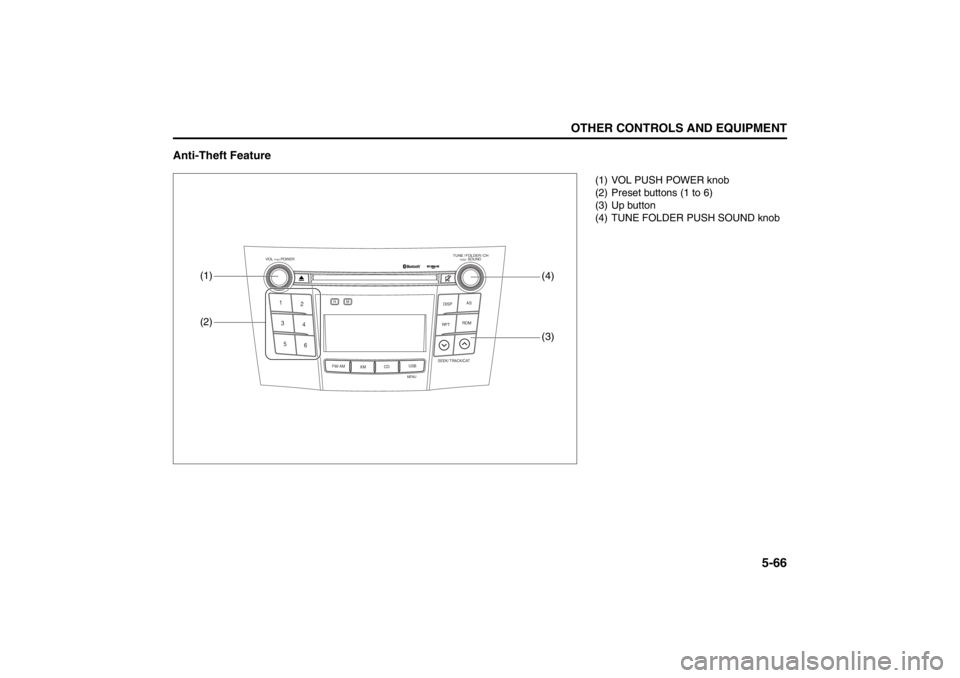
Anti-Theft Feature
TUNE / FOLDER / CHDISPAS
RPT
XM
USBMENU
RDM
SEEK/ TRACK/CAT
SOUNDPUSH
1
2
3
4
5
6
VOL PUSH POWER
CD
FM/ AMH
M
(2)
(3)
(1)
(4)
(1) VOL PUSH POWER knob
(2) Preset buttons (1 to 6)
(3) Up button
(4) TUNE FOLDER PUSH SOUND knob