lock SUZUKI RENO 2008 1.G Service Manual
[x] Cancel search | Manufacturer: SUZUKI, Model Year: 2008, Model line: RENO, Model: SUZUKI RENO 2008 1.GPages: 226, PDF Size: 4.98 MB
Page 95 of 226
3-21INSTRUMENT PANEL
85Z14-03E
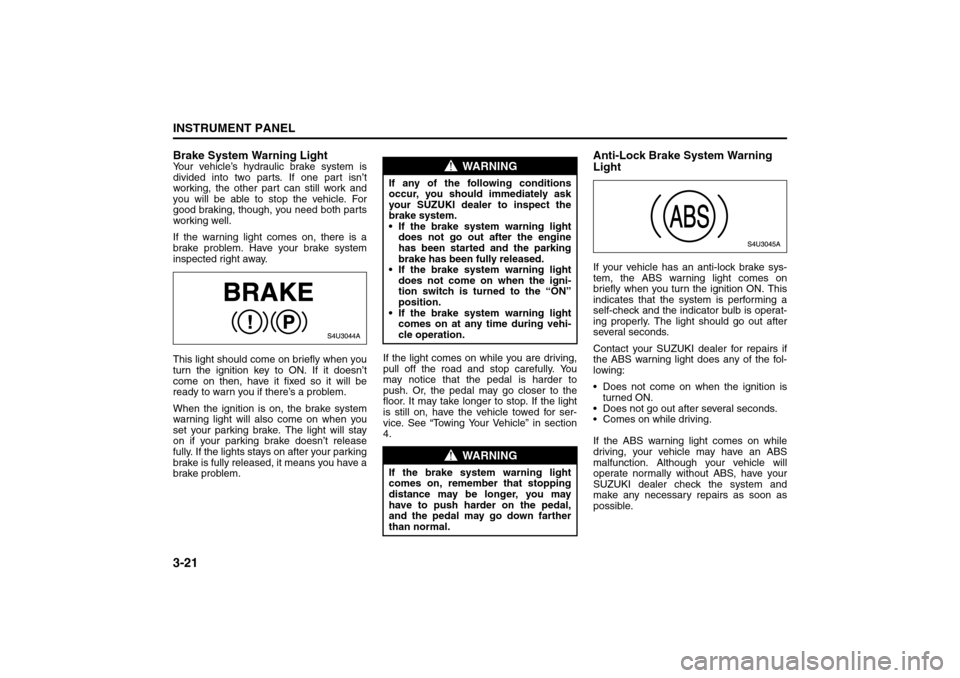
Brake System Warning LightYour vehicle’s hydraulic brake system is
divided into two parts. If one part isn’t
working, the other part can still work and
you will be able to stop the vehicle. For
good braking, though, you need both parts
working well.
If the warning light comes on, there is a
brake problem. Have your brake system
inspected right away.
This light should come on briefly when you
turn the ignition key to ON. If it doesn’t
come on then, have it fixed so it will be
ready to warn you if there’s a problem.
When the ignition is on, the brake system
warning light will also come on when you
set your parking brake. The light will stay
on if your parking brake doesn’t release
fully. If the lights stays on after your parking
brake is fully released, it means you have a
brake problem.If the light comes on while you are driving,
pull off the road and stop carefully. You
may notice that the pedal is harder to
push. Or, the pedal may go closer to the
floor. It may take longer to stop. If the light
is still on, have the vehicle towed for ser-
vice. See “Towing Your Vehicle” in section
4.
Anti-Lock Brake System Warning
LightIf your vehicle has an anti-lock brake sys-
tem, the ABS warning light comes on
briefly when you turn the ignition ON. This
indicates that the system is performing a
self-check and the indicator bulb is operat-
ing properly. The light should go out after
several seconds.
Contact your SUZUKI dealer for repairs if
the ABS warning light does any of the fol-
lowing:
Does not come on when the ignition is
turned ON.
Does not go out after several seconds.
Comes on while driving.
If the ABS warning light comes on while
driving, your vehicle may have an ABS
malfunction. Although your vehicle will
operate normally without ABS, have your
SUZUKI dealer check the system and
make any necessary repairs as soon as
possible.
WARNING
If any of the following conditions
occur, you should immediately ask
your SUZUKI dealer to inspect the
brake system.
If the brake system warning light
does not go out after the engine
has been started and the parking
brake has been fully released.
If the brake system warning light
does not come on when the igni-
tion switch is turned to the “ON”
position.
If the brake system warning light
comes on at any time during vehi-
cle operation.
WARNING
If the brake system warning light
comes on, remember that stopping
distance may be longer, you may
have to push harder on the pedal,
and the pedal may go down farther
than normal.
Warning Lights, Gauges and Indicators:
Page 100 of 226
3-26
INSTRUMENT PANEL
85Z14-03E
still have a little fuel left, but you should get
more soon. See “Low Fuel Warning Light”
in this section for more information.
Here are four things that some owners ask
about. None of these show a problem with
your fuel gauge:
At the service station, the gas pump
shuts off before the gauge reads full.
It takes a little more or less fuel to fill up
than the gauge indicated. For example,
the gauge may have indicated the tank
was half full, but it actually took a little
more or less than half the tank’s capacity
to fill the tank.
The indicator moves a little when you
turn a corner or speed up.
The gauge goes back to empty when
you turn off the ignition.
For your fuel tank capacity, see “Capacities
and Specifications” in section 5.
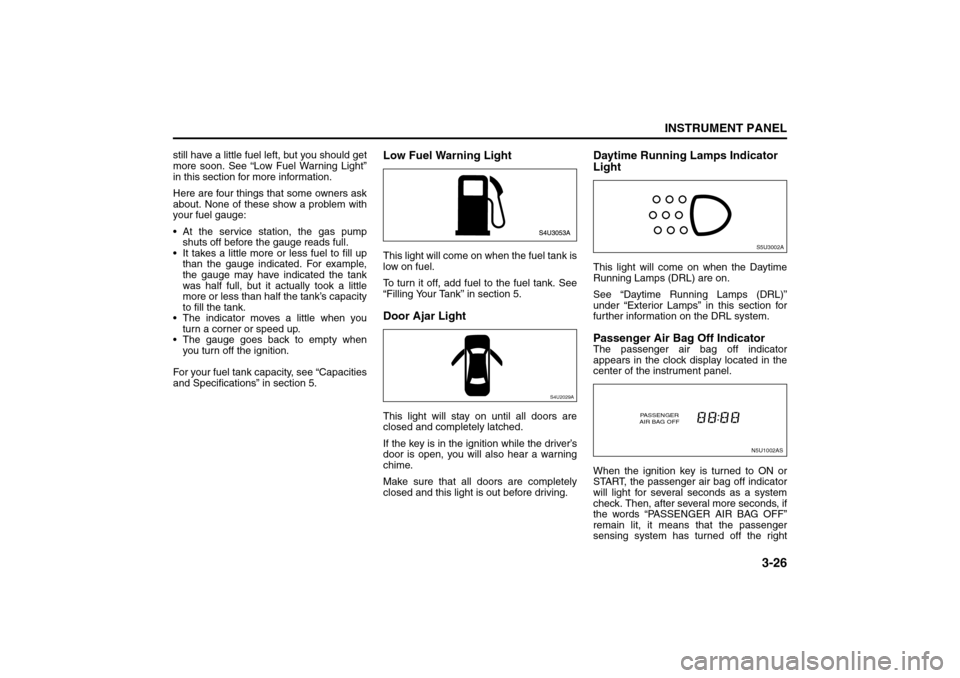
Low Fuel Warning LightThis light will come on when the fuel tank is
low on fuel.
To turn it off, add fuel to the fuel tank. See
“Filling Your Tank” in section 5.Door Ajar LightThis light will stay on until all doors are
closed and completely latched.
If the key is in the ignition while the driver’s
door is open, you will also hear a warning
chime.
Make sure that all doors are completely
closed and this light is out before driving.
Daytime Running Lamps Indicator
LightThis light will come on when the Daytime
Running Lamps (DRL) are on.
See “Daytime Running Lamps (DRL)”
under “Exterior Lamps” in this section for
further information on the DRL system.Passenger Air Bag Off IndicatorThe passenger air bag off indicator
appears in the clock display located in the
center of the instrument panel.
When the ignition key is turned to ON or
START, the passenger air bag off indicator
will light for several seconds as a system
check. Then, after several more seconds, if
the words “PASSENGER AIR BAG OFF”
remain lit, it means that the passenger
sensing system has turned off the right
S4U2029A
S5U3002AN5U1002AS
PASSENGER
AIR BAG OFF
Warning Lights, Gauges and Indicators:
Audio System:
Page 105 of 226
3-31INSTRUMENT PANEL
85Z14-03E
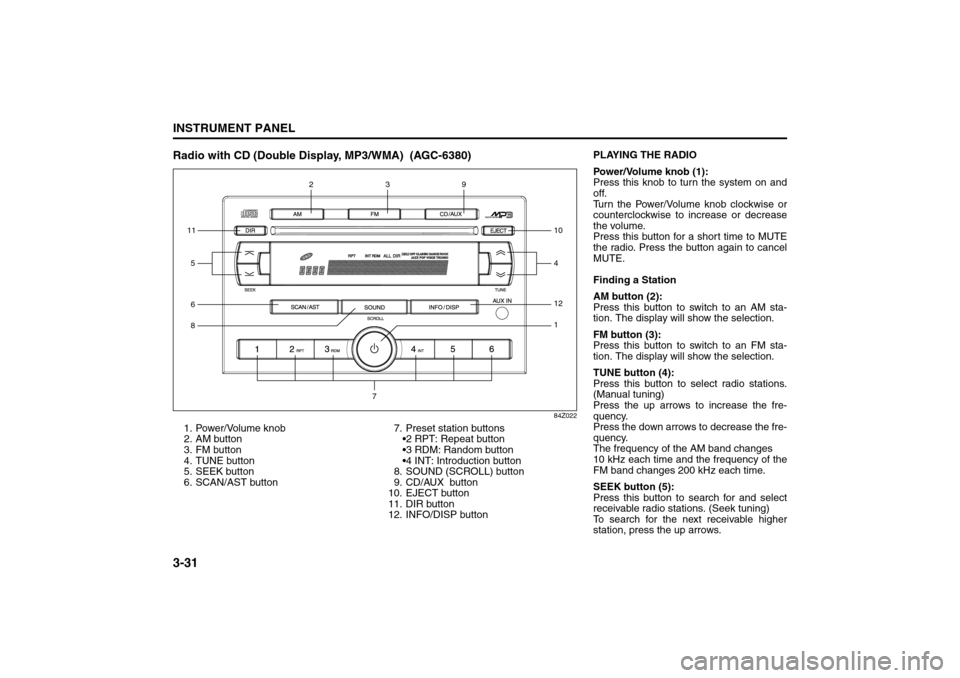
Radio with CD (Double Display, MP3/WMA) (AGC-6380)
84Z022
1. Power/Volume knob
2. AM button
3. FM button
4. TUNE button
5. SEEK button
6. SCAN/AST button7. Preset station buttons
2 RPT: Repeat button
3 RDM: Random button
4 INT: Introduction button
8. SOUND (SCROLL) button
9. CD/AUX button
10. EJECT button
11. DIR button
12. INFO/DISP button611812
1
59
410
3
2
7
PLAYING THE RADIO
Power/Volume knob (1):
Press this knob to turn the system on and
off.
Turn the Power/Volume knob clockwise or
counterclockwise to increase or decrease
the volume.
Press this button for a short time to MUTE
the radio. Press the button again to cancel
MUTE.
Finding a Station
AM button (2):
Press this button to switch to an AM sta-
tion. The display will show the selection.
FM button (3):
Press this button to switch to an FM sta-
tion. The display will show the selection.
TUNE button (4):
Press this button to select radio stations.
(Manual tuning)
Press the up arrows to increase the fre-
quency.
Press the down arrows to decrease the fre-
quency.
The frequency of the AM band changes
10 kHz each time and the frequency of the
FM band changes 200 kHz each time.
SEEK button (5):
Press this button to search for and select
receivable radio stations. (Seek tuning)
To search for the next receivable higher
station, press the up arrows.
Audio System:
Page 110 of 226
3-36
INSTRUMENT PANEL
85Z14-03E
tion such as: Song Title, Album Title, Artist,
and Bit rate may appear.
When information is not available, “No Info”
will appear on the display.
Press and hold this button to change the
display mode.
Scroll:
Press and hold the sound button [in MP3/
WMA mode]
The song title or other information of a
song will scroll on/off. The default mode is
scroll on.
Scroll mode can be changed only when
you press and hold the sound button.
CD Messages
CHECK CD:
If this message appears on the display
and/or the CD comes out, it could be for
one of the following reasons:
It is very hot. When the temperature
returns to normal, the CD will play.
You are driving on a very rough road.
When the road becomes smoother, the
CD will play.
The CD is dirty, scratched, wet, or
upside down.
The air is very humid. If so, wait about an
hour and try again.
The format of the CD may not be com-
patible. See “MP3/WMA Format” earlier
in this section. There may have been a problem while
burning the CD.
The label may be caught in the CD
player.
If the CD is not playing correctly, for any
other reason, try a known good CD.
If any error occurs repeatedly or if an error
cannot be corrected, contact your SUZUKI
dealer. If the radio displays an error mes-
sage, write it down and provide it to your
SUZUKI dealer when reporting the prob-
lem.
AUX Mod e
Press this button to listen to the audio con-
tents from other devices; Walkman, Porta-
ble CD Player, Portable MP3 Player, i-pod,
XM receiver, etc.
1) Connect the output port of the device to
the aux jack of the head unit with an
aux connector.
2) Turn the device on.
3) Press this button.
If you want to control the volume level, use
the volume buttons of the head unit or the
device.
Using the Auxiliary Input Jack
Your radio system has an auxiliary input
jack located on the lower right side of the
faceplate. This is not an audio output; do
not plug a headphone set into the front
auxiliary input jack. You can however, con-
nect an external audio device such as aniPod, laptop computer, MP3 player, CD
changer, or cassette tape player, etc. to the
auxiliary input jack for use as another
source for audio listening.
The auxiliary input jack will also accept cell
phone connectors. Plug the cell phone
connector into the auxiliary input jack to
hear the other side of a cell phone’s con-
versation through the vehicle sound sys-
tem.
Drivers are encouraged to set up their por-
table audio player while the vehicle is
parked. See Defensive Driving for more
information on driver distraction.
To use a portable audio player, connect a
3.5 mm (1/8 inch) cable to the radio’s front
auxiliary input jack. When a device is con-
nected, press the radio CD/AUX button as
needed to begin playing audio from the
device over the car speakers.
CD/AUX (CD/Auxiliary) button (9):
Press this button once to play a CD while a
portable audio device is playing. Press this
button a second time and the system will
begin playing audio from the connected
portable audio player. Once in this mode,
“Auxinput” will appear on the display. If the
auxiliary jack does not detect the presence
of an output jack, the aux mode will be pre-
vented from coming up.
Power/Volume knob (1):
Turn this knob clockwise or counterclock-
wise to increase or decrease the volume of
Page 112 of 226
3-38
INSTRUMENT PANEL
85Z14-03E
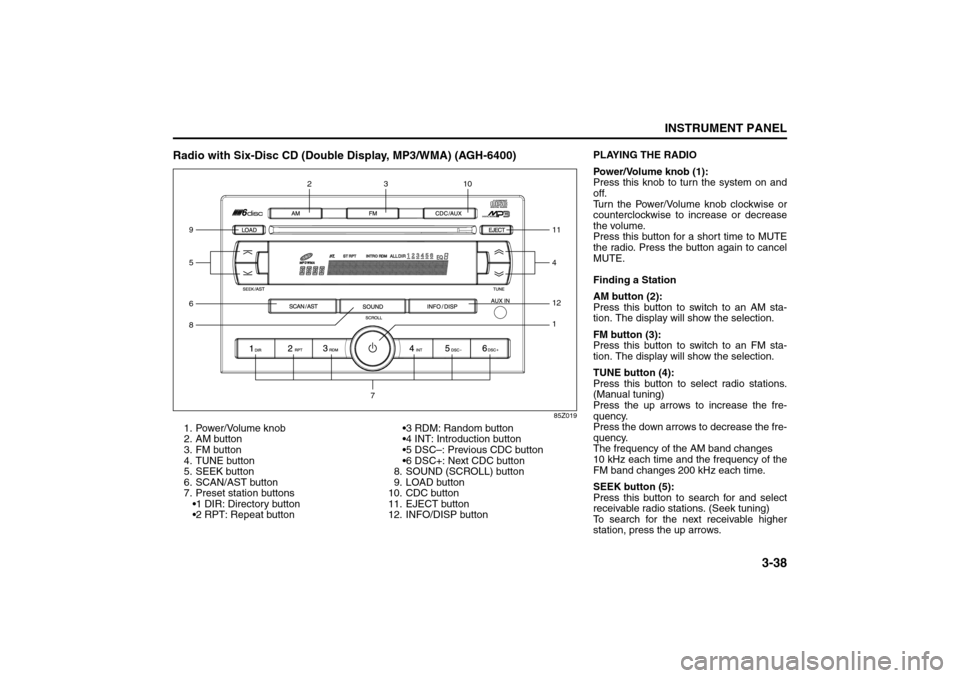
Radio with Six-Disc CD (Double Display, MP3/WMA) (AGH-6400)
85Z019
1. Power/Volume knob
2. AM button
3. FM button
4. TUNE button
5. SEEK button
6. SCAN/AST button
7. Preset station buttons
1 DIR: Directory button
2 RPT: Repeat button3 RDM: Random button
4 INT: Introduction button
5 DSC–: Previous CDC button
6 DSC+: Next CDC button
8. SOUND (SCROLL) button
9. LOAD button
10. CDC button
11. EJECT button
12. INFO/DISP button6812
1
5 910
411
3
2
7
PLAYING THE RADIO
Power/Volume knob (1):
Press this knob to turn the system on and
off.
Turn the Power/Volume knob clockwise or
counterclockwise to increase or decrease
the volume.
Press this button for a short time to MUTE
the radio. Press the button again to cancel
MUTE.
Finding a Station
AM button (2):
Press this button to switch to an AM sta-
tion. The display will show the selection.
FM button (3):
Press this button to switch to an FM sta-
tion. The display will show the selection.
TUNE button (4):
Press this button to select radio stations.
(Manual tuning)
Press the up arrows to increase the fre-
quency.
Press the down arrows to decrease the fre-
quency.
The frequency of the AM band changes
10 kHz each time and the frequency of the
FM band changes 200 kHz each time.
SEEK button (5):
Press this button to search for and select
receivable radio stations. (Seek tuning)
To search for the next receivable higher
station, press the up arrows.
Page 117 of 226
3-43INSTRUMENT PANEL
85Z14-03E
tion such as: Song Title, Album Title, Artist,
and Bit rate may appear.
When information is not available, “No Info”
will appear on the display.
Press and hold this button to change the
display mode.
Scroll:
Press and hold the sound button [in MP3/
WMA mode]
The song title or other information of a
song will scroll on/off. The default mode is
scroll on.
Scroll mode can be changed only when
you press and hold the sound button.
CD Messages
CHECK CD:
If this message appears on the display
and/or the CD comes out, it could be for
one of the following reasons:
It is very hot. When the temperature
returns to normal, the CD will play.
You are driving on a very rough road.
When the road becomes smoother, the
CD will play.
The CD is dirty, scratched, wet, or
upside down.
The air is very humid. If so, wait about an
hour and try again.
The format of the CD may not be com-
patible. See “MP3/WMA Format” earlier
in this section. There may have been a problem while
burning the CD.
The label may be caught in the CD
player.
If the CD is not playing correctly, for any
other reason, try a known good CD.
If any error occurs repeatedly or if an error
cannot be corrected, contact your SUZUKI
dealer. If the radio displays an error mes-
sage, write it down and provide it to your
SUZUKI dealer when reporting the prob-
lem.
AUX Mod e
Press this button to listen to the audio con-
tents from other devices; Walkman, Porta-
ble CD Player, Portable MP3 Player, i-pod,
XM receiver, etc.
1) Connect the output port of the device to
the aux jack of the head unit with an
aux connector.
2) Turn the device on.
3) Press this button.
If you want to control the volume level, use
the volume buttons of the head unit or the
device.
Using the Auxiliary Input Jack
Your radio system has an auxiliary input
jack located on the lower right side of the
faceplate. This is not an audio output; do
not plug a headphone set into the front
auxiliary input jack. You can however, con-
nect an external audio device such as aniPod, laptop computer, MP3 player, CD
changer, or cassette tape player, etc. to the
auxiliary input jack for use as another
source for audio listening.
The auxiliary input jack will also accept cell
phone connectors. Plug the cell phone
connector into the auxiliary input jack to
hear the other side of a cell phone’s con-
versation through the vehicle sound sys-
tem.
Drivers are encouraged to set up their por-
table audio player while the vehicle is
parked. See Defensive Driving for more
information on driver distraction.
To use a portable audio player, connect a
3.5 mm (1/8 inch) cable to the radio’s front
auxiliary input jack. When a device is con-
nected, press the radio CD/AUX button as
needed to begin playing audio from the
device over the car speakers.
CD/AUX (CD/Auxiliary) button (9):
Press this button once to play a CD while a
portable audio device is playing. Press this
button a second time and the system will
begin playing audio from the connected
portable audio player. Once in this mode,
“Auxinput” will appear on the display. If the
auxiliary jack does not detect the presence
of an output jack, the aux mode will be pre-
vented from coming up.
Power/Volume knob (1):
Turn this knob clockwise or counterclock-
wise to increase or decrease the volume of
Page 121 of 226
3-47INSTRUMENT PANEL
85Z14-03E
86Z016
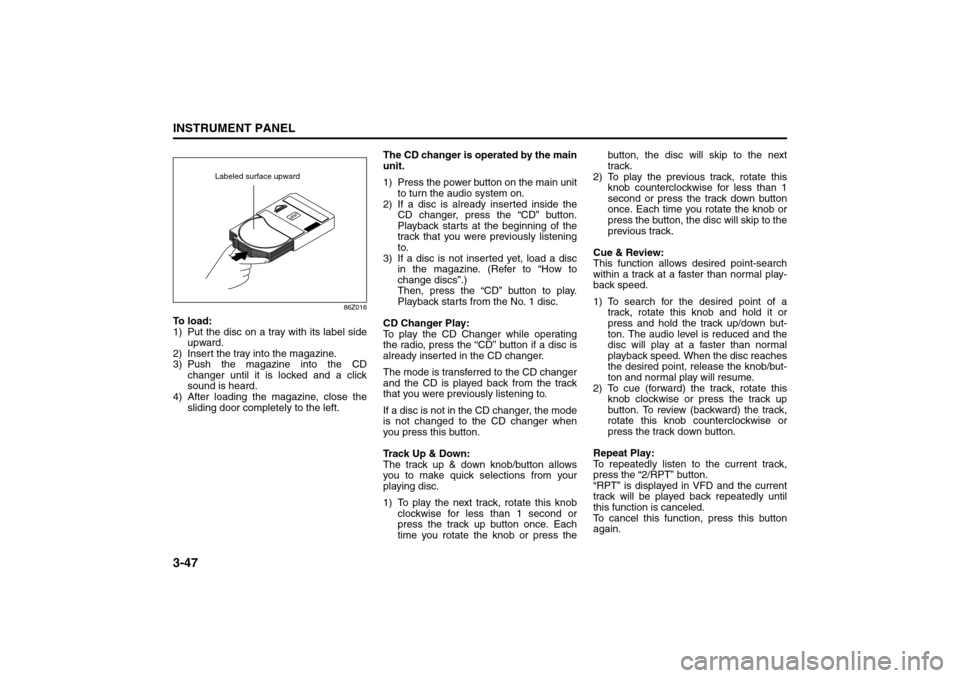
To load:
1) Put the disc on a tray with its label side
upward.
2) Insert the tray into the magazine.
3) Push the magazine into the CD
changer until it is locked and a click
sound is heard.
4) After loading the magazine, close the
sliding door completely to the left.The CD changer is operated by the main
unit.
1) Press the power button on the main unit
to turn the audio system on.
2) If a disc is already inserted inside the
CD changer, press the “CD” button.
Playback starts at the beginning of the
track that you were previously listening
to.
3) If a disc is not inserted yet, load a disc
in the magazine. (Refer to “How to
change discs”.)
Then, press the “CD” button to play.
Playback starts from the No. 1 disc.
CD Changer Play:
To play the CD Changer while operating
the radio, press the “CD” button if a disc is
already inserted in the CD changer.
The mode is transferred to the CD changer
and the CD is played back from the track
that you were previously listening to.
If a disc is not in the CD changer, the mode
is not changed to the CD changer when
you press this button.
Track Up & Down:
The track up & down knob/button allows
you to make quick selections from your
playing disc.
1) To play the next track, rotate this knob
clockwise for less than 1 second or
press the track up button once. Each
time you rotate the knob or press thebutton, the disc will skip to the next
track.
2) To play the previous track, rotate this
knob counterclockwise for less than 1
second or press the track down button
once. Each time you rotate the knob or
press the button, the disc will skip to the
previous track.
Cue & Review:
This function allows desired point-search
within a track at a faster than normal play-
back speed.
1) To search for the desired point of a
track, rotate this knob and hold it or
press and hold the track up/down but-
ton. The audio level is reduced and the
disc will play at a faster than normal
playback speed. When the disc reaches
the desired point, release the knob/but-
ton and normal play will resume.
2) To cue (forward) the track, rotate this
knob clockwise or press the track up
button. To review (backward) the track,
rotate this knob counterclockwise or
press the track down button.
Repeat Play:
To repeatedly listen to the current track,
press the “2/RPT” button.
“RPT” is displayed in VFD and the current
track will be played back repeatedly until
this function is canceled.
To cancel this function, press this button
again.
Labeled surface upward
Page 127 of 226
4-3DRIVING YOUR VEHICLE
85Z14-03E
Sometimes, as when you’re driving on
snow or ice, it’s easy to ask more of those
control systems than the tires and road
can provide. That means you can lose con-
trol of your vehicle.BrakingBraking action involves perception time
and reaction time.
First, you have to decide to push on the
brake pedal. That’s perception time. Then
you have to bring up your foot and do it.
That’s reaction time.
Average reaction time is about 3/4 of a
second. But that’s only an average. It might
be less with one driver and as long as two
or three seconds or more with another.
Age, physical condition, alertness, coordi-
nation and eyesight all play a part. So do
alcohol, drugs and frustration. But even in3/4 of a second, a vehicle moving at 60
mph (100 km/h) travels 66 feet (20 m).
That could be a lot of distance in an emer-
gency, so keeping enough space between
your vehicle and others is important.
And, of course, actual stopping distances
vary greatly with the surface of the road
(whether it’s pavement or gravel) the condi-
tion of the road (wet, dry, icy) tire tread the
condition of your brakes the weight of the
vehicle and the amount of brake force
applied.
Avoid needless heavy braking. Some peo-
ple drive in spurts – heavy acceleration fol-
lowed by heavy braking – rather than
keeping pace with traffic. This is a mistake.
Your brakes may not have time to cool
between hard stops. Your brakes will wear
out much faster if you do a lot of heavy
braking. If you keep pace with the traffic
and allow realistic following distances, you
will eliminate a lot of unnecessary braking.
That means better braking and longer
brake life.
If your engine ever stops while you’re driv-
ing, brake normally but don’t pump your
brakes. If you do, the pedal may get harder
to push down. If your engine stops, you will
still have some power brake assist. But you
will use it when you brake. Once the power
assist is used up, it may take longer to stop
and the brake pedal will be harder to push.
Anti-Lock Brake System (ABS)
(if equipped)
ABS is an advanced electronic braking
system that will help prevent a braking
skid.
When you start your engine and begin to
drive away, your anti-lock brake system will
check itself. You may hear a momentary
motor or clicking noise while this test is
going on, and you may even notice that
your brake pedal moves a little. This is nor-
mal.
If there’s a problem with the anti-lock brake
system, this warning light will stay on. See
“Anti-Lock Brake System Warning Light” in
section 3.
Your Driving, the Road, and Your Vehicle:
Page 128 of 226
4-4
DRIVING YOUR VEHICLE
85Z14-03E
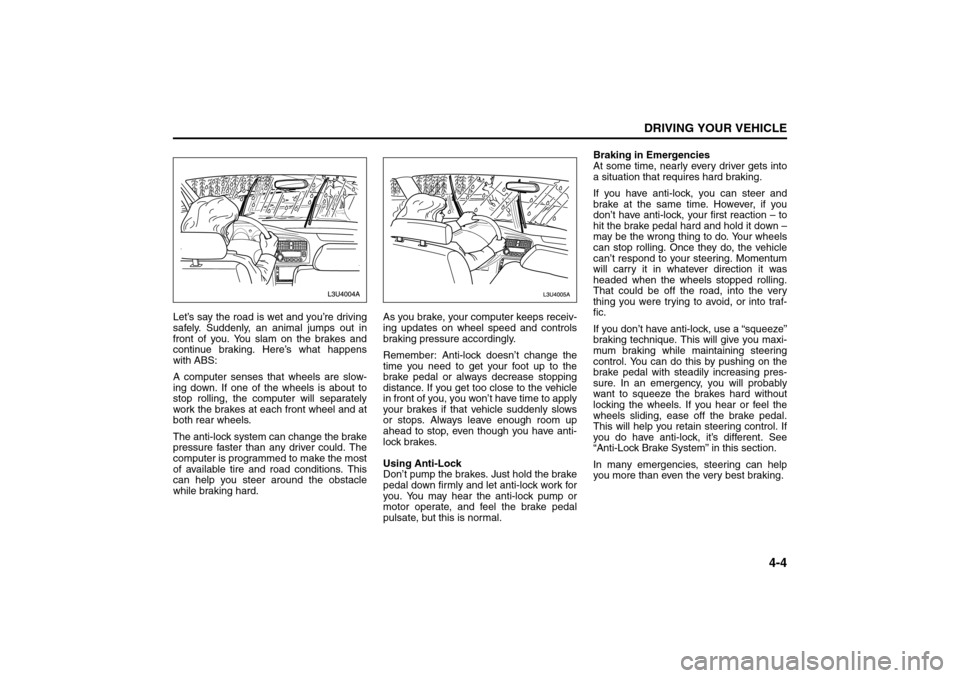
Let’s say the road is wet and you’re driving
safely. Suddenly, an animal jumps out in
front of you. You slam on the brakes and
continue braking. Here’s what happens
with ABS:
A computer senses that wheels are slow-
ing down. If one of the wheels is about to
stop rolling, the computer will separately
work the brakes at each front wheel and at
both rear wheels.
The anti-lock system can change the brake
pressure faster than any driver could. The
computer is programmed to make the most
of available tire and road conditions. This
can help you steer around the obstacle
while braking hard.As you brake, your computer keeps receiv-
ing updates on wheel speed and controls
braking pressure accordingly.
Remember: Anti-lock doesn’t change the
time you need to get your foot up to the
brake pedal or always decrease stopping
distance. If you get too close to the vehicle
in front of you, you won’t have time to apply
your brakes if that vehicle suddenly slows
or stops. Always leave enough room up
ahead to stop, even though you have anti-
lock brakes.
Using Anti-Lock
Don’t pump the brakes. Just hold the brake
pedal down firmly and let anti-lock work for
you. You may hear the anti-lock pump or
motor operate, and feel the brake pedal
pulsate, but this is normal.Braking in Emergencies
At some time, nearly every driver gets into
a situation that requires hard braking.
If you have anti-lock, you can steer and
brake at the same time. However, if you
don’t have anti-lock, your first reaction – to
hit the brake pedal hard and hold it down –
may be the wrong thing to do. Your wheels
can stop rolling. Once they do, the vehicle
can’t respond to your steering. Momentum
will carry it in whatever direction it was
headed when the wheels stopped rolling.
That could be off the road, into the very
thing you were trying to avoid, or into traf-
fic.
If you don’t have anti-lock, use a “squeeze”
braking technique. This will give you maxi-
mum braking while maintaining steering
control. You can do this by pushing on the
brake pedal with steadily increasing pres-
sure. In an emergency, you will probably
want to squeeze the brakes hard without
locking the wheels. If you hear or feel the
wheels sliding, ease off the brake pedal.
This will help you retain steering control. If
you do have anti-lock, it’s different. See
“Anti-Lock Brake System” in this section.
In many emergencies, steering can help
you more than even the very best braking.
Your Driving, the Road, and Your Vehicle:
Page 129 of 226
4-5DRIVING YOUR VEHICLE
85Z14-03E
SteeringPower Steering
If you lose power steering assist because
the engine stops or the system is not func-
tioning, you can steer but it will take much
more effort.
Speed Sensitive Power Steering
System
This system continuously adjusts the effort
you feel when steering at all vehicle
speeds. It provides ease when parking, yet
a firm, solid feel at highway speeds.
If your vehicle has this system, it varies the
amount of effort required to steer the vehi-
cle in relation to the speed of the vehicle.
The amount of steering effort required is
less at slower speeds to make the vehicle
more maneuverable and easier to park. At
faster speeds, the steering effort increases
to provide a sport-like feel to the steering.
This provides maximum control and stabil-
ity.
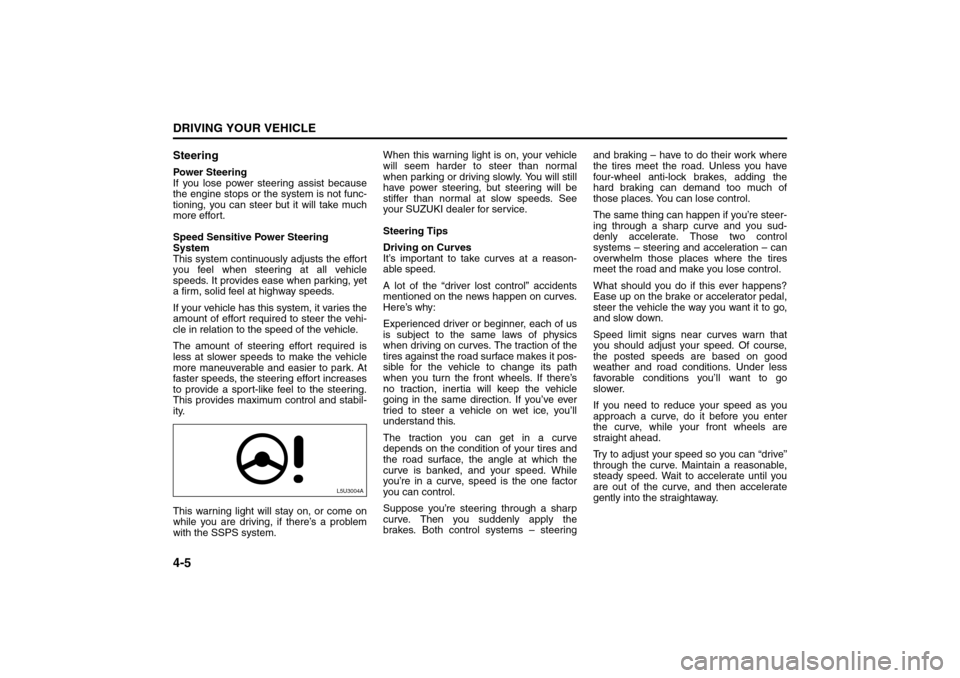
This warning light will stay on, or come on
while you are driving, if there’s a problem
with the SSPS system.When this warning light is on, your vehicle
will seem harder to steer than normal
when parking or driving slowly. You will still
have power steering, but steering will be
stiffer than normal at slow speeds. See
your SUZUKI dealer for service.
Steering Tips
Driving on Curves
It’s important to take curves at a reason-
able speed.
A lot of the “driver lost control” accidents
mentioned on the news happen on curves.
Here’s why:
Experienced driver or beginner, each of us
is subject to the same laws of physics
when driving on curves. The traction of the
tires against the road surface makes it pos-
sible for the vehicle to change its path
when you turn the front wheels. If there’s
no traction, inertia will keep the vehicle
going in the same direction. If you’ve ever
tried to steer a vehicle on wet ice, you’ll
understand this.
The traction you can get in a curve
depends on the condition of your tires and
the road surface, the angle at which the
curve is banked, and your speed. While
you’re in a curve, speed is the one factor
you can control.
Suppose you’re steering through a sharp
curve. Then you suddenly apply the
brakes. Both control systems – steeringand braking – have to do their work where
the tires meet the road. Unless you have
four-wheel anti-lock brakes, adding the
hard braking can demand too much of
those places. You can lose control.
The same thing can happen if you’re steer-
ing through a sharp curve and you sud-
denly accelerate. Those two control
systems – steering and acceleration – can
overwhelm those places where the tires
meet the road and make you lose control.
What should you do if this ever happens?
Ease up on the brake or accelerator pedal,
steer the vehicle the way you want it to go,
and slow down.
Speed limit signs near curves warn that
you should adjust your speed. Of course,
the posted speeds are based on good
weather and road conditions. Under less
favorable conditions you’ll want to go
slower.
If you need to reduce your speed as you
approach a curve, do it before you enter
the curve, while your front wheels are
straight ahead.
Try to adjust your speed so you can “drive”
through the curve. Maintain a reasonable,
steady speed. Wait to accelerate until you
are out of the curve, and then accelerate
gently into the straightaway.
L5U3004A
Your Driving, the Road, and Your Vehicle: