audio SUZUKI XL7 2007 2.G Owner's Manual
[x] Cancel search | Manufacturer: SUZUKI, Model Year: 2007, Model line: XL7, Model: SUZUKI XL7 2007 2.GPages: 274, PDF Size: 6.12 MB
Page 144 of 274

3-62 INSTRUMENT PANEL
78J00-03E
length of the file, folder, or playlist name.
Long names also take up more space on
the display, potentially getting cut off.
Finalize the audio disc before you burn it.
Trying to add music to an existing disc
may cause the disc not to function in the
player.
Root Directory
The root directory of the CD-R is treated
as a folder. If the root directory has com-
pressed audio files, the directory is dis-
played as F1 ROOT. All files contained
directly under the root directory are
accessed prior to any root directory fold-
ers. However, playlists (Px) are always
accessed before root folders or files.
Empty Directory or Folder
If a root directory or a folder exists some-
where in the file structure that contains
only folders/subfolders and no compressed
files directly beneath them, the player
advances to the next folder in the file struc-
ture that contains compressed audio files.
The empty folder does not display.
No Folder
When the CD-R contains only compressed
files, the files are located under the root
folder. The next and previous folder func-
tion does not function on a CD-R that was
recorded without folders or playlists. When
displaying the name of the folder the radio
displays ROOT.
When the CD-R contains only playlists and
compressed audio files, but no folders, allfiles are located under the root folder. The
folder down and the folder up buttons
search playlists (Px) first and then goes to
the root folder. When the radio displays the
name of the folder the radio displays
ROOT.
Order of Play
Tracks recorded to the CD-R are played in
the following order:
Play begins from the first track in the first
playlist and continues sequentially
through all tracks in each playlist. When
the last track of the last playlist has
played, play continues from the first track
of the first playlist.
Play begins from the first track in the first
folder and continues sequentially
through all tracks in each folder. When
the last track of the last folder has
played, play continues from the first track
of the first folder.
When play enters a new folder, the display
does not automatically show the new folder
name unless the folder mode was chosen
as the default display. The new track name
displays.
File System and Naming
The song name that is displayed is the
song name that is contained in the ID3 tag.
If the song name is not present in the ID3
tag, then the radio displays the file name
without the extension (such as .mp3) as
the track name.Track names longer than 32 characters or
four pages are shortened. Parts of words
on the last page of text and the extension
of the filename displays.
Preprogrammed Playlists
Preprogrammed playlists that were created
using WinAmp
TM, MusicMatch
TM, or Real
Jukebox
TM software can be accessed,
however, they cannot be edited using the
radio. These playlists are treated as spe-
cial folders containing compressed audio
song files.
Playing an MP3
(in either the DVD or CD slot)
Insert a CD-R partway into either the top or
bottom slot, label side up. The player pulls
it in, and the CD-R should begin playing.
Depending on the format of the disc, a
softkey menu appears and allows naviga-
tion of the disc. The menu reads left to
right as RDM (Randomize song play
order), a Folder icon with left and right
arrows (to move up or down through avail-
able folders), a PL tag if the disc has a
Playlist available, and a Music Navigator
tag. If a Playlist tag is shown, toggling this
key brings up a Folder softkey only or the
menu as previously described.
If the ignition or radio is turned off with a
CD-R in the player, it stays in the player.
When the ignition or radio is turned on, the
CD-R starts to play where it stopped, if it
was the last selected audio source.
Page 146 of 274

3-64 INSTRUMENT PANEL
78J00-03E
button to resume playing the file. The
elapsed time of the file displays.
RDM (Random):
With the random setting, MP3 files on the
CD-R can be listened to in random, rather
than sequential order. To play MP3 files
from the CD-R you are listening to in ran-
dom order, press the pushbutton posi-
tioned under the RDM label until Random
Current Disc displays. Press the same
pushbutton again to turn off random play.
(Music Navigator):
Use the music navigator feature to play
MP3 files on the CD-R in order by artist or
album. Press the pushbutton located
below the music navigator label. The
player scans the disc to sort the files by
artist and album ID3 tag information. It
might take several minutes to scan the disc
depending on the number of MP3 files
recorded to the CD-R.
To cancel music navigator while the player
is scanning, press the pushbutton located
below the music navigator label or eject
the disc. The radio can begin playing while
it is scanning the disc in the background.
When the scan is finished, the CD-R
begins playing again.
Once the disc has been scanned, the
player defaults to playing MP3 files in order
by artist. The current artist playing is
shown on the second line of the display
between the arrows. If you want to listen to
MP3 files by another artist, press the push-button located below either arrow button.
The disc goes to the next or previous artist
in alphabetical order. Continue pressing
either button until the desired artist is dis-
played.
To change from playback by artist to play-
back by album, press the pushbutton
located below the Sort By label. From the
sort screen, push one of the buttons below
the album button. Press the pushbutton
below the back label to return to the main
music navigator screen. Now the album
name is displayed on the second line
between the arrows and songs from the
current album begin to play. Once all songs
from that album are played, the player
moves to the next album in alphabetical
order on the CD-R and begins playing MP3
files from that album.
To exit music navigator mode, press the
pushbutton below the Back label to return
to normal MP3 playback.
BAND:
Press this button to listen to the radio when
a CD or a DVD is playing. The CD or DVD
remains inside the radio for future listening
or viewing entertainment.
DVD/CD AUX (Auxiliary):
Press this button to cycle through DVD,
CD, or Auxiliary when listening to the radio.
The DVD/CD text label and a message
showing track or chapter number displays
when a disc is in either slot. Press this but-
ton again and the system automaticallysearches for an auxiliary input device,
such as a portable audio player. If a porta-
ble audio player is not connected, “No Aux
Input Device” displays. If a disc is in both
the DVD slot and the CD slot the DVD/CD
AUX button cycles between the two
sources and not indicate connected, the
DVD/CD AUX button cycles through all
available options, such as: DVD slot, CD
slot, Front Auxiliary, and Rear Auxiliary (if
available). Refer to “Using the Auxiliary
Input Jack(s)” later in this section, or
“Audio/Video (A/V) Jacks” under, “Rear
Seat Entertainment System” in this section
for more information.
If a MP3 is inserted into top DVD slot, the
rear seat operator can turn on the video
screen and use the remote control to navi-
gate the CD (tracks only) through the
remote control.
Page 147 of 274

3-65 INSTRUMENT PANEL
78J00-03E
XM Radio Messages
Radio Display Message Condition Action Required
XL
(Explicit Language Channels)XL on the radio display, after the
channel name, indicates content
with explicit language.These channels, or any others, can be blocked at a cus-
tomer’s request, by calling 1-800-852-XMXM (9696).
XM Updating Updating encryption code The encryption code in the receiver is being updated, and no
action is required. This process should take no longer than 30
seconds.
No XM Signal Loss of signal The system is functioning correctly, but the vehicle is in a loca-
tion that is blocking the XM
TM signal. When you move into an
open area, the signal should return.
Loading XM Acquiring channel audio
(after four second delay)The audio system is acquiring and processing audio and text
data. No action is needed. This message should disappear
shortly.
Channel Off Air Channel not in service This channel is not currently in service. Tune to another chan-
nel.
Channel Unavail Channel no longer available This previously assigned channel is no longer assigned. Tune
to another station. If this station was one of the presets,
choose another station for that preset button.
No Artist Info Artist Name/Feature not available No artist information is available at this time on this channel.
The system is working properly.
No Title Info Song/Program Title not available No song title information is available at this time on this chan-
nel. The system is working properly.
No CAT Info Category Name not available No category information is available at this time on this chan-
nel. The system is working properly.
No Information No Text/Informational message
availableNo text or informational messages are available at this time on
this channel. The system is working properly.
Page 149 of 274
3-67 INSTRUMENT PANEL
78J00-03E
Navigation/Radio SystemYour vehicle may have a navigation radio
system.
The navigation radio system has built-in
features intended to minimize driver dis-
traction. Technology alone, no matter how
advanced, can never replace your own
judgment. For complete information on
your navigation radio system, including tips
on helping to reduce distractions while
driving, see the Navigation System Man-
ual.Rear Seat Entertainment SystemYour vehicle may have a DVD Rear Seat
Entertainment (RSE) system. The RSE
system works with the vehicle's audio sys-
tem. The DVD player is part of the front
radio. The RSE system includes a radio
with a DVD player, a video display screen,
audio/video jacks, two wireless head-
phones, and a remote control. Refer to
“Radio with CD and DVD (MP3)” in this
section for more information on the vehi-
cle’s audio/DVD system.
Before You Drive
The RSE is designed for rear seat passen-
gers only. The driver cannot safely view
the video screen while driving and should
not try to do so.
In severe or extreme weather conditions
the RSE system may or may not work until
the temperature is within the operating
range. The operating range for the RSEsystem is above –4°F (–20°C) or below
140°F (60°C). If the temperature of your
vehicle is outside of this range, heat or
cool the vehicle until the temperature is
within the operating range of the RSE sys-
tem.
Parental Control
The RSE system may have a Parental
Control feature, depending on which radio
you have. The Parental Control feature will
turn off the video screen. This feature also
disables all button operations from the
remote control. This feature can be used to
gain the attention of the rear passengers
that are using headphones.
To enable Parental Control press and hold
the radio power button for more than two
seconds. If on, the radio and video screen
will turn off. If a DVD and/or CD is playing,
it will be stopped. A “padlock” icon or a text
message may be displayed on the radio
display depending on which radio you
have, while Parental Control is on. The
radio can be turned back on with a single
press of the power button and used nor-
mally, but the RSE system will remain in
Parental Control.
To turn off Parental Control, press and
hold the radio power button for more than
two seconds. The video screen will return
to the state they were in before Parental
Control was turned on. The padlock icon
will disappear from the radio display.Parental Control can also be turned off by
inserting or ejecting any disc, an ignition
cycle, or pressing the play icon on the
radio DVD display menu.
Headphones
1674951
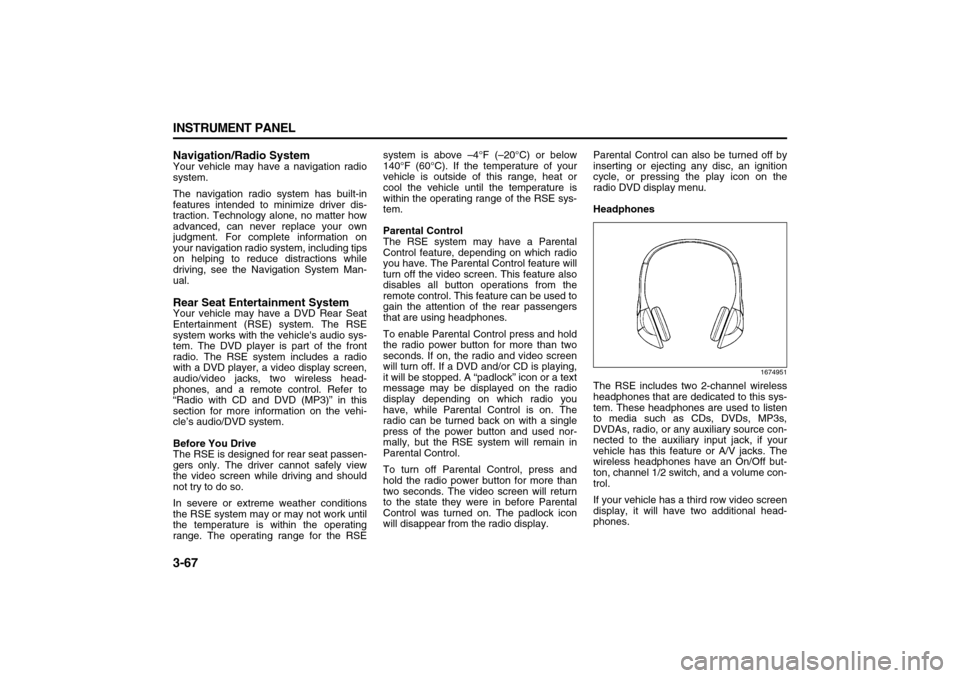
The RSE includes two 2-channel wireless
headphones that are dedicated to this sys-
tem. These headphones are used to listen
to media such as CDs, DVDs, MP3s,
DVDAs, radio, or any auxiliary source con-
nected to the auxiliary input jack, if your
vehicle has this feature or A/V jacks. The
wireless headphones have an On/Off but-
ton, channel 1/2 switch, and a volume con-
trol.
If your vehicle has a third row video screen
display, it will have two additional head-
phones.
Page 150 of 274
3-68 INSTRUMENT PANEL
78J00-03E
Push the power button to turn on the head-
phones. An indicator light located on the
headphones will illuminate. If the light does
not illuminate, the batteries may need to be
replaced. See “Battery Replacement” later
in this section for more information. Switch
the headphones to Off when not in use.
The infrared transmitters are located at the
rear of the RSE overhead console. The
headphones will shut off automatically to
save the battery power if the RSE system
is shut off or if the headphones are out of
range of the transmitters for more than
three minutes. If you move too far forward
or step out of the vehicle, the headphones
will lose the audio signal.
The headphones will automatically turn off
after four hours of continuous use.
To adjust the volume on the headphones,
use the volume control located on the right
side.
For optimal audio performance, the head-
phones must be worn correctly. The sym-
bol L (Left) will appear on the upper left
side, above the ear pad and should be
positioned on the left ear.
The symbol R (Right) will appear on the
upper right side, above the ear pad and
should be positioned on the right ear.
If the remote control becomes lost or dam-
aged, a new universal remote control can
be purchased. If this happens, make surethe universal remote control uses a code
set of Toshiba
®.
The foam ear pads attached to the head-
phones may become worn or damaged if
they are not handled or stored properly. If
the foam ear pads do become damaged or
worn out, the pads can be replaced sepa-
rately from the headphone set. It is not
necessary to replace the complete head-
phone set. The headphone replacement
foam ear pads can be ordered in pairs.
See your dealer for more information.
Battery Replacement
To change the batteries, do the following:
1) Turn the screw with a coin or screw
driver to loosen, then slide open the
battery door located on the left side of
the headphones.
2) Replace the two batteries in the com-
partment. Make sure that they are
installed correctly, using the diagram on
the inside of the battery compartment.
3) Replace the battery door and tighten
the door screw.If the headphones are to be stored for a
long period of time, remove the batteries
and keep them in a cool, dry place.
Audio/Video (A/V) Jacks
1676611
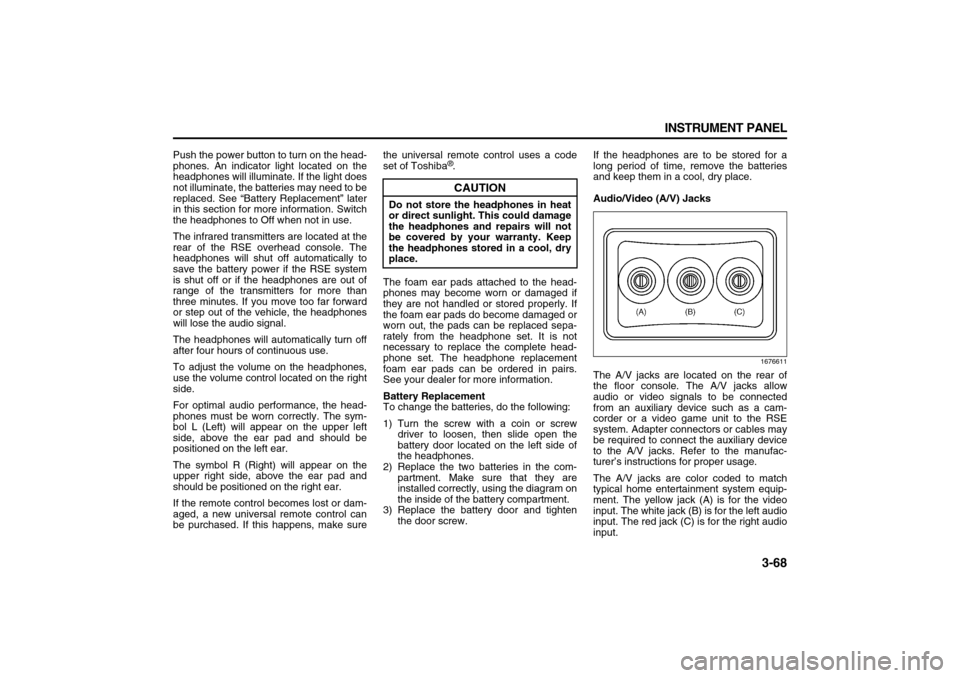
The A/V jacks are located on the rear of
the floor console. The A/V jacks allow
audio or video signals to be connected
from an auxiliary device such as a cam-
corder or a video game unit to the RSE
system. Adapter connectors or cables may
be required to connect the auxiliary device
to the A/V jacks. Refer to the manufac-
turer’s instructions for proper usage.
The A/V jacks are color coded to match
typical home entertainment system equip-
ment. The yellow jack (A) is for the video
input. The white jack (B) is for the left audio
input. The red jack (C) is for the right audio
input.
CAUTION
Do not store the headphones in heat
or direct sunlight. This could damage
the headphones and repairs will not
be covered by your warranty. Keep
the headphones stored in a cool, dry
place.
Page 151 of 274

3-69 INSTRUMENT PANEL
78J00-03E
Power for auxiliary devices is not supplied
by the radio system.
To use the auxiliary inputs of the RSE sys-
tem, connect an external auxiliary device
to the color-coded A/V jacks and turn both
the auxiliary device and the video screen
power on. If the video screen is in the DVD
player mode, pressing the AUX button on
the remote control will switch the video
screen from the DVD player mode to the
auxiliary device. The radio can listen to the
audio of the connected auxiliary device by
sourcing to auxiliary. Refer to “Radio with
CD and DVD (MP3)” in this section for
more information.
How to Change the RSE Video Screen
Settings
The screen display mode (normal, full, and
zoom), screen brightness, and setup menu
language can be changed from the on
screen setup menu. To change any fea-
ture, perform the following:
1) Press the display menu button on the
remote control.
2) Use the remote control menu naviga-
tion arrows and the enter button to use
the setup menu.
3) Press the display menu button again to
remove the setup menu from the
screen.Audio Output
Audio from the DVD player or auxiliary
inputs may be heard through the following
possible sources:
Wireless Headphones
Vehicle Speakers
The RSE system will always transmit the
audio signal to the wireless headphones, if
there is audio available. See “Head-
phones” earlier in this section for more
information.
When a device is connected to the radio’s
auxiliary input jack, if your vehicle has this
feature, or A/V jacks, the rear seat passen-
gers will be able to hear audio from the
auxiliary device through the wireless or
wired headphones. The front seat passen-
gers will be able to listen to playback from
this device through the vehicle speakers by
selecting AUX as the source on the radio.
Video Screen
The video screen is located in the RSE
overhead console.
To use the video screen, do the following:
1) Push the release button located on the
RSE overhead console.
2) Rotate the screen to the desired posi-
tion.
When the video screen is not in use, push
it up into its locked position.If a DVD is playing and the screen is raised
to its locked position, the screen will
remain on, this is normal, and the DVD will
continue to play through the previous audio
source. Use the remote control power but-
ton or eject the disc to turn off the screen.
The RSE overhead console contains the
infrared receivers for the wireless head-
phones and the infrared receivers for the
remote control. They are located at the
rear of the console.
CAUTION
Avoid directly touching the video
screen, as damage may occur. See
“Cleaning the Video Screen” later in
this section for more information.
Page 153 of 274
3-71 INSTRUMENT PANEL
78J00-03E
tinue playing in a slow play mode. You
may also, depending on the radio, perform
reverse slow play by pressing the pause
button and then pressing the fast reverse
button. To cancel slow play mode, press
the play/pause button.
(Previous Track/Chapter):
Press this button to return to the start of
the current track or chapter. Press this but-
ton again to go to the previous track or
chapter. This button may not work when
the DVD is playing the copyright informa-
tion or the previews.
(Next Track/Chapter):
Press this button to go to the beginning of
the next chapter or track. This button may
not work when the DVD is playing the
copyright information or the previews.
(Fast Reverse):
Press this button to fast reverse the DVD
or CD. To stop fast reversing a DVD video,
press the play button. To stop fast revers-
ing a DVD audio or CD, release the fast
reverse button. This button may not work
when the DVD is playing the copyright
information or the previews.
(Fast Forward):
Press this button to fast forward the DVD
or CD. To stop fast forwarding a DVD
video, press the play button. To stop fast
forwarding a DVD audio or CD, release the
fast forward button. This button may not
work when the DVD is playing the copy-
right information or the previews. (Audio):
Press this button to change audio tracks
on DVDs that have this feature when the
DVD is playing. The format and content of
this function will vary for each disc.
(Subtitles):
Press this button to turn ON/OFF subtitles
and to move through subtitle options when
a DVD is playing. The format and content
of this function will vary for each disc.
AUX (Auxiliary):
Press this button to switch the system
between the DVD player and an auxiliary
source.
(Camera):
Press this button to change camera angles
on DVDs that have this feature when a
DVD is playing. The format and content of
this function will vary for each disc.
1 through 0 (Numeric Keypad):
The numeric keypad provides the capabil-
ity of direct chapter or track number selec-
tion.
(Clear):
Press this button within three seconds
after entering a numeric selection, to clear
all numeric inputs.
(Double Digit Entries):
Press this button to select chapter or track
numbers greater than nine. Press this but-
ton before entering the number.Battery Replacement
To change the remote control batteries, do
the following:
1) Remove the battery compartment door
located on the bottom of the remote
control.
2) Replace the two batteries in the com-
partment. Make sure that they are
installed correctly, using the diagram on
the inside of the battery compartment.
3) Close the battery door securely.
If the remote control is to be stored for a
long period of time, remove the batteries
and keep them in a cool, dry place.
Page 154 of 274

3-72 INSTRUMENT PANEL
78J00-03E
Problem Recommended Action
No power. The ignition might not be turned on or in accessory.
The picture does not fill the screen. There are black
borders on the top and bottom or on both sides or it
looks stretched out.Check the display mode settings in the setup menu by pressing the display
menu button on the remote control.
In auxiliary mode, the picture moves or scrolls. Check the auxiliary input connections at both devices.
The remote control does not work. Check to make sure there is no obstruction between the remote control and
the transmitter window.
Check the batteries to make sure they are not dead or installed incorrectly.
After stopping the player, I push Play but sometimes
the DVD starts where I left off and sometimes at the
beginning.If the stop button was pressed one time, the DVD player will resume playing
where the DVD was stopped. If the stop button was pressed two times the
DVD player will begin to play from the beginning of the DVD.
The auxiliary source is running but there is no picture
or sound.Check that the RSE video screen is in the auxiliary source mode.
Check the auxiliary input connections at both devices.
Sometimes the wireless headphone audio cuts out or
buzzes.Check for obstructions, low batteries, reception range, and interference from
cellular telephone towers or by using your cellular telephone in the vehicle.
Check that the headphones are on correctly using the L (left) and R (right)
on the headphones.
I lost the remote and/or the headphones. See your dealer for assistance.
The DVD is playing, but there is no picture or sound. Check that the RSE video screen is sourced to the DVD player.
Page 155 of 274
3-73 INSTRUMENT PANEL
78J00-03E
DVD Display Error Messages
The DVD display error message depends
on which radio you have. The video screen
may display one of the following:
Disc Load/Eject Error:
This message is displayed when there are
disc load or eject problems.
Disc Format Error:
This message will be displayed, if the disc
is inserted with the disc label wrong side
up, or if the disc is damaged.
Disc Region Error:
This message will be displayed, if the disc
is not from a correct region.
No Disc Inserted:
This message will be displayed, if no disc
is present when the EJECT button is
pressed on the radio.
DVD Distortion
Video distortion may occur when operating
cellular phones, scanners, CB radios, Glo-
bal Position Systems (GPS)*, two-way
radios, mobile fax, or walkie talkies.
It may be necessary to turn off the DVD
player when operating one of these
devices in or near the vehicle.
Cleaning the RSE Overhead Console
When cleaning the RSE overhead console
surface, use only a clean cloth dampened
with clean water.Cleaning the Video Screen
When cleaning the video screen, use only
a clean cloth dampened with clean water.
Use care when directly touching or clean-
ing the screen, as damage may result.
Theft-Deterrent FeatureTHEFTLOCK
® is designed to discourage
theft of your vehicle’s radio. The feature
works automatically by learning a portion
of the Vehicle Identification Number (VIN).
If the radio is moved to a different vehicle,
it does not operate and LOCKED displays.
With THEFTLOCK
® activated, the radio
cannot operate if stolen.
Audio Steering Wheel Controls
1673270
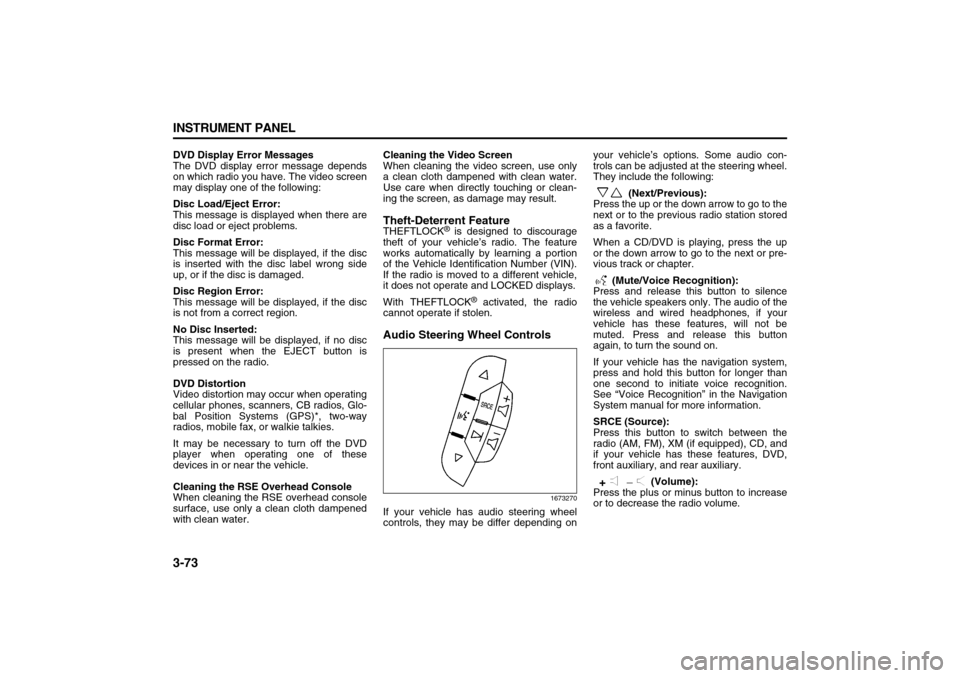
If your vehicle has audio steering wheel
controls, they may be differ depending onyour vehicle’s options. Some audio con-
trols can be adjusted at the steering wheel.
They include the following:
(Next/Previous):
Press the up or the down arrow to go to the
next or to the previous radio station stored
as a favorite.
When a CD/DVD is playing, press the up
or the down arrow to go to the next or pre-
vious track or chapter.
(Mute/Voice Recognition):
Press and release this button to silence
the vehicle speakers only. The audio of the
wireless and wired headphones, if your
vehicle has these features, will not be
muted. Press and release this button
again, to turn the sound on.
If your vehicle has the navigation system,
press and hold this button for longer than
one second to initiate voice recognition.
See “Voice Recognition” in the Navigation
System manual for more information.
SRCE (Source):
Press this button to switch between the
radio (AM, FM), XM (if equipped), CD, and
if your vehicle has these features, DVD,
front auxiliary, and rear auxiliary.
(Volume):
Press the plus or minus button to increase
or to decrease the radio volume.
Page 268 of 274

8-1 INDEX
88
78J00-03E
INDEXAAccessories and Modifications
..........................................5-1
Accessory Power Outlet(s)
.................................................3-10
Adding Equipment to the Outside of Your Vehicle
..........5-1
Adding Equipment to Your Airbag-Equipped Vehicle .....1-42
Additional Required Services
.............................................6-11
Additional Required Services except CANADA
................6-6
Additives
..............................................................................5-2
Add-On Electrical Equipment
.............................................5-53
Airbag Readiness Light
......................................................3-16
Airbag System
.....................................................................1-33
All-Wheel Drive ....................................................................5-22
All-Wheel Drive (AWD) System
..........................................4-6
All-Wheel Drive Disabled Light ..........................................3-25
Aluminum Wheels
...............................................................5-50
Anti-Lock Brake System (ABS)
..........................................4-4
Anti-Lock Brake System Warning Light
............................3-20
Appearance Care
.................................................................5-48
Assist Handles
.....................................................................2-22
At Each Fuel Fill ...................................................................6-14
At Least Once a Month
........................................................6-14
At Least Once a Year
...........................................................6-14
Audio Steering Wheel Controls
..........................................3-73
Audio System(s)
..................................................................3-39
Automatic Climate Control System
...................................3-10
Automatic Dimming Rearview Mirror ................................2-20
Automatic Dimming Rearview Mirror with Compass
.......2-20
Automatic Transaxle Fluid
..................................................5-10Automatic Transaxle Operation
......................................... 2-14
BBattery
.................................................................................. 5-18
Battery Run-Down Protection
............................................ 3-9
Battery Warning Light
........................................................ 3-19
Before Driving
..................................................................... 2-11
Before Leaving on a Long Trip
.......................................... 4-12
Brake System Warning Light
............................................. 3-19
Brakes
.................................................................................. 5-17
Braking ................................................................................. 4-3
Bulb Replacement
............................................................... 5-23
Buying New Tires ................................................................ 5-34
CCalifornia Fuel
..................................................................... 5-2
California Proposition 65 Warning
.................................... 5-1
Capacities and Specifications
........................................... 5-57
Care of Safety Belts
............................................................ 5-49
Care of the CD and DVD Player
......................................... 3-74
Care of Your CDs and DVDs
.............................................. 3-74
Cargo Lamp
......................................................................... 3-9
Carrier Assembly-Differential (Rear Drive Module)
......... 5-22
Center Console Storage Area
............................................ 2-22
Change Engine Oil Light
.................................................... 3-24
Changing a Flat Tire
........................................................... 5-38
Checking the Restraint Systems
....................................... 1-42
Checking Things Under the Hood ..................................... 5-5
Chemical Paint Spotting
..................................................... 5-51
Child Restraint Systems ..................................................... 1-21