display TESLA MODEL 3 2019 (Europe) User Guide
[x] Cancel search | Manufacturer: TESLA, Model Year: 2019, Model line: MODEL 3, Model: TESLA MODEL 3 2019Pages: 179, PDF Size: 9.18 MB
Page 75 of 179
When the cruising speed is
set, the speedometer icon on
the touchscreen turns blue
and displays the set cruising
speed.
Note: Moving the gear level fully down twice in
quick succession engages Autosteer
(assuming it has been enabled as described in Autosteer on page 79) and the set speed
changes to either your current driving speed,
or the current set speed (displayed in the icon), whichever is greater.
Note: The minimum speed you can set is
18 mph (30 km/h) and the maximum is 90
mph (150 km/h). It is the driver
Page 85 of 179
In situations where Autopark cannot operatedue to inadequate sensor data, the
touchscreen displays a message indicating that you must manually park Model 3.
Note: If you press the brake when Autopark is
actively parking Model 3, the parking process
pauses until you touch Resume on the
touchscreen.
Note: Autopark detects potential
perpendicular parking spaces that are at least
9.5 feet (2.9 meters) wide with a vehicle
parked on each side. Autopark detects parallel
parking spaces that are at least 20 feet (6
meters), but less than 30 feet (9 meters) long.
Autopark does not operate on angled parking spaces.Warning: Never depend on Autopark to
find a parking space that is legal, suitable,
and safe. Autopark may not always detect
objects in the parking space. Always
perform visual checks to confirm that a
parking space is appropriate and safe.Warning: When Autopark is actively
steering Model 3, the steering wheel moves in accordance with Autopark
Page 93 of 179
Speed Assist
How Speed Assist Works
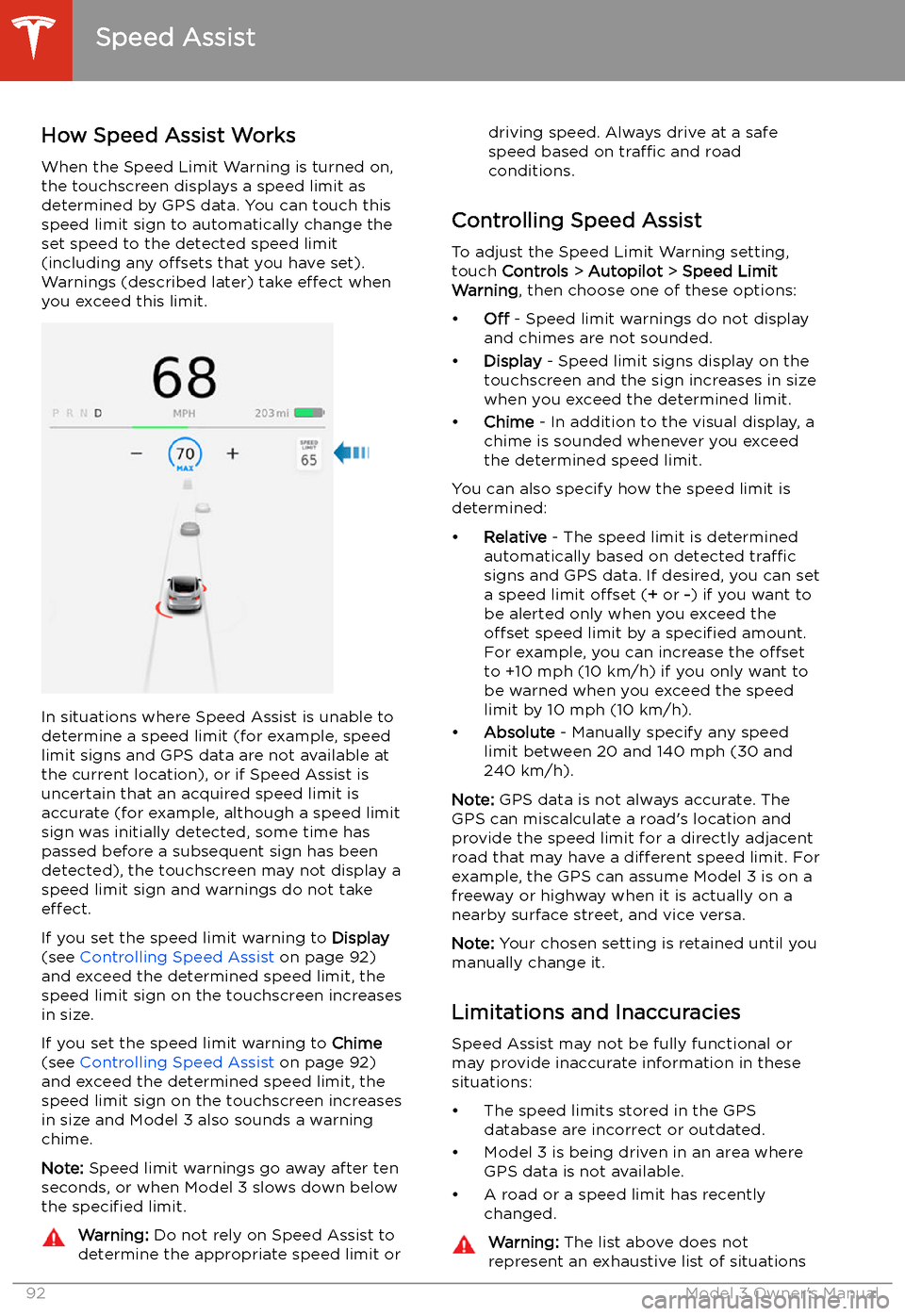
When the Speed Limit Warning is turned on,
the touchscreen displays a speed limit as determined by GPS data. You can touch this
speed limit sign to automatically change the
set speed to the detected speed limit
(including any offsets that you have set).
Warnings (described later) take effect when
you exceed this limit.
In situations where Speed Assist is unable to
determine a speed limit (for example, speed
limit signs and GPS data are not available at the current location), or if Speed Assist is
uncertain that an acquired speed limit is
accurate (for example, although a speed limit sign was initially detected, some time has
passed before a subsequent sign has been
detected), the touchscreen may not display a
speed limit sign and warnings do not take effect.
If you set the speed limit warning to Display
(see Controlling Speed Assist on page 92)
and exceed the determined speed limit, the
speed limit sign on the touchscreen increases
in size.
If you set the speed limit warning to Chime
(see Controlling Speed Assist on page 92)
and exceed the determined speed limit, the
speed limit sign on the touchscreen increases
in size and Model 3 also sounds a warning
chime.
Note: Speed limit warnings go away after ten
seconds, or when Model 3 slows down below
the specified limit.
Warning:
Do not rely on Speed Assist to
determine the appropriate speed limit ordriving speed. Always drive at a safe
speed based on traffic and road
conditions.
Controlling Speed Assist
To adjust the Speed Limit Warning setting,
touch Controls > Autopilot > Speed Limit
Warning , then choose one of these options:
Page 95 of 179
Using the Touchscreen
Controls
Overview
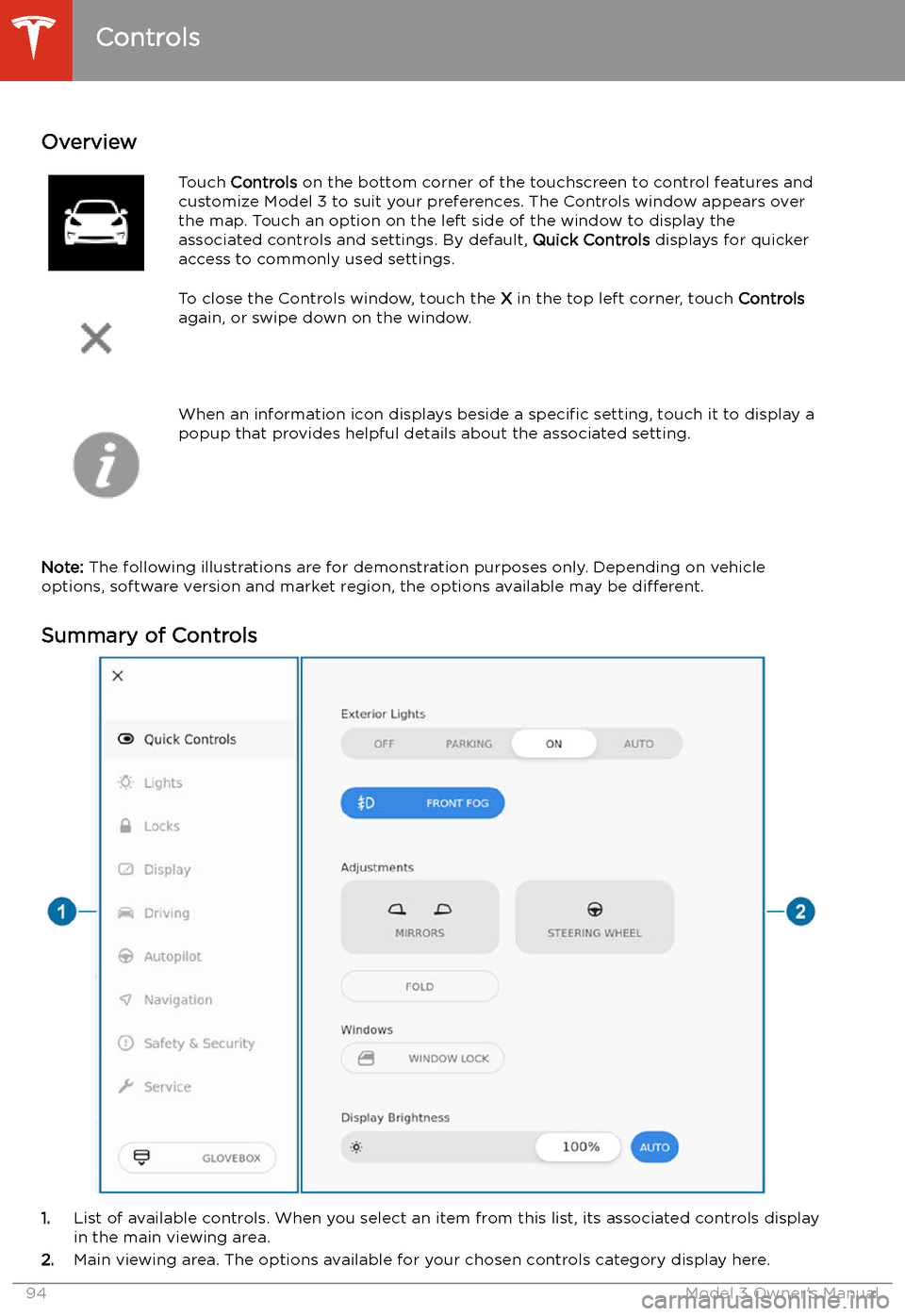
Touch Controls on the bottom corner of the touchscreen to control features and
customize Model 3 to suit your preferences. The Controls window appears over the map. Touch an option on the left side of the window to display the
associated controls and settings. By default, Quick Controls displays for quicker
access to commonly used settings.To close the Controls window, touch the X in the top left corner, touch Controls
again, or swipe down on the window.When an information icon displays beside a specific setting, touch it to display a
popup that provides helpful details about the associated setting.
Note: The following illustrations are for demonstration purposes only. Depending on vehicle
options, software version and market region, the options available may be different.
Summary of Controls
1. List of available controls. When you select an item from this list, its associated controls display
in the main viewing area.
2. Main viewing area. The options available for your chosen controls category display here.
Controls
94Model 3 Owner
Page 97 of 179
DisplayManually control the brightness and the DAY (light background) or NIGHT
(dark background) setting of the touchscreen. When set to AUTO, the
brightness changes automatically between day and night brightness based
on ambient lighting conditions.
Brightness : Drag the slider to manually control the brightness level of the
touchscreen. When Auto brightness is on, the touchscreen is further
adjusted based on both the surroundings and by learning your preferences
(for example, it remembers the type of manual adjustments you make).
Screen Clean Mode : Disable the touchscreen momentarily for cleaning
purposes.
Customize how units are displayed:
Page 98 of 179
DrivingAcceleration: Adjust the amount of acceleration. Chill limits acceleration for
a slightly smoother and gentler ride, whereas Standard provides the normal
level of acceleration.
Note: When Chill is selected, Chill displays on the touchscreen above the
driving speed.
Steering Mode : Adjust the amount of effort required to turn the steering
wheel. Sport feels more responsive whereas Comfort feels easier to drive
and park (see Adjusting Steering Effort on page 46).
Regenerative Braking : When you release the accelerator when driving,
regenerative braking slows Model 3 and feeds any surplus energy back to
the Battery. If set to LOW, Model 3 does not slow down as quickly, but also
feeds less energy back to the Battery (see Regenerative Braking on page
60).
Note: Regardless of the setting selected, the energy gained by regenerative
braking is reduced if the Battery is full, or is extremely cold or hot (in which
case, surplus energy is used to heat or cool it).
Traction Control : Turn slip start on to allow wheels to spin (see Traction
Control on page 62).
Creep : When on, Model 3 applies forward torque in Drive and backwards
torque in Reverse when you release the brake pedal (similar to a
conventional vehicle with an automatic transmission). The torque moves the
vehicle slowly on
Page 103 of 179
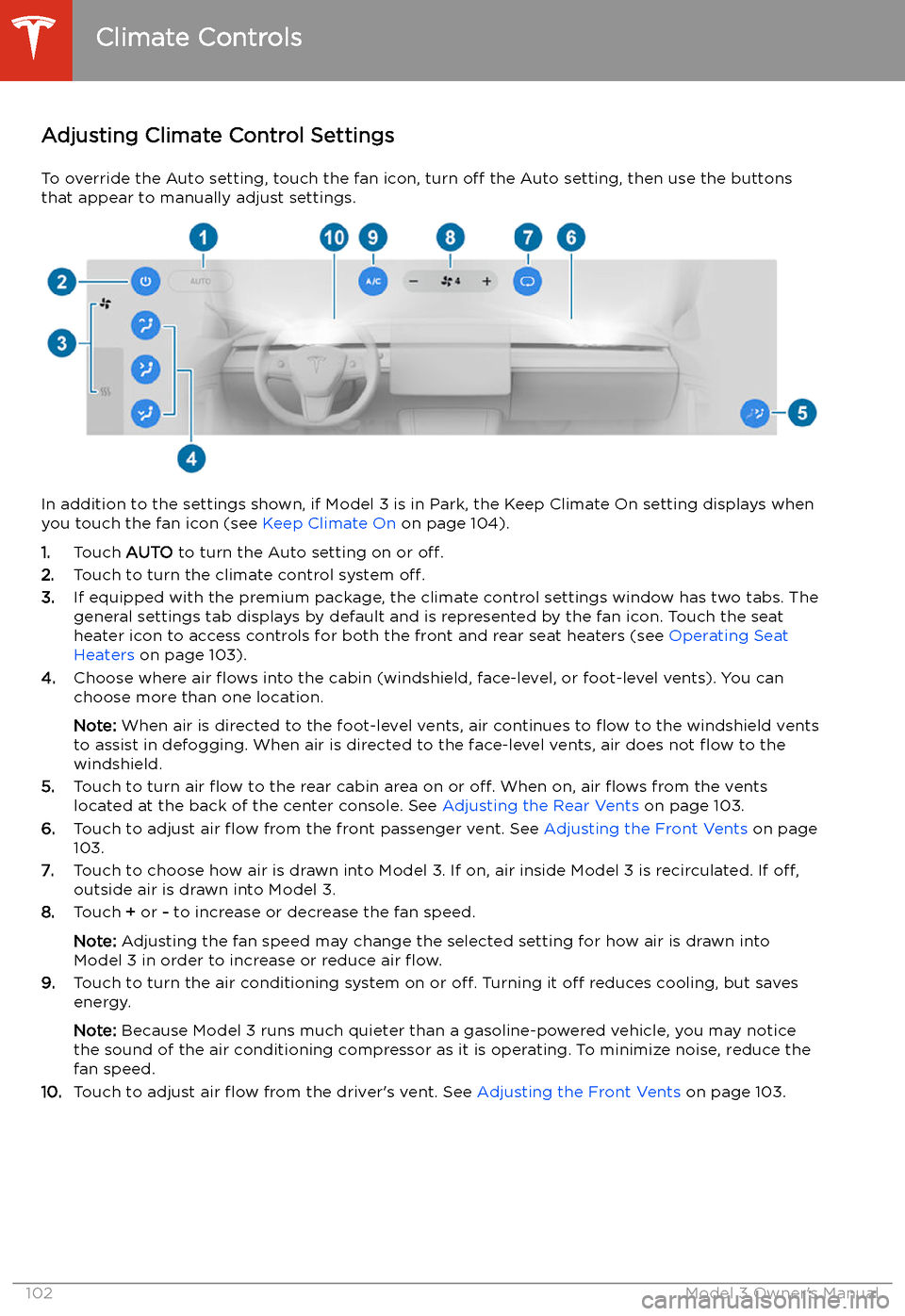
Adjusting Climate Control Settings
To override the Auto setting, touch the fan icon, turn off the Auto setting, then use the buttons
that appear to manually adjust settings.
In addition to the settings shown, if Model 3 is in Park, the Keep Climate On setting displays when
you touch the fan icon (see Keep Climate On on page 104).
1. Touch AUTO to turn the Auto setting on or off.
2. Touch to turn the climate control system off.
3. If equipped with the premium package, the climate control settings window has two tabs. The
general settings tab displays by default and is represented by the fan icon. Touch the seat
heater icon to access controls for both the front and rear seat heaters (see Operating Seat
Heaters on page 103).
4. Choose where air
Page 104 of 179
Operating Seat Heaters
To control the front seat heaters for the driver
and passenger, touch the corresponding
control on the main climate control area at the
bottom of the touchscreen. To control the rear
seat heaters (or access duplicate controls for
the front seat heaters), touch the fan icon,
then touch the seat heater icon followed by
the seat for which you want to adjust heating.
Seat heaters operate at three setting levels
from 3 (highest) to 1 (lowest). When
operating, the associated seat icon displays
twisting lines that turn red to indicate the
setting level. You can touch All Off to turn off
all seat heaters simultaneously.
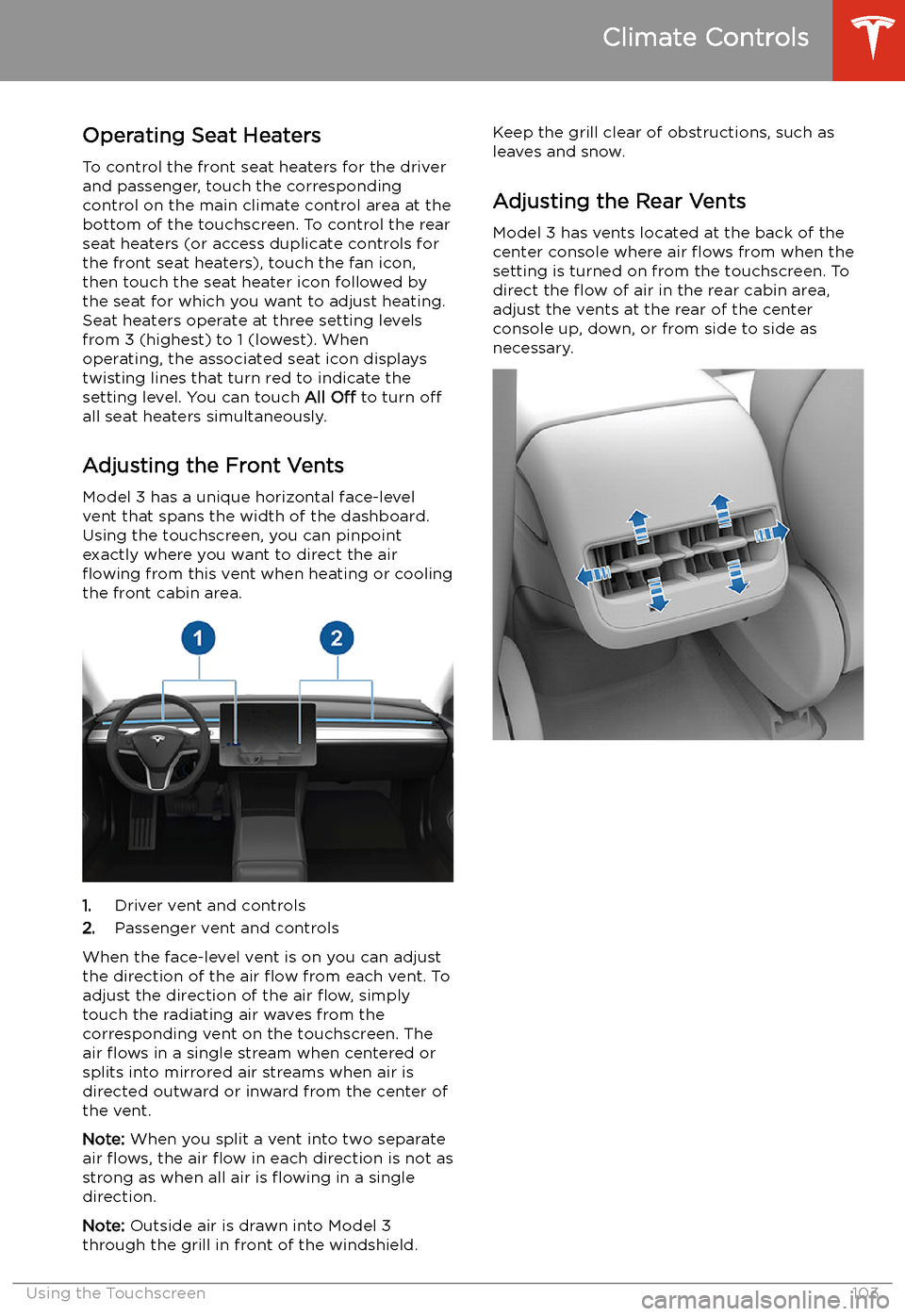
Adjusting the Front Vents
Model 3 has a unique horizontal face-level
vent that spans the width of the dashboard. Using the touchscreen, you can pinpoint
exactly where you want to direct the air
Page 107 of 179
Maps and Navigation
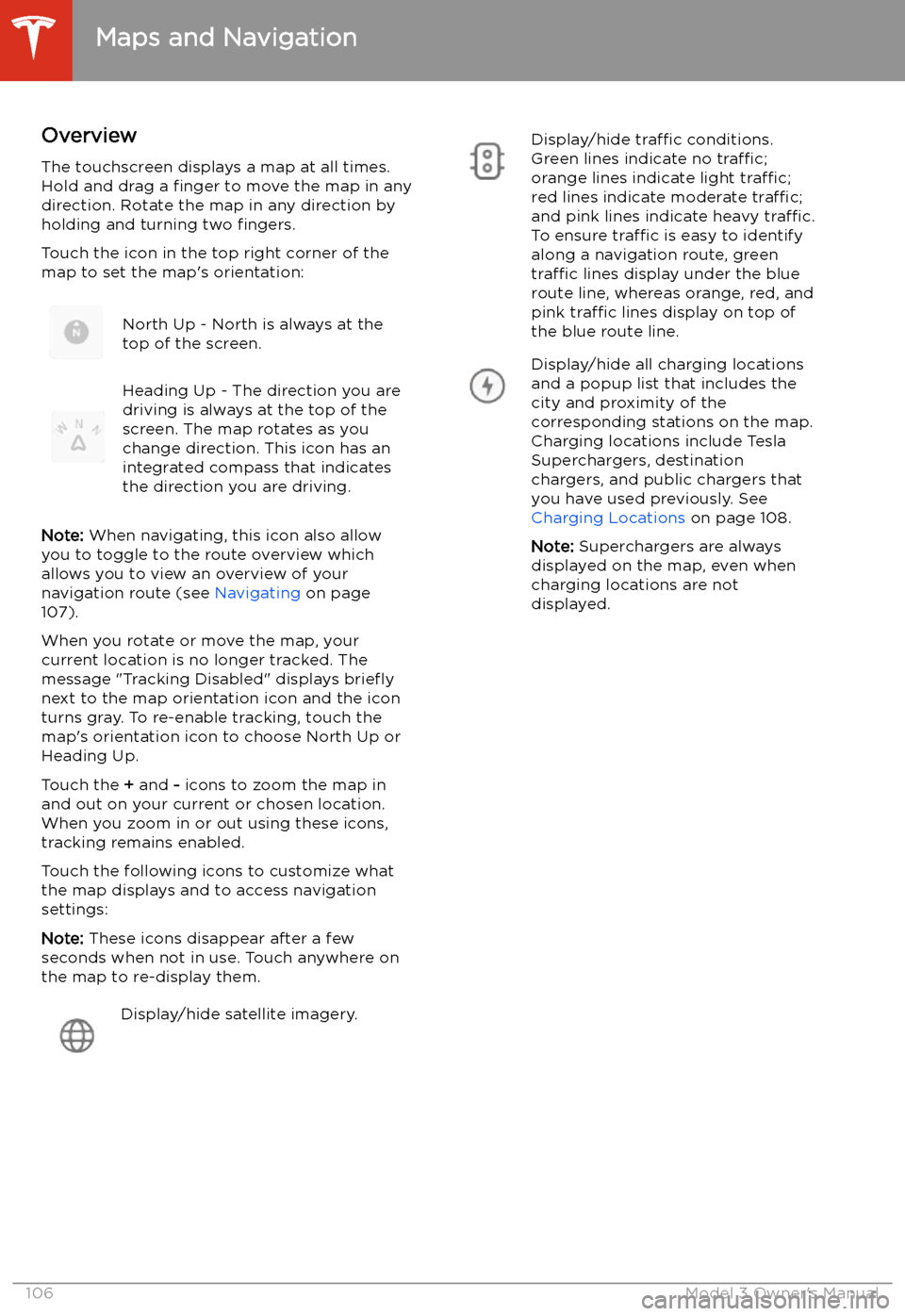
Overview
The touchscreen displays a map at all times.
Hold and drag a finger to move the map in any
direction. Rotate the map in any direction by
holding and turning two fingers.
Touch the icon in the top right corner of the
map to set the map
Page 109 of 179
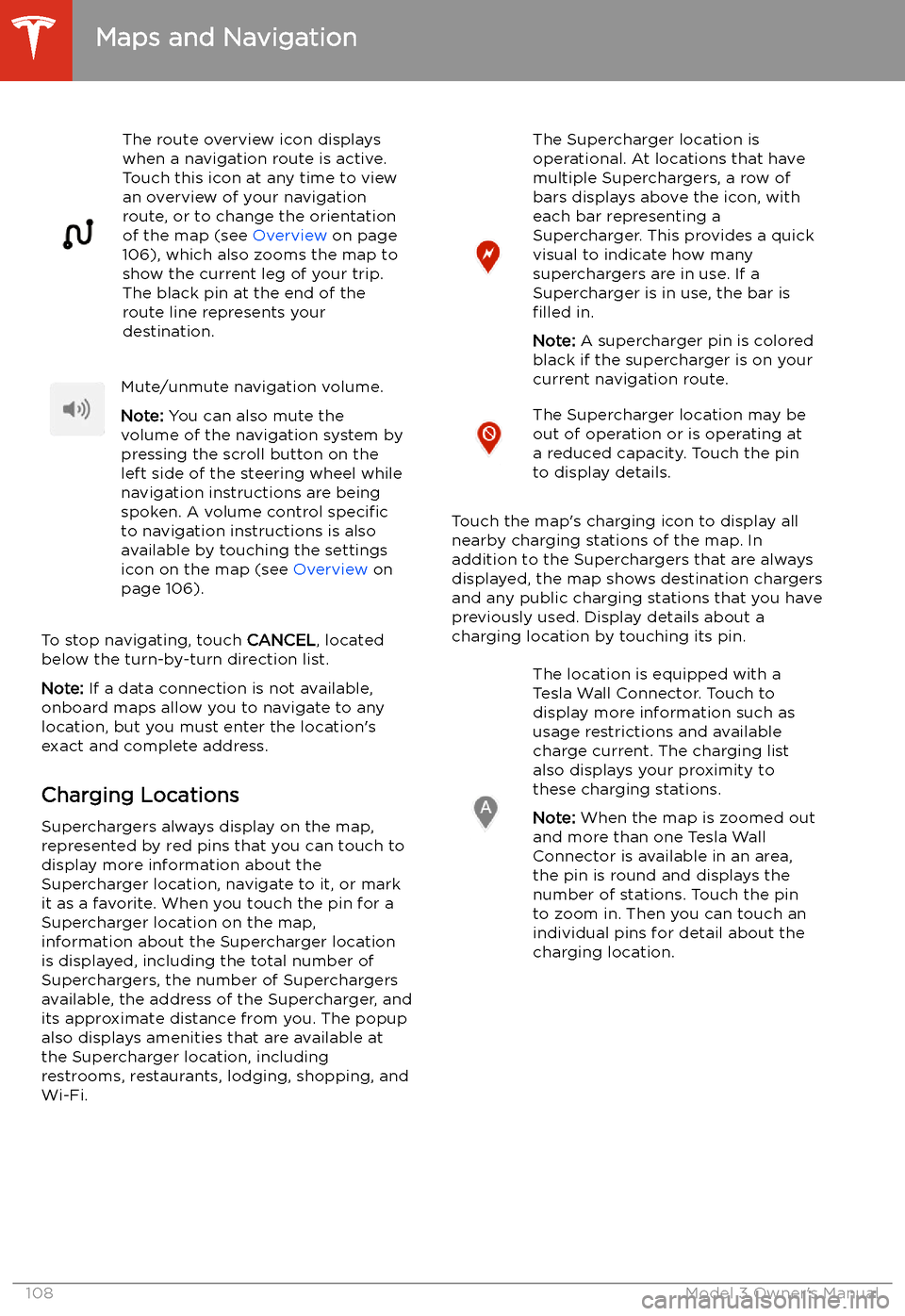
The route overview icon displays
when a navigation route is active.
Touch this icon at any time to view
an overview of your navigation
route, or to change the orientation
of the map (see Overview on page
106), which also zooms the map to
show the current leg of your trip.
The black pin at the end of the
route line represents your
destination.Mute/unmute navigation volume.
Note: You can also mute the
volume of the navigation system by
pressing the scroll button on the
left side of the steering wheel while
navigation instructions are being
spoken. A volume control specific
to navigation instructions is also
available by touching the settings
icon on the map (see Overview on
page 106).
To stop navigating, touch CANCEL, located
below the turn-by-turn direction list.
Note: If a data connection is not available,
onboard maps allow you to navigate to any
location, but you must enter the location