WARNING: Always pay attention to road and traffic conditions when driving. To minimize driver distraction and
ensure the safety of vehicle occupants as well as other road users, avoid using the touchscreen to adjust
settings while the vehicle is in motion.
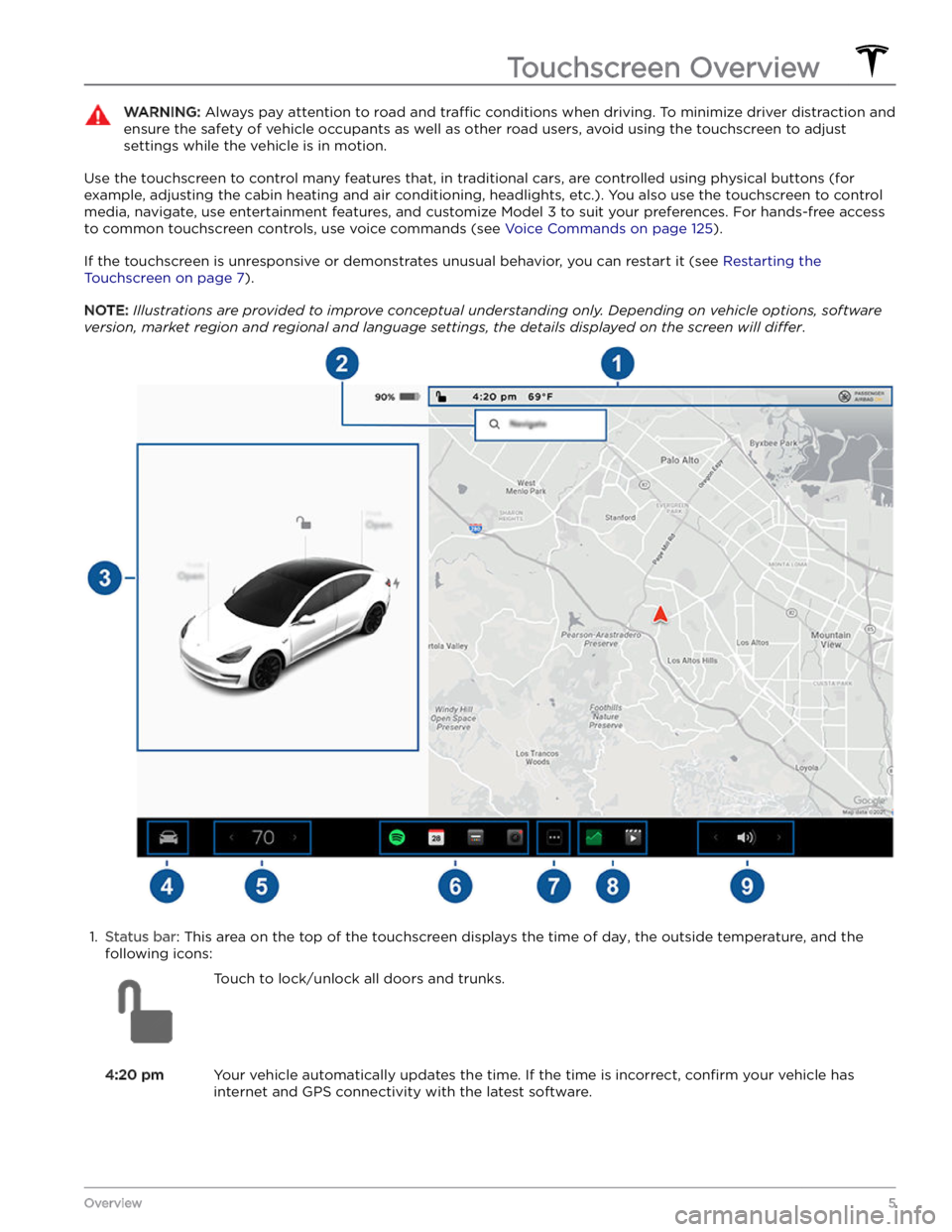
Use the touchscreen to control many features that, in traditional cars, are controlled using physical buttons (for example, adjusting the cabin heating and air conditioning, headlights, etc.). You also use the touchscreen to control
media, navigate, use entertainment features, and customize
Model 3 to suit your preferences. For hands-free access
to common touchscreen controls, use voice commands (see
Voice Commands on page 125).
If the touchscreen is unresponsive or demonstrates unusual behavior, you can restart it (see Restarting the
Touchscreen on page 7).
NOTE: Illustrations are provided to improve conceptual understanding only. Depending on vehicle options, software
version, market region and regional and language settings, the details displayed on the screen will differ.
1.
Status bar: This area on the top of the touchscreen displays the time of day, the outside temperature, and the
following icons:
Touch to lock/unlock all doors and trunks.4:20 pmYour vehicle automatically updates the time. If the time is incorrect, confirm your vehicle has
internet and GPS connectivity with the latest software.
Touchscreen Overview
5Overview