lock TESLA MODEL S 2014 (Europe) Owner's Guide
[x] Cancel search | Manufacturer: TESLA, Model Year: 2014, Model line: MODEL S, Model: TESLA MODEL S 2014Pages: 152, PDF Size: 17.5 MB
Page 52 of 152
LightsLights
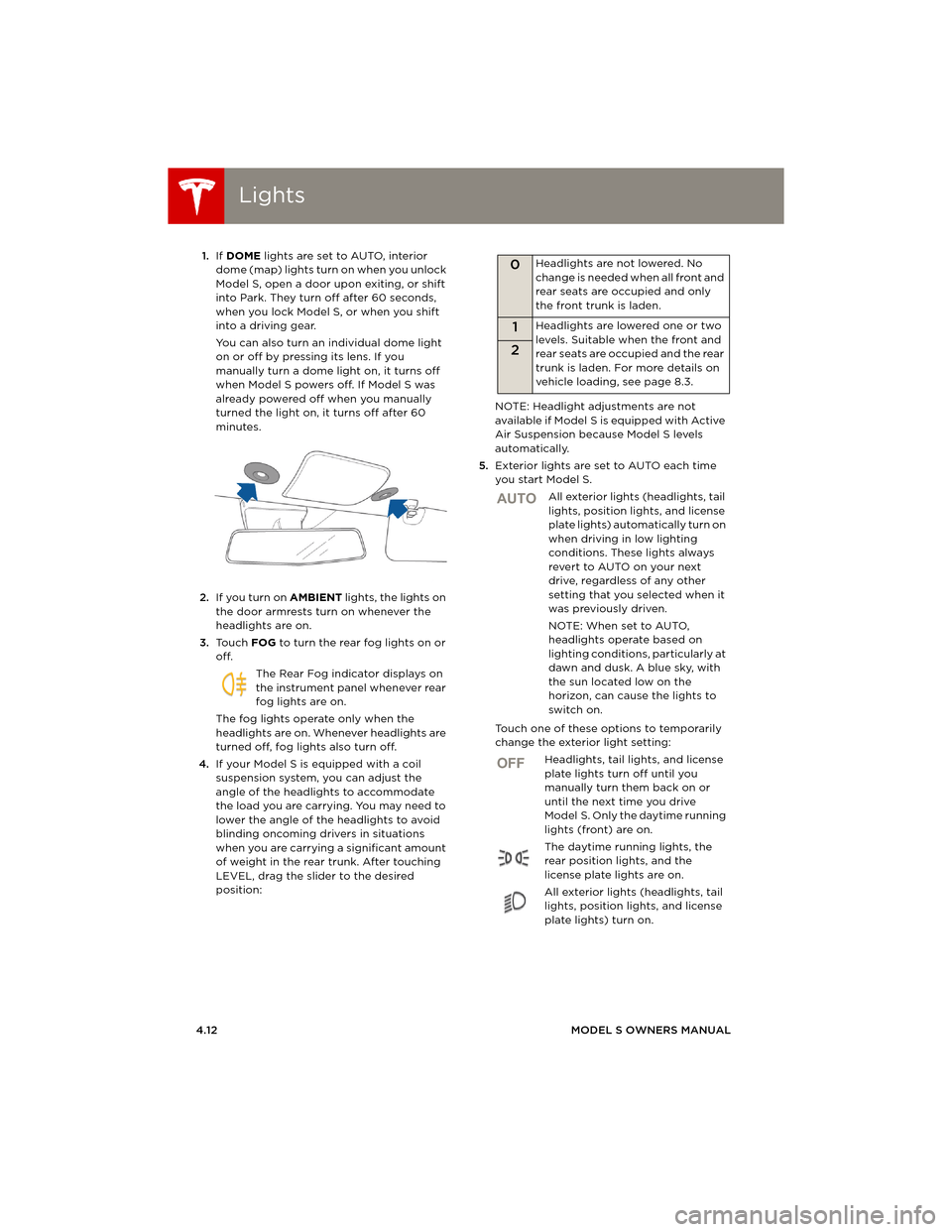
4.12MODEL S OWNERS MANUAL 1.If DOME lights are set to AUTO, interior
dome (map) lights turn on when you unlock
Model S, open a door upon exiting, or shift
into Park. They turn off after 60 seconds,
when you lock Model S, or when you shift
into a driving gear.
You can also turn an individual dome light
on or off by pressing its lens. If you
manually turn a dome light on, it turns off
when Model S powers off. If Model S was
already powered off when you manually
turned the light on, it turns off after 60
minutes.
2.If you turn on AMBIENT lights, the lights on
the door armrests turn on whenever the
headlights are on.
3.To u c h FOG to turn the rear fog lights on or
off.
The Rear Fog indicator displays on
the instrument panel whenever rear
fog lights are on.
The fog lights operate only when the
headlights are on. Whenever headlights are
turned off, fog lights also turn off.
4.If your Model S is equipped with a coil
suspension system, you can adjust the
angle of the headlights to accommodate
the load you are carrying. You may need to
lower the angle of the headlights to avoid
blinding oncoming drivers in situations
when you are carrying a significant amount
of weight in the rear trunk. After touching
LEVEL, drag the slider to the desired
position:NOTE: Headlight adjustments are not
available if Model S is equipped with Active
Air Suspension because Model S levels
automatically.
5.Exterior lights are set to AUTO each time
you start Model S.
All exterior lights (headlights, tail
lights, position lights, and license
plate lights) automatically turn on
when driving in low lighting
conditions. These lights always
revert to AUTO on your next
drive, regardless of any other
setting that you selected when it
was previously driven.
NOTE: When set to AUTO,
headlights operate based on
lighting conditions, particularly at
dawn and dusk. A blue sky, with
the sun located low on the
horizon, can cause the lights to
switch on.
Touch one of these options to temporarily
change the exterior light setting:
Headlights, tail lights, and license
plate lights turn off until you
manually turn them back on or
until the next time you drive
Model S. Only the daytime running
lights (front) are on.
The daytime running lights, the
rear position lights, and the
license plate lights are on.
All exterior lights (headlights, tail
lights, position lights, and license
plate lights) turn on.
0Headlights are not lowered. No
change is needed when all front and
rear seats are occupied and only
the front trunk is laden.
1Headlights are lowered one or two
levels. Suitable when the front and
rear seats are occupied and the rear
trunk is laden. For more details on
vehicle loading, see page 8.3.
2
AUTO
OFF
book.book Page 12 Friday, July 19, 2013 12:53 PM
Page 53 of 152
Lights
DRIVING4.13
Headlight High Beams
Push the left-hand steering column lever away
from you. To cancel, pull the lever toward you.
The high beam indicator displays on the
instrument panel whenever high beams
are on.
To flash the headlight high beams, pull the lever
fully toward you and release.
Headlights After Exit
When you stop driving and park Model S in low
lighting conditions, the exterior lights
automatically turn on. They automatically turn
off after two minutes or when you lock Model S.
You can turn this feature on and off using the
touchscreen. Touch Controls > Settings >
Vehicle > Headlights After Exit.
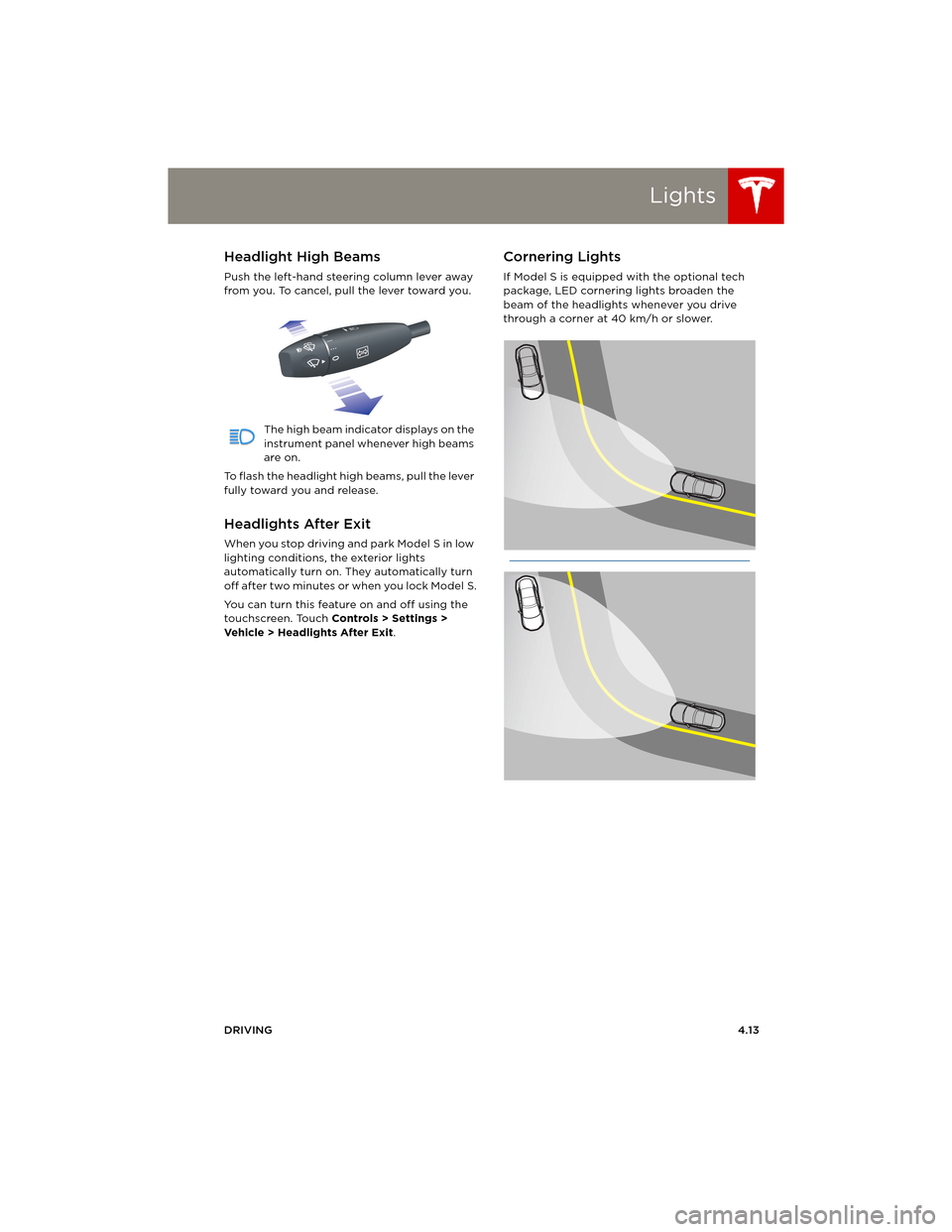
Cornering Lights
If Model S is equipped with the optional tech
package, LED cornering lights broaden the
beam of the headlights whenever you drive
through a corner at 40 km/h or slower.
book.book Page 13 Friday, July 19, 2013 12:53 PM
Page 60 of 152
BrakesBrakes
4.20MODEL S OWNERS MANUAL
BrakesBraking Systems
Model S has an anti-lock braking system (ABS)
that prevents the wheels from locking when
you apply maximum brake pressure. This
improves steering control during heavy braking
in most road conditions.
During emergency braking conditions, the ABS
constantly monitors the speed of each wheel
and varies the brake pressure according to the
grip available.
The alteration of brake pressure can be felt as a
pulsing sensation through the brake pedal. This
demonstrates that ABS is operating and is not
a cause for concern. Keep firm and steady
pressure on the brake pedal while experiencing
the pulsing.
The ABS indicator flashes briefly on the
instrument panel when you first start
Model S. If this indicator displays at any
other time, an ABS fault has occurred
and ABS is not operating. Contact Tesla.
The braking system remains fully
operational and is not affected by an
ABS failure. However, braking distances
may increase.
If the instrument panel displays this
indicator at any time other than
displaying briefly when you first start
Model S, a brake system fault is
detected or the brake fluid level is low.
Contact Tesla immediately.
Emergency Braking
In an emergency, fully press the brake pedal
and maintain firm pressure, even on low
traction surfaces. ABS varies the braking
pressure to each wheel according to the
amount of traction available. This prevents
wheels from locking and ensures that you stop
as safely as possible.
WARNING: Do not pump the brake pedal.
Doing so interrupts operation of the ABS
and can increase braking distance.
WARNING: Always maintain a safe
distance from the vehicle in front of you
and be aware of hazardous driving conditions.
While ABS can improve stopping distance, it
cannot overcome the laws of physics. It also
does not prevent the danger of hydroplaning
(where a layer of water prevents direct contact
between the tires and the road).
Brake Wear
Model S brake pads are equipped with wear
indicators. A wear indicator is a thin metal strip
attached to the brake pad that squeals as it
rubs against the rotor when the pad wears
down. This squealing sound indicates that the
brake pads have reached the end of their
service life and require replacement. To stop
the squealing, contact Tesla Service.
Brakes must be periodically inspected visually
by removing the tire and wheel. For detailed
specifications and service limits for rotors and
brake pads, see page 8.6.
WARNING: Neglecting to replace worn
brake pads will result in damage to the
braking system and can create a braking
hazard.
book.book Page 20 Friday, July 19, 2013 12:53 PM
Page 67 of 152
Touchscreen Overview
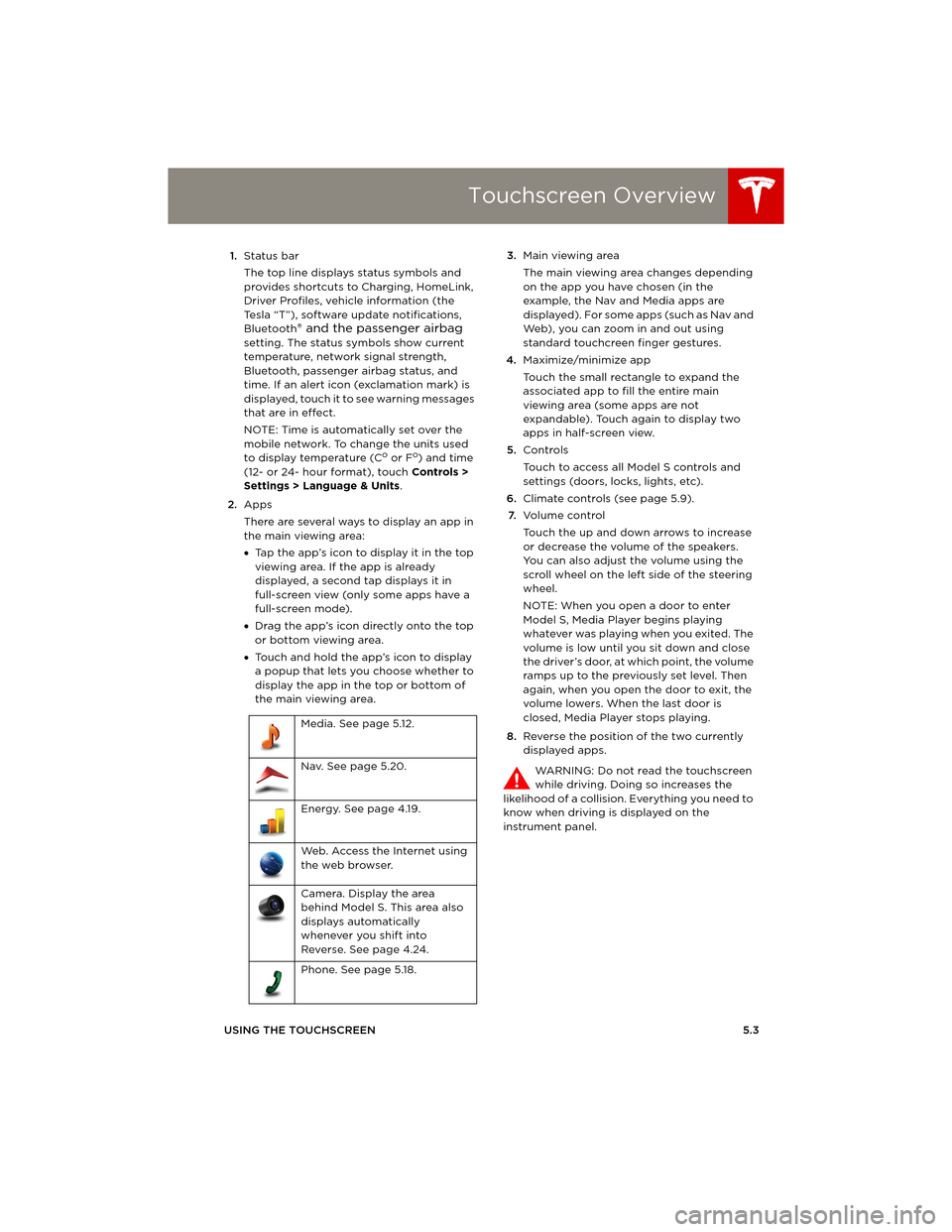
USING THE TOUCHSCREEN5.3 1.Status bar
The top line displays status symbols and
provides shortcuts to Charging, HomeLink,
Driver Profiles, vehicle information (the
Tesla “T”), software update notifications,
Bluetooth
® and the passenger airbag
setting. The status symbols show current
temperature, network signal strength,
Bluetooth, passenger airbag status, and
time. If an alert icon (exclamation mark) is
displayed, touch it to see warning messages
that are in effect.
NOTE: Time is automatically set over the
mobile network. To change the units used
to display temperature (C
o or Fo) and time
(12- or 24- hour format), touch Controls >
Settings > Language & Units.
2.Apps
There are several ways to display an app in
the main viewing area:
•Tap the app’s icon to display it in the top
viewing area. If the app is already
displayed, a second tap displays it in
full-screen view (only some apps have a
full-screen mode).
•Drag the app’s icon directly onto the top
or bottom viewing area.
•Touch and hold the app’s icon to display
a popup that lets you choose whether to
display the app in the top or bottom of
the main viewing area. 3.Main viewing area
The main viewing area changes depending
on the app you have chosen (in the
example, the Nav and Media apps are
displayed). For some apps (such as Nav and
Web), you can zoom in and out using
standard touchcreen finger gestures.
4.Maximize/minimize app
Touch the small rectangle to expand the
associated app to fill the entire main
viewing area (some apps are not
expandable). Touch again to display two
apps in half-screen view.
5.Controls
Touch to access all Model S controls and
settings (doors, locks, lights, etc).
6.Climate controls (see page 5.9).
7.Vo l u m e co n t r o l
Touch the up and down arrows to increase
or decrease the volume of the speakers.
You can also adjust the volume using the
scroll wheel on the left side of the steering
wheel.
NOTE: When you open a door to enter
Model S, Media Player begins playing
whatever was playing when you exited. The
volume is low until you sit down and close
the driver’s door, at which point, the volume
ramps up to the previously set level. Then
again, when you open the door to exit, the
volume lowers. When the last door is
closed, Media Player stops playing.
8.Reverse the position of the two currently
displayed apps.
WARNING: Do not read the touchscreen
while driving. Doing so increases the
likelihood of a collision. Everything you need to
know when driving is displayed on the
instrument panel. Media. See page 5.12.
Nav. See page 5.20.
Energy. See page 4.19.
Web. Access the Internet using
the web browser.
Camera. Display the area
behind Model S. This area also
displays automatically
whenever you shift into
Reverse. See page 4.24.
Phone. See page 5.18.
book.book Page 3 Friday, July 19, 2013 12:53 PM
Page 69 of 152
Touchscreen - Controls
USING THE TOUCHSCREEN5.5 1.Close
Touch the circled X in the top left of a
window to close it. You can also touch
anywhere outside the window to close it.
2.Sunroof
If Model S is equipped with a sunroof, touch
to adjust its position (see page 2.12).
3.Driving
•Suspension
If Model S is equipped with Active Air
Suspension, touch to manually raise or
lower Model S (see page 5.11). You must
press the brake pedal before you can
change suspension settings. Active Air
Suspension causes Model S to self-level,
even when powered off. Therefore, when
lifting or towing, you must disable
self-leveling (see pages 7.23 and 9.3).
•Steering mode
Adjust the amount of effort required to
turn the steering wheel. Sport feels more
responsive whereas Comfort feels easier
to drive and park (see page 4.3).
•Regenerative braking
When you release the accelerator when
driving, regenerative braking slows
Model S and feeds any surplus energy
b a c k t o t h e B a t t e r y. I f s e t t o L o w, M o d e l S
does not slow down as quickly, but you
may experience less range (see
page 4.21).
NOTE: Regardless of the setting, the
energy gained by regenerative braking is
reduced if the Battery is full, or if it is
extremely cold or hot (the surplus energy
is used to heat or cool the Battery).
•Tr a c t i o n C o n t r o l
If you turn off Traction Control, a warning
message displays on the instrument
panel. The off setting stays in effect for
the current drive only (see page 4.22).
•Creep
When on, Model S slowly moves forward
when in Drive and backward in Reverse
when you release the brake (similar to a
conventional vehicle with an automatic
transmission). You can only adjust this
setting when Model S is in Park.4.Cold Weather
If Model S is equipped with the cold
weather option, you can control all seat
heaters and the heated wipers. Note that
you can also control the front driver and
passenger seats using the main climate
control panel located on the bottom of the
touchscreen (see page 5.8).
5.Tr i p s
View and reset the trip meters that
summarize how far you have driven (see
page 4.18).
6.Displays
Manually control the touchscreen’s
brightness and control its day (light
background) or night (dark background)
setting. When set to Auto, the touchscreen
automatically changes between Day and
Night brightness depending on the ambient
lighting conditions.
7.E-Brake & Power Off
You can manually:
•Apply and release the parking brake
(page 4.20).
•Power off (see page 4.6).
•Keep Model S in Neutral by activating
Tow Mode (see page 9.3).
8.Doors & locks (see page 2.4)
9.Control lights (see page 4.11)
WARNING: Do not read the touchscreen
while driving. Doing so increases the
likelihood of a collision. Everything you need to
know when driving is displayed on the
instrument panel.
book.book Page 5 Friday, July 19, 2013 12:53 PM
Page 71 of 152
Touchscreen - Settings
USING THE TOUCHSCREEN5.7 1.Adjust settings associated with installed
apps (applications). Apps that have no
settings that you can adjust at this time are
grayed out.
2.Create driver profiles (see page 4.2)
3.Language & Units
Adjust how Model S displays:
•Language: Set the language used when
Model S displays alerts, notification
messages, and navigation instructions (if
equipped).
NOTE: When you change the language,
you experience a brief delay as Model S
shuts down and restarts the touchscreen.
•Region: Choose a region to define the
formatting convention used to display
dates (mm dd yy/dd-mm-yy, etc) and
decimal separators (5.123, 5,123, etc).
•Distance: Miles or kms can be shown on
the range display, speedometer, energy
chart, trip meters, Google map searches
and navigation routes.
•Time: 12 or 24 hour format.
•Temperature:
oF or oC.
•Charging Units: Display energy (kWh) or
distance (miles/kms).
•Range: Rated range (based on ECE R101
testing), or Ideal range (based on the
assumption of driving in ideal conditions
at a steady speed of 89 km/h on a flat
road, and using no additional energy
(seat heaters, air conditioning, etc).
4.Ve h i c l e
•Drive-away Door Lock: If on, all doors
automatically lock whenever you drive
Model S over 8 km/h (see page 2.5).
•Walk-away Door Lock: If on, all doors
automatically lock when you walk away
from Model S, carrying the key with you
(see page 2.5). Available only if Model S is
equipped with the optional tech package.
•Child-Protection Locks: If on, safety locks
prevent the rear doors and the liftgate
from being opened from inside Model S.
•Auto-Present Handles: If on, door handles
extend automatically whenever you
approach Model S carrying a key,
whether locked or unlocked (see
page 2.4.•Mirror Auto-Tilt: If on, exterior mirrors tilt
downward when reversing (see
page 4.5). Available only if Model S is
equipped with the optional tech package.
•Headlights After Exit: If on, headlights
stay on for two minutes after you exit, or
until you lock Model S (see page 4.13).
•Range Mode: If on, Model S conserves
energy by limiting the power of the
climate control system. Cabin heating and
cooling may be less effective.
5.Safety & Security
Turn various safety and security features on
and off:
•Passenger Airbag (see page 3.17).
•Alarm, and security options Model S is
equipped with (see page 5.22).
•Remote access by Tesla’s mobile
applications (see page 5.25).
6.HomeLink
Use HomeLink to control RF-enabled
garage doors, lights, or security systems
(see page 5.23).
WARNING: Do not read the touchscreen
while driving. Doing so increases the
likelihood of a collision. Everything you need to
know when driving is displayed on the
instrument panel.
book.book Page 7 Friday, July 19, 2013 12:53 PM
Page 86 of 152
Security SettingsSecurity Settings
5.22MODEL S OWNERS MANUAL
Security SettingsAbout the Security System
If Model S does not detect a key nearby and a
locked door or trunk is opened, the horn beeps
and headlights and turn signals flash. To
deactivate the alarm, press any button on the
key.
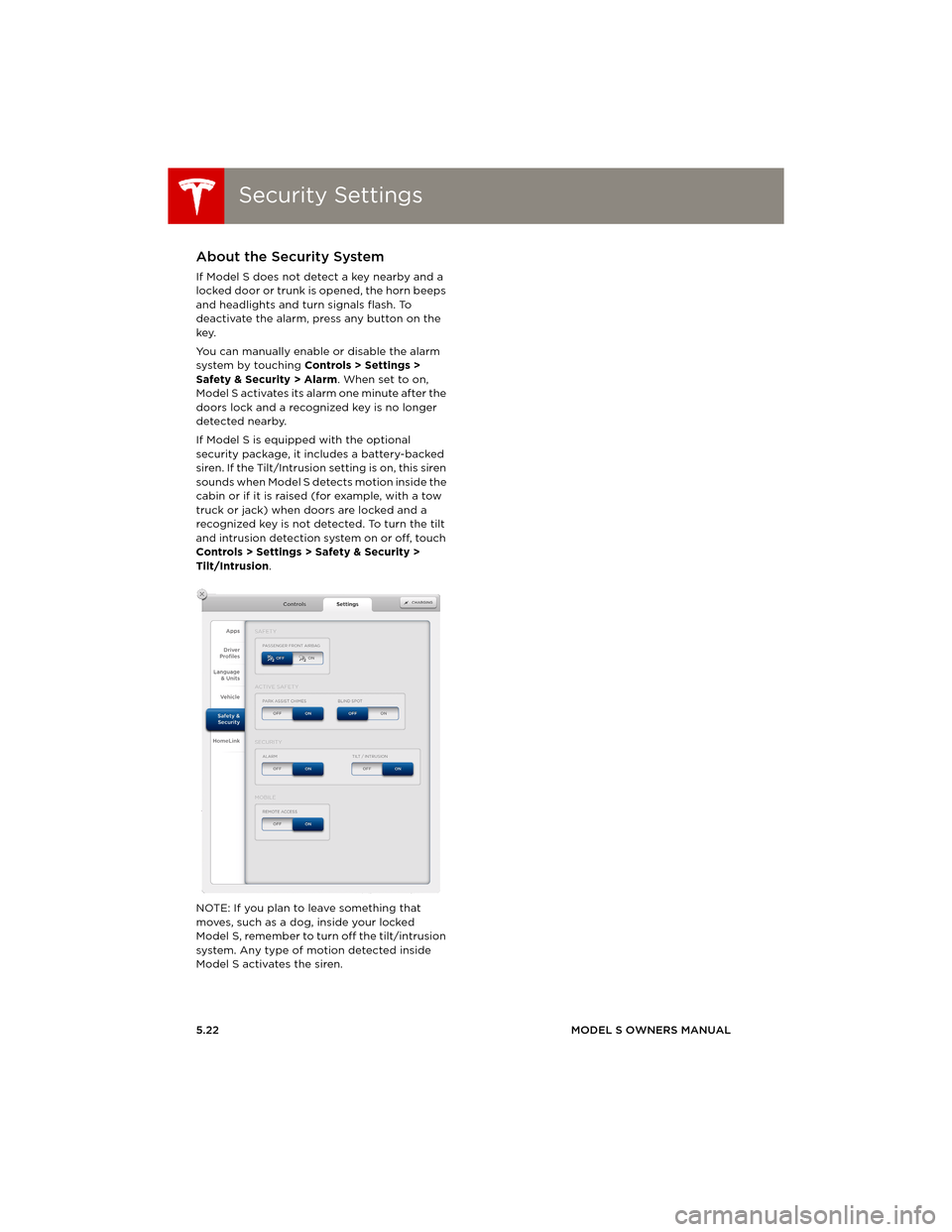
You can manually enable or disable the alarm
system by touching Controls > Settings >
Safety & Security > Alarm. When set to on,
Model S activates its alarm one minute after the
doors lock and a recognized key is no longer
detected nearby.
If Model S is equipped with the optional
security package, it includes a battery-backed
siren. If the Tilt/Intrusion setting is on, this siren
sounds when Model S detects motion inside the
cabin or if it is raised (for example, with a tow
truck or jack) when doors are locked and a
recognized key is not detected. To turn the tilt
and intrusion detection system on or off, touch
Controls > Settings > Safety & Security >
Tilt/Intrusion.
NOTE: If you plan to leave something that
moves, such as a dog, inside your locked
Model S, remember to turn off the tilt/intrusion
system. Any type of motion detected inside
Model S activates the siren.
book.book Page 22 Friday, July 19, 2013 12:53 PM
Page 88 of 152
Software UpdatesSoftware Updates
5.24MODEL S OWNERS MANUAL
Software UpdatesLoading New Software
Model S updates its software wirelessly,
providing new features throughout your term
of ownership. The first time you enter Model S
after an update is made available, a scheduling
window displays on the touchscreen.
NOTE: A software update can take up to two
hours to complete (an estimated time is
provided). Model S must be in Park when the
new software is being installed.
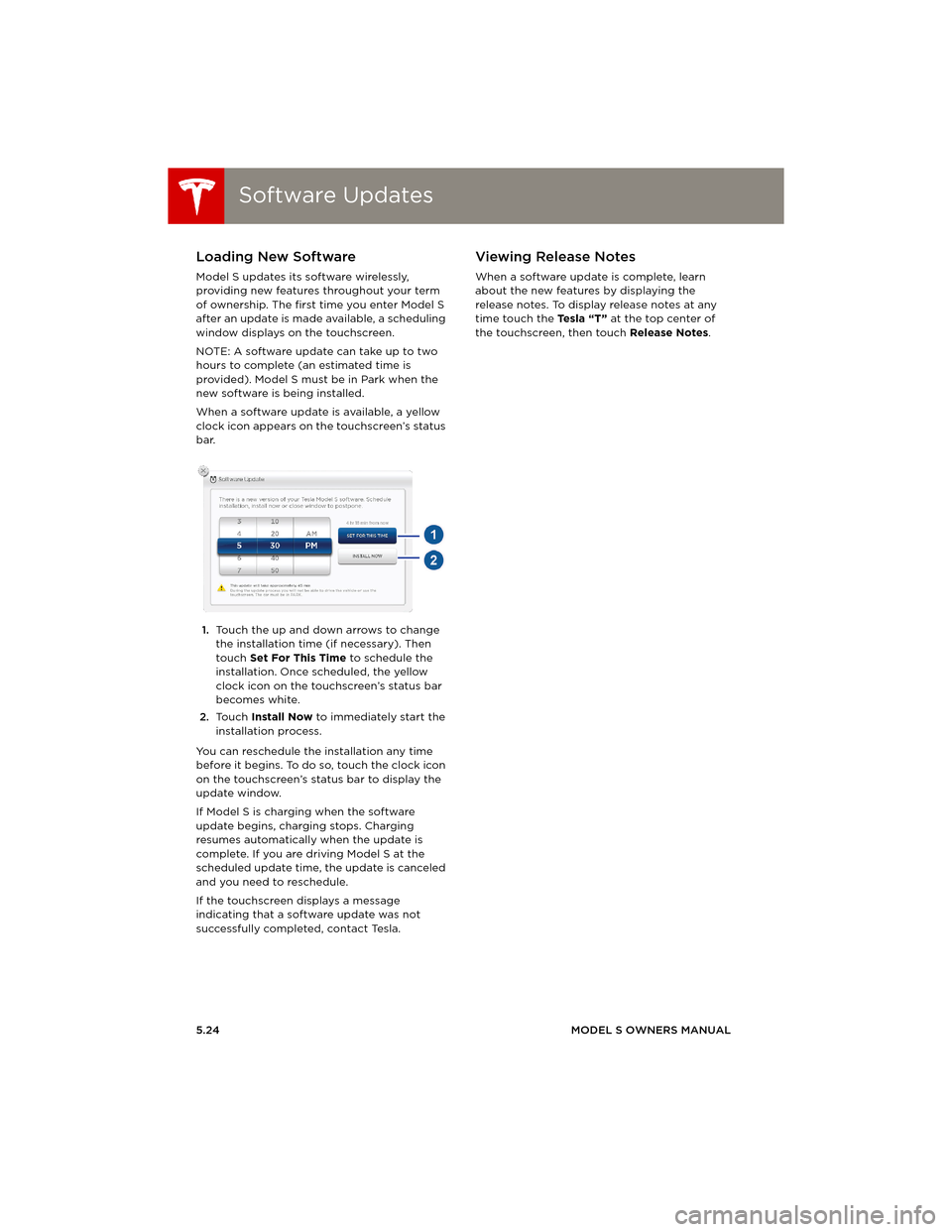
When a software update is available, a yellow
clock icon appears on the touchscreen’s status
bar.
1.Touch the up and down arrows to change
the installation time (if necessary). Then
touch Set For This Time to schedule the
installation. Once scheduled, the yellow
clock icon on the touchscreen’s status bar
becomes white.
2.To u c h Install Now to immediately start the
installation process.
You can reschedule the installation any time
before it begins. To do so, touch the clock icon
on the touchscreen’s status bar to display the
update window.
If Model S is charging when the software
update begins, charging stops. Charging
resumes automatically when the update is
complete. If you are driving Model S at the
scheduled update time, the update is canceled
and you need to reschedule.
If the touchscreen displays a message
indicating that a software update was not
successfully completed, contact Tesla.
Viewing Release Notes
When a software update is complete, learn
about the new features by displaying the
release notes. To display release notes at any
time touch the Te s l a “ T ” at the top center of
the touchscreen, then touch Release Notes.
book.book Page 24 Friday, July 19, 2013 12:53 PM
Page 89 of 152
Mobile App
USING THE TOUCHSCREEN5.25
Mobile AppModel S Mobile App
The Tesla Model S mobile app allows you to
communicate with Model S remotely using your
iPhone
® or Android™ phone. With this app, you
can check charging progress, start and stop
charging, heat or cool Model S, locate Model S
or track its movement, flash lights, honk the
horn, lock and unlock, and more.
Simply download the app to your phone and
enter your login credentials. You must also
ensure that Model S is ready to communicate
with the mobile app by turning on its remote
access setting. Touch Controls > Settings >
Safety & Security > Remote Access > On.
book.book Page 25 Friday, July 19, 2013 12:53 PM
Page 95 of 152
Charging Model S
CHARGING6.5
Charging Model SOpening the Charge Port
The charge port is located on the driver’s side
o f M o d e l S , b e h i n d a d o o r t h a t i s p a r t o f t h e r e a r
tail light assembly.
Park Model S so that the charge cable easily
reaches the charge port.
With Model S unlocked, or a recognized key
nearby, press and hold the button on a Tesla
charging cable.
If the cable you are using
does not have this
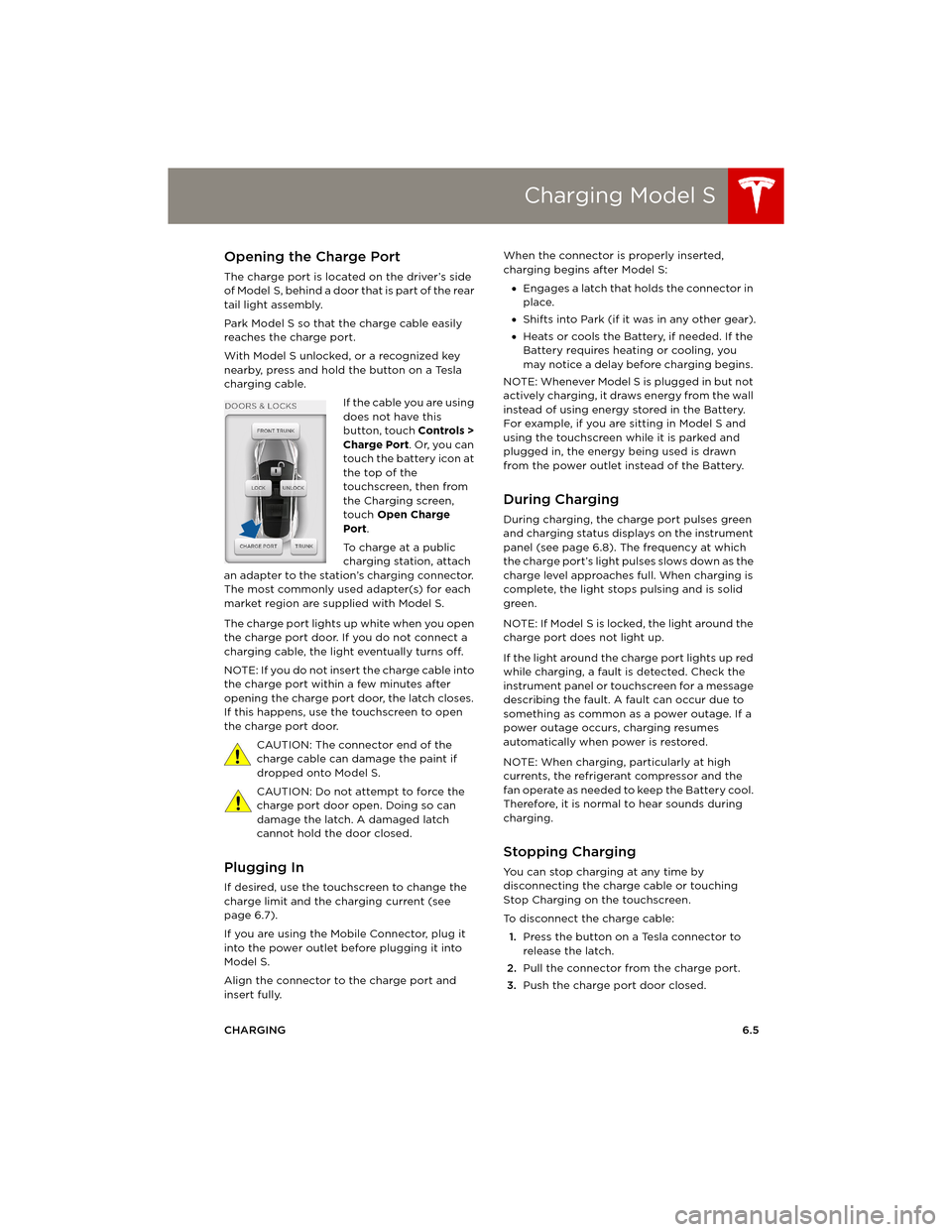
button, touch Controls >
Charge Port. Or, you can
touch the battery icon at
the top of the
touchscreen, then from
the Charging screen,
touch Open Charge
Port.
To charge at a public
charging station, attach
an adapter to the station’s charging connector.
The most commonly used adapter(s) for each
market region are supplied with Model S.
The charge port lights up white when you open
the charge port door. If you do not connect a
charging cable, the light eventually turns off.
NOTE: If you do not insert the charge cable into
the charge port within a few minutes after
opening the charge port door, the latch closes.
If this happens, use the touchscreen to open
the charge port door.
CAUTION: The connector end of the
charge cable can damage the paint if
dropped onto Model S.
CAUTION: Do not attempt to force the
charge port door open. Doing so can
damage the latch. A damaged latch
cannot hold the door closed.
Plugging In
If desired, use the touchscreen to change the
charge limit and the charging current (see
page 6.7).
If you are using the Mobile Connector, plug it
into the power outlet before plugging it into
Model S.
Align the connector to the charge port and
insert fully. When the connector is properly inserted,
charging begins after Model S:
•Engages a latch that holds the connector in
place.
•Shifts into Park (if it was in any other gear).
•Heats or cools the Battery, if needed. If the
Battery requires heating or cooling, you
may notice a delay before charging begins.
NOTE: Whenever Model S is plugged in but not
actively charging, it draws energy from the wall
instead of using energy stored in the Battery.
For example, if you are sitting in Model S and
using the touchscreen while it is parked and
plugged in, the energy being used is drawn
from the power outlet instead of the Battery.
During Charging
During charging, the charge port pulses green
and charging status displays on the instrument
panel (see page 6.8). The frequency at which
the charge port’s light pulses slows down as the
charge level approaches full. When charging is
complete, the light stops pulsing and is solid
green.
NOTE: If Model S is locked, the light around the
charge port does not light up.
If the light around the charge port lights up red
while charging, a fault is detected. Check the
instrument panel or touchscreen for a message
describing the fault. A fault can occur due to
something as common as a power outage. If a
power outage occurs, charging resumes
automatically when power is restored.
NOTE: When charging, particularly at high
currents, the refrigerant compressor and the
fan operate as needed to keep the Battery cool.
Therefore, it is normal to hear sounds during
charging.
Stopping Charging
You can stop charging at any time by
disconnecting the charge cable or touching
Stop Charging on the touchscreen.
To disconnect the charge cable:
1.Press the button on a Tesla connector to
release the latch.
2.Pull the connector from the charge port.
3.Push the charge port door closed.
book.book Page 5 Friday, July 19, 2013 12:53 PM