steering TESLA MODEL S 2014 (North America) User Guide
[x] Cancel search | Manufacturer: TESLA, Model Year: 2014, Model line: MODEL S, Model: TESLA MODEL S 2014Pages: 159, PDF Size: 6.14 MB
Page 52 of 159
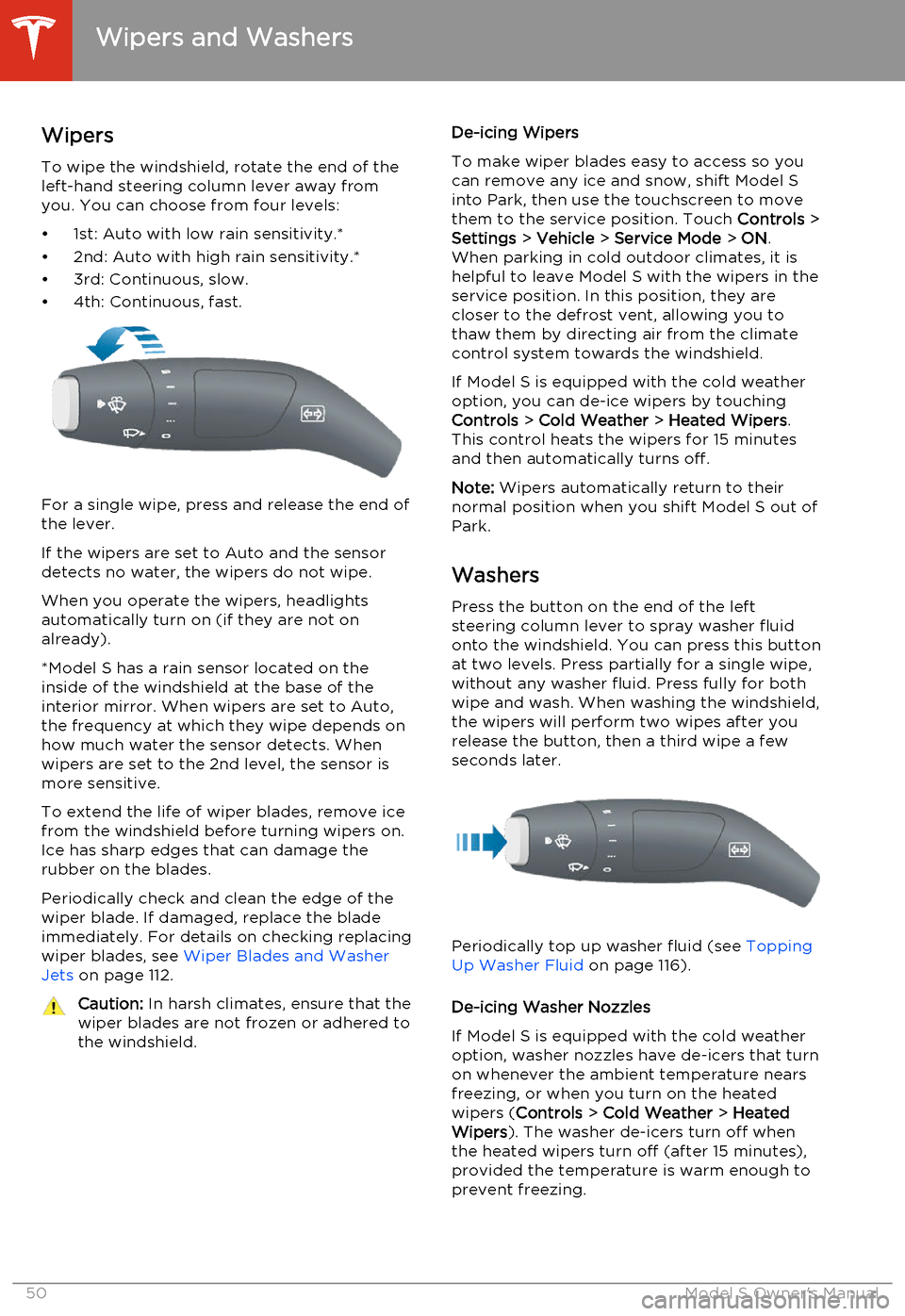
WipersTo wipe the windshield, rotate the end of the
left-hand steering column lever away from
you. You can choose from four levels:
• 1st: Auto with low rain sensitivity.*
• 2nd: Auto with high rain sensitivity.*
• 3rd: Continuous, slow.
• 4th: Continuous, fast.
For a single wipe, press and release the end of the lever.
If the wipers are set to Auto and the sensor
detects no water, the wipers do not wipe.
When you operate the wipers, headlights automatically turn on (if they are not onalready).
*Model S has a rain sensor located on the
inside of the windshield at the base of the interior mirror. When wipers are set to Auto,
the frequency at which they wipe depends on
how much water the sensor detects. When
wipers are set to the 2nd level, the sensor is
more sensitive.
To extend the life of wiper blades, remove ice from the windshield before turning wipers on.
Ice has sharp edges that can damage the
rubber on the blades.
Periodically check and clean the edge of the
wiper blade. If damaged, replace the blade
immediately. For details on checking replacing
wiper blades, see Wiper Blades and Washer
Jets on page 112.
Caution:
In harsh climates, ensure that the
wiper blades are not frozen or adhered to
the windshield.De-icing Wipers
To make wiper blades easy to access so you
can remove any ice and snow, shift Model S
into Park, then use the touchscreen to move
them to the service position. Touch Controls >
Settings > Vehicle > Service Mode > ON .
When parking in cold outdoor climates, it is helpful to leave Model S with the wipers in the
service position. In this position, they are
closer to the defrost vent, allowing you to thaw them by directing air from the climatecontrol system towards the windshield.
If Model S is equipped with the cold weather
option, you can de-ice wipers by touching
Controls > Cold Weather > Heated Wipers .
This control heats the wipers for 15 minutes
and then automatically turns off.
Note: Wipers automatically return to their
normal position when you shift Model S out of
Park.
Washers Press the button on the end of the left
steering column lever to spray washer fluid
onto the windshield. You can press this button at two levels. Press partially for a single wipe,without any washer fluid. Press fully for bothwipe and wash. When washing the windshield,
the wipers will perform two wipes after you
release the button, then a third wipe a few seconds later.
Periodically top up washer fluid (see Topping
Up Washer Fluid on page 116).
De-icing Washer Nozzles
If Model S is equipped with the cold weather
option, washer nozzles have de-icers that turn on whenever the ambient temperature nearsfreezing, or when you turn on the heatedwipers ( Controls > Cold Weather > Heated
Wipers ). The washer de-icers turn off when
the heated wipers turn off (after 15 minutes),
provided the temperature is warm enough to
prevent freezing.
Wipers and Washers
50Model S Owner's Manual
Page 55 of 159
How Lane Departure Warning
Works
If Model S is equipped with Driver Assistance
features, a camera mounted on the windshield
behind the interior rear view mirror monitors
the markers on the lane you are driving in. If a
front wheel passes over a lane marking and
the associated turn signal is off, you feel three
slight vibrations in the steering wheel.
Lane Departure Warning operates only when
Model S is traveling over approximately
30 mph (50 km/h).Warning: Never depend on Lane
Departure Warning to inform you of
unintentionally driving outside of the
boundaries of the driving lane. Several
external factors can reduce the
performance of Lane Departure Warning,
causing either no readings or false
readings. Therefore, depending on this
system to stay within the boundaries of the driving lane can result in serious injury
or death. Lane Departure Warning is for
guidance purposes only. Always keep
your eyes on the road when driving. It is
the driver's responsibility to stay alert,
drive safely, ensure the vehicle stays in
the traveling lane, and be in control of the
vehicle at all times.Caution: If your Model S is equipped with
Lane Departure Warning, you must take
your vehicle to Tesla Service if a
windshield replacement is needed. Failure
to do so can cause Lane Departure
Warning to malfunction.Controlling Lane Departure
Warning
To turn Lane Assist on or off, touch Controls >
Settings > Driver Assistance > Lane Departure
Warning .
Limitations and Inaccuracies
Lane Departure Warning can not always
clearly detect lane markings and you may experience unnecessary or invalid warnings inthese situations:
• Visibility is poor and lane markings are not clearly visible (due to heavy rain, snow,fog, etc.).
• Bright light (oncoming headlights or direct sunlight) is interfering with thecamera's view.
• Model S is being driven very close to a vehicle in front of it which is blocking thecamera's view.
• The windshield area in the camera's field of view is obstructed (fogged over, dirty,covered by a sticker, etc.).
• Lane markings are excessively worn or have been adjusted due to road
construction.
• Lane markings are changing quickly (for example, lanes branching off, crossing
over, or merging).
• The road is narrow or winding. • Objects or landscape features are casting strong shadows on lane markers.
Lane Departure Warning
Driving53
Page 56 of 159
How Park Assist Works
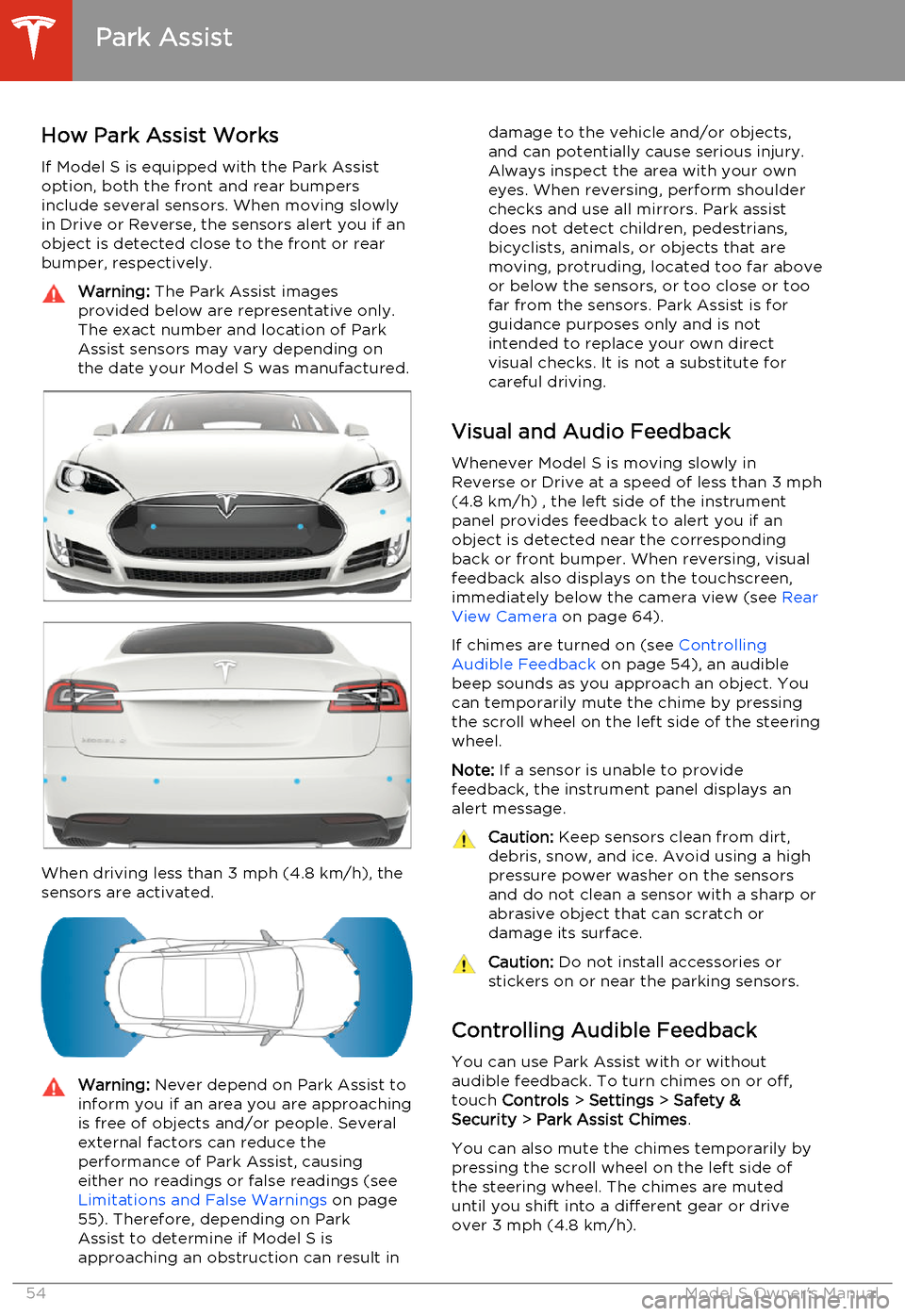
If Model S is equipped with the Park Assist option, both the front and rear bumpers
include several sensors. When moving slowly
in Drive or Reverse, the sensors alert you if an object is detected close to the front or rear
bumper, respectively.Warning: The Park Assist images
provided below are representative only.
The exact number and location of Park
Assist sensors may vary depending on
the date your Model S was manufactured.
When driving less than 3 mph (4.8 km/h), the
sensors are activated.
Warning: Never depend on Park Assist to
inform you if an area you are approaching is free of objects and/or people. Several
external factors can reduce the
performance of Park Assist, causing
either no readings or false readings (see Limitations and False Warnings on page
55). Therefore, depending on Park
Assist to determine if Model S is
approaching an obstruction can result indamage to the vehicle and/or objects,
and can potentially cause serious injury.
Always inspect the area with your own
eyes. When reversing, perform shoulder
checks and use all mirrors. Park assist
does not detect children, pedestrians,
bicyclists, animals, or objects that are moving, protruding, located too far above
or below the sensors, or too close or too far from the sensors. Park Assist is for
guidance purposes only and is not
intended to replace your own direct
visual checks. It is not a substitute for careful driving.
Visual and Audio Feedback
Whenever Model S is moving slowly inReverse or Drive at a speed of less than 3 mph
(4.8 km/h) , the left side of the instrument
panel provides feedback to alert you if an object is detected near the corresponding
back or front bumper. When reversing, visual feedback also displays on the touchscreen,
immediately below the camera view (see Rear
View Camera on page 64).
If chimes are turned on (see Controlling
Audible Feedback on page 54), an audible
beep sounds as you approach an object. You can temporarily mute the chime by pressing
the scroll wheel on the left side of the steering
wheel.
Note: If a sensor is unable to provide
feedback, the instrument panel displays an
alert message.
Caution: Keep sensors clean from dirt,
debris, snow, and ice. Avoid using a high
pressure power washer on the sensors
and do not clean a sensor with a sharp or abrasive object that can scratch ordamage its surface.Caution: Do not install accessories or
stickers on or near the parking sensors.
Controlling Audible Feedback
You can use Park Assist with or without
audible feedback. To turn chimes on or off,
touch Controls > Settings > Safety &
Security > Park Assist Chimes .
You can also mute the chimes temporarily by
pressing the scroll wheel on the left side of
the steering wheel. The chimes are muted
until you shift into a different gear or drive
over 3 mph (4.8 km/h).
Park Assist
54Model S Owner's Manual
Page 58 of 159

Displaying Trip Information
Trip information displays on the touchscreen
when you touch Controls > Trips . There are
two trip meters available, A and B. To reset a particular trip meter, touch its associated
RESET .
Note: You can also display range and trip
information on the instrument panel (see
Using Left Steering Wheel Buttons on page
36).
Trip Information
56Model S Owner's Manual
Page 60 of 159
Braking SystemsModel S has an anti-lock braking system
(ABS) that prevents the wheels from locking
when you apply maximum brake pressure. This improves steering control during heavy
braking in most road conditions.
During emergency braking conditions, the
ABS constantly monitors the speed of each
wheel and varies the brake pressure according
to the grip available.
The alteration of brake pressure can be felt as
a pulsing sensation through the brake pedal.
This demonstrates that the ABS is operating
and is not a cause for concern. Keep firm and
steady pressure on the brake pedal while
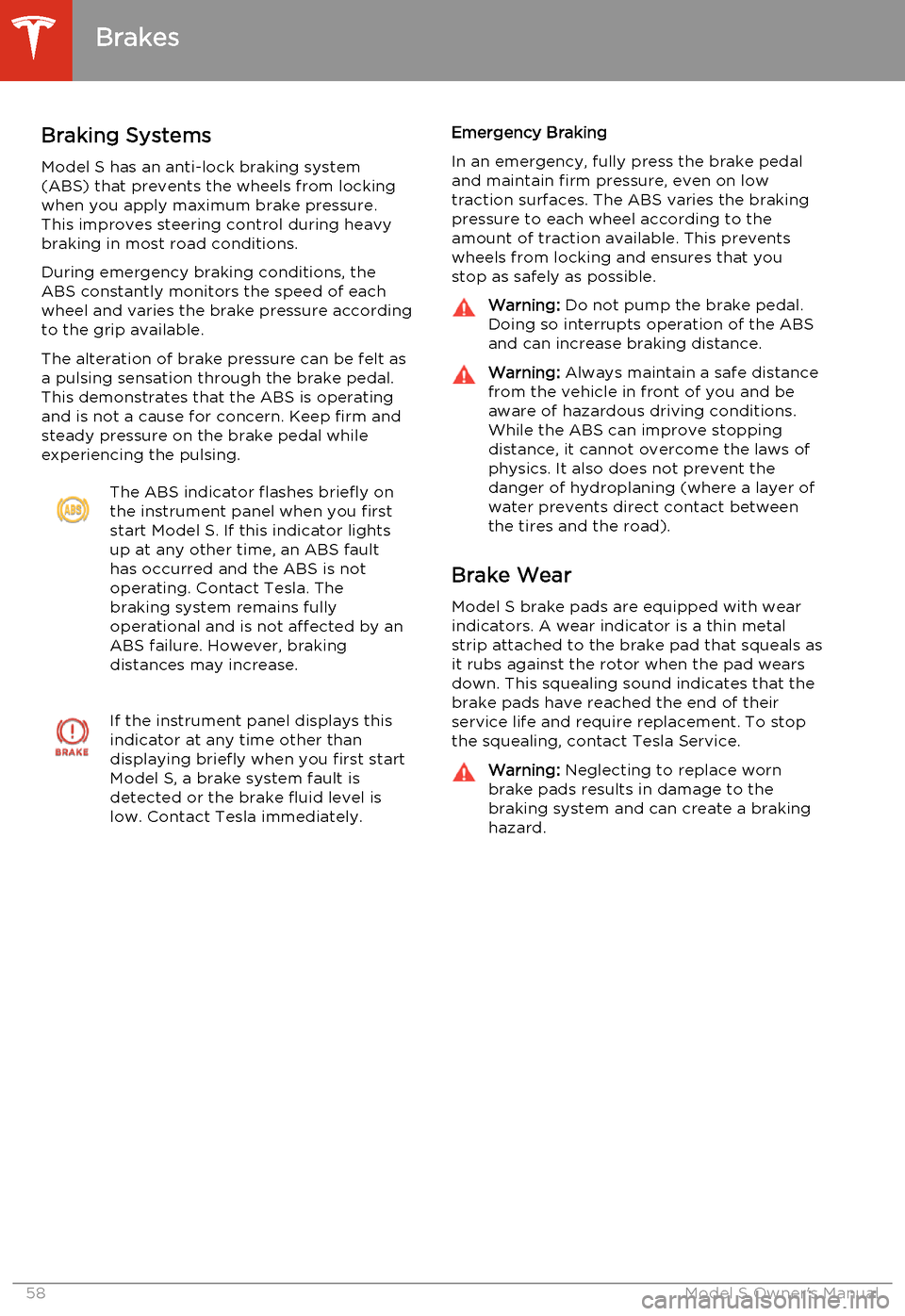
experiencing the pulsing.The ABS indicator flashes briefly on
the instrument panel when you first
start Model S. If this indicator lights
up at any other time, an ABS fault
has occurred and the ABS is not
operating. Contact Tesla. The
braking system remains fully
operational and is not affected by an
ABS failure. However, braking
distances may increase.If the instrument panel displays this
indicator at any time other than
displaying briefly when you first start
Model S, a brake system fault is
detected or the brake fluid level is
low. Contact Tesla immediately.Emergency Braking
In an emergency, fully press the brake pedal
and maintain firm pressure, even on low
traction surfaces. The ABS varies the braking pressure to each wheel according to the
amount of traction available. This prevents wheels from locking and ensures that you
stop as safely as possible.Warning: Do not pump the brake pedal.
Doing so interrupts operation of the ABS
and can increase braking distance.Warning: Always maintain a safe distance
from the vehicle in front of you and be aware of hazardous driving conditions.
While the ABS can improve stopping
distance, it cannot overcome the laws of physics. It also does not prevent the
danger of hydroplaning (where a layer of
water prevents direct contact between
the tires and the road).
Brake Wear
Model S brake pads are equipped with wearindicators. A wear indicator is a thin metalstrip attached to the brake pad that squeals as
it rubs against the rotor when the pad wears
down. This squealing sound indicates that the
brake pads have reached the end of their
service life and require replacement. To stop
the squealing, contact Tesla Service.
Warning: Neglecting to replace worn
brake pads results in damage to the
braking system and can create a braking
hazard.
Brakes
58Model S Owner's Manual
Page 68 of 159
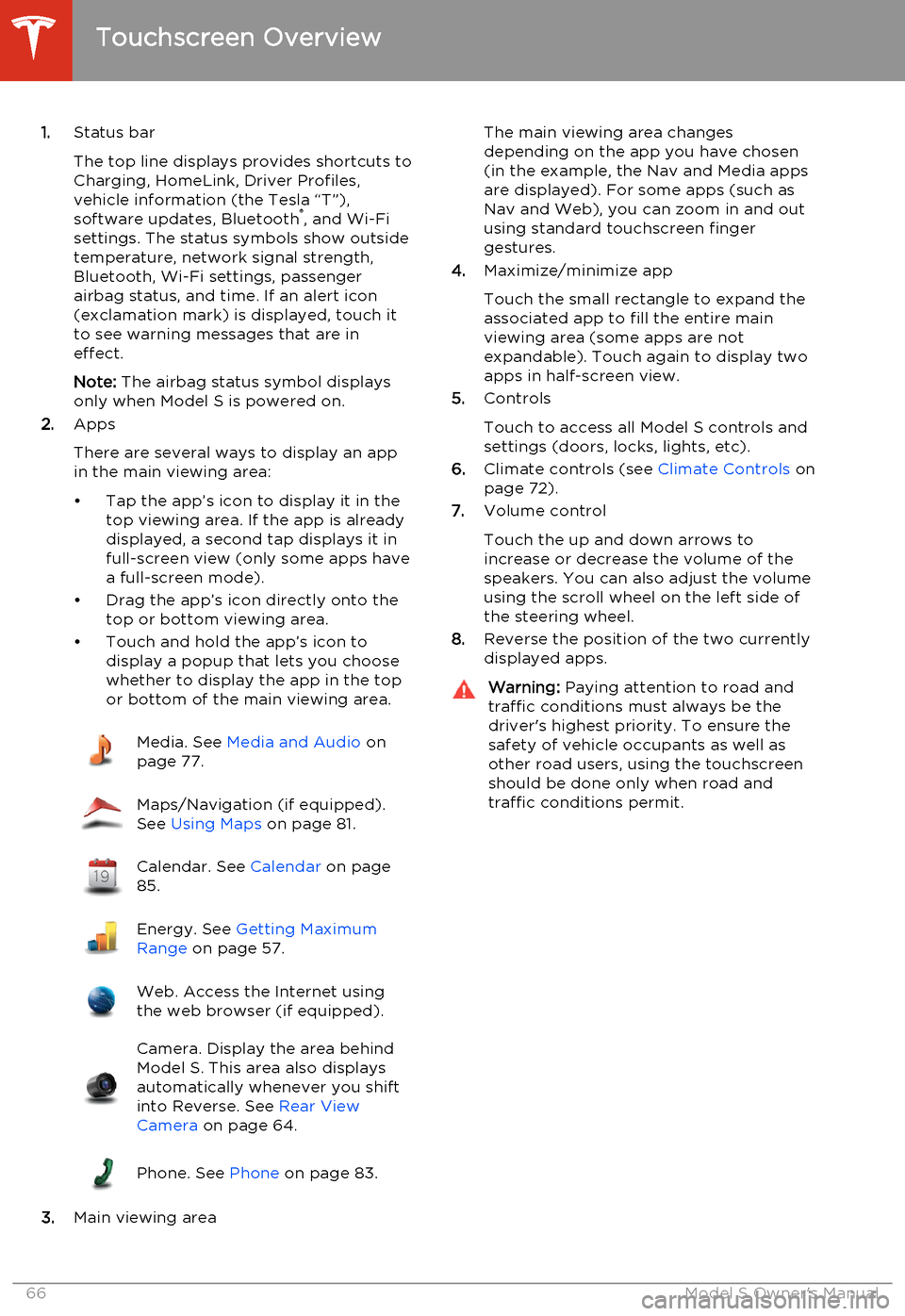
1.Status bar
The top line displays provides shortcuts to
Charging, HomeLink, Driver Profiles,
vehicle information (the Tesla “T”),
software updates, Bluetooth ®
, and Wi-Fi
settings. The status symbols show outside
temperature, network signal strength,
Bluetooth, Wi-Fi settings, passenger
airbag status, and time. If an alert icon
(exclamation mark) is displayed, touch it
to see warning messages that are in
effect.
Note: The airbag status symbol displays
only when Model S is powered on.
2. Apps
There are several ways to display an app
in the main viewing area:
• Tap the app’s icon to display it in the top viewing area. If the app is alreadydisplayed, a second tap displays it infull-screen view (only some apps have a full-screen mode).
• Drag the app’s icon directly onto the top or bottom viewing area.
• Touch and hold the app’s icon to display a popup that lets you choose
whether to display the app in the top or bottom of the main viewing area.Media. See Media and Audio on
page 77.Maps/Navigation (if equipped).
See Using Maps on page 81.Calendar. See Calendar on page
85.Energy. See Getting Maximum
Range on page 57.Web. Access the Internet using
the web browser (if equipped).Camera. Display the area behind
Model S. This area also displays
automatically whenever you shift
into Reverse. See Rear View
Camera on page 64.Phone. See Phone on page 83.
3.Main viewing area
The main viewing area changes
depending on the app you have chosen
(in the example, the Nav and Media apps
are displayed). For some apps (such as
Nav and Web), you can zoom in and out
using standard touchscreen finger
gestures.
4. Maximize/minimize app
Touch the small rectangle to expand the
associated app to fill the entire main
viewing area (some apps are not
expandable). Touch again to display two
apps in half-screen view.
5. Controls
Touch to access all Model S controls and settings (doors, locks, lights, etc).
6. Climate controls (see Climate Controls on
page 72).
7. Volume control
Touch the up and down arrows to
increase or decrease the volume of the
speakers. You can also adjust the volume
using the scroll wheel on the left side of
the steering wheel.
8. Reverse the position of the two currently
displayed apps.Warning: Paying attention to road and
traffic conditions must always be the
driver's highest priority. To ensure the
safety of vehicle occupants as well as other road users, using the touchscreenshould be done only when road andtraffic conditions permit.
Touchscreen Overview
66Model S Owner's Manual
Page 70 of 159
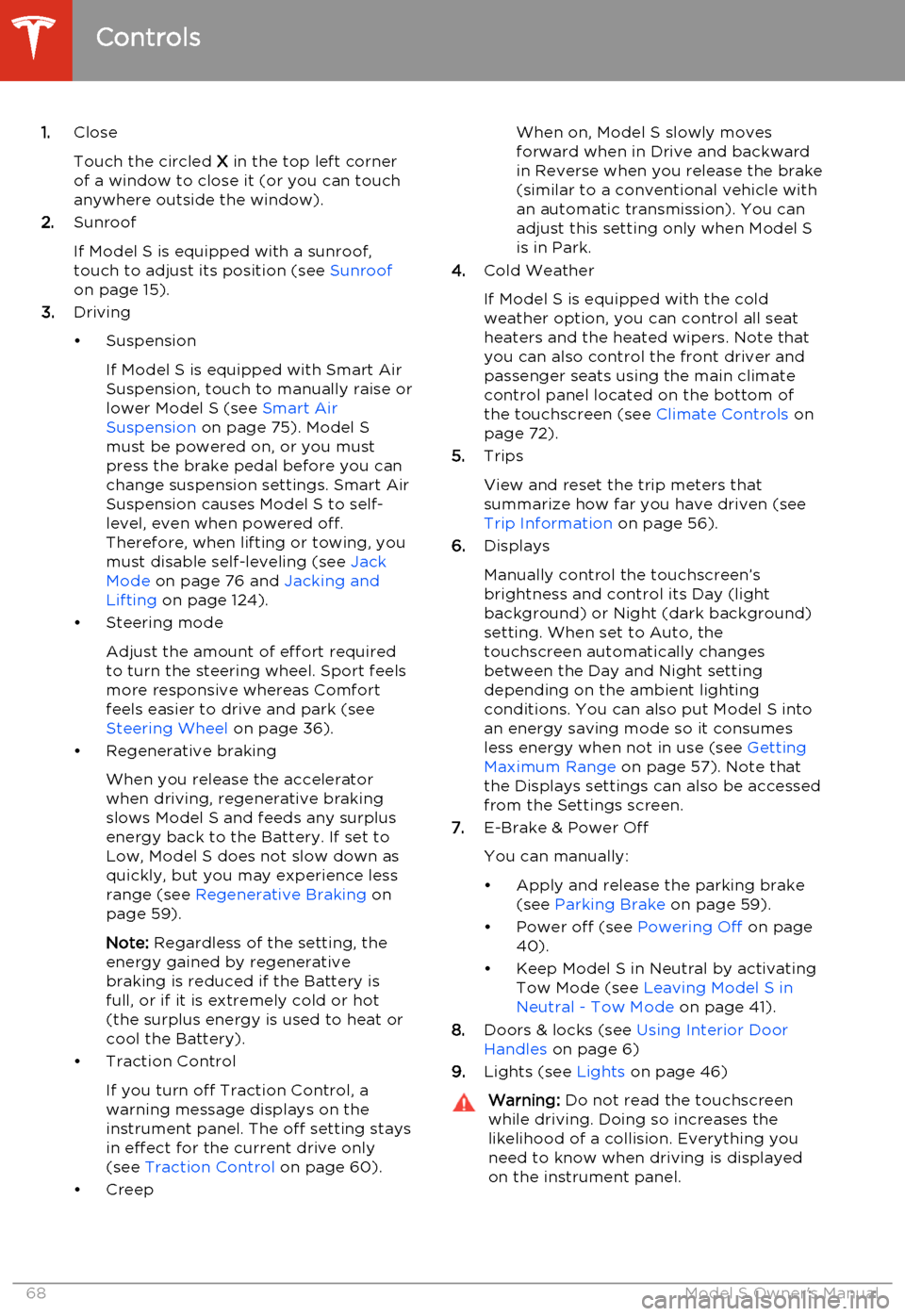
1.Close
Touch the circled X in the top left corner
of a window to close it (or you can touch anywhere outside the window).
2. Sunroof
If Model S is equipped with a sunroof,
touch to adjust its position (see Sunroof
on page 15).
3. Driving
• Suspension If Model S is equipped with Smart AirSuspension, touch to manually raise orlower Model S (see Smart Air
Suspension on page 75). Model S
must be powered on, or you must
press the brake pedal before you can change suspension settings. Smart Air
Suspension causes Model S to self- level, even when powered off.
Therefore, when lifting or towing, you
must disable self-leveling (see Jack
Mode on page 76 and Jacking and
Lifting on page 124).
• Steering mode
Adjust the amount of effort requiredto turn the steering wheel. Sport feels
more responsive whereas Comfort
feels easier to drive and park (see
Steering Wheel on page 36).
• Regenerative braking
When you release the accelerator
when driving, regenerative braking slows Model S and feeds any surplusenergy back to the Battery. If set to
Low, Model S does not slow down as
quickly, but you may experience less
range (see Regenerative Braking on
page 59).
Note: Regardless of the setting, the
energy gained by regenerative
braking is reduced if the Battery is full, or if it is extremely cold or hot(the surplus energy is used to heat orcool the Battery).
• Traction Control
If you turn off Traction Control, a
warning message displays on the
instrument panel. The off setting stays
in effect for the current drive only (see Traction Control on page 60).
• CreepWhen on, Model S slowly moves
forward when in Drive and backward in Reverse when you release the brake
(similar to a conventional vehicle with an automatic transmission). You can
adjust this setting only when Model S is in Park.
4. Cold Weather
If Model S is equipped with the cold weather option, you can control all seatheaters and the heated wipers. Note that
you can also control the front driver and
passenger seats using the main climate
control panel located on the bottom of
the touchscreen (see Climate Controls on
page 72).
5. Trips
View and reset the trip meters that
summarize how far you have driven (see
Trip Information on page 56).
6. Displays
Manually control the touchscreen’s
brightness and control its Day (light
background) or Night (dark background)
setting. When set to Auto, the
touchscreen automatically changes
between the Day and Night setting
depending on the ambient lighting
conditions. You can also put Model S into
an energy saving mode so it consumes
less energy when not in use (see Getting
Maximum Range on page 57). Note that
the Displays settings can also be accessed
from the Settings screen.
7. E-Brake & Power Off
You can manually:
• Apply and release the parking brake (see Parking Brake on page 59).
• Power off (see Powering Off on page
40).
• Keep Model S in Neutral by activating Tow Mode (see Leaving Model S in
Neutral - Tow Mode on page 41).
8. Doors & locks (see Using Interior Door
Handles on page 6)
9. Lights (see Lights on page 46)Warning:
Do not read the touchscreen
while driving. Doing so increases the
likelihood of a collision. Everything you need to know when driving is displayed
on the instrument panel.
Controls
68Model S Owner's Manual
Page 79 of 159
OverviewTouch the Media icon to listen to the radio or
play audio files. The touchscreen displays the
Media Player. Media Player has two tabs. Use the Browse tab to select what you want to
play and use the Now Playing tab to view and
control what is currently playing. You can play
AM, FM radio (including HD), and XM satellite
radio (if Model S is equipped with the optional
sound package). You can also play Internet
radio (such as TuneIn), and audio files from a Bluetooth-connected device or a USB-
connected flash drive.
AM and FM Radio Services Model S provides AM and FM radio services.These can be selected from the Browse tab orusing the Source Picker, located in the upperright corner of the Media Player window.
You can manually tune the radio to any
frequency by touching and dragging the channel selector bar on the Now Playing
screen. The channel selector bar allows you to move from one available radio station to the
next.
XM Radio If Model S is equipped with the optional sound
studio package, you can listen to XM radio, a
subscription-based satellite radio service. To
receive XM radio channels, you must provide
the radio service provider with the radio ID for
your touchscreen.
To view the radio ID:
1. Select the XM radio source.
2. Tune it to channel 0.
3. The Radio ID displays in the station
information area.
To select an XM radio channel, you can either
manually scroll through the channel numbers,
or you can browse the channels by category.
To browse by category, touch Browse >
Radio > XM Satellite Radio .Internet Radio
Internet radio services are accessed over a
data connection. To use Internet radio, touch
Media > Browse > Internet .
Choose your desired Internet radio service
(for example, TuneIn), then browse through
the available categories and/or stations. When
you select a specific station or episode, Media
Player starts playing it and displays the Now
Playing screen.
To play the next (and in some cases previous)
available station, episode, or track being
provided by the Internet radio service, touch
the arrows on the Now Playing screen, or use
the left steering wheel (see Using Left
Steering Wheel Buttons on page 36). The
exact function of these controls vary
depending on the specific Internet service you
are listening to.
You can also use voice commands to play a
specific song, artist, or album from an Internet
radio service. For details, see Using Voice
Commands on page 37.
Internet Radio Account Registration
Model S provides you with one or more
Internet radio services. To enter your log in information, touch Controls > Settings >
Apps > Media Player . Enter your user name
and password, for the Internet radio account(s) you want to use, then touch Log
In.
Slacker
You can use your own Slacker account or the one that Tesla has already set up for you. To
use your own account, log in as described above.
TuneIn
TuneIn does not require an account for it to work. But if you have a TuneIn account (go to
www.tunein.com), you can log in as described
above.
Media and Audio
Using the Touchscreen77
Page 80 of 159
Media SettingsTo adjust settings for your radio stations, and
to log into your Internet radio account(s),
touch Controls > Settings > Apps > Media
Player .FavoritesTo add a currently playing radio
station or audio file to your Favorites
list, touch the Favorites icon on the
Now Playing screen. The icon turns
blue to show that it is a favorite. To
remove a favorite, touch the icon
again.
Note: Adding a radio station to your Favorites
list also assigns it to one of the six presets, if an empty preset is available.
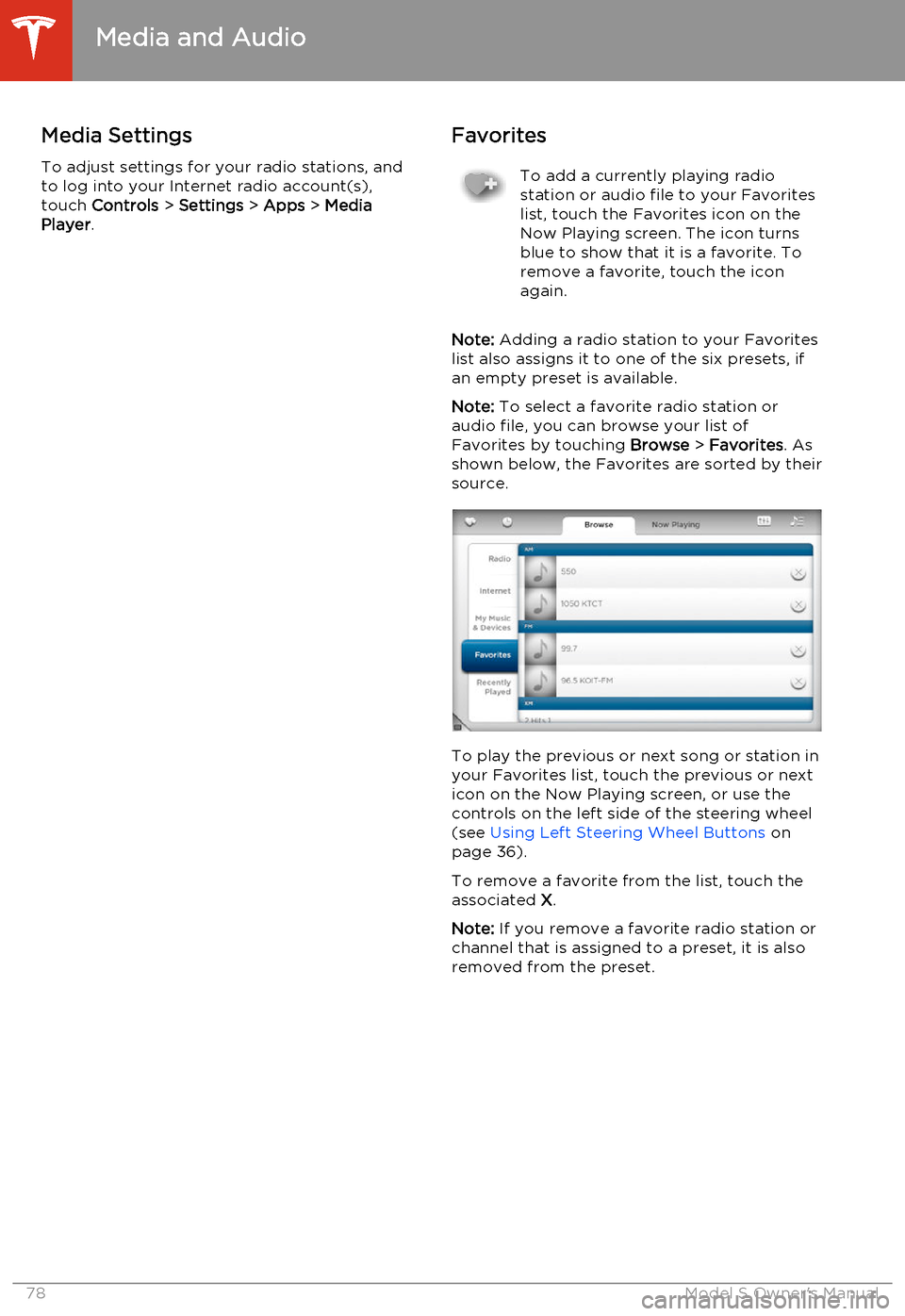
Note: To select a favorite radio station or
audio file, you can browse your list of Favorites by touching Browse > Favorites . As
shown below, the Favorites are sorted by their
source.
To play the previous or next song or station in
your Favorites list, touch the previous or next icon on the Now Playing screen, or use thecontrols on the left side of the steering wheel(see Using Left Steering Wheel Buttons on
page 36).
To remove a favorite from the list, touch the associated X.
Note: If you remove a favorite radio station or
channel that is assigned to a preset, it is also
removed from the preset.
Media and Audio
78Model S Owner's Manual
Page 81 of 159
My Music & DevicesTo play audio files from a USB-connectedflash drive or a Bluetooth-connected device,
touch Media > Browse > My Music & Devices .
The name of the device will be displayed.
Touch the song, album, or playlist you want to
play and Media Player starts playing and
displays the Now Playing screen.
To play the next song in the selected playlist
or album, touch the previous or next arrows on the touchscreen, or use the left steering
wheel (see Using Left Steering Wheel Buttons
on page 36).
USB Connected Flash Drives
Connect a flash drive to one of the USB connections (see USB Connections on page
79). Touch Media > Browse > My Music &
Devices , then touch the name of the flash
drive and the song you want to play.
Note: To play media from a USB connection,
Model S recognizes flash drives only. To play media from other types of devices (such as aniPod), connect using Bluetooth (if supportedby the device).
Bluetooth ®
Connected Devices
If you have a Bluetooth-capable device such
as a phone, that is paired and connected to
Model S (see Pairing a Bluetooth Phone on
page 83), you can play audio files stored on
it, and you can stream a music service (for example, Pandora or Spotify). Touch Media >
Browse > My Music & Devices , then touch the
name of your Bluetooth-connected device.
Your Bluetooth device begins playing the
audio file that was currently active on your
device, and the touchscreen displays the Now
Playing screen.
To change the track playing, touch the previous or next icons on the touchscreen, or
use the left steering wheel controls.
Note: To play media from a Bluetooth-
connected device, ensure that access to the device’s media is turned on. See Phone on
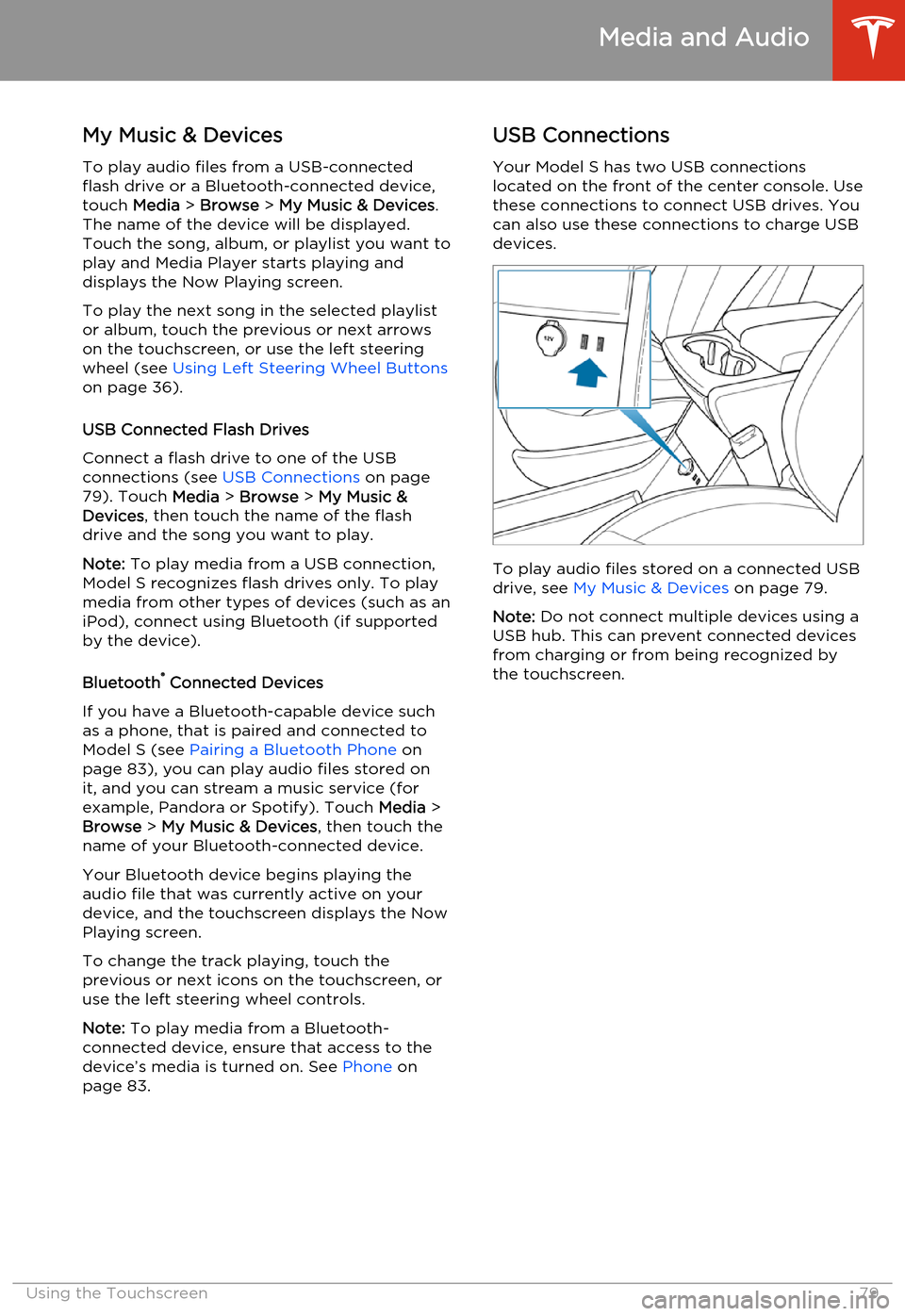
page 83.USB Connections
Your Model S has two USB connections
located on the front of the center console. Use these connections to connect USB drives. Youcan also use these connections to charge USBdevices.
To play audio files stored on a connected USBdrive, see My Music & Devices on page 79.
Note: Do not connect multiple devices using a
USB hub. This can prevent connected devices from charging or from being recognized bythe touchscreen.
Media and Audio
Using the Touchscreen79