service TESLA MODEL S 2014 Owner's manual (North America)
[x] Cancel search | Manufacturer: TESLA, Model Year: 2014, Model line: MODEL S, Model: TESLA MODEL S 2014Pages: 159, PDF Size: 6.14 MB
Page 2 of 159
DOCUMENT APPLICABILITY
Features released in the most recent versions of software may not be described in this document but are
described in Release Notes. Display Release Notes on the touchscreen by touching the Tesla “T” at the top
center of the touchscreen, then touching the Release Notes link. If information provided in this document
conflicts with information in the Release Notes, the Release Notes take precedence.
ILLUSTRATIONS
The illustrations provided in this document are for demonstration purposes only. Depending on vehicle options,
software version and market region, the information displayed on the touchscreen in your Model S may appear
slightly different.
PRODUCT SPECIFICATIONS
All specifications and descriptions contained in this document are verified to be accurate at the time of printing.
However, because continuous improvement is a goal at Tesla, we reserve the right to make product
modifications at any time.
ERRORS OR OMISSIONS
To communicate any inaccuracies or omissions in this document, please send an email to:
ownersmanualfeedback @teslamotors.com.
The Model S Owners Manual is available on the touchscreen.
To view it, touch CONTROLS > SETTINGS > MANUAL
(located in the lower left corner).
More information about your Model S is available at
www.teslamotors.com/mytesla .
To contact Tesla, call 1-877-79TESLA (1-877-798-3752) .
©2012-2014 TESLA MOTORS, INC. All rights reserved.
All information in this document and all MODEL S® software is subject to copyright and other intellectual property
rights of Tesla Motors, Inc. and its licensors. This material may not be modified, reproduced or copied, in whole or in
part, without the prior written permission of Tesla Motors, Inc. and its licensors. Additional information is available
upon request. The following are trademarks or registered tr ademarks of Tesla Motors, Inc. in the United States and
other countries:
HOMELINK® and the HOMELINK® house icon are registered trademarks of Johnson Controls, Inc. Bluetooth® is a
registered trademark of Bluetooth SIG, Inc. iPhone® is a registered trademark of Apple, Inc. Android™ and
Google Maps™ are trademarks of Google, Inc. Sirius, XM and all related marks and logos are trademarks of Sirius XM
Radio Inc. Pandora is a registered trad emark of Pandora Media, Inc. Spotify is a registered trademark of the Spotify
Group. All other trademarks contained in this document are the property of their respective owners and their use
herein does not imply sponsorship or endorsement of their products or services. The unauthorized use of any
trademark displayed in this document or on the vehicle is strictly prohibited. TESLA TESLA MOTORS TESLA
ROADSTER MODEL S
Cover - North America 5.8.2.fm Page 2
Thursday, January 16, 2014 3:10 PM
Page 3 of 159
Overview............................................ 2Interior Overview........................................................................ 2
Exterior Overview....................................................................... 3
Opening and Closing.....................4 Doors............................................................................................... 4
Keyless Locking and Unlocking 4Using the Key 4Using Exterior Door Handles 6Using Interior Door Handles 6Interior Locking and Unlocking 6Child-protection Lock 7Drive-away Locking 7Walk-away Locking 7Unlocking When the Key Doesn't Work 7Opening Interior Doors with No Power 8
Windows........................................................................................ 9
Opening and Closing 9Locking Rear Windows 9
Rear Trunk................................................................................... 10
Opening 10Closing 10Adjusting the Opening Height 10Interior Release 11Opening with No Power 11
Front Trunk.................................................................................. 12
Opening 12Closing 12Interior Emergency Release 13Opening with No Power 13
Glove Box..................................................................................... 14
Opening and Closing 14
Sunroof.......................................................................................... 15
Opening and Closing 15
Cup Holders................................................................................. 16
Opening and Closing 16
Seating and Safety
Restraints..........................................17 Front and Rear Seats............................................................... 17
Correct Driving Position 17Adjusting the Driver’s Seat 17Folding Rear Seats 18Raising Rear Seats 18Head Supports 18Seat Covers 18
Seat Belts......................................................................................19
Wearing Seat Belts 19Wearing Seat Belts When Pregnant 19Seat Belt Pre-tensioners 20Testing Seat Belts 20Seat Belt Warnings 20
Child Safety Seats.................................................................... 22
Guidelines for Seating Children 22Choosing a Child Safety Seat 23Seating Larger Children 24Installing Child Safety Seats 24Installing Seat Belt Retained Child Seats 24Installing LATCHChild Seats 25Attaching Upper Tether Straps 25Testing a Child Safety Seat 26Warnings - Child Safety Seats 26
Tesla Built-In Rear Facing Child Seats............................. 27
Usage Restrictions 27Opening 27Folding 27Seating a Child 29Warnings - Tesla Child Seats 29
Airbags.......................................................................................... 31
Location of Airbags 31How the Airbags Work 32Types of Airbags 32Passenger Front Airbag 33Inflation Effects 34Airbag Warning Indicator 34Airbag Warnings 34
Driving.............................................. 35Driver Profiles............................................................................ 35
Creating a Driver Profile 35Restoring a Driver’s Profile 35Saved Driver Settings 35
Steering Wheel..........................................................................36
Adjusting Position 36Adjusting Sensitivity 36Using Left Steering Wheel Buttons 36Using Right Steering Wheel Buttons 37Using Voice Commands 37Horn 38
Mirrors...........................................................................................39
Adjusting Exterior Side Mirrors 39Rear View Mirror 39
Starting and Powering Off................................................... 40
Starting Model S 40Powering Off 40
Gears.............................................................................................. 41
Shifting Gears 41Leaving Model S in Neutral - Tow Mode 41
Instrument Panel.......................................................................42
Instrument Panel Overview 42Indicator Lights 43
Lights............................................................................................ 46
Controlling Lights 46Headlight High Beams 48Headlights After Exit 48Cornering Lights 48Turn Signals 49Hazard Warning Flashers 49
Wipers and Washers...............................................................50
Wipers 50Washers 50
Speed Assist................................................................................ 51
How Speed Assist Works 51Controlling Speed Assist 52Limitations and Inaccuracies 52
Lane Departure Warning....................................................... 53
How Lane Departure Warning Works 53Controlling Lane Departure Warning 53Limitations and Inaccuracies 53
Park Assist.................................................................................. 54
How Park Assist Works 54Visual and Audio Feedback 54Controlling Audible Feedback 54Limitations and False Warnings 55Other Parking Aids 55
Trip Information........................................................................ 56
Displaying Trip Information 56
Getting Maximum Range....................................................... 57
Driving Tips to Maximize Range 57Saving Energy 57
Brakes........................................................................................... 58
Braking Systems 58Brake Wear 58Regenerative Braking 59Parking Brake 59
Traction Control....................................................................... 60
How It Works 60
Cruise Control............................................................................. 61
Operating Cruise Control 61Changing the Cruising Speed 61Canceling and Resuming 61
Hill Start Assist.......................................................................... 63
Rear View Camera................................................................... 64
Camera Location 64
Using the Touchscreen.............. 65Touchscreen Overview.......................................................... 65
The Big Picture 65
Controls........................................................................................ 67
Controlling Model S Features 67
Settings........................................................................................ 69
Customizing Model S 69
Climate Controls....................................................................... 72
Overview of Climate Controls 72Customizing Climate Control 73Ventilation 74Climate Control Operating Tips 74
Smart Air Suspension..............................................................75
Manual Height Adjustments 75Location-Based Suspension 75Automatic Lowering 76Jack Mode 76
Media and Audio....................................................................... 77
Overview 77AM and FM Radio Services 77XM Radio 77Internet Radio 77Media Settings 78Favorites 78My Music & Devices 79USB Connections 7912V Power Socket 80
Maps and Navigation............................................................... 81
Overview 81Using Maps 81Starting Navigation 81During Navigation 82Favorite Destinations 82Updated Maps 82
Phone............................................................................................ 83
Bluetooth®Compatibility 83Pairing a Bluetooth Phone 83Importing Contacts 83Unpairing a Bluetooth Phone 83Connecting to a Paired Phone 84Making a Phone Call 84Receiving a Phone Call 84In Call Options 84
Calendar....................................................................................... 85
Overview 85Calendar and Navigation 85
Security Settings...................................................................... 86
About the Security System 86
HomeLink ®
Universal Transceiver....................................... 87
About HomeLink 87Programming HomeLink 87Troubleshooting HomeLink 87
Connecting to Wi-Fi................................................................ 89
Software Updates.................................................................... 90
Loading New Software 90Viewing Release Notes 90
Mobile App...................................................................................91
Model S Mobile App 91Charging.......................................... 92
Electric Vehicle Components.............................................. 92
High Voltage Components 92Charging Equipment 93
Battery Information................................................................. 94
About the Battery 94Battery Care 94
Charging Model S..................................................................... 95
Opening the Charge Port 95Plugging In 95During Charging 96Stopping Charging 96Charge Port Light 96Changing Charge Settings 97Charging Status 98
Maintenance................................... 99
Maintenance Schedule........................................................... 99
Service Intervals 99Daily Checks 99Monthly Checks 99Fluid Replacement Intervals 99High Voltage Safety 99
Tire Care and Maintenance.................................................100
Maintaining Tire Pressures 100Inspecting and Maintaining Tires 101Replacing Tires and Wheels 102Using Tire Chains 103Tire Pressure Monitoring 103
Temporary Tire Repair......................................................... 105
Tire Repair Kit 105Inflating with Sealant and Air 106Inflating with Air Only 107Replacing the Sealant Canister 108
Cleaning..................................................................................... 109
Cleaning the Exterior 109Cleaning the Interior 110Polishing, Touch Up, and Body Repair 111Using a Car Cover 111Floor Mats 111
Wiper Blades and Washer Jets.......................................... 112
Checking and Replacing Wiper Blades 112Cleaning Washer Jets 112
Fluid Reservoirs........................................................................ 114
Removing the Maintenance Panel 114Checking Battery Coolant 114Checking Brake Fluid 115Topping Up Washer Fluid 116
Fuses............................................................................................. 117
Fuse Box Locations 117Replacing a Fuse 117Fuse Box 1 118Fuse Box 2 120Fuse Box 3 122Fuse Box 4 123
Jacking and Lifting................................................................. 124
Jacking Procedure 124
Parts and Accessories........................................................... 125
Parts, Accessories, and Modifications 125Body Repairs 125
Specifications............................... 126
Identification Labels.............................................................. 126
Vehicle Identification Number 126Emission Control Label 126
Vehicle Loading....................................................................... 127
Load Capacity Labeling 127Calculating Load Limits 128Towing a Trailer 129Roof Racks 129
Dimensions and Weights..................................................... 130
Exterior Dimensions 130Weights 131
Subsystems............................................................................... 132
Motor 132Transmission 132Steering 132Brakes 133Suspension 133Battery - 12V 133Battery - High Voltage 134
Wheels and Tires..................................................................... 135
Wheel Specifications 135Wheel Alignment Values 135Tire Specifications 136Understanding Tire Markings 137Uniform Tire Quality Grading 139Wheels and Tires Glossary 140
Roadside Assistance.................. 141
Contacting Roadside Assistance....................................... 141 Instructions for Transporters............................................. 142
Use a Flatbed Only 142Disable Self-Leveling (air suspension vehicles only) 142Activate Tow Mode 142Connect the Tow Chain 143Pull Onto the Trailer and Secure the Wheels 144
Consumer Information..............145
About this Owner Information.......................................... 145
Illustrations 145Errors or Inaccuracies 145Location of Components 145Document Applicability 145Copyrights and Trademarks 146
Disclaimers................................................................................ 147
Vehicle Telematics/Data Recorders 147Quality Control 147California Proposition 65 147
Reporting Concerns...............................................................148
Contacting Tesla 148Reporting Safety Defects - US 148Reporting Safety Defects - Canada 148
Declarations of Conformity................................................ 149
Key and Passive Unlocking System 149Tire Pressure Monitoring System 150Media Control Unit 150HomeLink 151Radio Frequency Information 151Contents
Page 32 of 159
(94 cm) tall and weighing between 35and 77 lbs (16.2 to 35.2 kg).Warning: Do not use supplemental child
restraint systems, including booster seats,
in the Tesla built-in rear facing child seats.Warning: Always ensure that the top of
the child’s head cannot touch the vehicle and that the child is seated comfortablywith the seat belts correctly fastened.Warning: Follow all instructions and heed
all warnings related to the Tesla built-in
rear facing child seats. Failure to do so
can compromise occupant safety.Warning: Read all safety warnings and
labels attached to the seats.Warning: Do not leave children
unattended in Model S, even if the child is secured in a child safety seat or a Tesla
built-in rear facing child seat. In hot
weather, the interior temperature can reach dangerous levels that can result in
dehydration, serious injury or death.Warning: Do not remove or replace the
fabric on a Tesla built-in rear facing child
seat. The covers are an integral part of the restraint’s performance and shouldnot be removed or replaced with any
other type than those supplied by Tesla.Warning: If the Tesla built-in rear facing
child seats have been worn in an
accident, they must be inspected or
replaced by Tesla, even if damage is not
obvious.Warning: Before allowing a child to ride in
the Tesla built-in rear facing child seats, check that the seat is securely held in theupright position by trying to pull the seat
back toward you.Warning: Do not remove the built-in rear
facing child seats for any reason,
including cleaning. To ensure safety of
occupants, removal and installation must
be performed by qualified Tesla service
technicians.Warning: Do not make modifications or
additions that can interfere with the
operation of the Tesla built-in rear facing
child seats.Warning: To prevent injury, ensure all
loose items (bags, luggage, etc.) are
secured. In an accident, or during hard
braking and sharp turns, loose items
could cause injury.
Tesla Built-In Rear Facing Child Seats
30Model S Owner's Manual
Page 40 of 159
• To listen to an Internet music service, say“Listen to,” or “Play,” followed by thename of the song, album, artist or
combination. To improve voice
recognition accuracy, provide multiple
cues in your command, such as artist plus
song (for example, “Play Honky Chateau
by Elton John” or “Listen to Boogie
Wonderland”).
Note: You can also use voice commands to
provide feedback to Tesla. Say "Note",
"Report", "Bug note", or "Bug report" followed
by your brief comments. Model S takes a snapshot of its systems, including screencaptures of the touchscreen and instrument
panel. Tesla periodically reviews these notes
and uses them to continue improving Model S.
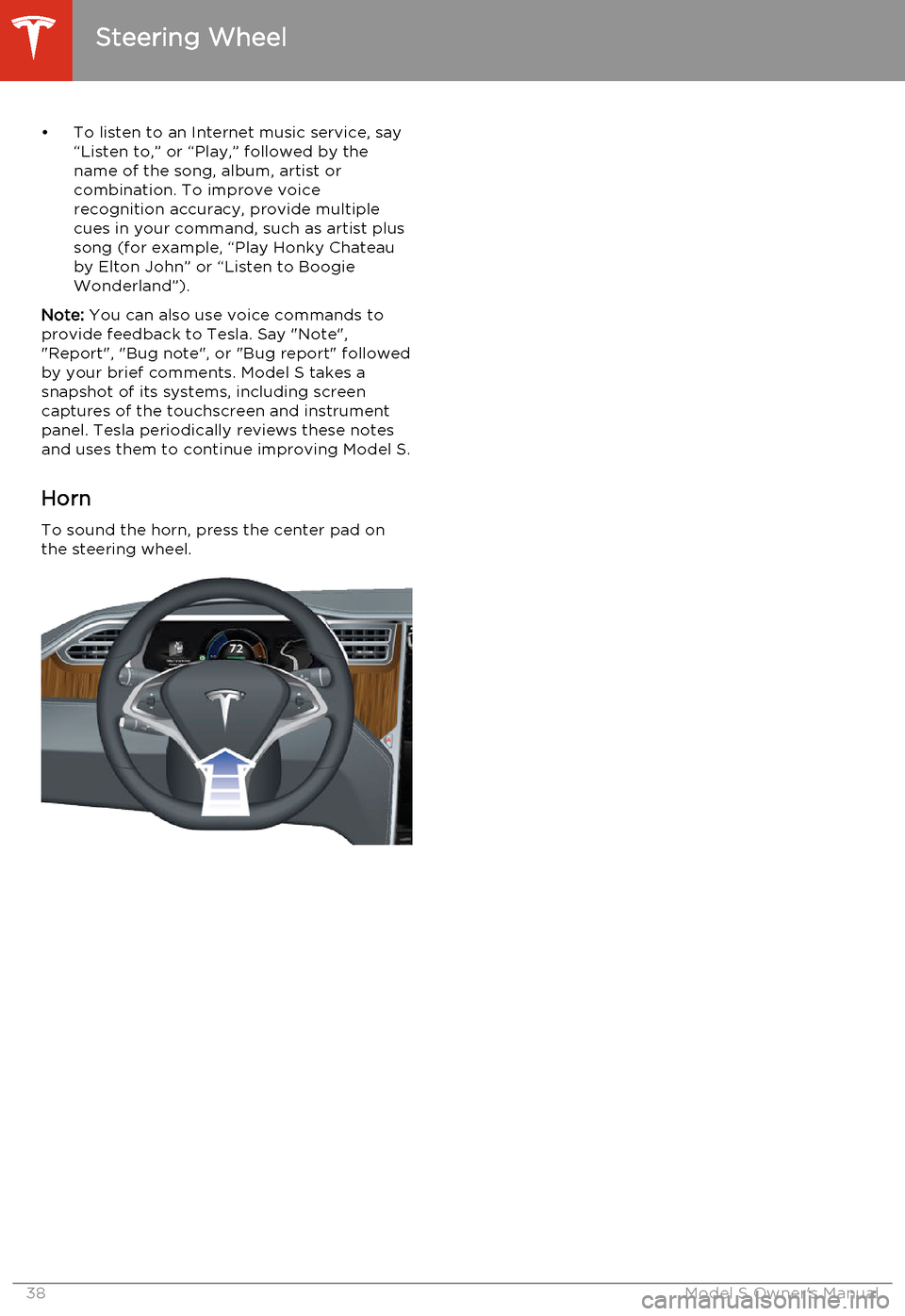
Horn To sound the horn, press the center pad on
the steering wheel.
Steering Wheel
38Model S Owner's Manual
Page 52 of 159
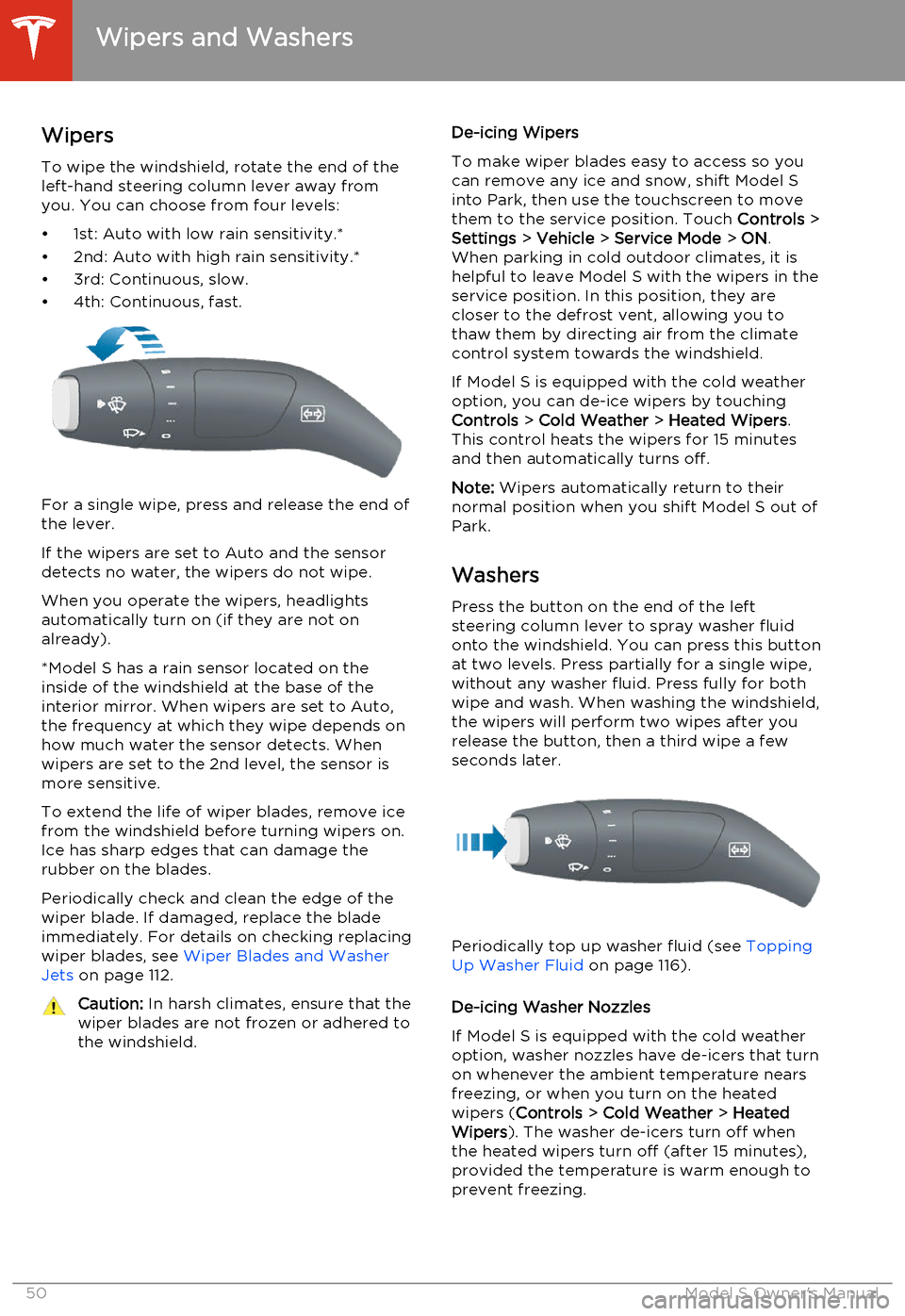
WipersTo wipe the windshield, rotate the end of the
left-hand steering column lever away from
you. You can choose from four levels:
• 1st: Auto with low rain sensitivity.*
• 2nd: Auto with high rain sensitivity.*
• 3rd: Continuous, slow.
• 4th: Continuous, fast.
For a single wipe, press and release the end of the lever.
If the wipers are set to Auto and the sensor
detects no water, the wipers do not wipe.
When you operate the wipers, headlights automatically turn on (if they are not onalready).
*Model S has a rain sensor located on the
inside of the windshield at the base of the interior mirror. When wipers are set to Auto,
the frequency at which they wipe depends on
how much water the sensor detects. When
wipers are set to the 2nd level, the sensor is
more sensitive.
To extend the life of wiper blades, remove ice from the windshield before turning wipers on.
Ice has sharp edges that can damage the
rubber on the blades.
Periodically check and clean the edge of the
wiper blade. If damaged, replace the blade
immediately. For details on checking replacing
wiper blades, see Wiper Blades and Washer
Jets on page 112.
Caution:
In harsh climates, ensure that the
wiper blades are not frozen or adhered to
the windshield.De-icing Wipers
To make wiper blades easy to access so you
can remove any ice and snow, shift Model S
into Park, then use the touchscreen to move
them to the service position. Touch Controls >
Settings > Vehicle > Service Mode > ON .
When parking in cold outdoor climates, it is helpful to leave Model S with the wipers in the
service position. In this position, they are
closer to the defrost vent, allowing you to thaw them by directing air from the climatecontrol system towards the windshield.
If Model S is equipped with the cold weather
option, you can de-ice wipers by touching
Controls > Cold Weather > Heated Wipers .
This control heats the wipers for 15 minutes
and then automatically turns off.
Note: Wipers automatically return to their
normal position when you shift Model S out of
Park.
Washers Press the button on the end of the left
steering column lever to spray washer fluid
onto the windshield. You can press this button at two levels. Press partially for a single wipe,without any washer fluid. Press fully for bothwipe and wash. When washing the windshield,
the wipers will perform two wipes after you
release the button, then a third wipe a few seconds later.
Periodically top up washer fluid (see Topping
Up Washer Fluid on page 116).
De-icing Washer Nozzles
If Model S is equipped with the cold weather
option, washer nozzles have de-icers that turn on whenever the ambient temperature nearsfreezing, or when you turn on the heatedwipers ( Controls > Cold Weather > Heated
Wipers ). The washer de-icers turn off when
the heated wipers turn off (after 15 minutes),
provided the temperature is warm enough to
prevent freezing.
Wipers and Washers
50Model S Owner's Manual
Page 54 of 159
Always drive at a safe speed based on
traffic and road conditions.Caution: If your Model S is equipped with
Speed Assist, you must take your vehicle to Tesla Service if a windshield
replacement is needed. Failure to do so
can cause Speed Assist to malfunction.
Controlling Speed Assist
To turn Speed Assist on or off, and control
how it works, touch Controls > Settings >
Driver Assistance > Assistance Level , then
choose an assistance level:
• Off. The speed limit is not displayed.
• Display . Speed limit information visually
displays on the speedometer and when you exceed the limit, a speed limit sign
displays in the center of the instrument panel, and the speedometer displays theexcess speed in gray.
• Chime . In addition to the visual display, an
audible chime sounds whenever you
exceed the speed limit.
You can also specify how the speed limit is
determined:
• Relative . The speed limit is determined
automatically based on detected traffic
signs and GPS data. If desired, you can set
a speed limit offset (+ or -) if you want to
be alerted only when you exceed the
speed limit by a specified amount. For example, you would increase the offset to+10 mph if you only want to be alerted
when you exceed the speed limit by 10 mph.
• Absolute . Manually specify any speed limit
between 20 and 140 mph (30 and
240 km/h).
Note: GPS data is not always accurate. The
GPS can misjudge the road's location and
provide the speed limit for a directly adjacent
road that may have a different speed limit. For example, The GPS can assume Model S is on a
freeway when it’s actually on a nearby surface
street, and vice versa.
Limitations and Inaccuracies Speed Assist may not be fully functional or
may provide inaccurate information in these
situations:
• Visibility is poor and speed limit signs are not clearly visible (due to heavy rain,
snow, fog, etc.).
• Bright light (oncoming headlights or direct sunlight) is interfering with thecamera's view.
• Model S is being driven very close to a vehicle in front of it which is blocking the
camera's view.
• The windshield area in the camera's field of view is obstructed (fogged over, dirty,
covered by a sticker, etc.).
• Speed limit signs are concealed by objects.
• The speed limits stored in the GPS database are incorrect or outdated.
• Model S is being driven in an area where GPS data is not available.
• Traffic signs do not conform to standard recognizable formats.
• A road or a speed limit has recently changed.
Speed Assist
52Model S Owner's Manual
Page 55 of 159
How Lane Departure Warning
Works
If Model S is equipped with Driver Assistance
features, a camera mounted on the windshield
behind the interior rear view mirror monitors
the markers on the lane you are driving in. If a
front wheel passes over a lane marking and
the associated turn signal is off, you feel three
slight vibrations in the steering wheel.
Lane Departure Warning operates only when
Model S is traveling over approximately
30 mph (50 km/h).Warning: Never depend on Lane
Departure Warning to inform you of
unintentionally driving outside of the
boundaries of the driving lane. Several
external factors can reduce the
performance of Lane Departure Warning,
causing either no readings or false
readings. Therefore, depending on this
system to stay within the boundaries of the driving lane can result in serious injury
or death. Lane Departure Warning is for
guidance purposes only. Always keep
your eyes on the road when driving. It is
the driver's responsibility to stay alert,
drive safely, ensure the vehicle stays in
the traveling lane, and be in control of the
vehicle at all times.Caution: If your Model S is equipped with
Lane Departure Warning, you must take
your vehicle to Tesla Service if a
windshield replacement is needed. Failure
to do so can cause Lane Departure
Warning to malfunction.Controlling Lane Departure
Warning
To turn Lane Assist on or off, touch Controls >
Settings > Driver Assistance > Lane Departure
Warning .
Limitations and Inaccuracies
Lane Departure Warning can not always
clearly detect lane markings and you may experience unnecessary or invalid warnings inthese situations:
• Visibility is poor and lane markings are not clearly visible (due to heavy rain, snow,fog, etc.).
• Bright light (oncoming headlights or direct sunlight) is interfering with thecamera's view.
• Model S is being driven very close to a vehicle in front of it which is blocking thecamera's view.
• The windshield area in the camera's field of view is obstructed (fogged over, dirty,covered by a sticker, etc.).
• Lane markings are excessively worn or have been adjusted due to road
construction.
• Lane markings are changing quickly (for example, lanes branching off, crossing
over, or merging).
• The road is narrow or winding. • Objects or landscape features are casting strong shadows on lane markers.
Lane Departure Warning
Driving53
Page 60 of 159
Braking SystemsModel S has an anti-lock braking system
(ABS) that prevents the wheels from locking
when you apply maximum brake pressure. This improves steering control during heavy
braking in most road conditions.
During emergency braking conditions, the
ABS constantly monitors the speed of each
wheel and varies the brake pressure according
to the grip available.
The alteration of brake pressure can be felt as
a pulsing sensation through the brake pedal.
This demonstrates that the ABS is operating
and is not a cause for concern. Keep firm and
steady pressure on the brake pedal while
experiencing the pulsing.The ABS indicator flashes briefly on
the instrument panel when you first
start Model S. If this indicator lights
up at any other time, an ABS fault
has occurred and the ABS is not
operating. Contact Tesla. The
braking system remains fully
operational and is not affected by an
ABS failure. However, braking
distances may increase.If the instrument panel displays this
indicator at any time other than
displaying briefly when you first start
Model S, a brake system fault is
detected or the brake fluid level is
low. Contact Tesla immediately.Emergency Braking
In an emergency, fully press the brake pedal
and maintain firm pressure, even on low
traction surfaces. The ABS varies the braking pressure to each wheel according to the
amount of traction available. This prevents wheels from locking and ensures that you
stop as safely as possible.Warning: Do not pump the brake pedal.
Doing so interrupts operation of the ABS
and can increase braking distance.Warning: Always maintain a safe distance
from the vehicle in front of you and be aware of hazardous driving conditions.
While the ABS can improve stopping
distance, it cannot overcome the laws of physics. It also does not prevent the
danger of hydroplaning (where a layer of
water prevents direct contact between
the tires and the road).
Brake Wear
Model S brake pads are equipped with wearindicators. A wear indicator is a thin metalstrip attached to the brake pad that squeals as
it rubs against the rotor when the pad wears
down. This squealing sound indicates that the
brake pads have reached the end of their
service life and require replacement. To stop
the squealing, contact Tesla Service.
Warning: Neglecting to replace worn
brake pads results in damage to the
braking system and can create a braking
hazard.
Brakes
58Model S Owner's Manual
Page 72 of 159
1.Adjust settings associated with installed
apps (applications). Apps that have no settings that you can adjust at this time
are grayed out.
2. Manage driver profiles (see Driver Profiles
on page 35).
3. Units & Format
Adjust how Model S displays:
• Distance: Miles or km can be shown on the range display, speedometer,
energy chart, trip meters, Google map searches and navigation routes.
• Time: 12 or 24 hour format.
• Temperature: o
F or o
C.
• Charging Units: Display charging units as either the percentage of battery
energy remaining, or distance
remaining.
• Range Display: Display estimated range as either:
• Rated - based on EPA testing. • Ideal - assumes ideal driving conditions based on driving at a
steady speed of 55 mph
(89 km/h) on a flat road, and using no additional energy (seat heaters, air conditioning, etc).
Note: When anticipating when you
need to charge, use range estimates as a general guideline only.
4. Vehicle
• Drive-away Door Lock: If on, all doors automatically lock whenever you
drive Model S over 5 mph (8 km/h)
(see Drive-away Locking on page 7).
• Walk-away Door Lock: If on, all doors automatically lock when you walk
away from Model S, carrying the key
with you (see Walk-away Locking on
page 7). Available only if Model S is
equipped with the optional tech
package.
• Child-Protection Lock: If on, safety locks prevent the rear doors and theliftgate from being opened from
inside Model S.• Auto-Present Handles: If on, door handles extend automatically
whenever you approach Model S carrying a key, whether locked orunlocked (see Using Exterior Door
Handles on page 6). Note that to
preserve battery life, Model is
designed to temporarily disable the
Auto-Present Handles feature when
the key has been out of range for
more than 48 hours, or if the key
remains within range for five minutes
after all doors have been closed.
• Headlights After Exit: If on, headlights stay on for two minutes after you exit,
or until you lock Model S (see
Headlights After Exit on page 48).
• Tire Pressure Monitor: Touch Reset
Sensors to reset the TPMS sensors
after replacing a wheel (see Resetting
the TPMS Sensors on page 103).
• Range Mode: If on, Model S conserves energy by limiting the power of theclimate control system. Cabin heatingand cooling may be less effective, butseat heaters turn on to compensate.
• Service Mode: If on, moves wiper blades to the service position to make
them easier to access when replacing
them. Model S must be in Park. See
Wiper Blades and Washer Jets on
page 112.
• Mirror Auto-Tilt: If on, exterior mirrors tilt downward when reversing (see Mirrors on page 39). Available only if
Model S is equipped with the optional tech package.
• Mirror Auto-Fold: If on, exterior mirrors fold when you lock Model S
with the key or walk-away locking. They extend automatically when you return to Model S. Available only ifModel S is equipped with both folding
mirrors (newer models) and the
optional tech package. For newer
Model S vehicles, you can also fold
mirrors manually by touching the
center mirror control button (see
Mirrors on page 39).
• Automatic Lowering: If Model S is equipped with Smart Air Suspension,you can set the speed at which the
suspension automatically transitions to a lower ride height (see Smart Air
Suspension on page 75).
5. Safety & Security
Turn various safety and security features
on and off:
Settings
70Model S Owner's Manual
Page 79 of 159
OverviewTouch the Media icon to listen to the radio or
play audio files. The touchscreen displays the
Media Player. Media Player has two tabs. Use the Browse tab to select what you want to
play and use the Now Playing tab to view and
control what is currently playing. You can play
AM, FM radio (including HD), and XM satellite
radio (if Model S is equipped with the optional
sound package). You can also play Internet
radio (such as TuneIn), and audio files from a Bluetooth-connected device or a USB-
connected flash drive.
AM and FM Radio Services Model S provides AM and FM radio services.These can be selected from the Browse tab orusing the Source Picker, located in the upperright corner of the Media Player window.
You can manually tune the radio to any
frequency by touching and dragging the channel selector bar on the Now Playing
screen. The channel selector bar allows you to move from one available radio station to the
next.
XM Radio If Model S is equipped with the optional sound
studio package, you can listen to XM radio, a
subscription-based satellite radio service. To
receive XM radio channels, you must provide
the radio service provider with the radio ID for
your touchscreen.
To view the radio ID:
1. Select the XM radio source.
2. Tune it to channel 0.
3. The Radio ID displays in the station
information area.
To select an XM radio channel, you can either
manually scroll through the channel numbers,
or you can browse the channels by category.
To browse by category, touch Browse >
Radio > XM Satellite Radio .Internet Radio
Internet radio services are accessed over a
data connection. To use Internet radio, touch
Media > Browse > Internet .
Choose your desired Internet radio service
(for example, TuneIn), then browse through
the available categories and/or stations. When
you select a specific station or episode, Media
Player starts playing it and displays the Now
Playing screen.
To play the next (and in some cases previous)
available station, episode, or track being
provided by the Internet radio service, touch
the arrows on the Now Playing screen, or use
the left steering wheel (see Using Left
Steering Wheel Buttons on page 36). The
exact function of these controls vary
depending on the specific Internet service you
are listening to.
You can also use voice commands to play a
specific song, artist, or album from an Internet
radio service. For details, see Using Voice
Commands on page 37.
Internet Radio Account Registration
Model S provides you with one or more
Internet radio services. To enter your log in information, touch Controls > Settings >
Apps > Media Player . Enter your user name
and password, for the Internet radio account(s) you want to use, then touch Log
In.
Slacker
You can use your own Slacker account or the one that Tesla has already set up for you. To
use your own account, log in as described above.
TuneIn
TuneIn does not require an account for it to work. But if you have a TuneIn account (go to
www.tunein.com), you can log in as described
above.
Media and Audio
Using the Touchscreen77