ad blue TESLA MODEL S 2015 User Guide
[x] Cancel search | Manufacturer: TESLA, Model Year: 2015, Model line: MODEL S, Model: TESLA MODEL S 2015Pages: 164, PDF Size: 4.78 MB
Page 89 of 164

Connecting to a Paired Phone
Model S automatically connects with the last
phone to which it was connected, provided it is within operating range and has Bluetooth
turned on. If the last phone is not within range,
it attempts to connect with the next phone
that it has been paired with.
To connect to a different phone, touch the
Bluetooth icon on the touchscreen's status
bar. The Bluetooth window displays a list of paired phones. Choose the phone you want to
connect to, then touch Connect. If the phone
you want to connect to is not listed, follow the instructions on Pairing a Bluetooth Phone on
page 88.
When connected, the Model S touchscreen
displays the Bluetooth symbol next to the
phone name to show that the connection is
active.
Making a Phone Call You can make a phone call by:• Speaking a voice command. For details, see Using Voice Commands on page 38.
• Choosing a contact from your contact list (described above).
• Using the Model S on-screen dialer.
To make a phone call using the on-screendialer:
1. Touch the Phone app on the touchscreen,
then touch Dialer.
2. Enter the phone number on the dialer.
3. Touch Call. The touchscreen displays the
call screen and the number you are
calling.
To make a phone call by choosing a contact: 1. Touch the Phone app on the touchscreen,
then touch Contacts.
Note: Ensure that access to the phone’s
contacts is turned on.
2. Touch the name of the contact you want
to call to display details about the
contact.
3. Touch the number you want to dial (there
may be more than one). The touchscreen
displays the call screen and the name of
the contact you are calling.
Note: If it is safe and legal to do so, you can
also initiate a call by dialing the number or
selecting the contact directly from your
phone.Receiving a Phone Call
When your phone receives an incoming call,
both the instrument panel and the
touchscreen display the caller’s number or name (if the caller is in your phone’s contactlist and Model S has access to your contacts).
Touch one of the options on the touchscreen,
or use the scroll wheel on the right side of the
steering wheel to Answer or Ignore the call
(see Using Right Steering Wheel Buttons on
page 38).
In Call Options When a call is in progress, you can display the
call menu on the instrument panel by pressing
the top button on the right side of the
steering wheel. Then use the right scroll wheel
to scroll through and choose an option (see
Using Right Steering Wheel Buttons on page
38).
Phone
Using the Touchscreen89
Page 90 of 164
OverviewTouch the Map (or Nav) icon to view and
search for a location on Google Maps TM
. If
Model S is equipped with the navigation
option, the app is labeled Nav and onboard
maps are available. Onboard maps allow you to navigate to any location, even if a data
connection is not available. When you specify
a location, the touchscreen displays the route and provides turn-by-turn instructions. IfModel S is not equipped with the navigationoption, onboard maps are not available, but ifyou have a data connection, you can find and
display any location.
Using MapsTouch the search field, or speak a voice
command to specify a location (for details on
how to use voice commands, see Using Voice
Commands on page 38). You can enter or
speak an address, landmark, business, etc. You
can also touch PLACES and choose from a list
of recent locations and searches, favorite
destinations, charging locations, and charging
stations you've visited. To mark a destination
as a Favorite , select its “pin” (from search
results or “Recents”), and then touch the heart
icon.
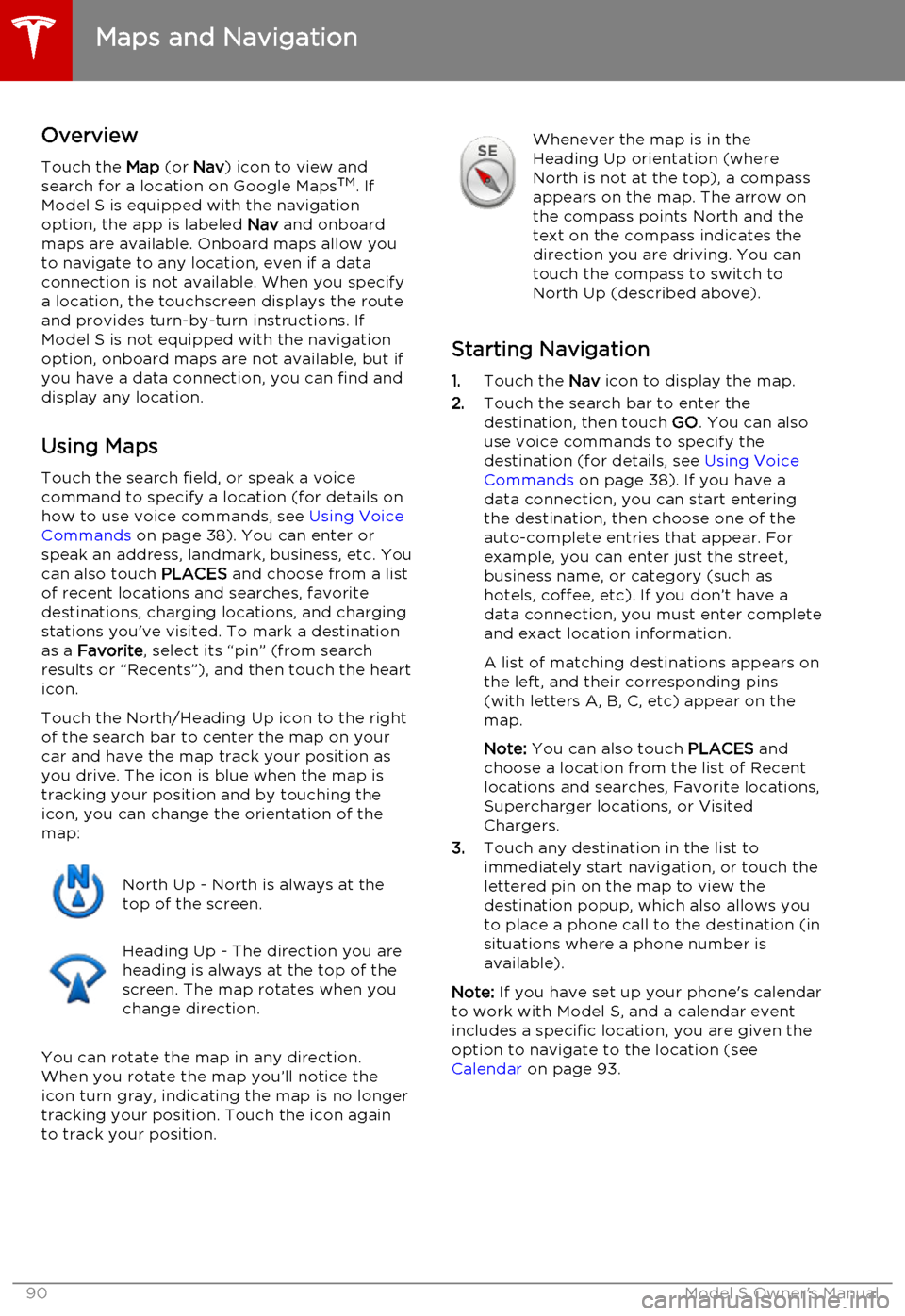
Touch the North/Heading Up icon to the right
of the search bar to center the map on your
car and have the map track your position as
you drive. The icon is blue when the map is tracking your position and by touching the
icon, you can change the orientation of the
map:North Up - North is always at the
top of the screen.Heading Up - The direction you are
heading is always at the top of the
screen. The map rotates when you
change direction.
You can rotate the map in any direction.
When you rotate the map you’ll notice the
icon turn gray, indicating the map is no longer
tracking your position. Touch the icon again to track your position.
Whenever the map is in the
Heading Up orientation (where
North is not at the top), a compass
appears on the map. The arrow on
the compass points North and the
text on the compass indicates the
direction you are driving. You can
touch the compass to switch to
North Up (described above).
Starting Navigation
1. Touch the Nav icon to display the map.
2. Touch the search bar to enter the
destination, then touch GO. You can also
use voice commands to specify the
destination (for details, see Using Voice
Commands on page 38). If you have a
data connection, you can start entering
the destination, then choose one of the
auto-complete entries that appear. For example, you can enter just the street,business name, or category (such as
hotels, coffee, etc). If you don’t have a data connection, you must enter completeand exact location information.
A list of matching destinations appears on
the left, and their corresponding pins
(with letters A, B, C, etc) appear on the
map.
Note: You can also touch PLACES and
choose a location from the list of Recent
locations and searches, Favorite locations, Supercharger locations, or Visited
Chargers.
3. Touch any destination in the list to
immediately start navigation, or touch the
lettered pin on the map to view the
destination popup, which also allows you
to place a phone call to the destination (in
situations where a phone number is
available).
Note: If you have set up your phone's calendar
to work with Model S, and a calendar event
includes a specific location, you are given the
option to navigate to the location (see
Calendar on page 93.
Maps and Navigation
90Model S Owner's Manual
Page 92 of 164
Favorite DestinationsAdd any destination to your list of
Favorites by either touching its flag
while navigating to it, or by
displaying it on the map then
touching its pin. Then, in the popup
dialog that appears, touch the
Favorites icon. When a destination is
on your Favorites list, the icon is
blue. To remove a favorite
destination, touch the Favorites icon
again.
If you frequently navigate to a destination,
you may want to add it as a Favorite to avoid having to enter the location's name or address
each time. When you add a destination as a
Favorite, you can easily navigate to it by touching PLACES, then selecting it from the
list of Favorites. The Favorites list has placeholders for your Home and Worklocations. In fact, Model S may prompt you to
save a current location as Home or Work
based on your usage pattern.
Updated Maps To receive updated maps, periodically
connect Model S to a Wi-Fi network (see
Connecting to Wi-Fi on page 98). As
updated maps become available, they are sent
to Model S over Wi-Fi only. The touchscreen displays a message informing you when newmaps have been installed.
Maps and Navigation
92Model S Owner's Manual
Page 93 of 164
OverviewNote: Calendar is a BETA feature in Release 6.0.
The Calendar app allows you to view your phone’s (iPhone or Android) calendar for the current and next day. The Calendar app requires that:
• The Tesla Model S mobile app is running and you are logged in. When prompted on your phone, you must grant calendar access to the mobile app. The mobile app can then
periodically (and automatically) send calendar data from your phone to Model S. Also,
whenever you display the mobile app on your phone, updated calendar data is sent to
Model S.
• Your phone is connected to Model S via Bluetooth (for privacy reasons, calendar data displays only from a phone that is connected via Bluetooth).
• Remote access to Model S is turned on (touch Controls > Settings > Safety & Security >
Remote Access > On ).
• Both your phone and Model S have good connectivity.
When you enter Model S, the touchscreen can display a reminder of the day's events. You can
customize if and when your calendar events are displayed by touching Controls > Settings >
Apps > Calendar > Show Calendar Upon Entry .
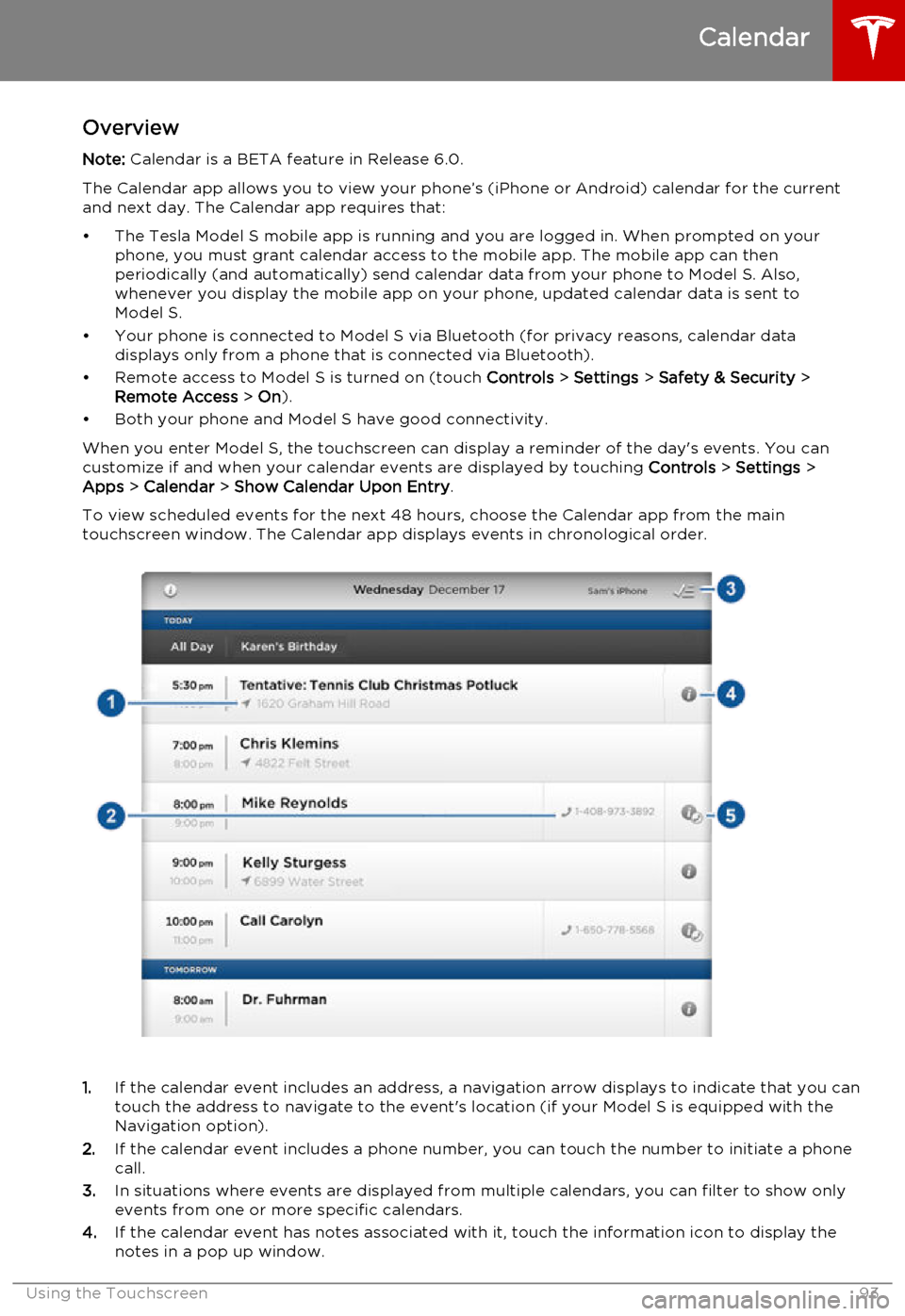
To view scheduled events for the next 48 hours, choose the Calendar app from the main
touchscreen window. The Calendar app displays events in chronological order.
1. If the calendar event includes an address, a navigation arrow displays to indicate that you can
touch the address to navigate to the event's location (if your Model S is equipped with the
Navigation option).
2. If the calendar event includes a phone number, you can touch the number to initiate a phone
call.
3. In situations where events are displayed from multiple calendars, you can filter to show only
events from one or more specific calendars.
4. If the calendar event has notes associated with it, touch the information icon to display the
notes in a pop up window.
Calendar
Using the Touchscreen93
Page 105 of 164
During ChargingDuring charging, the charge port pulses green
and charging status displays on the instrument panel. The frequency at which thecharge port’s light pulses slows down as thecharge level approaches full. When charging iscomplete, the light stops pulsing and is solid
green.
Note: If Model S is locked, the light around the
charge port does not light up.
If the light around the charge port lights up
red while charging, a fault is detected. Check
the instrument panel or touchscreen for a
message describing the fault. A fault can
occur due to something as common as a
power outage. If a power outage occurs,
charging resumes automatically when power
is restored.
Note: When charging, particularly at high
currents, the refrigerant compressor and the
fan operate as needed to keep the Battery cool. Therefore, it is normal to hear sounds
during charging.
Stopping Charging You can stop charging at any time by
disconnecting the charge cable or touching
Stop Charging on the touchscreen.
To disconnect the charge cable:
1. Press and hold the button on a Tesla
connector to release the latch.
2. Pull the connector from the charge port.
3. Push the charge port door closed.
Note: To prevent unauthorized unplugging of
the charge cable, Model S must be unlocked
or able to recognize a key before you can
disconnect the charge cable.
Note: Model S stops charging whenever you
double-click the key. If you do not unplug
within 60 seconds, charging resumes.Caution: Tesla strongly recommends
leaving Model S plugged in when not in
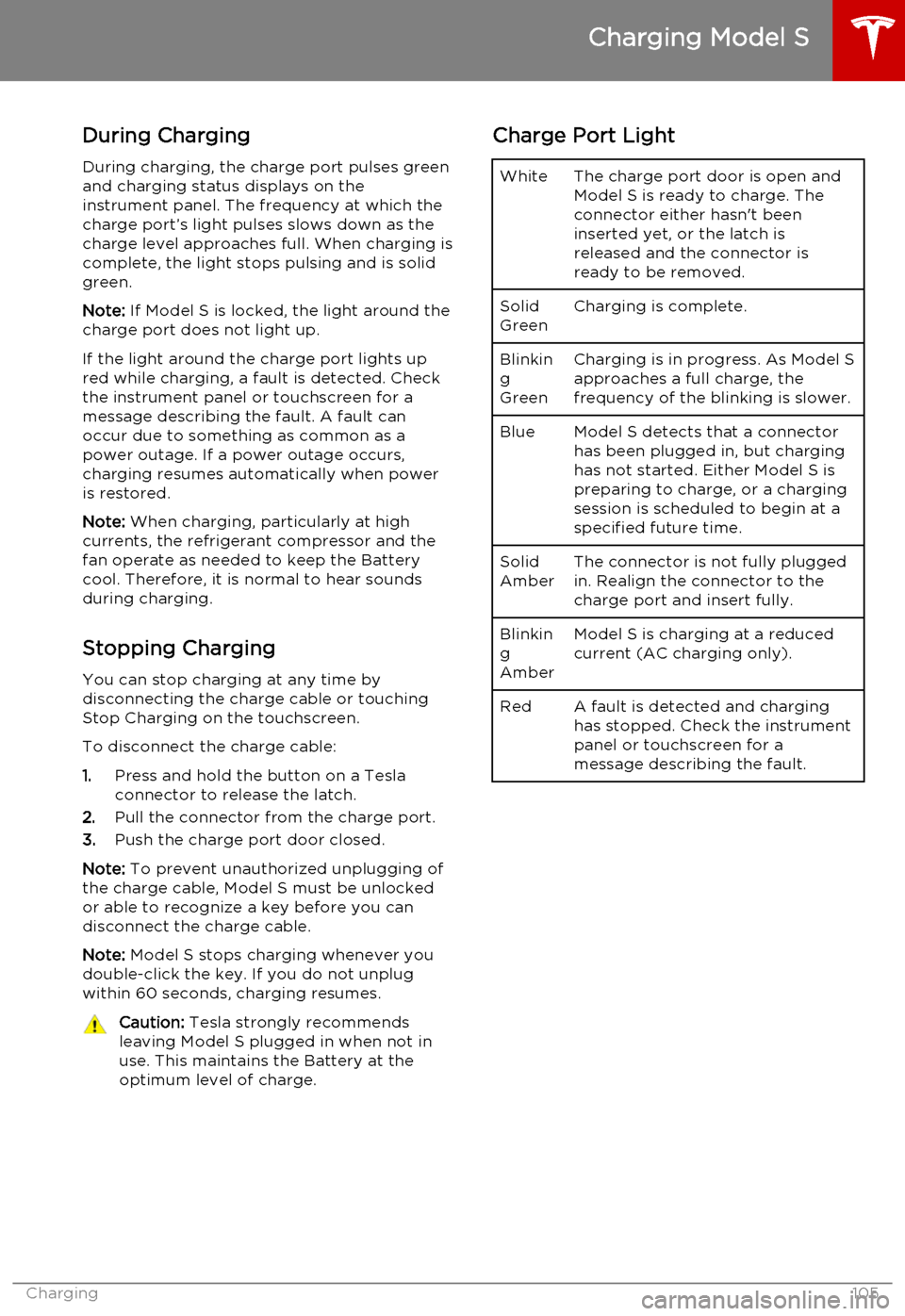
use. This maintains the Battery at the optimum level of charge.Charge Port LightWhiteThe charge port door is open and
Model S is ready to charge. The
connector either hasn't been
inserted yet, or the latch is
released and the connector is
ready to be removed.Solid
GreenCharging is complete.Blinkin
g
GreenCharging is in progress. As Model S approaches a full charge, the
frequency of the blinking is slower.BlueModel S detects that a connector has been plugged in, but charging
has not started. Either Model S is
preparing to charge, or a charging
session is scheduled to begin at a
specified future time.Solid
AmberThe connector is not fully plugged
in. Realign the connector to the
charge port and insert fully.Blinkin
g
AmberModel S is charging at a reduced
current (AC charging only).RedA fault is detected and charging
has stopped. Check the instrument
panel or touchscreen for a
message describing the fault.
Charging Model S
Charging105
Page 107 of 164
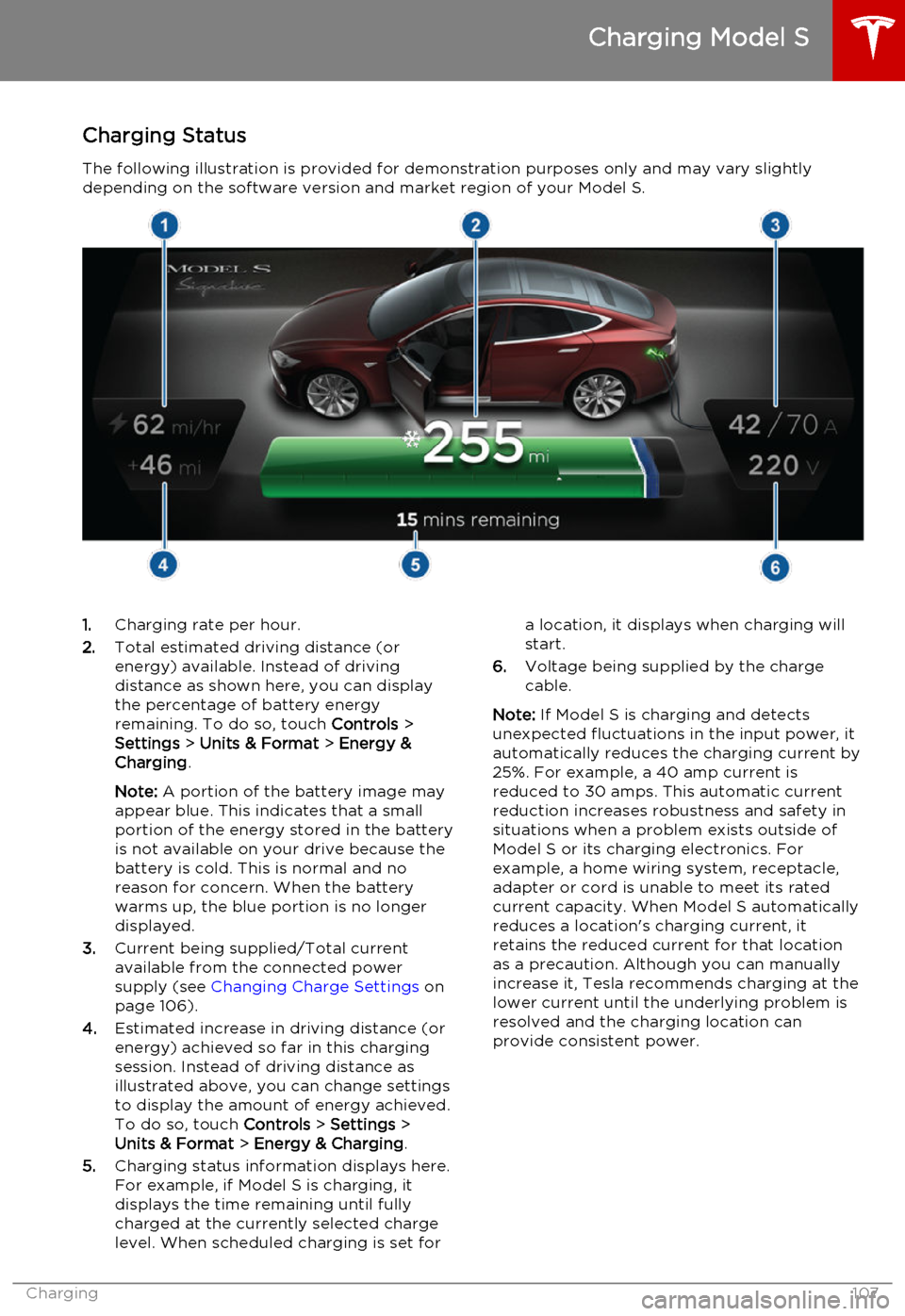
Charging StatusThe following illustration is provided for demonstration purposes only and may vary slightlydepending on the software version and market region of your Model S.1. Charging rate per hour.
2. Total estimated driving distance (or
energy) available. Instead of driving distance as shown here, you can display
the percentage of battery energy
remaining. To do so, touch Controls >
Settings > Units & Format > Energy &
Charging .
Note: A portion of the battery image may
appear blue. This indicates that a small
portion of the energy stored in the battery
is not available on your drive because the battery is cold. This is normal and no
reason for concern. When the battery warms up, the blue portion is no longer
displayed.
3. Current being supplied/Total current
available from the connected power
supply (see Changing Charge Settings on
page 106).
4. Estimated increase in driving distance (or
energy) achieved so far in this charging session. Instead of driving distance as
illustrated above, you can change settings
to display the amount of energy achieved.
To do so, touch Controls > Settings >
Units & Format > Energy & Charging .
5. Charging status information displays here.
For example, if Model S is charging, it displays the time remaining until fully
charged at the currently selected charge
level. When scheduled charging is set fora location, it displays when charging will
start.
6. Voltage being supplied by the charge
cable.
Note: If Model S is charging and detects
unexpected fluctuations in the input power, it automatically reduces the charging current by25%. For example, a 40 amp current isreduced to 30 amps. This automatic currentreduction increases robustness and safety in
situations when a problem exists outside of
Model S or its charging electronics. For
example, a home wiring system, receptacle,
adapter or cord is unable to meet its rated
current capacity. When Model S automatically
reduces a location's charging current, it
retains the reduced current for that location
as a precaution. Although you can manually
increase it, Tesla recommends charging at the
lower current until the underlying problem is
resolved and the charging location can
provide consistent power.
Charging Model S
Charging107
Page 160 of 164

AABS (Anti-lock Braking System) 52
Acceleration (dual motor) 74
access panel, removing 123accessoriesinstalling 133
plugging into power socket 87
air circulation 81
air conditioning 80
air distribution 81
air filter 82
air suspension 84
air vents 82
airbags 32
alarm 95
all-season tires 111
always connected, setting 70
anti-lock braking (ABS) 52
audioplaying files 85
steering wheel buttons 37
auto-raising suspension 83
B
backup camera 71
battery (12V)complete discharge 103
specifications 141Battery (high voltage)care of 103
coolant 123
specifications 142
temperature limits 103
battery (key), replacing 5
Bluetoothdevices, playing audio files from 86
general information 88
phone, pairing and using 88
body repairs 133
body touch up 120
brake fluid replacement 108
brakesfluid level 124
overview of 52
specifications 141
brightness of displays 77
C
cabin temperature control 80
calendar 93
California Proposition 65 155
camera (rear view) 71
car cover 120
car washes 118
carpets, cleaning 119
CE certifications 157
CHAdeMO 102
chains 112
change of ownership 79
charge port 104
charge port light 105chargingcharge settings 106
components and equipment 101
instructions 104
public charging stations 102
scheduling 106
status of 107child protectiondisabling liftgate and rear door handles 7
disabling rear window switches 9child seatscleaning 119
installing and using 23
Tesla built-in rear facing 28
cleaning 118
climate controls 80
climate ionizer 77
Cold Weather controls 74
collision avoidance 58
console12V power socket 87
cup holders 16
USB ports 87contact informationroadside assistance 149
Tesla 156coolantBattery, checking level of 123
Battery, replacement interval 108
copyrights 153, 154
cornering lights 50
Creep 74
cruise control 60
cup holders 16
customizing Model S 77
D dashboard overview 2
data recording 155
day mode 77
delivery mileage 155
devices
Index
160Model S Owner's Manual
Page 161 of 164

Bluetooth, playing audio files 86
connecting 87
playing audio files from 86
dimensions 138
display brightness 77
dome (map) lights 47
door handles 6
door labels 135
doors 4
Drive gear 42
drive-away locking 7driverprofiles 36
seat adjustment 17driver assistanceforward collision warning 58
overtake acceleration 60
staying inside lane markings 57drivingseating position 17
starting Model S 41
tips to maximize range 70
E
electric parking brake 53
emergency flashers 50
emergency rear door opening 8
emission label 134
energygained from regenerative braking 53
range information 43
tips to minimize usage of 70
energy & charging setting 77
energy app 70
energy saving mode 70
Erase & Reset 79
event data recording 155
exteriorcar cover 120
cleaning 118
dimensions 138
lights 47
overview 3
polishing, touch up, & repair 120F
factory defaults, restoring 79
factory reset 79
fan speed, interior 81
favorites, adding and removing 86
FCC certifications 157
features, downloading new 99
firmware (software) updates 99
flash drives, playing audio files from 86
flashers, warning 50
flat tire repair 114
floor mats 120fluidsreplacement intervals 108
reservoirs, checking 123
fog lights 47
forward collision warning 58
front passenger detection 34
front trunk 12
fuseslocation of 126
removing access panel 123
G
garage doors, opening 96
gates, opening 96
GAWR 136
gears 42
glove box 14
Gross Axle Weight Rating 136
Gross Vehicle Weight Rating 136
ground clearance 138
GVWR 136
H
hazard warning flashers 50
head supports 19
headlightsafter exit 50
cornering lights 50
heated wipers 51
heating 80
height adjustments (suspension)auto-raising 83
automatic and manual settings 84
disabling (Jack mode) 84high voltageBattery specifications 142
components 101
safety 108
Hill Start Assist 68
hitches 137
HomeLink
Index
Index161