steering wheel TESLA MODEL S 2017 User Guide
[x] Cancel search | Manufacturer: TESLA, Model Year: 2017, Model line: MODEL S, Model: TESLA MODEL S 2017Pages: 188, PDF Size: 5.46 MB
Page 74 of 188
Note: Autosteer is a BETA feature.
If Model S is equipped with Driver Assistance
components (see About Driver Assistance on
page 65), and you have purchased the optional Autopilot Tech Package, you can use
Autosteer to manage steering and speed under certain circumstances. Autosteer builds
upon
Traffic-Aware Cruise Control, intelligently
keeping Model S in its driving lane when
cruising at a set speed. Using the forward
looking camera, the radar sensor, and the ultrasonic sensors, Autosteer detects lanemarkings and the presence of vehicles and
objects, steering Model S based on the lane
markings and the vehicle directly in front of
you.
Warning: Autosteer is a hands-on feature.
You must keep your hands on the steering
wheel at all times.Warning: Autosteer is intended for use
only on highways and limited-access
roads with a fully attentive driver. When using Autosteer, hold the steering wheel
and be mindful of road conditions and
surrounding
traffic. Do not use Autosteer
on city streets, in construction zones, or
in areas where bicyclists or pedestrians
may be present. Never depend on
Autosteer to determine an appropriate driving path. Always be prepared to take
immediate action. Failure to follow these instructions could cause serious property
damage, injury or death.
Operating Autosteer
Before you can operate Autosteer, you must
enable it by touching Controls > Settings >
Driver Assistance > Autosteer > Enable.
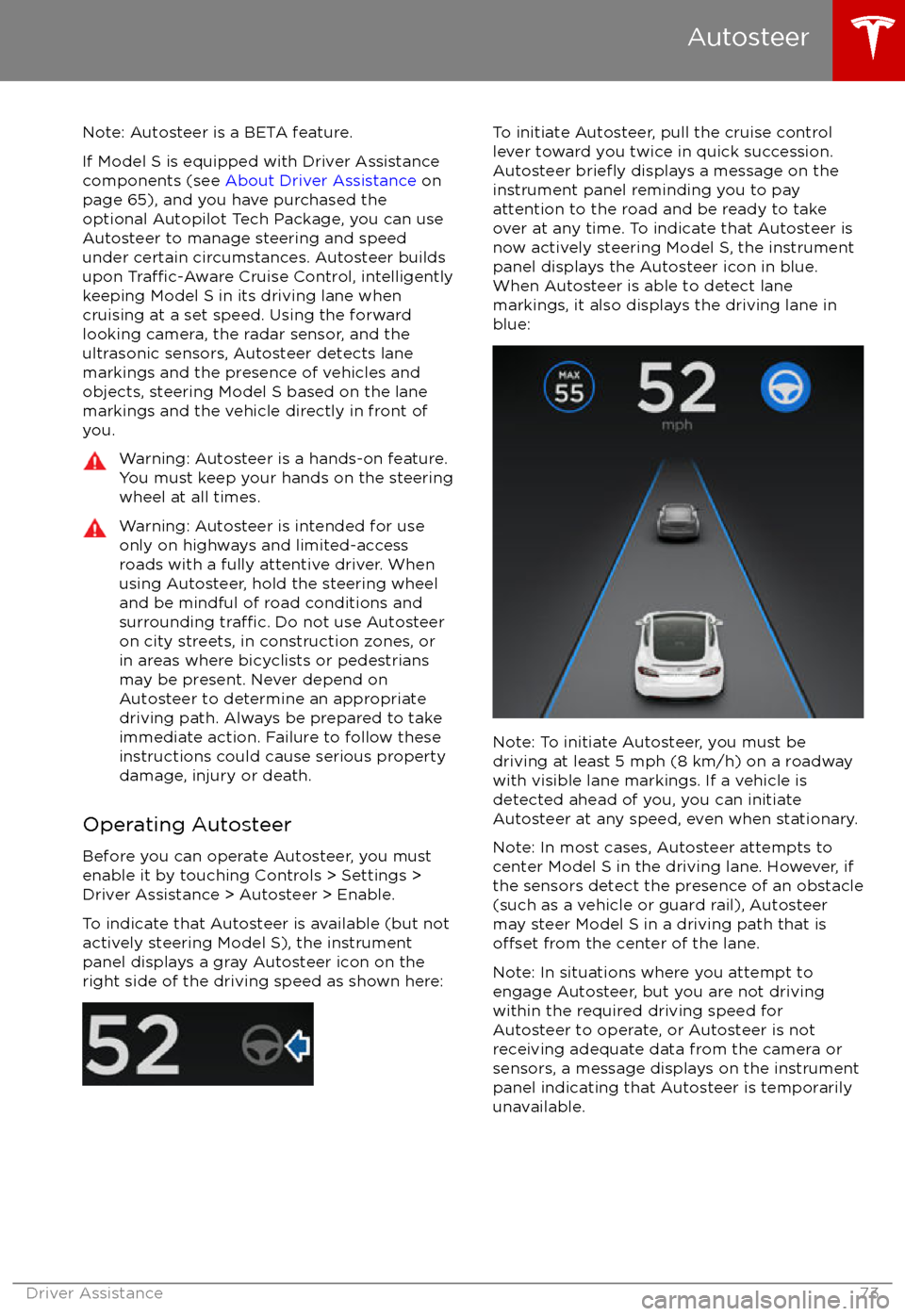
To indicate that Autosteer is available (but not actively steering Model S), the instrument
panel displays a gray Autosteer icon on the right side of the driving speed as shown here:
To initiate Autosteer, pull the cruise control
lever toward you twice in quick succession. Autosteer
briefly displays a message on the
instrument panel reminding you to pay
attention to the road and be ready to take
over at any time. To indicate that Autosteer is now actively steering Model S, the instrument
panel displays the Autosteer icon in blue.
When Autosteer is able to detect lane
markings, it also displays the driving lane in blue:
Note: To initiate Autosteer, you must be
driving at least 5 mph (8 km/h) on a roadway
with visible lane markings. If a vehicle is
detected ahead of you, you can initiate
Autosteer at any speed, even when stationary.
Note: In most cases, Autosteer attempts to
center Model S in the driving lane. However, if
the sensors detect the presence of an obstacle (such as a vehicle or guard rail), Autosteer
may steer Model S in a driving path that is
offset from the center of the lane.
Note: In situations where you attempt to
engage Autosteer, but you are not driving
within the required driving speed for Autosteer to operate, or Autosteer is not
receiving adequate data from the camera or
sensors, a message displays on the instrument
panel indicating that Autosteer is temporarily
unavailable.
Autosteer
Driver Assistance73
Page 75 of 188
Restricted Speed
Autosteer is intended for use on freeways and
highways where access is limited by entry and
exit ramps. When using Autosteer on residential roads, a road without a centerdivider, or a road where access is not limited,
Autosteer limits the driving speed. The
maximum driving speed is calculated based
on the detected speed limit plus 5 mph (10 km/h). In situations where the speed limit
cannot be detected, speed is limited to 45 mph (70 km/h). When Autosteer is
engaged in these situations, it reduces your
driving speed and your set speed to be within
these limits. You can manually accelerate to exceed the limited speed, but when you
release the accelerator pedal, Autosteer slows
Model S to the limited speed. When you leave
the road, or disengage Autosteer by using the steering wheel, you can increase your set
speed again, if desired.
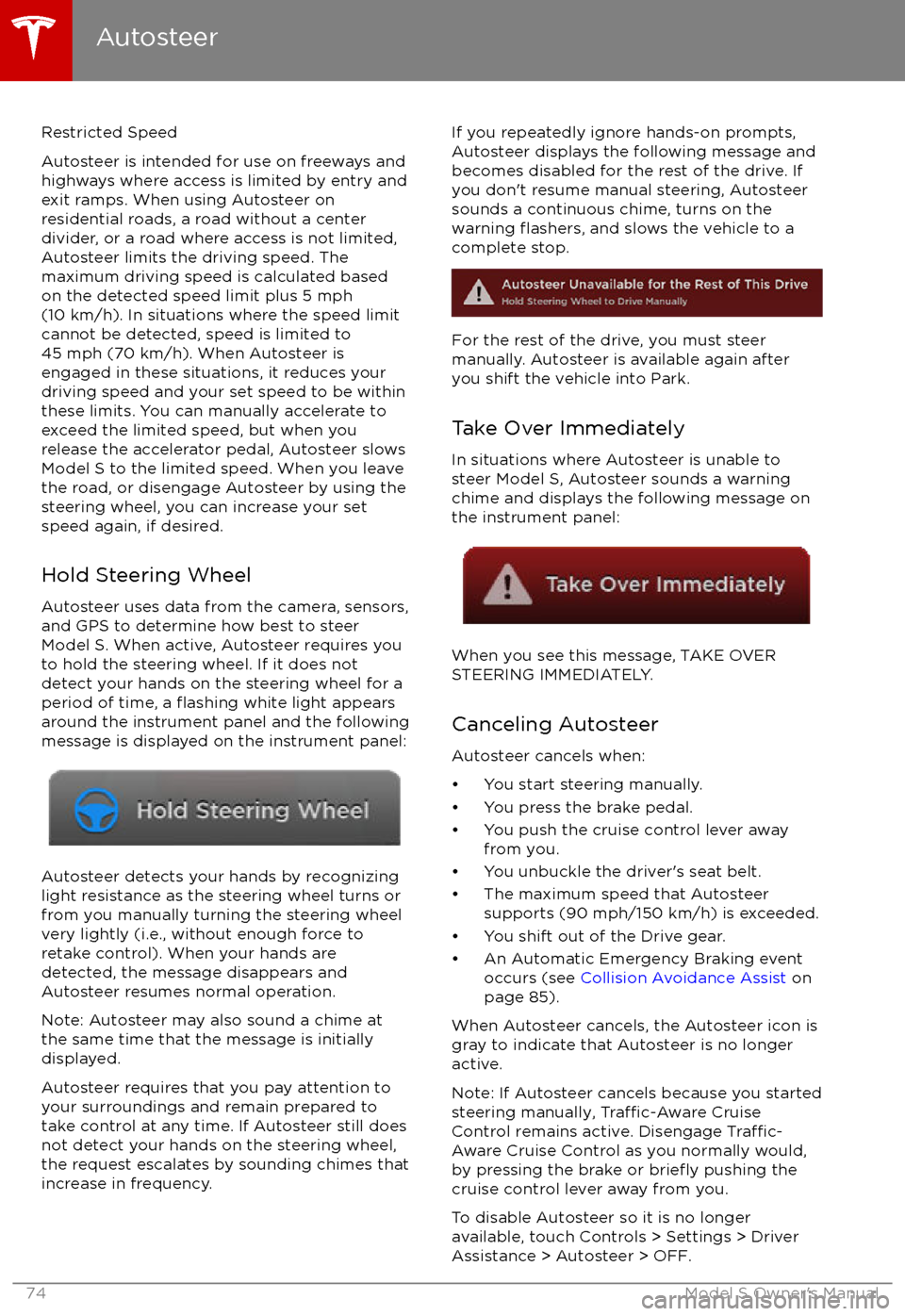
Hold Steering Wheel Autosteer uses data from the camera, sensors,
and GPS to determine how best to steer
Model S. When active, Autosteer requires you
to hold the steering wheel. If it does not detect your hands on the steering wheel for a
period of time, a
flashing white light appears
around the instrument panel and the following
message is displayed on the instrument panel:
Autosteer detects your hands by recognizing
light resistance as the steering wheel turns or
from you manually turning the steering wheel very lightly (i.e., without enough force toretake control). When your hands are
detected, the message disappears and Autosteer resumes normal operation.
Note: Autosteer may also sound a chime at
the same time that the message is initially
displayed.
Autosteer requires that you pay attention to your surroundings and remain prepared totake control at any time. If Autosteer still doesnot detect your hands on the steering wheel,the request escalates by sounding chimes that
increase in frequency.
If you repeatedly ignore hands-on prompts,
Autosteer displays the following message and
becomes disabled for the rest of the drive. If
you don
Page 77 of 188
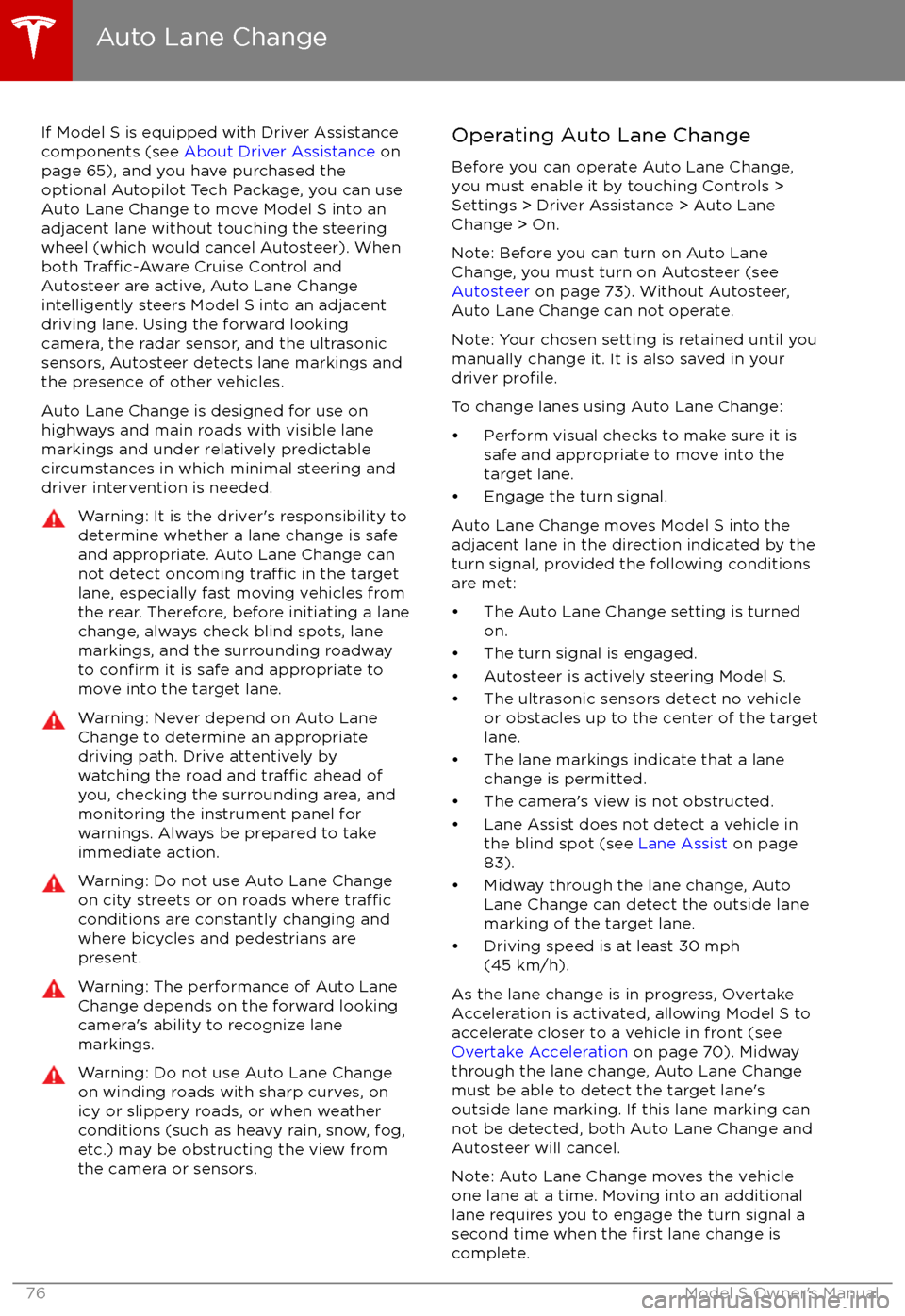
If Model S is equipped with Driver Assistance
components (see About Driver Assistance on
page 65), and you have purchased the
optional Autopilot Tech Package, you can use
Auto Lane Change to move Model S into an adjacent lane without touching the steering
wheel (which would cancel Autosteer). When both
Traffic-Aware Cruise Control and
Autosteer are active, Auto Lane Change intelligently steers Model S into an adjacent
driving lane. Using the forward looking camera, the radar sensor, and the ultrasonic
sensors, Autosteer detects lane markings and
the presence of other vehicles.
Auto Lane Change is designed for use on
highways and main roads with visible lane
markings and under relatively predictable
circumstances in which minimal steering and
driver intervention is needed.
Warning: It is the driver
Page 78 of 188
Warning: If Auto Lane Change cannotdetect the outside of the target lane
midway through the lane change, both
Auto Lane Change and Autosteer will cancel. The instrument panel displays a
message instructing you to take over the
steering wheel immediately.
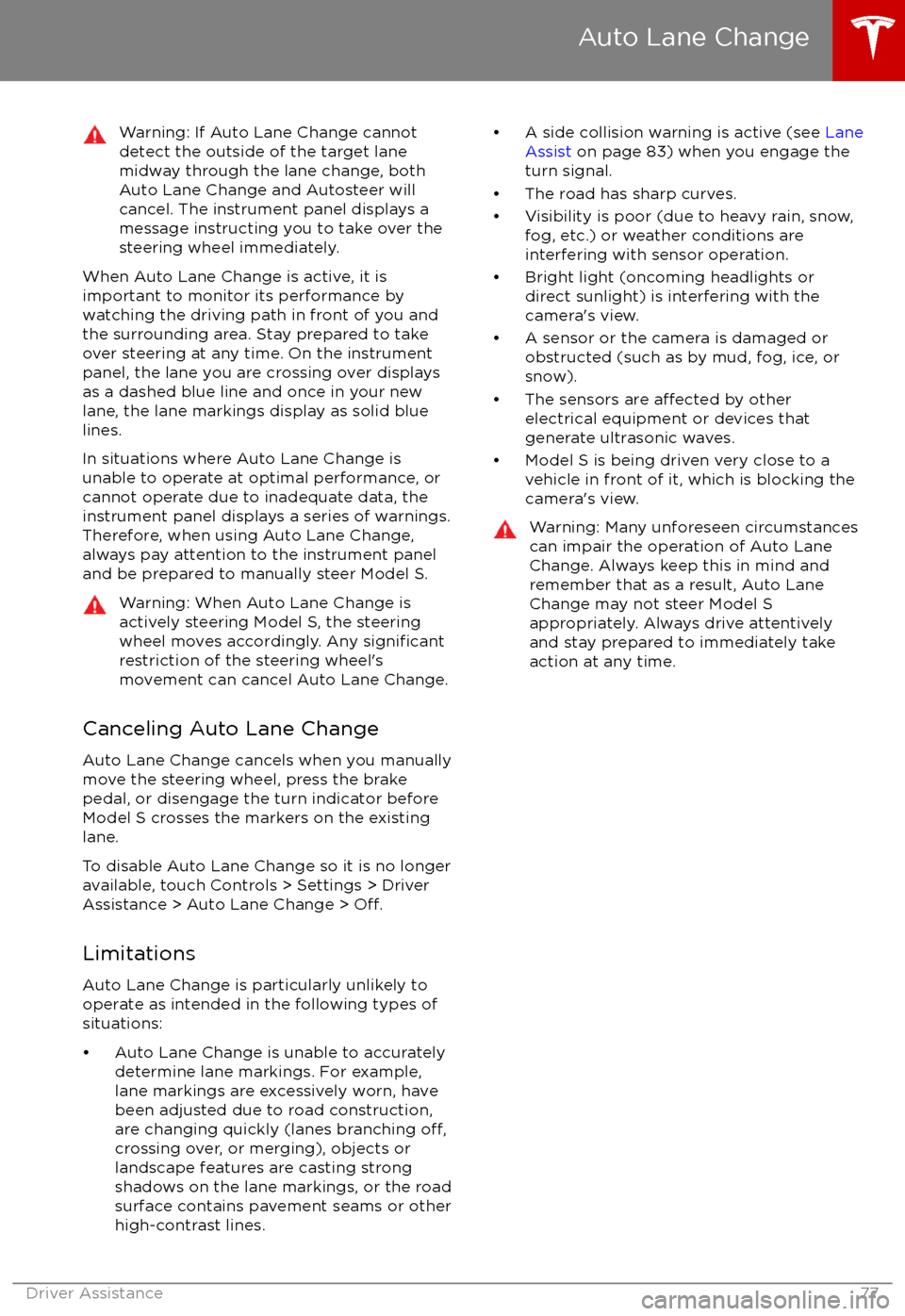
When Auto Lane Change is active, it is
important to monitor its performance by
watching the driving path in front of you and
the surrounding area. Stay prepared to take
over steering at any time. On the instrument
panel, the lane you are crossing over displays as a dashed blue line and once in your new
lane, the lane markings display as solid blue
lines.
In situations where Auto Lane Change is
unable to operate at optimal performance, or
cannot operate due to inadequate data, the
instrument panel displays a series of warnings.
Therefore, when using Auto Lane Change,
always pay attention to the instrument panel
and be prepared to manually steer Model S.
Warning: When Auto Lane Change is
actively steering Model S, the steering
wheel moves accordingly. Any
significantrestriction of the steering wheel
Page 80 of 188
Note: If you press the brake when Autopark is
actively parking Model S, the parking process pauses until you press the Resume button onthe touchscreen.
Note: Autopark detects potential
perpendicular parking spaces that are at least
9.5 feet (2.9 meters) wide with a vehicle
parked on each side. Autopark detects parallelparking spaces that are at least 20 feet (6
meters), but less than 49 feet (15 meters) long.
Autopark does not operate on angled parking spaces.Warning: Never depend on Autopark tofind a parking space that is legal, suitable,
and safe. Autopark may not always detect
objects in the parking space. Always
perform visual checks to
confirm that a
parking space is appropriate and safe.
Warning: When Autopark is actively
steering Model S, the steering wheel
moves in accordance with Autopark
Page 95 of 188

6. Climate controls (see Climate Controls on page 102).
7. Volume control
Touch the up and down arrows to increase or decrease the volume of the speakers. You canalso adjust the volume using the scroll wheel on the left side of the steering wheel.
8. Reverse the position of the two currently displayed apps.Warning: Paying attention to road and traffic conditions must always be the driver
Page 103 of 188
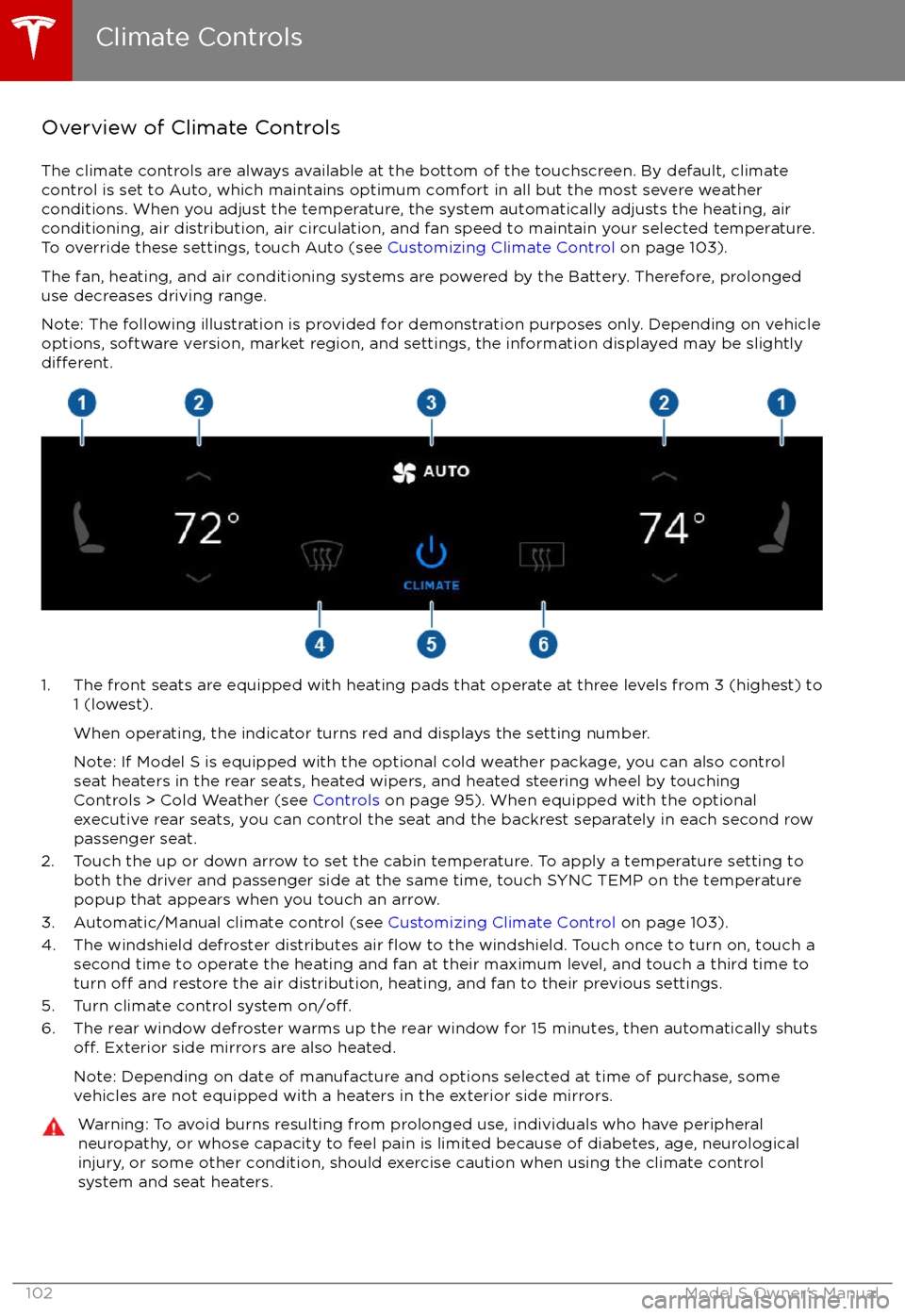
Overview of Climate Controls
The climate controls are always available at the bottom of the touchscreen. By default, climate control is set to Auto, which maintains optimum comfort in all but the most severe weather conditions. When you adjust the temperature, the system automatically adjusts the heating, air
conditioning, air distribution, air circulation, and fan speed to maintain your selected temperature. To override these settings, touch Auto (see Customizing Climate Control on page 103).
The fan, heating, and air conditioning systems are powered by the Battery. Therefore, prolonged
use decreases driving range.
Note: The following illustration is provided for demonstration purposes only. Depending on vehicle
options, software version, market region, and settings, the information displayed may be slightly
different.
1. The front seats are equipped with heating pads that operate at three levels from 3 (highest) to 1 (lowest).
When operating, the indicator turns red and displays the setting number.
Note: If Model S is equipped with the optional cold weather package, you can also control seat heaters in the rear seats, heated wipers, and heated steering wheel by touchingControls > Cold Weather (see Controls on page 95). When equipped with the optional
executive rear seats, you can control the seat and the backrest separately in each second row
passenger seat.
2. Touch the up or down arrow to set the cabin temperature. To apply a temperature setting to both the driver and passenger side at the same time, touch SYNC TEMP on the temperaturepopup that appears when you touch an arrow.
3. Automatic/Manual climate control (see Customizing Climate Control on page 103).
4. The windshield defroster distributes air
flow to the windshield. Touch once to turn on, touch a
second time to operate the heating and fan at their maximum level, and touch a third time to
turn
off and restore the air distribution, heating, and fan to their previous settings.
5. Turn climate control system on/off.6. The rear window defroster warms up the rear window for 15 minutes, then automatically shutsoff. Exterior side mirrors are also heated.
Note: Depending on date of manufacture and options selected at time of purchase, some vehicles are not equipped with a heaters in the exterior side mirrors.
Warning: To avoid burns resulting from prolonged use, individuals who have peripheral neuropathy, or whose capacity to feel pain is limited because of diabetes, age, neurologicalinjury, or some other condition, should exercise caution when using the climate control
system and seat heaters.
Climate Controls
102Model S Owner
Page 140 of 188
Inspecting and Maintaining TiresRegularly inspect the tread and side walls for
any sign of distortion (bulges), cuts or wear.Warning: Do not drive Model S if a tire is
damaged, excessively worn, or inflated to
an incorrect pressure. Check tires
regularly for wear, and ensure there are
no cuts, bulges or exposure of the ply/
cord structure.
Tire Wear
Adequate tread depth is important for proper
tire performance. Tires with a tread depth less
than 4/32” (3 mm) are more likely to
hydroplane in wet conditions and should not
be used. Tires with a tread depth less than
5/32” (4 mm) do not perform well in snow and
slush and should not be used when driving in
winter conditions.
Model S is originally
fitted with tires that have
wear indicators molded into the tread pattern. When the tread has been worn down to 4/32”(3 mm), the indicators start to appear at thesurface of the tread pattern, producing the
effect of a continuous band of rubber across
the width of the tire. For optimal performance
and safety, Tesla recommends replacing tires
before the wear indicators are visible.
Tire Rotation, Balance, and Wheel Alignment
Tesla recommends rotating the tires every
6250 miles (10,000 km).
Unbalanced wheels (sometimes noticeable as
vibration through the steering wheel)
affectvehicle handling and tire life. Even with regular
use, wheels can get out of balance. Therefore,
they should be balanced as required.
If tire wear is uneven (on one side of the tire
only) or becomes abnormally excessive, check
the alignment of wheels.
Note: When replacing only two tires, always
install the new tires on the rear.
Punctured Tires
A puncture eventually causes the tire to lose pressure, which is why it is important to check
tire pressures frequently. Permanently repair
or replace punctured or damaged tires as
soon as possible.
Your tubeless tires may not leak when
penetrated, provided the object remains in the tire. If, however, you feel a sudden vibration or
ride disturbance while driving, or you suspect a tire is damaged, immediately reduce yourspeed. Drive slowly, while avoiding heavy
braking or sharp steering and, when safe to do so, stop the vehicle. Arrange to have Model S
transported to a Tesla service center, or to a
nearby tire repair center.
Note: In some cases, you can temporarily
repair small tire punctures (under 1/4” (6
mm)) using an optional tire repair kit available from Tesla. This allows you to slowly drive
Model S to Tesla or to a nearby tire repair
facility (see Temporary Tire Repair on page
144).Warning: Do not drive with a punctured
tire, even if the puncture has not causedthe tire to
deflate. A punctured tire candeflate suddenly at any time.
Flat Spots
If Model S is stationary for a long period in
high temperatures, tires can form
flat spots.
When Model S is driven, these flat spots cause
a vibration which gradually disappears as the
tires warm up and regain their original shape.
To minimize
flat spots during storage, inflatetires to the maximum pressure indicated on the tire wall. Then, before driving, release airto adjust tire pressure to the recommendedlevels.
Improving Tire Mileage
To improve the mileage you get from your
tires, maintain tires at the recommended tire
pressures, observe speed limits and advisory
speeds, and avoid:
Page 182 of 188
AABS (Anti-lock Braking System) 54
Acceleration (dual-motor) 95
access panel, removing 153accessoriesinstalling 157
plugging into power socket 112
adaptive headlights 51
air circulation 103
air conditioning 102
air distribution 103
air
filter 105
air suspension 107
air vents 105
airbags 31
alarm 122
all-season tires 141
always connected, setting 62
anti-lock braking (ABS) 54
audioplaying files 108
steering wheel buttons 37
volume control 108
Auto High Beam 51
Auto Lane Change 76
auto-raising suspension 106
automatic emergency braking 85
Autopark 78
Autopilot 65
Autosteer 73
average range 62
B backup camera 64
battery (12V)complete discharge 130specifications 164Battery (high voltage)care of 130
coolant 153
specifications 165
temperature limits 130
battery (key), replacing 5
blind spot warning 83
Bluetoothdevices, playing audio files from 111
general information 113
phone, pairing and using 113
body repairs 157
body touch up 150
brake
fluid replacement 137
brakesautomatic in emergencies 85fluid level 154
overview of 54
specifications 164
brightness of displays 98
C Cabin Overheat Protection setting 98
cabin temperature control 102
Calendar app 120
California Proposition 65 177
camera (rear view) 64
car cover 150
car washes 148
cargo volume 162
carpets, cleaning 149
CE
certifications 179
CHAdeMO 129
chains 141
change of ownership 101
charge port 131
charge port light 134
chargingcharge settings 135
components and equipment 128
instructions 131
public charging stations 129
scheduling 135
status of 136
charging locations, finding 116
child protectiondisabling liftgate and rear door handles 7
disabling rear window switches 9child seatscleaning 149
installing and using 22
Tesla built-in rear facing 27
cleaning 148
climate controls 102
Cold Weather controls 95
collision avoidance assist 85
console12V power socket 112
cup holders 16
USB ports 111
consumption chart 62
contact informationroadside assistance 171
Tesla 178coolantBattery, checking level of 153
Battery, replacement interval 137
copyrights 175, 176
Creep 95
cruise control 67
cup holders 16
D
dashboard overview 2
Index
Index181
Page 185 of 188
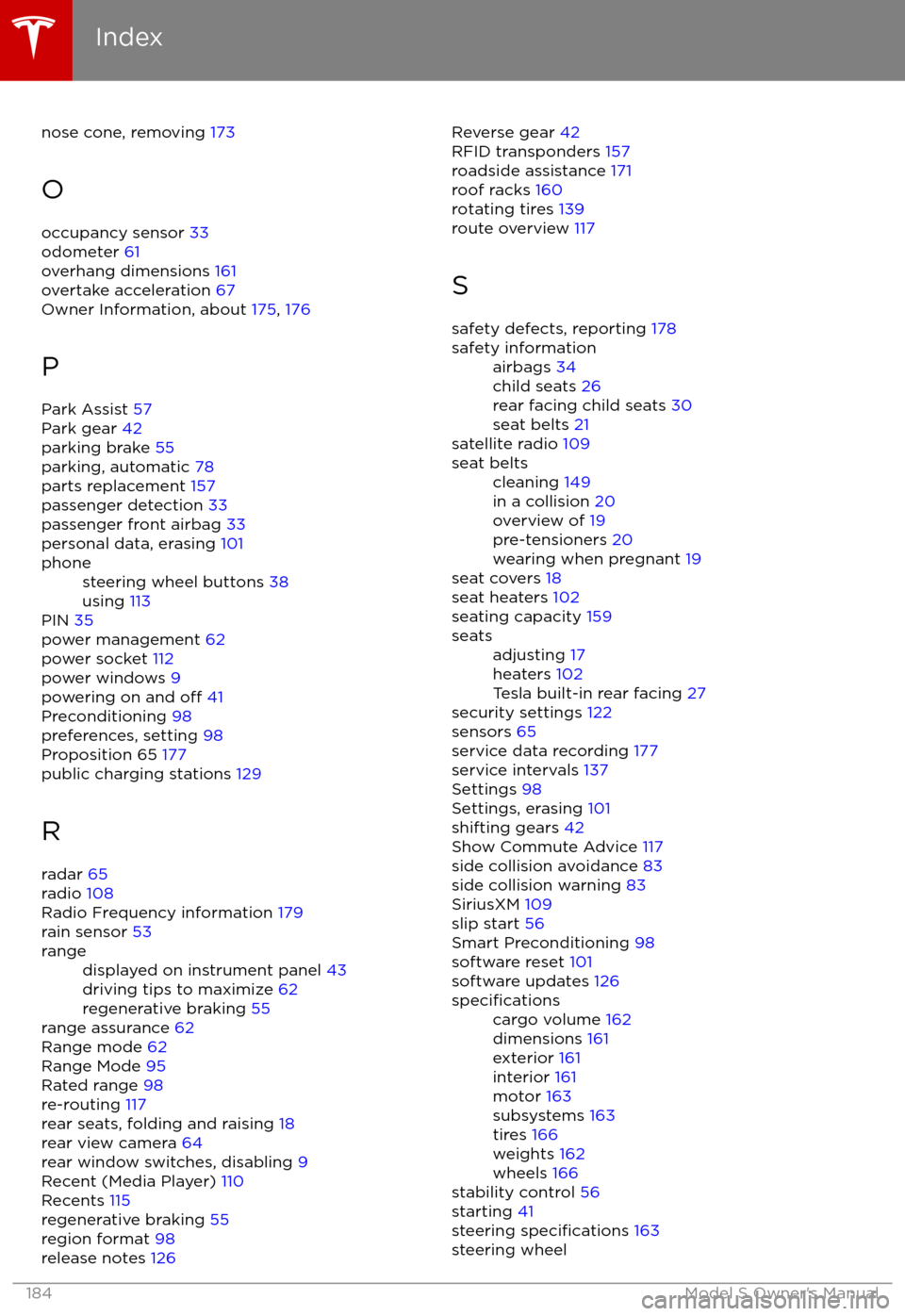
nose cone, removing 173
O
occupancy sensor 33
odometer 61
overhang dimensions 161
overtake acceleration 67
Owner Information, about 175, 176
P
Park Assist 57
Park gear 42
parking brake 55
parking, automatic 78
parts replacement 157
passenger detection 33
passenger front airbag 33
personal data, erasing 101phonesteering wheel buttons 38
using 113
PIN 35
power management 62
power socket 112
power windows 9
powering on and
off 41
Preconditioning 98
preferences, setting 98
Proposition 65 177
public charging stations 129
R
radar 65
radio 108
Radio Frequency information 179
rain sensor 53
rangedisplayed on instrument panel 43
driving tips to maximize 62
regenerative braking 55
range assurance 62
Range mode 62
Range Mode 95
Rated range 98
re-routing 117
rear seats, folding and raising 18
rear view camera 64
rear window switches, disabling 9
Recent (Media Player) 110
Recents 115
regenerative braking 55
region format 98
release notes 126
Reverse gear
42
RFID transponders 157
roadside assistance 171
roof racks 160
rotating tires 139
route overview 117
S safety defects, reporting 178safety informationairbags 34
child seats 26
rear facing child seats 30
seat belts 21
satellite radio 109
seat beltscleaning 149
in a collision 20
overview of 19
pre-tensioners 20
wearing when pregnant 19
seat covers
18
seat heaters 102
seating capacity 159
seatsadjusting 17
heaters 102
Tesla built-in rear facing 27
security settings 122
sensors 65
service data recording 177
service intervals 137
Settings 98
Settings, erasing 101
shifting gears 42
Show Commute Advice 117
side collision avoidance 83
side collision warning 83
SiriusXM 109
slip start 56
Smart Preconditioning 98
software reset 101
software updates 126
specificationscargo volume 162
dimensions 161
exterior 161
interior 161
motor 163
subsystems 163
tires 166
weights 162
wheels 166
stability control 56
starting 41
steering
specifications 163
steering wheel
Index
184Model S Owner