lane TESLA MODEL S 2021 Owner´s Manual
[x] Cancel search | Manufacturer: TESLA, Model Year: 2021, Model line: MODEL S, Model: TESLA MODEL S 2021Pages: 281, PDF Size: 7.63 MB
Page 3 of 281

Overview............................................................3
Exterior Overview......................................................3
Interior Overview.......................................................4
Touchscreen Overview.............................................6
Opening and Closing....................................9
Keys.................................................................................9
Doors.............................................................................14
Windows......................................................................16
Rear Trunk...................................................................17
Front Trunk.................................................................19
Interior Storage and Electronics........................22
Seating and Safety Restraints.................26
Front and Rear Seats.............................................26
Seat Belts....................................................................29
Child Safety Seats...................................................32
Airbags........................................................................38
Driving.............................................................44
Driver Profiles...........................................................44
Steering Yoke............................................................47
Mirrors.........................................................................50
Starting and Powering Off....................................51
Gears............................................................................53
Lights...........................................................................56
Instrument Panel.....................................................60
Wipers and Washers..............................................65
Braking and Stopping............................................66
Traction Control.......................................................69
Park Assist.................................................................70
Acceleration Modes................................................72
Trip Information........................................................73
Getting Maximum Range......................................74
Rear View Camera...................................................76
Dashcam.....................................................................77
Pedestrian Warning System................................80
Cold Weather Best Practices...............................81
Autopilot.........................................................84
About Autopilot.......................................................84
Traffic-Aware Cruise Control...............................87
Autosteer....................................................................93
Navigate on Autopilot...........................................98
Traffic Light and Stop Sign Control.................101
Autopark...................................................................109
Summon.......................................................................111
Smart Summon........................................................115
Lane Assist................................................................119
Collision Avoidance Assist..................................122
Speed Assist............................................................126
Using the Touchscreen.............................128
Controls.....................................................................128
Climate Controls.....................................................135
Maps and Navigation............................................142
Media..........................................................................149
Entertainment..........................................................152
Phone and Calendar.............................................154
Air Suspension........................................................158
Using Voice Commands......................................160
Security Settings.....................................................161
HomeLink Universal Transceiver......................166
Connecting to Wi-Fi.............................................169
Software Updates..................................................170
Mobile App...............................................................172
Charging........................................................175
Electric Vehicle Components............................175
Battery Information...............................................177
Charging Instructions...........................................179
Maintenance.................................................186
Maintenance Schedule.........................................186
Tire Care and Maintenance.................................188
Cleaning.....................................................................194
Wiper Blades and Washer Jets........................198
Fluid Reservoirs......................................................199
Jacking and Lifting................................................201
Parts and Accessories.........................................202
Specifications.............................................203
Identification Labels............................................203
Vehicle Loading.....................................................204
Dimensions and Weights...................................206
Subsystems.............................................................208
Wheels and Tires....................................................210
Roadside Assistance.................................217
Contacting Tesla Roadside Assistance..........217
Instructions for Transporters.............................218
Consumer Information............................224
About this Owner Information.........................224
Disclaimers..............................................................226
Reporting Safety Defects..................................228
Contents
Page 64 of 281
WARNING: Although the instrument panel shows surrounding traffic, some vehicles may not be displayed. Never rely on the instrument panel to determine if a vehicle is present (for example, in your blind spot). Always use your mirrors and perform shoulder checks.
9.
Your Model S.
10.
The energy bar (a thin horizontal line at the bottom center of the instrument panel) displays
real-time energy usage. The bar is colored gray (or white if the display is in Dark mode) and moves to the right to represent energy being used during acceleration. The bar is green and
moves to the left to represent energy being gained through regenerative braking.
11.
When Autosteer is active and detects the driving lane, it is highlighted in blue (see Autosteer on page 93). Depending on the current driving scenario, you may see
neighboring lanes.
NOTE: In situations where Autosteer is unable to detect lane markings, the driving lane is
determined based on the vehicle you are following.
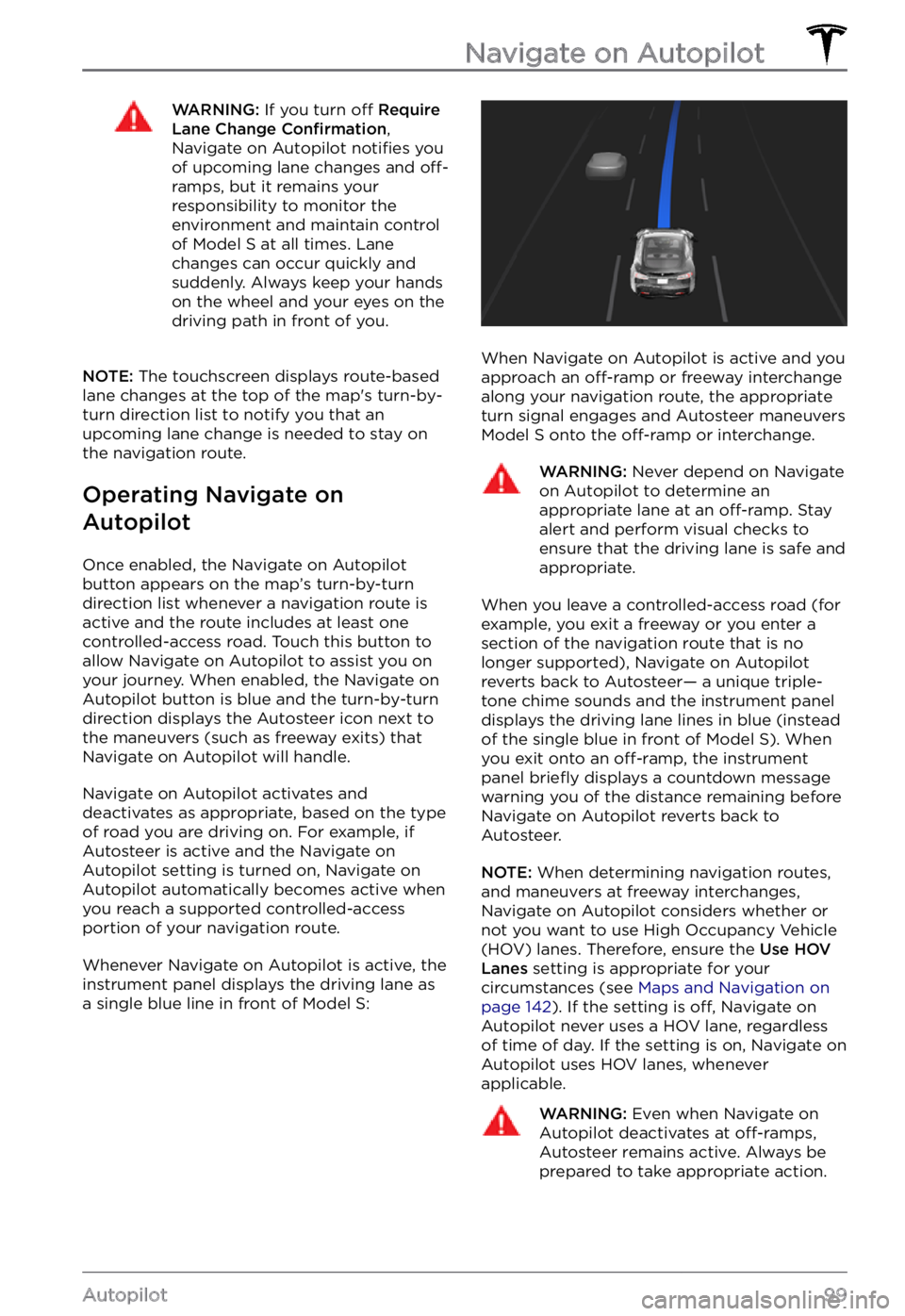
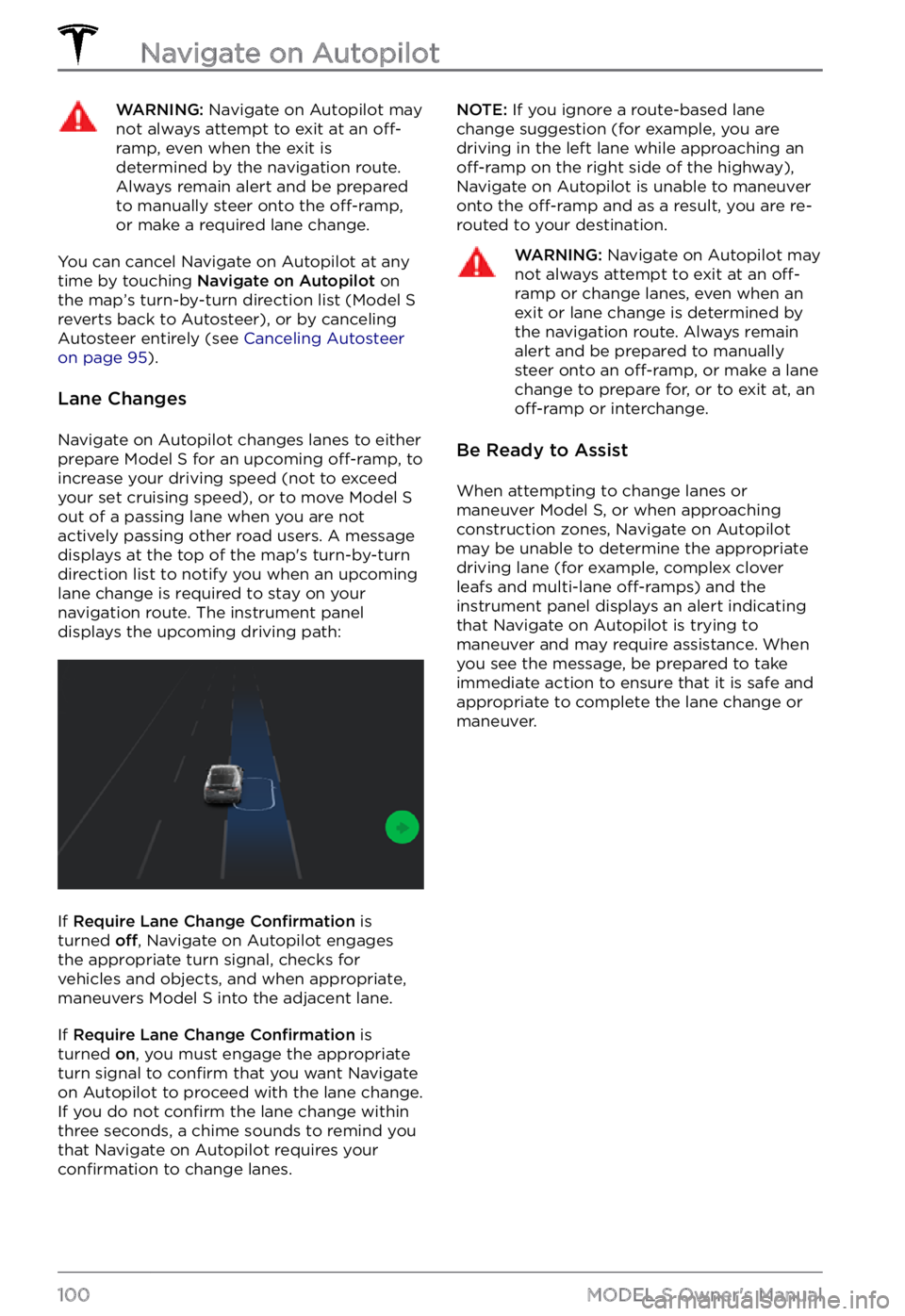
NOTE: If Navigate on Autopilot is active, the driving lane displays as a single blue line in
front of Model S (see Navigate on Autopilot on page 98).
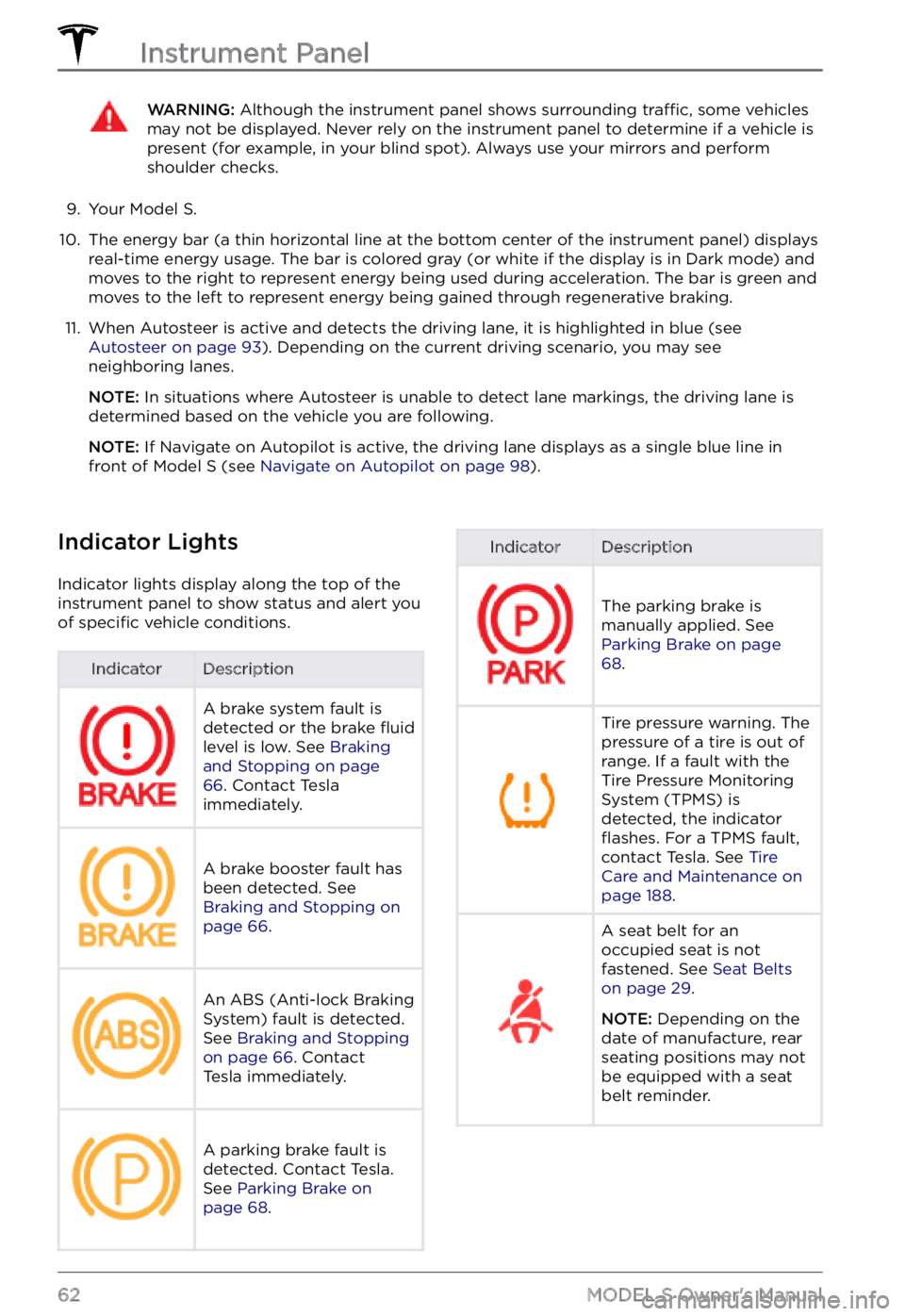
Indicator Lights
Indicator lights display along the top of the
instrument panel to show status and alert you
of
specific vehicle conditions.
IndicatorDescriptionA brake system fault is
detected or the brake fluid
level is low. See Braking and Stopping on page 66. Contact Tesla
immediately.
A brake booster fault has
been detected. See
Braking and Stopping on page 66.
An ABS (Anti-lock Braking
System) fault is detected.
See
Braking and Stopping on page 66. Contact
Tesla immediately.
A parking brake fault is
detected. Contact Tesla.
See
Parking Brake on page 68.
IndicatorDescription
The parking brake is
manually applied. See
Parking Brake on page 68.
Tire pressure warning. The
pressure of a tire is out of
range. If a fault with the
Tire Pressure Monitoring
System (TPMS) is
detected, the indicator
flashes. For a TPMS fault,
contact Tesla. See Tire Care and Maintenance on page 188.
A seat belt for an
occupied seat is not
fastened. See
Seat Belts on page 29.
NOTE: Depending on the
date of manufacture, rear seating positions may not be equipped with a seat
belt reminder.
Instrument Panel
62MODEL S Owner
Page 86 of 281
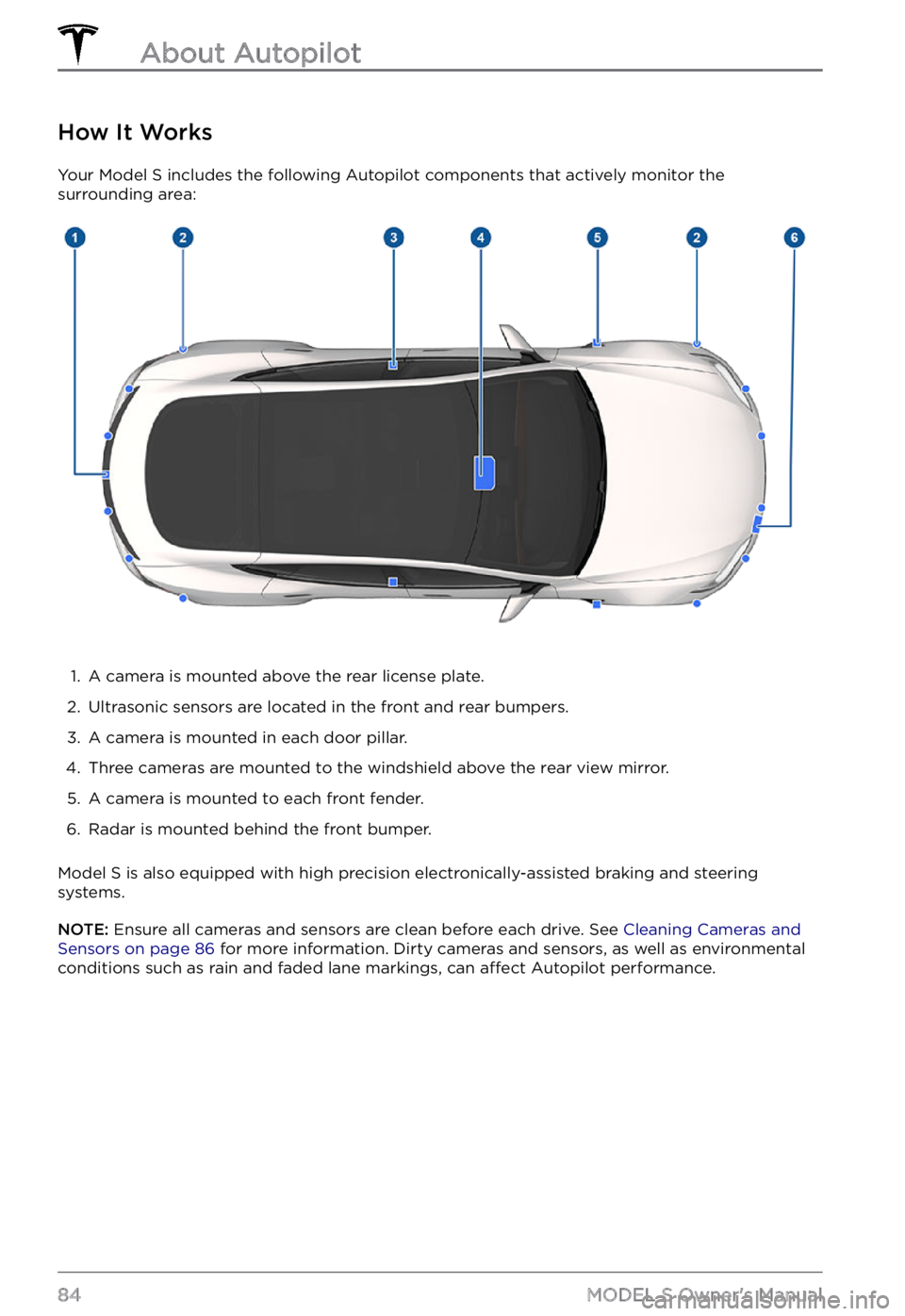
How It Works
Your Model S includes the following Autopilot components that actively monitor the
surrounding area:
1.
A camera is mounted above the rear license plate.
2.
Ultrasonic sensors are located in the front and rear bumpers.
3.
A camera is mounted in each door pillar.
4.
Three cameras are mounted to the windshield above the rear view mirror.
5.
A camera is mounted to each front fender.
6.
Radar is mounted behind the front bumper.
Model S is also equipped with high precision electronically-assisted braking and steering
systems.
NOTE: Ensure all cameras and sensors are clean before each drive. See Cleaning Cameras and Sensors on page 86 for more information. Dirty cameras and sensors, as well as environmental
conditions such as rain and faded lane markings, can affect Autopilot performance.
About Autopilot
84MODEL S Owner
Page 91 of 281
WARNING: Due to limitations inherent in the onboard GPS (Global Positioning System), you may experience situations in which Traffic-Aware Cruise Control slows down the vehicle, especially near highway exits where a curve is detected and/or you are actively navigating to a destination and not following the route.
WARNING: Traffic-Aware Cruise Control cannot detect all objects and, especially in situations when you are driving over 50 mph (80 km/h), may not brake/decelerate when a vehicle or object is only partially in the driving lane or when a vehicle you are following moves out of your driving path and a stationary or slow-moving vehicle or object is in front of you. Always pay attention to the road ahead and stay prepared to take immediate corrective action. Depending on Traffic-Aware Cruise Control to avoid a collision can result in serious injury or death. In addition, Traffic-Aware Cruise Control may react to vehicles or objects that either do not exist or are not in the lane of travel, causing Model S to slow down unnecessarily or inappropriately.
WARNING: Traffic-Aware Cruise Control may be unable to provide adequate speed control because of limited braking capability and hills. It can also misjudge the distance from a vehicle ahead. Driving downhill can increase driving speed, causing Model S to exceed your set speed (and potentially the road
Page 95 of 281
NOTE: Depending on market region, vehicle configuration, options purchased, and software version, your vehicle may not be equipped with Autosteer, or the feature may not operate exactly as described.
NOTE: Autosteer is a BETA feature.
Autosteer builds upon Traffic-Aware Cruise
Control (see Traffic-Aware Cruise Control on page 87), intelligently keeping Model S in its
driving lane when cruising at a set speed.
Autosteer also allows you to use the turn signals to move Model S into an adjacent lane (see Auto Lane Change on page 95). Autosteer detects lane markings and the
presence of vehicles and objects to steer Model S.
NOTE: To display more details about the
roadway and its surroundings, such as road markings, stop lights, objects (such as trash cans and poles), etc., touch
Controls > Autopilot > Full Self-Driving Visualization Preview (if equipped).
CAUTION: Ensure all cameras and sensors are clean. Dirty cameras and sensors, as well as environmental conditions such as rain and faded lane markings, affect performance.
WARNING: Autosteer is a hands-on feature. You must keep your hands on the steering yoke at all times.
WARNING: Autosteer is intended for use on highways and limited-access roads with a fully attentive driver. When using Autosteer, hold the steering yoke and be mindful of road conditions and surrounding traffic. Do not use Autosteer on city streets, in construction zones, or in areas where bicyclists or pedestrians may be present. Never depend on Autosteer to determine an appropriate driving path. Always be prepared to take immediate action. Failure to follow these instructions could cause damage, serious injury or death.
Operating Autosteer
Before you can operate Autosteer, you must
enable it by touching Controls > Autopilot > Autosteer (Beta).
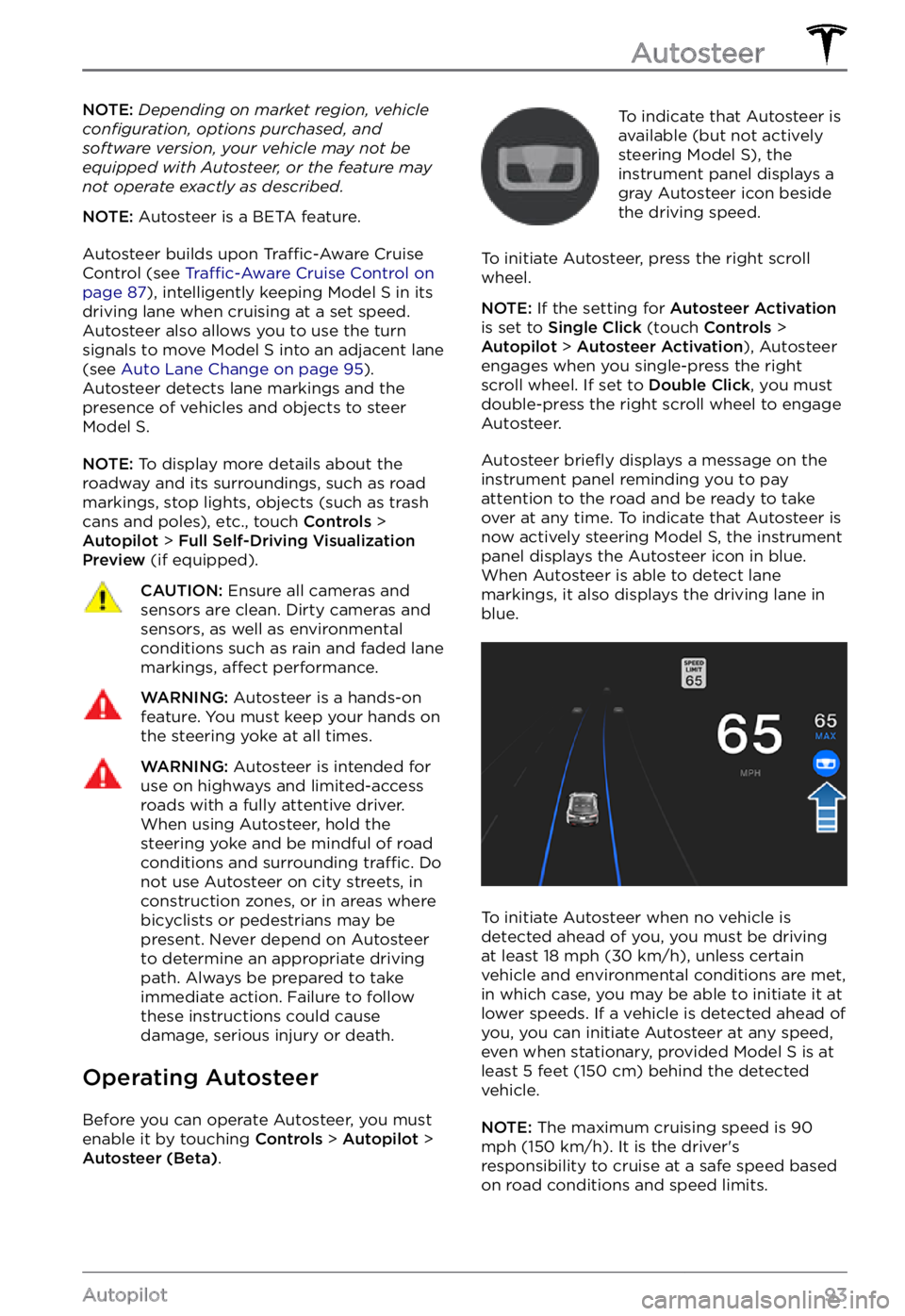
To indicate that Autosteer is
available (but not actively
steering
Model S), the instrument panel displays a
gray Autosteer icon beside the driving speed.
To initiate Autosteer, press the right scroll wheel.
NOTE: If the setting for Autosteer Activation is set to Single Click (touch Controls > Autopilot > Autosteer Activation), Autosteer
engages when you single-press the right
scroll wheel. If set to
Double Click, you must
double-press the right scroll wheel to engage
Autosteer.
Autosteer briefly displays a message on the instrument panel reminding you to pay
attention to the road and be ready to take over at any time. To indicate that Autosteer is
now actively steering Model S, the instrument panel displays the Autosteer icon in blue.
When Autosteer is able to detect lane markings, it also displays the driving lane in blue.
To initiate Autosteer when no vehicle is
detected ahead of you, you must be driving
at least
18 mph (30 km/h), unless certain
vehicle and environmental conditions are met,
in which case, you may be able to initiate it at
lower speeds. If a vehicle is detected ahead of you, you can initiate Autosteer at any speed,
even when stationary, provided
Model S is at
least 5 feet (150 cm) behind the detected
vehicle.
NOTE: The maximum cruising speed is 90 mph (150 km/h). It is the driver
Page 96 of 281
The instrument panel displays a message
indicating that Autosteer is temporarily
unavailable if you attempted to engage
Autosteer when driving at a speed that is not
within the speed required for Autosteer to
operate. Autosteer may also be unavailable if it is not receiving adequate data from the
camera(s) or sensors.
If Autosteer is unable to detect lane markings,
the driving lane is determined based on the
vehicle you are following.
In most cases, Autosteer attempts to center Model S in the driving lane. However, if an
obstacle (such as a vehicle or guard rail) is detected, Autosteer may steer
Model S in a
driving path that is offset from the center of
the lane.
WARNING: Autosteer is not designed to, and will not, steer Model S around objects partially or completely in the driving lane. Always watch the road in front of you and stay prepared to take immediate action. It is the driver
Page 98 of 281
WARNING: Do not use Auto Lane Change on winding roads with sharp curves, on icy or slippery roads, or when weather conditions (such as heavy rain, snow, fog, etc.) may be obstructing the view from the camera(s) or sensors.
WARNING: Failure to follow all warnings and instructions can result in property damage, serious injury or death.
Operating Auto Lane Change
Auto Lane Change is available whenever
Autosteer is active. To change lanes using
Auto Lane Change:
1.
Perform visual checks to make sure it is safe and appropriate to move into the target lane
2.
Engage the appropriate turn signal.
Auto Lane Change moves Model S into the
adjacent lane in the direction indicated by the
turn signal, provided the following conditions
are met:
Page 100 of 281
NOTE: Navigate on Autopilot is a BETA
feature.
NOTE: Depending on market region, vehicle configuration, options purchased, and software version, your vehicle may not be equipped with Navigate on Autopilot, or the feature may not operate exactly as described.
When using Autosteer on a controlled-access
road (such as a highway or freeway),
Navigate on Autopilot guides
Model S to off-ramps and interchanges based on your
navigation route. Along the highway portion
of a navigation route, Navigate on Autopilot also changes lanes to prepare for exits and to
minimize the driving time to your destination.
WARNING: Navigate on Autopilot does not make driving autonomous. You must pay attention to the road, keep your hands on the steering yoke at all times, and remain aware of your navigation route.
WARNING: As is the case with normal driving, be extra careful around blind corners, highway interchanges, and exits because obstacles can appear quickly and at any time.
WARNING: Navigate on Autopilot may not recognize or detect oncoming vehicles, stationary objects, and special-use lanes such as those used exclusively for bikes, carpools, emergency vehicles, etc. Remain alert at all times and be prepared to take immediate action. Failure to do so can cause damage, injury or death.
Enabling and Customizing
Navigate on Autopilot
To enable Navigate on Autopilot, touch Controls > Autopilot > Navigate on Autopilot (Beta). Then, to customize how you want
Navigate on Autopilot to operate, touch
CUSTOMIZE NAVIGATE ON AUTOPILOT:
Page 101 of 281
WARNING: If you turn off Require Lane Change Confirmation, Navigate on Autopilot notifies you of upcoming lane changes and off-ramps, but it remains your responsibility to monitor the environment and maintain control of Model S at all times. Lane changes can occur quickly and suddenly. Always keep your hands on the wheel and your eyes on the driving path in front of you.
NOTE: The touchscreen displays route-based
lane changes at the top of the map
Page 102 of 281
WARNING: Navigate on Autopilot may not always attempt to exit at an off-ramp, even when the exit is determined by the navigation route. Always remain alert and be prepared to manually steer onto the off-ramp, or make a required lane change.
You can cancel Navigate on Autopilot at any
time by touching Navigate on Autopilot on
the map