light TESLA MODEL X 2017 (UK) User Guide
[x] Cancel search | Manufacturer: TESLA, Model Year: 2017, Model line: MODEL X, Model: TESLA MODEL X 2017Pages: 202, PDF Size: 4.82 MB
Page 55 of 202
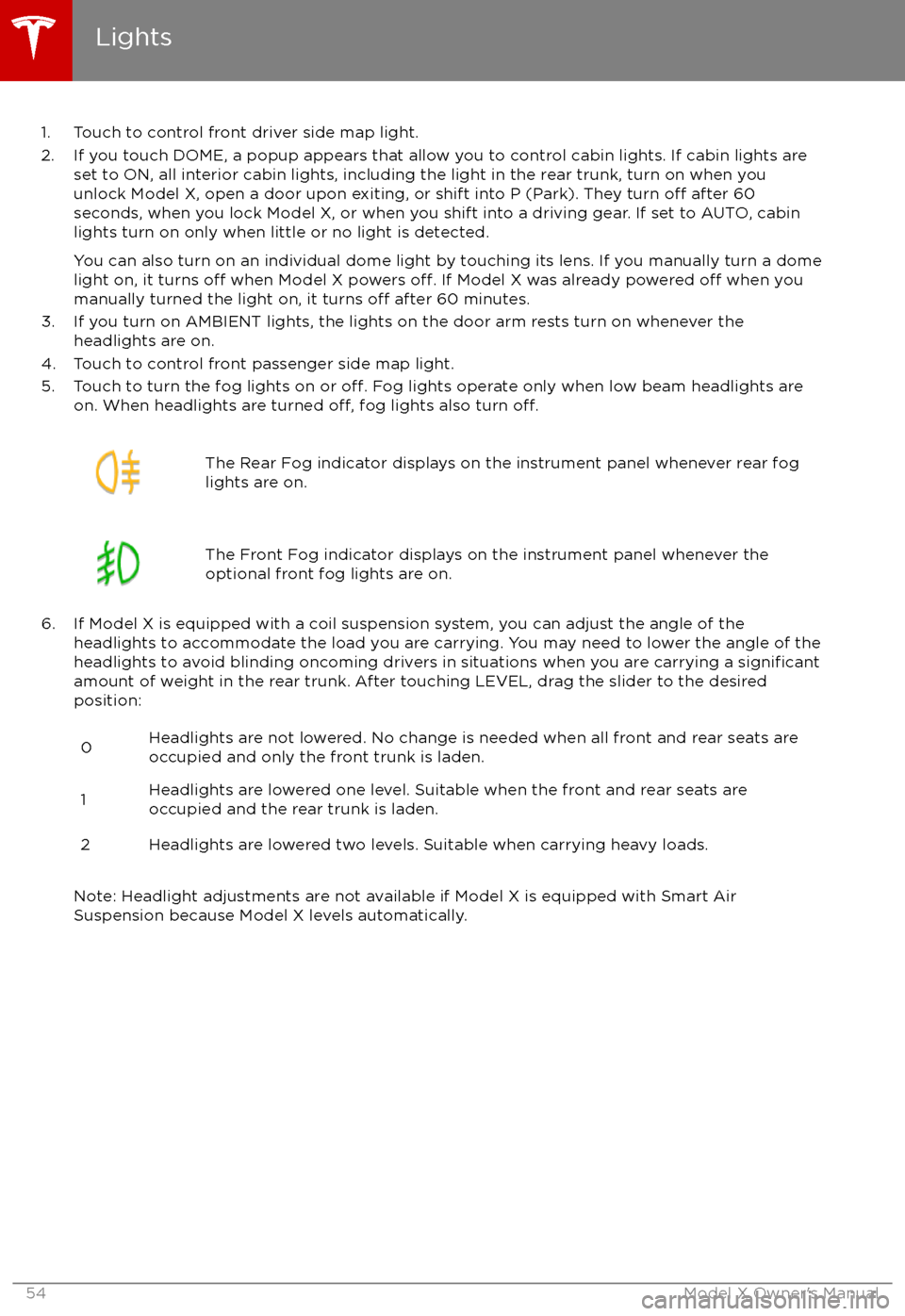
1. Touch to control front driver side map light.
2. If you touch DOME, a popup appears that allow you to control cabin lights. If cabin lights are set to ON, all interior cabin lights, including the light in the rear trunk, turn on when youunlock Model X, open a door upon exiting, or shift into P (Park). They turn
off after 60
seconds, when you lock Model X, or when you shift into a driving gear. If set to AUTO, cabin lights turn on only when little or no light is detected.
You can also turn on an individual dome light by touching its lens. If you manually turn a domelight on, it turns
off when Model X powers off. If Model X was already powered off when you
manually turned the light on, it turns off after 60 minutes.
3. If you turn on AMBIENT lights, the lights on the door arm rests turn on whenever the headlights are on.
4. Touch to control front passenger side map light.
5. Touch to turn the fog lights on or
off. Fog lights operate only when low beam headlights are
on. When headlights are turned off, fog lights also turn off.
The Rear Fog indicator displays on the instrument panel whenever rear fog
lights are on.The Front Fog indicator displays on the instrument panel whenever the
optional front fog lights are on.
6. If Model X is equipped with a coil suspension system, you can adjust the angle of the headlights to accommodate the load you are carrying. You may need to lower the angle of theheadlights to avoid blinding oncoming drivers in situations when you are carrying a
significantamount of weight in the rear trunk. After touching LEVEL, drag the slider to the desired position:
0Headlights are not lowered. No change is needed when all front and rear seats are
occupied and only the front trunk is laden.1Headlights are lowered one level. Suitable when the front and rear seats are occupied and the rear trunk is laden.2Headlights are lowered two levels. Suitable when carrying heavy loads.
Note: Headlight adjustments are not available if Model X is equipped with Smart Air
Suspension because Model X levels automatically.
Lights
54Model X Owner
Page 56 of 202
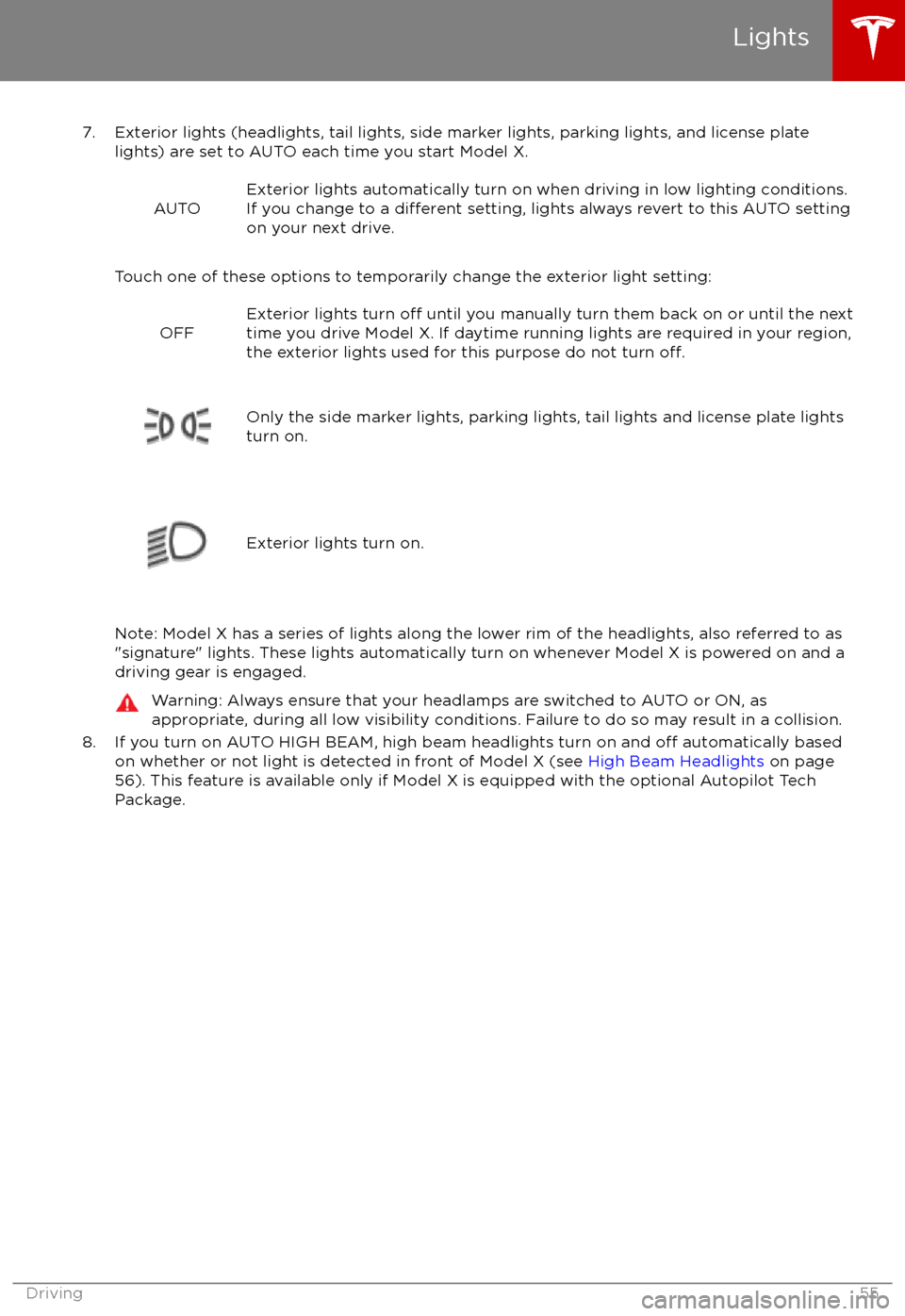
7. Exterior lights (headlights, tail lights, side marker lights, parking lights, and license platelights) are set to AUTO each time you start Model X.
AUTOExterior lights automatically turn on when driving in low lighting conditions.
If you change to a different setting, lights always revert to this AUTO setting
on your next drive.
Touch one of these options to temporarily change the exterior light setting:
OFFExterior lights turn off until you manually turn them back on or until the next
time you drive Model X. If daytime running lights are required in your region,
the exterior lights used for this purpose do not turn
off.Only the side marker lights, parking lights, tail lights and license plate lights
turn on.Exterior lights turn on.
Note: Model X has a series of lights along the lower rim of the headlights, also referred to as "signature" lights. These lights automatically turn on whenever Model X is powered on and a driving gear is engaged.
Warning: Always ensure that your headlamps are switched to AUTO or ON, as
appropriate, during all low visibility conditions. Failure to do so may result in a collision.
8. If you turn on AUTO HIGH BEAM, high beam headlights turn on and off automatically based
on whether or not light is detected in front of Model X (see High Beam Headlights on page
56). This feature is available only if Model X is equipped with the optional Autopilot Tech Package.
Lights
Driving55
Page 57 of 202
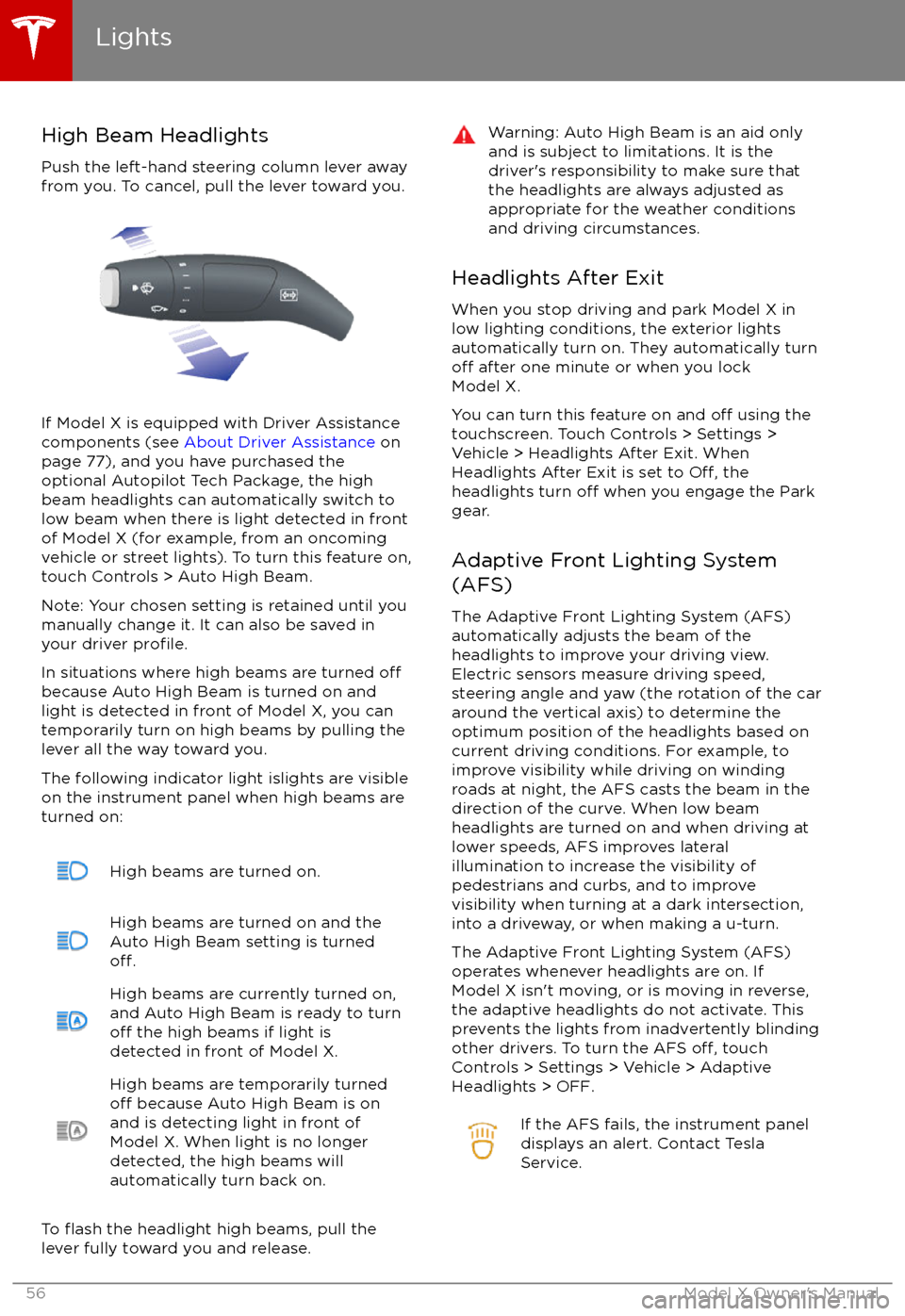
High Beam HeadlightsPush the left-hand steering column lever away
from you. To cancel, pull the lever toward you.
If Model X is equipped with Driver Assistance
components (see About Driver Assistance on
page 77), and you have purchased the
optional Autopilot Tech Package, the high
beam headlights can automatically switch to low beam when there is light detected in front
of Model X (for example, from an oncoming vehicle or street lights). To turn this feature on,touch Controls > Auto High Beam.
Note: Your chosen setting is retained until you manually change it. It can also be saved in
your driver
profile.
In situations where high beams are turned offbecause Auto High Beam is turned on and
light is detected in front of Model X, you can
temporarily turn on high beams by pulling the
lever all the way toward you.
The following indicator light islights are visible
on the instrument panel when high beams are
turned on:
High beams are turned on.High beams are turned on and the
Auto High Beam setting is turned
off.
High beams are currently turned on,
and Auto High Beam is ready to turn
off the high beams if light is
detected in front of Model X.
High beams are temporarily turnedoff because Auto High Beam is on
and is detecting light in front of
Model X. When light is no longer
detected, the high beams will
automatically turn back on.
To flash the headlight high beams, pull the
lever fully toward you and release.
Warning: Auto High Beam is an aid only and is subject to limitations. It is the
driver
Page 58 of 202
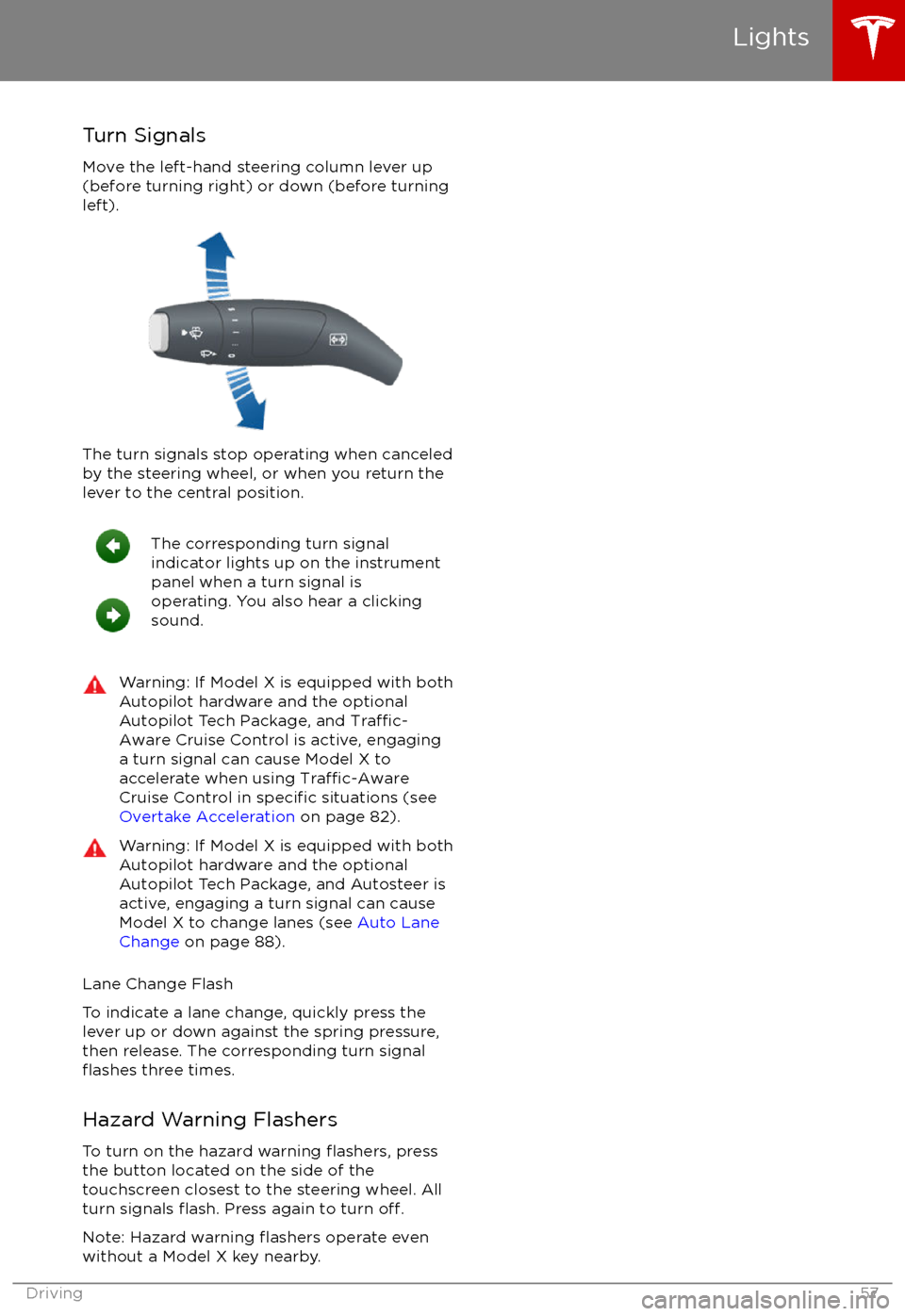
Turn Signals
Move the left-hand steering column lever up
(before turning right) or down (before turning
left).
The turn signals stop operating when canceled by the steering wheel, or when you return the
lever to the central position.
The corresponding turn signal
indicator lights up on the instrument
panel when a turn signal is
operating. You also hear a clicking
sound.Warning: If Model X is equipped with both
Autopilot hardware and the optional
Autopilot Tech Package, and
Traffic-
Aware Cruise Control is active, engaging
a turn signal can cause Model X to
accelerate when using
Traffic-AwareCruise Control in specific situations (see
Overtake Acceleration on page 82).
Warning: If Model X is equipped with both
Autopilot hardware and the optional
Autopilot Tech Package, and Autosteer is active, engaging a turn signal can cause
Model X to change lanes (see Auto Lane
Change on page 88).
Lane Change Flash
To indicate a lane change, quickly press the
lever up or down against the spring pressure,
then release. The corresponding turn signal
flashes three times.
Hazard Warning Flashers To turn on the hazard warning
flashers, press
the button located on the side of the
touchscreen closest to the steering wheel. All
turn signals
flash. Press again to turn off.
Note: Hazard warning flashers operate even
without a Model X key nearby.
Lights
Driving57
Page 60 of 202
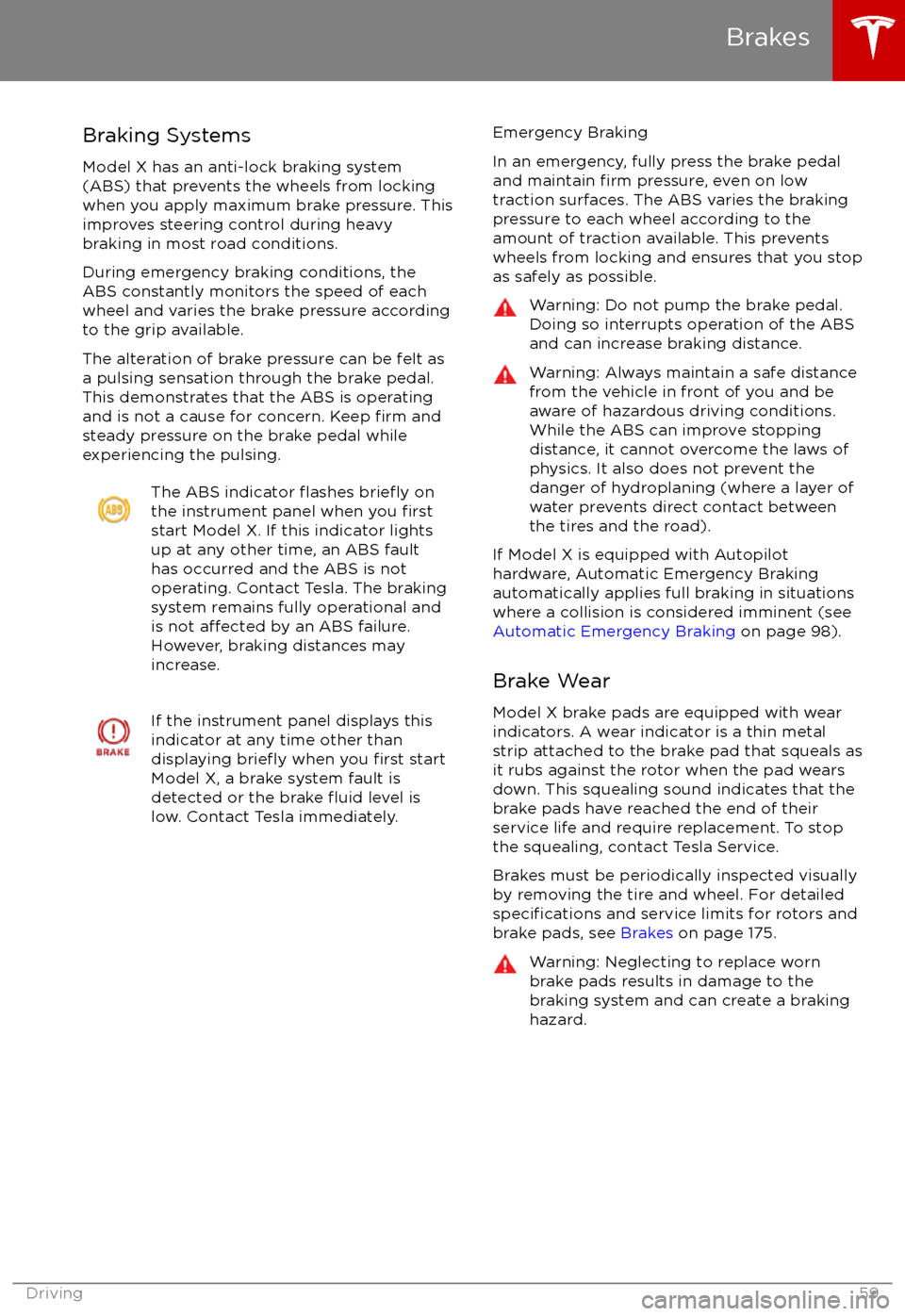
Braking Systems
Model X has an anti-lock braking system
(ABS) that prevents the wheels from locking when you apply maximum brake pressure. This
improves steering control during heavy
braking in most road conditions.
During emergency braking conditions, the
ABS constantly monitors the speed of each
wheel and varies the brake pressure according to the grip available.
The alteration of brake pressure can be felt as
a pulsing sensation through the brake pedal.
This demonstrates that the ABS is operating
and is not a cause for concern. Keep
firm and
steady pressure on the brake pedal while
experiencing the pulsing.
The ABS indicator flashes briefly on
the instrument panel when you firststart Model X. If this indicator lights
up at any other time, an ABS fault
has occurred and the ABS is not
operating. Contact Tesla. The braking system remains fully operational and
is not
affected by an ABS failure.
However, braking distances may increase.
If the instrument panel displays this
indicator at any time other than
displaying
briefly when you first start
Model X, a brake system fault is
detected or the brake
fluid level is
low. Contact Tesla immediately.
Emergency Braking
In an emergency, fully press the brake pedal
and maintain
firm pressure, even on low
traction surfaces. The ABS varies the braking
pressure to each wheel according to the
amount of traction available. This prevents
wheels from locking and ensures that you stop
as safely as possible.
Warning: Do not pump the brake pedal.
Doing so interrupts operation of the ABS
and can increase braking distance.Warning: Always maintain a safe distance
from the vehicle in front of you and be
aware of hazardous driving conditions.
While the ABS can improve stopping
distance, it cannot overcome the laws of physics. It also does not prevent the
danger of hydroplaning (where a layer of
water prevents direct contact between the tires and the road).
If Model X is equipped with Autopilot
hardware, Automatic Emergency Braking
automatically applies full braking in situations
where a collision is considered imminent (see
Automatic Emergency Braking on page 98).
Brake Wear Model X brake pads are equipped with wearindicators. A wear indicator is a thin metal
strip attached to the brake pad that squeals as
it rubs against the rotor when the pad wears
down. This squealing sound indicates that the
brake pads have reached the end of their
service life and require replacement. To stop
the squealing, contact Tesla Service.
Brakes must be periodically inspected visually by removing the tire and wheel. For detailed
specifications and service limits for rotors and
brake pads, see Brakes on page 175.
Warning: Neglecting to replace worn
brake pads results in damage to the
braking system and can create a braking
hazard.
Brakes
Driving59
Page 61 of 202
Regenerative Braking
Whenever Model X is moving and your foot is
off the accelerator, regenerative braking slows
down Model X and feeds any surplus energy
back to the Battery.
By anticipating your stops and simply
removing pressure from the accelerator to slow down, you can take advantage ofregenerative braking to increase driving range.
Of course, this is no substitute for regular braking when needed for safety.
Note: If regenerative braking is aggressively
slowing Model X, such as on a steep descent,
brake lights turn on to alert other road usersthat you are slowing down.
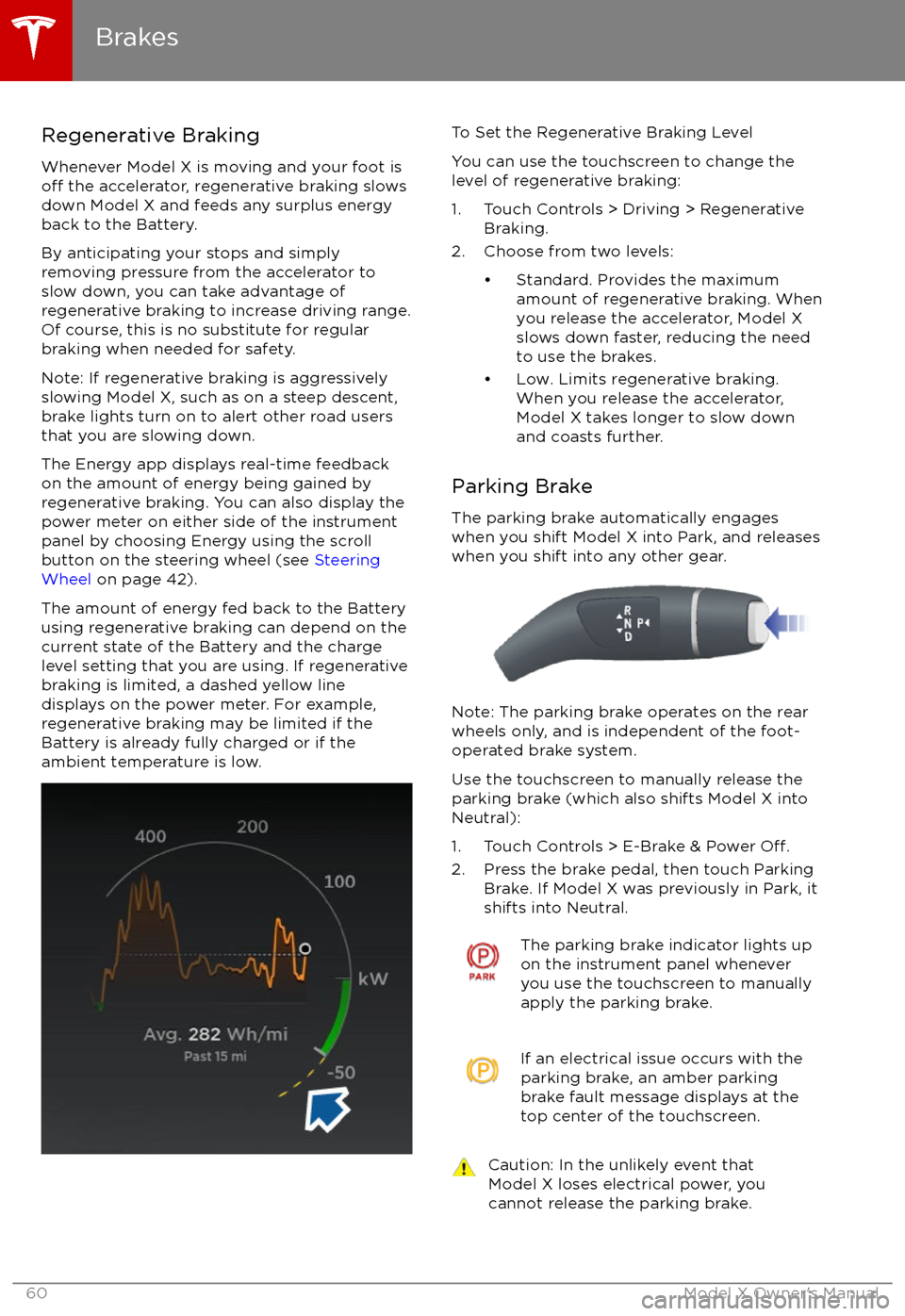
The Energy app displays real-time feedback on the amount of energy being gained by
regenerative braking. You can also display the
power meter on either side of the instrument panel by choosing Energy using the scroll
button on the steering wheel (see Steering
Wheel on page 42).
The amount of energy fed back to the Battery using regenerative braking can depend on the
current state of the Battery and the charge level setting that you are using. If regenerative
braking is limited, a dashed yellow line
displays on the power meter. For example,
regenerative braking may be limited if the Battery is already fully charged or if the
ambient temperature is low.
To Set the Regenerative Braking Level
You can use the touchscreen to change the
level of regenerative braking:
1. Touch Controls > Driving > Regenerative Braking.
2. Choose from two levels:
Page 65 of 202
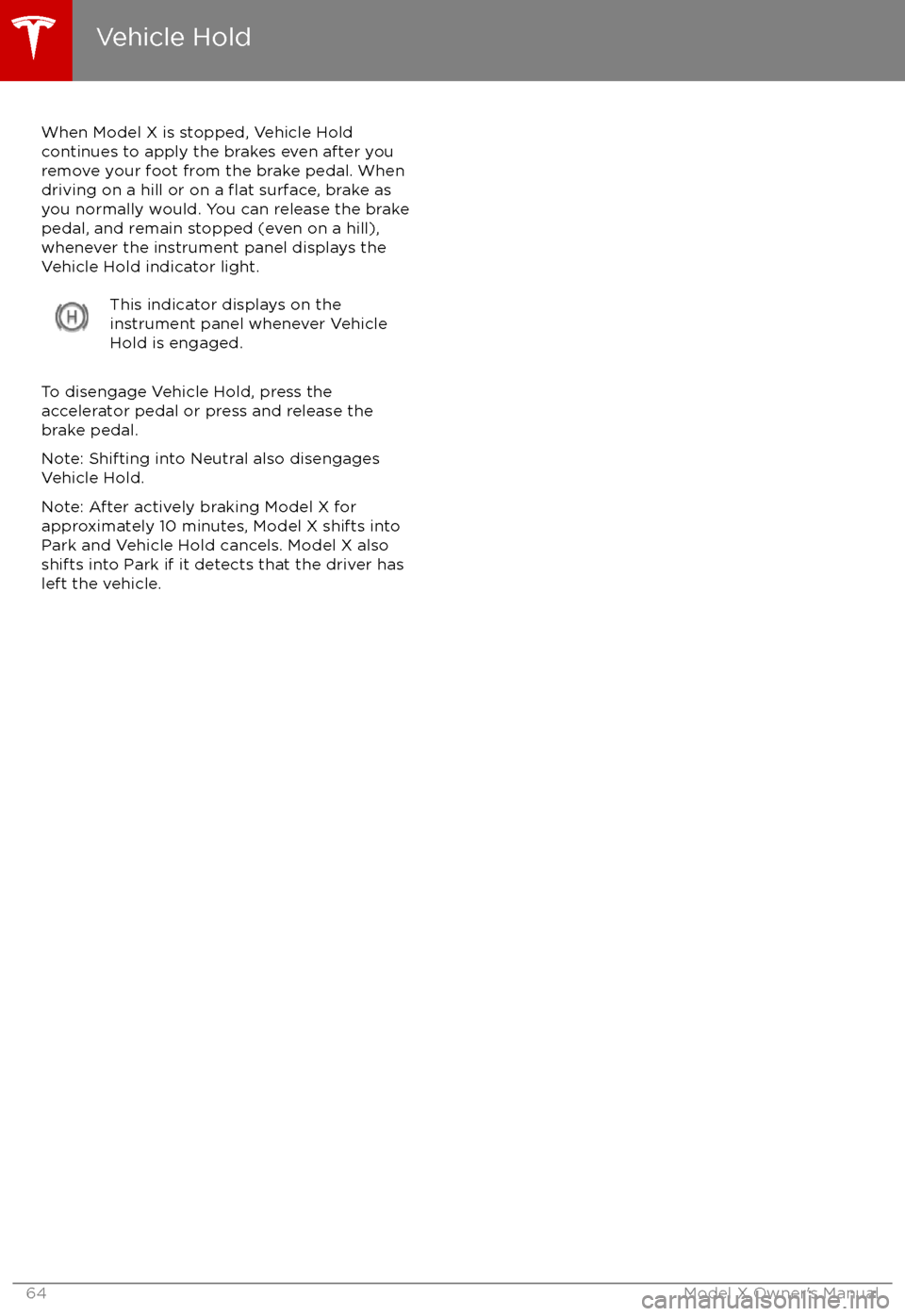
When Model X is stopped, Vehicle Holdcontinues to apply the brakes even after you
remove your foot from the brake pedal. When
driving on a hill or on a
flat surface, brake as
you normally would. You can release the brake
pedal, and remain stopped (even on a hill),
whenever the instrument panel displays the
Vehicle Hold indicator light.
This indicator displays on the
instrument panel whenever Vehicle
Hold is engaged.
To disengage Vehicle Hold, press the
accelerator pedal or press and release the
brake pedal.
Note: Shifting into Neutral also disengages Vehicle Hold.
Note: After actively braking Model X for
approximately 10 minutes, Model X shifts into
Park and Vehicle Hold cancels. Model X also
shifts into Park if it detects that the driver has
left the vehicle.
Vehicle Hold
64Model X Owner
Page 81 of 202
You can accelerate at any time when driving ata set speed using Traffic-Aware Cruise
Control. But when you release the accelerator,
Model X returns to the set speed.
When following a vehicle,
Traffic-Aware Cruise
Control remains active at low speeds, even if
Model X comes to a standstill while following a
vehicle. When
traffic is moving again, Traffic-
Aware Cruise Control resumes operating at
your currently set speed. However, if an or
object is detected in front of Model X,
Traffic-
Aware Cruise Control goes into a HOLD state
and the instrument panel displays a message
indicating that you need to resume cruise
control. To resume, press the accelerator pedalor pull the cruise control lever toward you (see
Canceling and Resuming on page 83).
In right hand
traffic, engaging the right turn
signal when driving in the right-most lane
within 50 meters of an exit (on a controlled
access road only, such as a highway or
freeway), causes
Traffic-Aware Cruise Control
to assume you are exiting. As a result, Traffic-
Aware Cruise Control begins to slow down the
vehicle. Likewise in left hand traffic, when
engaging the left turn signal when driving in
the left-most lane within 50 meters of an exit.
The onboard GPS (Global Positioning System)
determines if you are driving in a region with
right or left hand
traffic. In situations where
GPS data is unavailable (for example,
inadequate signal), engaging the turn signal
near an exit does not cause
Traffic-AwareCruise Control to slow down the vehicle.
Note: If you double-pull the cruise control
lever (or single-pull when
Traffic-Aware Cruise
Control is active), Autosteer activates and the set speed changes to either your current
driving speed, or the speed limit plus any
offset you have defined, whichever is greater
(see Cruising at the Speed Limit on page
81).
Note: When
Traffic-Aware Cruise Control is
actively slowing down Model X to maintain the
selected distance from the vehicle ahead, the brake lights turn on to alert other road users
that you are slowing down. You may also
notice slight movement of the brake pedal.
Note: If traveling 80 km/h or faster,
Traffic-
Aware Cruise Control requires that you be in a
passing lane in order to pass a vehicle. If you
are in a non-passing lane (to the right of a
vehicle in right-hand
traffic or to the left of a
vehicle in left-hand traffic), Traffic-AwareCruise Control prevents you from passing
vehicles. Instead, Model X will slow down and
match the vehicle
Page 87 of 202
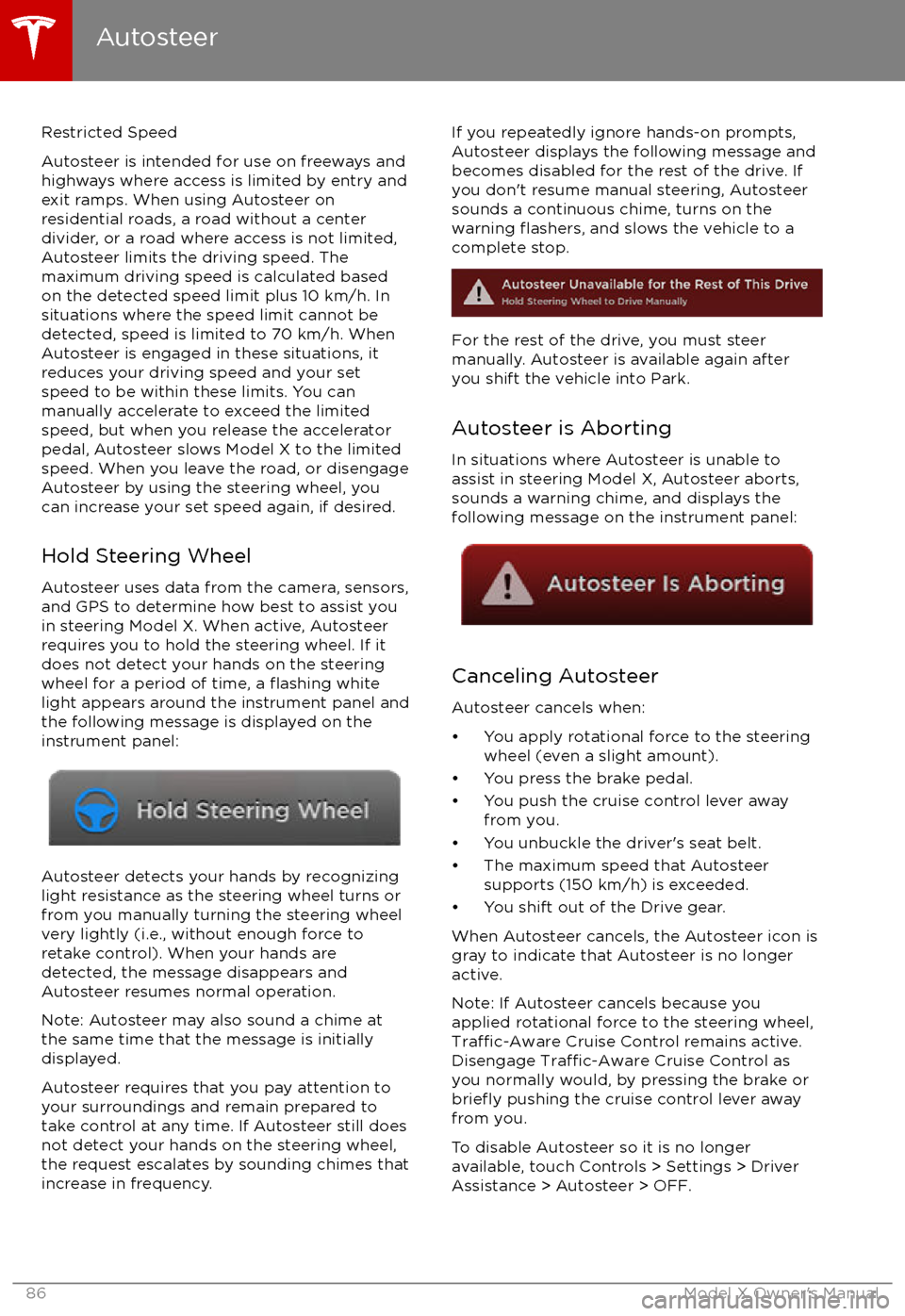
Restricted Speed
Autosteer is intended for use on freeways and
highways where access is limited by entry and
exit ramps. When using Autosteer on residential roads, a road without a centerdivider, or a road where access is not limited,
Autosteer limits the driving speed. The
maximum driving speed is calculated based
on the detected speed limit plus 10 km/h. In situations where the speed limit cannot be
detected, speed is limited to 70 km/h. When
Autosteer is engaged in these situations, it
reduces your driving speed and your set
speed to be within these limits. You can
manually accelerate to exceed the limited speed, but when you release the accelerator
pedal, Autosteer slows Model X to the limited
speed. When you leave the road, or disengage
Autosteer by using the steering wheel, you can increase your set speed again, if desired.
Hold Steering Wheel Autosteer uses data from the camera, sensors,and GPS to determine how best to assist you
in steering Model X. When active, Autosteer requires you to hold the steering wheel. If itdoes not detect your hands on the steering
wheel for a period of time, a
flashing white
light appears around the instrument panel and
the following message is displayed on the
instrument panel:
Autosteer detects your hands by recognizing
light resistance as the steering wheel turns or
from you manually turning the steering wheel very lightly (i.e., without enough force toretake control). When your hands are
detected, the message disappears and Autosteer resumes normal operation.
Note: Autosteer may also sound a chime at
the same time that the message is initially
displayed.
Autosteer requires that you pay attention to your surroundings and remain prepared totake control at any time. If Autosteer still doesnot detect your hands on the steering wheel,the request escalates by sounding chimes that
increase in frequency.
If you repeatedly ignore hands-on prompts,
Autosteer displays the following message and
becomes disabled for the rest of the drive. If
you don
Page 103 of 202

The Big PictureThe main components of the touchscreen are shown here. To manually control the brightness and
contrast, touch Controls > Displays. When set to Auto, the touchscreen changes between the Day
(light background) and Night (dark background) setting depending on ambient lighting
conditions.
Note: The following illustration is provided for demonstration purposes only. Depending on vehicle
options, software version and market region, your touchscreen may appear slightly
different.
Touchscreen Overview
102Model X Owner