light TESLA MODEL X 2017 (UK) Owner's Guide
[x] Cancel search | Manufacturer: TESLA, Model Year: 2017, Model line: MODEL X, Model: TESLA MODEL X 2017Pages: 202, PDF Size: 4.82 MB
Page 116 of 202
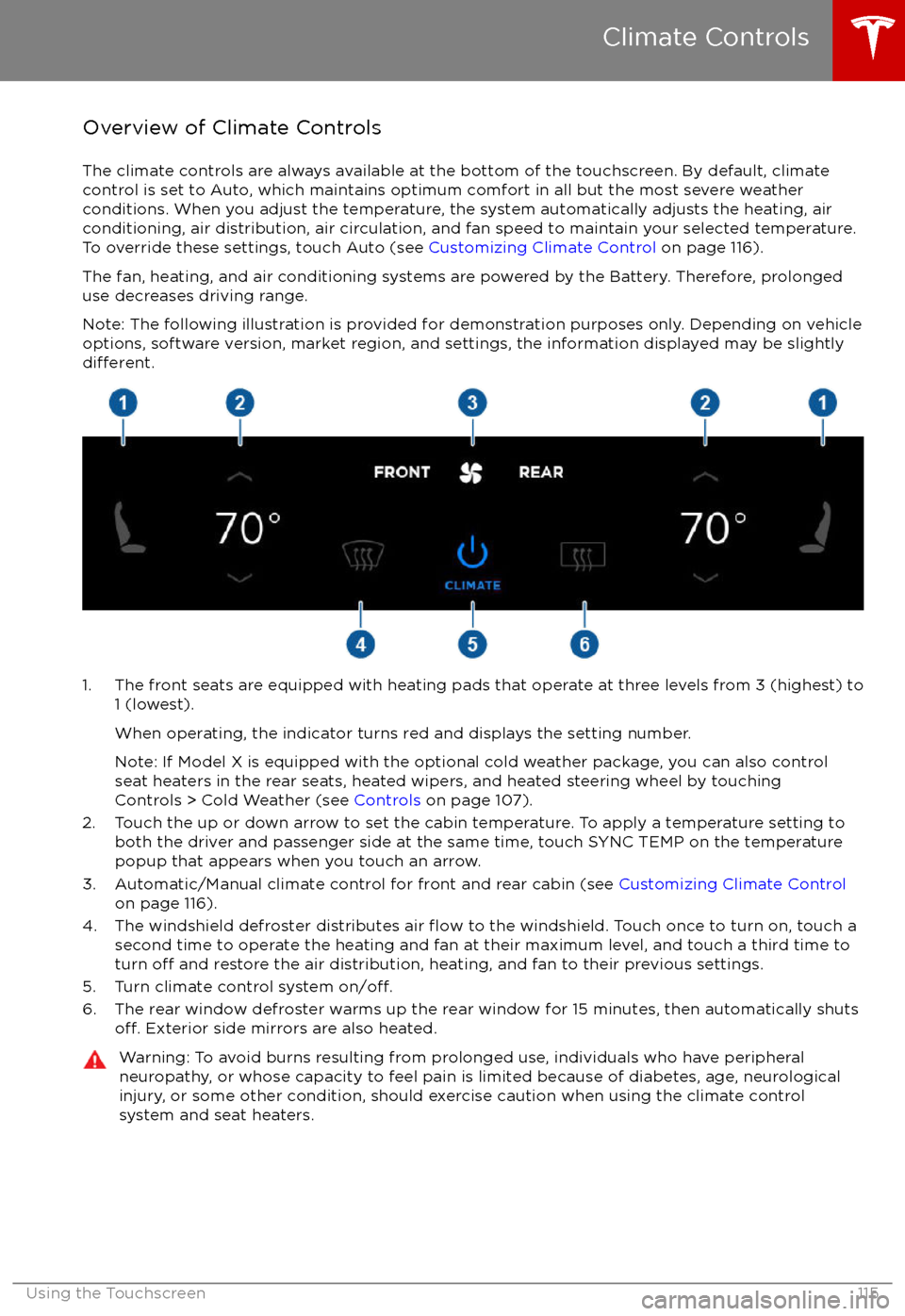
Overview of Climate Controls
The climate controls are always available at the bottom of the touchscreen. By default, climate control is set to Auto, which maintains optimum comfort in all but the most severe weather conditions. When you adjust the temperature, the system automatically adjusts the heating, air
conditioning, air distribution, air circulation, and fan speed to maintain your selected temperature. To override these settings, touch Auto (see Customizing Climate Control on page 116).
The fan, heating, and air conditioning systems are powered by the Battery. Therefore, prolonged
use decreases driving range.
Note: The following illustration is provided for demonstration purposes only. Depending on vehicle
options, software version, market region, and settings, the information displayed may be slightly
different.
1. The front seats are equipped with heating pads that operate at three levels from 3 (highest) to 1 (lowest).
When operating, the indicator turns red and displays the setting number.
Note: If Model X is equipped with the optional cold weather package, you can also control seat heaters in the rear seats, heated wipers, and heated steering wheel by touchingControls > Cold Weather (see Controls on page 107).
2. Touch the up or down arrow to set the cabin temperature. To apply a temperature setting to both the driver and passenger side at the same time, touch SYNC TEMP on the temperaturepopup that appears when you touch an arrow.
3. Automatic/Manual climate control for front and rear cabin (see Customizing Climate Control
on page 116).
4. The windshield defroster distributes air
flow to the windshield. Touch once to turn on, touch a
second time to operate the heating and fan at their maximum level, and touch a third time to
turn
off and restore the air distribution, heating, and fan to their previous settings.
5. Turn climate control system on/off.6. The rear window defroster warms up the rear window for 15 minutes, then automatically shutsoff. Exterior side mirrors are also heated.
Warning: To avoid burns resulting from prolonged use, individuals who have peripheral neuropathy, or whose capacity to feel pain is limited because of diabetes, age, neurologicalinjury, or some other condition, should exercise caution when using the climate control
system and seat heaters.
Climate Controls
Using the Touchscreen115
Page 137 of 202

About the Security System
If Model X does not detect a key nearby and a
locked door or trunk is opened, an alarm sounds and headlights and turn signals
flash.To deactivate the alarm, press any button on the key.
To manually enable or disable the alarm system, touch Controls > Settings > Safety &
Security > Alarm. When set to on, Model X activates its alarm one minute after the doors
lock and a recognized key is no longer
detected nearby.
If Model X is equipped with the optional security package, it includes a battery-backed
siren that sounds instead of the horn in
situations where a locked door or trunk is
opened and Model X does not detect a key
nearby. If the Tilt/Intrusion setting is on, the
siren also sounds if Model X detects motion inside the cabin, a window is broken, or if it is
moved or tilted (for example, with a tow truck or jack). To turn the tilt/ intrusion detectionsystems on or
off, touch Controls > Settings >
Safety & Security > Tilt/Intrusion.
Note: If you plan to leave something that
moves, such as a dog, inside your locked
Model X, remember to turn
off the tilt/
intrusion system. Any type of motion detected inside Model X activates the siren.
Note: To turn on Tilt/Intrusion, the Alarm must
be ON.
Security Settings
136Model X Owner
Page 148 of 202

Charge Port Light
Page 149 of 202

Changing Charge SettingsThe charge settings screen displays on the touchscreen whenever the charge port door is open.
To display charge settings at any time, touch the Battery icon on the top of the touchscreen, or touch Controls > Charging (located in the upper right portion of the Controls screen).
Note: The following illustration is provided for demonstration purposes only and may vary slightly
depending on the software version and market region of your Model X.
1. Charge status messages (such as Charging Scheduled, Charging In Progress) display here.
2. To adjust the charge limit, touch Set Charge Limit, then touch the arrows to move the charge limit setting in 10% increments for daily driving, and 2% increments for trips. The setting youchoose applies to both immediate and scheduled charging sessions.
3.
Location-specific schedule. With Model X in Park, set a specific time when you want Model X
to begin charging at the current location. If, at the scheduled time, Model X is not plugged in
at the location, it will start charging as soon as you plug it in as long as you are plugging it in
within six hours of the scheduled time. If you plug in after six hours, Model X does not start charging until the scheduled time on the next day. To override this setting, touch Start
Charging or Stop Charging (see item 4). When you set a scheduled charging time, Model X displays the set time on the instrument panel and the touchscreen.
4. Touch to open the charge port door or to start (or stop) charging.
5. The current automatically sets to the maximum current available from the attached charge cable, unless it was previously reduced to a lower level.
For 3-phase charging, the available current represents the current per phase (up to 32 amps).
During charging, the right status
flag displays the 3-phase symbol in front of the displayed
current.
If needed, touch the up/down arrows to change the current (for example, you may want to
reduce the current if you are concerned about overloading a domestic wiring circuit shared by other equipment). It is not possible to set the charging current to a level that exceeds themaximum available from the attached charge cable.
When you change the current, Model X remembers the location. So if you subsequently charge at the same location, you do not need to change it again.
Note: If Model X automatically reduced a charging location
Page 150 of 202
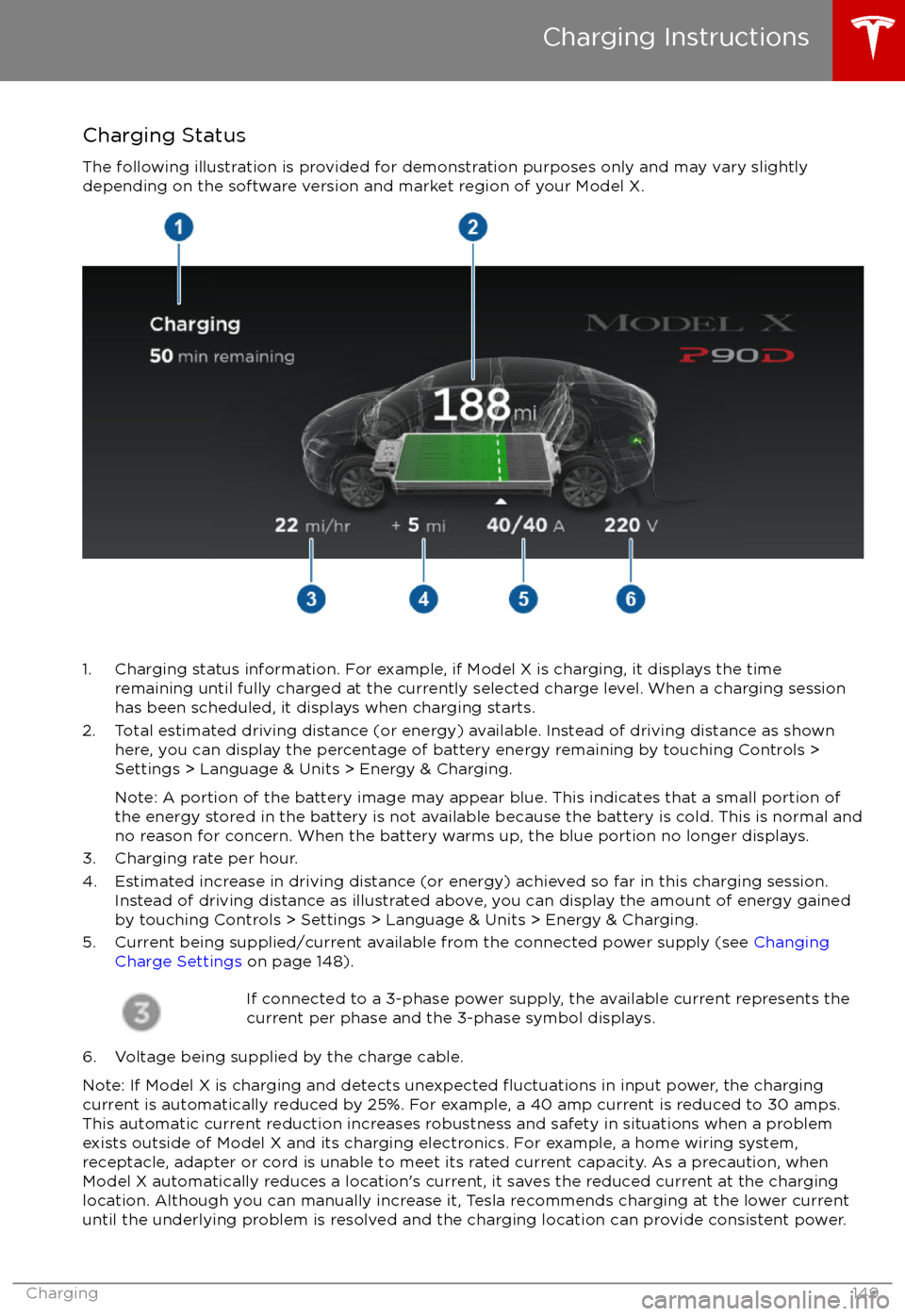
Charging Status
The following illustration is provided for demonstration purposes only and may vary slightly
depending on the software version and market region of your Model X.
1. Charging status information. For example, if Model X is charging, it displays the time remaining until fully charged at the currently selected charge level. When a charging session
has been scheduled, it displays when charging starts.
2. Total estimated driving distance (or energy) available. Instead of driving distance as shown here, you can display the percentage of battery energy remaining by touching Controls >
Settings > Language & Units > Energy & Charging.
Note: A portion of the battery image may appear blue. This indicates that a small portion of
the energy stored in the battery is not available because the battery is cold. This is normal and
no reason for concern. When the battery warms up, the blue portion no longer displays.
3. Charging rate per hour.
4. Estimated increase in driving distance (or energy) achieved so far in this charging session. Instead of driving distance as illustrated above, you can display the amount of energy gained
by touching Controls > Settings > Language & Units > Energy & Charging.
5. Current being supplied/current available from the connected power supply (see Changing
Charge Settings on page 148).
If connected to a 3-phase power supply, the available current represents the
current per phase and the 3-phase symbol displays.
6. Voltage being supplied by the charge cable.
Note: If Model X is charging and detects unexpected
Page 154 of 202

Replacing Tires and Wheels
Tires degrade over time due to the
effects of
ultraviolet light, extreme temperatures, high
loads, and environmental conditions. It is
recommended that tires are replaced every six
years, or sooner if required.
Wheel rims and tires are matched to suit the
handling characteristics of the vehicle.
Replacement tires must comply with the
original
specification. If tires other than thosespecified are used, ensure that the load and
speed ratings marked on the tire equal or
exceed those of the original
specification.
Ideally, you should replace all four tires at the same time. If this is not possible, replace the
tires in pairs (both front or both rear). When
replacing tires, always re-balance and check
the alignment of wheels.
Warning: For your safety, use only tires
and wheels that match the original
specification (see Wheels and Tires on
page 177). Tires that do not match the
original
specification can affect the
operation of the Tire Pressure Monitoring System (TPMS).
Warning: Never exceed the speed rating
of your vehicle
Page 156 of 202
TPMS Malfunction
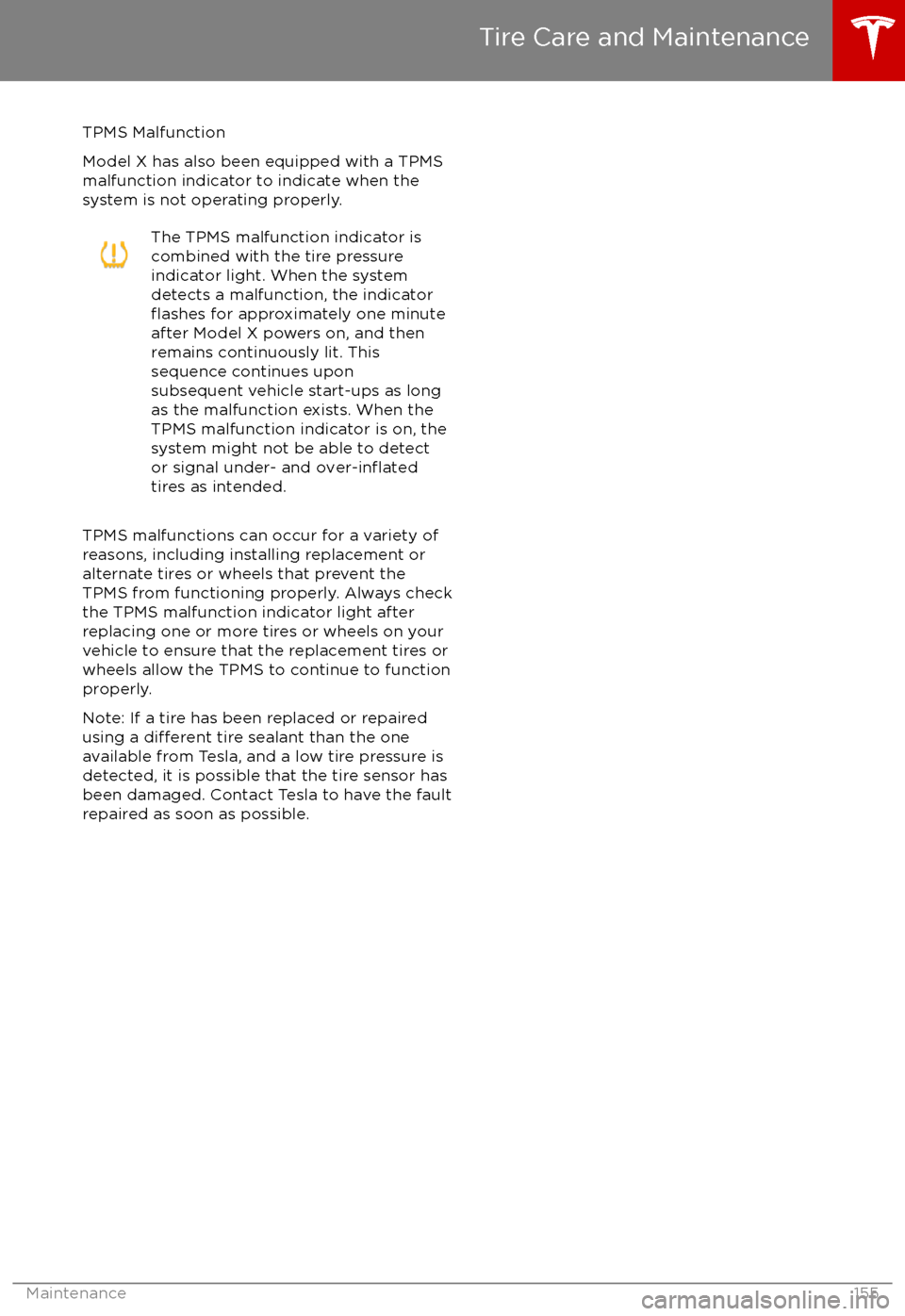
Model X has also been equipped with a TPMS
malfunction indicator to indicate when the
system is not operating properly.The TPMS malfunction indicator is
combined with the tire pressure
indicator light. When the system
detects a malfunction, the indicator
flashes for approximately one minute
after Model X powers on, and then
remains continuously lit. This
sequence continues upon
subsequent vehicle start-ups as long
as the malfunction exists. When the
TPMS malfunction indicator is on, the
system might not be able to detect
or signal under- and
over-inflatedtires as intended.
TPMS malfunctions can occur for a variety of
reasons, including installing replacement or
alternate tires or wheels that prevent the
TPMS from functioning properly. Always check
the TPMS malfunction indicator light after replacing one or more tires or wheels on yourvehicle to ensure that the replacement tires or
wheels allow the TPMS to continue to function
properly.
Note: If a tire has been replaced or repaired
using a
different tire sealant than the one
available from Tesla, and a low tire pressure is
detected, it is possible that the tire sensor has
been damaged. Contact Tesla to have the fault repaired as soon as possible.
Tire Care and Maintenance
Maintenance155
Page 161 of 202

Cleaning the ExteriorTo prevent damage to the paint, immediately
remove corrosive substances (bird droppings, tree resin, dead insects, tar spots, road salt,
industrial fallout, etc). Do not wait until
Model X is due for a complete wash. If
necessary, use denatured alcohol to remove
tar spots and stubborn grease stains, then
immediately wash the area with water and a
mild, non-detergent soap to remove the
alcohol.
Follow these steps when washing the exterior
of Model X:
1. Rinse Thoroughly Before washing,
flush grime and grit from
the bodywork using a hose. Flush away
accumulations of mud in areas where
debris easily collects (such as wheel
arches and panel seams). If salt has been used on the highways (such as during
winter months), thoroughly rinse all traces of road salt from the underside of thevehicle.
2. Hand Wash
Hand wash Model X using a clean soft
cloth and cold or lukewarm water
containing a mild, good quality car
shampoo.
3. Rinse with Clean Water
After washing, rinse with clean water to
prevent soap from drying on the surfaces.
4. Dry Thoroughly and Clean Exterior Glass
After washing and rinsing, dry thoroughly
with a chamois.
Clean windows and mirrors using an automotive glass cleaner. Do not scrape,
or use any abrasive cleaning
fluid on glass
or mirrored surfaces.
Cautions for Exterior CleaningCaution: Do not use windshield treatmentfluids. Doing so can interfere with wiper
friction and cause a chattering sound.Caution: Do not use hot water and
detergents.Caution: In hot weather, do not wash in direct sunlight.Caution: If using a pressure washer,
maintain a distance of at least 30 cm
between the nozzle and the surface of
Model X. Keep the nozzle moving and do
not concentrate the water jet on any one
area.Caution: Do not aim water hoses directly
at window, door or hood seals, or through
wheel apertures onto brake components.Caution: Avoid using tight-napped or
rough cloths, such as washing mitts.Caution: If washing in an automatic car
wash, use Touchless car washes only. These car washes have no parts (brushes,
etc.) that touch the surfaces of Model X.
Using any other type of car wash could
cause damage that is not covered by the
warranty.Caution: Do not use chemical based
wheel cleaners. These can damage the
finish on the wheels.
Caution: Avoid using a high pressure
power washer on the rear view camera or
parking sensors (if equipped) and do not
clean a sensor or camera lens with a
sharp or abrasive object that can scratch
or damage its surface.
Cleaning
160Model X Owner
Page 162 of 202
Cleaning the Interior
Frequently inspect and clean the interior to maintain its appearance and to prevent
premature wear. If possible, immediately wipe up spills and remove marks. For general
cleaning, wipe interior surfaces using a soft
cloth (such as micro
fiber) dampened with a
mixture of warm water and mild non-
detergent cleaner (test all cleaners on a
concealed area before use). To avoid streaks,
dry immediately with a soft lint-free cloth.
Interior Glass
Do not scrape, or use any abrasive cleaning
fluid on glass or mirrored surfaces. This can
damage the reflective surface of the mirror
and the heating elements in the rear window.
Airbags
Do not allow any substance to enter an airbag
cover. This could
affect correct operation.
Dashboard and Plastic Surfaces
Do not polish the upper surfaces of the
dashboard. Polished surfaces are
reflectiveand could interfere with your driving view.
Leather Seats
Leather is prone to dye-transfer which can
cause discoloration, particularly on light colored leather. White and tan leather iscoated with an anti-soiling treatment. Wipespills as soon as possible using a soft cloth
moistened with warm water and non-
detergent soap. Wipe gently in a circular
motion. Then wipe dry using a soft, lint-free
cloth. Using detergents or commercially
available leather cleaners and conditioners is
not recommended because they can discolor or dry out the leather.
Polyurethane Seats
Wipe spills as soon as possible using a soft
cloth moistened with warm water and non-
detergent soap. Wipe gently in a circular
motion. For
difficult stains on ultra-white
seats, use isopropyl alcohol, then wipe with a
damp cloth. After cleaning, allow the seats to air dry.
Cloth Seats
Wipe spills as soon as possible using a soft
cloth moistened with warm water and non-
detergent soap. Wipe gently in a circular
motion. Then wipe dry using a soft, lint-free
cloth. Vacuum the seats as needed to remove
any loose dirt.
Carpets
Avoid over-wetting carpets. For heavily soiled
areas, use a diluted upholstery cleaner.
Seat Belts
Extend the belts to wipe. Do not use any type
of detergent or chemical cleaning agent.
Allow the belts to dry naturally while
extended, preferably away from direct
sunlight.
Touchscreen and Instrument Panel
Clean the touchscreen and instrument panel
using a soft lint-free cloth
specificallydesigned to clean monitors and displays. Do
not use cleaners (such as a glass cleaner) and do not use a wet wipe or a dry statically-charged cloth (such as a recently washed
microfiber). To wipe the touchscreen without
activating buttons and changing settings, you
can enable clean mode. Touch Controls > Displays > Clean Mode. The display darkens to
make it easy to see dust and smudges.
Chrome and Metal Surfaces
Polish, abrasive cleaners or hard cloths can
damage the
finish on chrome and metal
surfaces.
Cautions for Interior Cleaning
Warning: If you notice any damage on an
airbag or seat belt, contact Tesla
immediately.Warning: Do not allow any water,
cleaners, or fabric to enter a seat belt
mechanism.Caution: Using solvents (including alcohol), bleach, citrus, naphtha, orsilicone-based products or additives on
interior components can cause damage.Caution: Statically-charged materials can
cause damage to the touchscreen or
instrument panel.
Cleaning
Maintenance161
Page 184 of 202
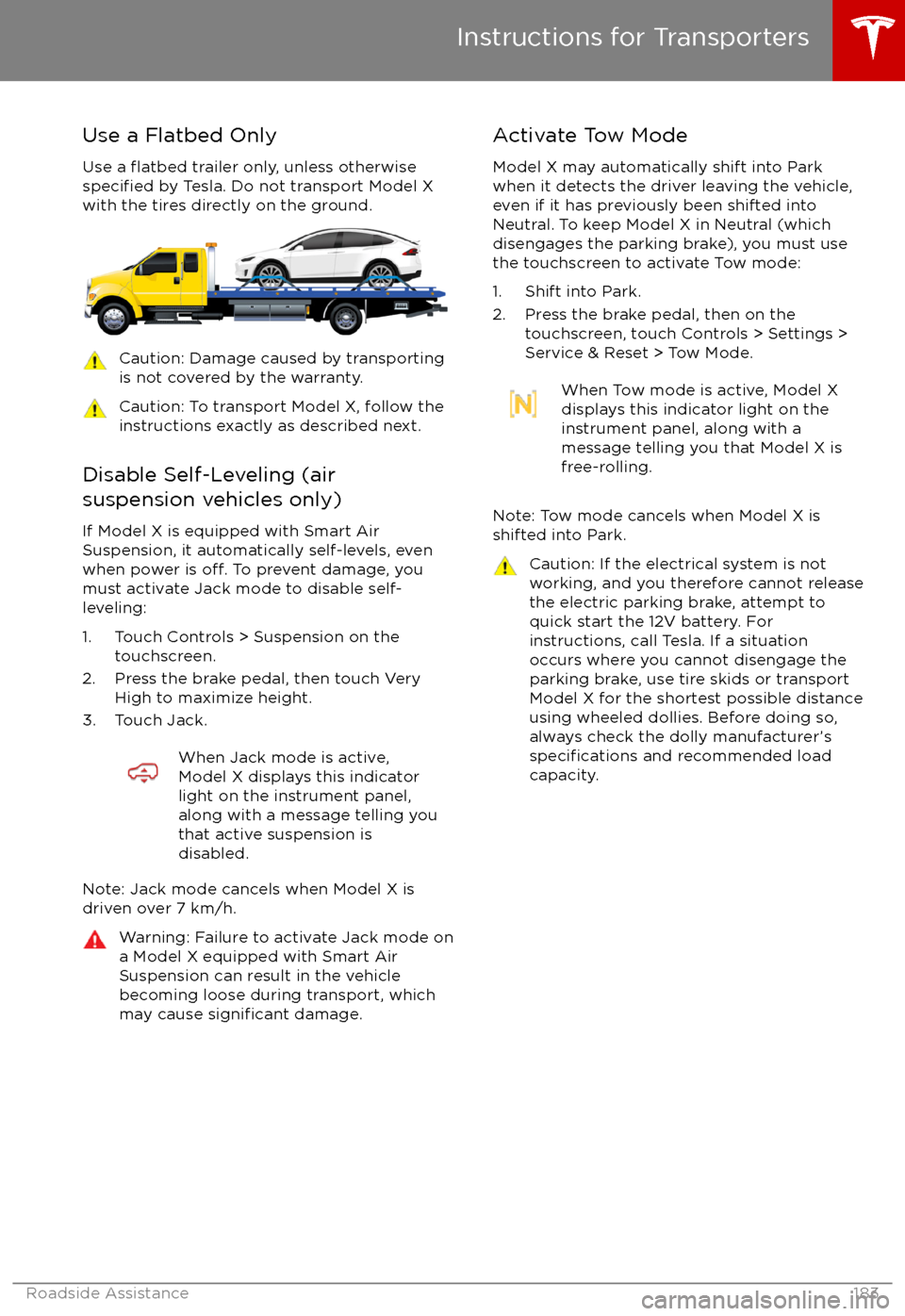
Use a Flatbed OnlyUse a
flatbed trailer only, unless otherwisespecified by Tesla. Do not transport Model X
with the tires directly on the ground.
Caution: Damage caused by transporting is not covered by the warranty.Caution: To transport Model X, follow the
instructions exactly as described next.
Disable Self-Leveling (air
suspension vehicles only)
If Model X is equipped with Smart Air
Suspension, it automatically self-levels, even
when power is
off. To prevent damage, you
must activate Jack mode to disable self-
leveling:
1. Touch Controls > Suspension on the touchscreen.
2. Press the brake pedal, then touch Very High to maximize height.
3. Touch Jack.
When Jack mode is active,
Model X displays this indicator
light on the instrument panel,
along with a message telling you
that active suspension is
disabled.
Note: Jack mode cancels when Model X is
driven over 7 km/h.
Warning: Failure to activate Jack mode on
a Model X equipped with Smart Air
Suspension can result in the vehicle
becoming loose during transport, which
may cause
significant damage.
Activate Tow Mode
Model X may automatically shift into Park
when it detects the driver leaving the vehicle,
even if it has previously been shifted into Neutral. To keep Model X in Neutral (which
disengages the parking brake), you must use
the touchscreen to activate Tow mode:
1. Shift into Park.
2. Press the brake pedal, then on the touchscreen, touch Controls > Settings >
Service & Reset > Tow Mode.When Tow mode is active, Model X
displays this indicator light on the
instrument panel, along with a
message telling you that Model X is
free-rolling.
Note: Tow mode cancels when Model X is
shifted into Park.
Caution: If the electrical system is not
working, and you therefore cannot release
the electric parking brake, attempt to
quick start the 12V battery. For
instructions, call Tesla. If a situation
occurs where you cannot disengage the
parking brake, use tire skids or transport Model X for the shortest possible distance
using wheeled dollies. Before doing so,
always check the dolly manufacturer