door lock TESLA MODEL X 2017 Owner's Manual (UK)
[x] Cancel search | Manufacturer: TESLA, Model Year: 2017, Model line: MODEL X, Model: TESLA MODEL X 2017Pages: 202, PDF Size: 4.82 MB
Page 2 of 202

Overview............................................................. 2
Interior Overview.........................................................................2
Exterior Overview....................................................................... 3
Opening and Closing..................................... 4 Doors............................................................................................... 4
Keyless Locking and Unlocking 4Using the Key 4Opening Doors from the Interior 6Opening and Closing Front Doors from Outside Model X 7Opening and Closing Falcon Wing Doors 7Interior Locking and Unlocking 9Door Unlock Mode 9Child-protection Lock 9Drive-away Locking 9Walk-away Locking 9Unlocking When the Key Doesn
Page 5 of 202
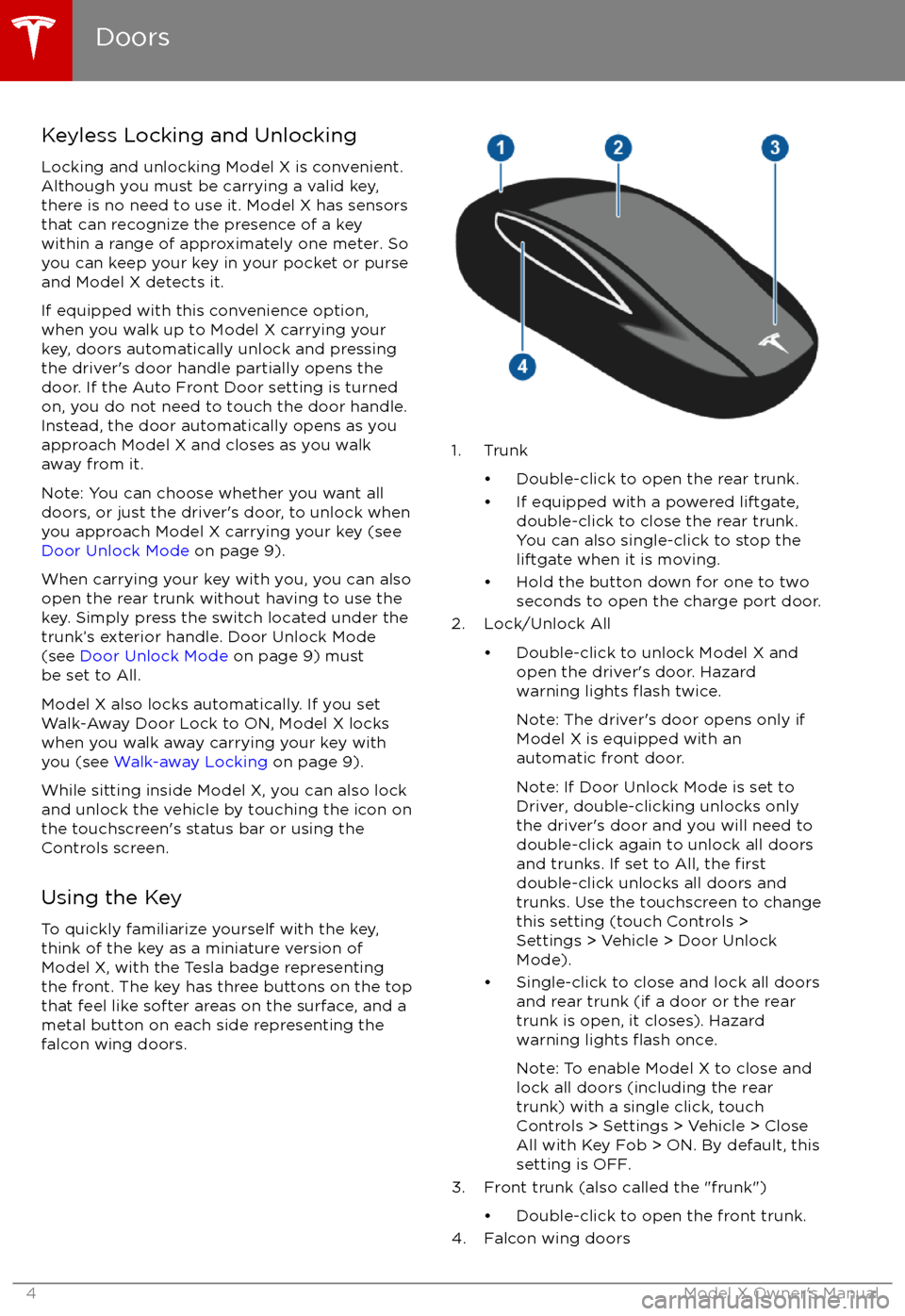
Keyless Locking and UnlockingLocking and unlocking Model X is convenient.
Although you must be carrying a valid key,
there is no need to use it. Model X has sensors
that can recognize the presence of a key
within a range of approximately one meter. So you can keep your key in your pocket or purse
and Model X detects it.
If equipped with this convenience option,
when you walk up to Model X carrying your
key, doors automatically unlock and pressing the driver
Page 8 of 202
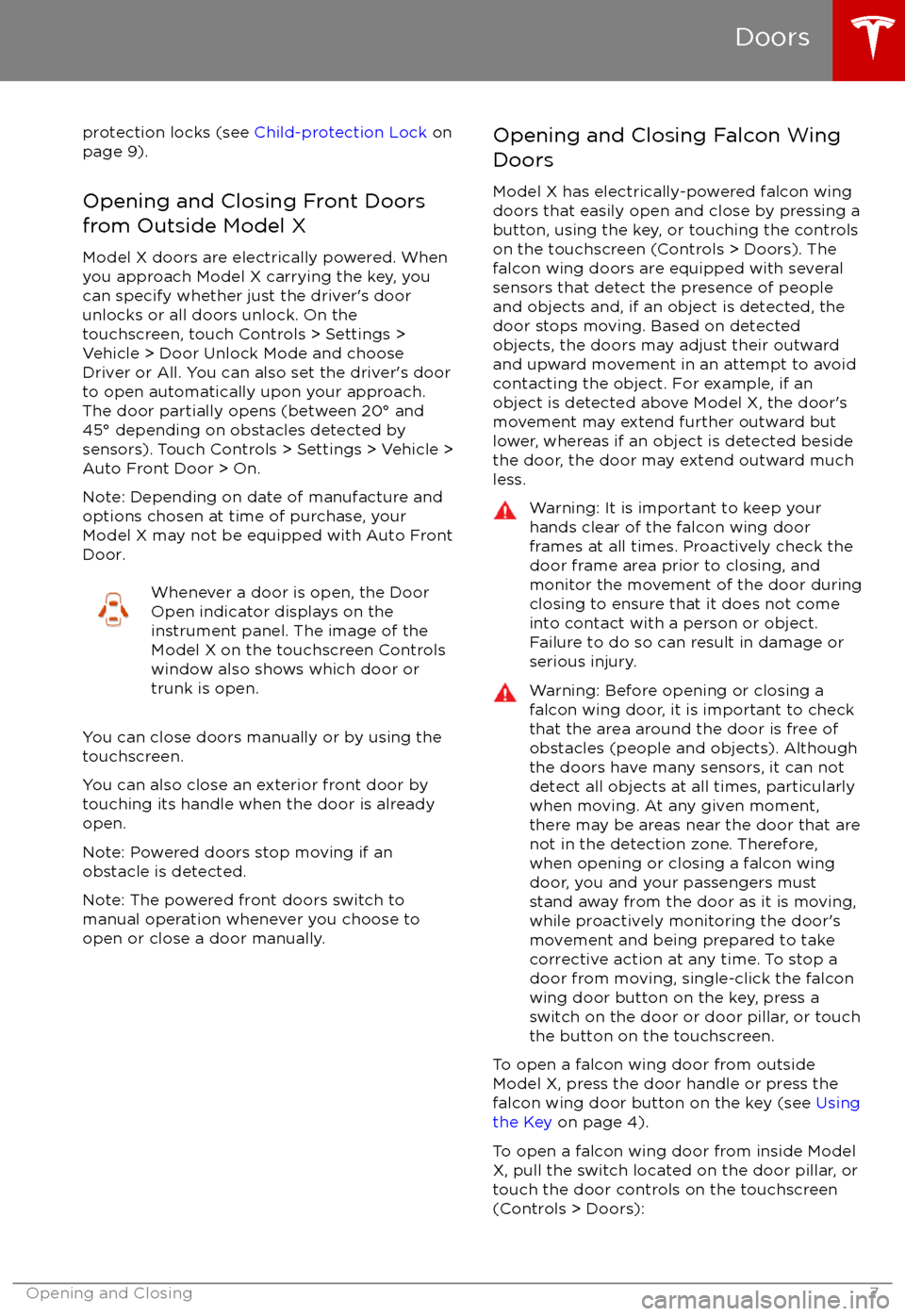
protection locks (see Child-protection Lock on
page 9).
Opening and Closing Front Doors
from Outside Model X
Model X doors are electrically powered. When
you approach Model X carrying the key, you
can specify whether just the driver
Page 9 of 202
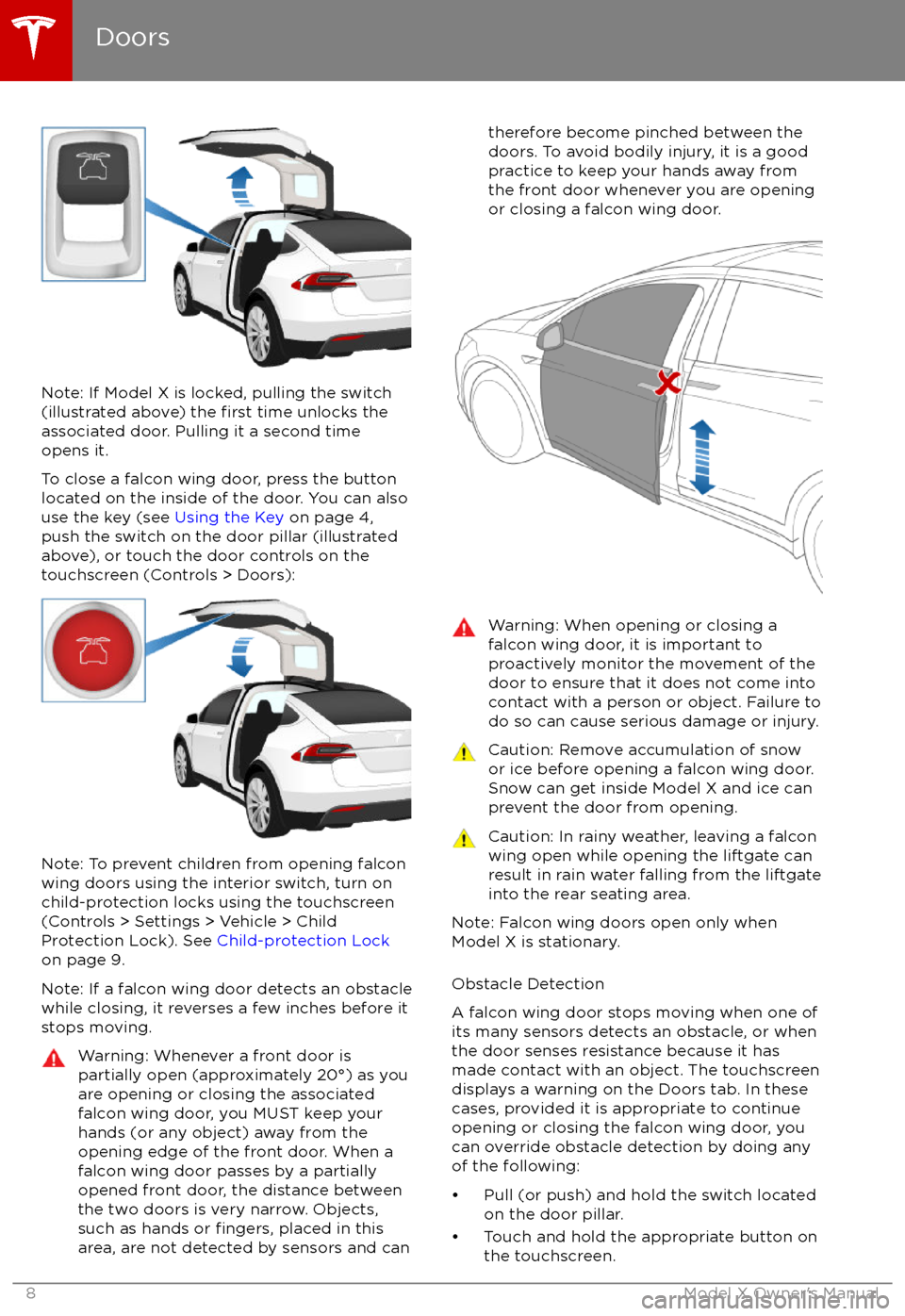
Note: If Model X is locked, pulling the switch(illustrated above) the first time unlocks the
associated door. Pulling it a second time
opens it.
To close a falcon wing door, press the button located on the inside of the door. You can also
use the key (see Using the Key on page 4,
push the switch on the door pillar (illustrated
above), or touch the door controls on the touchscreen (Controls > Doors):
Note: To prevent children from opening falcon
wing doors using the interior switch, turn on
child-protection locks using the touchscreen (Controls > Settings > Vehicle > Child
Protection Lock). See Child-protection Lock
on page 9.
Note: If a falcon wing door detects an obstacle
while closing, it reverses a few inches before it
stops moving.
Warning: Whenever a front door is
partially open (approximately 20
Page 15 of 202
Opening
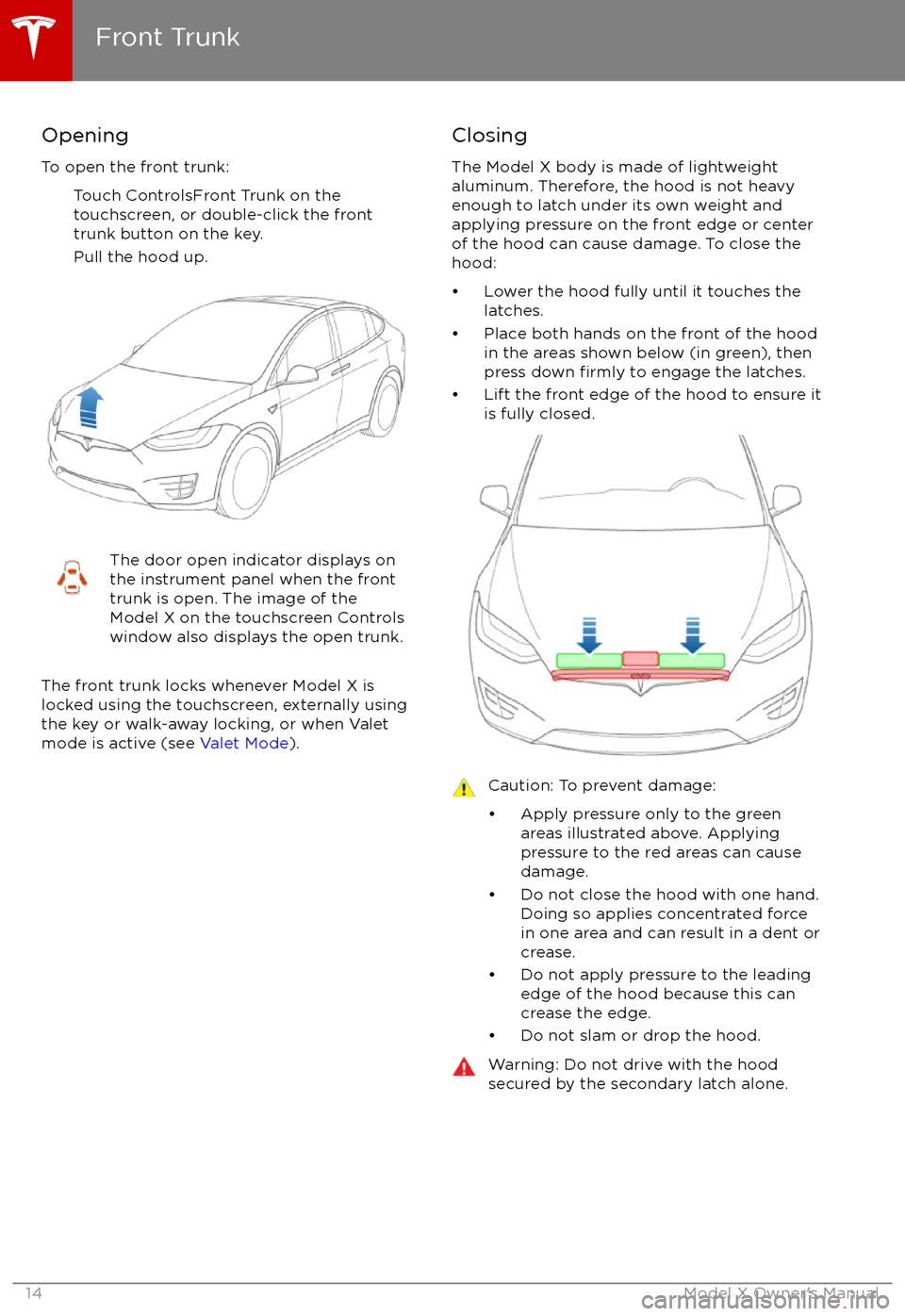
To open the front trunk: Touch ControlsFront Trunk on the
touchscreen, or double-click the front
trunk button on the key.
Pull the hood up.The door open indicator displays on
the instrument panel when the front
trunk is open. The image of the
Model X on the touchscreen Controls window also displays the open trunk.
The front trunk locks whenever Model X is
locked using the touchscreen, externally using
the key or walk-away locking, or when Valet
mode is active (see Valet Mode).
Closing
The Model X body is made of lightweight
aluminum. Therefore, the hood is not heavy
enough to latch under its own weight and
applying pressure on the front edge or center of the hood can cause damage. To close the
hood:
Page 54 of 202

Controlling LightsTouch Controls on the bottom corner of the touchscreen to control most of the lights.In addition to the lights that you can control from the touchscreen, Model X has convenience
lights that turn on and
off automatically based on what you are doing. For example, you will
notice interior lights, marker lights, tail lights, door handle lights, and puddle lights that turn on
when you unlock Model X, when you open a door, and when you shift into Park. They turn
offautomatically after a minute or two or when you shift into a driving gear or lock Model X.
Lights
Driving53
Page 55 of 202
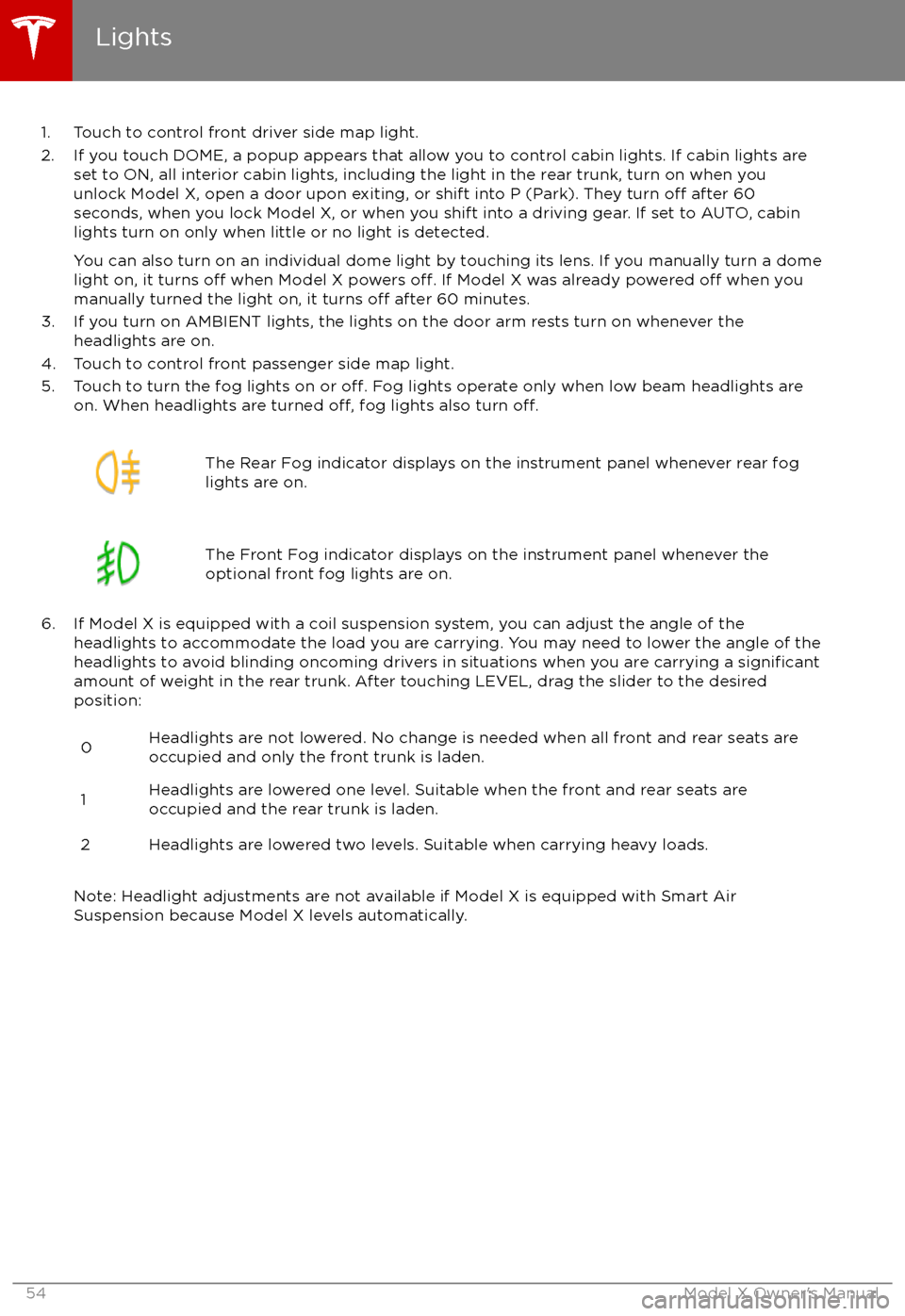
1. Touch to control front driver side map light.
2. If you touch DOME, a popup appears that allow you to control cabin lights. If cabin lights are set to ON, all interior cabin lights, including the light in the rear trunk, turn on when youunlock Model X, open a door upon exiting, or shift into P (Park). They turn
off after 60
seconds, when you lock Model X, or when you shift into a driving gear. If set to AUTO, cabin lights turn on only when little or no light is detected.
You can also turn on an individual dome light by touching its lens. If you manually turn a domelight on, it turns
off when Model X powers off. If Model X was already powered off when you
manually turned the light on, it turns off after 60 minutes.
3. If you turn on AMBIENT lights, the lights on the door arm rests turn on whenever the headlights are on.
4. Touch to control front passenger side map light.
5. Touch to turn the fog lights on or
off. Fog lights operate only when low beam headlights are
on. When headlights are turned off, fog lights also turn off.
The Rear Fog indicator displays on the instrument panel whenever rear fog
lights are on.The Front Fog indicator displays on the instrument panel whenever the
optional front fog lights are on.
6. If Model X is equipped with a coil suspension system, you can adjust the angle of the headlights to accommodate the load you are carrying. You may need to lower the angle of theheadlights to avoid blinding oncoming drivers in situations when you are carrying a
significantamount of weight in the rear trunk. After touching LEVEL, drag the slider to the desired position:
0Headlights are not lowered. No change is needed when all front and rear seats are
occupied and only the front trunk is laden.1Headlights are lowered one level. Suitable when the front and rear seats are occupied and the rear trunk is laden.2Headlights are lowered two levels. Suitable when carrying heavy loads.
Note: Headlight adjustments are not available if Model X is equipped with Smart Air
Suspension because Model X levels automatically.
Lights
54Model X Owner
Page 137 of 202

About the Security System
If Model X does not detect a key nearby and a
locked door or trunk is opened, an alarm sounds and headlights and turn signals
flash.To deactivate the alarm, press any button on the key.
To manually enable or disable the alarm system, touch Controls > Settings > Safety &
Security > Alarm. When set to on, Model X activates its alarm one minute after the doors
lock and a recognized key is no longer
detected nearby.
If Model X is equipped with the optional security package, it includes a battery-backed
siren that sounds instead of the horn in
situations where a locked door or trunk is
opened and Model X does not detect a key
nearby. If the Tilt/Intrusion setting is on, the
siren also sounds if Model X detects motion inside the cabin, a window is broken, or if it is
moved or tilted (for example, with a tow truck or jack). To turn the tilt/ intrusion detectionsystems on or
off, touch Controls > Settings >
Safety & Security > Tilt/Intrusion.
Note: If you plan to leave something that
moves, such as a dog, inside your locked
Model X, remember to turn
off the tilt/
intrusion system. Any type of motion detected inside Model X activates the siren.
Note: To turn on Tilt/Intrusion, the Alarm must
be ON.
Security Settings
136Model X Owner
Page 195 of 202
AABS (Anti-lock Braking System) 59
Acceleration (dual-motor) 107
access panel, removing 164accessoriesinstalling 167
plugging into power socket 126
adaptive headlights 56
air circulation 116
air conditioning 115
air distribution 116
air
filter 119
air suspension 121
air vents 119
airbag, front passenger, disabling 37
airbags 35
alarm 136
all-season tires 153
always connected, setting 67
anti-lock braking (ABS) 59
audioplaying files 122
steering wheel buttons 42
volume control 122
Auto High Beam 56
Auto Lane Change 88
auto-raising suspension 120
Autopark 90
Autopilot 77
Autosteer 85
average range 67
B
backup camera 69
battery (12V)complete discharge 144specifications 175Battery (high voltage)care of 144
coolant 164
specifications 176
temperature limits 144
battery (key), replacing 5
blind spot warning 95
Bluetoothdevices, playing audio files from 125
general information 127
phone, pairing and using 127
body repairs 167
body touch up 162
brake
fluid replacement 150
brakesautomatic in emergencies 97fluid level 164
overview of 59
specifications 175
brightness of displays 111
C
Cabin Overheat Protection setting 111
cabin temperature control 115
Calendar app 134
camera (rear view) 69
car cover 162
car washes 160
carpets, cleaning 161
CE
certifications 189
CHAdeMO 143
chains 154
change of ownership 114
charge port 145
charge port light 147
chargingcharge settings 148
components and equipment 142
instructions 145
public charging stations 143
scheduling 148
status of 149
charging locations, finding 130
child protectiondisabling liftgate and rear door handles 9
disabling rear window switches 11child seatsdisabling front passenger airbag 37
installing and using 25
cleaning 160
climate controls 115
Cold Weather controls 107
collision avoidance assist 97
console12V power socket 126
cup holders 17
USB ports 126
consumption chart 67
contact informationroadside assistance 180coolantBattery, checking level of 164
Battery, replacement interval 150
copyrights 185, 186
Creep 107
cruise control 79
cup holders 17
D
DAB radio 123
dashboard overview 2
data recording 187
day mode 111
declarations of conformity 189
Index
194Model X Owner
Page 196 of 202

delivery mileage 187devicesBluetooth, playing audio files 125
connecting 126
playing audio
files from 125
dimensions 172
display brightness 111
dome (map) lights 53
door labels 169
Door Unlock Mode 9
doors 4
doors, opening 4
Drive gear 47
drive-away locking 9
driverprofiles 40
seat adjustment 18driver assistanceAuto Lane Change 88
Autopark 90
Autosteer 85
blind spot warning 95
collision avoidance assist 97
forward collision warning 97
overtake acceleration 79
overview 77
settings for 111
side collision avoidance 95
side collision warning 95
staying inside lane markings 95
Traffic-Aware Cruise Control 79
drivingseating position 18
starting 46
tips to maximize range 67
E
electric parking brake 60
emergency
flashers 57
energygained from regenerative braking 60
range information 48
energy & charging setting 111
Energy app 67
energy saving mode 67
Erase & Reset 114
event data recording 187
exteriorcar cover 162
cleaning 160
dimensions 172
lights 53
overview 3
polishing, touch up, & repair 162F
factory defaults, restoring 114
factory reset 114
fan speed, interior 116
favorite destinations 132
Favorites 129
Favorites (Media Player) 124
FCC
certifications 189
features, downloading new 140
ferries, avoiding 131
firmware (software) updates 140flash drives, playing audio files from 125flashers, warning 57flat tire repair 156floor mats 162
fluidsreplacement intervals 150
reservoirs, checking 164
fog lights 53
forward collision warning 97
front passenger detection 37
front trunk 14
G
garage doors, opening 137
gates, opening 137
GAWR 170
gears 47
glove box 16
Gross Axle Weight Rating 170
Gross Vehicle Weight Rating 170
ground clearance 172, 173
GVWR 170
H
hazard warning
flashers 57
head restraints 21
headlightsadaptive 56
after exit 56
high beams 56
heated wipers 58
heating 115
height adjustments (suspension)auto-raising 120
automatic and manual settings 121
disabling (Jack mode) 121
high beam headlights 56
high voltageBattery specifications 176
components 142
safety 150
hills, stopping on 64
Home location 132
Index
Index195