trunk TESLA MODEL X 2017 Owner's Manual (UK)
[x] Cancel search | Manufacturer: TESLA, Model Year: 2017, Model line: MODEL X, Model: TESLA MODEL X 2017Pages: 202, PDF Size: 4.82 MB
Page 4 of 202
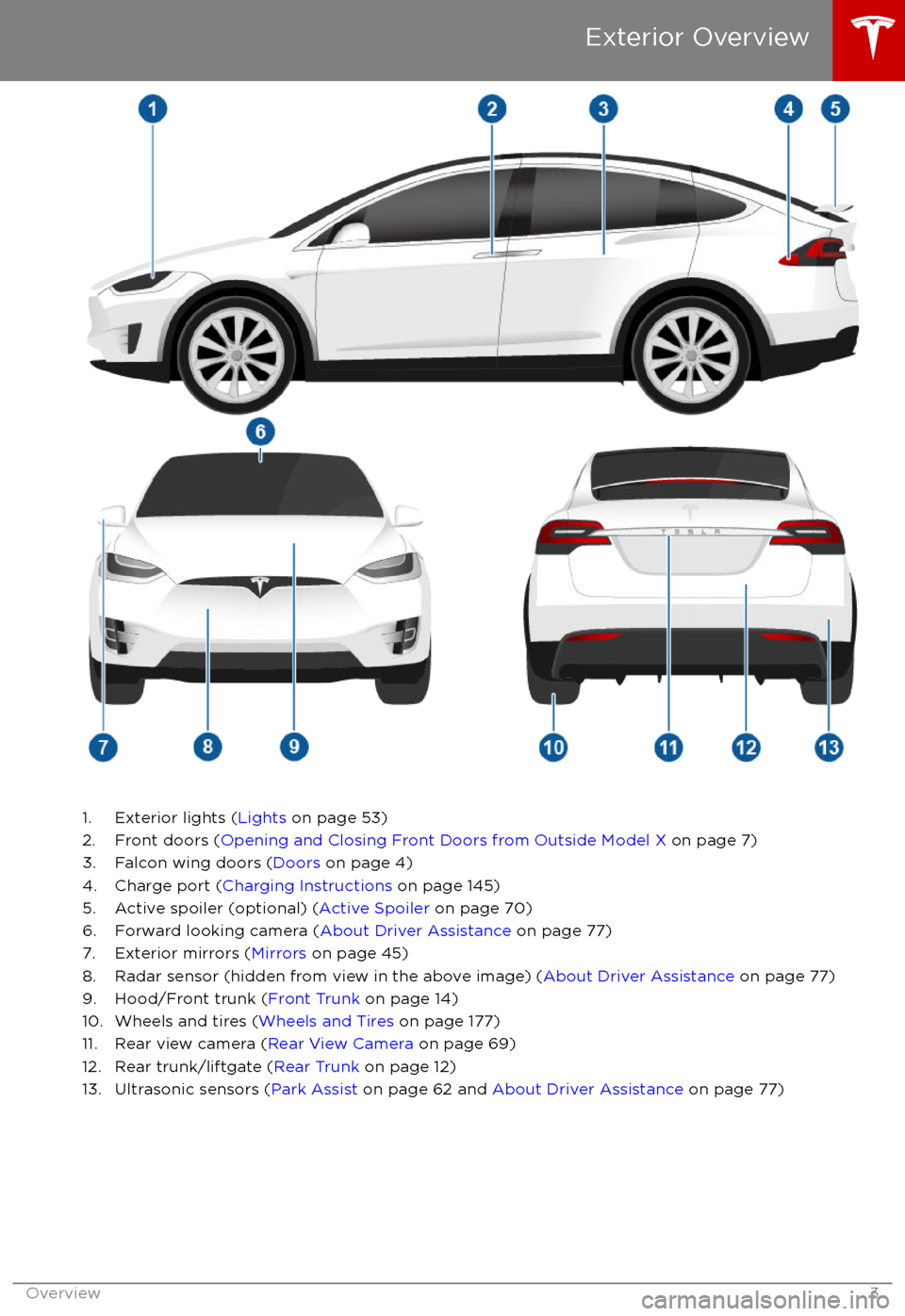
1. Exterior lights (Lights on page 53)
2. Front doors ( Opening and Closing Front Doors from Outside Model X on page 7)
3. Falcon wing doors ( Doors on page 4)
4. Charge port ( Charging Instructions on page 145)
5. Active spoiler (optional) ( Active Spoiler on page 70)
6. Forward looking camera ( About Driver Assistance on page 77)
7. Exterior mirrors ( Mirrors on page 45)
8. Radar sensor (hidden from view in the above image) ( About Driver Assistance on page 77)
9. Hood/Front trunk ( Front Trunk on page 14)
10. Wheels and tires ( Wheels and Tires on page 177)
11. Rear view camera ( Rear View Camera on page 69)
12. Rear trunk/liftgate ( Rear Trunk on page 12)
13. Ultrasonic sensors ( Park Assist on page 62 and About Driver Assistance on page 77)
Exterior Overview
Overview3
Page 10 of 202
When Model X detects a low ceiling, it opens
the falcon wing doors (and trunk) to a lower
height, even if no obstacle is detected. If you
override this height on the touchscreen, Model
X remembers your choice from your location.
The next time you open the falcon wing doors
in this location, Model X opens them to the
height you saved.Warning: Applying adhesive products
such as wraps, stickers, rubber coating,
etc. on the outside of the falcon wing
doors can
affect the sensors
Page 13 of 202

Opening
To open the rear trunk, do one of the
following:
Page 14 of 202

Opening with No PowerIf Model X has no electrical power, you can
open the rear trunk from inside. Use the
mechanical release cable located on the underside of the liftgate, next to the interiorlight.
1. Remove the cover by pulling its lower edge very firmly toward you.
2. Pull the cable to release the latch.
3. Push the liftgate open.
Rear Trunk
Opening and Closing13
Page 15 of 202
Opening
To open the front trunk: Touch ControlsFront Trunk on the
touchscreen, or double-click the front
trunk button on the key.
Pull the hood up.The door open indicator displays on
the instrument panel when the front
trunk is open. The image of the
Model X on the touchscreen Controls window also displays the open trunk.
The front trunk locks whenever Model X is
locked using the touchscreen, externally using
the key or walk-away locking, or when Valet
mode is active (see Valet Mode).
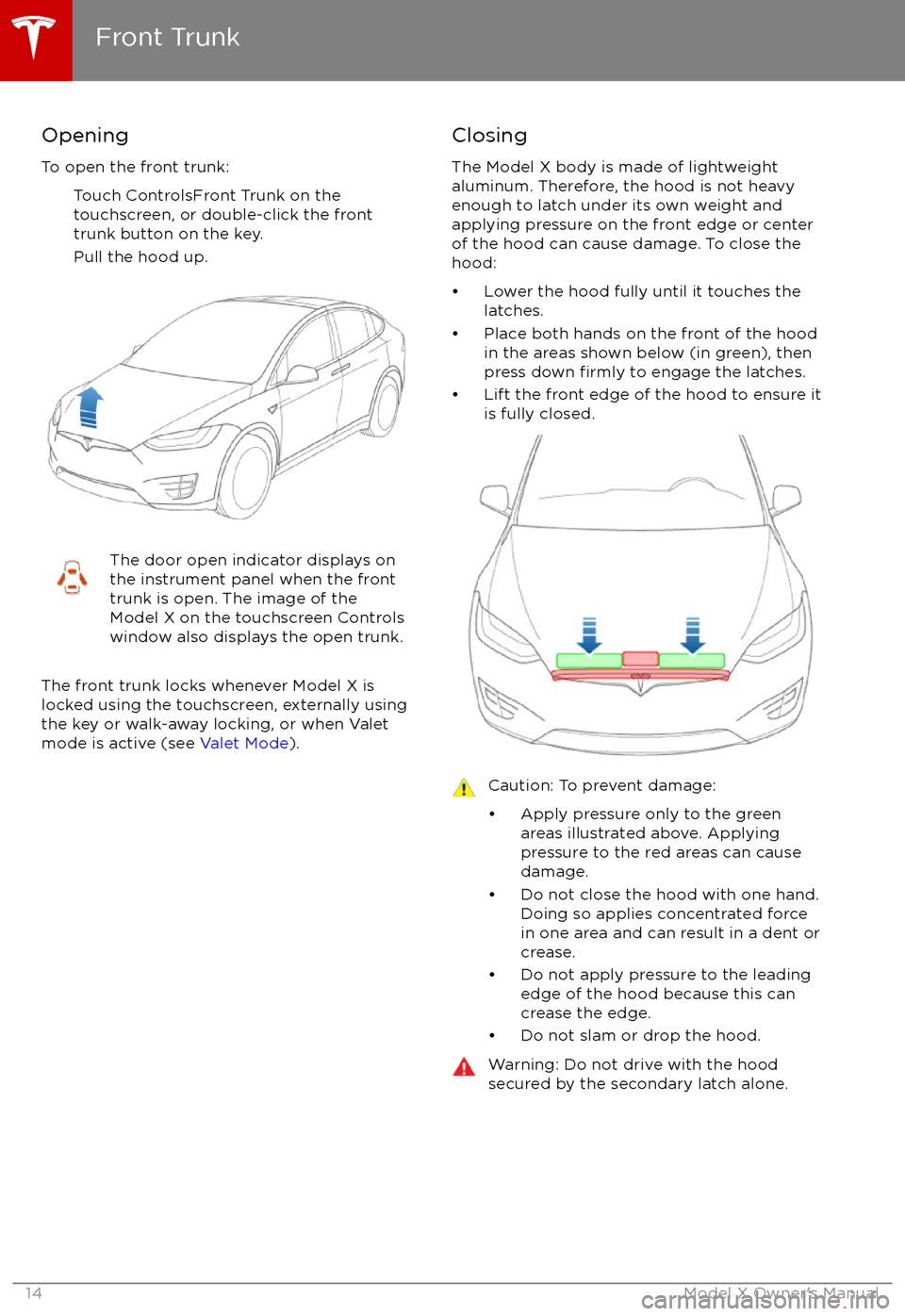
Closing
The Model X body is made of lightweight
aluminum. Therefore, the hood is not heavy
enough to latch under its own weight and
applying pressure on the front edge or center of the hood can cause damage. To close the
hood:
Page 16 of 202

Interior Emergency ReleaseAn interior release button inside the front
trunk allows a person locked inside to get out.
This release button is active whenever
Model X is stationary.
Press the interior release button to open the
front trunk, then push up on the hood.
Note: The button glows for several hours after
a brief exposure to ambient light.
Front Trunk
Opening and Closing15
Page 44 of 202
3. PreviousSame as described above for Next, except
it skips to the previous song or station. If
you have more than one favorite
defined,press and hold to cycle through favorites.
Note: Regardless of how you customize the
left side of the instrument panel, it
automatically changes to display navigation
instructions (if applicable), or to let you know
if a door or trunk is open when Model X is in a driving gear.
Using Right Steering Wheel Buttons Use the buttons on the right side of the
steering wheel to access call options while on
a phone call, to choose what displays on the
right side of the instrument panel, to adjust
Model X features, and to use voice commands.
Note: Whenever you receive or make a phone call, the right side of the instrument panelautomatically displays call options to help you
easily handle phone calls on your Bluetooth-
connected phone.
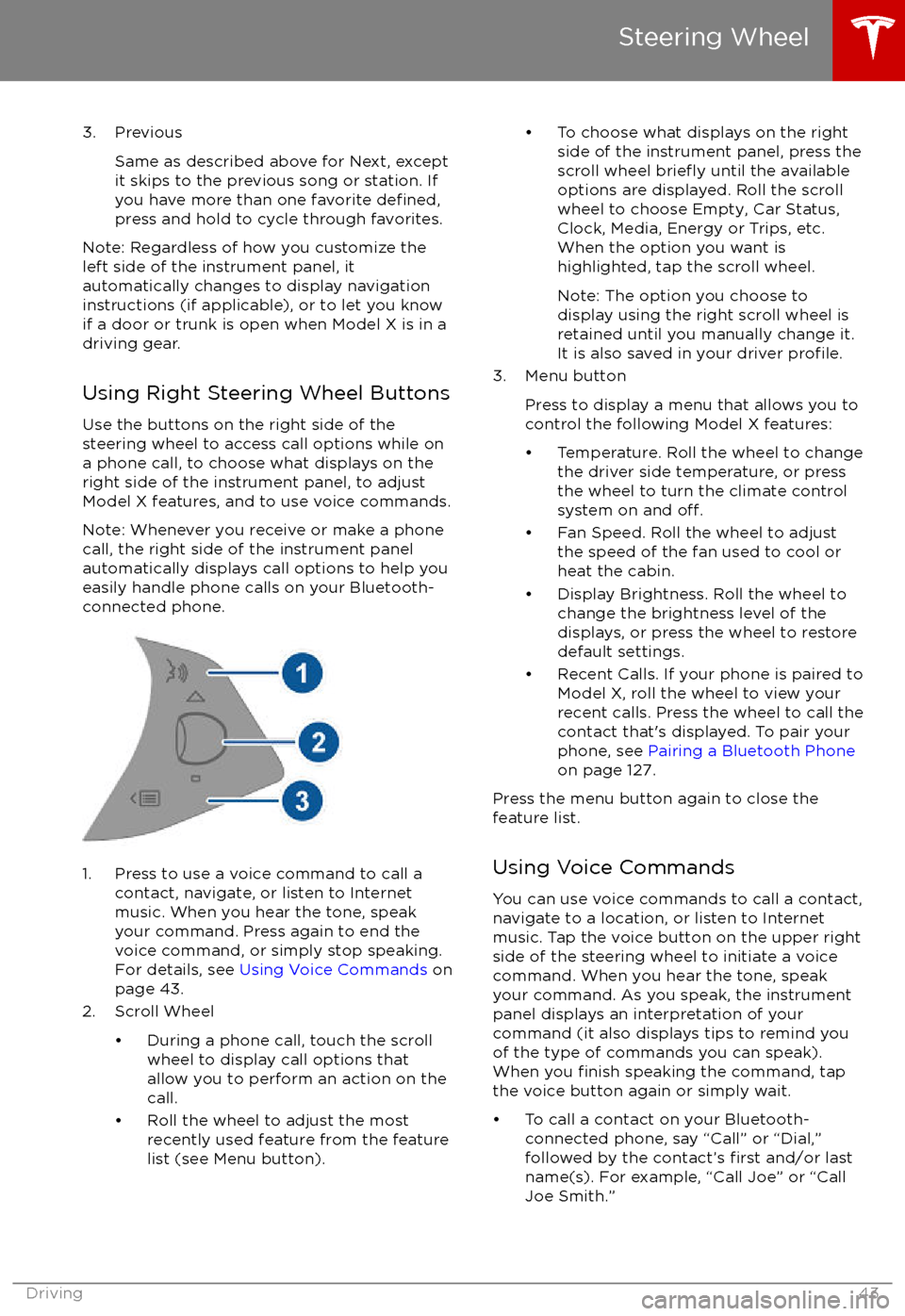
1. Press to use a voice command to call a
contact, navigate, or listen to Internetmusic. When you hear the tone, speak
your command. Press again to end the
voice command, or simply stop speaking.
For details, see Using Voice Commands on
page 43.
2. Scroll Wheel
Page 51 of 202
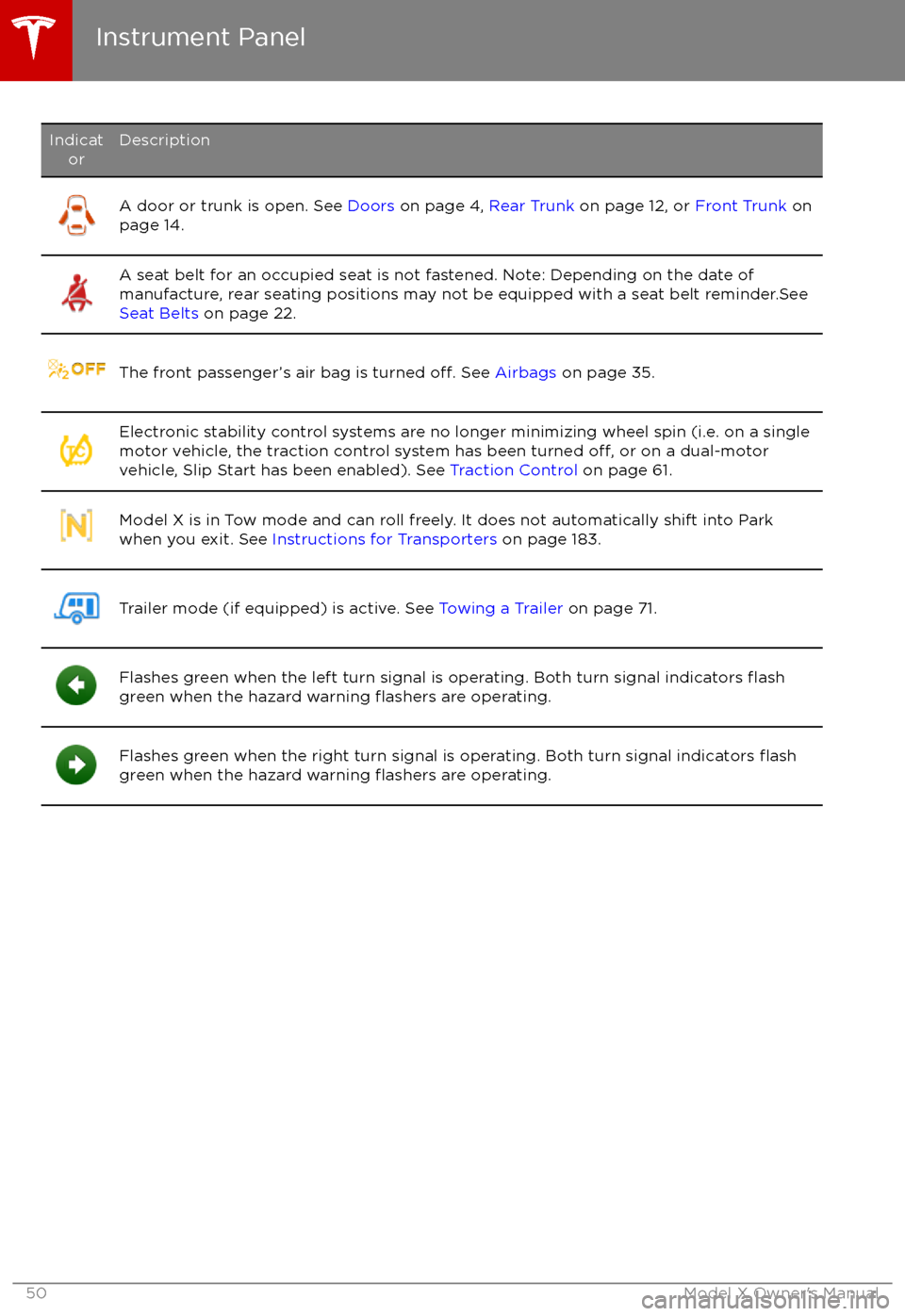
IndicatorDescriptionA door or trunk is open. See Doors on page 4, Rear Trunk on page 12, or Front Trunk on
page 14.A seat belt for an occupied seat is not fastened. Note: Depending on the date of
manufacture, rear seating positions may not be equipped with a seat belt reminder.See
Seat Belts on page 22.The front passenger
Page 55 of 202
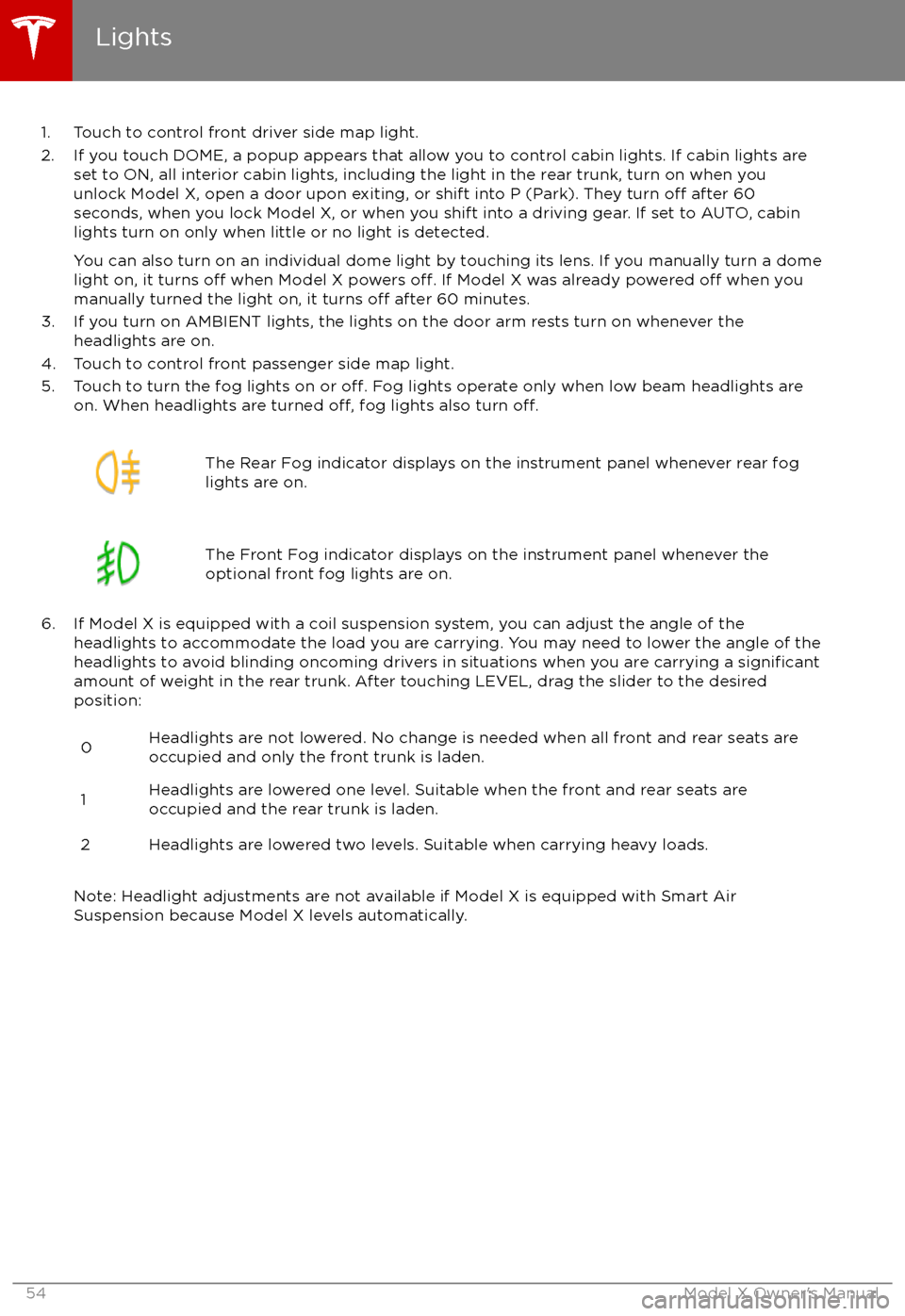
1. Touch to control front driver side map light.
2. If you touch DOME, a popup appears that allow you to control cabin lights. If cabin lights are set to ON, all interior cabin lights, including the light in the rear trunk, turn on when youunlock Model X, open a door upon exiting, or shift into P (Park). They turn
off after 60
seconds, when you lock Model X, or when you shift into a driving gear. If set to AUTO, cabin lights turn on only when little or no light is detected.
You can also turn on an individual dome light by touching its lens. If you manually turn a domelight on, it turns
off when Model X powers off. If Model X was already powered off when you
manually turned the light on, it turns off after 60 minutes.
3. If you turn on AMBIENT lights, the lights on the door arm rests turn on whenever the headlights are on.
4. Touch to control front passenger side map light.
5. Touch to turn the fog lights on or
off. Fog lights operate only when low beam headlights are
on. When headlights are turned off, fog lights also turn off.
The Rear Fog indicator displays on the instrument panel whenever rear fog
lights are on.The Front Fog indicator displays on the instrument panel whenever the
optional front fog lights are on.
6. If Model X is equipped with a coil suspension system, you can adjust the angle of the headlights to accommodate the load you are carrying. You may need to lower the angle of theheadlights to avoid blinding oncoming drivers in situations when you are carrying a
significantamount of weight in the rear trunk. After touching LEVEL, drag the slider to the desired position:
0Headlights are not lowered. No change is needed when all front and rear seats are
occupied and only the front trunk is laden.1Headlights are lowered one level. Suitable when the front and rear seats are occupied and the rear trunk is laden.2Headlights are lowered two levels. Suitable when carrying heavy loads.
Note: Headlight adjustments are not available if Model X is equipped with Smart Air
Suspension because Model X levels automatically.
Lights
54Model X Owner
Page 127 of 202

USB Connections
Your Model X has two USB connections
located on the front of the center console that
you can use to connect USB devices. To play
audio
files stored on a USB drive connected to
these ports, see Playing Media from Devices
on page 124. You can also use these
connections to charge USB devices.
In addition, Model X has two charge-only USB
connections located at the rear of the center
console, and another charge-only connection located between the third row seats.
Note: You can charge four devices
simultaneously using the two ports at the
front of the center console and the two at the
rear of the console.
12V Power Socket
Your Model X has a power socket located onthe front of the center console. An additional
12V power socket is located in the rear trunk.
Power is available whenever the instrument
panel and touchscreen are on.
The 12V power sockets are suitable for
accessories requiring up to 11A continuous
draw (15A peak) or a maximum of 150
continuous watts (180 watts peak).
Note: In situations where Model X is unable to detect the key (low battery, interference, etc.),
place it immediately below the 12V power
socket in the center console where Model X
can best detect it.
Warning: The power socket and an
accessory