open TESLA MODEL X 2022 Owner´s Manual
[x] Cancel search | Manufacturer: TESLA, Model Year: 2022, Model line: MODEL X, Model: TESLA MODEL X 2022Pages: 212, PDF Size: 5.07 MB
Page 115 of 212
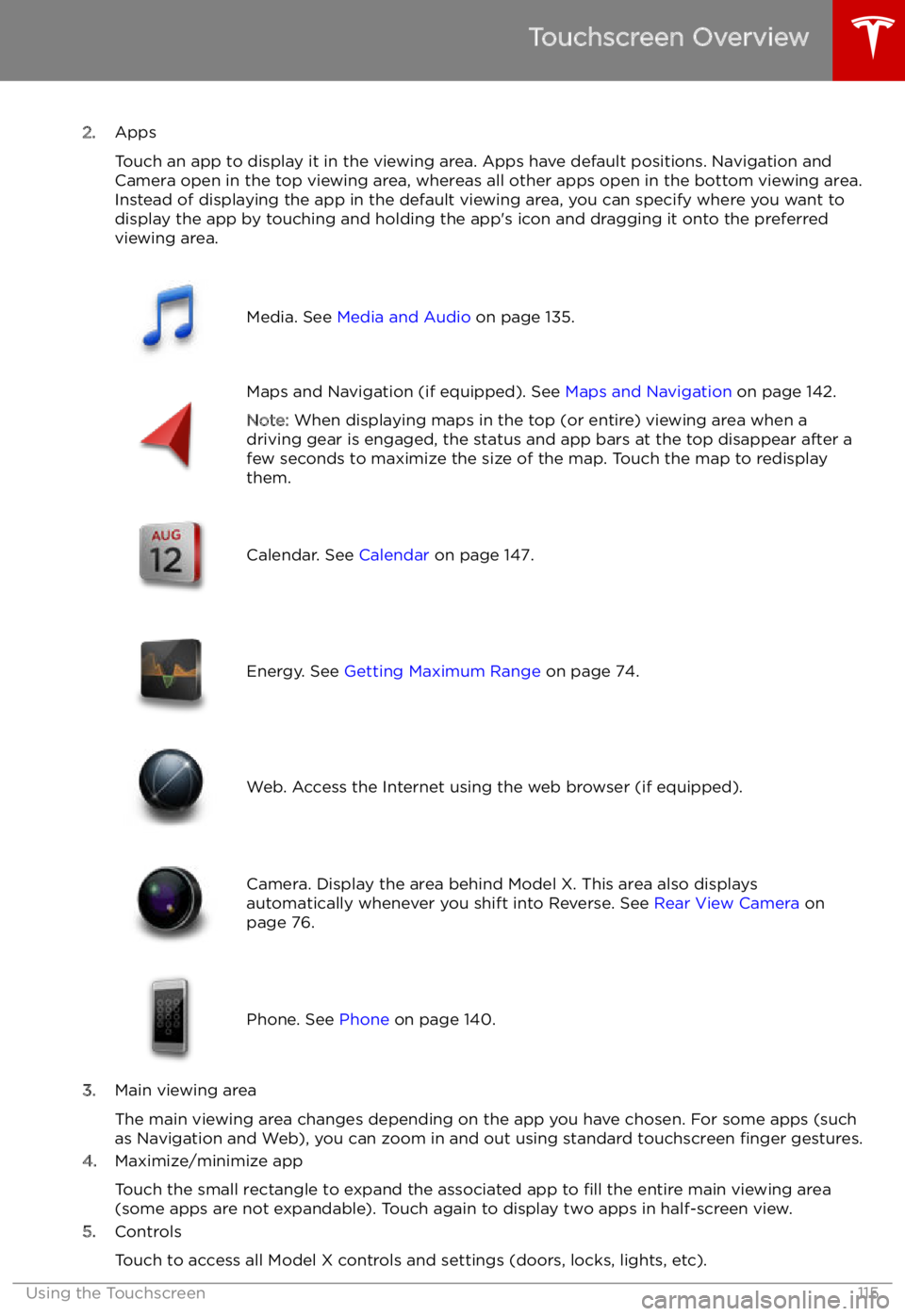
2.Apps
Touch an app to display it in the viewing area. Apps have default positions. Navigation and
Camera open in the top viewing area, whereas all other apps open in the bottom viewing area.
Instead of displaying the app in the default viewing area, you can specify where you want to display the app by touching and holding the app
Page 118 of 212
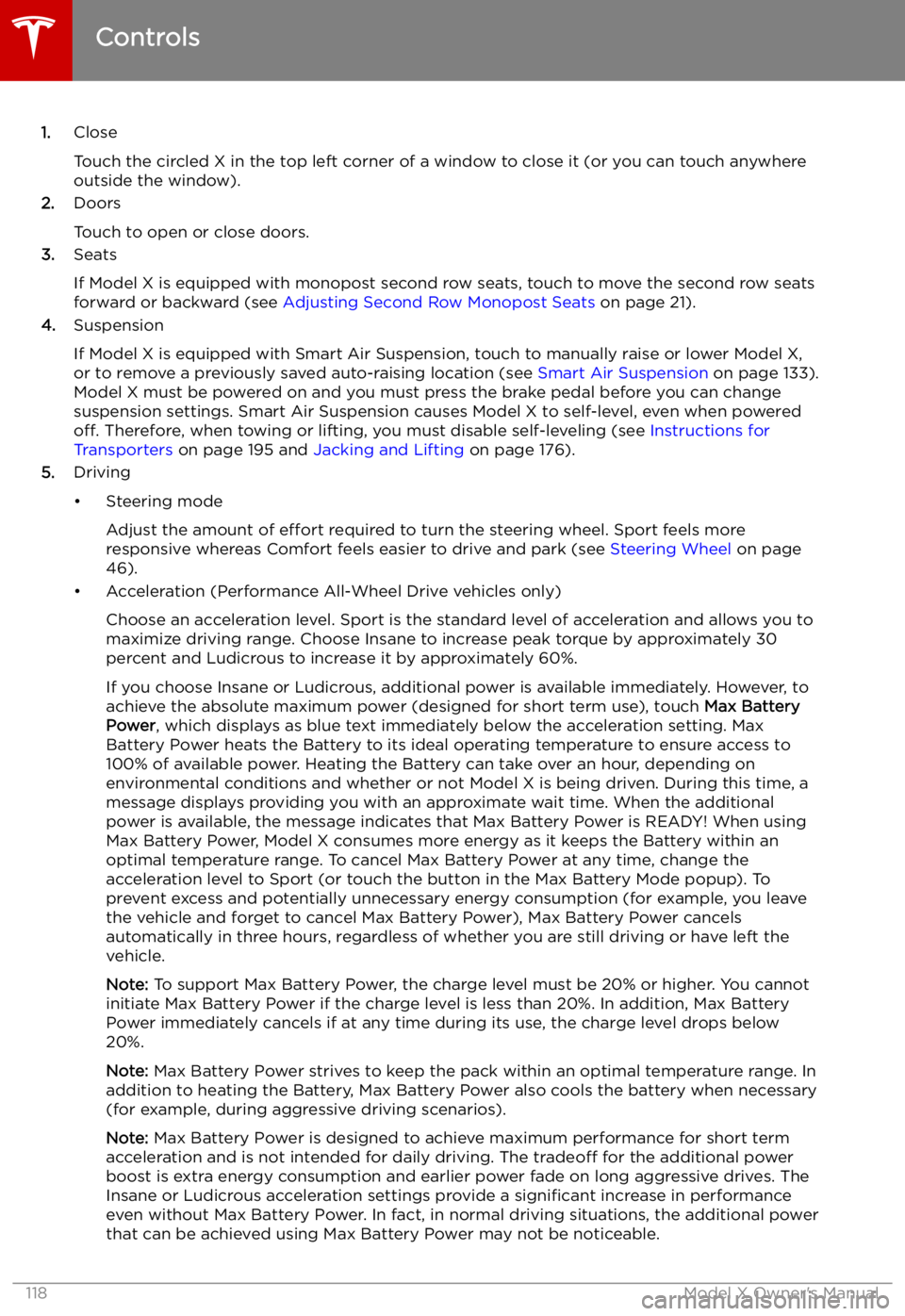
1.Close
Touch the circled X in the top left corner of a window to close it (or you can touch anywhere
outside the window).
2. Doors
Touch to open or close doors.
3. Seats
If Model X is equipped with monopost second row seats, touch to move the second row seats
forward or backward (see Adjusting Second Row Monopost Seats on page 21).
4. Suspension
If Model X is equipped with Smart Air Suspension, touch to manually raise or lower Model X, or to remove a previously saved auto-raising location (see Smart Air Suspension on page 133).
Model X must be powered on and you must press the brake pedal before you can change
suspension settings. Smart Air Suspension causes Model X to self-level, even when powered off. Therefore, when towing or lifting, you must disable self-leveling (see Instructions for
Transporters on page 195 and Jacking and Lifting on page 176).
5. Driving
Page 148 of 212

Security Settings
About the Security System
If Model X does not detect a key nearby and a
locked door or trunk is opened, an alarm sounds and the headlights and turn signals
Page 158 of 212
Charging Instructions
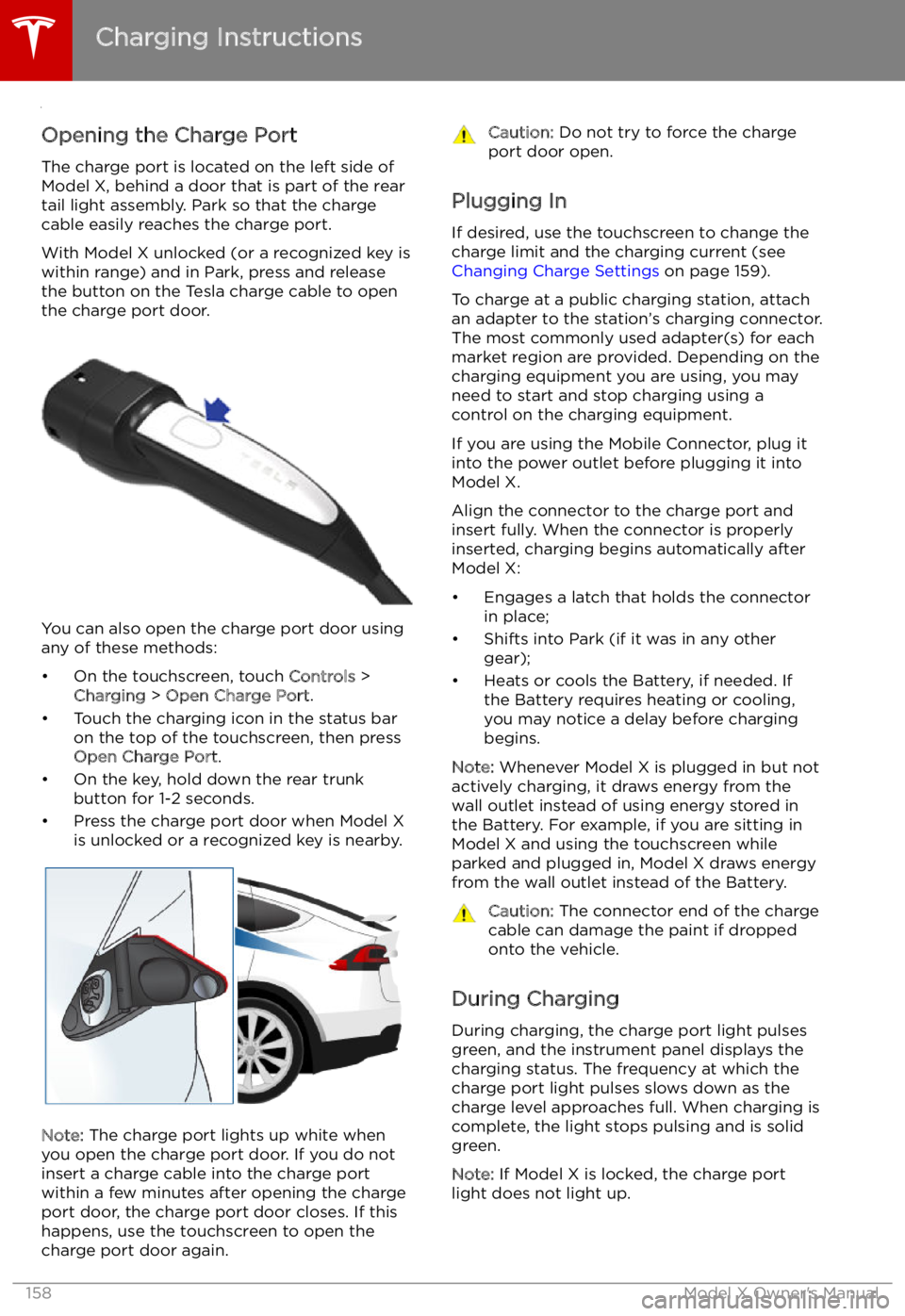
Opening the Charge Port The charge port is located on the left side of
Model X, behind a door that is part of the rear
tail light assembly. Park so that the charge
cable easily reaches the charge port.
With Model X unlocked (or a recognized key is
within range) and in Park, press and release
the button on the Tesla charge cable to open the charge port door.
You can also open the charge port door using
any of these methods:
Page 160 of 212
Note: If charging at a Tesla Supercharger, and
paid supercharging is potentially in effect, the
charging screen also displays information
about your previous or current Supercharger
session (see Supercharger Usage Fees and
Idle Fees on page 162).
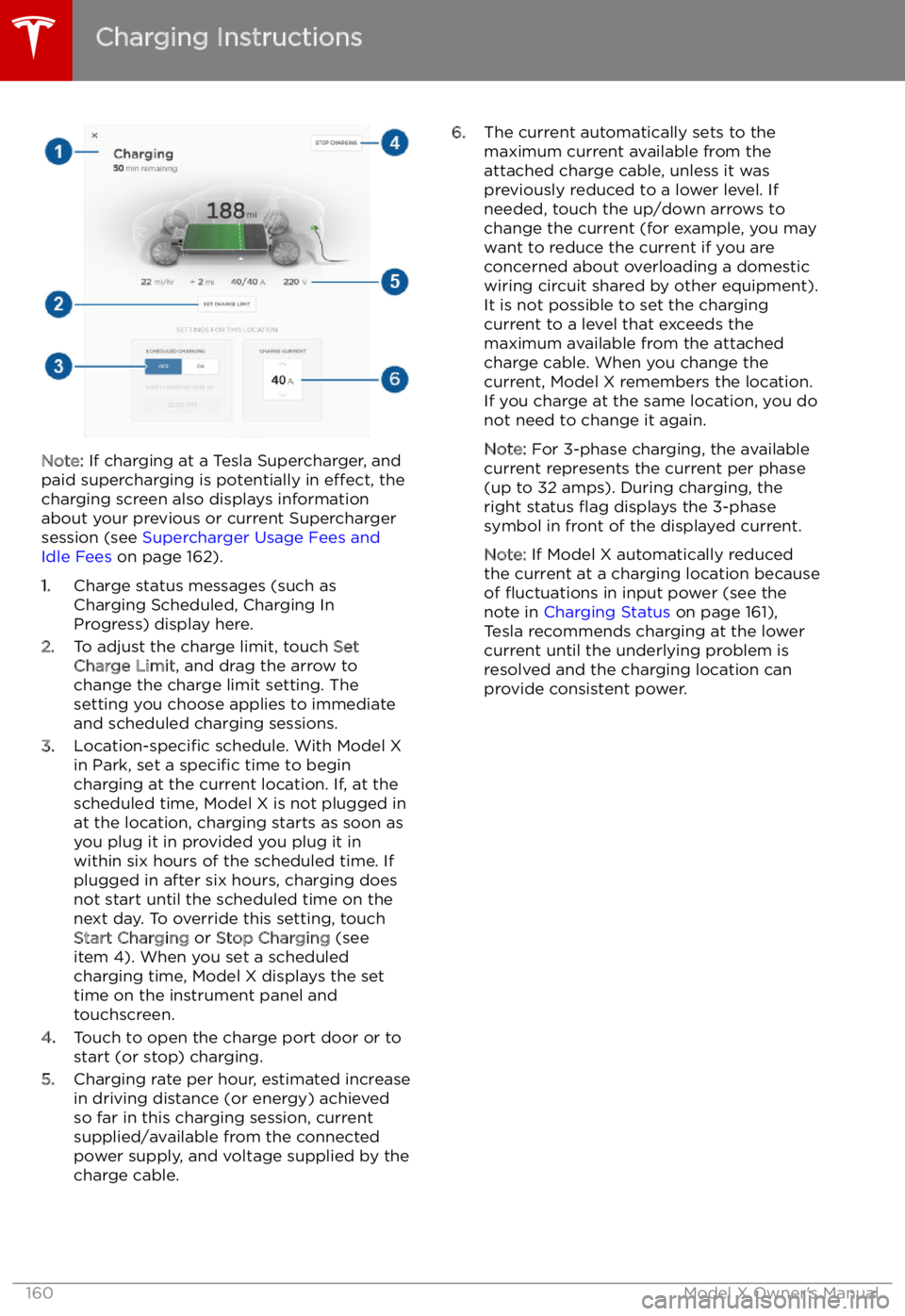
1. Charge status messages (such as
Charging Scheduled, Charging In
Progress) display here.
2. To adjust the charge limit, touch Set
Charge Limit , and drag the arrow to
change the charge limit setting. The
setting you choose applies to immediate
and scheduled charging sessions.
3. Location-specific schedule. With Model X
in Park, set a specific time to begin
charging at the current location. If, at the
scheduled time, Model X is not plugged in
at the location, charging starts as soon as
you plug it in provided you plug it in
within six hours of the scheduled time. If
plugged in after six hours, charging does
not start until the scheduled time on the
next day. To override this setting, touch Start Charging or Stop Charging (see
item 4). When you set a scheduled
charging time, Model X displays the set
time on the instrument panel and
touchscreen.
4. Touch to open the charge port door or to
start (or stop) charging.
5. Charging rate per hour, estimated increase
in driving distance (or energy) achieved
so far in this charging session, current
supplied/available from the connected
power supply, and voltage supplied by the
charge cable.
6. The current automatically sets to the
maximum current available from the
attached charge cable, unless it was
previously reduced to a lower level. If
needed, touch the up/down arrows to
change the current (for example, you may
want to reduce the current if you are
concerned about overloading a domestic
wiring circuit shared by other equipment).
It is not possible to set the charging
current to a level that exceeds the
maximum available from the attached charge cable. When you change the
current, Model X remembers the location.
If you charge at the same location, you do
not need to change it again.
Note: For 3-phase charging, the available
current represents the current per phase
(up to 32 amps). During charging, the
right status
Page 179 of 212
Vehicle Loading
Load Capacity Labeling It is important to understand how much
weight your Model X can safely carry. This
weight is called the vehicle capacity weight
and includes the weight of all occupants, cargo and any additional equipment added toyour Model X since it was manufactured.
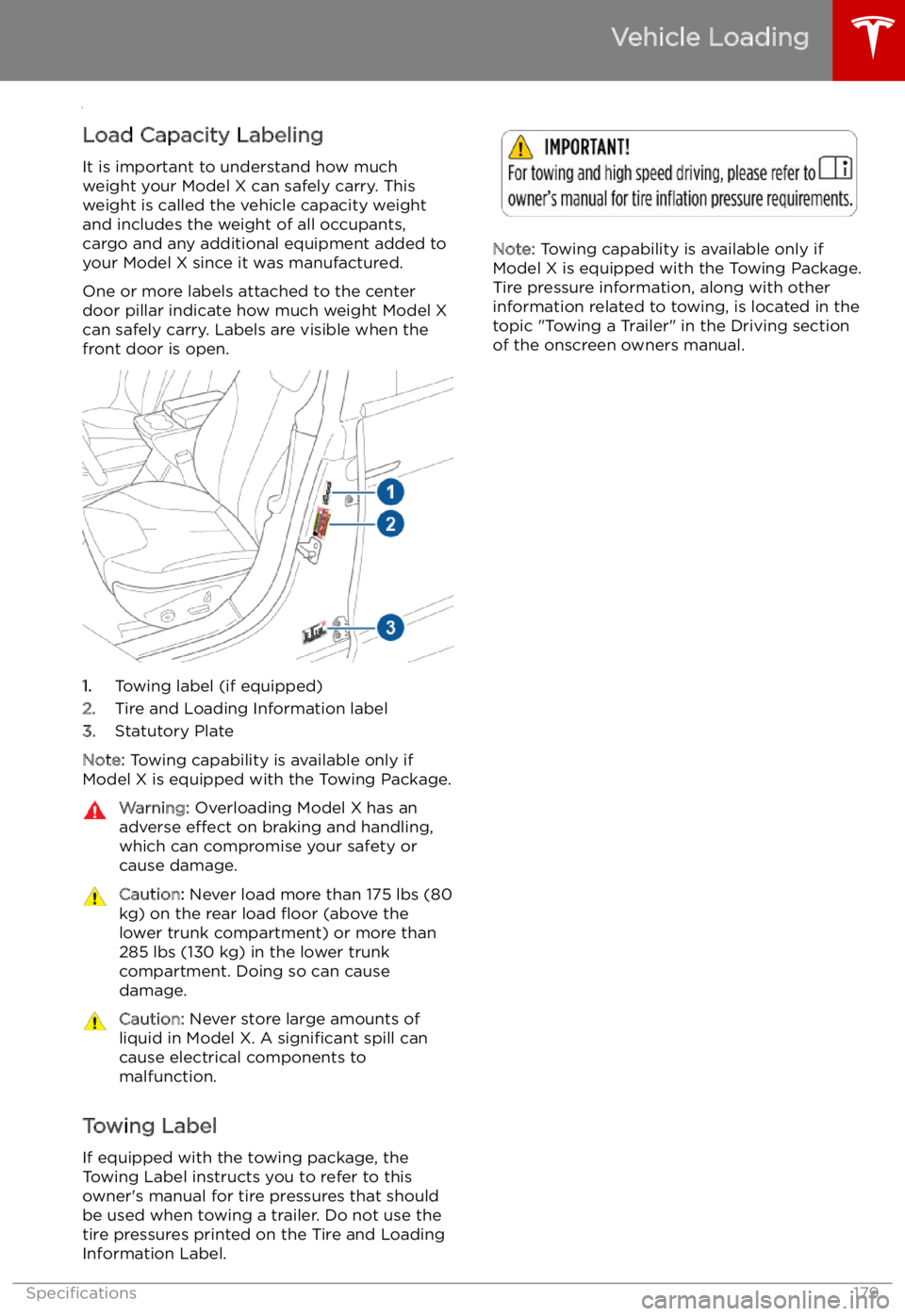
One or more labels attached to the center
door pillar indicate how much weight Model X
can safely carry. Labels are visible when the front door is open.
1. Towing label (if equipped)
2. Tire and Loading Information label
3. Statutory Plate
Note: Towing capability is available only if
Model X is equipped with the Towing Package.
Warning: Overloading Model X has an
adverse effect on braking and handling,
which can compromise your safety or cause damage.Caution: Never load more than 175 lbs (80
kg) on the rear load
Page 208 of 212
Creep 117
cruise control 89
cup holders 18
D
DAB radio 136
dashboard overview 2
data recording 199
data sharing 199
day mode 121
declarations of conformity 201
delivery mileage 199devicesBluetooth, playing audio files 138
connecting 138
playing audio files from 138
dimensions 182
display brightness 121
dome (map) lights 59
door labels 179
Door Unlock Mode 10
doors 4
doors, opening 4
Drive gear 52
drive-away locking 10
driverprofiles 44
seat adjustment 20driver assistanceAuto Lane Change 98
automatic emergency braking 106
Autopark 100
Autosteer 95
blind spot warning 104
collision avoidance assist 106
forward collision warning 106
overtake acceleration 89
overview 86
settings for 121
side collision warning 104
speed assist 110
speed limit warning 110
staying inside lane markings 104
staying within speed limits 110
Traffic-Aware Cruise Control 89drivingseating position 20
starting 50
tips to maximize range 74
E
Easter Eggs 197
Easy Entry 23
easy entry, driver profile 44
EDR (event data recorder) 199
electric parking brake
66
emergency braking 106
emergency