vent TESLA MODEL X 2023 Owner's Manual
[x] Cancel search | Manufacturer: TESLA, Model Year: 2023, Model line: MODEL X, Model: TESLA MODEL X 2023Pages: 296, PDF Size: 8.56 MB
Page 141 of 296

Adjusting the Front and Rear Vents
Model X has a unique horizontal face-level vent that spans the width of the dashboard. It also has vents at the top
and bottom of the rear console.
1.
Driver vents
2.
Driver controls
3.
Passenger controls
4.
Passenger vents
5.
Rear vents
6.
Rear controls
Using the touchscreens, you can pinpoint exactly where you want to direct the air flowing from this vent when
heating or cooling the cabin. When the face-level vent is on you can adjust the direction of the air
flow from each
vent. To adjust the direction of the air
flow, touch the radiating air waves from the corresponding vent on the
touchscreen. The air
flows in a single stream when centered or splits into mirrored air streams when air is directed
outward or inward from the center of the vent.
Climate Controls
139Using the Touchscreen
Page 142 of 296
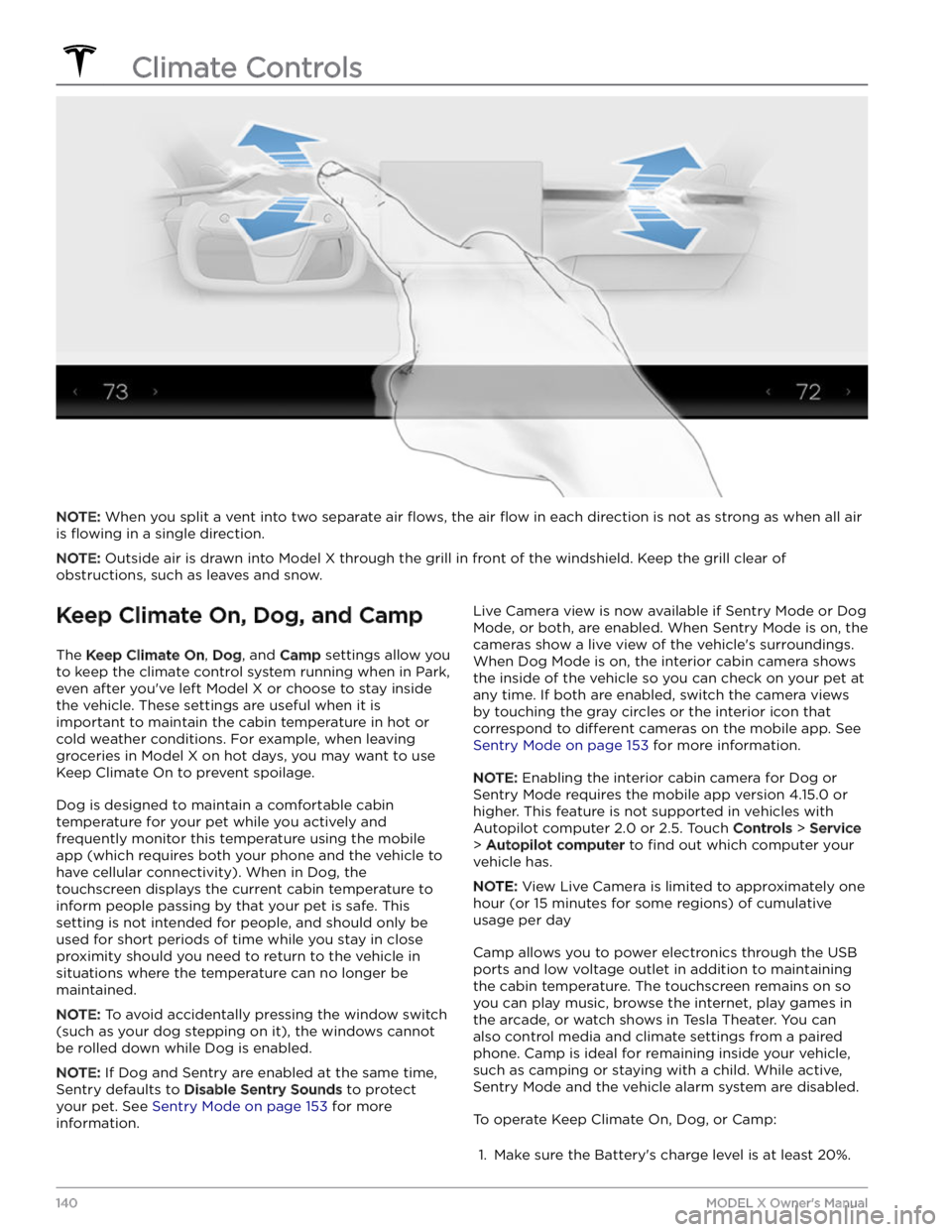
NOTE: When you split a vent into two separate air flows, the air flow in each direction is not as strong as when all air
is
flowing in a single direction.
NOTE: Outside air is drawn into Model X through the grill in front of the windshield. Keep the grill clear of
obstructions, such as leaves and snow.
Keep Climate On, Dog, and Camp
The Keep Climate On, Dog, and Camp settings allow you
to keep the climate control system running when in Park,
even after you
Page 147 of 296
WARNING: Follow all applicable laws regarding the
use of phones while driving, including, but not
limited to, laws that prohibit texting and require
hands-free operation at all times.
In Call Options
When a call is in progress, the call menu displays on the touchscreen. Then roll the right scroll button to choose an option. To adjust the call volume, roll left scroll button during a call.
Calendar
The calendar displays scheduled events
from your phone
Page 149 of 296

to display detailed information about the dampers for each wheel, including ride height, compression and
rebound values, and body accelerations.
Auto-Raising Locations
Whenever you raise the suspension to High or Very
High, the location is automatically saved. By saving the
location, you do not need to manually raise the
suspension every time you arrive at a frequently-used location where you have previously raised the
suspension. When you return to the saved location,
Model X raises the suspension and the instrument panel
displays a message indicating that the suspension is being raised.
When saving locations, Model X also saves the Keep
until XX mph setting (if specified).
NOTE: When returning to a saved location and driving
faster than the
High and Very High suspension settings
allow, the suspension does not raise until
Model X slows
down.
NOTE: After leaving a saved location, the suspension
automatically lowers. However, it may not lower until
Model X meets the speed and distance threshold at
which the suspension lowers.
NOTE: If Model X reaches a saved location and the
existing suspension setting is already higher than the level that has been saved for that location, the ride height is not adjusted.
To remove an auto-raising location
If you do not want the suspension to automatically raise at a location, touch to deselect
Always raise at this
location in the popup that appears when you arrive at a
saved location.
Or, when using the Raise Suspension
shortcut on the main Controls window, touch to deselect
Location Saved.
Self-Leveling
Model X equipped with air suspension automatically
self-levels, even when power is
off. To prevent damage
when jacking or lifting the vehicle, you must activate
Jack Mode to disable self-leveling (press the brake pedal
and touch
Controls > Service > Jack Mode). For more
details, see
Jack Mode on page 202.
Air Suspension
147Using the Touchscreen
Page 152 of 296
About the Security System
If Model X does not detect a key nearby and a locked
door or trunk is opened, an alarm sounds. The headlights and turn signals also
flash. To deactivate the
alarm, press any button on the key fob.
To manually enable or disable the alarm system, touch
Controls > Safety > Security Alarm. When enabled,
Model X activates its alarm one minute after you exit,
the doors lock, and a recognized key is no longer
detected.
A battery-backed siren (if equipped) sounds in situations where a locked door or trunk is opened and
Model X does not detect a key nearby. If you also want
this siren to sound in situations where the vehicle
detects motion inside the cabin, enable Tilt/Intrusion
(see Tilt/Intrusion (if equipped) on page 150).
NOTE: If Model X is in Sentry Mode (see How to Use
Sentry Mode (Camera + App) on page 153), you must
disable Sentry Mode before you can disable the Security
alarm or the Tilt/Intrusion alarm.
Tilt/Intrusion (if equipped)
Depending on configuration, market region, and date of
manufacture, your vehicle may not be equipped with this
feature.
The Security Alarm must be on to enable Tilt/Intrusion.
Tilt/Intrusion sounds the alarm in your vehicle if Model X
detects motion inside the cabin, or is moved or tilted
(for example, with a tow truck or jack). To enable, touch
Controls > Safety > Tilt/Intrusion.
The intrusion sensor automatically disables in situations where the climate control system is operating when you leave your vehicle. To override, you can manually turn the Tilt/Intrusion Sensor on again after choosing Keep
Climate On, Dog, or Camp Mode.
The tilt/intrusion sensor automatically re-enables at the start of every drive cycle.
NOTE: If you plan to leave something that moves inside
your locked vehicle, remember to turn
off Tilt/Intrusion.
If this setting is on, any motion detected inside
Model X
activates the intrusion alarm.
Enhanced Anti-Theft Upgrade (if
equipped)
If your vehicle is equipped with the Enhanced Anti-Theft upgrade, the horn sounds in situations where a locked door or trunk is opened and
Model X does not detect a
key nearby. If
Tilt/Intrusion is on, the horn also sounds if
Model X detects motion inside the cabin or if the vehicle
is moved or tilted (for example, with a tow truck or jack).
To turn the Tilt/Intrusion detection system on or
off,
touch Controls > Safety > Tilt/Intrusion.
PIN to Drive
To increase security, you can prevent Model X from
being driven until a 4-digit PIN (Personal
Identification
Number) is entered. To enable this setting, touch
Controls > Safety > PIN to Drive and follow the on-
screen prompts to create a driving PIN.
When enabled, in addition to entering the 4-digit driving PIN to drive, you must also use it to enter Valet mode for the
first time and create the 4-digit valet PIN to enter
and exit Valet mode. In Valet mode,
Model X can be
driven without the need for the valet to enter a driving PIN. The
PIN to Drive setting is disabled whenever Valet
mode is active.
If you forget your driving PIN, touch the link to enter your Tesla login credentials on the PIN to Drive popup,
then follow the on-screen prompts.
NOTE: In the unlikely event that your touchscreen is
unresponsive, you may be unable to enter the PIN. In this case,
first try to restart the touchscreen (see Restarting
the Touchscreen on page 9). If the touchscreen is still
unresponsive, you can still bypass PIN to Drive by turning on Keyless Driving in the Tesla mobile app.
Glovebox PIN
For additional security, you can protect the contents in
your glovebox with a 4-digit PIN. To enable this setting,
touch
Controls > Safety > Glovebox PIN and follow the
on-screen prompts. When enabled, you are prompted to
enter the PIN to open the glovebox. To disable this
setting, select the toggle to disable and then enter the PIN.
If you forget your glovebox PIN, reset it by entering your Tesla login credentials, then follow the on-screen
prompts.
NOTE: Using a Glovebox PIN allows the glovebox to be
opened even when
Model X is in Valet mode.
Speed Limit Mode
Speed Limit Mode allows you to limit acceleration and
limit the maximum driving speed to a chosen value
between
50 and 120 mph (80 and 193 km/h). The first
time you use this feature, you must create a 4-digit PIN
that you must use to enable and disable Speed Limit Mode. When enabled and the driving speed approaches within approximately
3 mph (5 km/h) of the maximum
speed, a chime sounds, the
instrument cluster displays a
message, and
Model X sends a notification to the mobile
app. You can also touch
Security > Speed Limit Mode to
enable from the Tesla mobile app. To enable Speed Limit Mode:
Safety & Security Settings
150MODEL X Owner
Page 178 of 296
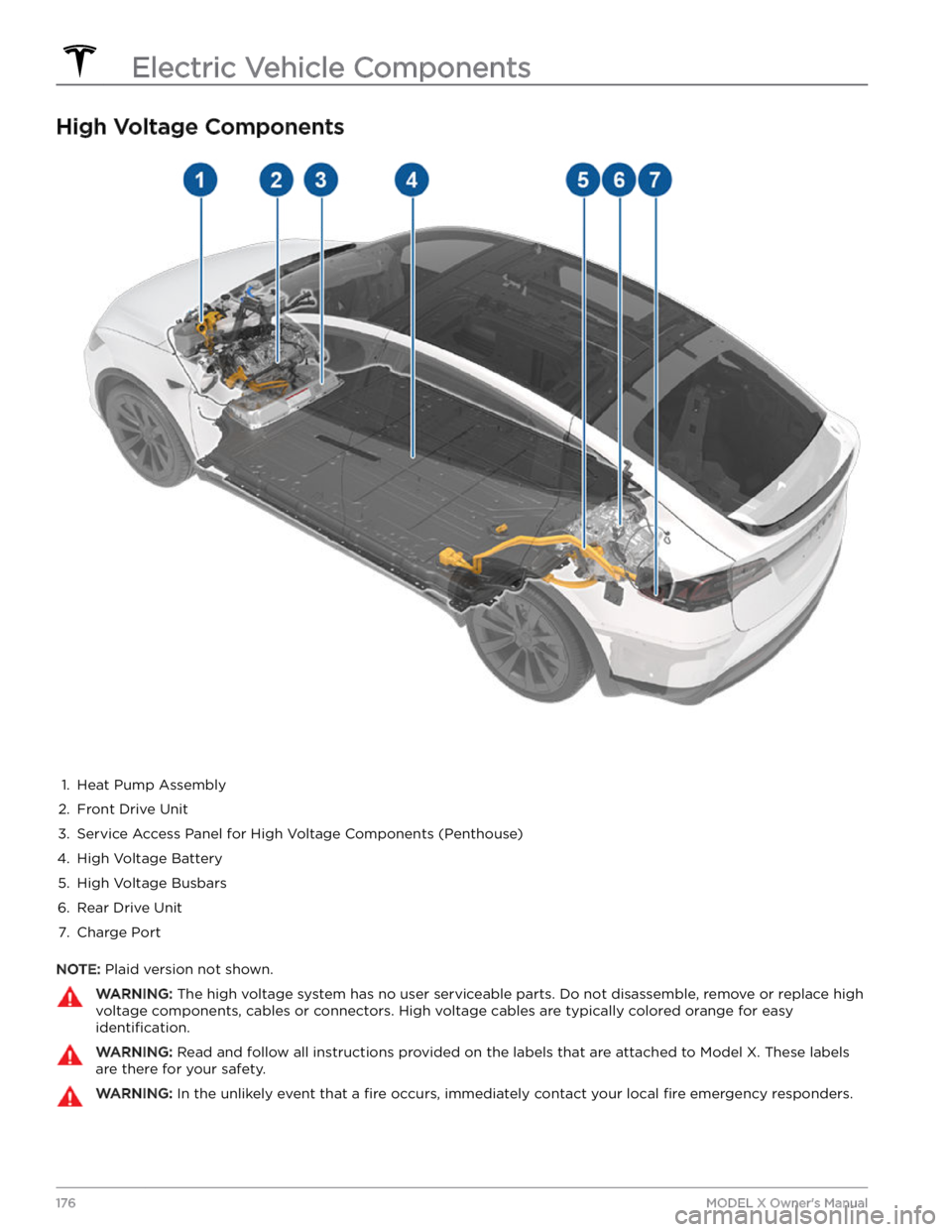
High Voltage Components
1.
Heat Pump Assembly
2.
Front Drive Unit
3.
Service Access Panel for High Voltage Components (Penthouse)
4.
High Voltage Battery
5.
High Voltage Busbars
6.
Rear Drive Unit
7.
Charge Port
NOTE: Plaid version not shown.
WARNING: The high voltage system has no user serviceable parts. Do not disassemble, remove or replace high
voltage components, cables or connectors. High voltage cables are typically colored orange for easy
identification.
WARNING: Read and follow all instructions provided on the labels that are attached to Model X. These labels
are there for your safety.
WARNING: In the unlikely event that a fire occurs, immediately contact your local fire emergency responders.
Electric Vehicle Components
176MODEL X Owner
Page 184 of 296
During Charging
During charging, the charge port light pulses green, and the
touchscreen displays real-time charging status. The
frequency at which the green charge port light pulses
slows down as the charge level approaches full. When charging is complete, the light stops pulsing and is solid green.
NOTE: If Model X is locked, the charge port light does
not light up.
If the charge port light turns red while charging, a fault
is detected. Check the
instrument panel or touchscreen
for an alert describing the fault. A fault can occur due to something as common as a power outage. If a power
outage occurs, charging resumes automatically when power is restored.
NOTE: The thermal system may produce steam under
certain conditions. For example, odorless steam can come from the front of your vehicle while charging at a Supercharger in cold temperature. This is normal and not a cause for concern.
NOTE: It is normal to hear sounds during charging.
Particularly at high currents, the refrigerant compressor and fan operate as needed to keep the Battery cool.
NOTE: Air conditioning performance is generally not
affected by charging. However, in some circumstances
(for example, charging at high currents during a particularly warm day), the air coming from the vents may not be as cool as expected and a message displays on the
instrument panel. This is normal and ensures that
the Battery stays within an optimum temperature range while charging to support longevity and optimum
performance.
WARNING: Never spray liquid at a high velocity
(for example, a pressure washer) towards the
charge port while charging. Doing so can result in
serious injury or damage to the vehicle, charging
equipment, or property.
Stopping Charging
Stop charging at any time by disconnecting the charge
cable or touching
Stop Charging on the touchscreen.
NOTE: To prevent unauthorized unplugging of the
charge cable, the charge cable latch remains locked and
Model X must be unlocked or able to recognize your key
before you can disconnect the charge cable.
To disconnect the charge cable:
1.
Press and hold the button on the connector handle to release the latch.
NOTE: You can also release the latch using the
touchscreen or mobile app, or by pressing and
holding the rear trunk button on the key fob.
If your
vehicle is equipped with a motorized charge port,
you can also press the button to the left of the
charge port to release the latch.
2.
Pull the connector from the charge port. The charge
port door automatically closes.
To disconnect the charge cable when using an adapter at a public charge station:
1.
Unlock Model X.
2.
While holding the public charging handle in one hand and the adapter in the other hand, press and hold the button on the public charging handle and pull both
outwards, removing the handle and adapter at the same time.
NOTE: If the charging station handle separates from
the adapter, leaving the adapter in
Model X, use the
touchscreen to unlock the charge port.
3.
Press and hold the button on the charging handle
again to release the adapter from the public charging handle.
NOTE: The charge port door automatically closes within
approximately 10 seconds of removing the connector from the charge port.
CAUTION: Tesla strongly recommends leaving
Model X plugged in when not in use. This
maintains the Battery at the optimum level of
charge.
Charge Settings
Access charge settings by touching Controls > Charging
when Model X is in Park.
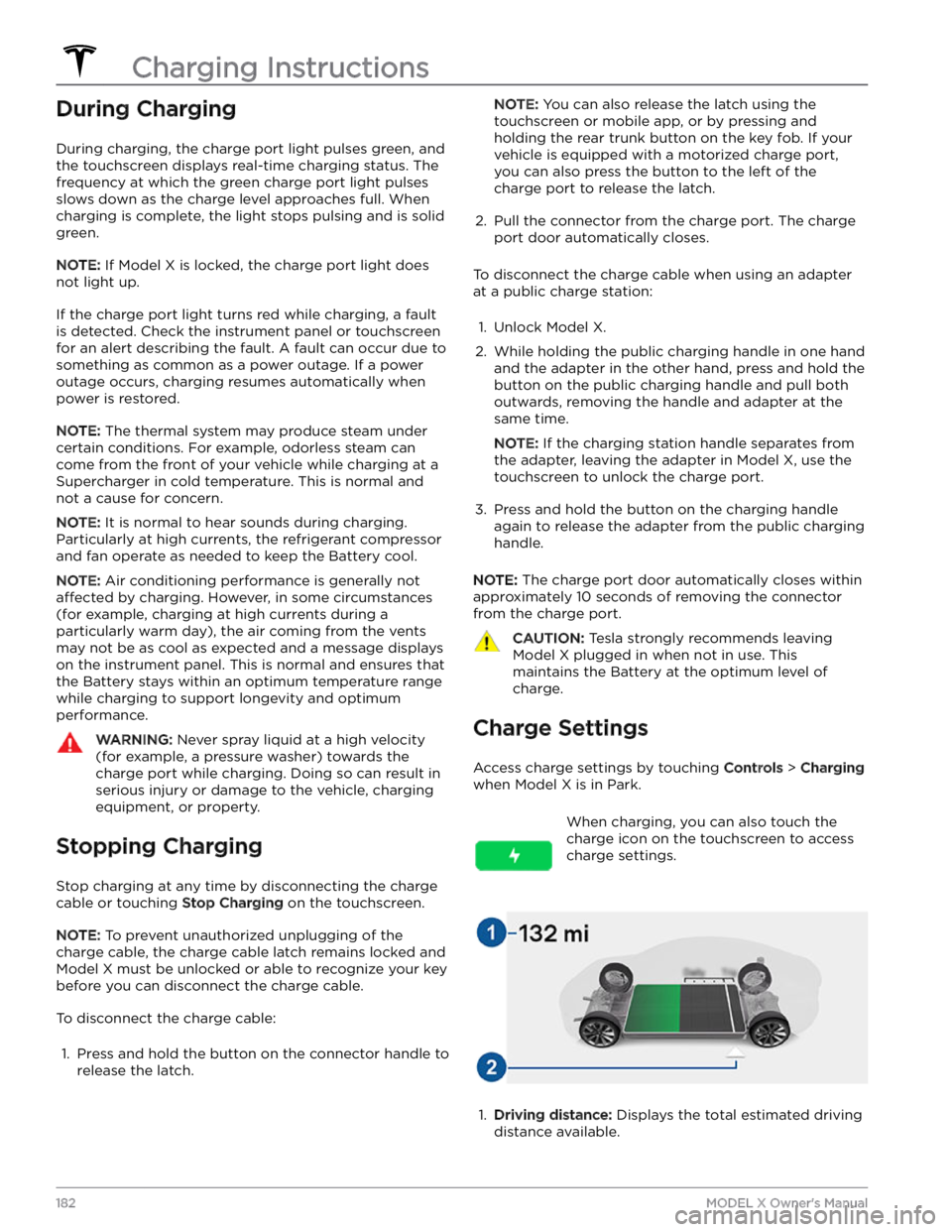
When charging, you can also touch the
charge icon on the touchscreen to access charge settings.1.
Driving distance: Displays the total estimated driving
distance available.
Charging Instructions
182MODEL X Owner
Page 195 of 296

2.
Maneuver the lug nut cover tool so that it is fully inserted into the hole in the lug nut cover.
3.
Twist the lug nut cover tool so that the curved part is
touching the middle of the lug nut cover.
4.
Firmly pull the lug nut tool away from the wheel until the lug nut cover is released.
To install the lug nut cover:
1.
Align the lug nut cover into position.
2.
Push firmly on the lug nut cover until it fully snaps
into place.
CAUTION: Make sure the lug nut cover is fully
secure before driving to prevent it from falling
off.
Wheel Configuration
If you are installing new wheels or swapping them for
different ones, update your vehicle
Page 198 of 296

Cleaning the Exterior
To prevent damage to the paint, immediately remove
corrosive substances (bird droppings, tree resin, dead insects, tar spots, road salt, industrial fallout, etc.). Do not wait until
Model X is due for a complete wash. If
necessary, use denatured alcohol to remove tar spots
and stubborn grease stains, then immediately wash the area with water and a mild, non-detergent soap to remove the alcohol.
Keep the exterior cameras free of dirt, condensation, or obstructions. These substances can cause unclear pictures or Autopilot and safety features to stop working (see
Cleaning a Camera on page 196).
Follow these steps when washing the exterior of
Model X:
1.
Rinse Thoroughly
Before washing, flush grime and grit from the vehicle
using a hose. Flush away accumulations of mud in areas where debris easily collects (such as wheel wells and panel seams). If salt has been used on the highways (such as during winter months), thoroughly
rinse all traces of road salt from the underside of the
vehicle, wheel wells, and brakes.
2.
Hand Wash
Hand wash Model X using a clean soft cloth and cold
or lukewarm water containing a mild, high-quality car
shampoo.
CAUTION: Some cleaners and car shampoos
contain chemicals that can cause damage or
discoloration, especially to plastic trim pieces,
lamps, or camera lenses. For example, some car
cleaning formulas contain hydroxide or other
highly alkaline or caustic ingredients that can
damage exterior components. Damage or
discoloration resulting from cleaning products
is not covered by the warranty.
3.
Rinse with Clean Water
After washing, rinse with clean water to prevent soap from drying on the surfaces.
4.
Dry Thoroughly and Clean Exterior Glass
After washing and rinsing, dry thoroughly with a chamois. If necessary, dry the brakes by going on a
short drive and applying the brakes multiple times.
Window Cleaning and Treatments
Clean windows and mirrors using an automotive glass
cleaner. Do not scrape or use any abrasive cleaning
fluid
on glass or mirrored surfaces. Follow the directions in
Cleaning the Exterior on page 196 for best practices in
cleaning the exterior glass.
To add a hydrophobic coating to your vehicle
Page 199 of 296
Cautions for Exterior CleaningCAUTION: Do not wash in direct sunlight.CAUTION: Do not use windshield treatment fluids.
Doing so can interfere with wiper friction and
cause a chattering sound.
CAUTION: Do not use hot water, detergents, or
highly alkaline or caustic cleaning products,
especially those containing hydroxide.
CAUTION: If using a pressure washer, maintain a
distance of at least 12" (30 cm) between the
nozzle and the surface of Model X. Avoid aiming
the water jet directly at parking sensors (if
equipped). Keep the nozzle moving and do not
concentrate the water jet on any one area.
CAUTION: Do not aim water hoses directly at
windows, door, or hood seals or at electronic
modules or exposed cabling.
CAUTION: To avoid corrosive damage that may
not be covered by the warranty, rinse away any
road salt from the underside of the vehicle, wheel
wells, and brakes. After cleaning the vehicle, dry
the brakes by going on a short drive and applying
the brakes multiple times.
CAUTION: Avoid using tight-napped or rough
cloths, such as washing mitts. A high-quality
microfiber cleaning cloth is recommended.
CAUTION: If washing in an automatic car wash, use
touchless car washes only. These car washes have
no parts (brushes, etc.) that touch the surfaces of
Model X. Some touchless car washes use caustic
solutions that, over time, can cause discoloration
of decorative exterior trim. Avoid exposure to
soaps and chemicals above pH 13. If unsure, check
the product label or ask the staff at the car wash.
Damage caused by improper washing is not
covered by the warranty.
CAUTION: If washing in an automatic car wash,
make sure the vehicle is locked. In addition, avoid
using controls on the touchscreen that can result
in accidentally opening doors or trunks while the
vehicle is being washed. Any damage caused is
not covered by the warranty.
CAUTION: Ensure the wipers are off before
washing Model X to avoid the risk of damaging the
wipers.
CAUTION: Do not use chemical based wheel
cleaners or pre-wash products. These can damage
the finish on the wheels.
WARNING: Never spray liquid at a high velocity
(for example, if using a pressure washer) towards
the charge port while Model X is charging. Failure
to follow these instructions can result in serious
injury or damage to the vehicle, charging
equipment, or property.
Cleaning the Interior
Frequently inspect and clean the interior to maintain its
appearance and to prevent premature wear. If possible,
immediately wipe up spills and remove marks. For
general cleaning, wipe interior surfaces using a soft cloth (such as
microfiber) dampened with a mixture of warm
water and mild non-detergent cleaner (test all cleaners on a concealed area before use). To avoid streaks, dry immediately with a soft lint-free cloth.
Interior Glass
Do not scrape, or use any abrasive cleaning fluid on
glass or mirrored surfaces. This can damage the
reflective surface of the mirror and the heating elements
in the rear window.
Airbags
Do not allow any substance to enter an airbag cover. This could
affect correct operation.
Dashboard and Plastic Surfaces
Do not polish the upper surfaces of the dashboard. Polished surfaces are
reflective and could interfere with
your driving view.
Seats
Wipe spills and chemical residues from interior surfaces as soon as possible using a soft cloth moistened with warm water and non-detergent soap. Wipe gently in a circular motion. Then wipe dry using a soft, lint-free cloth.
Although seating surfaces are designed to repel stains, Tesla recommends regular cleaning to maintain
performance and an as-new appearance. Promptly treat
dye transfer from clothing, such as indigo-dyed denim.
Avoid contact with harsh chemicals, including certain cosmetics. Never use cleaners containing alcohol or bleach. Spot-test cleaners on an inconspicuous area
before applying to visible surfaces.
If equipped with leather seats, note that leather is prone to dye-transfer which can cause discoloration, particularly on light colored leather. White and tan
leather is coated with an anti-soiling treatment. Using detergents or commercially available leather cleaners and conditioners is not recommended because they can discolor or dry out the leather.
Vacuum cloth seats as needed to remove any loose dirt.
CAUTION: Aftermarket, non-Tesla seat covers may
inhibit the sensitivity of a seat